¶ Issue Description
The touch screen or Fluidd displays an error message:
Error loading template virtual_sdcardon_error_gcode
¶ Reasons
-
Firmware settings are incorrectly modified.
-
The motherboard cooling fan or the motherboard is damaged.
¶ Troubleshooting Steps
¶ Tools needed for toubleshooting
-
An USB flash drive (FAT-32 format with a capacity of less than 16 GB)
-
A TF card (FAT32 with a block size of 4096 bytes and a capacity of less than 32 GB)
-
A 2.0 mm Allen key
-
A Phillips screwdriver
-
A multimeter
¶ Step 1 Load the fix pack and update the motherboard and touch screen firmware
Note: If the motherboard and touchscreen firmware have never been modified, refer to Step 2 for further troubleshooting.
How to load the fix pack and update the motherboard firmware and the
touch screen firmware for Neptune 4 Plus and Neptune 4 Max:
How to use the motherboard firmware and touch screen firmware
How to load the fix pack and update the motherboard firmware and the
touch screen firmware for Neptune 4 and Neptune 4 Pro:
How to update the motherboard firmware and the touch screen firmware
¶ Step 2 Check whether the motherboard cooling fan can rotate normally
-
On the touch screen, Select Control - Nozzle and set the nozzle temperature to 200°C.
-
Check whether the motherboard cooling fan can work normally once the nozzle temperature reaches 50°C.
Note: The firmware is configured to automatically activate the motherboard cooling fan and heat break cooling fan once the nozzle temperature reaches 50°C.
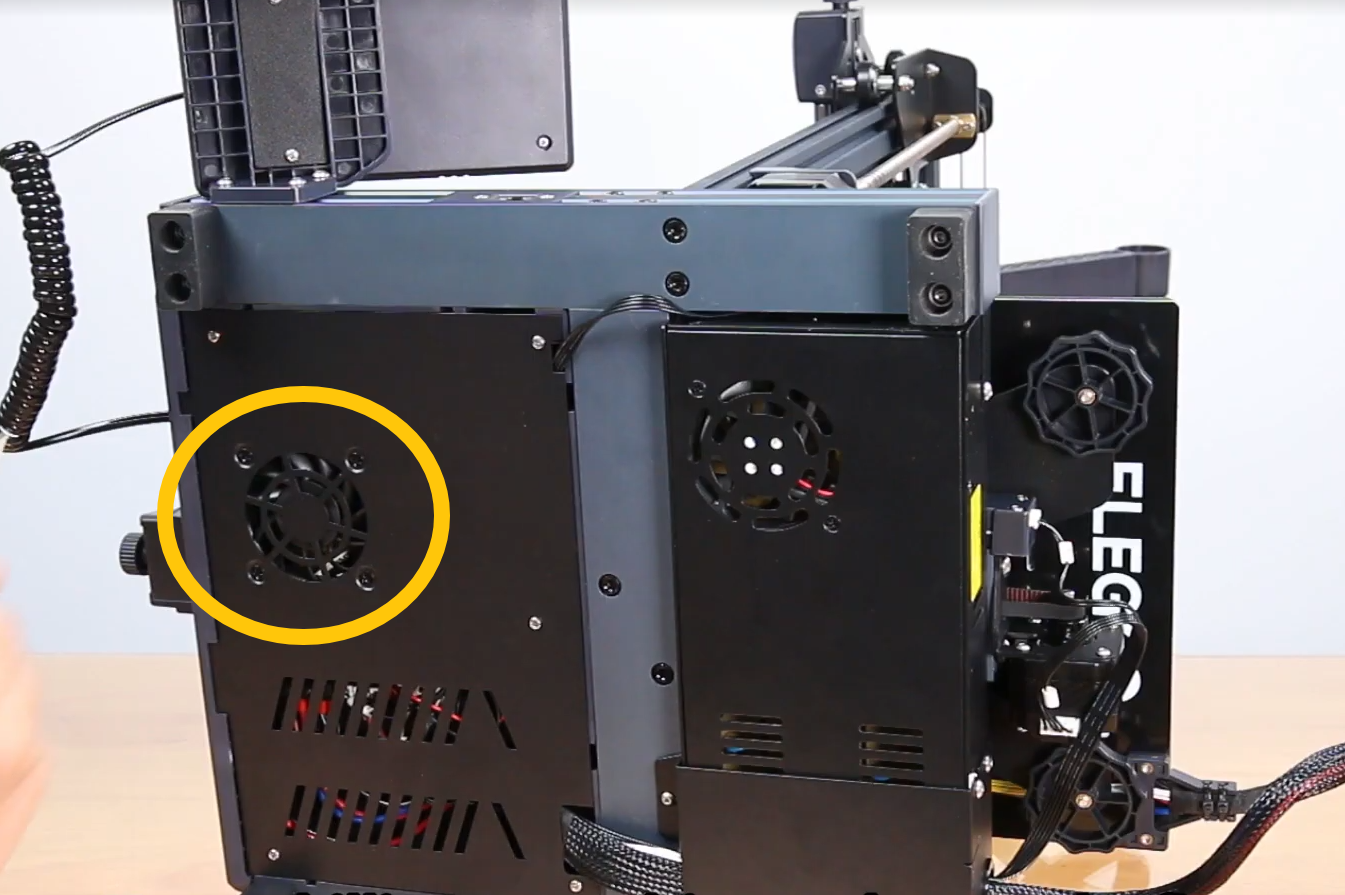
Motherboard position for Neptune 4 and Neptune 4 Pro:
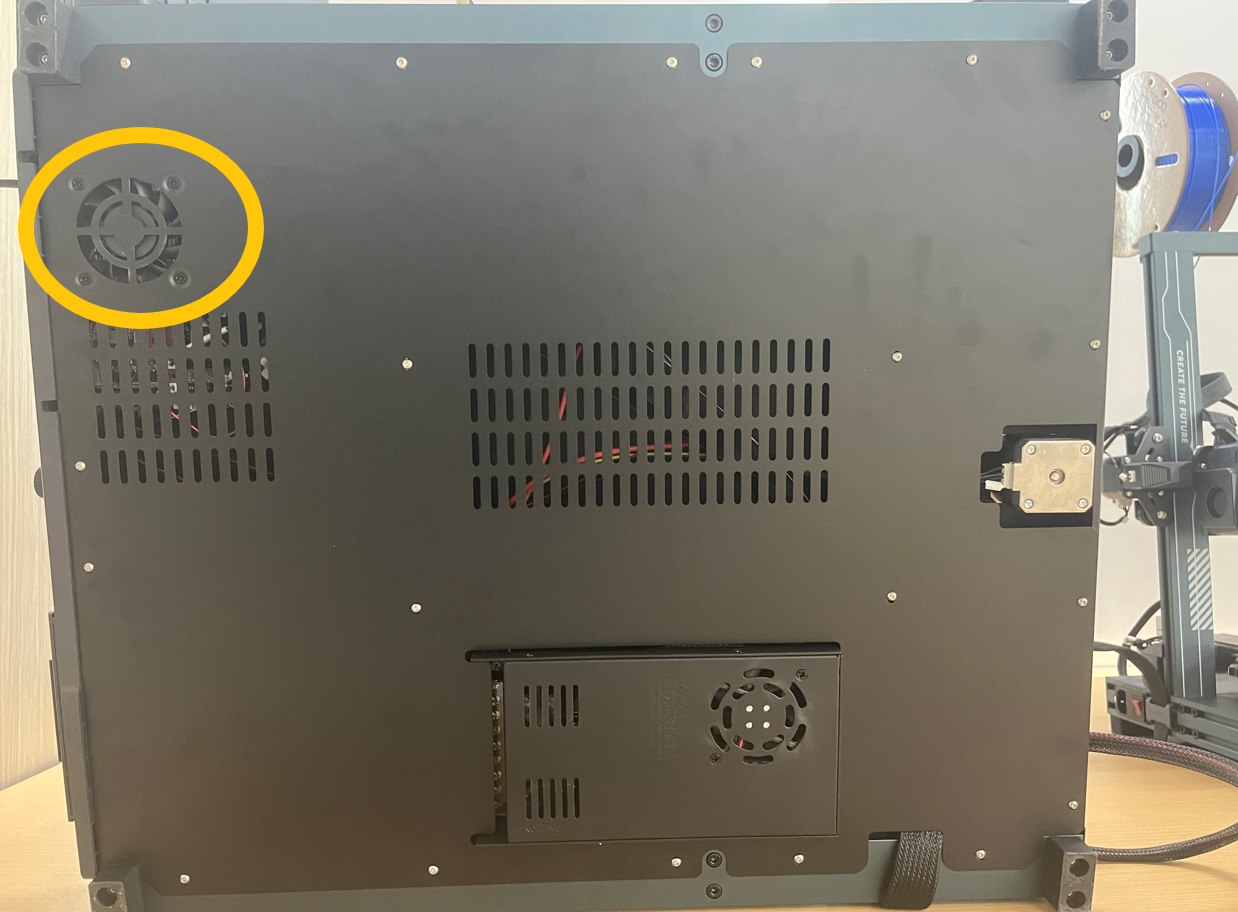
Motherboard position for Neptune 4 Plus and Neptune 4 Max:
¶ Step 3 If the motherboard cooling fan cannot rotate, check whether its plug is loose
-
Turn the power switch OFF (symbol "〇") and unplug the power supply cable.
-
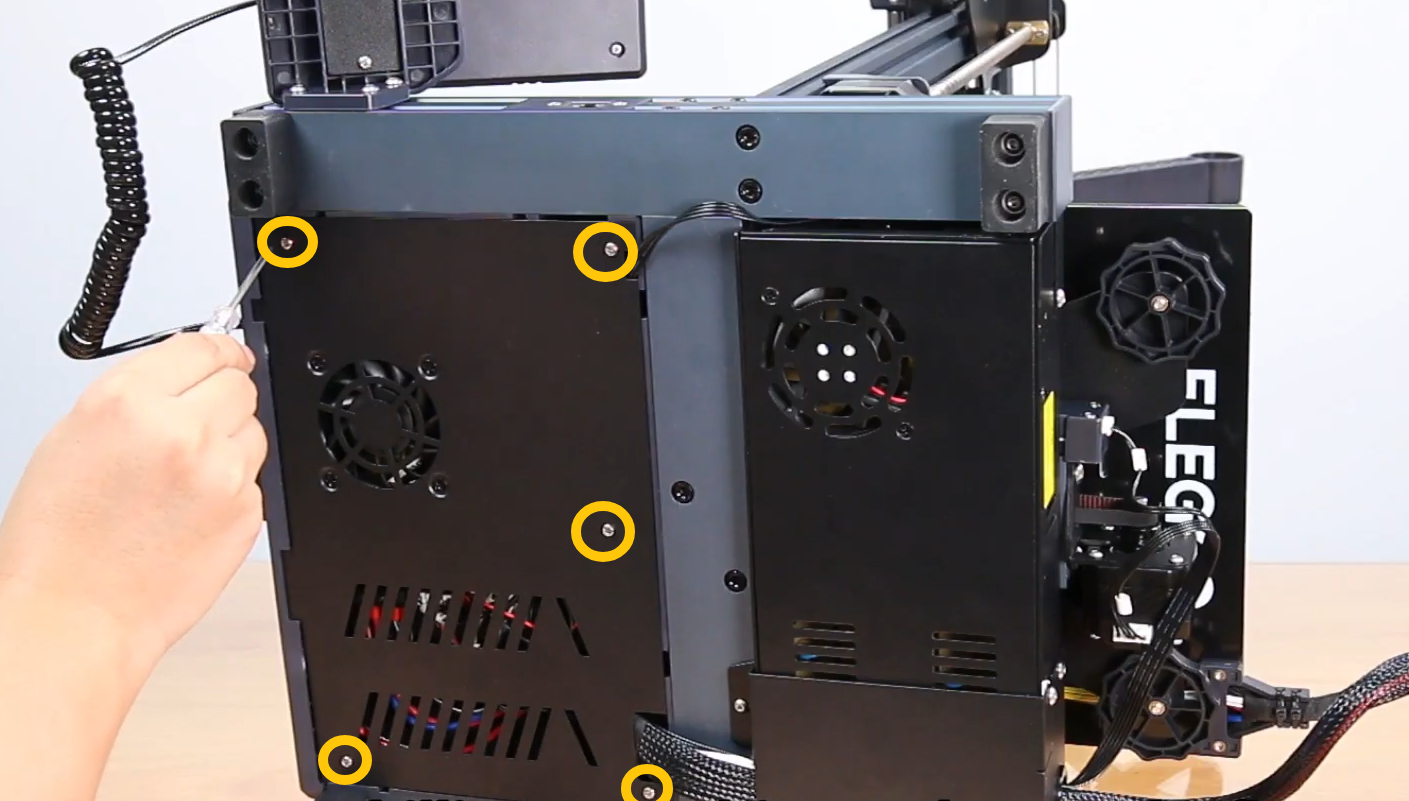
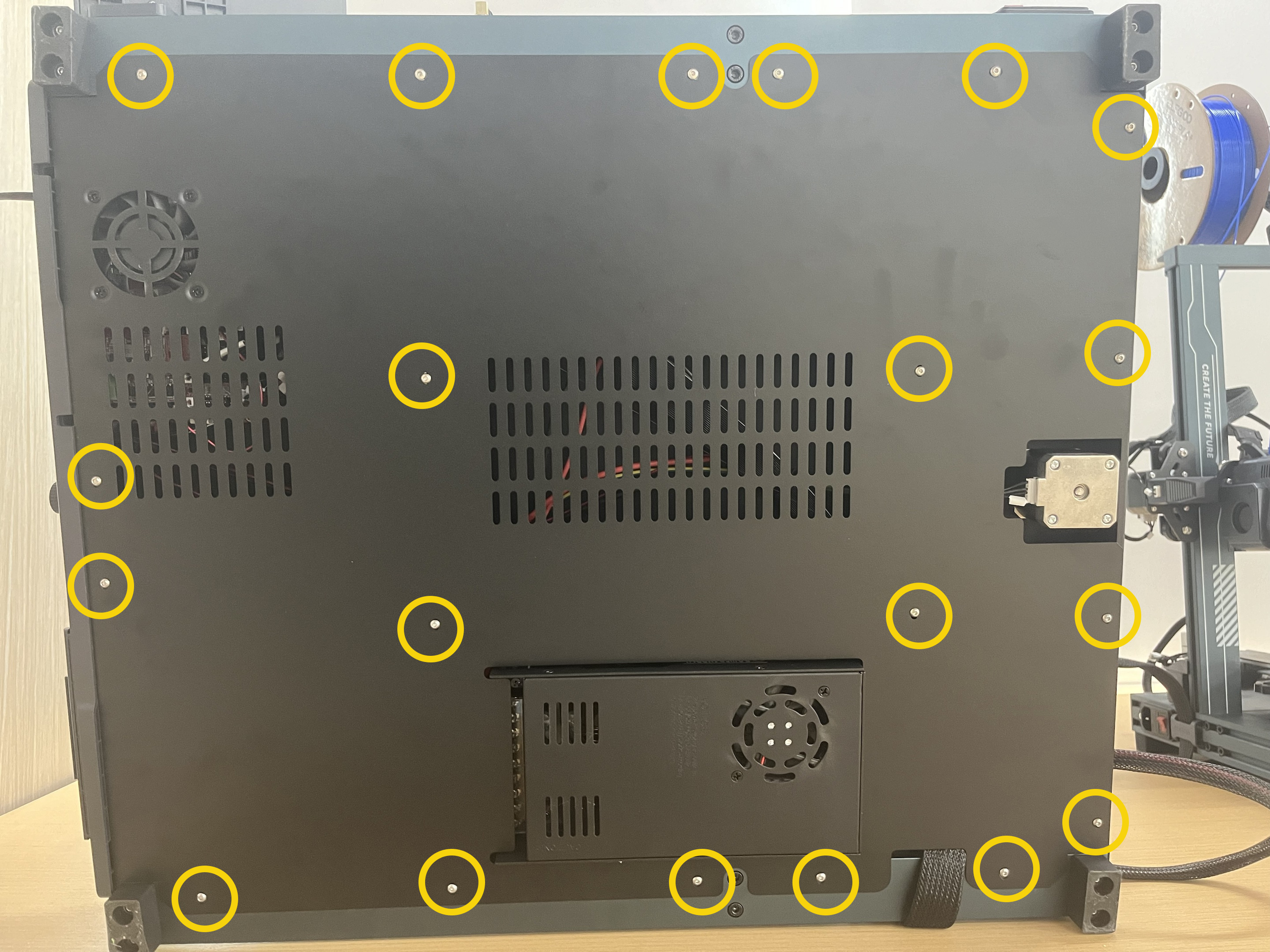
Release and remove the ten screws securing the bottom cover with a 2.0 mm Allen key and Phillips screwdriver.
-
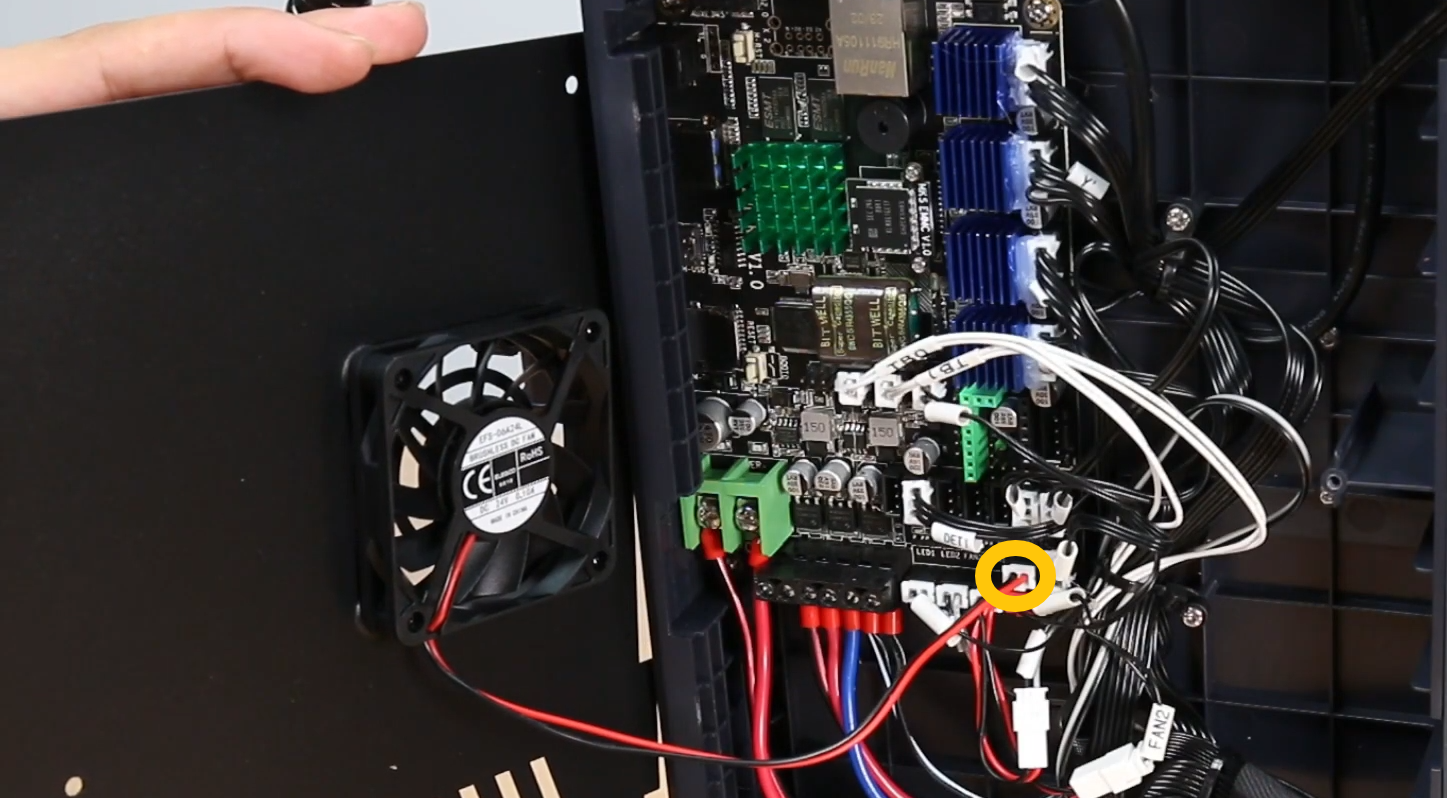
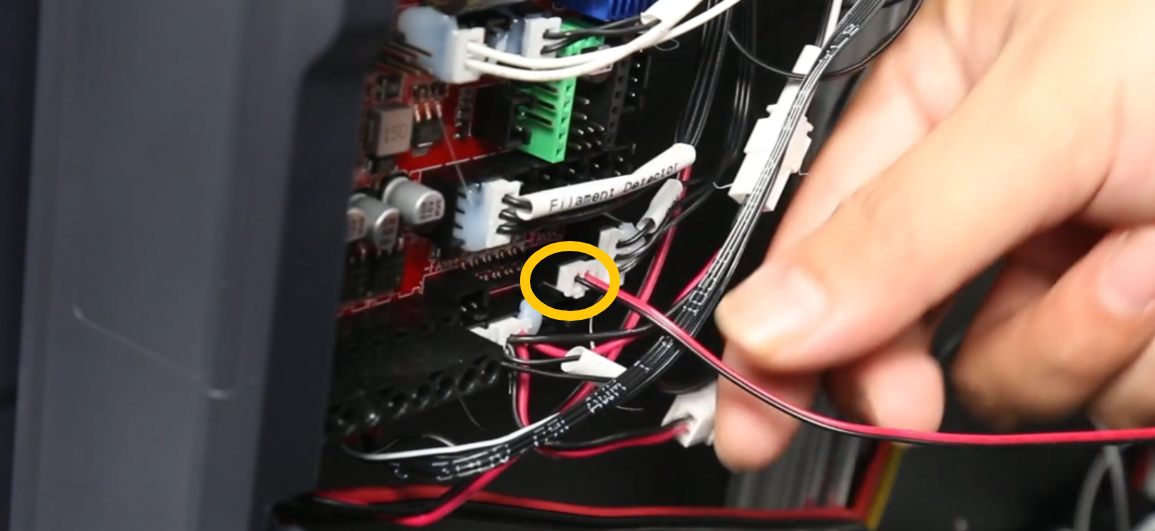
Re-plug the motherboard cooling fan plug and the adapter wire.
How to remove the bottom cover and find the motherboard cooling fan plug for Neptune 4 and Neptune 4 Pro:
How to remove the bottom cover and find the motherboard cooling fan plug for Neptune 4 Plus and Neptune 4 Max:
If the issue still occurs, refer to Step 4 for further troubleshooting.
¶ Step 4 If the motherboard cooling fan still cannot rotate, check whether its port has 24 V DC voltage
-
Plug in the power supply cable and turn the power switch ON (symbol "|").
-
On the touch screen, select Control - Nozzle and set the nozzle temperature to 200 ℃.
-
Test whether the motherboard cooling fan port has a voltage of 24 V DC with a multimeter.
-
If there is no voltage at the port, or if the voltage deviation is significant, it is necessary to replace the motherboard.
-
If there is voltage at the port, it is necessary to replace the motherboard cooling fan.
If the motherboard cooling fan still cannot rotate, refer to Step 5 for further troubleshooting.
¶ Step 5 Check that the heat break cooling fan can rotate normally
-
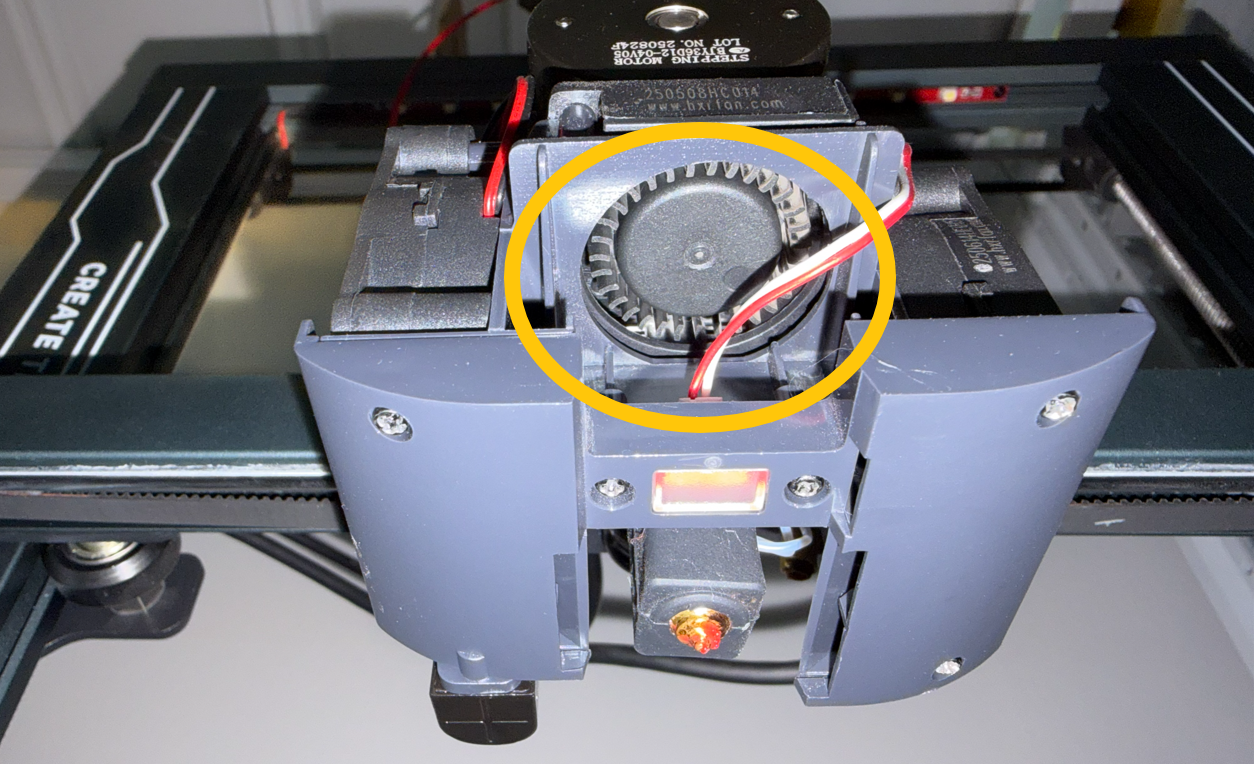
The motherboard fan and heat break fan are connected in parallel. If a multimeter is unavailable, set the nozzle temperature to 200°C.
-
Check whether the heat break fan starts rotating normally once the nozzle temperature reaches 50°C.
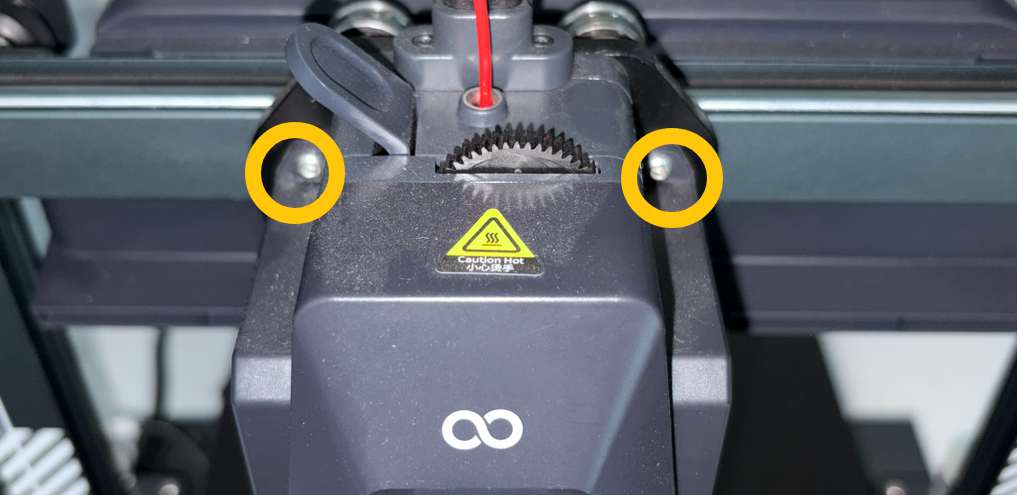
Note: Remove the two screws securing the extruder housing and you can inspect the heat break cooling fan.
-
If the heat break fan cannot rotate, it is necessary to replace the motherboard.
-
If the heat break fan rotates normally, it is necessary to replace the motherboard cooling fan.