¶ Important Notice
Installing incorrect firmware will brick the printer. Before updating the firmware, please first confirm your printer version according to the instructions below.
Neptune 4 Series: How to Identify Your Printer Version.
¶ Tools and materials needed for troubleshooting
-
A USB flash drive (FAT-32 format, less than 16 GB capacity)
-
A TF card (less than 32GB capacity)
-
A 2.0 mm Allen key
¶ Preparation
- Click the link below and download the package.
https://www.elegoo.com/pages/download
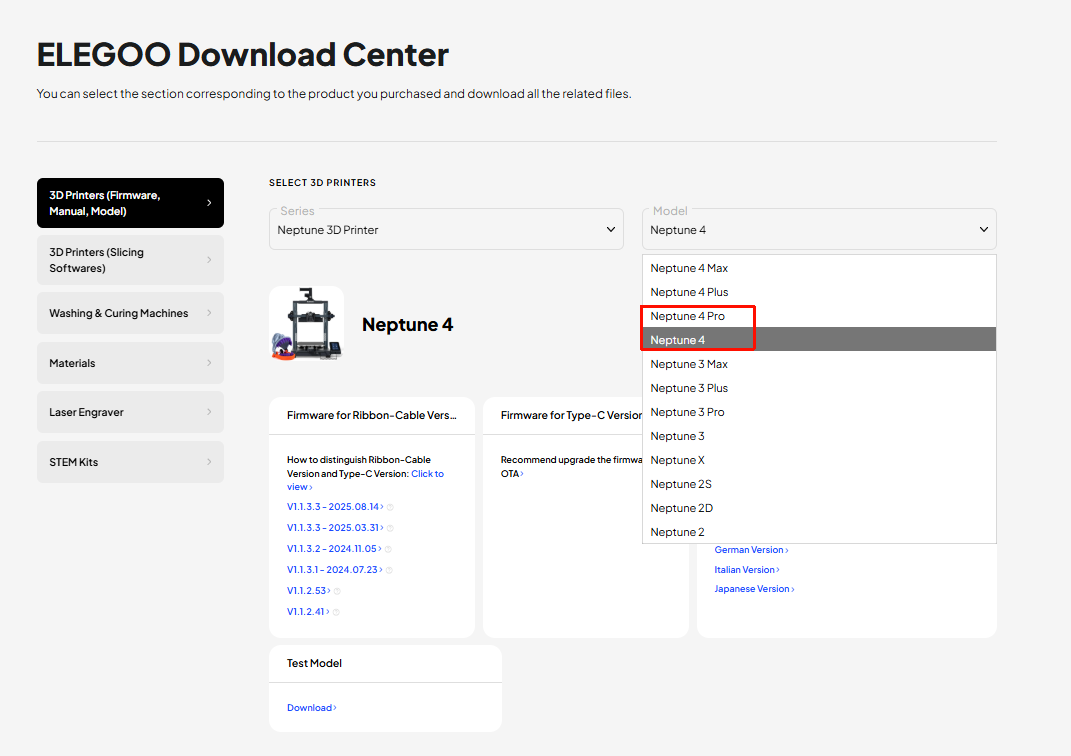
- Confirm the package folders corrsponding to your printer.
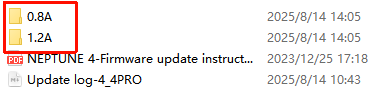
a. After unzipping the package, you can find two folders named 0.8A and 1.2A.
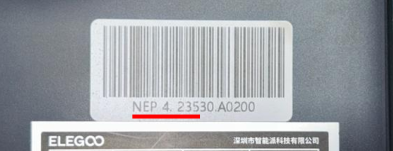
b. Check the label in the lower left corner of your printer:
-
If NEP 4. 234, NEP 4. 235, NEP 4. 236 is displayed, select the 0.8A folder.
-
If other serial numbers are displayed, select the 1.2A folder.
¶ Update the motherboard firmware and touch screen firmware.
¶ Update the motherboard firmware
-
Format the USB flash drive.
-
Turn the power switch OFF (symbol "〇").
-
Copy the "ELEGOO_UPDATE_DIR" folder in the firmware pack to the root directory of the USB flash drive.
Note: The root directory can be accessed by double-clicking the USB flash drive.

-
Insert the USB flash drive into the printer.
-
Turn the power switch ON (symbol "|").
-
On the touch screen, select Settings - Info - Upload - Confirm.
-
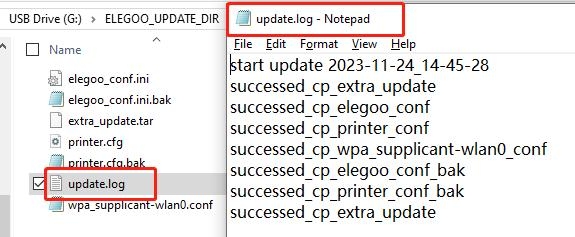
Check the USB flash drive and if a file named "update.log" is created, the motherboard firmware is updated successfully.
¶ Update the touch screen firmware
-
Format the TF card.
-
Copy the ".tft" format file to the root directory of the USB flash drive.
Note: The root directory can be accessed by double-clicking the USB flash drive. -
Turn the power switch OFF (symbol "〇").
-
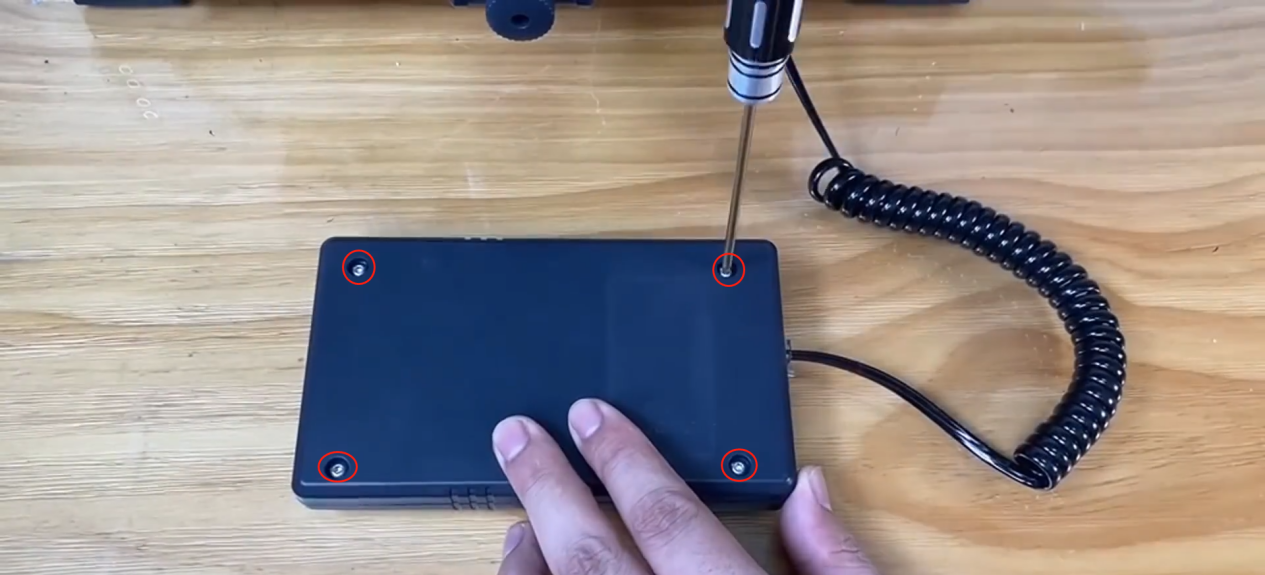
Remove the touch screen and loosen the four screws securing the back cover with a 2.0 mm Allen key. Remove the back cover.
-
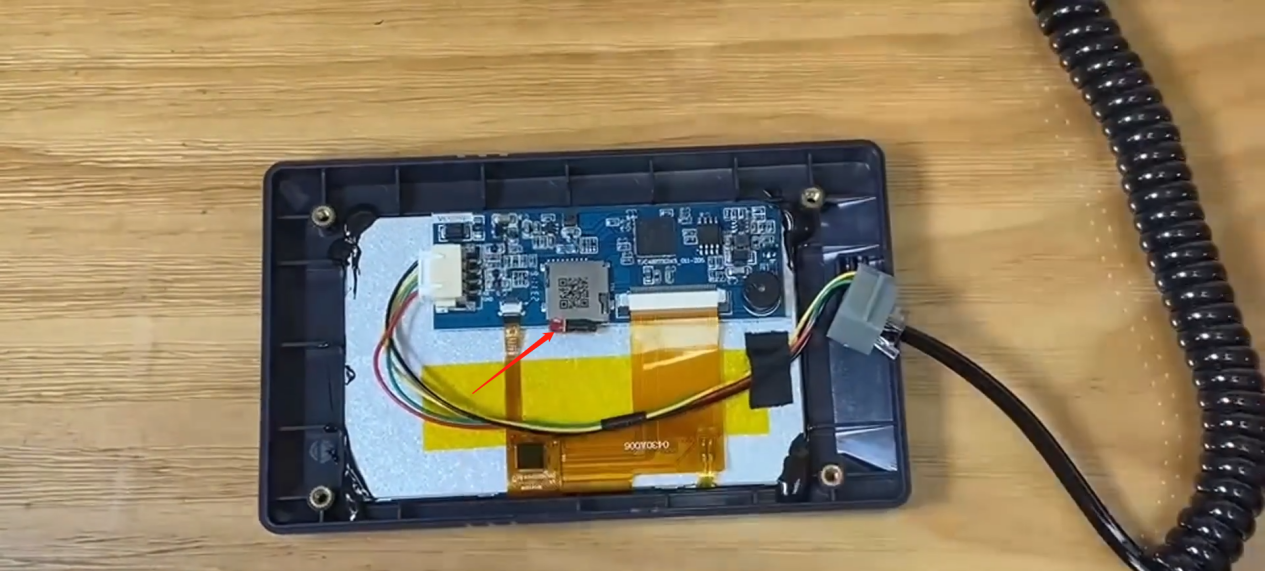
Insert the TF card into the slot.
-
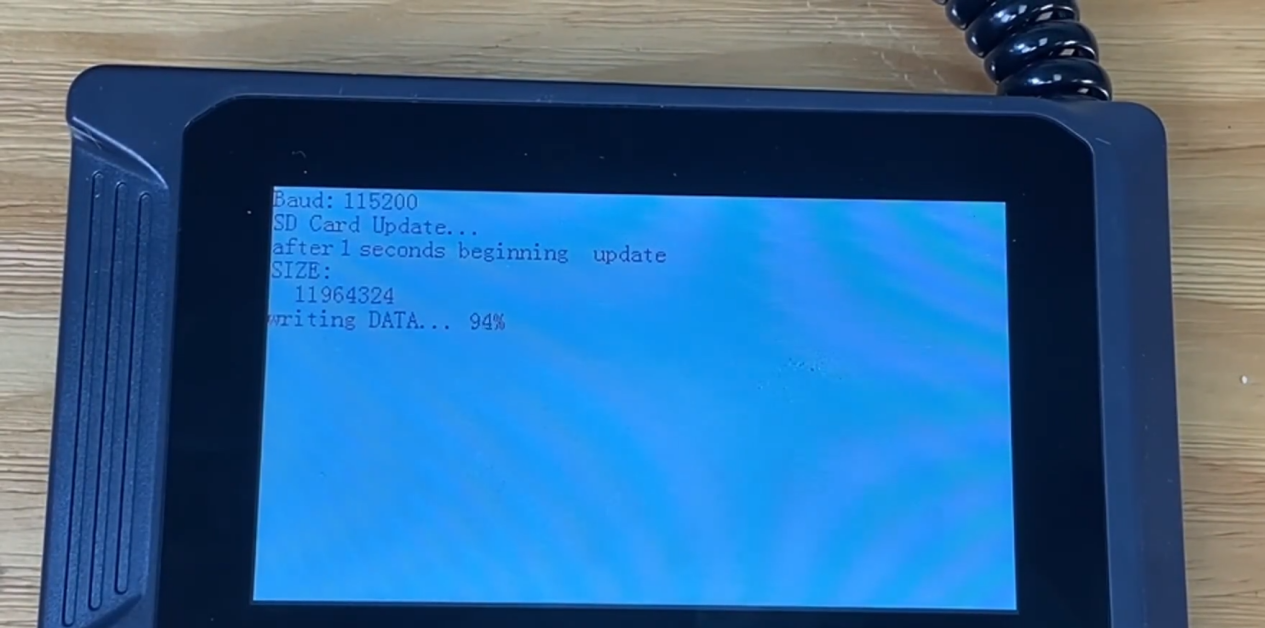
Turn the power switch ON (symbol "|"). Wait for the firmware update process to finish.
-
Turn the power switch OFF (symbol "〇"). Remove the TF card and install the back cover of the touch screen.
-
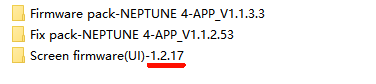
Turn the power switch ON (symbol "|"). On the touch screen, click Settings - Info and check the UI version displayed on the touch screen is the same as the that of the package name.