¶ Important Notice
Do not update the Neptune 4 Plus+/Neptune 4 Max+ with the Fix Pack,This may brick the printer.
Before updating the firmware, please first confirm your printer version according to the instructions below.
Neptune 4 Series: How to Identify Your Printer Version.
¶ Tools and materials needed
- A USB flash drive (FAT-32 format, less than 16 GB capacity)
¶ Tutorial Video
From 0:27 to 1:27
https://www.youtube.com/watch?v=TC-Y0lonv74
¶ Operation Steps
¶ Prearation
-
Plug in the power supply cable. Turn the power switch ON (symbol "|").
-
On the touch screen, select Settings - About Machine and check the current firmware version.
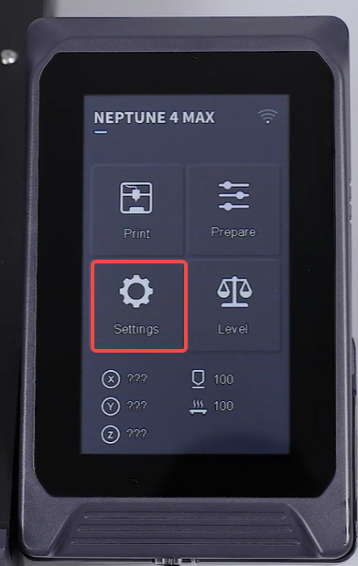
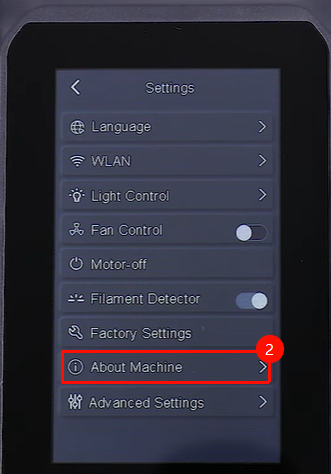
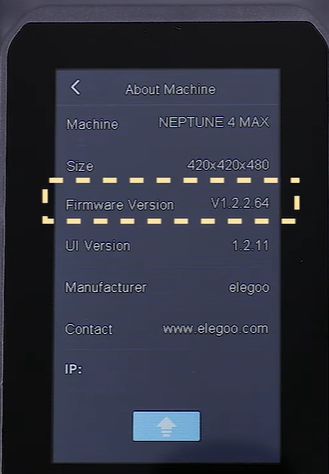
-
If the firmware version is lower than V1.2.2.65, install the fix pack first.
-
If the firmware version is V1.2.2.65 and above, refer to How to use the motherboard firmware and touch screen firmware to update the motherboard firmware and the touch screen firmware.
¶ Preparation before installing the fix pack
-
Click the link below and download the package.
https://www.elegoo.com/pages/download
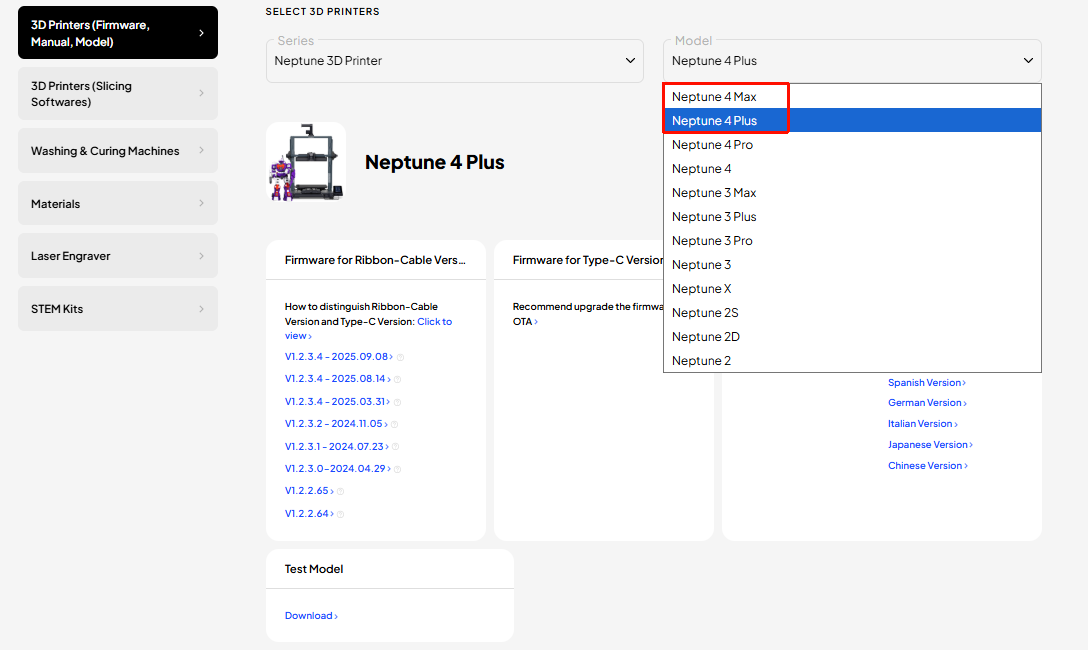
-
Format the USB flash drive.
-
Turn the power switch OFF (symbol "〇").
¶ Install the fix pack
-
Copy the ELEGOO_UPDATE_DIR folder into the root directory of the USB flash drive.
Note: The root directory can be accessed by double-clicking the USB flash drive.
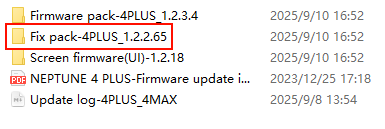
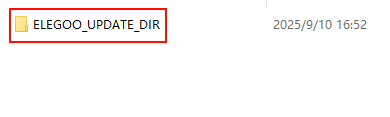
-
Insert the USB flash drive into the printer.
-
Turn the power switch ON (symbol "|") and wait for the printer rebot again.
-
Remove the USB flash drive and insert in into your PC.
-
If two folders named "fix_klipper_succssed" and "fix_tag" are created in the ELEGOO_UPDATE_DIR folder, it indicates that the fix pack is installed successfully.