¶ Issue description
- After powering on the printer, the touchscreen cannot access the menu interface for more than a minute and keeps displaying the loading icon.

- After powering on the printer, the touchscreen directly enters the settings interface, and the motherboard firmware is missing.

¶ Reasons
¶ Hardware issues
- The eMMC module, motherboard, or touchscreen is damaged.
- The externally connected accessories have short circuit.
¶ Firmware issues
- Firmware settings are incorrectly modified.
- Motherboard firmware has crash.
- An unofficial firmware is installed.
¶ Tools needed for troubleshooting
- An eMMC adapter
- A type-C data cable
- A TF card - FAT-32 format, less than 32 GB memory
- An USB flash drive - FAT-32 format, less than 16 GB memory
¶ Troubleshooting steps
¶ Step 1 Check the externally connected accessories
- Power off the printer power.
- Unplug the plugs of the U flash drive, the filament runout sensor and the ganty led.
- Restart the printer and check if the printer touchscreen can access the menu interface.
If the touchscreen can access the menu after unplugging all three connectors simultaneously, it indicates that one of the connectors may be short-circuited.
Power off the printer and plug in one connector at a time to check which connector prevents the touchscreen from accessing the menu. If the printer cannot access the menu when a specific connector is plugged in, then the corresponding part needs to be replaced.
- USB flash drive
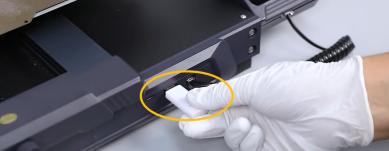
- Filament runout sensor
- Ganty led

¶ Step 2 Update the fix pack.
-
Download the fix pack via official link.
https://www.elegoo.com/pages/download

-
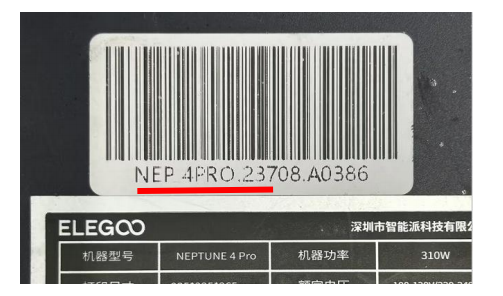
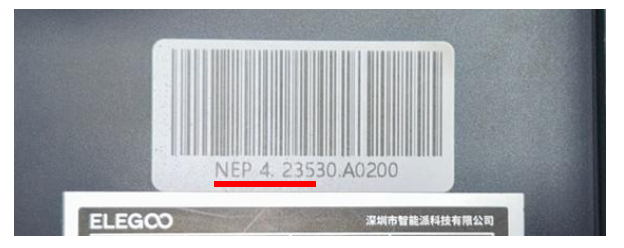
Select the corresponding firmware version based on the first six digits of the printer's serial number (SN).
Note: If the first six digits of this printer's SN are: NEP 4.234 / NEP 4.235 / NEP 4.236 / NEP 4PRO.234 / NEP 4PRO.235, select firmware 0.8A. Otherwise, select 1.2 A.

-
Find the fix pack in the firmware package.

-
Copy the fix pack to the root directory of the USB flash drive.
Note:
- Double-click the USB drive icon and enter the root directory.
- The USB flash drive for the Neptune 4 series printer must be in FAT-32 format and have less than 16GB of memory.
- The other files in the USB flash drive must be deleted.
- Insert the USB flash drive into the printer and restart the printer.
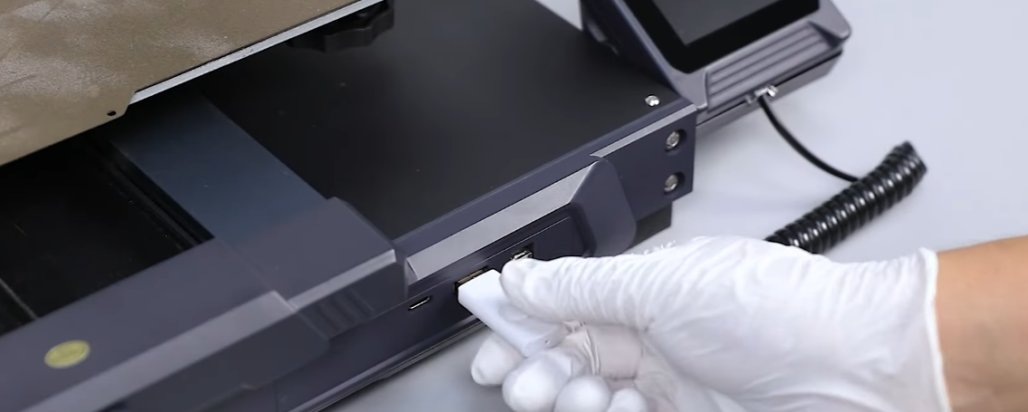
- After powering on, wait approximately two minutes for the fix pack to complete installation.
If you can access the touchscreen interface, do not start printing immediately.
Update the motherboard and touchscreen firmware again. Refer to the links below:
https://wiki.elegoo.com/machines/neptune/maintenance/neptune-4-series/mainboard-firmware-update
How to update touchscreen firmware:
https://wiki.elegoo.com/machines/neptune/maintenance/neptune-4-series/touch-screen-firmware-update
If you still cannot access the touchscreen interface at this point, go to steps 3 and 4 for further troubleshooting.
¶ Step 3 Re-update the motherboard firmware using a USB-C data cable.
- Check if the fix pack was updated successfully.
- Unplug the USB drive from the printer and plug it into the computer.
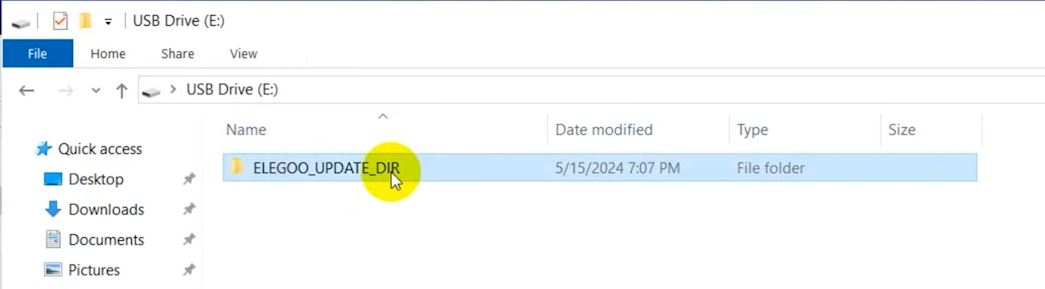
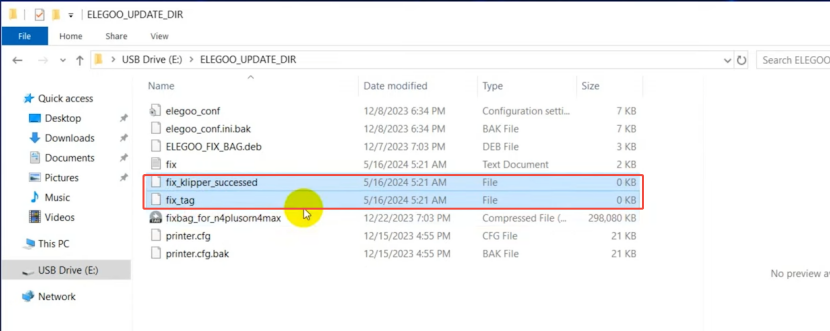
- Locate the ELEGOO_UPDATE_DIR folder and check if the following two files have been generated in this folder:
fix_klipper_successed
fix_tag
-
If these two files already exist, please try updating the motherboard firmware using a USB-C data cable. Refer to the link below to update the motherboard firmware.
How to update motherboard firmware using a USB-C data cable:https://www.youtube.com/watch?v=bYAPmkKw7KA
Putty download link:https://www.chiark.greenend.org.uk/~sgtatham/putty/latest.html -
If the USB drive does not contain these two files, go to step 4 and step 5 for further troubleshooting.
¶ Step 4 Reinstall the image file.
Refer to the tutorial and reinstall the image file.
https://wiki.elegoo.com/neptune/neptune-4/image-installation-methods
Note: As the Neptune 4 series printers use a custom version of Klipper, do not update the firmware via fluidd.
Firmware updates via fluidd are not the official firmware for the Neptune 4 series printers and will brick your printer.
¶ Step 5 Replace the eMMC module, motherboard, or touchscreen.
If the issue still occurs, it indicates that the eMMC module, motherboard, or touchscreen may be damaged.
If you have other Neptune 4 series printers, you can temporarily use their touchscreens. Check if you can access the menu interface after replacing the touchscreen.
If you can access the menu interface after replacing the touchscreen, then you need to replace the touchscreen. Otherwise, you need to replace the eMMC module or motherboard.
¶ Still have issues?
If the issue persists after completing the above troubleshooting steps, contact the ELEGOO technical support team.