¶ Issue Description
Th touch screen displays the error message during printing:
Please run 'SDCARD RESET FILE' or 'FIRMWARE RESTART' to resume.!! Unable to parse move
¶ Reasons
-
The .gcode file is damaged or includes illegal characters.
-
The firmware configuration file is abnormal.
¶ Troubleshooting Steps
¶ Tools needed for troubleshooting
-
A USB flash drive (FAT32 format with a capacity of less than 16GB)
-
TF card (FAT32 format with 4096 bytes and a capacity of less than 32GB)
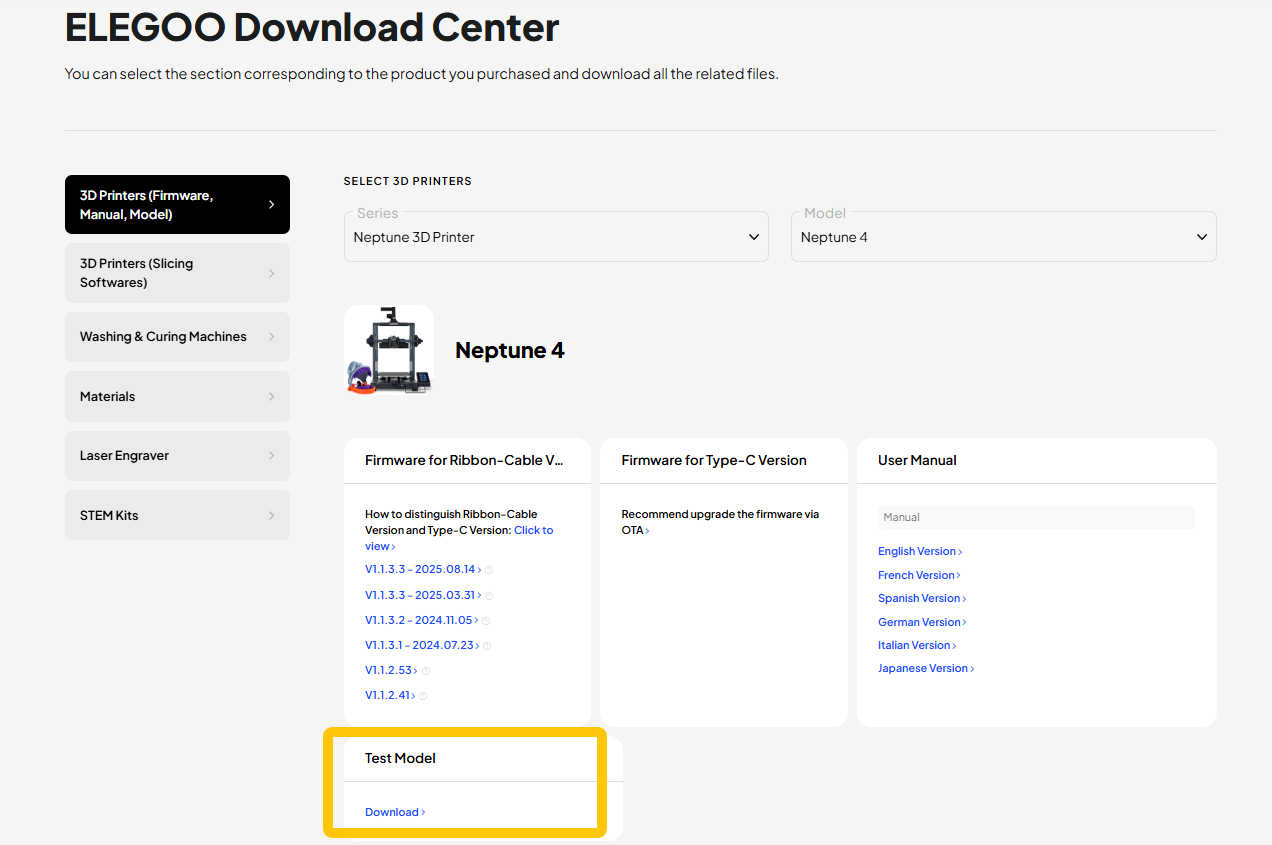
¶ Step 1 Print the model in the USB Flash Drive for testing
The USB flash drive test file is sliced with the default settings of ELEGOO Slicer or ELEGOO Cura.
If the file on the USB flash drive is deleted, you can find it on our official website at.
https://www.elegoo.com/pages/download.
-
If the error still occurs when printing the test file, refer to Step 3 for further troubleshooting.
-
If the error does not occur when printing the test file, refer to Step 2 for further troubleshooting.
¶ Step 2 Re-slice the model with ELEGOO Slicer or ELEGOO Cura
- Download ELEGOO Cura or ELEGOO Slicer from the following links.
ELEGOO Cura download link: https://github.com/ELEGOO-Slicer/ELEGOO-Cura4.8.0/releases/tag/4.8.0_1.1.1.0
ELEGOO Slicer download link: https://github.com/ELEGOO-3D/ElegooSlicer/releases
ELEGOO Cura User Manual: ELEGOO Cura Quick Start Guide | ELEGOO Wiki
ELEGOO Slicer User Manual: https://elegoo-downloads.oss-us-west-1.aliyuncs.com/tutorials/Centauri Carbon/Accompanying/ElegooSlicer User Manual_V1.9.pdf
-
Install ELEGOO Cura or ELEGOO Slicer.
-
Load the model to be printed into ELEGOO Cura or ELEGOO Slicer, re-slice the model with the default settings, and then upload the .gcode file to the printer for printing.
Note: When re-exporting the .gcode file, name the file with only English letters or numbers. Do not add special characters to the .gcode file name.
¶ Step 3 Update the fix pack, motherboard firmware and touch screen firmware
How to update the fix pack, motherboard firmware and touch screen firmware for Neptune 4 Plus and Neptune 4 Max:
How to use the motherboard firmware and touch screen firmware
How to update the fix pack, motherboard firmware and touch screen firmware for Neptune 4 and Neptune 4 Pro:
How to update the motherboard firmware and the touch screen firmware