¶ Problem Symptoms
- Missing Surface Data: Some areas of the object are not captured, resulting in holes or gaps in the 3D model.
- Unclear Details: Textures, edges, or grooves on the object appear blurry or indistinct in the generated model.
¶ Troubleshooting Steps
¶ 1. Check the Object's Surface
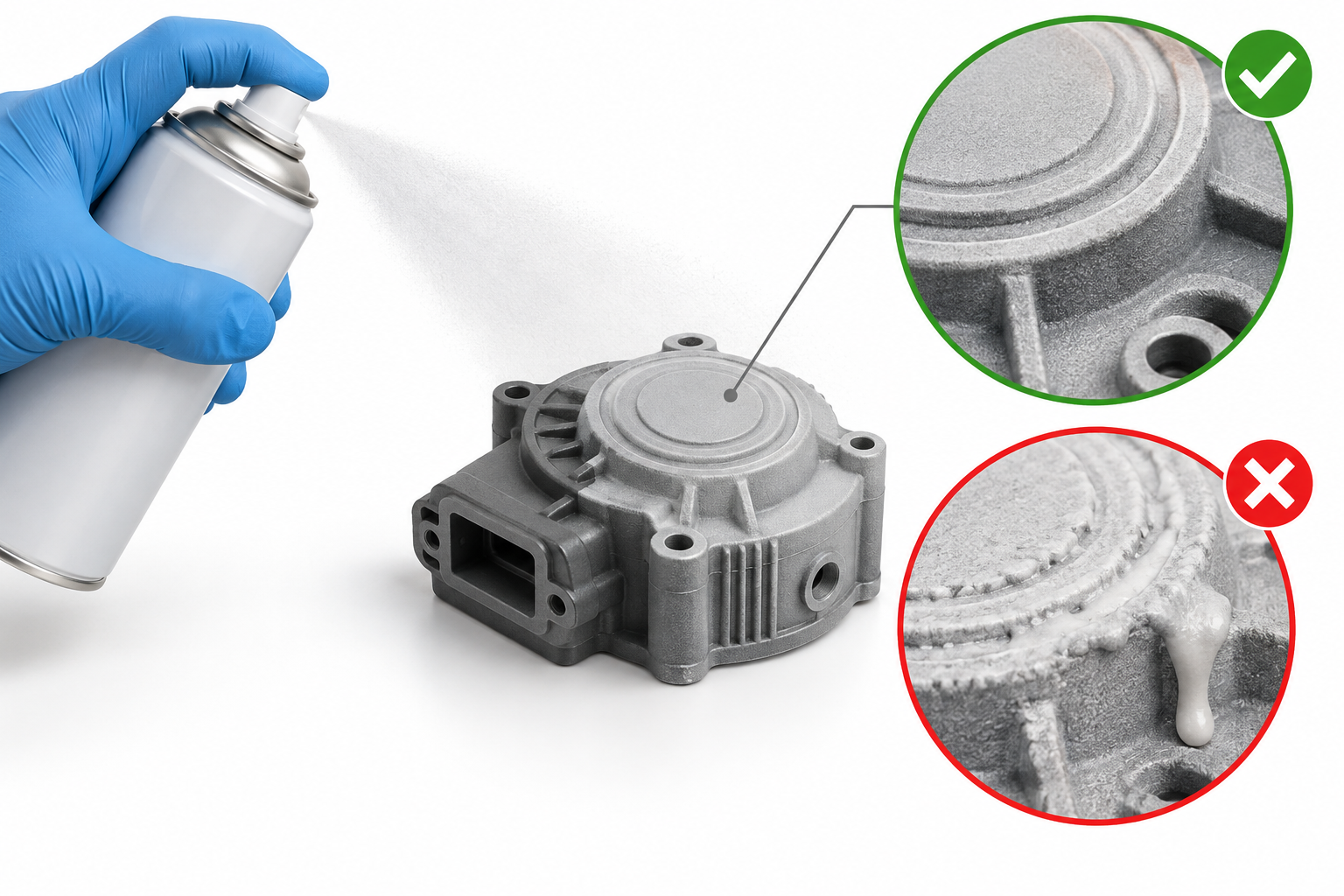
Black, reflective, or transparent surfaces can be difficult to scan. If necessary, use a suitable 3D scanning spray / matting spray for the material. Test it on an inconspicuous area first, then apply a thin, even coat to avoid obscuring fine details.
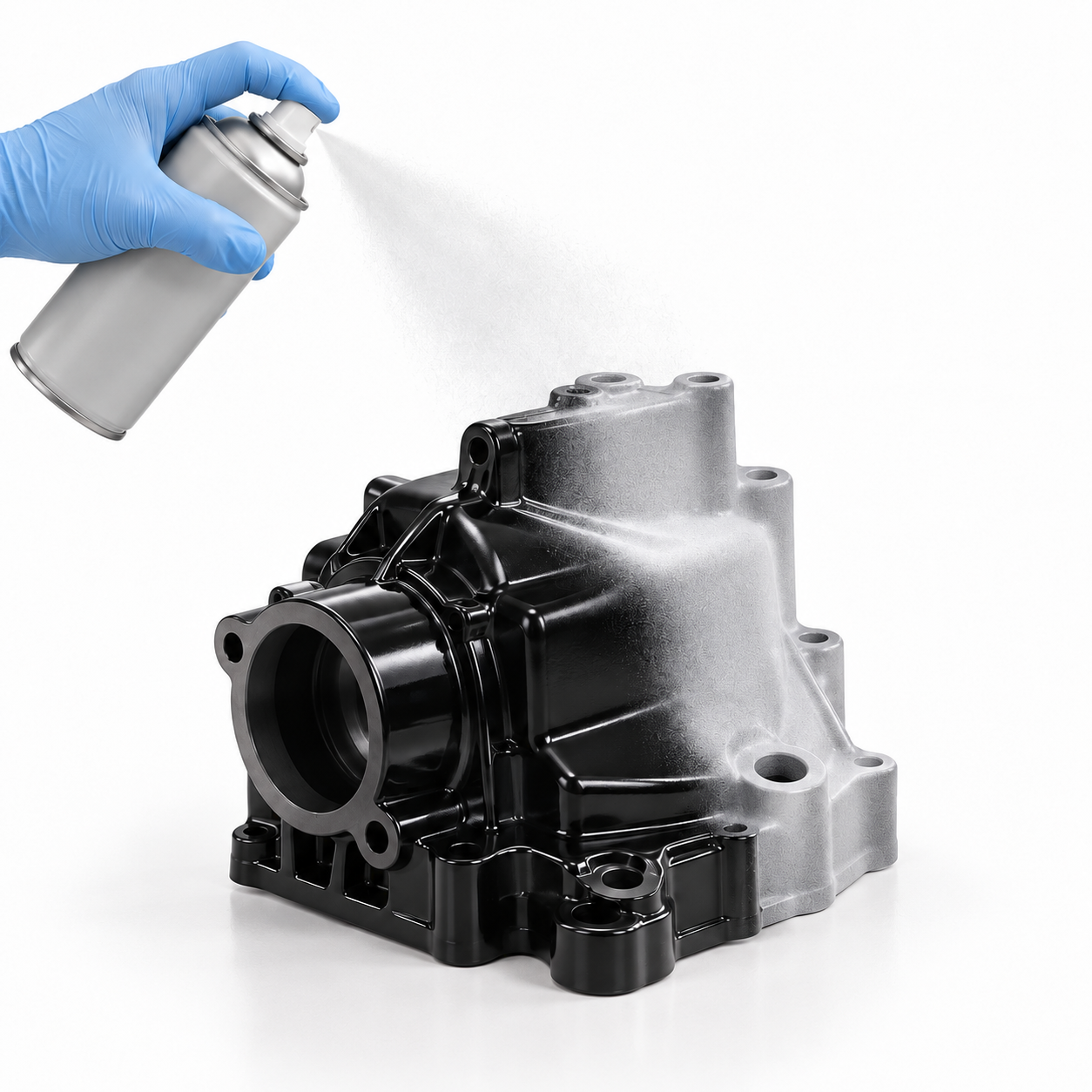
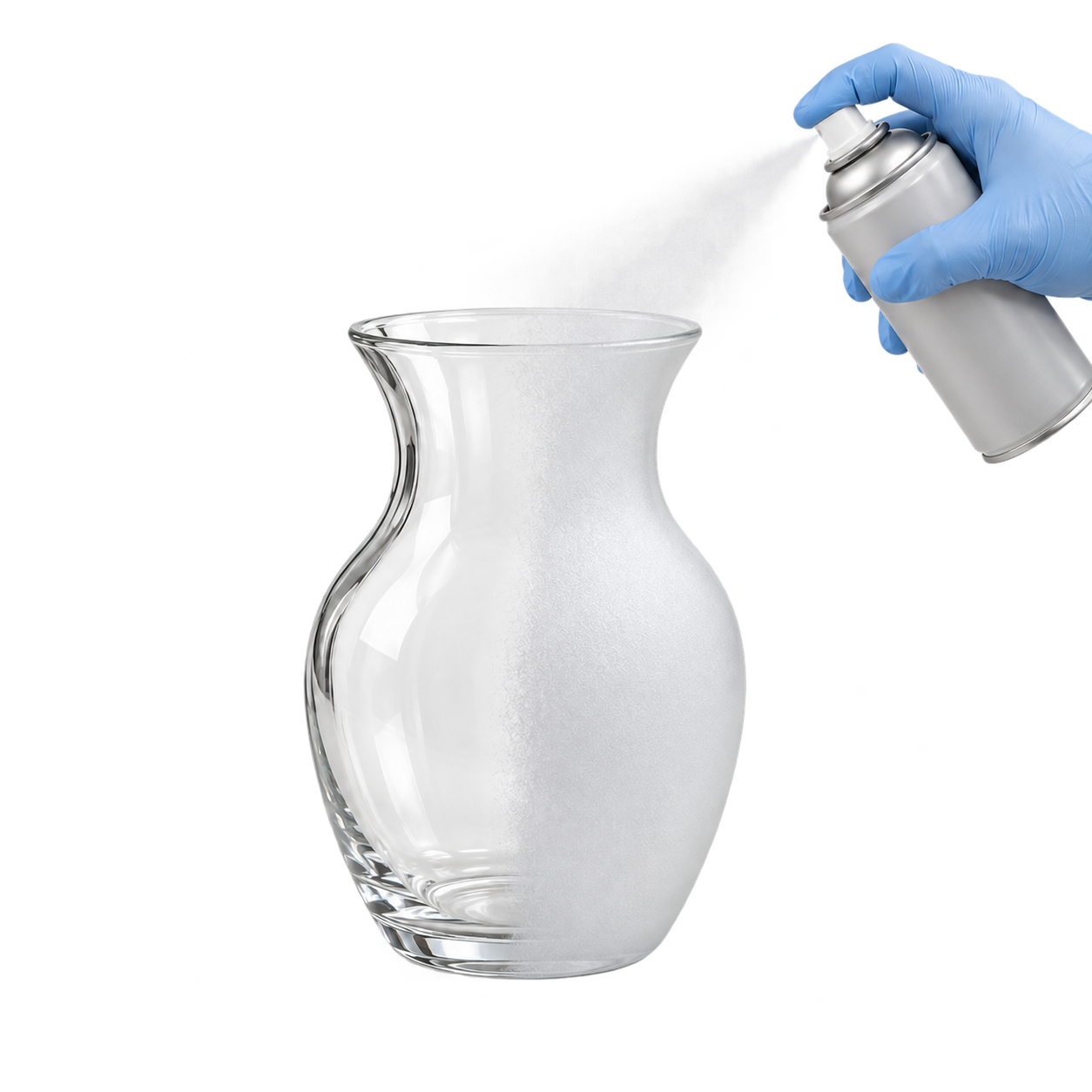
Note: Apply the spray in a thin, even layer. Avoid excessive buildup or runs that could obscure fine surface details.
¶ 2. Adjust the Scanning Distance and Angle
Follow the distance indicator in the software to keep the scanner within the recommended range. Slowly change the scanning angle to capture missing areas, ensuring that the scanner can see the sides, grooves, and edges.
Do not move the scanner too close to the object, as being too close to the object may also prevent data capture.
¶ 3. Check the Exposure
Start with auto exposure (AE). If the preview appears significantly overexposed or underexposed, adjust the exposure according to the software prompts. Also, avoid direct sunlight and strong ambient light that may interfere with scanning.
For more information, refer to IR Camera Exposure Adjustment Guide.
¶ 4. Slow Down and Rescan Missing Areas
Move the scanner slowly and steadily, maintaining sufficient overlap between adjacent scan areas. Start from a fully scanned area and gradually move toward the missing region. Check whether new data is being captured.
During scanning, keep the object's shape unchanged and maintain the relative positions of the reflective markers and the object.
¶ 5. Check the Processing Settings
¶ 5.1 Reduce the Resolution Value if Details Become Blurry After Processing
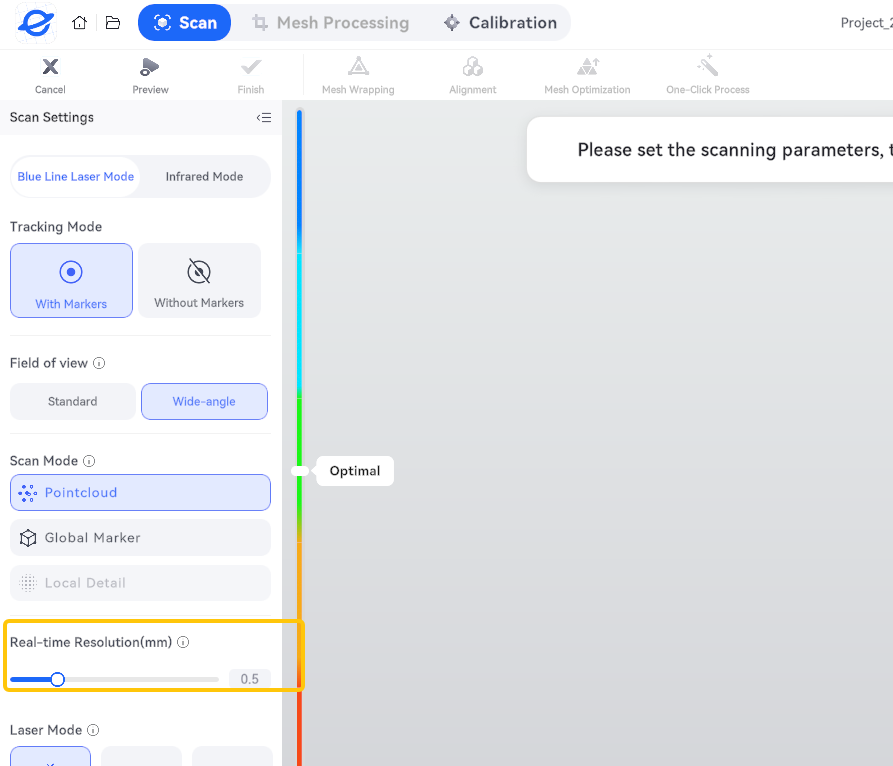
If details are visible during scanning but appear blurry in the generated model, check whether a high resolution value (larger point spacing) was used. Try reducing the resolution value to preserve more detail.
Note: A smaller point spacing captures more detailed surface information but requires more memory and may reduce the scanning frame rate.
¶ 5.2 Check for Excessive Simplification or Smoothing
Check whether the model has been excessively simplified or smoothed. If necessary, use a higher resolution value and reduce the amount of simplification and smoothing before generating the model again.
Related Guides:
¶ Notes
- Deep holes, narrow gaps, and other areas that are difficult for the scanner to see may not be fully captured. Extremely fine surface details may also exceed the scanner's capabilities.
- Automatic hole filling can close gaps in the model, but it cannot recover actual surface details that were never captured. If preserving fine details is important, prioritize rescanning the missing areas.
¶ Help Us Improve
If you have any suggestions for our wiki pages, please let us know through the ELEGOO Official Feedback Channel.