¶ Function Overview
During scanning, the IR camera window typically displays a grayscale image used for depth capture or tracking. It helps you check whether the object is within the camera's field of view and whether the image is too dark, too bright, or obstructed. The displayed content depends on the device and scanning mode.
¶ How to Use
Keep the target area within the camera's field of view and monitor the image while following the scanning distance guidance. If exposure adjustment is available, start with auto exposure (AE). If the image is still unsuitable, make small manual adjustments.
¶ Exposure Examples
| Too Dark | Normal | Too Bright |
|---|---|---|
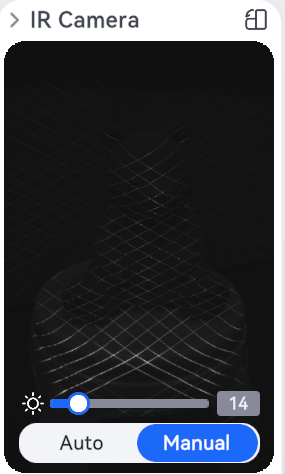 |
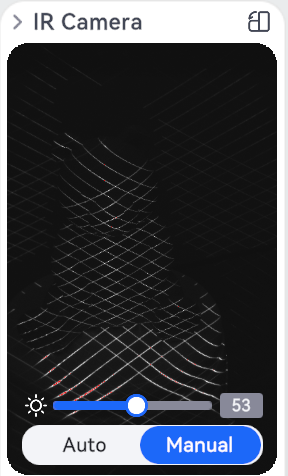 |
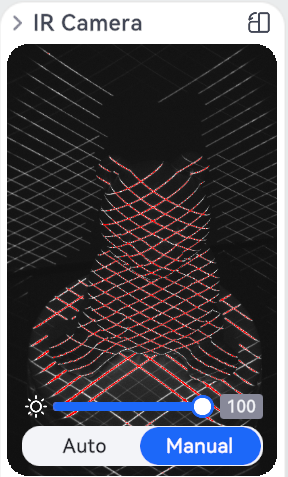 |
¶ Notes
The IR image is intended as a visual aid and cannot, on its own, confirm scan completeness or stable tracking. You should also check the point cloud and tracking indicators.
The IR camera window does not mean that the scanner has switched to infrared mode. Color information is generally captured by the color camera.
¶ How to Adjust Exposure Manually
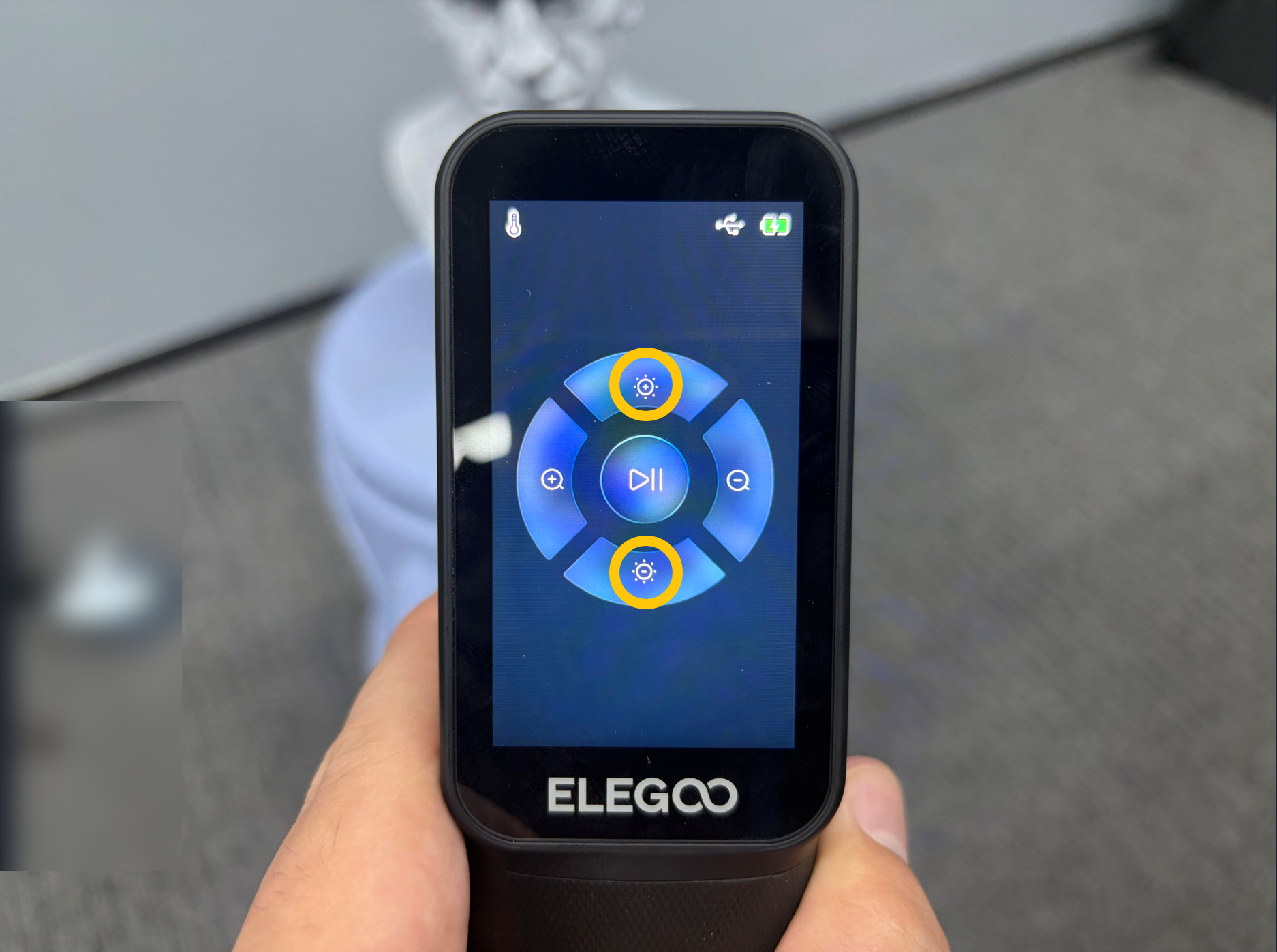
¶ Adjusting Exposure in USB Mode
-
Adjust the exposure using the +/- buttons on the scanner's touchscreen.
-
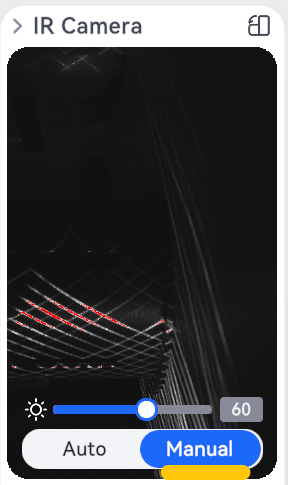
In ELEGOO Scan, locate the IR camera window in the upper-right corner. Switch the exposure mode to Manual, then drag the slider to adjust the exposure.
¶ Adjusting Exposure in WLAN Mode
-
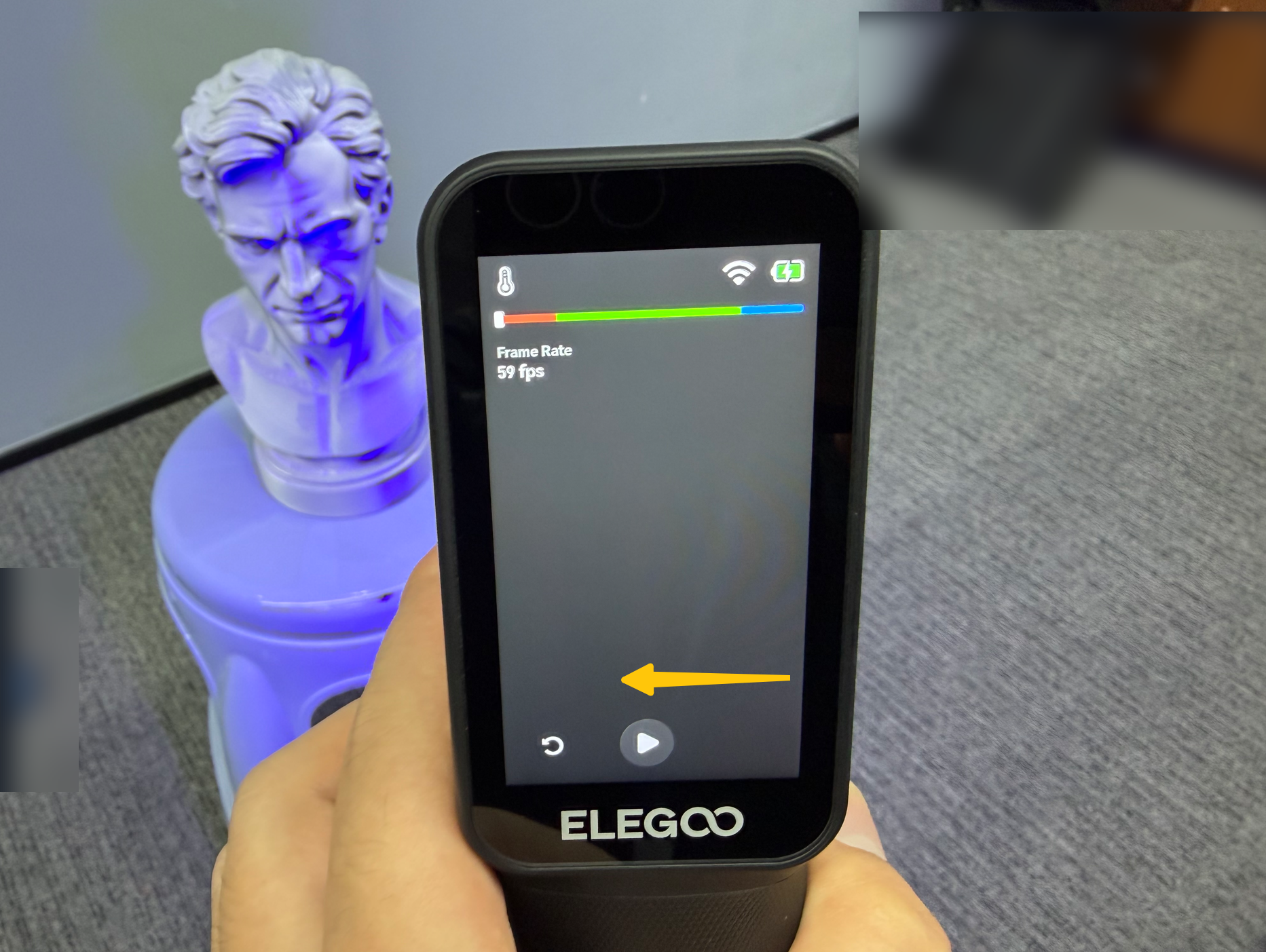
Swipe right on the scanner's touchscreen to open the additional controls in the lower-right corner.
-
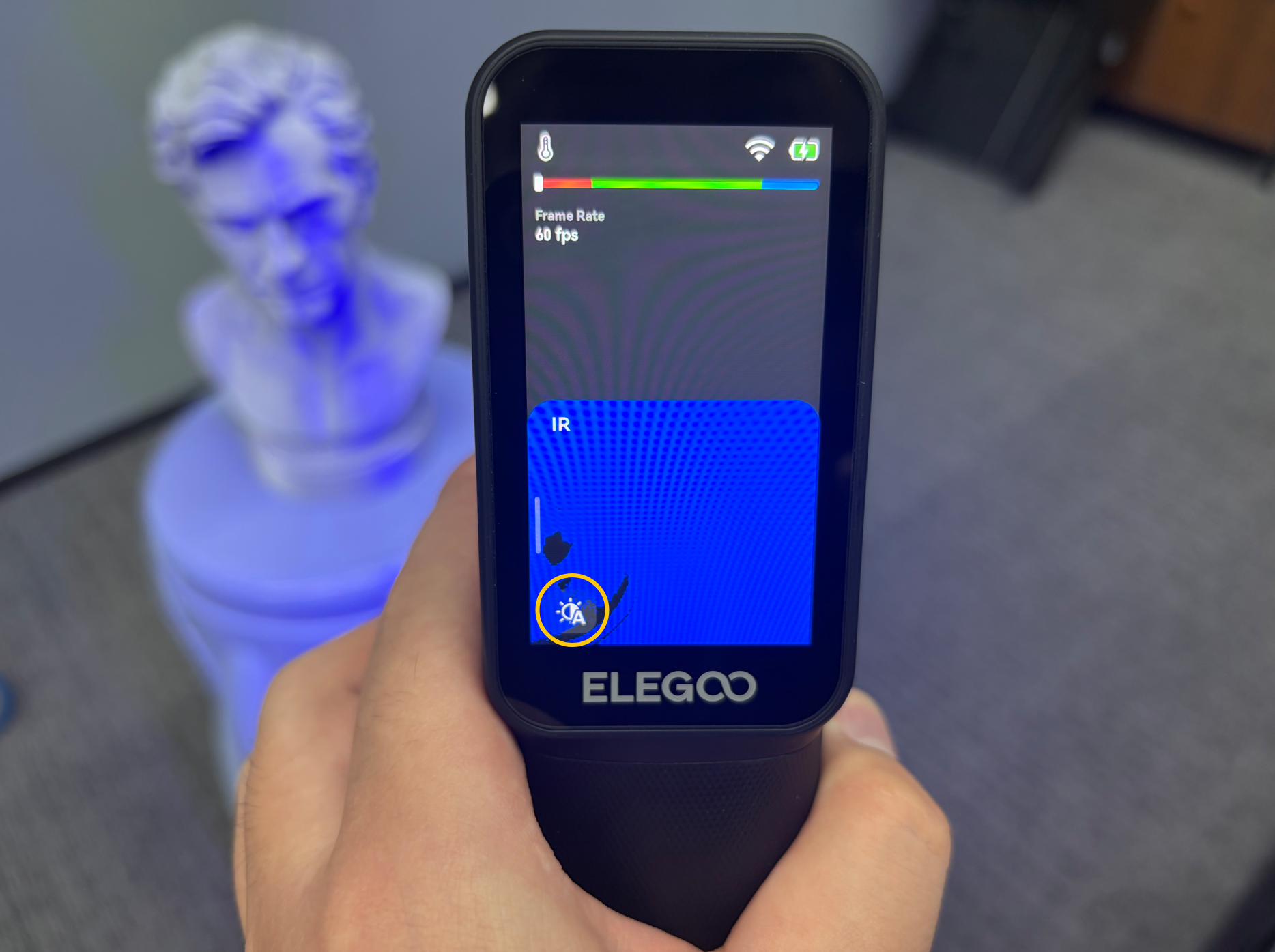
Tap the exposure mode button in the IR camera panel and switch the exposure mode to Manual.
-
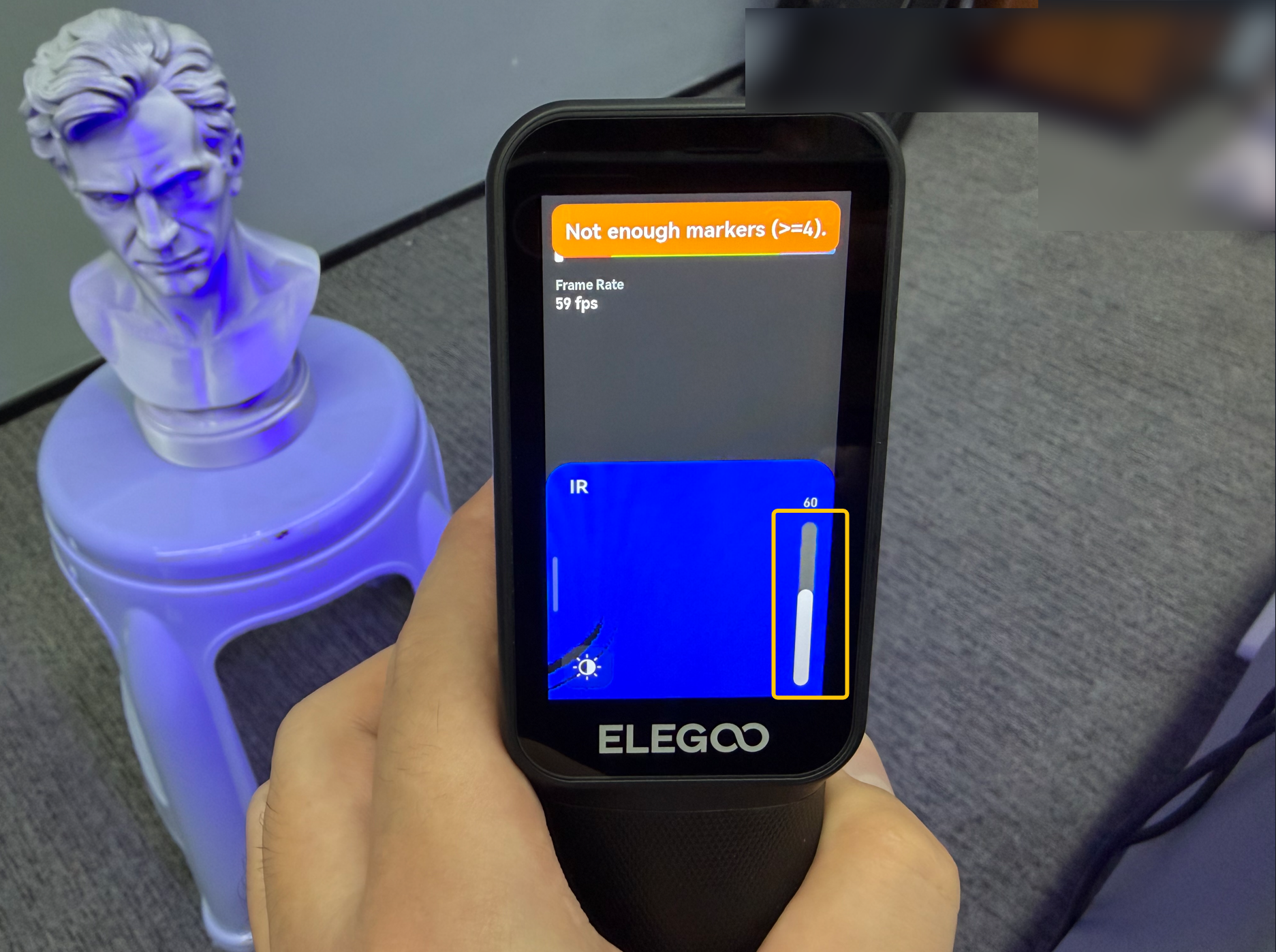
Move the slider on the right to adjust the exposure.
¶ Help Us Improve
If you have any suggestions for our wiki pages, please share them through the ELEGOO Official Feedback Channel.