¶ Purpose of Mesh Simplification
Meshes generated from 3D scans typically contain a large number of triangles. A high triangle count helps preserve the original geometry but also increases memory usage and the workload of subsequent processing. Simplification reduces redundant geometry by collapsing edges or vertices and redistributing triangles.
- Improve model rotation, zooming, and editing performance on a computer.
- Reduce the amount of geometric data in mesh files such as OBJ, STL, and PLY.
- Meet triangle count limits for web previews, mobile viewing, importing into modeling software, or using slicing software.
- Prepare a more manageable mesh for smoothing, sculpting, Boolean operations, and 3D printing.
Simplification does not automatically repair holes, non-manifold edges, overlapping triangles, or incorrect textures. It also cannot restore details that were not captured during scanning. If the model still contains noticeable noise points or damaged mesh areas, clean and repair the mesh first.
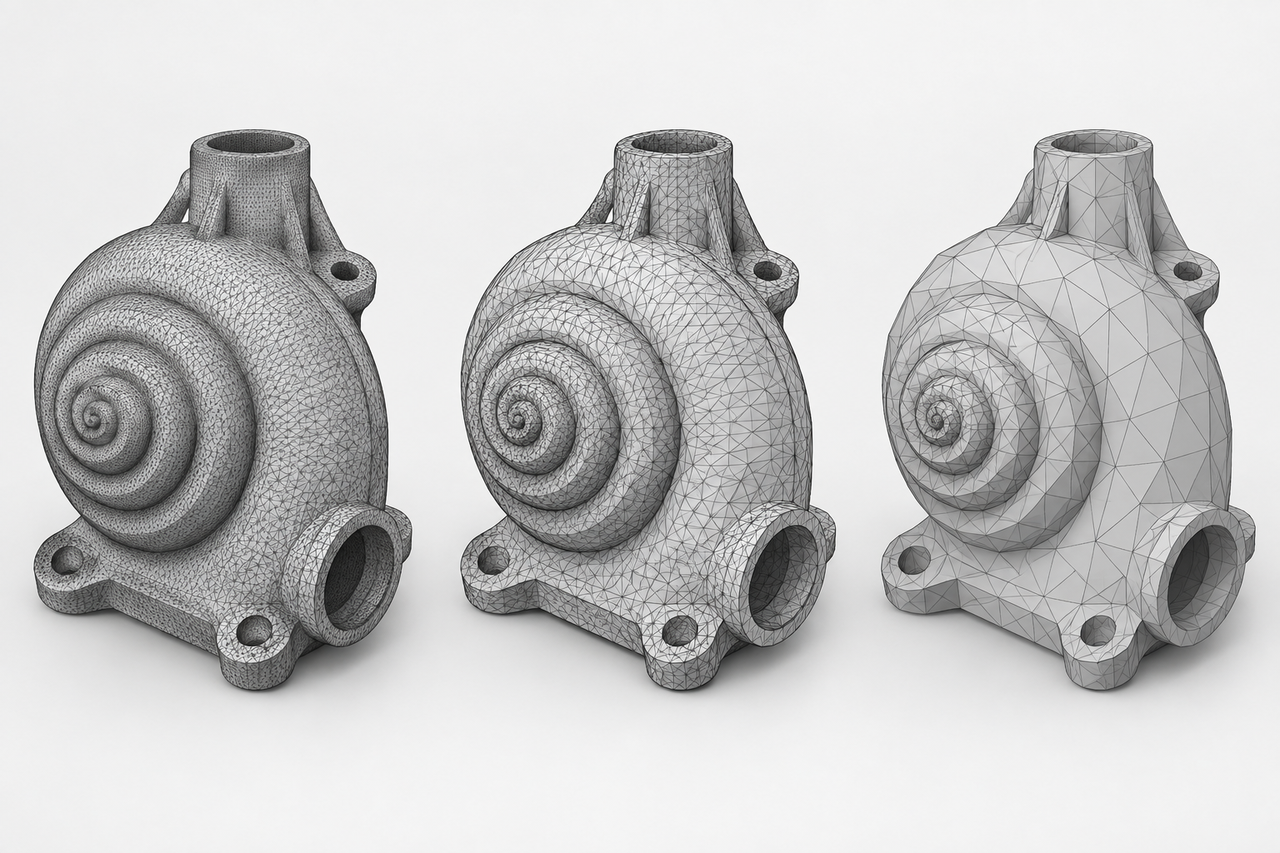
Appearance comparison of the same mesh at high density, after moderate simplification, and after excessive simplification.
Simplification reduces the number of triangles and vertices to decrease file size and improve the efficiency of rotating, editing, uploading, and slicing the model. Proper simplification should prioritize removing redundant triangles from flat areas while preserving the model's contours, holes, sharp edges, and shallow relief details.
¶ Preparation
¶ 1. Perform Basic Cleanup
Remove floating noise points and irrelevant components, and check for holes and mesh connectivity. If the model contains data from multiple scans, complete alignment and fusion or mesh wrapping, as appropriate.
¶ 2. Determine the Intended Use
Web previews, 3D printing, and dimensional measurements have different requirements for detail preservation. Determine the intended use before deciding how many triangles to retain.
¶ 3. Record the Original Data
Record the original triangle count, vertex count, and file size to evaluate the simplification results. If the model contains color information, also record the number and resolution of texture files.
¶ Procedure
¶ 1. Open the Mesh Model
After completing pointcloud processing and mesh generation, open the mesh processing page. Confirm that the current object is a mesh, not the original pointcloud.
¶ 2. Select Simplify
Select Simplify from the mesh processing tools. The software typically displays the current triangle count and allows you to set a target value.
¶ 3. Set the Initial Target
If there is no specific triangle count limit, start by retaining 70%–80% of the original triangles. For complex curved surfaces, thin walls, dense holes, and shallow relief details, start with a higher retention ratio.
¶ 4. Preview and Inspect from Multiple Angles
Do not rely solely on the default view. Zoom in on critical areas and inspect the contours, holes, sharp edges, and fine details from the front, side, and oblique views.
¶ 5. Apply and Compare
Record the new triangle count and file size, then compare the simplified model side by side with the original model. If noticeable faceting, hole distortion, or texture misalignment occurs, increase the triangle retention ratio and repeat the simplification.
¶ 6. Save and Export
Keep the original model and save the simplified version as a separate file. Before exporting, verify the units, coordinates, texture files, and mesh integrity.
¶ How to Identify Over-Simplification
When evaluating simplification quality, inspect the overall contours first, followed by local structures. Comparing only the file size or triangle count can overlook the loss of important geometric information.
- Noticeable faceting or local collapse of curved surfaces indicates insufficient geometric detail.
- Circular holes becoming polygonal, changes in hole diameter, or small holes being closed may indicate excessive simplification in those areas.
- Blunted sharp edges, steps, and assembly seams may affect fit or dimensional measurements.
- Blurred text, textures, engravings, and shallow relief details indicate that important geometric features have not been adequately preserved.
¶ Frequently Asked Questions
| Issue | Image | Possible Cause | Recommended Action |
|---|---|---|---|
| Visible faceting on curved surfaces | 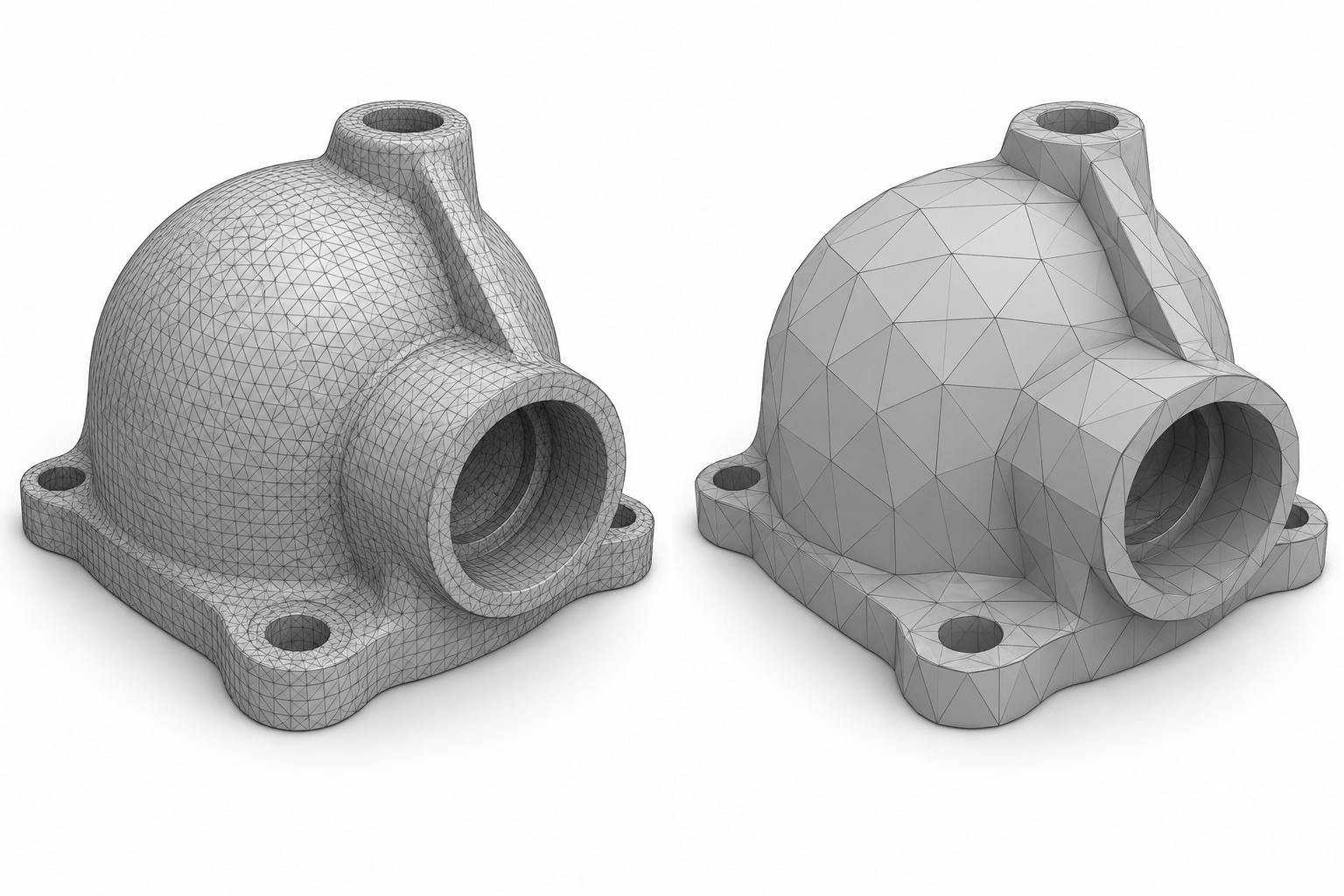 |
The triangle retention ratio is too low, or triangles have been removed uniformly from curved areas. | Reduce the simplification strength. |
| Small holes or gaps disappear | 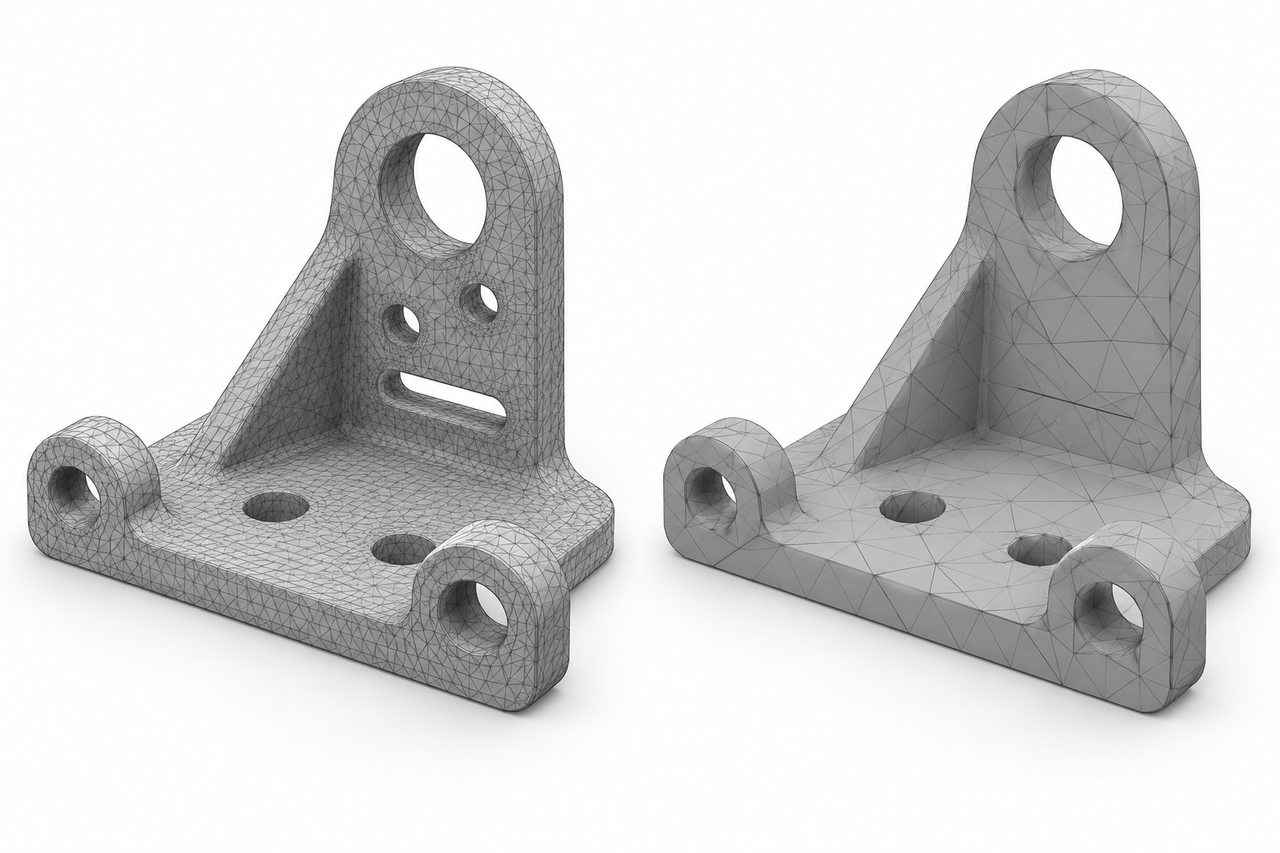 |
Triangles near hole boundaries have been collapsed or merged. | Reduce the simplification strength. |
| The simplified model cannot be sliced properly in 3D printing software | 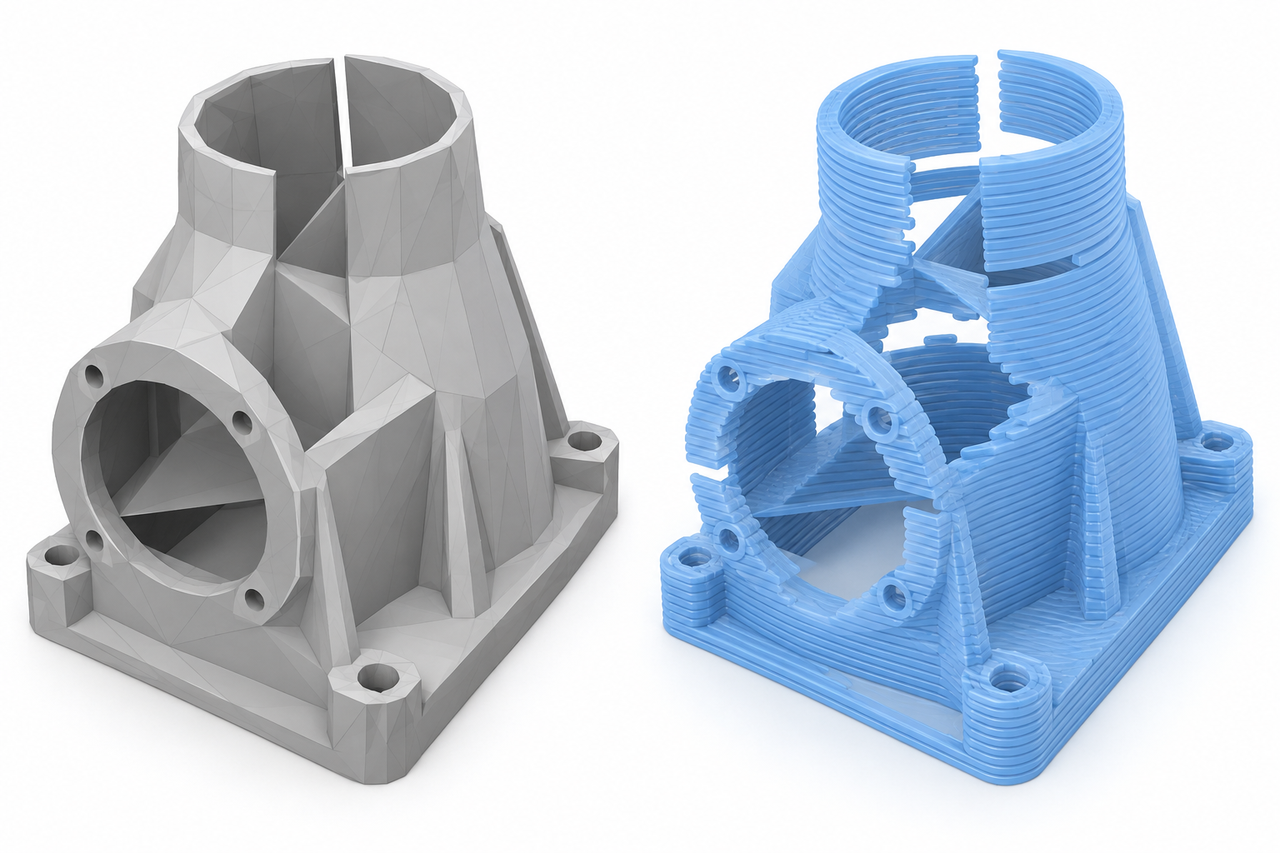 |
The original mesh already contains holes, non-manifold edges, or self-intersections, and simplification has made these issues more apparent. | Return to the original model, repair the mesh, and simplify it again using a higher triangle retention ratio. |
¶ Help Us Improve
If you have any suggestions for our wiki pages, please let us know through the ELEGOO Official Feedback Channel.