¶ Four Digit Seven Segment Display
¶ Overview
In this tutorial, you will learn how to use a 4-digit 7-segment display.
When using 1-digit 7-segment display, please notice that if it is common anode, the common anode pin connects to the power source; if it is common cathode, the common cathode pin connects to the GND.
When using 4-digit 7-segment display, the common anode or common cathode pin is used to control which digit is displayed. Even though there is only one digit working, the principle of Persistence of Vision enables you to see all numbers displayed because each the scanning speed is so fast that you can hardly notice the intervals.
¶ Component Required:
(2) x 400 tie-points breadboard
(1)x 74HC595 IC
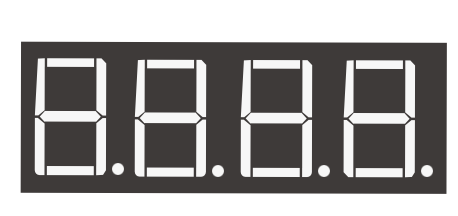
(1) x 4 Digit 7-Segment Display
(4) x 220 ohm resistors
(19) x M-M wires (Male to Male jumper wires)
¶ Component Introduction
Four Digital Seven Segment Display
- Product Overview
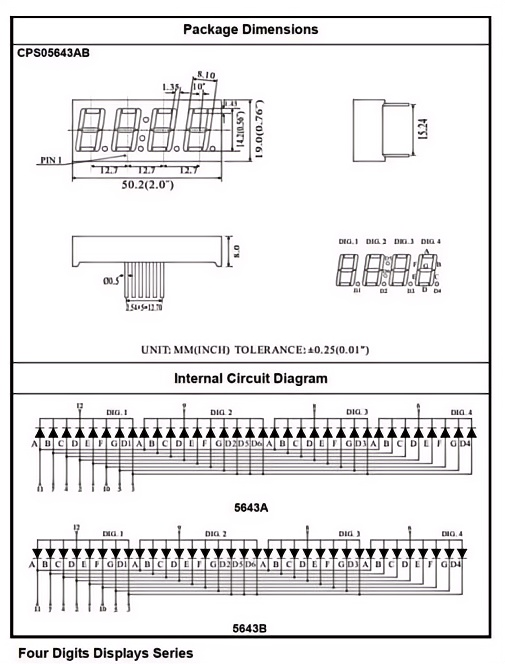
The 5643 series (including model CPS05643AB) is a compact four-digit, seven-segment display module designed for embedded systems. It integrates four independent digits for dynamic display of numbers and symbols.The series is available in both common cathode (5643A) and common anode (5643B) versions, to accommodate different driving logic requirements. - Package & Dimension Specifications
This module features a compact through-hole package with the following key dimensions:
Total Length: 50.2 mm (2.0 inches), with each digit segment measuring 12.7 mm wide
Overall Height: 19.0 mm (0.75 inches)
Pin Pitch: 1.27 mm (0.05 inches), compatible with standard header footprints
Tolerance: All dimensions are subject to ±0.25 mm (0.01 inches) tolerance
The module uses a standard dual in-line pin layout, making it easy to solder and integrate into PCB designs. - Internal Circuit Structure
The internal circuit architecture enables flexible driving:
5643A (Common Cathode): The common terminal of each digit is the cathode, requiring a low-level signal to activate the corresponding segments.
5643B (Common Anode): The common terminal of each digit is the anode, requiring a high-level signal to activate the corresponding segments.
Segment Pins: Identical segments (A-G, DP) across all digits are internally connected in parallel, supporting multi-digit dynamic scanning.
Common Pins: Each digit has an independent common pin, used for digit selection control.
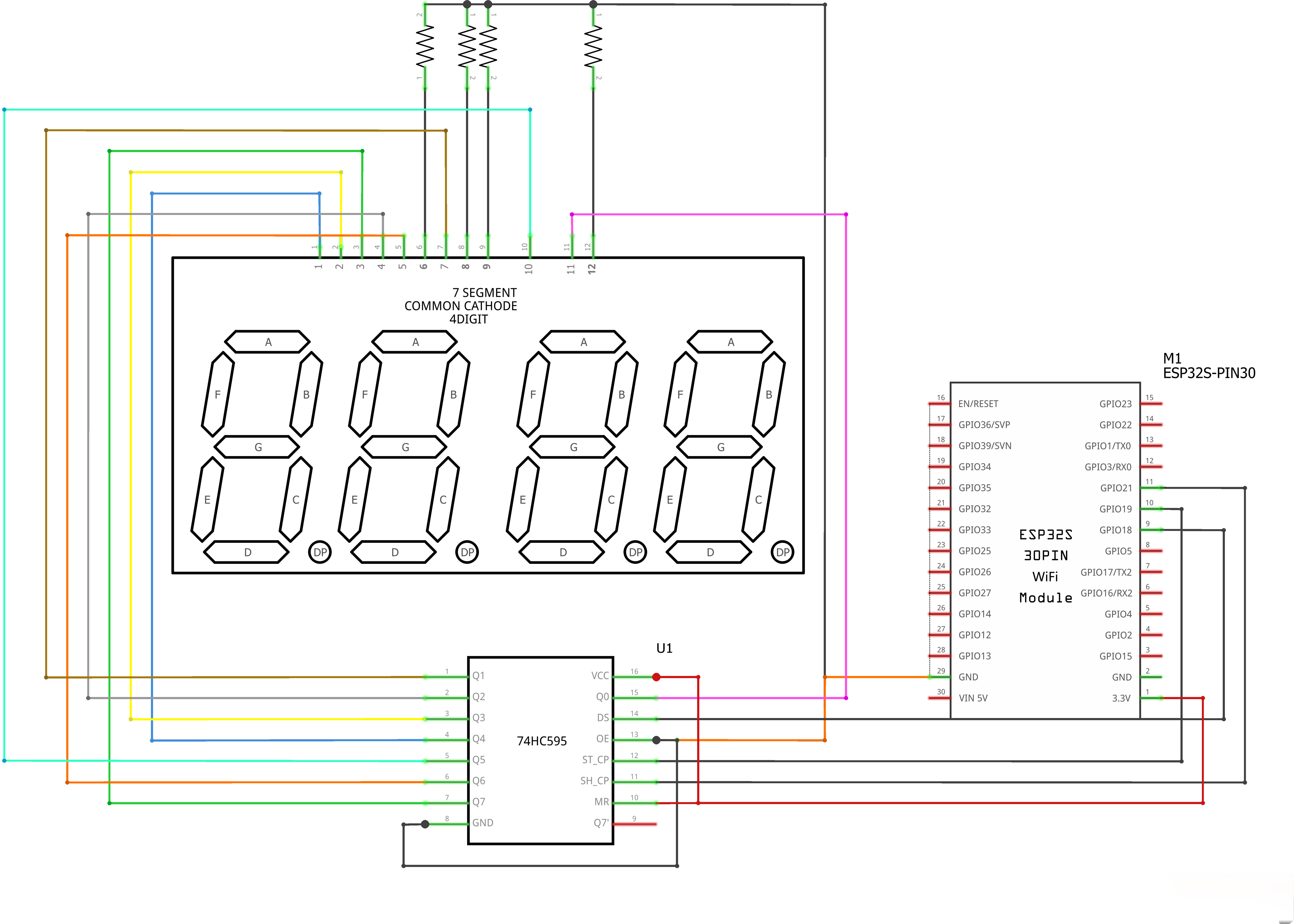
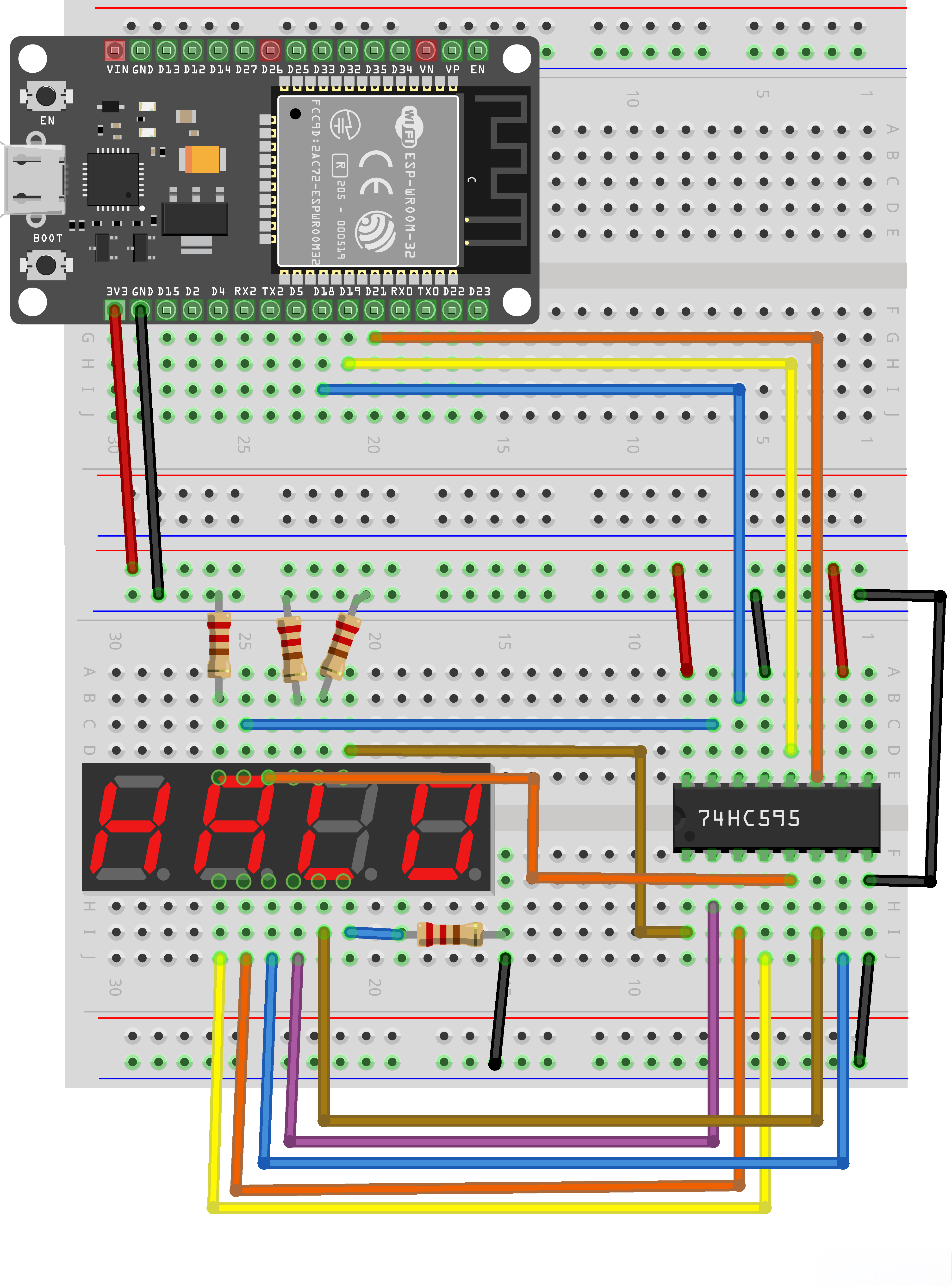
¶ Wiring Comparison between 74HC595 and Digital Tube
¶ Connection Schematic
¶ Wiring diagram
¶ Code
You can click the blue text link to download the program file to your local device, and double-click the file to open it after the download is complete. Please note: Before opening the file, ensure that you have installed the Arduino IDE development environment and completed the installation of relevant components such as the board support package and driver corresponding to the ESP32 development board. If you have any questions about this operation process, you can refer to the "part 1" chapter of the document for detailed guidance.
With this code, the ESP32 controls a 7-segment LED display through a 74HC595 shift register, sequentially displaying numbers from 1 to 15 with a 500-millisecond delay between each number.
int latch=19; //74HC595 pin 9 STCP
int clockn=21; //74HC595 pin 10 SHCP
int data=18; //74HC595 pin 8 DS
74HC595 Shift Register Pins:
int latch=19;:Connected to STCP (pin 9) of 74HC595, used to latch dataint clockn=21;:Connected to SHCP (pin 10) of 74HC595, provides clock signalint data=18;:Connected to DS (pin 8) of 74HC595, sends serial data
unsigned char table[]=
{0x3f,0x06,0x5b,0x4f,0x66,0x6d,0x7d,0x07,0x7f,0x6f,0x77,0x7c
,0x39,0x5e,0x79,0x71,0x00};//Display digital data
Seven-Segment Display Data Table:
unsigned char table[]:Array storing hexadecimal values for 7-segment display patterns- Values represent segments to turn on for digits 0-15 (plus a blank display at index 16)
- Each hex value corresponds to a specific segment pattern:
- 0x3f = 0, 0x06 = 1, 0x5b = 2, 0x4f = 3
- 0x66 = 4, 0x6d = 5, 0x7d = 6, 0x07 = 7
- 0x7f = 8, 0x6f = 9, 0x77 = A, 0x7c = b
- 0x39 = C, 0x5e = d, 0x79 = E, 0x71 = F, 0x00 = blank
void setup() {
pinMode(latch,OUTPUT);
pinMode(clockn,OUTPUT);
pinMode(data,OUTPUT);
}
Setup Function:
pinMode(latch,OUTPUT);:Sets latch pin as outputpinMode(clockn,OUTPUT);:Sets clock pin as outputpinMode(data,OUTPUT);:Sets data pin as output
void Display(unsigned char num)
{digitalWrite(latch,LOW);
shiftOut(data,clockn,MSBFIRST,table[num]);
digitalWrite(latch,HIGH);}
Display Function:
void Display(unsigned char num):Displays a number (0-15) on the 7-segment displaydigitalWrite(latch,LOW);:Sets latch pin low to prepare for data transfershiftOut(data,clockn,MSBFIRST,table[num]);:Shifts out the display pattern, most significant bit firstdigitalWrite(latch,HIGH);:Sets latch pin high to lock the data into the 74HC595 outputs
void loop() {
Display(1);
delay(500);
Display(2);
delay(500);
Display(3);
delay(500);
……
Loop Function:
- Sequentially calls
Display()function with values 1-15 - Each number is displayed for 500 milliseconds (
delay(500);) - After displaying 15, the loop repeats from the beginning
- Note: Values 10-15 correspond to letters A-F on the 7-segment display
¶ Getting Started
- Install Arduino IDE:Download and install the Arduino IDE from the official website
- Add ESP32 Support:Add the ESP32 board support package to Arduino IDE
- Connect Hardware:
- Connect 74HC595 shift register to ESP32:
- STCP (pin 9) → ESP32 GPIO 19
- SHCP (pin 10) → ESP32 GPIO 21
- DS (pin 8) → ESP32 GPIO 18
- VCC → 5V
- GND → GND
- Connect 7-segment display to 74HC595:
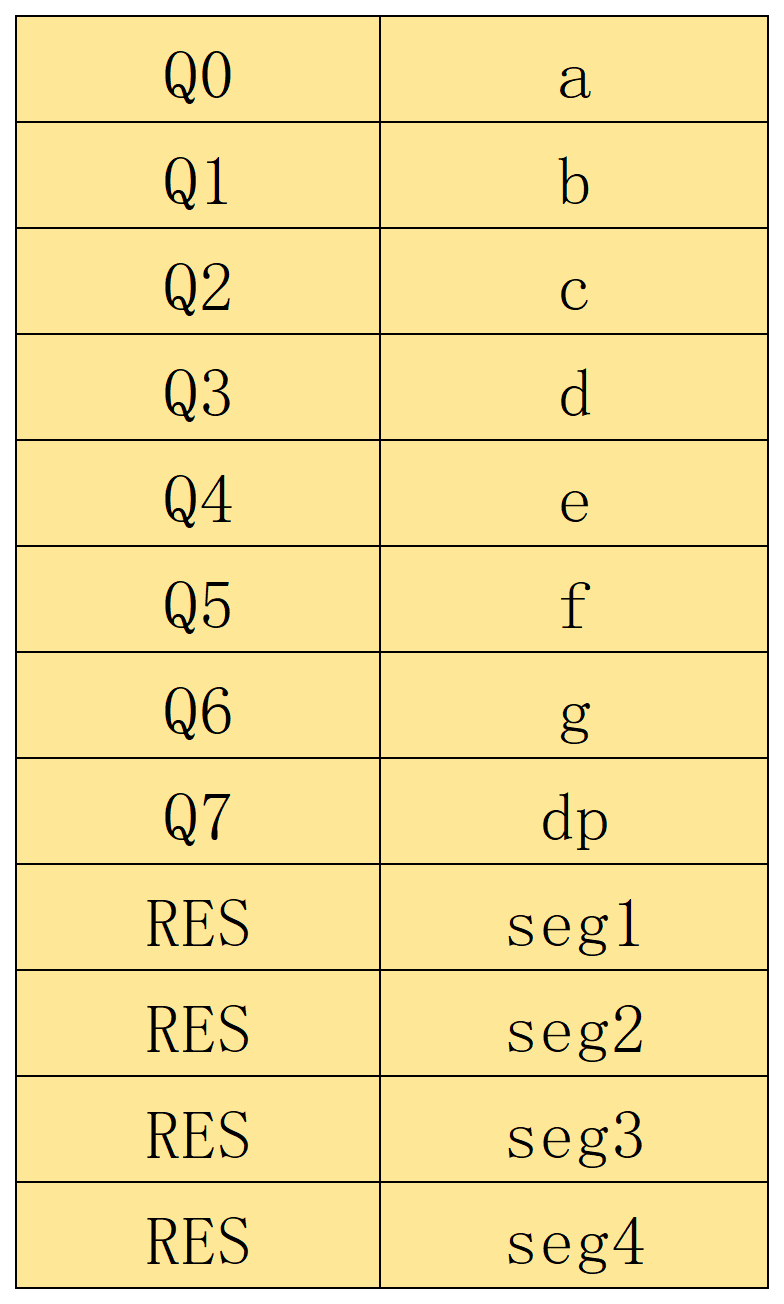
- Q0-Q7 → Segments a-g (ensure correct mapping for your display)
- Common pin → Appropriate power supply (depending on display type)
- Connect 74HC595 shift register to ESP32:
- Upload Code:Upload the sketch to your ESP32 board
- Watch Sequence:Observe the 7-segment display showing numbers 1-9 followed by letters A-F
¶ Troubleshooting
- Display Not Working:Check all wiring connections and ensure 74HC595 is properly powered
- Incorrect Characters:Verify the segment mapping matches your display (you may need to adjust the table values)
- Flickering Display:Ensure proper grounding and consider adding decoupling capacitors
- No Response:Check ESP32 pin assignments and ensure correct board selection in Arduino IDE
¶ Advanced Lesson: Controlling Each 7-Segment Digit Independently
Now that you have completed the basic examples, you may want to control each digit individually and show different numbers on each display.
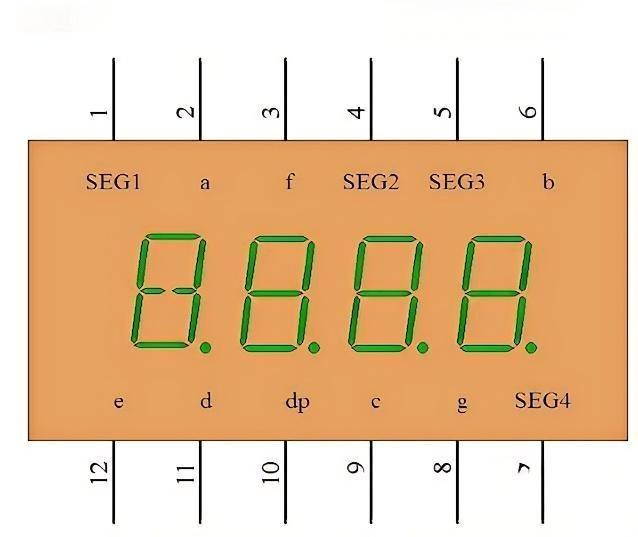
From the pinout diagram of the 4-digit 7-segment display, you can see that seg1–seg4 control whether each digit is turned ON or OFF.Since we are using a common-cathode 4-digit 7-segment display, all four digits will light up if seg1–seg4 are connected directly to GND.
To control one digit at a time, you must connect these seg pins to digital output pins on the Arduino UNO, so the Arduino can turn each digit ON or OFF.
example:
int seg1= 13;
int seg2= 12;
int seg3= 14;
int seg4= 27;
Assign the seg pins to UNO pins, and set them as outputs in setup():
pinMode(seg1,OUTPUT);
pinMode(seg2,OUTPUT);
pinMode(seg3,OUTPUT);
pinMode(seg4,OUTPUT);
At this point, you can already turn each digit ON or OFF independently.
¶ Controlling What Each Digit Displays
Next, we will make each digit show a different number. The idea is simple:Turn ON only one digit, display a number on it, and keep all other digits OFF.
Based on the code you already have, add this function:
void lightOneDigit(int digitIndex, int num) {
// Step 1: Turn OFF all digits to prevent ghosting
digitalWrite(seg1, HIGH);
digitalWrite(seg2, HIGH);
digitalWrite(seg3, HIGH);
digitalWrite(seg4, HIGH);// Step 2: Send the segment code for the number you want to display
Display(num);// Step 3: Turn ON only the selected digit
digitalWrite(digitIndex, LOW);
}
¶ How to Use It
To display a number on a specific digit, just call:
lightOneDigit(seg1, 0);
This means:
- seg1 → the digit you want to light up
- 0 → the number to display
In the same way:
- lightOneDigit(seg2, 1); → seg2 shows the number 1
- lightOneDigit(seg3, 2); → seg3 shows the number 2
- lightOneDigit(seg4, 3); → seg4 shows the number 3
By calling these functions quickly one after another in loop(), you can make all four digits show different numbers at the same time.