¶ IR Receiver
¶ Overview
Using an IR Remote is a great way to have wireless control of your project.
Infrared remotes are simple and easy to use. In this tutorial we will be connecting the IR receiver to the ESP32,It is not necessary to use a specific library here; instead, write a program to parse which key of the infrared remote control is pressed when a signal is received.
In our sketch we will have all the IR Hexadecimal codes that are available on this remote, and we will also detect if the code was recognized
¶ Component Required:
(2) x 400 Tie Points Breadboard
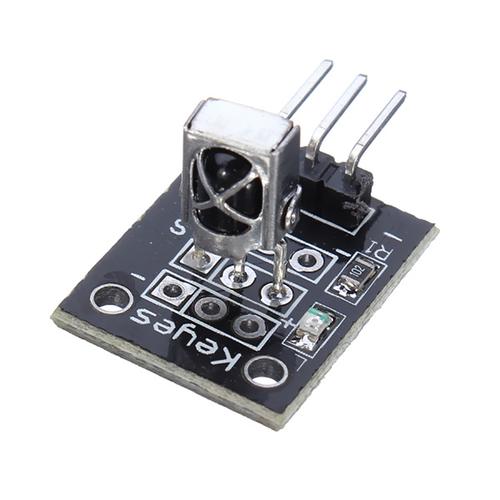
(1) x IR receiver module
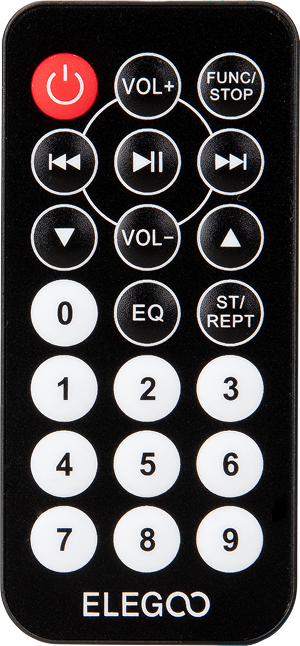
(1) x IR remote
(3) x M-M wires (male to Male DuPont wires)
¶ Component Introduction
¶ IR RECEIVER SENSOR:
IR detectors are little microchips with a photocell that are tuned to listen to infrared light. They are almost always used for remote control detection - every TV and DVD player has one of these in the front to listen for the IR signal from the clicker. Inside the remote control is a matching IR LED, which emits IR pulses to tell the TV to turn on, off or change channels. IR light is not visible to the human eye, which means it takes a little more work to test a setup.
There are a few difference between these and say a CdS Photocells:
IR detectors are specially filtered for IR light, they are not good at detecting visible light. On the other hand, photocells are good at detecting yellow/green visible light, and are not good at IR light.
IR detectors have a demodulator inside that looks for modulated IR at 38 KHz. Just shining an IR LED won't be detected, it has to be PWM blinking at 38KHz. Photocells do not have any sort of demodulator and can detect any frequency (including DC) within the response speed of the photocell (which is about 1KHz)
IR detectors are digital out - either they detect 38KHz IR signal and output low (0V) or they do not detect any and output high (5V). Photocells act like resistors, the resistance changes depending on how much light they are exposed to.
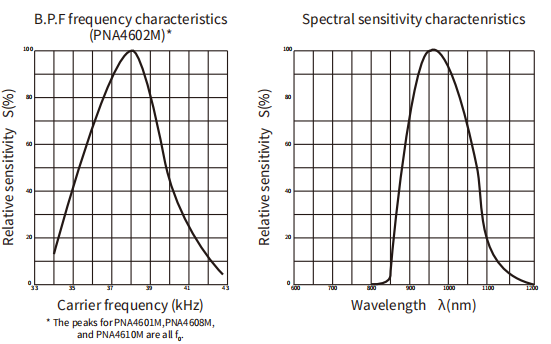
As you can see from these datasheet graphs, the peak frequency detection is at 38 KHz and the peak LED color is 940 nm. You can use from about 35 KHz to 41 KHz but the sensitivity will drop off so that it won't detect as well from afar. Likewise, you can use 850 to 1100 nm LEDs but they won't work as well as 900 to 1000nm so make sure to get matching LEDs! Check the datasheet for your IR LED to verify the wavelength.
Try to get a 940nm - remember that 940nm is not visible light!
¶ Connection Schematic
¶ Wiring diagram
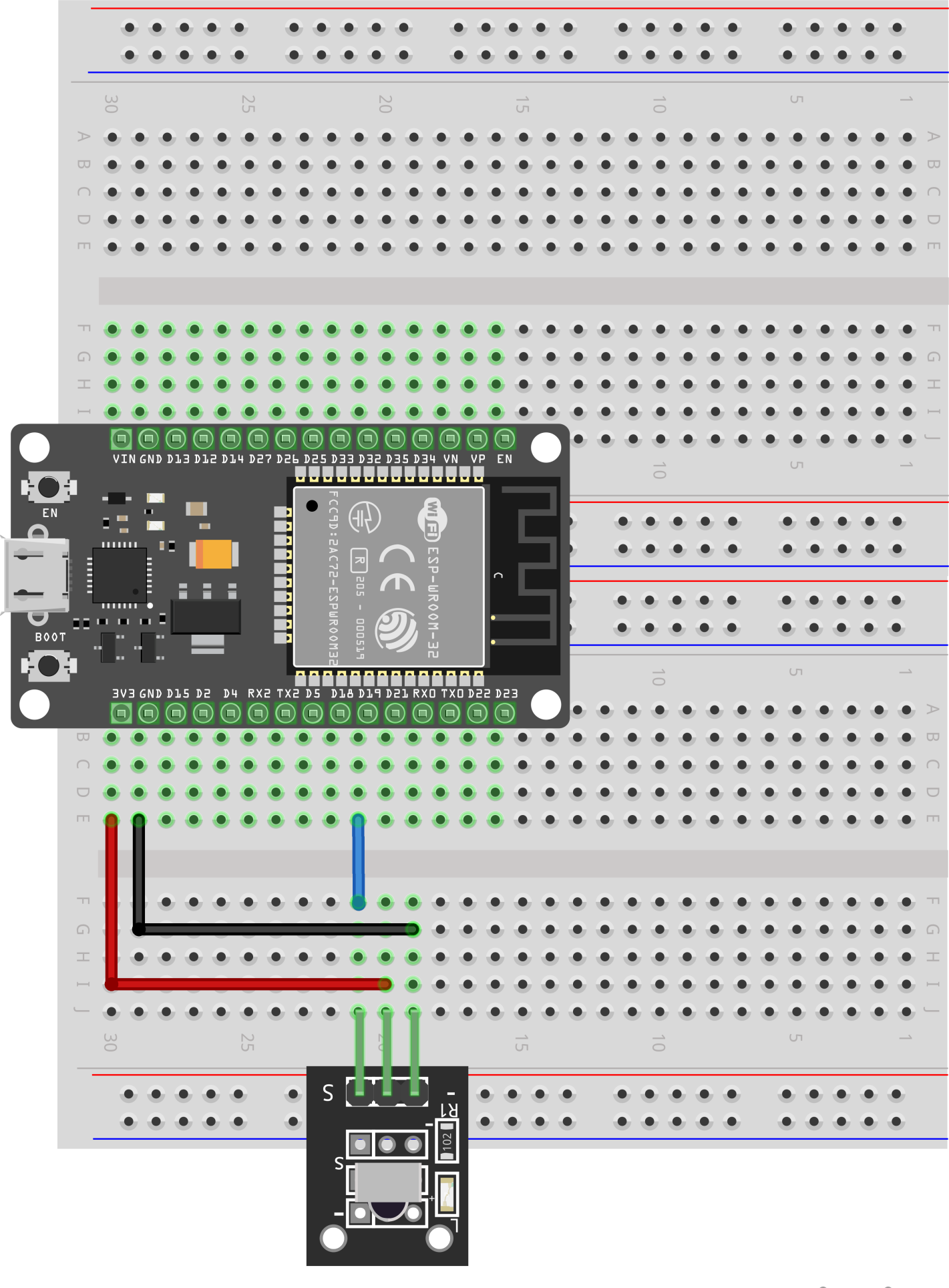
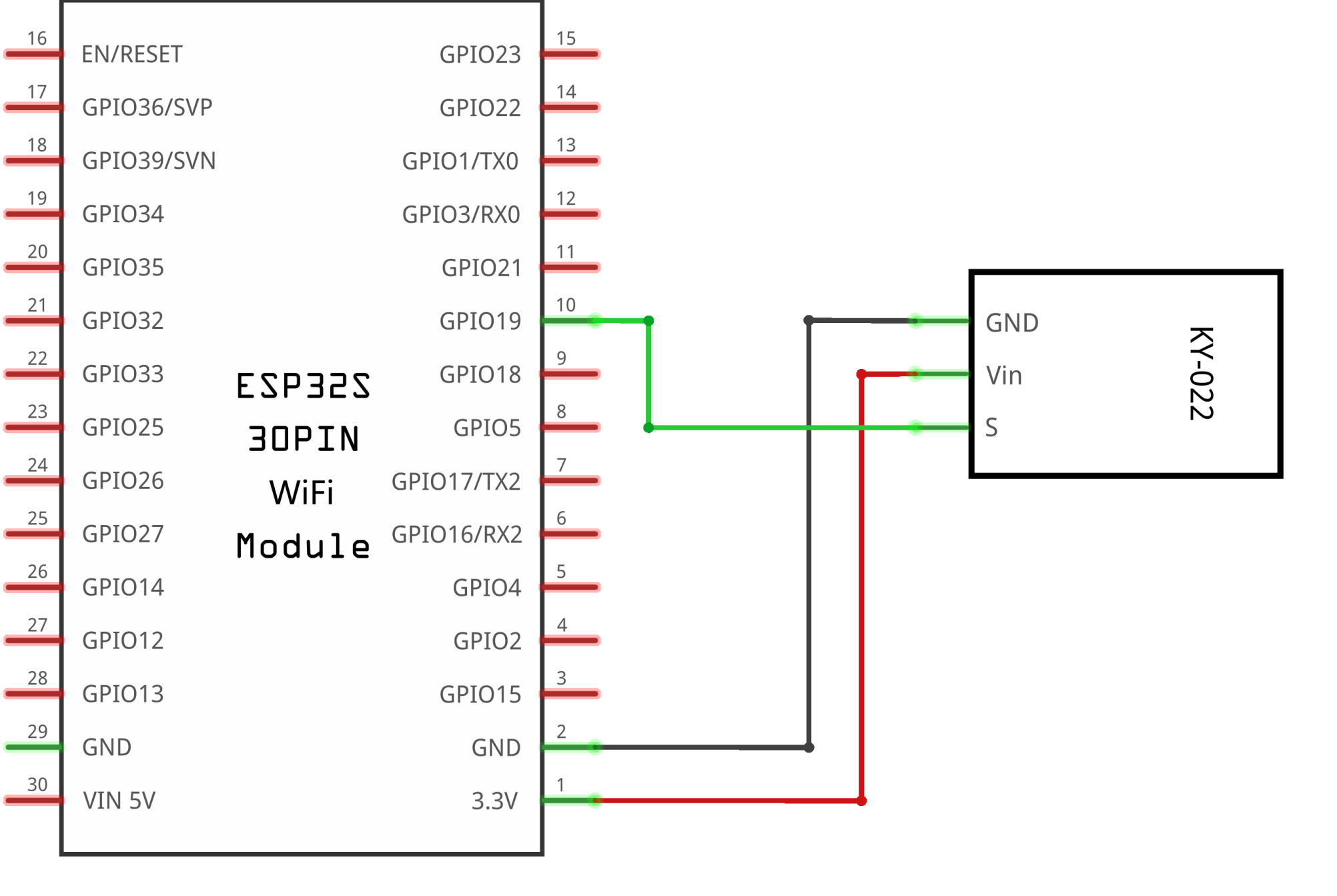
The connections are: Signal, Voltage and Ground.
The“G”is the Ground,“Y”is signal, and“R”is Voltage 3.3V.
¶ Code
You can click the blue text link to download the program file to your local device, and double-click the file to open it after the download is complete. Please note: Before opening the file, ensure that you have installed the Arduino IDE development environment and completed the installation of relevant components such as the board support package and driver corresponding to the ESP32 development board. If you have any questions about this operation process, you can refer to the "part 1" chapter of the document for detailed guidance.
Click the Serial Monitor button to turn on the serial monitor. The basics about the serial monitor are introduced in details in tutorial 4 in part 2.
const int IR = 19; // IR receiver data pin
Pin Configuration:
const int IR = 19: Defines the GPIO pin (19) where the IR receiver module's output pin is connected
unsigned long readPulse(int level, unsigned long timeout = 20000) {
unsigned long start = micros(); // Record start time in microseconds
// Wait until level changes or timeout
while (digitalRead(IR) == level) {
if (micros() - start > timeout) return 0; // Return 0 on timeout
}
return micros() - start; // Return the actual duration of the level
}
readPulse() Function:A utility function to measure the duration of a specific logic level on the IR pin.
micros(): Returns the number of microseconds since the program startedtimeout: Maximum duration to wait for level change (20ms default)- Returns duration in microseconds or 0 if timeout occurs
- This function is crucial for accurately measuring IR signal timing
- Uses a while loop to continuously monitor pin state
- Implements timeout protection to prevent infinite loops
void setup() {
Serial.begin(9600); // Initialize serial communication at 9600 baud rate
pinMode(IR, INPUT); // Set IR pin as input
Serial.println("NEC decoder started...");
}
setup() Function:Initializes the system.
Serial.begin(9600): Starts serial communication at 9600 baud rate for debugging and outputpinMode(IR, INPUT): Configures the IR pin as input- Prints startup message to serial monitor
loop() Function Overview:The main loop that continuously monitors and decodes IR signals. This function can be divided into several key functional modules:
1. Leader Code Detection Module:
unsigned long lowTime = readPulse(LOW);
// Validate leader code LOW duration (8ms ~ 10ms, target: 9ms)
if (lowTime < 8000 || lowTime > 10000) return;
// Read leader code HIGH (4.5ms)
unsigned long highTime = readPulse(HIGH);
// Validate leader code HIGH duration (4ms ~ 5ms, target: 4.5ms)
if (highTime < 4000 || highTime > 5000) return;
- Waits for the NEC protocol's characteristic leader code (9ms LOW followed by 4.5ms HIGH)
- Uses
readPulse()to measure signal durations - Performs strict validation to ensure it's a valid NEC leader code
- If validation fails, returns early to wait for next signal
2. Bit Reading and Validation Module:
unsigned long code = 0;
for (int i = 0; i < 32; i++) {
// Each bit starts with 560us LOW
unsigned long bitLow = readPulse(LOW);
// Validate bit LOW duration (400us ~ 700us, target: 560us)
if (bitLow < 400 || bitLow > 700) return;// Then read HIGH duration: 560us = 0, 1680us = 1
unsigned long bitHigh = readPulse(HIGH);
if (bitHigh == 0) return; // Return if timeoutcode <<= 1; // Shift left to make room for new bit
if (bitHigh > 1000) code |= 1; // Long HIGH (1680us) = bit 1
else code |= 0; // Short HIGH (560us) = bit 0
}
- for loop functionality: Uses a for loop to read 32 bits of data (16-bit address + 16-bit command)
- Bit reading mechanism: Each bit starts with a 560us LOW pulse followed by a HIGH pulse
- Bit value determination: The duration of the HIGH pulse determines the bit value:
- Short HIGH (560us) = 0
- Long HIGH (1680us) = 1
- Bitwise operations: Uses bitwise operations (<<= and |=) to assemble the bits into a 32-bit code
- Validity check: Performs validation on each bit's duration
3. Code Display Module:
// Print decoded code in hexadecimal format
Serial.print("Received code: 0x");
Serial.println(code, HEX);
- Prints the decoded code in hexadecimal format to the serial monitor
- Facilitates debugging and identification of unknown infrared remote control codes
4. Button Mapping Module (Switch Case):
// Match code to corresponding button
switch (code) {
case 0xFFA25D: Serial.println("POWER"); break;
case 0xFFE21D: Serial.println("FUNC/STOP"); break;
case 0xFF629D: Serial.println("VOL+"); break;
case 0xFF22DD: Serial.println("FAST BACK"); break;
case 0xFF02FD: Serial.println("PAUSE"); break;
case 0xFFC23D: Serial.println("FAST FORWARD"); break;
case 0xFFE01F: Serial.println("DOWN"); break;
case 0xFFA857: Serial.println("VOL-"); break;
case 0xFF906F: Serial.println("UP"); break;
case 0xFF9867: Serial.println("EQ"); break;
case 0xFFB04F: Serial.println("ST/REPT"); break;
case 0xFF6897: Serial.println("0"); break;
case 0xFF30CF: Serial.println("1"); break;
case 0xFF18E7: Serial.println("2"); break;
case 0xFF7A85: Serial.println("3"); break;
case 0xFF10EF: Serial.println("4"); break;
case 0xFF38C7: Serial.println("5"); break;
case 0xFF5AA5: Serial.println("6"); break;
case 0xFF42BD: Serial.println("7"); break;
case 0xFF4AB5: Serial.println("8"); break;
case 0xFF52AD: Serial.println("9"); break;
case 0xFFFFFFFF: Serial.println("REPEAT"); break;
default: Serial.println("OTHER BUTTON"); break;
}
- Switch case functionality: Uses switch-case statements to map decoded codes to button names
- Supported buttons: Includes power, volume control, numeric keys, and other standard NEC remote control buttons
- Special signal handling: Handles repeat signals (0xFFFFFFFF) and unknown buttons
- Extensibility: Can support custom remote control buttons by adding new case statements
5. Debouncing Module:
delay(150); // Debounce delay to avoid duplicate readings
- Implements a 150ms debounce delay to prevent duplicate readings
- Ensures each button press is registered only once
NEC Protocol Timing:
- Leader Code: 9ms LOW followed by 4.5ms HIGH
- Bit 0: 560us LOW followed by 560us HIGH
- Bit 1: 560us LOW followed by 1680us HIGH
- Data Frame: 32 bits total (address + command)
Serial Monitor Output:
- Decoded hexadecimal code
- Corresponding button name
- Supports standard NEC remote buttons and repeat signals
micros() Function:
Returns the number of microseconds since the Arduino board began running the current program. This function gives you a way to measure very short intervals of time (in microseconds), which is crucial for accurately decoding infrared signals.
Bitwise Operations:
The code uses bitwise operations to assemble the received bits into a 32-bit integer (code):
code <<= 1: Shifts all bits left by one position, making room for the new bitcode |= 1: Sets the least significant bit to 1 (if high duration > 1000us)code |= 0: Leaves the least significant bit as 0 (if high duration ≤ 1000us)
Timeout Protection:
All read operations include timeout validation to prevent the code from getting stuck in infinite loops if the IR signal is corrupt or incomplete. This is handled by the readPulse() function's timeout parameter.