¶ Downloading and Installing the Arduino IDE 2
In this tutorial, we will show how to download and install the Arduino IDE 2 on your Windows, Mac, or Linux computer.
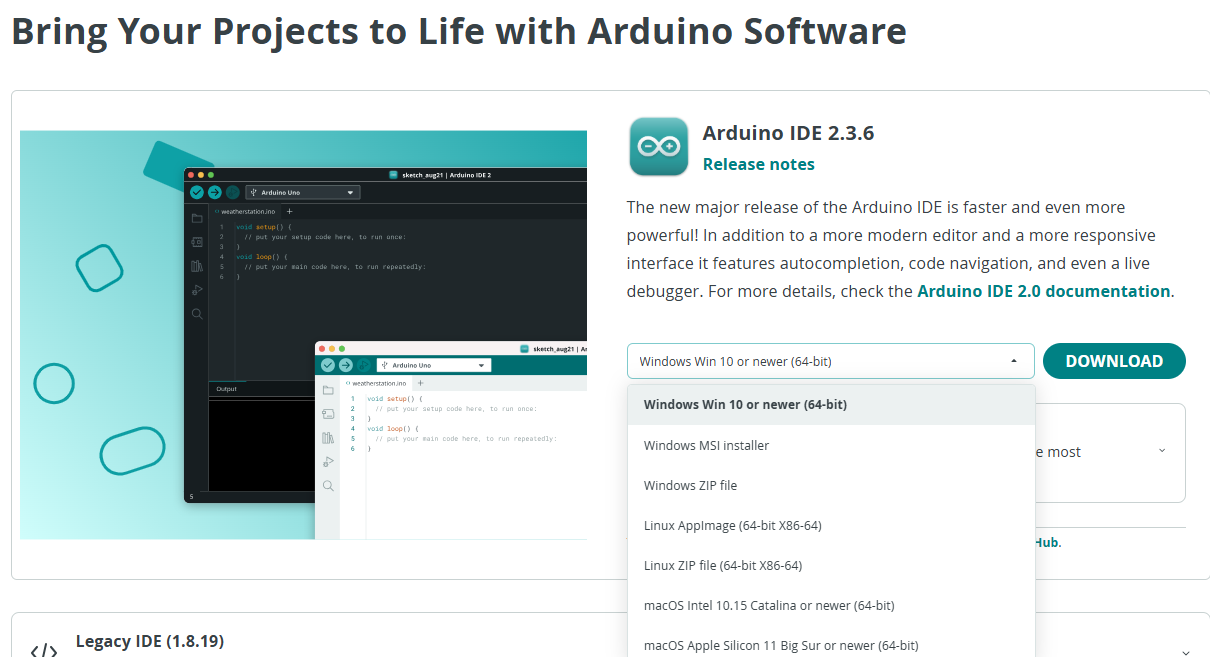
You can easily download the editor from the Arduino Software page.-https://www.arduino.cc/en/software/
¶ The Arduino IDE 2
The Arduino IDE 2 is an open-source project. It is a big step from its sturdy predecessor, Arduino IDE 1.x, and comes with revamped UI, improved board & library manager, debugger, autocomplete feature and much more.
¶ Download the Editor
Downloading the Arduino IDE 2 is done through the Arduino Software page. Here you will also find information on the other editors available to use.
¶ Installation
¶ Windows
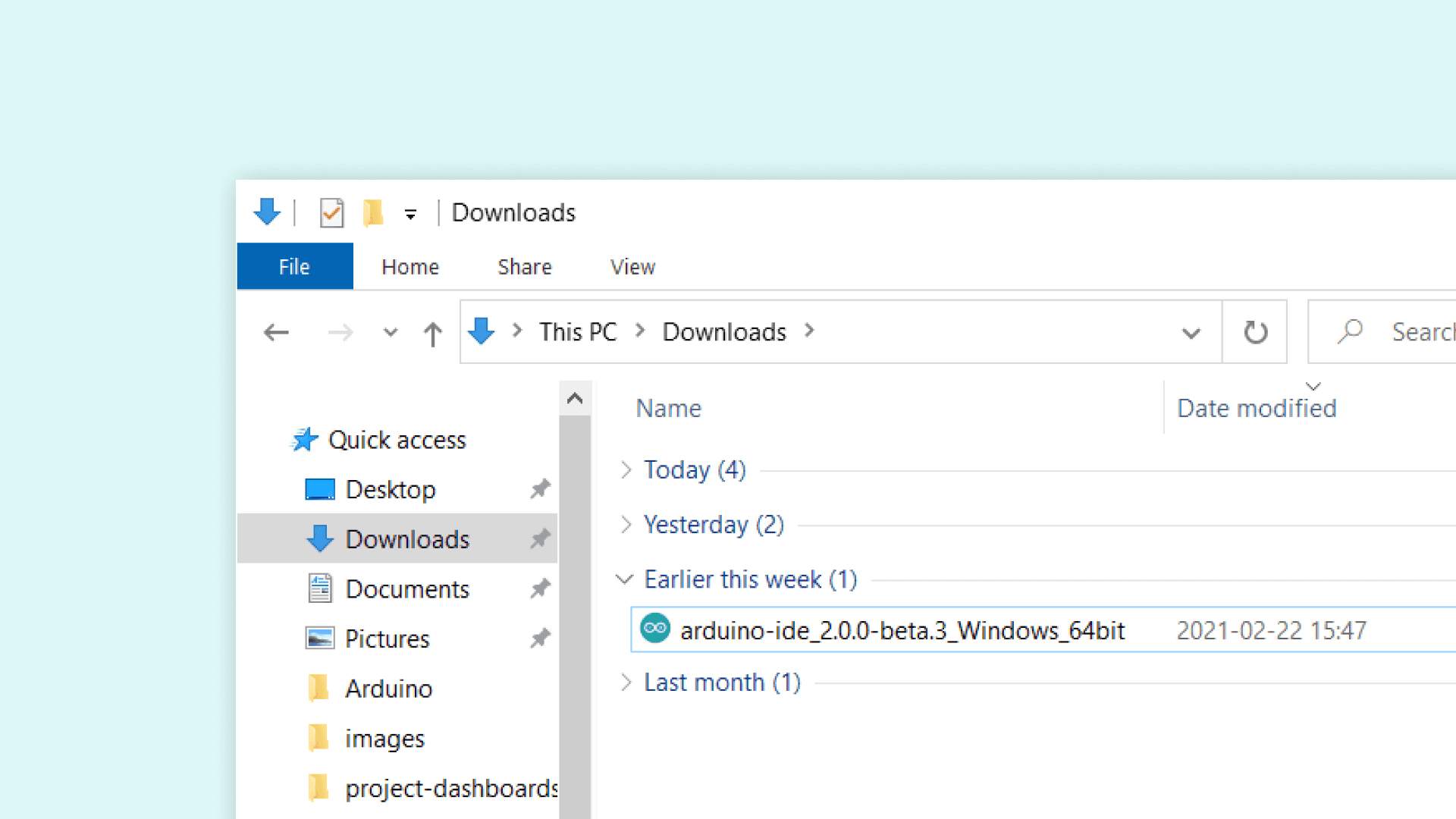
To install the Arduino IDE 2 on a Windows computer, simply run the file downloaded from the software page.
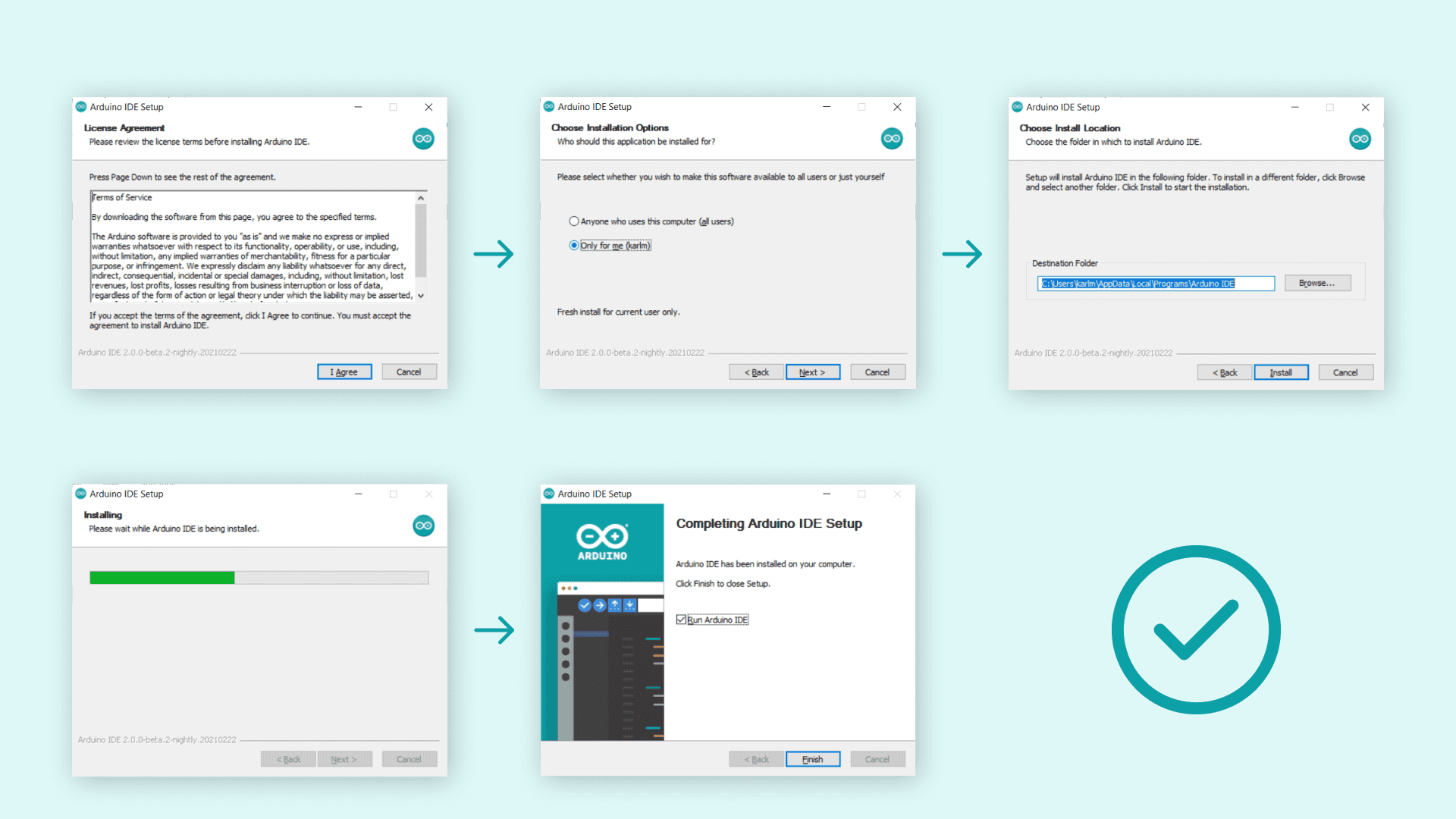
Follow the instructions in the installation guide. The installation may take several minutes.
¶ macOS
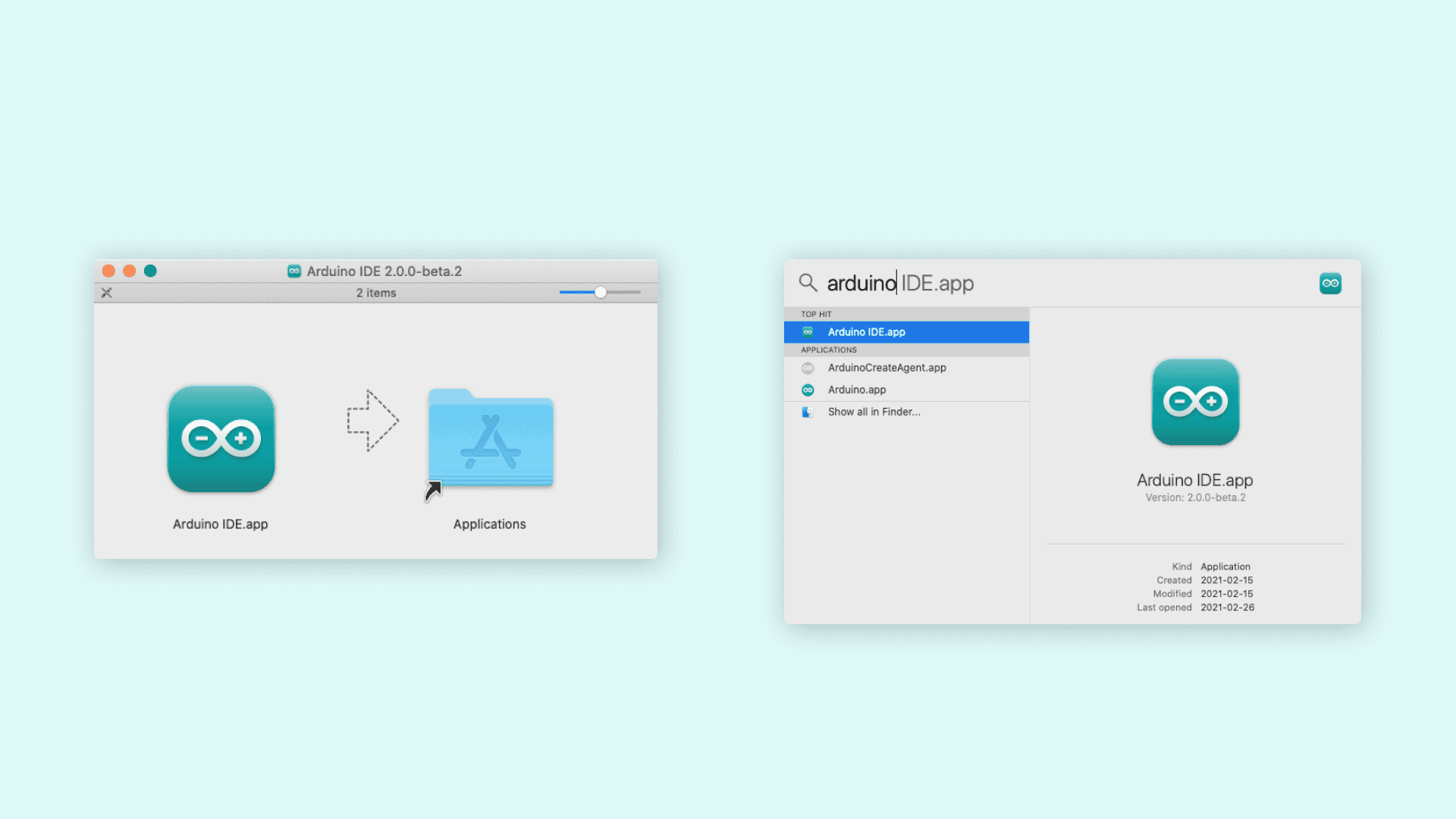
To install the Arduino IDE 2 on a macOS computer, simply copy the downloaded file into your application folder.
¶ How to install ESP32
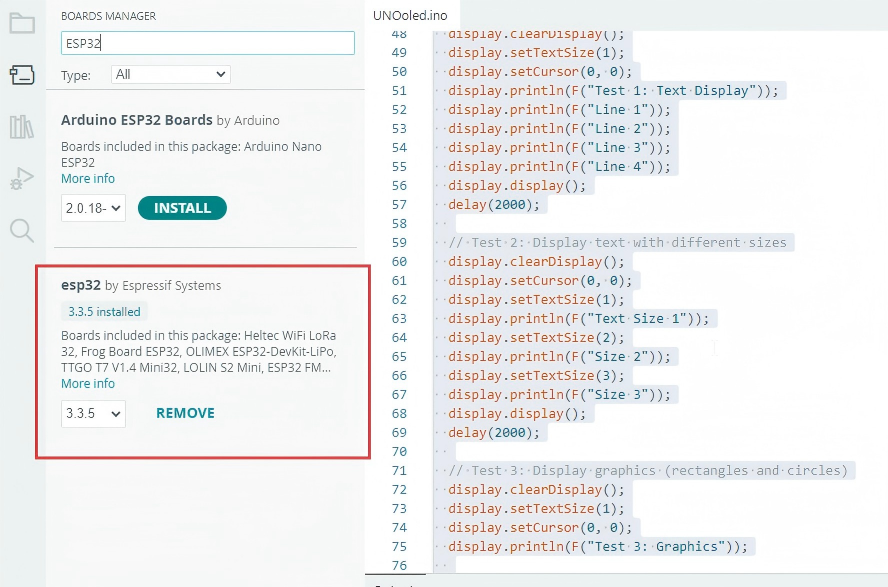
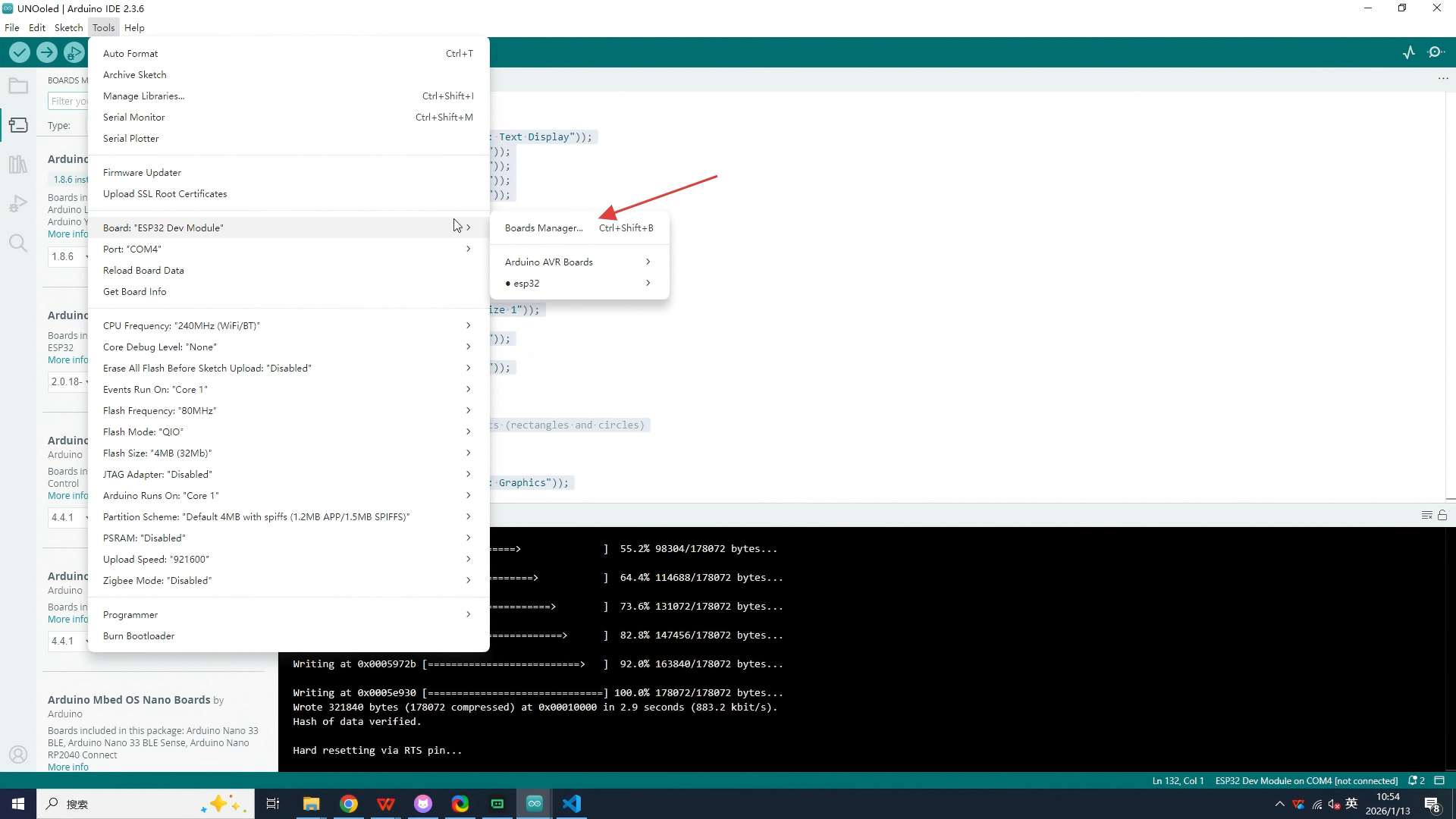
Please open the following path: Tools → Board → Board Manager. In the pop-up Board Manager window, locate the search bar at the top and enter "ESP32". After the search results are loaded, select the option displayed in the list as "ESP32 by Espressif Systems" (the official ESP32 board support package provided by Espressif Systems).
After opening the library management tool, enter the name of the library file you want to load in the search bar. The IDE will return various associated library files. Users only need to select the actual library file they need and click the download button. When you no longer need a certain library, you can click the remove button to remove it.