¶ Fault Symptoms
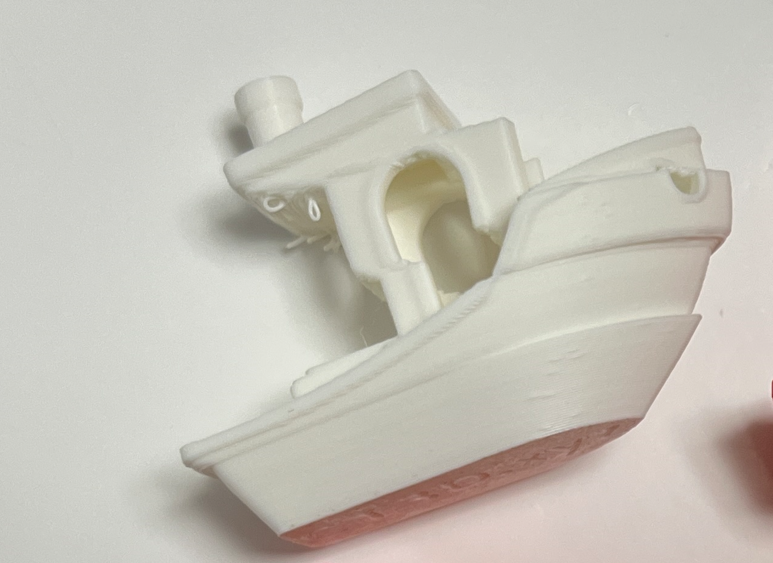
During printing, one or more layers suddenly shift along the X or Y axis, resulting in a noticeable stepped displacement in the printed model.
¶ Possible Causes
- The nozzle collides with the printed model.
- X/Y-axis movement is obstructed.
- The set screws on the X/Y-axis timing pulleys are loose.
- The X/Y-axis belt tensioner is damaged.
- The X/Y-axis belt is too tight.
- Z-axis movement is obstructed or not smooth.
- Improper slicer settings.
- Input Shaping calibration has not been performed.
- Mainboard failure.
- X-axis or Y-axis motor failure.
¶ Required Tools
- One additional spool of filament
- Open-end wrench
- 2.0 mm Allen key
¶ Troubleshooting Steps
¶ Check for Filament Tangling
Filament tangling is shown in the image below. Tangled filament can increase the feeding resistance of the extrusion system.
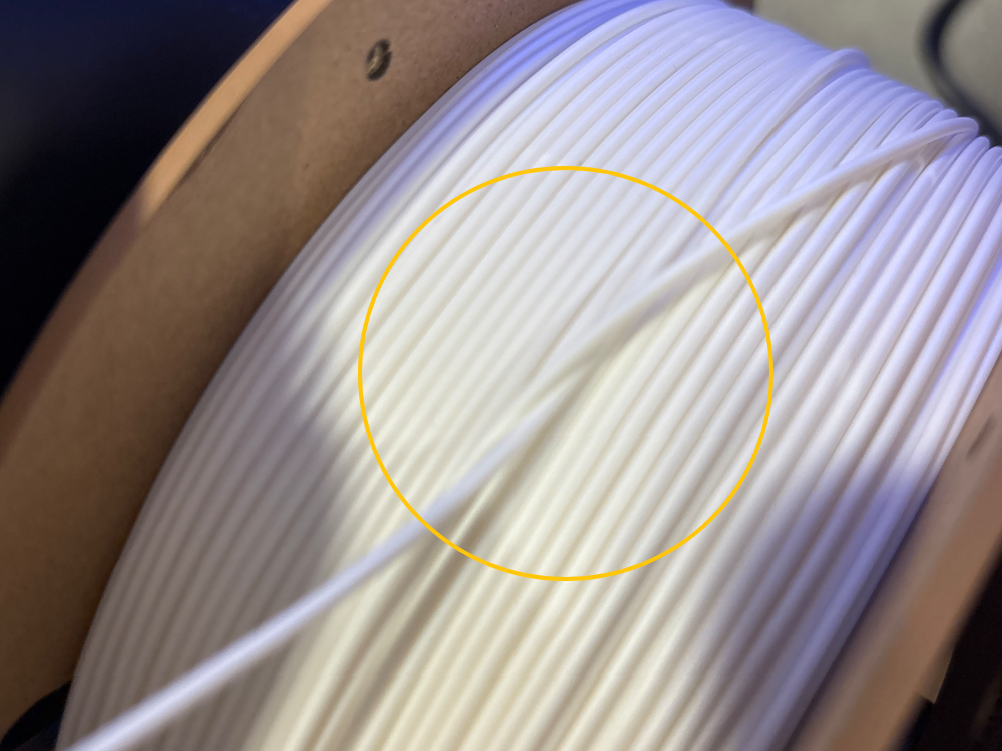
- If the filament is tangled, pass the end of the filament through the tangled section or replace it with another spool of filament, then print again for testing.
- If the filament is not tangled, proceed with the following troubleshooting steps.
¶ Check Whether the Extruder Kit and Heated Bed Are Loose
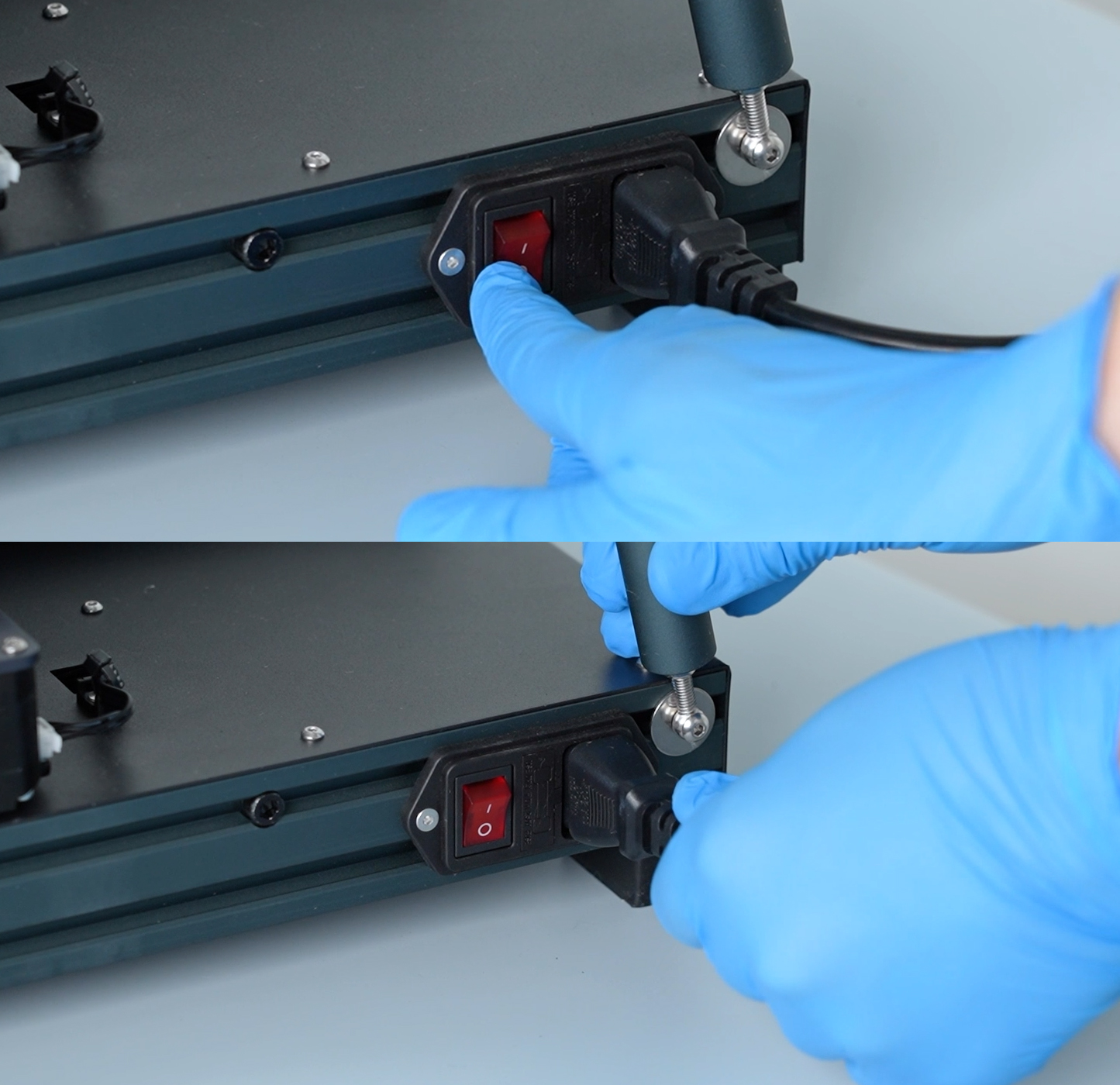
- Turn off the printer and unplug the power cord.
- Manually shake the extruder kit and heated bed to check whether they are loose.
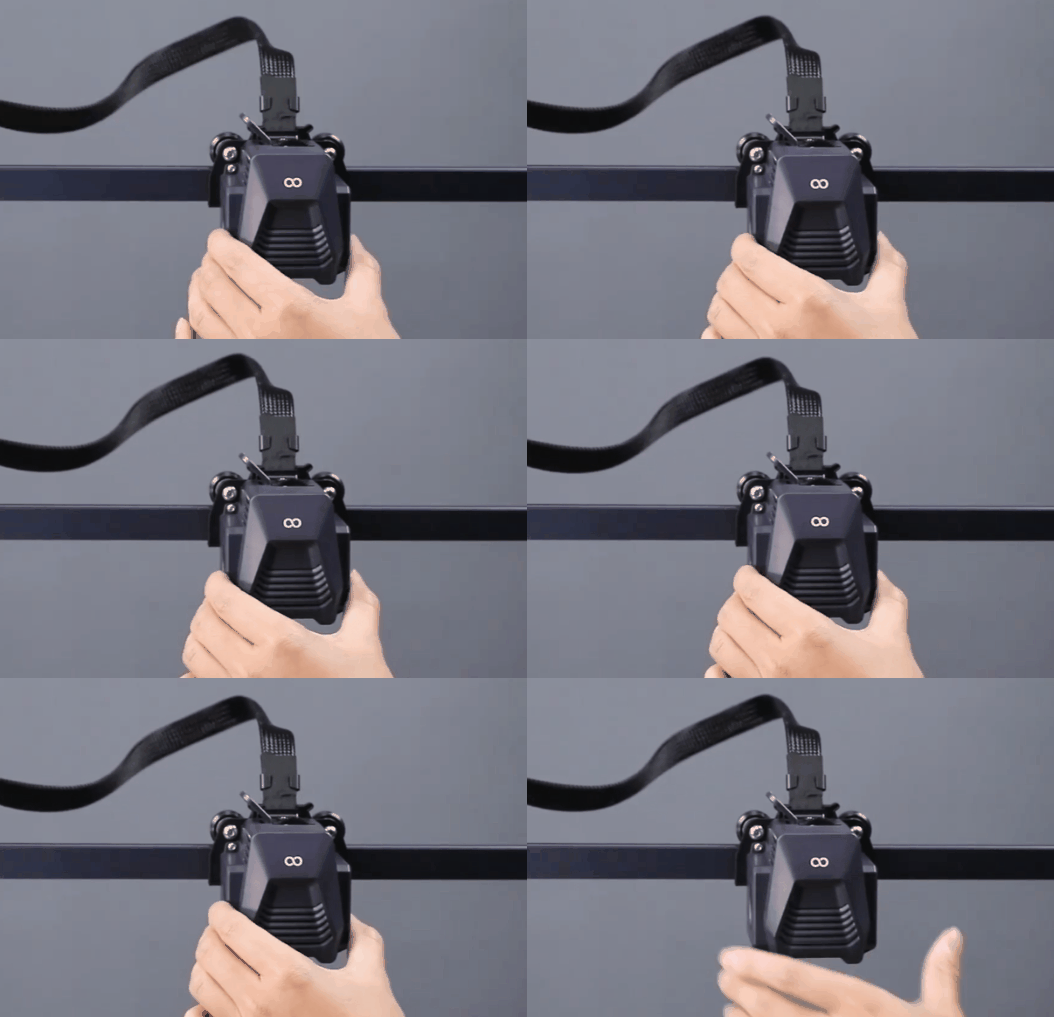
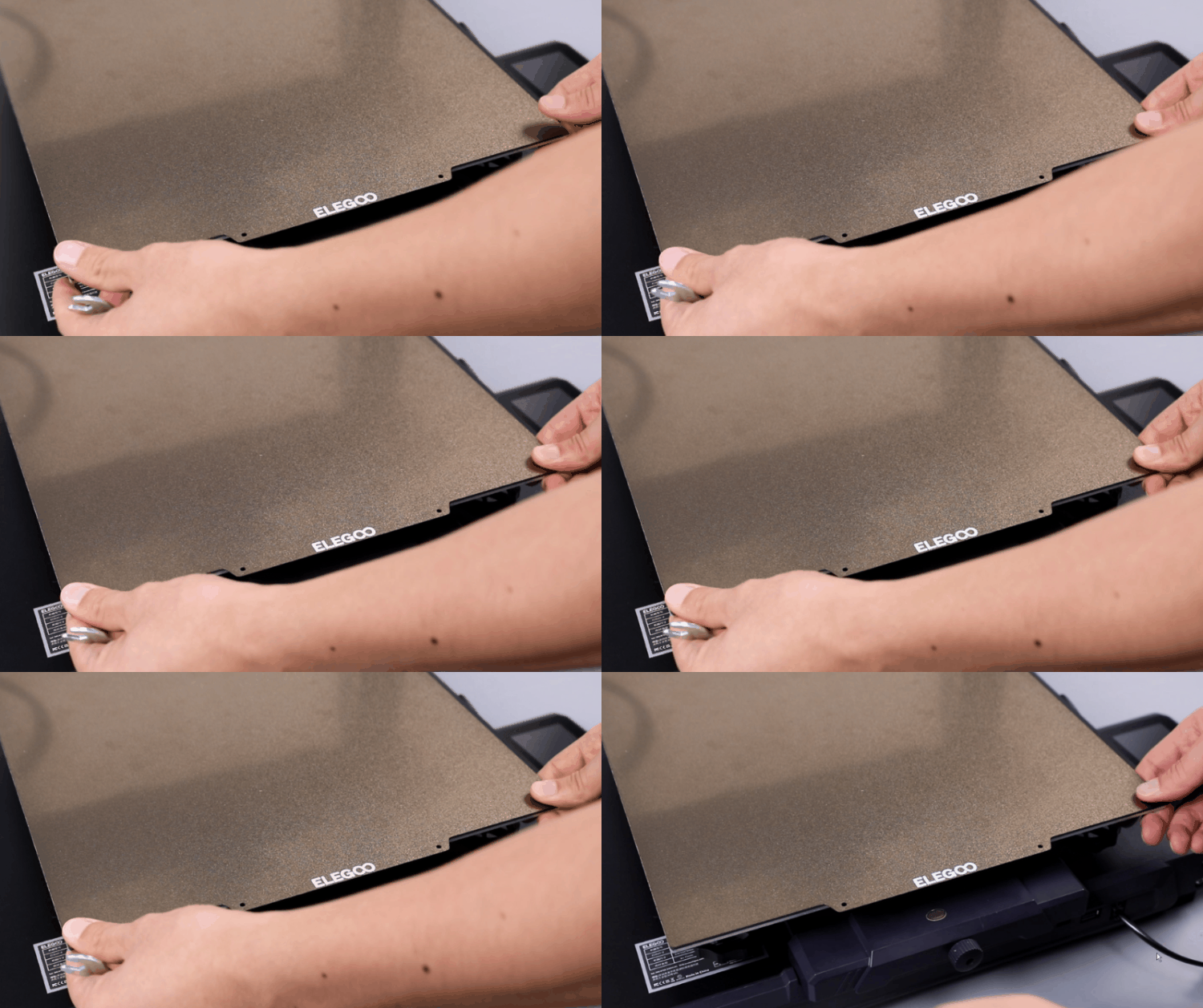
- If the extruder kit or heated bed is loose, use an open-end wrench to adjust the eccentric nuts. Turn each nut approximately 1/3 of a turn at a time. Multiple adjustments may be required.
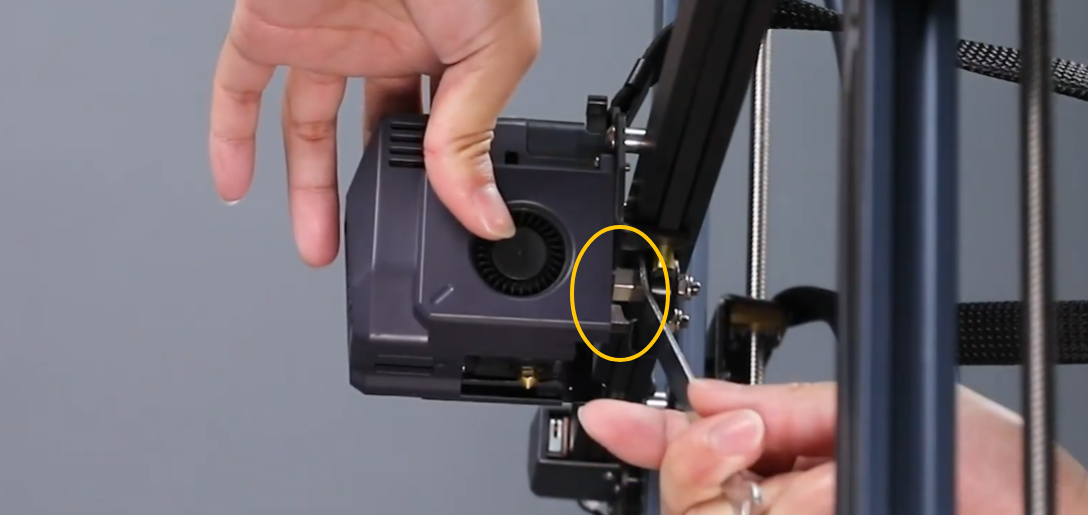
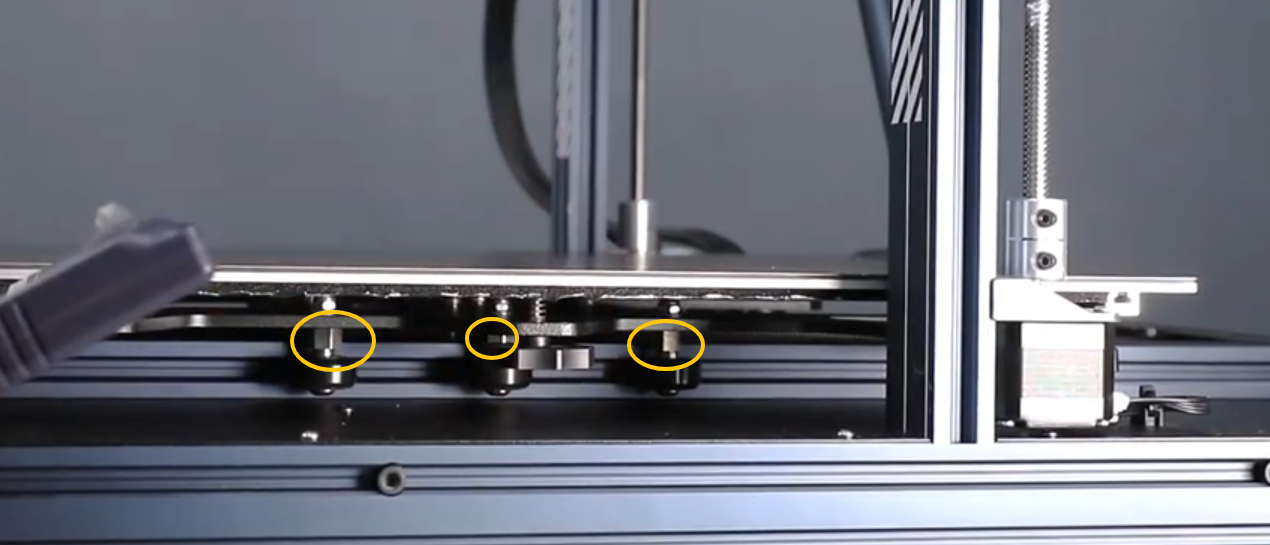
- If the extruder kit and heated bed are not loose, proceed with the following troubleshooting steps.
¶ Check for Model Warping
Model warping is shown in the image below.
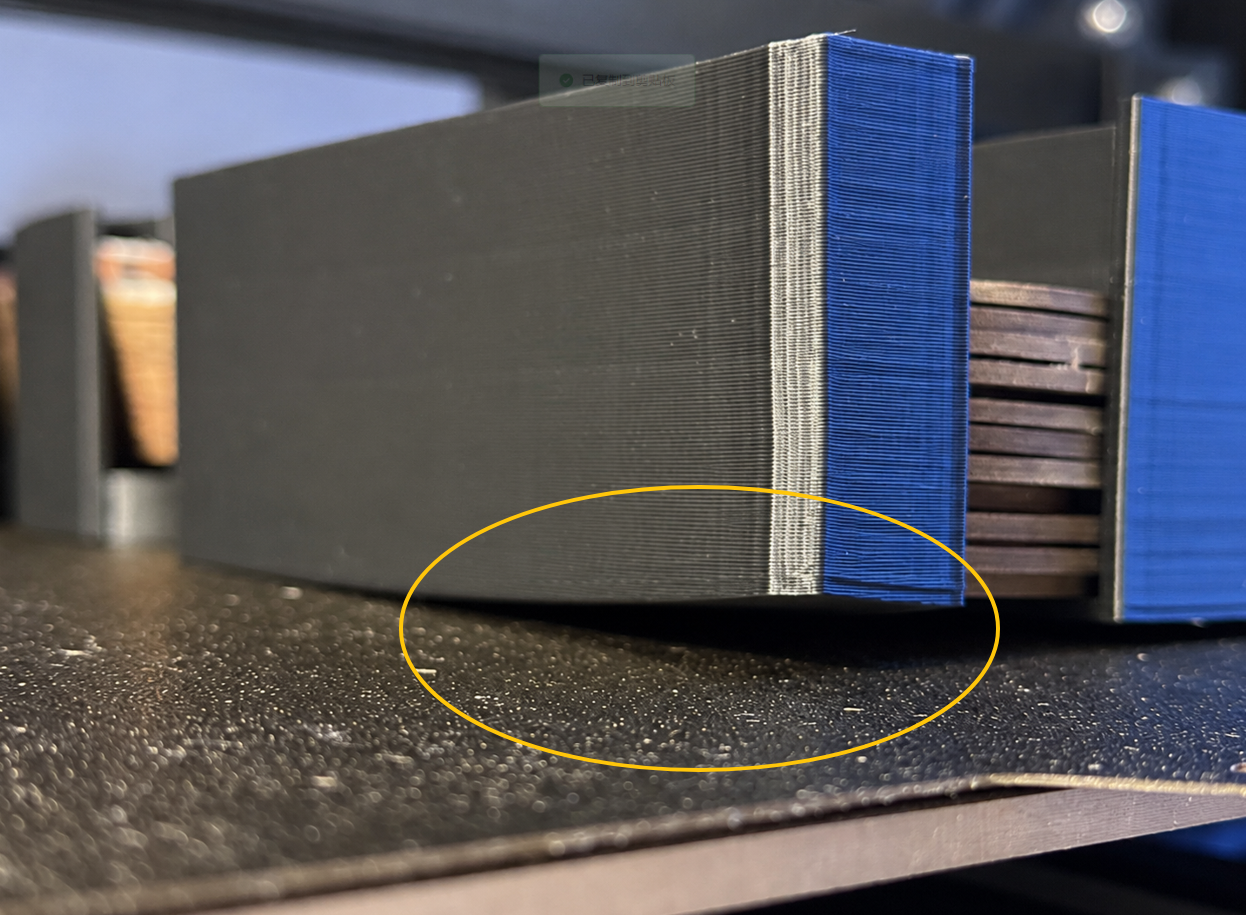
- If the model is warped, follow the troubleshooting steps in Edge Warping.
- If the model is not warped, proceed with the following troubleshooting steps.
¶ Check Whether the X/Y Axes Move Smoothly
- Turn off the printer and unplug the power cord.
- Manually move the extruder kit and heated bed back and forth.
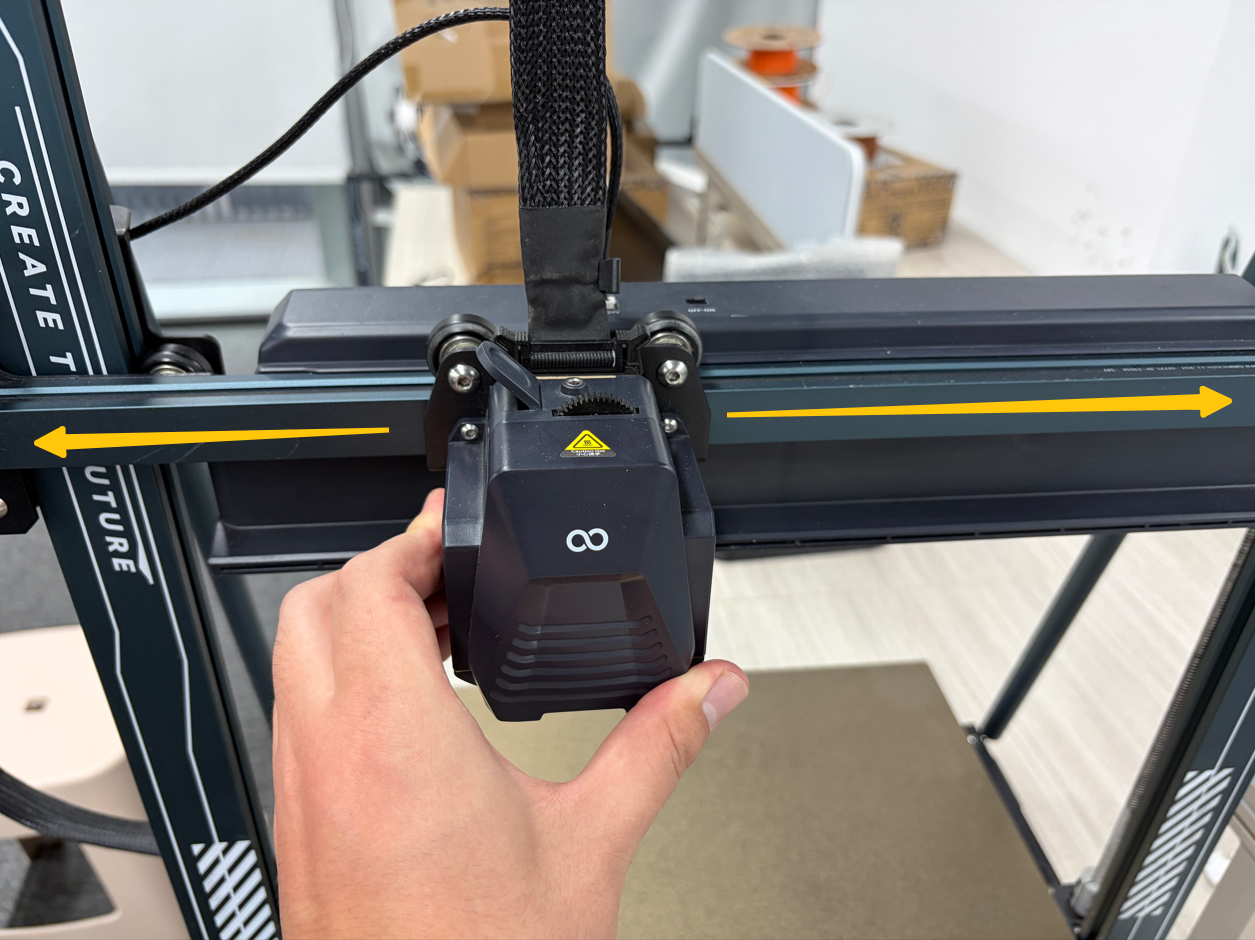
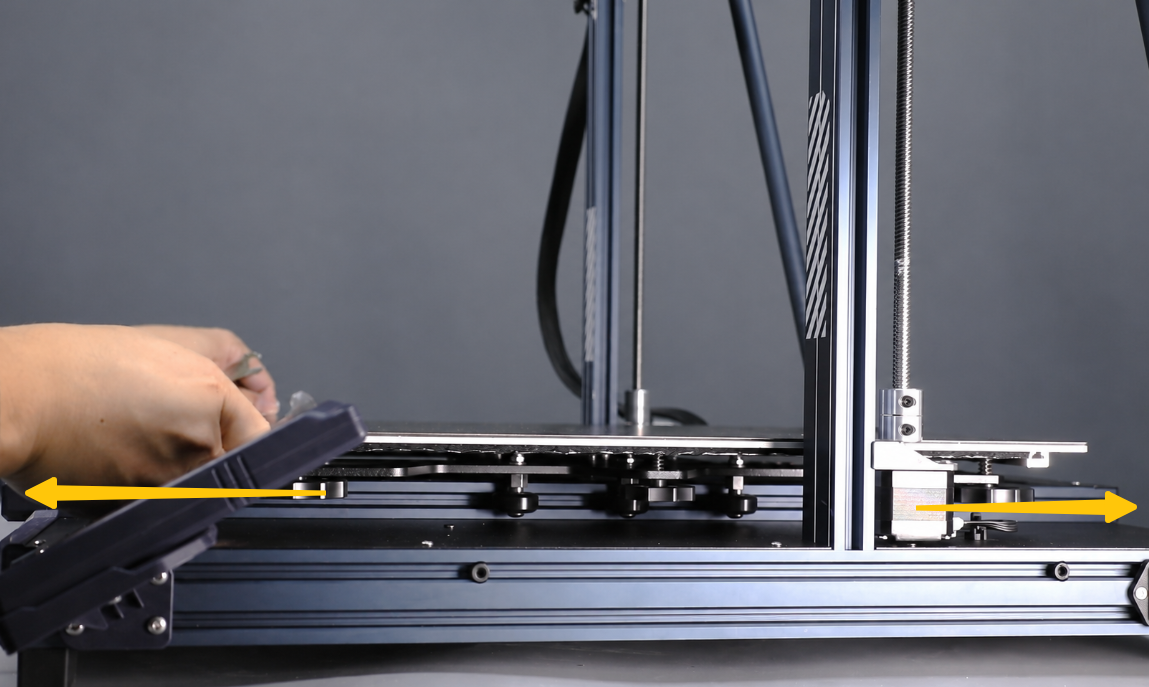
- Check whether there is any resistance or sticking during movement.
- If the X or Y axis does not move smoothly, check whether any objects are obstructing the movement of the heated bed or extruder kit around the aluminum profiles. Also check whether there are any protrusions or other abnormalities on the surface of the aluminum profiles.
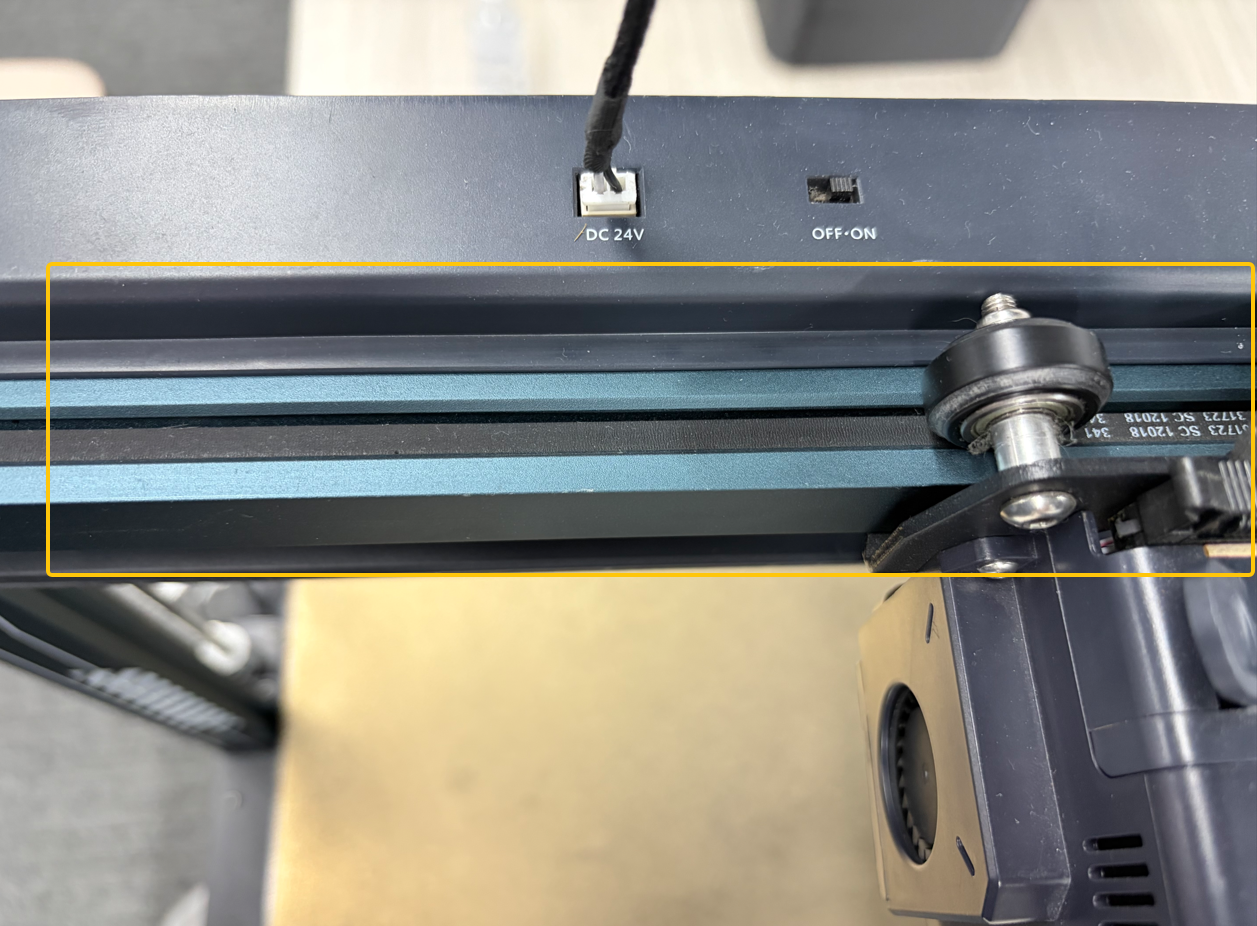
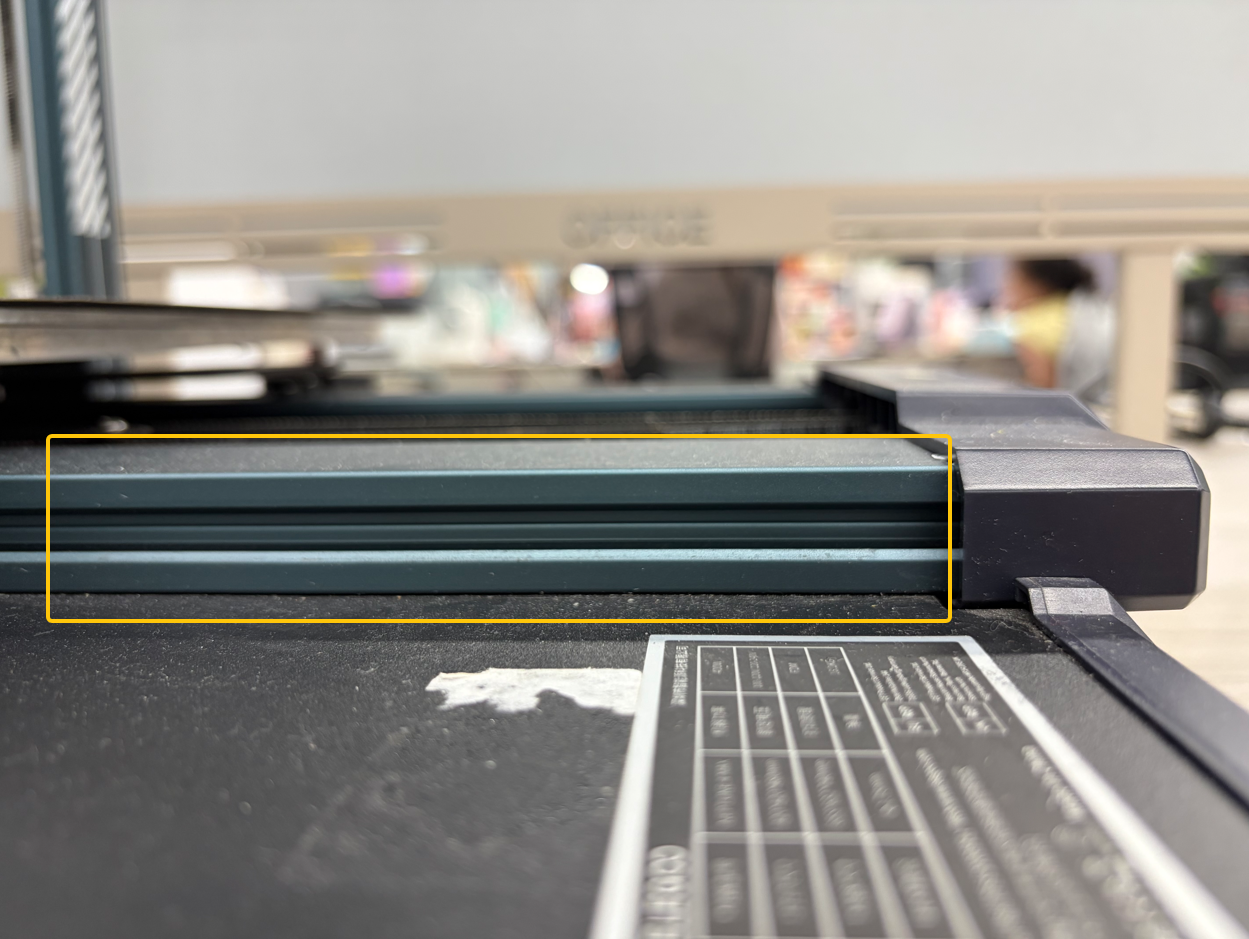
- If the X/Y axes move smoothly, proceed with the following troubleshooting steps.
¶ Check the X/Y-Axis Timing Pulley Set Screws
Note: Some printer batches no longer use set screws on the timing pulleys. If there are no set screws on the timing pulleys, skip this step.
- Use a 2.0 mm Allen key to remove the screws securing the X-axis timing pulley cover, then remove the cover.
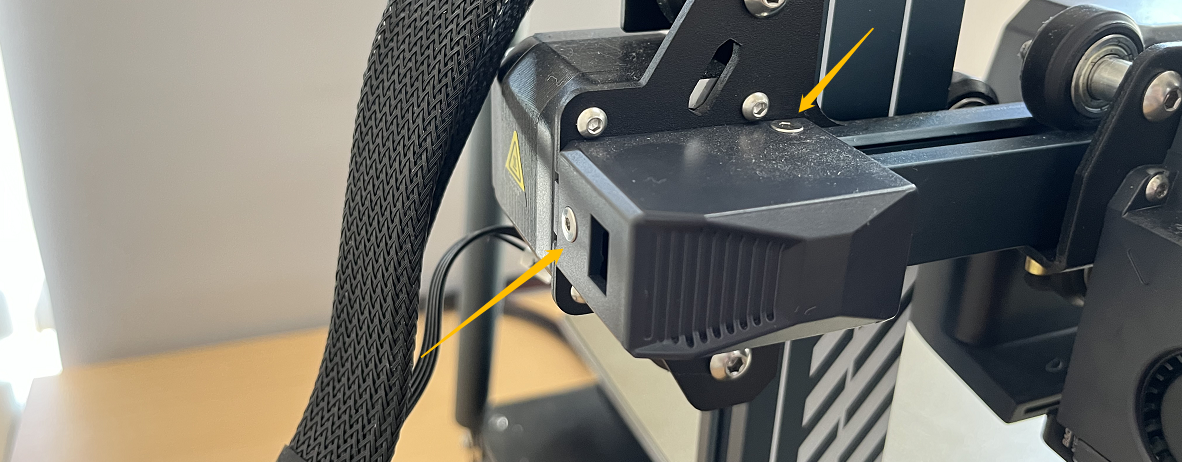
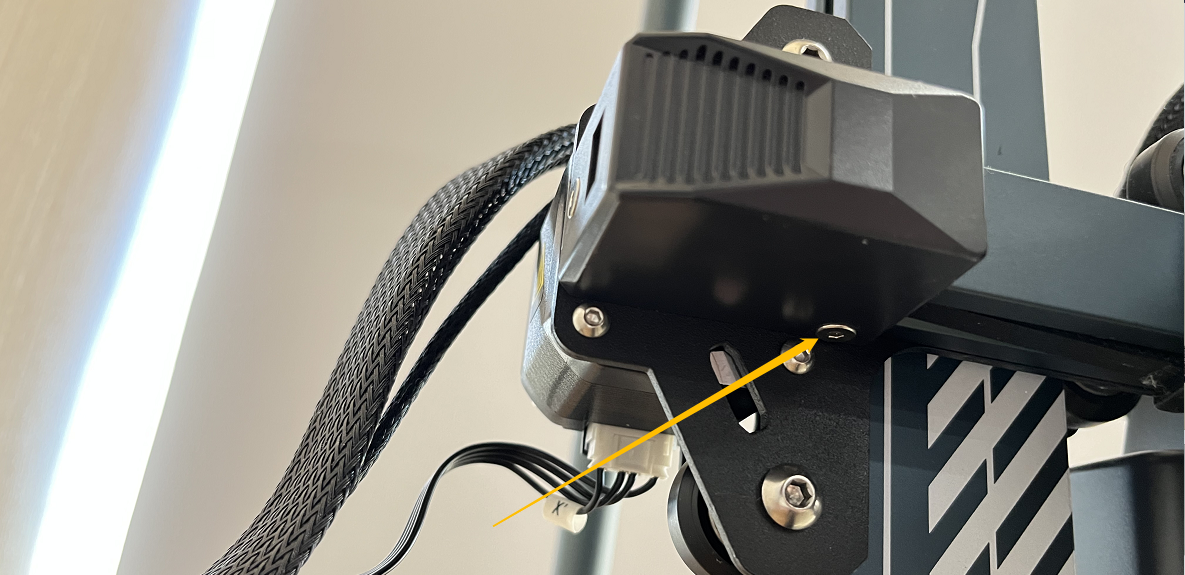
- Check whether the two set screws on the X/Y-axis timing pulleys are loose.
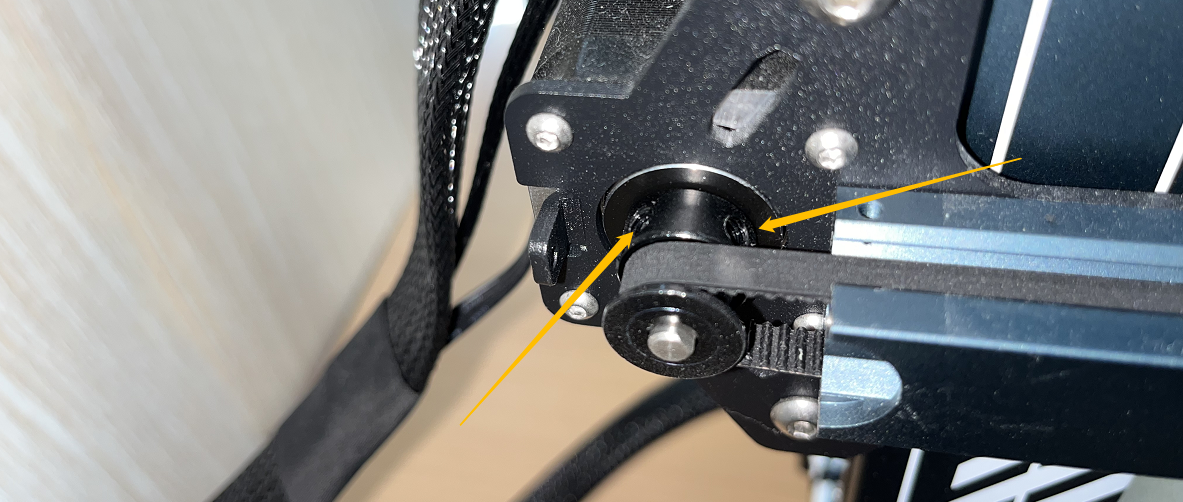
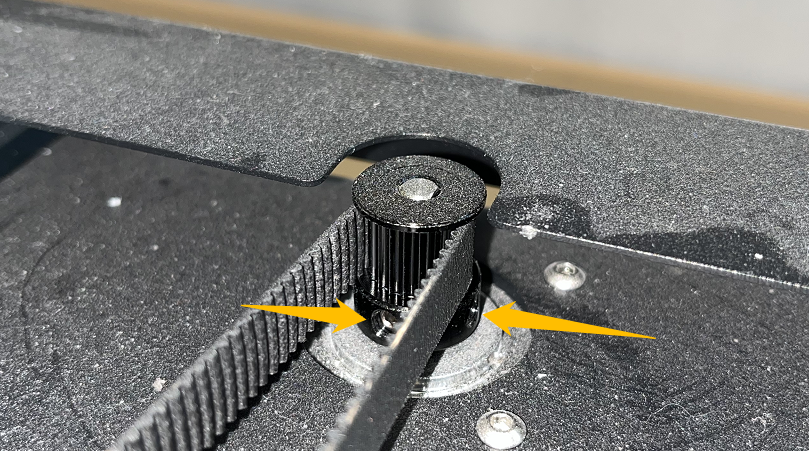
- If any set screw is loose, tighten it securely.
Note: One of the set screws must be aligned with the flat side of the stepper motor shaft.
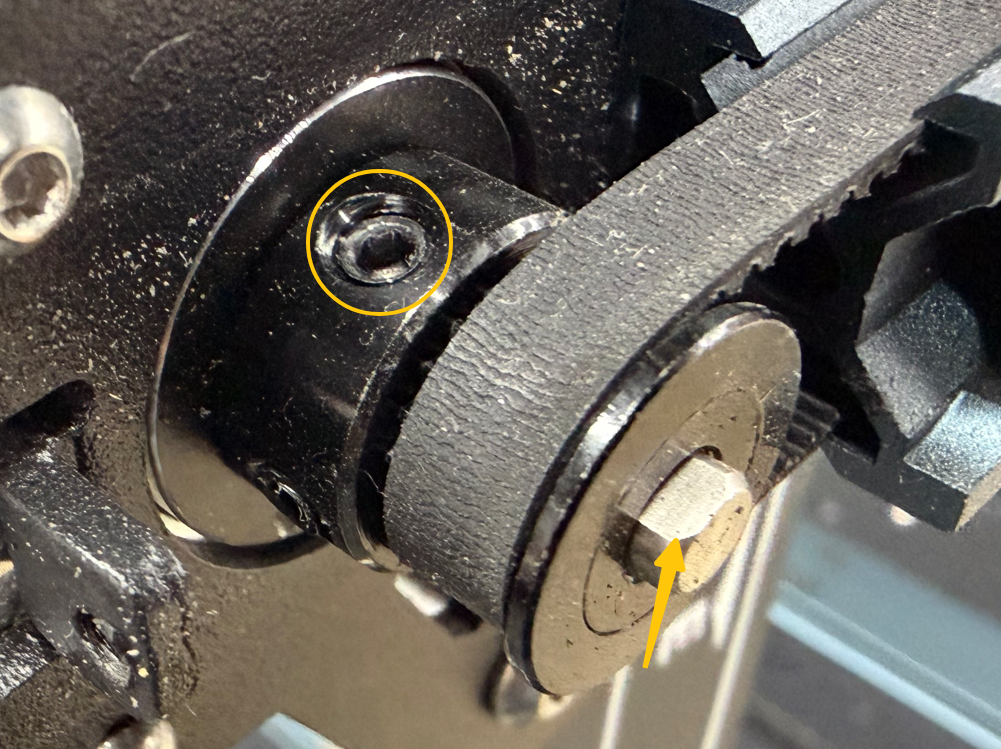
- If the set screws are not loose, proceed with the following troubleshooting steps.
¶ Check the X/Y-Axis Belt Tensioners
¶ Check the X-Axis Belt Tensioner
- Use a 2.0 mm Allen key to remove the two screws securing the X-axis belt tensioner cover.
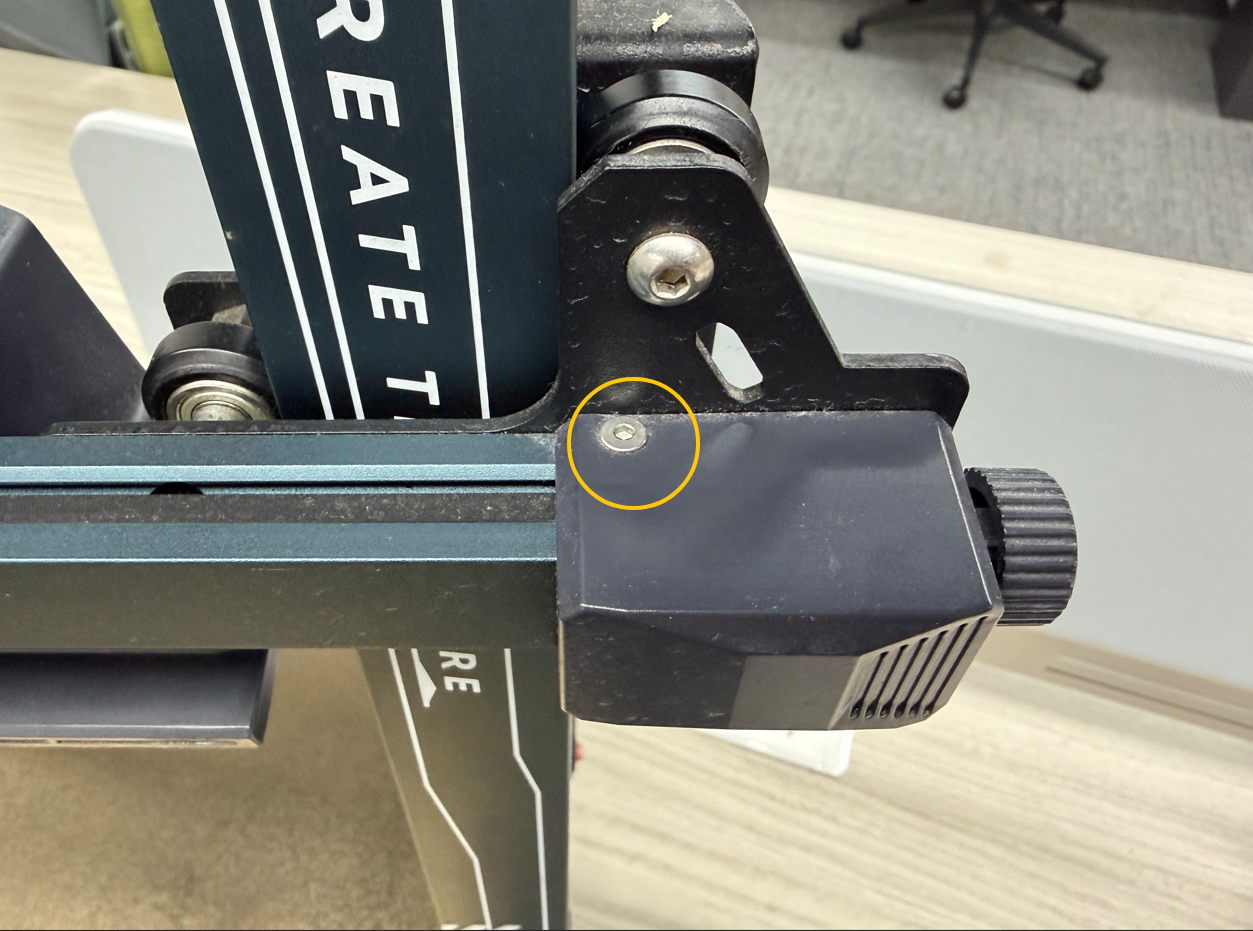
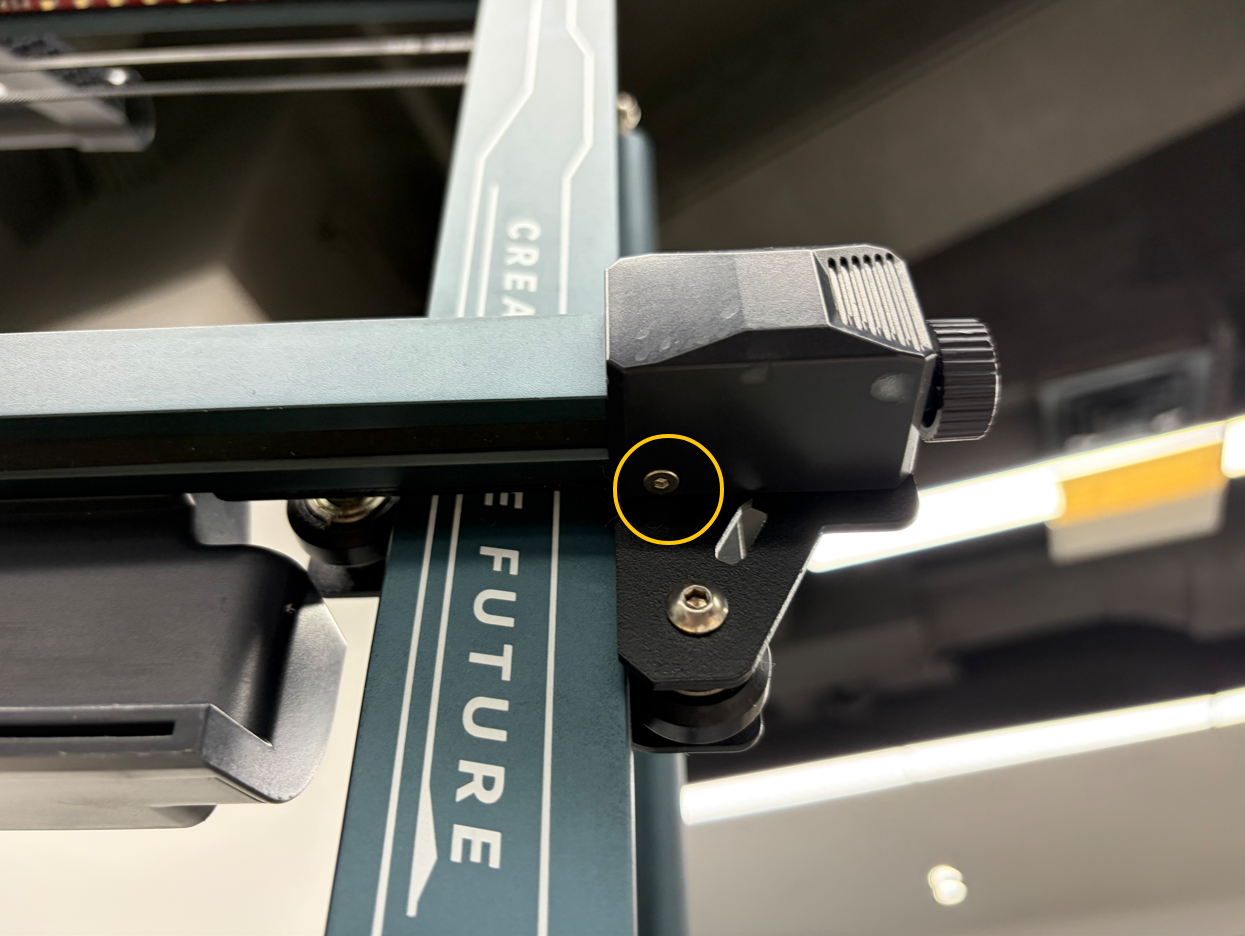
- Turn the knob counterclockwise until it is completely loosened.
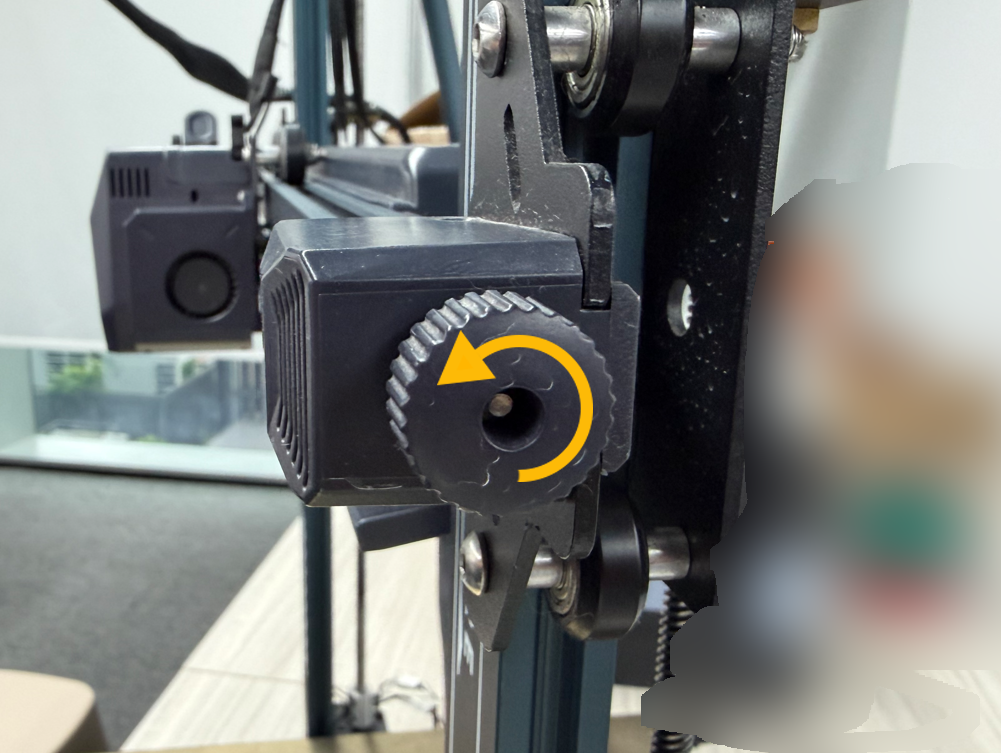
- Remove the X-axis belt tensioner cover from the right side.
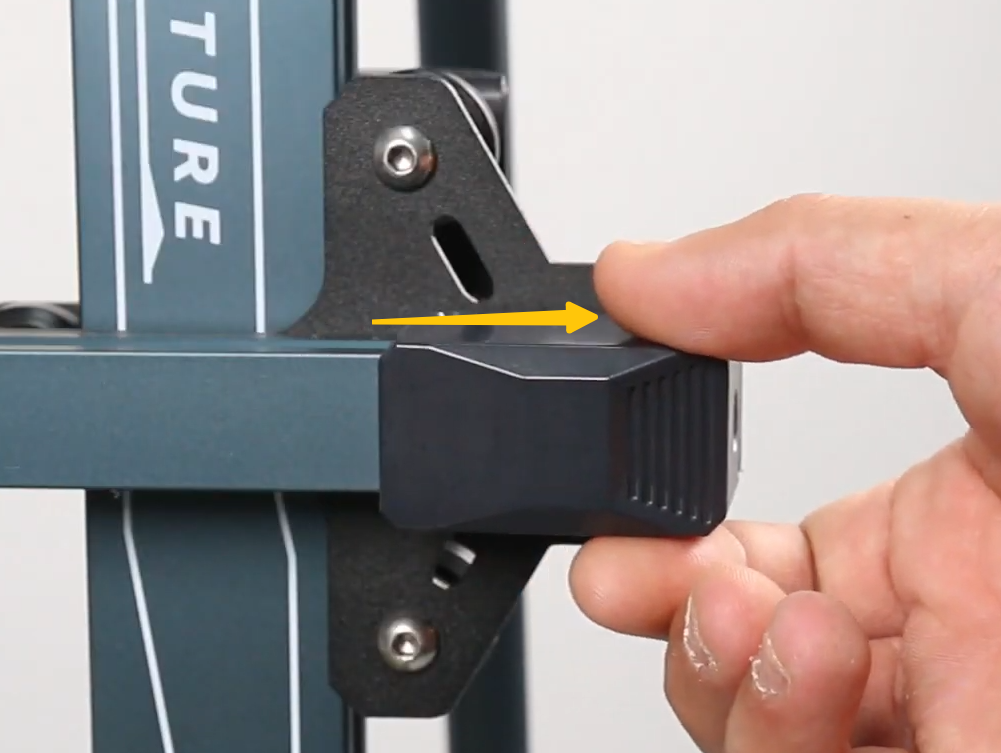
- Check whether the X-axis belt tensioner is damaged or cracked.
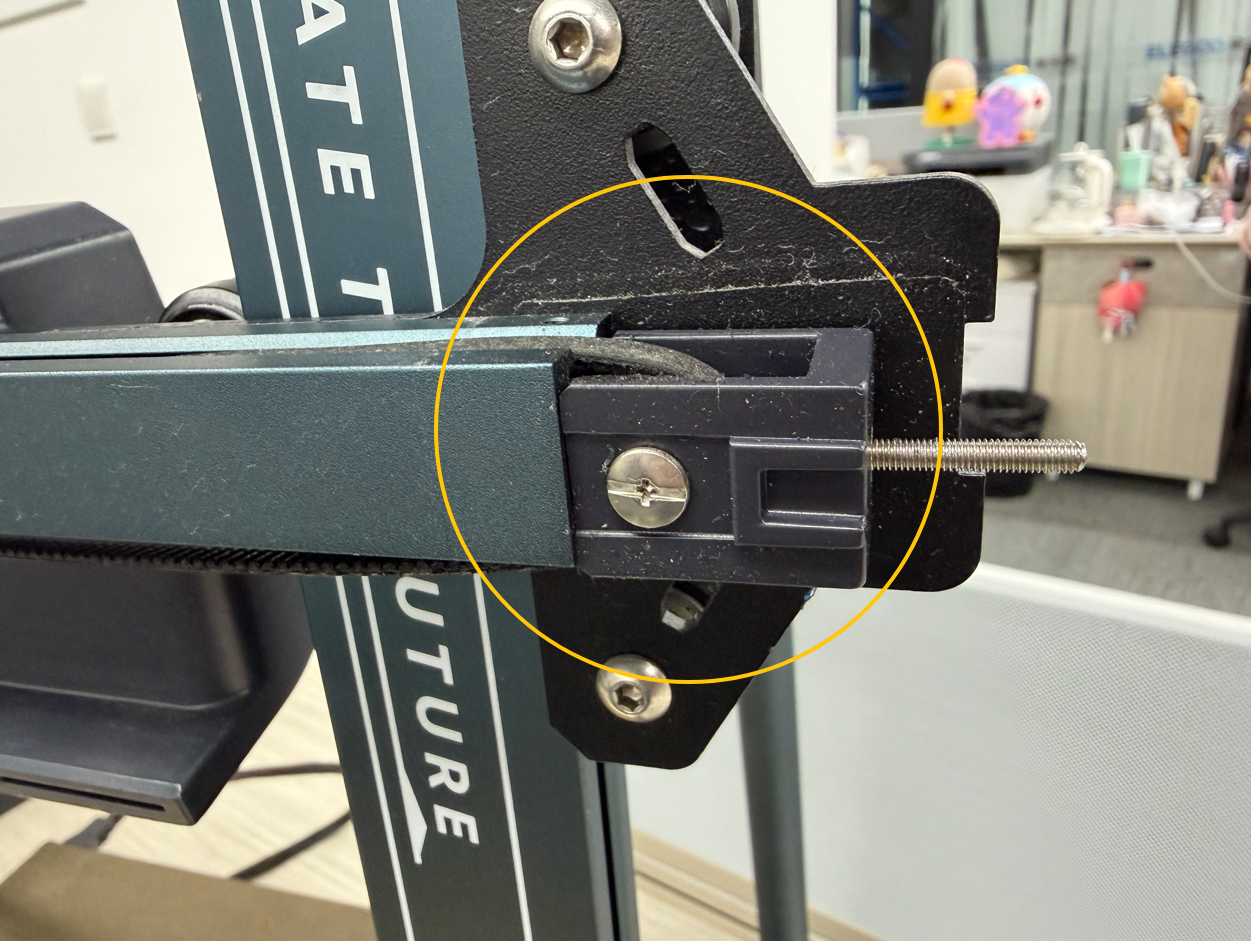
¶ Check the Y-Axis Belt Tensioner
- Turn the knob counterclockwise until it is loose, then remove the knob.
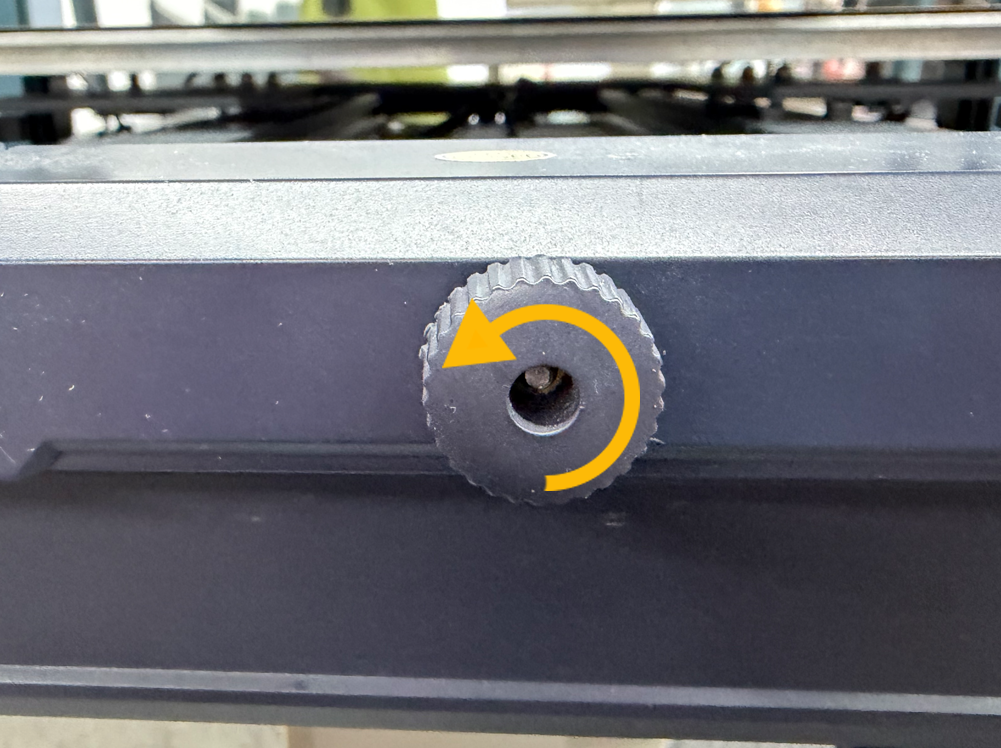
- Remove the Y-axis belt tensioner.
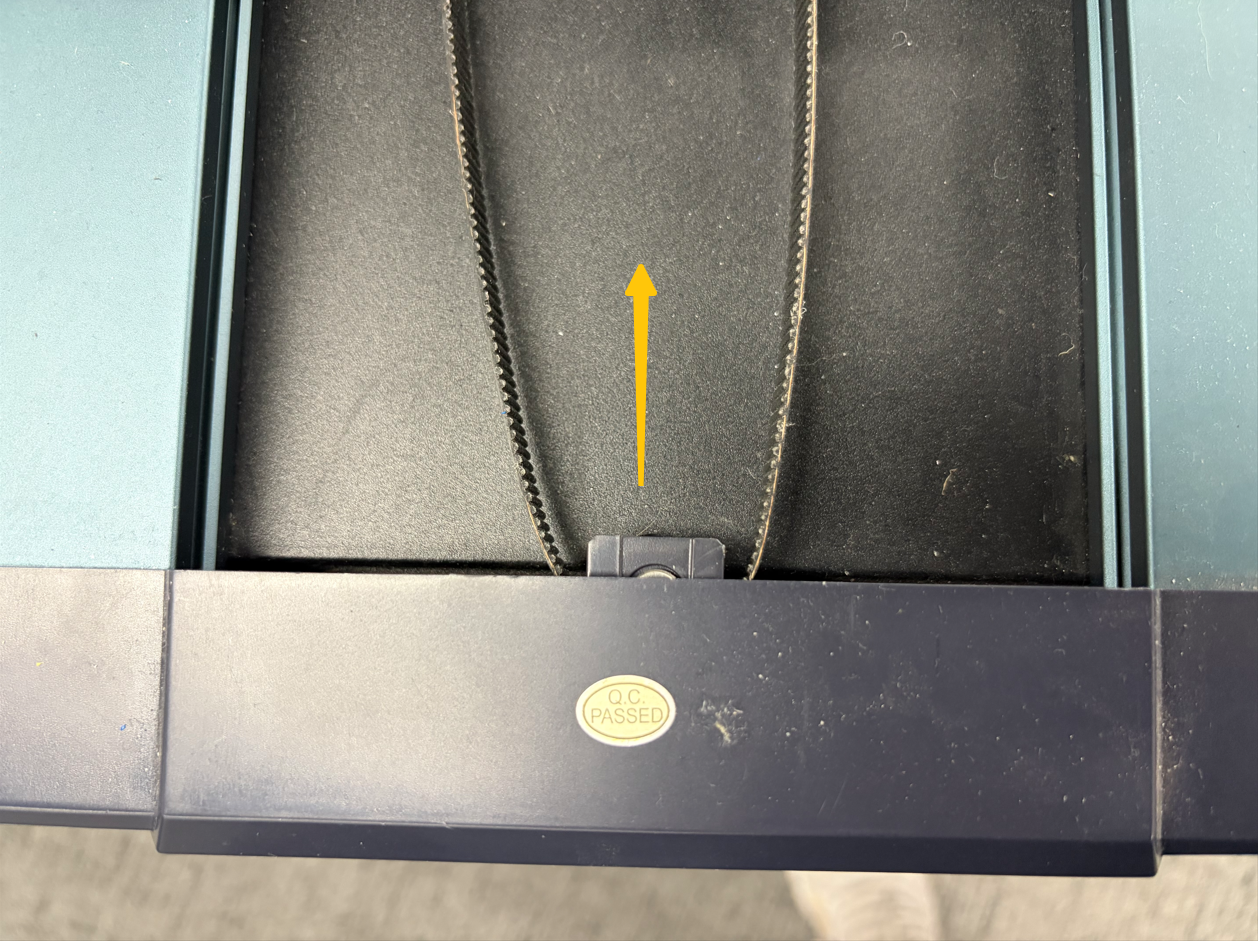
- Check whether the Y-axis belt tensioner is damaged.
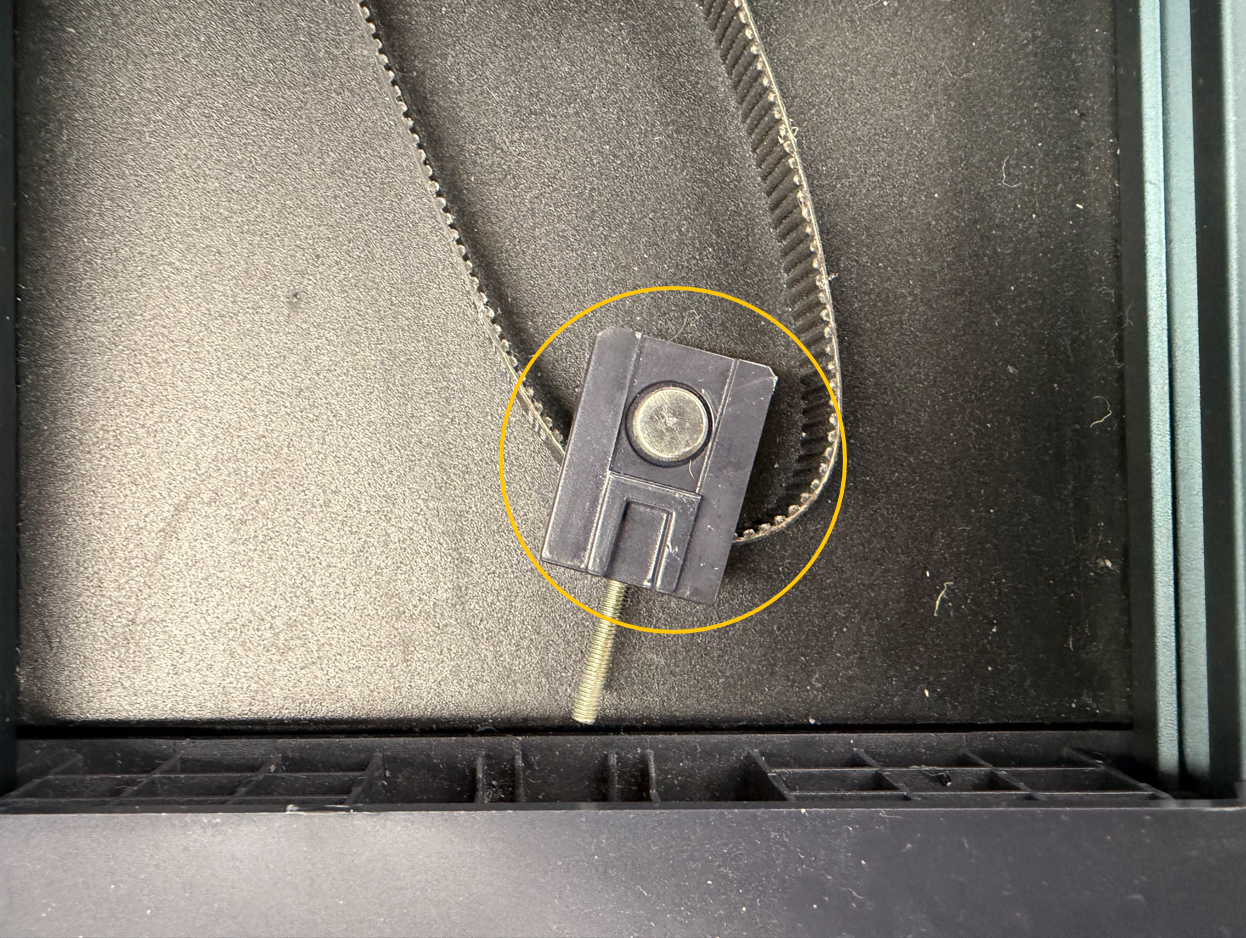
- If either the X-axis or Y-axis belt tensioner is damaged or cracked, replace it immediately.
- If neither belt tensioner is damaged or cracked, reinstall the X/Y-axis belt tensioners and proceed with the following troubleshooting steps.
¶ Loosen the X/Y-Axis Belts
If the X/Y-axis belts are too tight, the increased resistance can affect the motion system and place excessive stress on mechanical components, resulting in reduced print accuracy and component lifespan. The belts should not be excessively tight. They should maintain sufficient tension while still allowing slight elasticity.
Loosen the X/Y-axis belts if any of the following conditions occur:
- The extruder kit or heated bed is noticeably difficult to move manually.
- The belt is tensioned like a guitar string.
- The X/Y axes produce noticeable noise during movement.
Note: Turn the tensioner knob counterclockwise to loosen the belt.
- If the belt tension is appropriate, proceed with the following troubleshooting steps.
¶ Check Whether the Screws Securing the Brass Nuts Are Too Tight
The screws securing the two Z-axis brass nuts must maintain an appropriate amount of clearance. If these screws are fully tightened, the Z axis may become difficult to move during upward movement, which can increase rubbing between the nozzle and the model surface and cause layer shifting.
Note: The image below shows the correct condition.
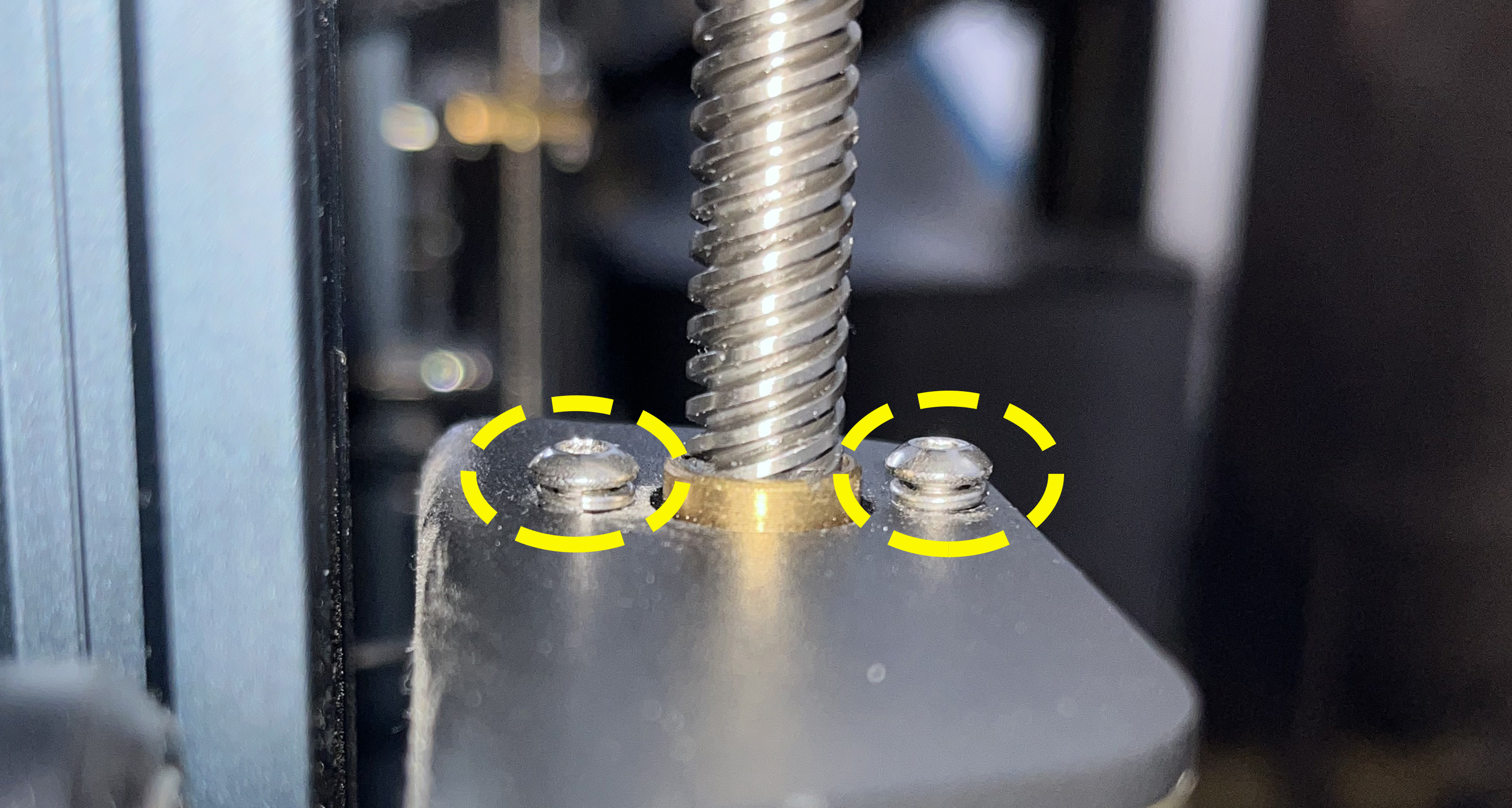
- If the two screws are not fully tightened, proceed with the following troubleshooting steps.
¶ Check Whether the Heated Bed and X Axis Are Parallel
- Check whether the X axis is parallel to the heated bed. If this cannot be determined visually, use a ruler to measure the distance between both ends of the X axis and the heated bed and check whether the distances are different.
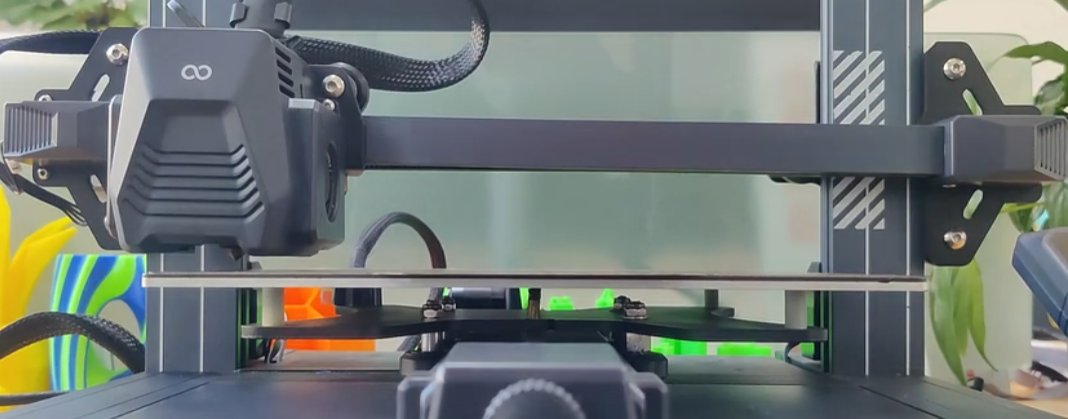
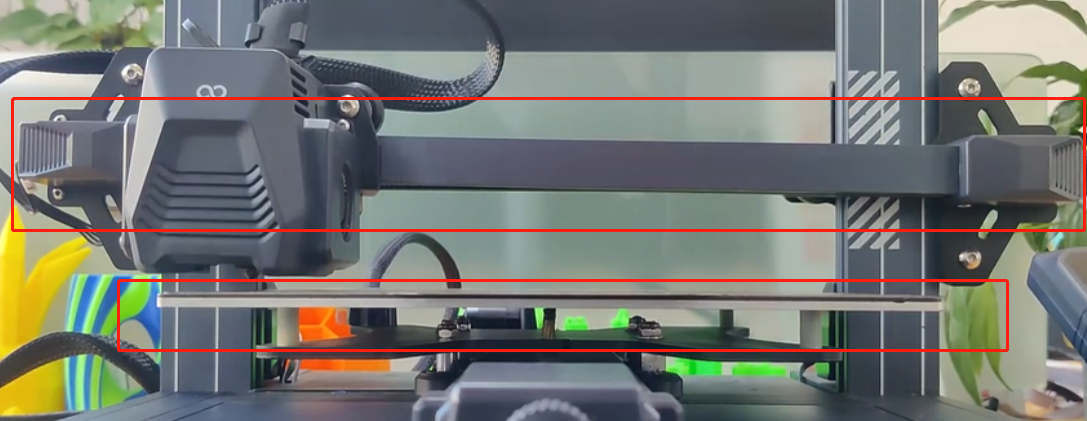
- Adjust the X axis to ensure that it is parallel to the heated bed. Refer to the video below. The X-axis adjustment method is the same for Neptune series printers.
- If the X axis is already parallel to the heated bed, proceed with the following troubleshooting steps.
¶ Check the Slicer Settings
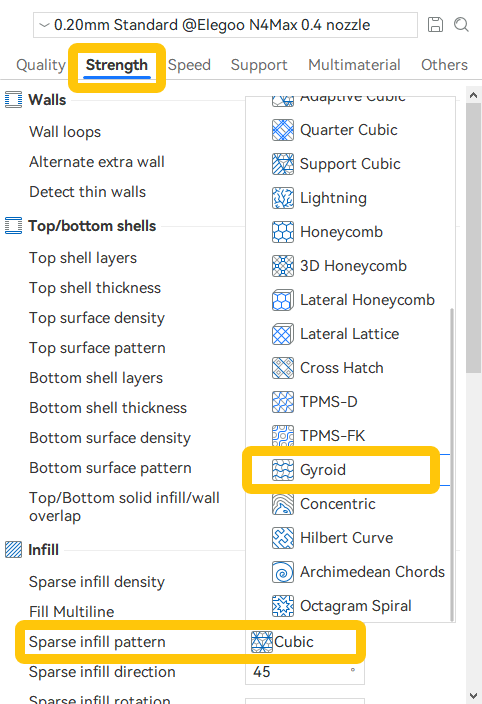
¶ 1. Set the Infill Pattern to Gyroid
Some infill patterns, such as Grid, contain many intersection points. When the nozzle moves at high speed, it may collide with previously printed and cooled infill lines, causing a sudden increase in resistance. This may cause the stepper motor to skip steps and result in layer shifting.
For testing, it is recommended to change the infill pattern to Gyroid.
¶ 2. Reduce the Printing Speed
When the printing speed is too high, the stepper motor must operate at a higher speed, which reduces its available torque. Even a small amount of additional resistance caused by friction, inertia, or contact with the printed model may cause the motor to fail to keep up with the pulse frequency, resulting in skipped steps and layer shifting.
¶ 3. Reset the Slicer Settings
If you are unsure which settings have been modified, it is recommended to restore the ELEGOO Slicer settings to their default values.
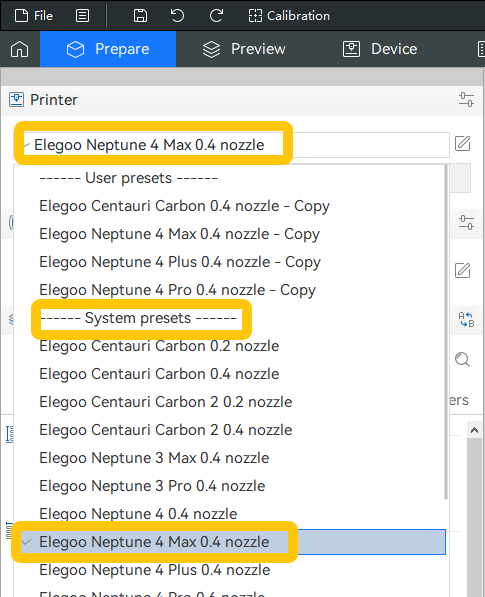
Go to Prepare → Current Printer → System Presets, find your printer model, and select it to restore the default printer profile.
The default settings provide a balance between printing speed and print quality and are suitable for most models.
¶ Perform Input Shaping Calibration
Neptune 4 series printers support high-speed printing. Input Shaping helps the printer move more smoothly at the same speed and acceleration, reducing vibration transmission and the possibility of skipped steps.
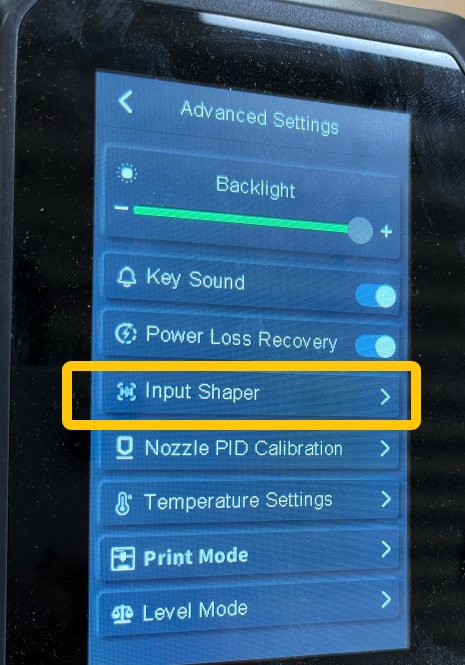
If Input Shaping calibration has not been performed, or if the printer's mechanical structure has been disassembled or adjusted, it is recommended to perform X/Y Input Shaping calibration again.
¶ Check the X/Y Motors and Mainboard
If layer shifting still occurs after completing all the troubleshooting steps above, one of the following components may be faulty:
- X/Y motor
- Motor cable
- Mainboard
Swap the X and Y motor connections, then print the test file from the USB flash drive for testing.
Important: Turn off the printer before swapping the X/Y motors. Never connect or disconnect the motor connectors while the printer is powered on, as this may damage the mainboard motor drivers.
- If the layer shifting direction remains unchanged after swapping the motors, the mainboard may be faulty and needs to be replaced.
- If the layer shifting occurs on the other axis after swapping the motors, the corresponding motor may be faulty and needs to be replaced.
How to Replace the X Motor The X motor replacement procedure is the same for Neptune series printers.
¶ Contact Technical Support
If layer shifting still occurs after completing all the troubleshooting steps above, contact Technical Support and provide the following information.
¶ Provide the Test and Inspection Results
- Whether the X/Y axes move smoothly when moved manually.
- Whether the X/Y-axis timing pulley set screws are missing or loose.
- Whether the X/Y-axis belt tensioners are damaged.
- Whether the X/Y-axis belts are too tight.
- Whether the screws securing the brass nuts are too tight.
- Whether the heated bed is parallel to the X axis.
- Whether layer shifting still occurs after restoring the default slicer settings, re-slicing the model, and printing the new file.
- Whether the layer shifting occurs on the other axis after swapping the X/Y motors.
¶ Provide the Files and Information
- G-code file: The file generated by the slicer and uploaded to the printer for printing.
- SN: The serial number shown on the white label on the lower-left side of the heated bed. The format is usually
NEP XXXX XXX. - Firmware version: Go to Settings → About Printer to check the firmware version.
¶ Help Us Improve
If you have any suggestions for improving our Wiki pages, please let us know through the ELEGOO Official Feedback Channel.