¶ How to Select Scan Mode
Before scanning, first determine whether you are scanning an object, a face, or a human body. Then select the appropriate mode based on the object's shape and the scanning task.
In this article, geometry refers to the object's contours, corners, and asymmetrical structures. The more distinct these features are, the easier it is for the scanner to determine its position and maintain tracking.
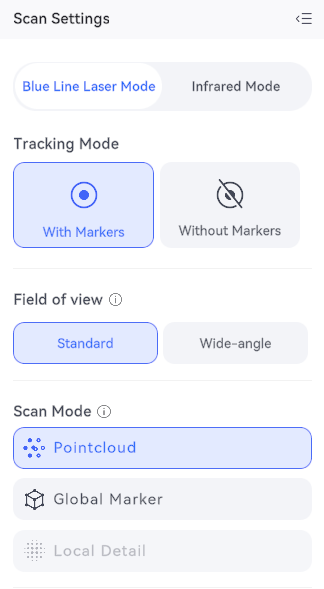
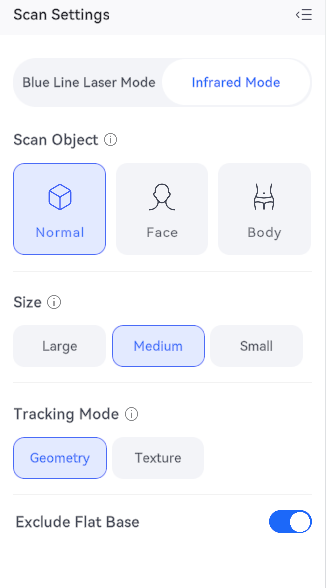
¶ Quick Reference for Scan Modes
| Scan Mode | When to Use | Preparation Before Scanning |
|---|---|---|
| Blue Line Laser Mode — With Marker | Flat surfaces, smooth housings, and other objects with few geometric features; objects that frequently lose tracking when scanned without markers | Apply reflective markers and keep their positions relative to the object unchanged |
| Blue Line Laser Mode — Without Marker | Asymmetrical sculptures, decorative objects, and other objects with prominent geometric features; suitable when you want to reduce marker preparation | Confirm that the device supports this mode and check whether stable tracking can be maintained during scanning |
| Blue Line Laser Mode — Global Marker | When Global Marker has already been established, or when the same marker reference is required for large-area or segmented scanning | Establish or import a Global Marker file that matches the current marker layout |
| Blue Line Laser Mode — Local Detail | ||
| Infrared Mode — Object | General object scanning or medium-to-large objects within the supported scanning range | Confirm that the object size is suitable for scanning and select an appropriate tracking method |
| Infrared Mode — Face | Face or head scanning supported by the software | Remove glasses and ask the subject to keep their head and facial expression stable |
| Infrared Mode — Body | Full-body, torso, or limb scanning | Ensure sufficient operating space and ask the subject to maintain a stable posture |
Recommendation for your first scan: Choose an object that is an appropriate size for the device, has a matte and opaque surface, distinct geometric features, and is not easily deformed, such as a light-colored hard sculpture. Complete one full scan → check → process → export workflow before attempting to scan faces, complex materials, or using Global Marker.
¶ Blue Line Laser Mode — With Marker
The scanner identifies reflective markers attached to the object or fixed auxiliary objects to determine the scanning position and align surfaces captured from different angles.
¶ Suitable Applications
| Application | Example |
|---|---|
| Flat surfaces with few geometric features | 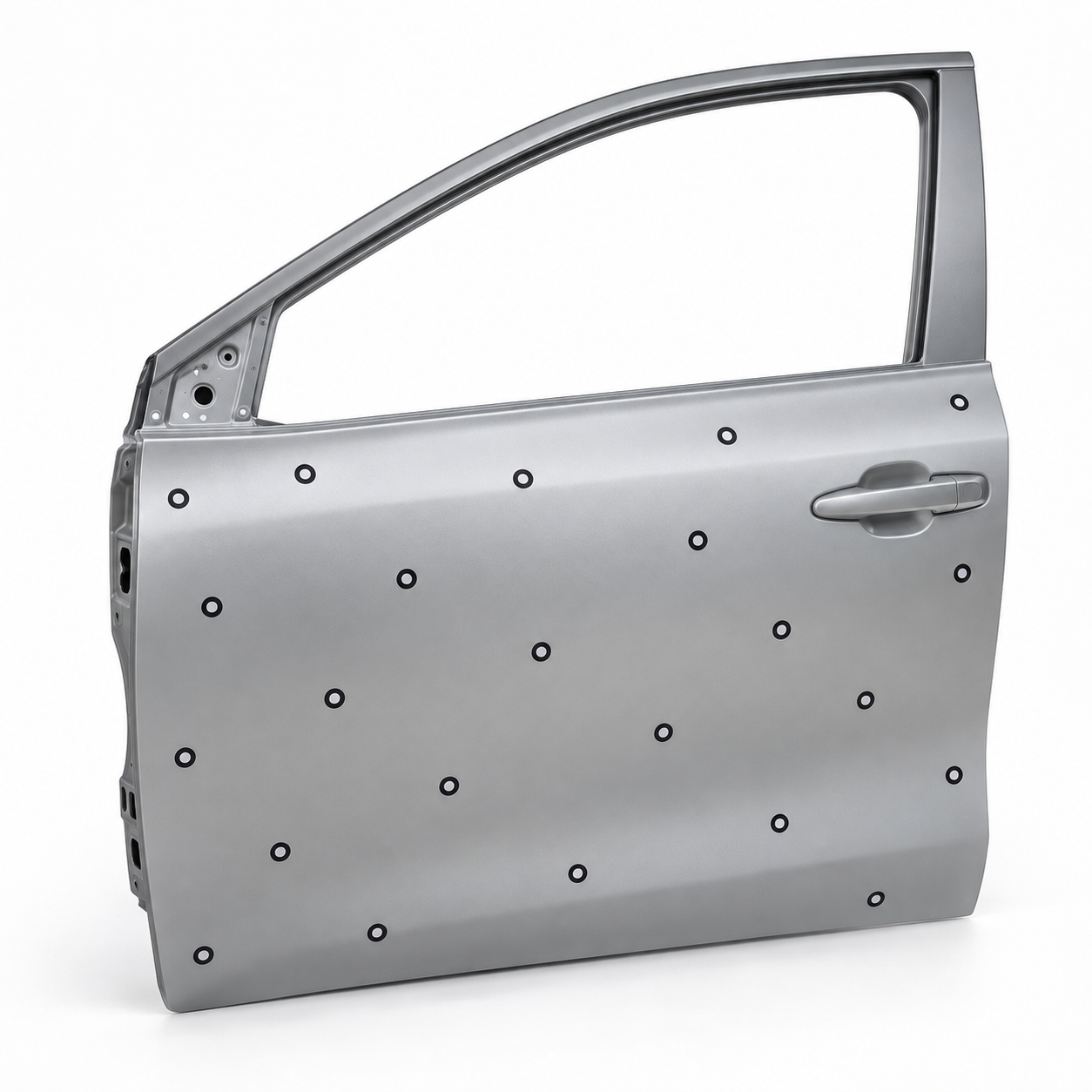 |
| Regular, symmetrical, or repetitive structures | 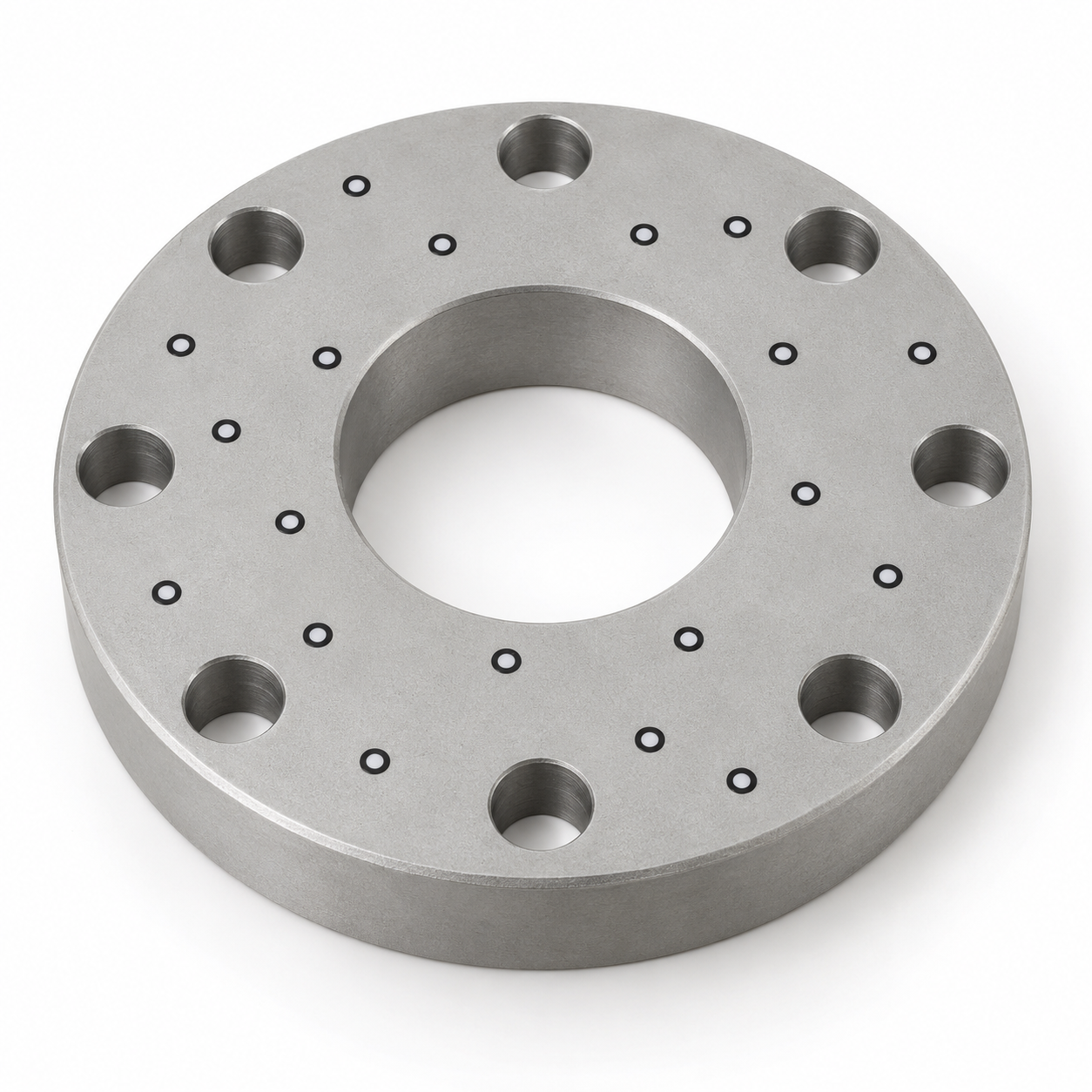 |
Tip: If tracking is frequently lost or the model shows ghosting or misalignment when scanning without markers, try switching to this mode.
¶ Usage Tips
- Attach reflective markers to the object surface or fixed auxiliary objects. Avoid arranging them in regular rows or repetitive patterns.
- During scanning, keep a sufficient number of clear, visible reflective markers in the camera view. Follow the number indicated by the software.
- Keep the positions of the reflective markers relative to the object unchanged. When using a turntable, the object and the auxiliary object with reflective markers should rotate together.
Note: Reflective markers help the scanner determine its position but cannot replace surface treatment. Transparent or highly reflective objects may still require 3D Scanning Spray / Matting Spray.
¶ Blue Line Laser Mode — Without Marker
No markers need to be applied in advance. This mode is suitable for objects with prominent geometric features that can be tracked stably during scanning. Before use, confirm that the device supports this mode.
¶ Suitable Applications
Objects with prominent geometric features and asymmetrical shapes, such as asymmetrical sculptures and decorative objects with rich three-dimensional details.
| Scenario | Suitable Objects / Conditions | Example |
|---|---|---|
| Rich geometric features | Objects with prominent contours and significant geometric changes, such as asymmetrical sculptures and decorative objects | 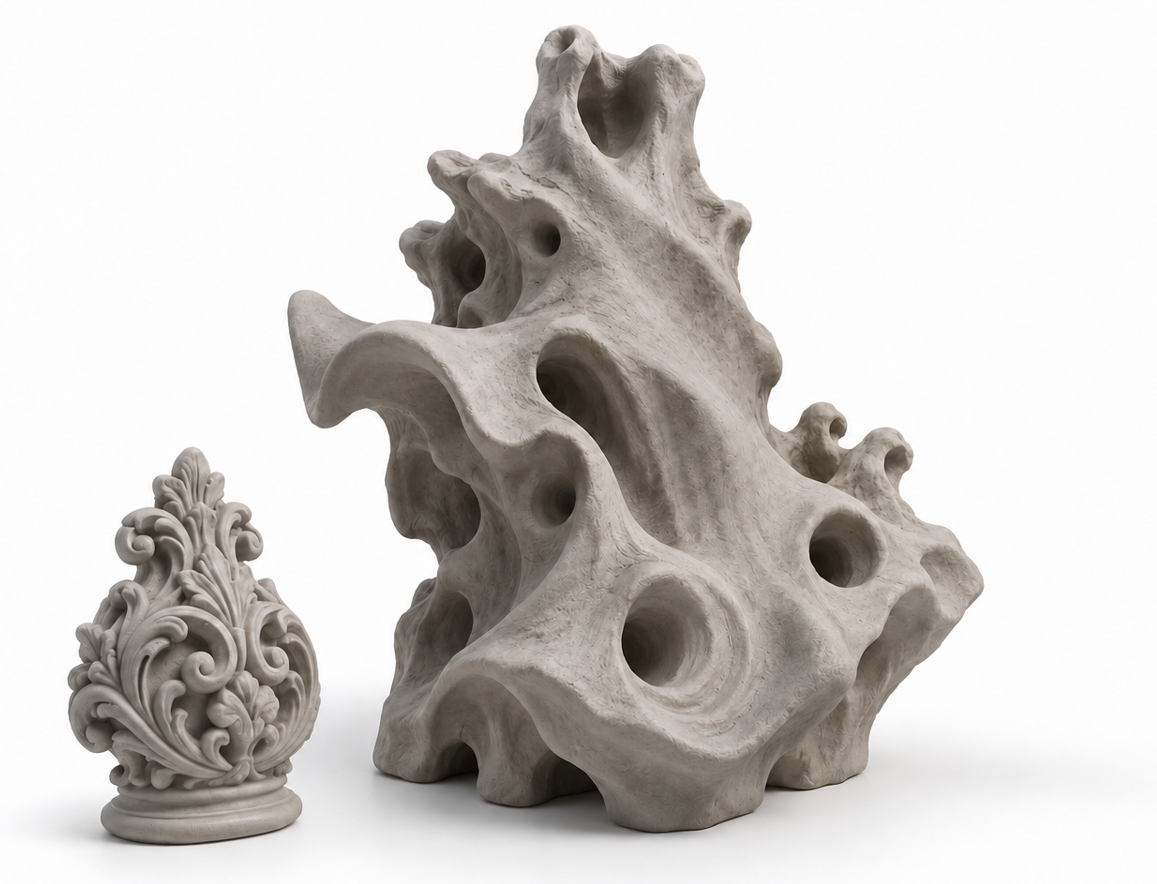 |
| Reduce marker preparation | Objects for which you want to reduce marker preparation while maintaining stable tracking during scanning | / |
¶ Usage Tips
- Start with areas that have prominent contours or corners, then slowly move to adjacent areas.
- After each movement, keep part of the previously scanned area in view to avoid suddenly moving to another side.
- For large flat surfaces, smooth cylinders, or objects with many repetitive structures, the Blue Line Laser Mode — With Marker is recommended.
- If tracking is repeatedly lost or ghosting occurs, apply reflective markers and switch to the Blue Line Laser Mode — With Marker to rescan.
¶ Blue Line Laser Mode — Global Marker
First record the positions of the reflective markers, then use these positions as references when scanning the object's surface. This pre-recorded marker position data is called Global Marker. It can be understood as a marker-position map used for tracking.
¶ Suitable Applications
- Global Marker data has already been established, or a Global Marker file matching the current marker layout is available.
- The same marker reference is required for large-area or segmented scanning tasks.
Refer to Global Marker Scanning Guide for details about Global Marker scanning.
¶ Usage Tips
- Establish or import the Global Marker before scanning the surface.
- Make sure the actual positions of the reflective markers on the object match the Global Marker data.
- During scanning, do not move, remove, or reapply the reflective markers, and do not change the relative positions between the auxiliary object and the object being scanned.
- If the object is deformed or the marker layout changes, re-establish the Global Marker.
Tip: For your first scan, use the standard Blue Line Laser Mode — With Marker to become familiar with the scanning process before using Global Marker.
¶ Infrared Mode — Object
This mode is used to capture the three-dimensional shape of general objects and can also be used for medium-to-large objects within the device's supported scanning range. After entering this mode, select the appropriate tracking method and related settings based on the object characteristics.
¶ Suitable Applications
| Scenario | Suitable Objects / Conditions |
|---|---|
| General objects | General objects such as sculptures and decorative objects with distinct geometric features |
| Overall contour capture | Scanning tasks that focus on capturing the overall contour and shape |
| Medium-to-large objects | Medium-to-large objects within the device's supported size range |
¶ Usage Tips
- For initial practice, choose a matte, opaque, and rigid object.
- Maintain an appropriate scanning distance according to the on-screen instructions and move the scanner smoothly.
- When the object has few geometric features, select a marker-based tracking method supported by the software, or switch to the Blue Line Laser Mode — With Marker.
- If black, reflective, or transparent surfaces are difficult to capture, perform appropriate surface treatment based on the material, then check the Preview.
¶ Infrared Mode — Face
¶ Suitable Applications
| Scenario | Suitable Objects / Conditions |
|---|---|
| Face scanning | Capturing the three-dimensional shape of a face |
| Head scanning | Scanning the head or the head area in a half-body scan |
¶ Usage Tips
- Ask the subject to keep their head and facial expression stable. Avoid talking, turning the head, or changing facial expressions.
- Remove glasses and other objects that may obstruct the face or cause reflections.
- Slowly change the scanning angle and check whether areas such as the nostrils, chin, and ears are captured completely. Rescan areas if necessary.
- Hair may be difficult to capture, and the results may be affected by hair color, hairstyle, and device capabilities.
¶ Infrared Mode — Body
¶ Suitable Applications
| Scenario | Suitable Objects / Conditions |
|---|---|
| Full-body scanning | Full-body scanning |
| Large-area body scanning | Capturing the shape of large areas of the human body, such as the torso and limbs |
¶ Usage Tips
- Choose a location with sufficient space to allow the operator to move around the subject.
- Ask the subject to maintain a comfortable and stable posture that can be held throughout the scan.
- Leave sufficient space between the arms and torso and between the legs to reduce occlusion.
- Do not walk, wave, or adjust clothing during scanning.
- Before finishing, check areas that are easy to miss, such as the top of the head, armpits, and inner thighs. Rescan these areas if necessary.
¶ Help us improve
If you have any ideas about the wiki pages, please let us know via ELEGOO official feedback channel