Global Marker scanning helps the scanner maintain more stable positioning. It is suitable for scanning large objects or objects that need to be scanned in multiple areas.
The operation consists of two stages:
- First, capture the reflective markers to establish a positional reference.
- Then, use Global Marker scanning to scan the object's surface.
¶ 1. What Are Global Markers?
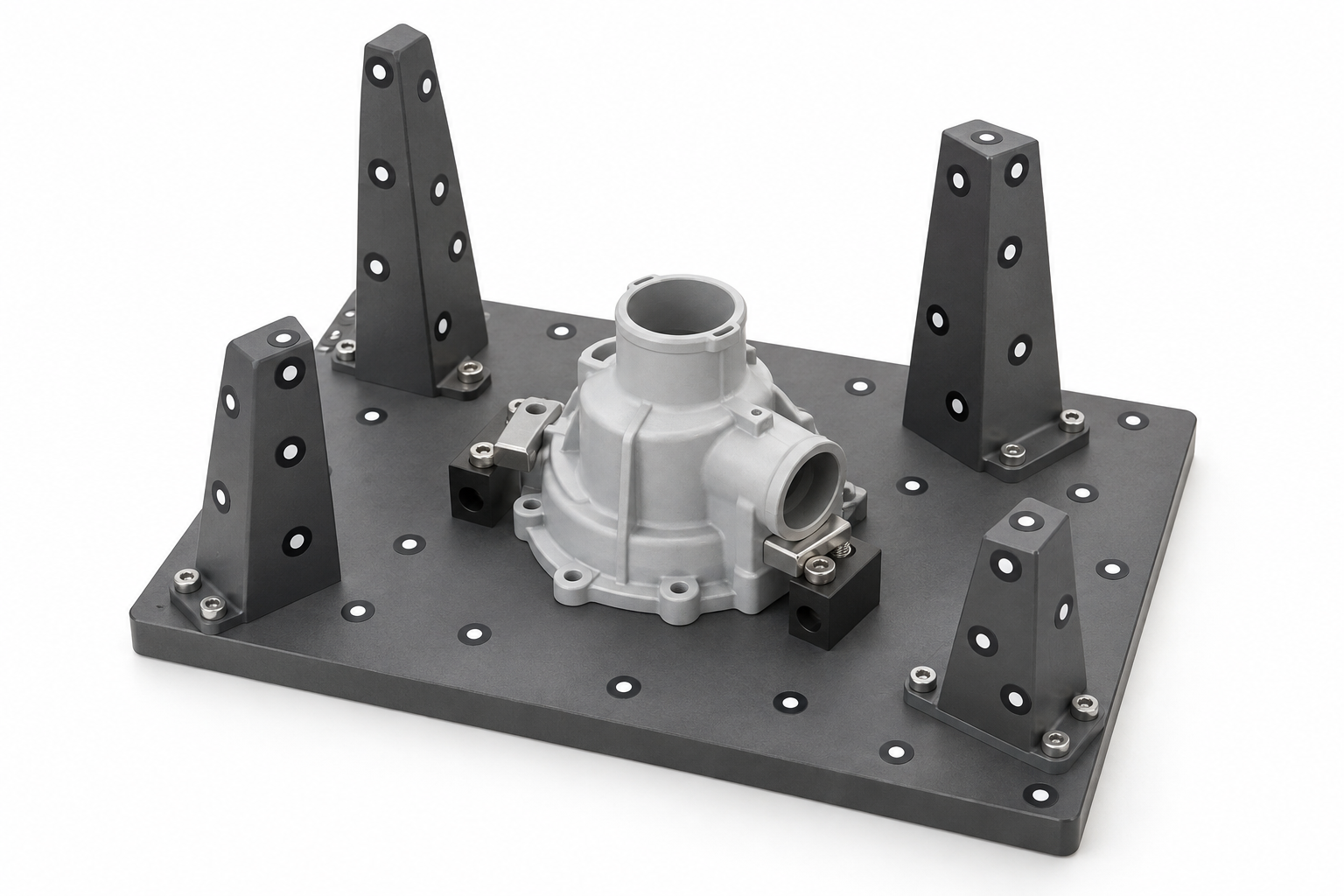
Global Markers can be understood as a pre-established "position map." The scanner first records the positions of the reflective markers. When scanning the object's surface afterward, the scanner can use these positions to determine its location.
¶ When Should You Use Global Marker Scanning?
- The object is large and needs to be scanned in multiple areas.
- The object is thin and is prone to overall shape distortion during scanning.
- The object needs to be scanned in separate areas and the areas need to be accurately aligned.
For small objects that can be scanned in a single session, you can use standard reflective marker scanning first.
Note: Global Markers only record positional information and do not contain complete object surface data. After creating the Global Markers, you still need to scan the object's surface.
¶ 2. Preparation
¶ 2.1 Prepare the Scanner and Object
Prepare the scanner, compatible reflective markers, the object to be scanned, and a stable workbench.
For your first practice scan, we recommend choosing a light-colored, matte, and rigid object, such as a plastic housing.
Connect the scanner. If the software prompts you to perform calibration, complete the calibration first.
¶ 2.2 Choose a Reflective Marker Placement Method
| Reflective Marker Placement Method | Applicable Scenario | Illustration |
|---|---|---|
| Place Reflective Markers on an Auxiliary Object | If it is inconvenient to apply reflective markers directly to the object, you can use an auxiliary support or other object and attach the reflective markers to its surface. During scanning, make sure that the relative position between the object and the auxiliary object remains unchanged. |  |
| Apply Directly to the Object Surface | Apply the reflective markers directly to the object. This method is suitable for objects whose surfaces allow reflective markers to be applied and provide sufficient space for marker placement. |  |
¶ 2.3 Apply the Reflective Markers
Place the reflective markers across the areas to be scanned. Follow these guidelines:
- Distribute the reflective markers irregularly. Do not arrange them in straight lines or regular grids.
- Place reflective markers on the front, sides, and corners of the object.
- Do not fold a reflective marker over an edge or corner of the object.
- Keep the reflective markers flat and clean, and make sure they are not obstructed or covered.
| Recommended ✅ | Avoid ❌ | Illustration |
|---|---|---|
| Distribute the reflective markers irregularly and asymmetrically. | Arrange them in straight lines, regular grids, or symmetrical patterns. |  |
| Cover all areas to be scanned. | Concentrate too many reflective markers in a single local area. | 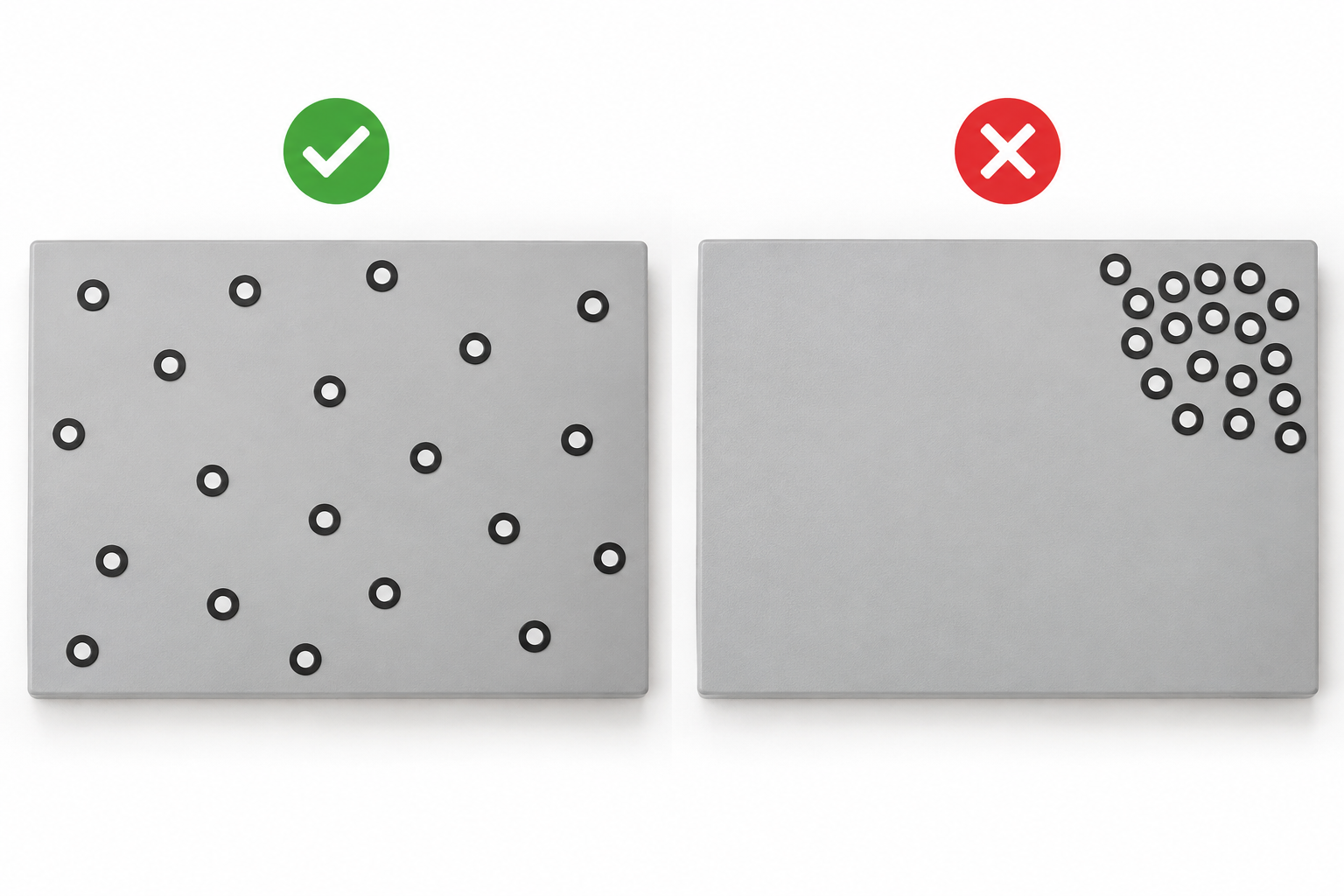 |
| Apply reflective markers separately to flat areas on adjacent surfaces. | Fold a single reflective marker over an edge or corner. | 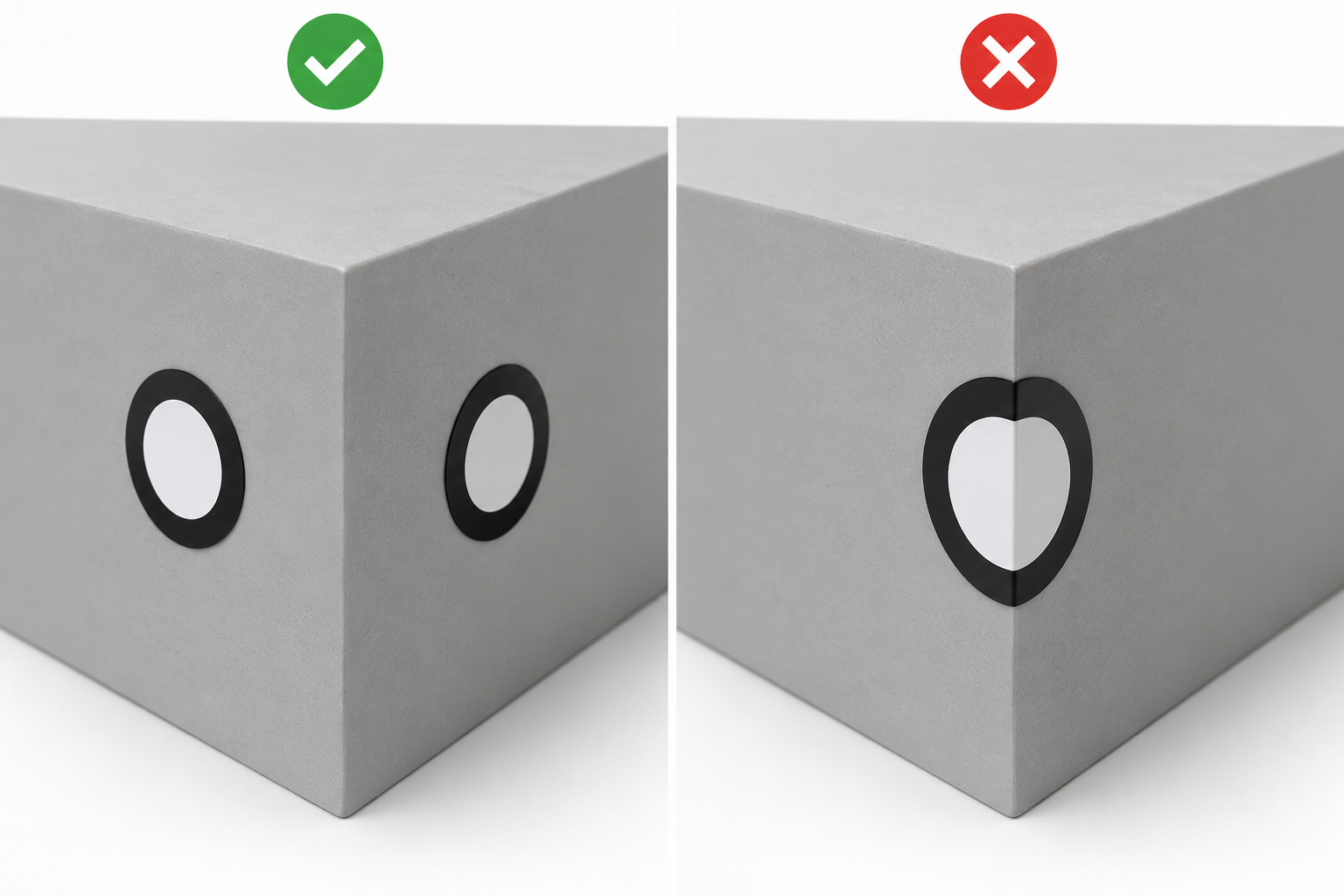 |
For more information, see How to Apply Reflective Markers.
¶ 2.4 Secure the Object and Reflective Markers
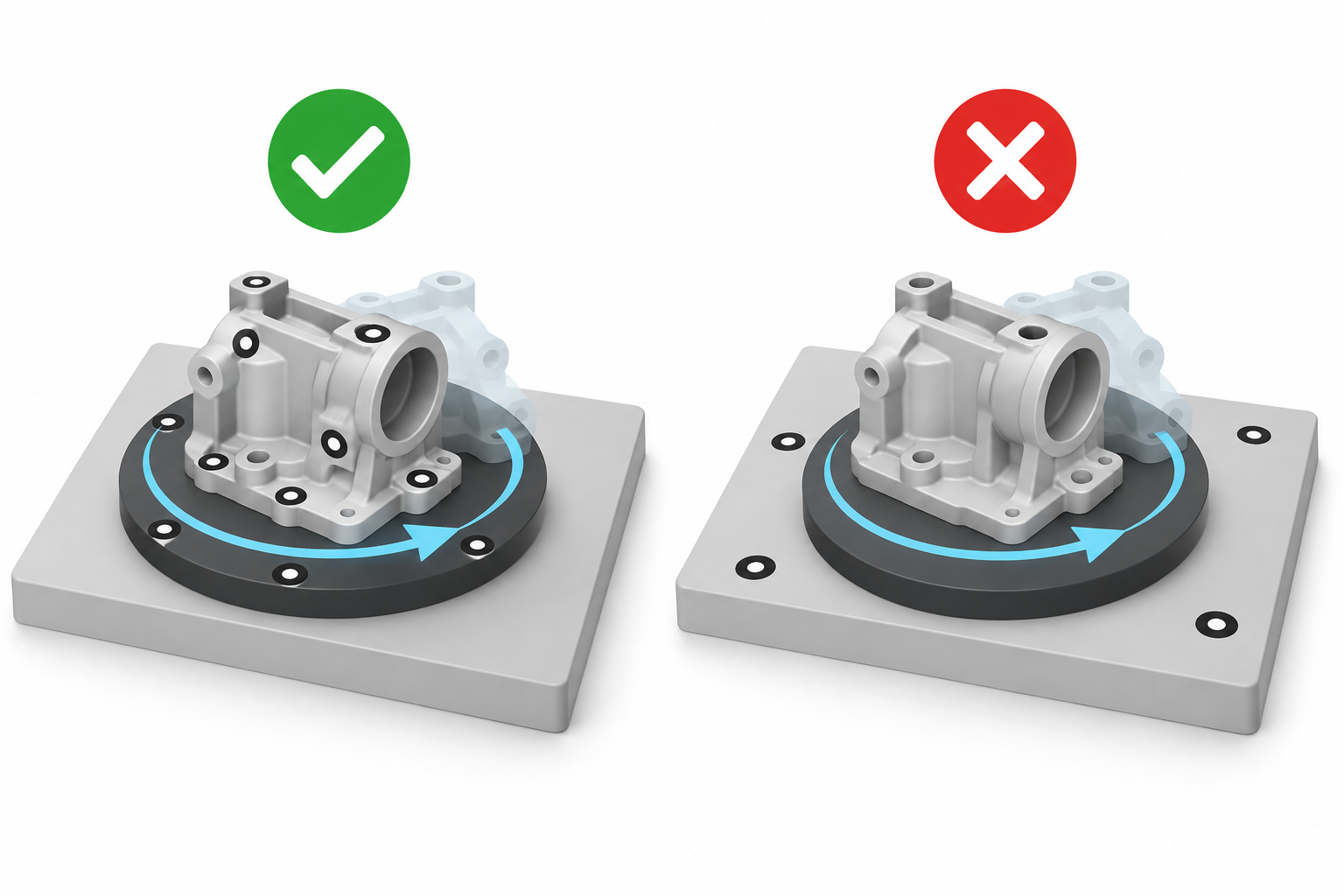
From Global Marker capture until the scan is complete, the relative positions of the object and the reflective markers used for positioning must remain unchanged.
For example, if the reflective markers are attached to the workbench, do not rotate the object separately. Otherwise, the original positional reference may become invalid.
If you use a turntable, make sure the reflective markers used for positioning rotate together with the object and that their relative positions remain unchanged.
¶ 3. Operation Steps
¶ Step 1 – Enter Global Marker Scanning
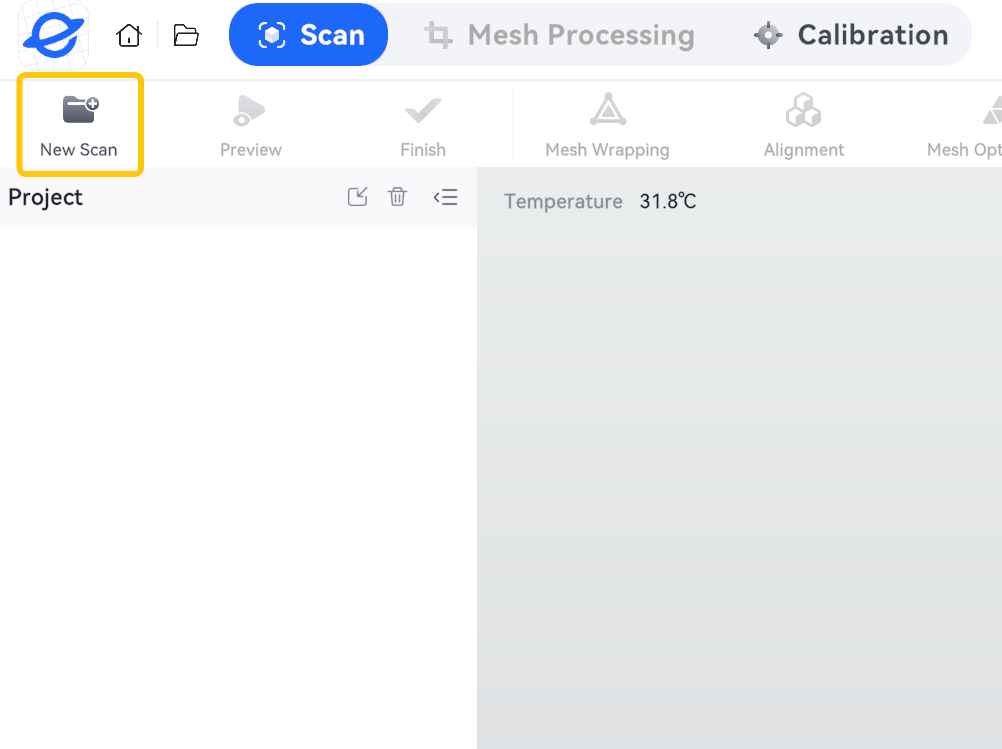
- Open ELEGOO Scan and click New Scan to create a new scanning project.
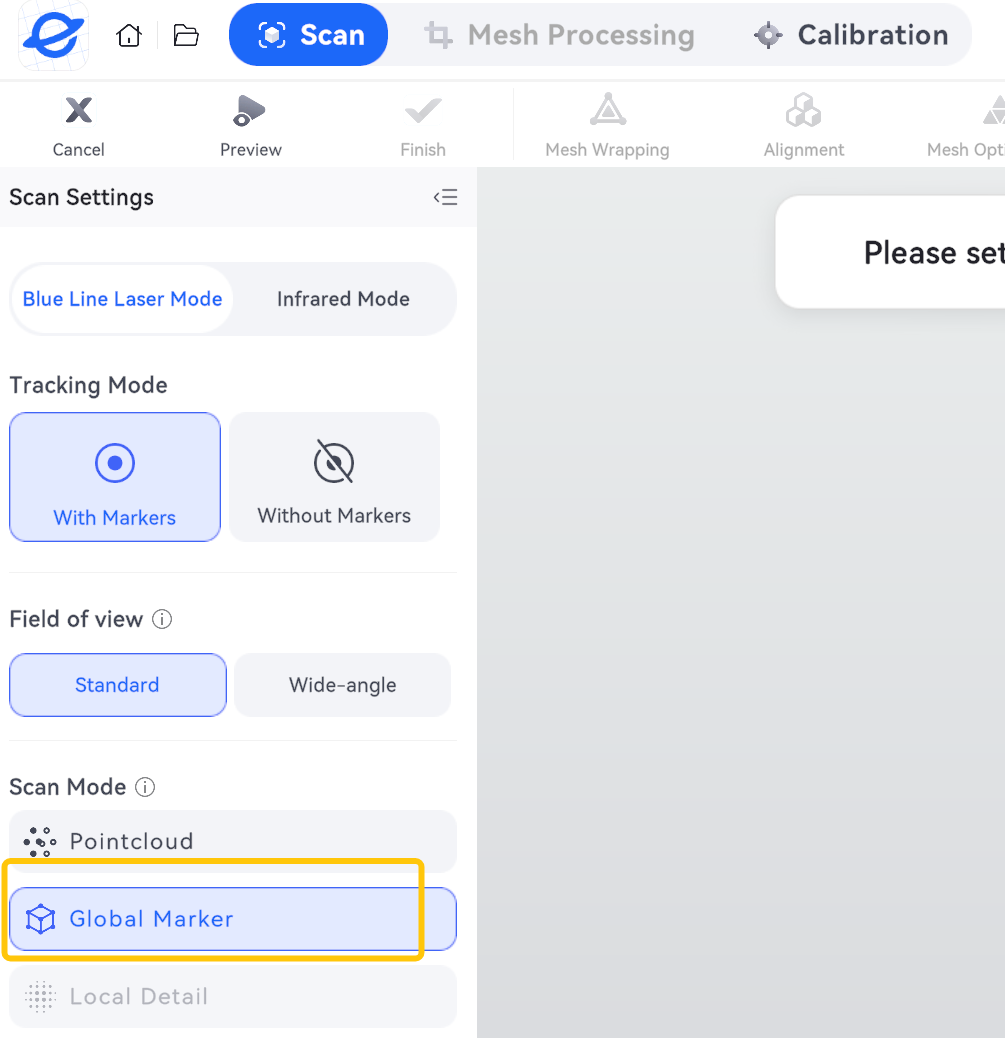
- Select Blue Line Laser Mode – Global Marker.
¶ Step 2 – Preview the Reflective Markers
- Point the scanner at an area with reflective markers (see Marker 1/Marker 3 in the figure).
- Adjust the scanning distance according to the software prompts.
- Check the preview and make sure the reflective markers can be detected stably.
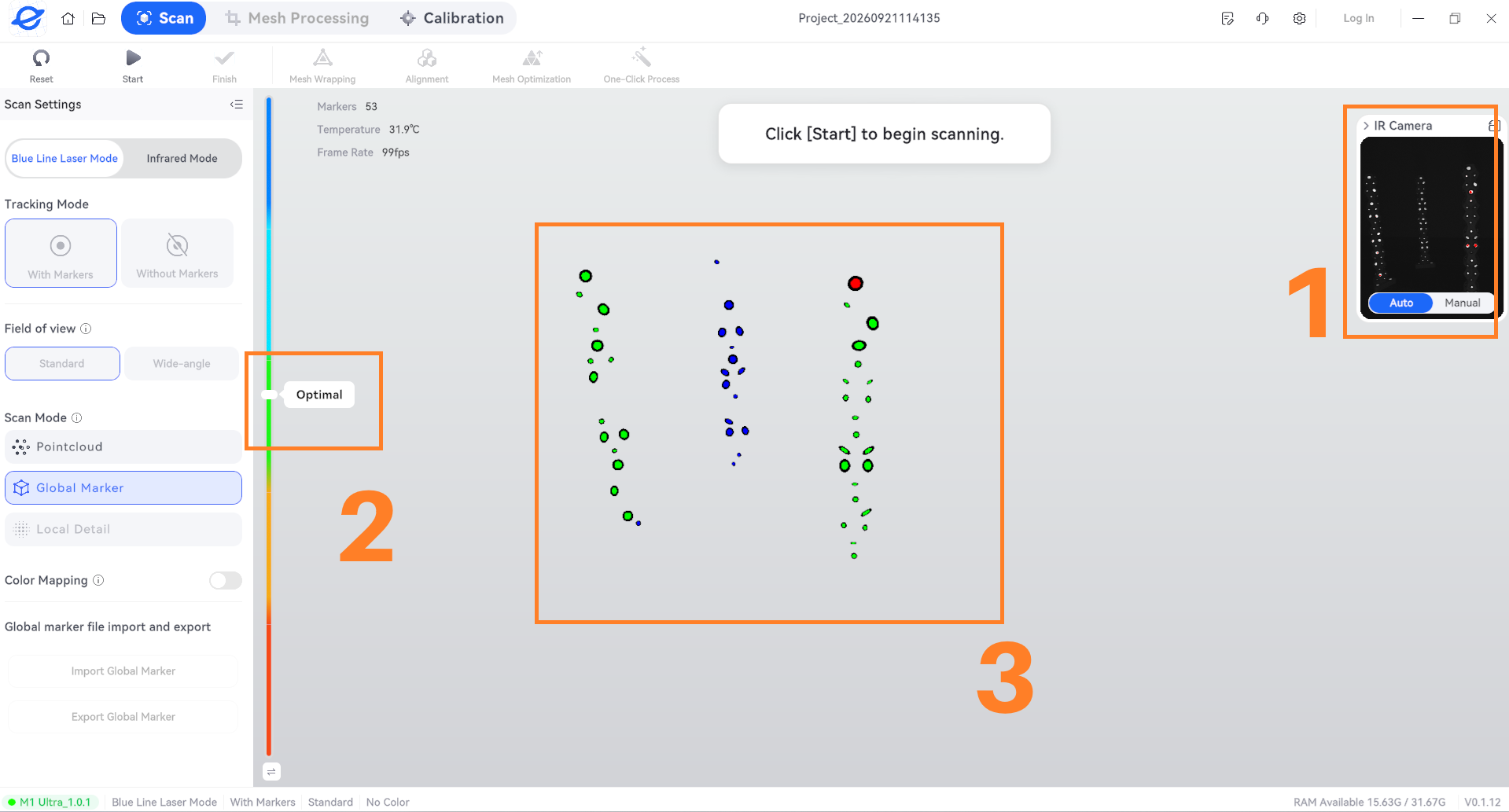
Note: If the reflective markers are not detected stably, adjust the scanning distance, scanning angle, or exposure settings.
Make sure the following three conditions are met:
- During the preview, most reflective markers are within the IR camera's field of view.
- The scanning distance indicator is within the recommended range. Avoid scanning from too close or too far away.
- Most reflective markers are displayed in green.
¶ Step 3 – Capture the Global Markers
- Start scanning from an area where the reflective markers can be detected easily.
- Move the scanner slowly and gradually cover the entire scanning area.
- When moving from the front to the side, make sure the two adjacent views share some of the same reflective markers.
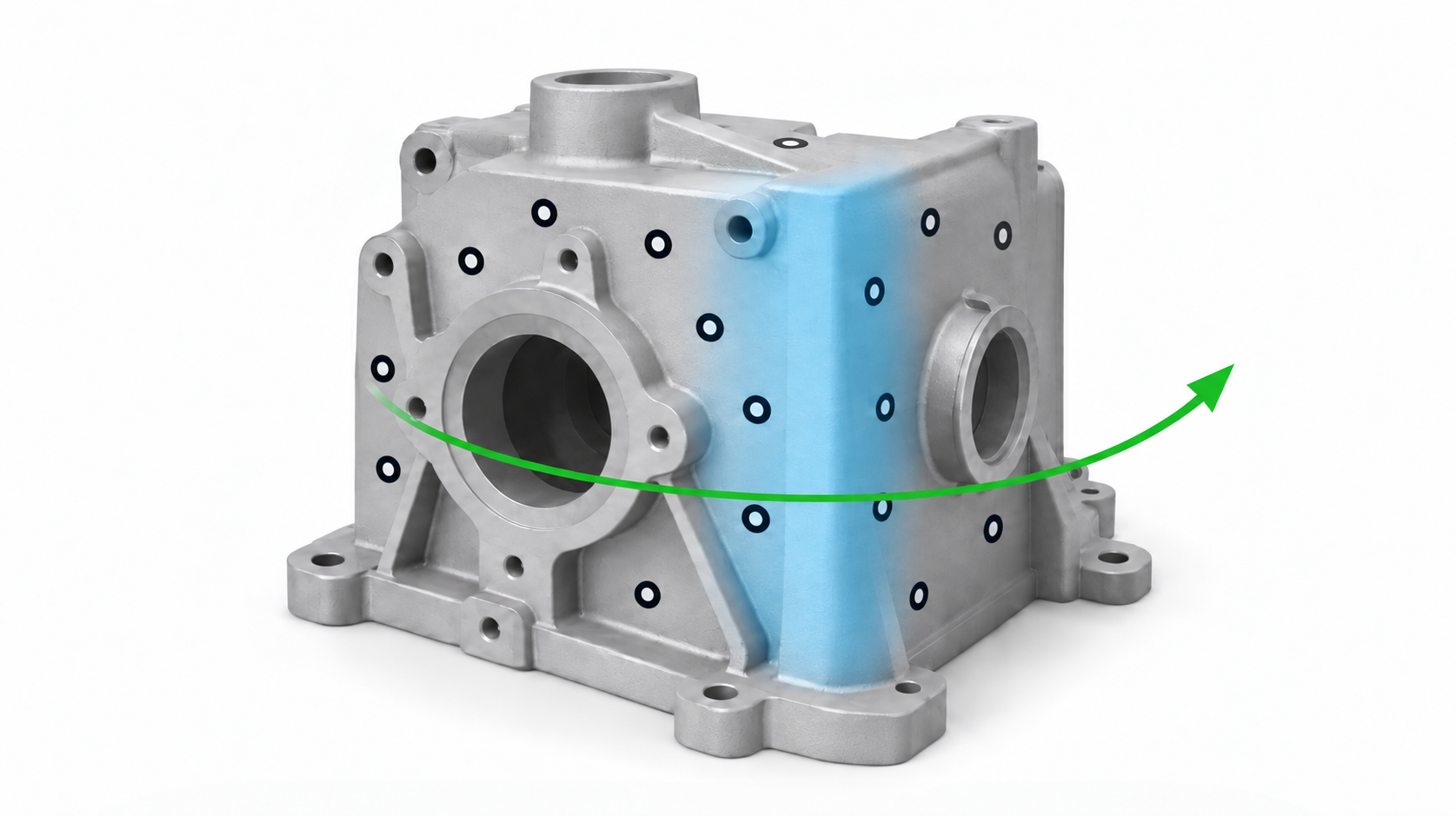
- Check the top, sides, and corners, and rescan any missed areas.
Note: Do not suddenly move the scanner to a completely different position, as this may cause tracking to be lost.
¶ Step 4 – Check and Generate Global Markers
- After capturing the Global Markers, click Pause.

-
Rotate the view and check the captured data.
- Make sure all areas that need to be scanned have Global Markers.
- Make sure the marker layout connects properly between adjacent areas, such as the front and side.
- Check for any obvious floating, duplicate, or misaligned points.
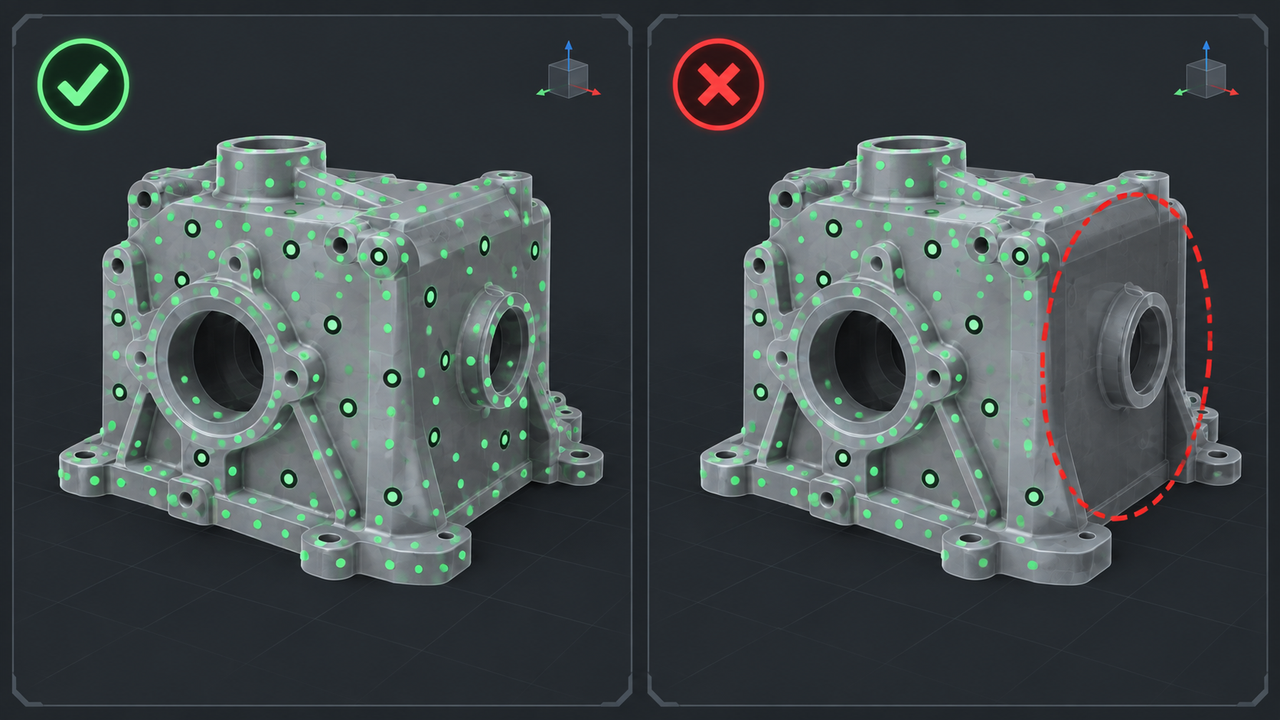
- If any areas are missing, return to the corresponding area and capture them again.
- After confirming that the Global Markers are correct, click Pointcloud.
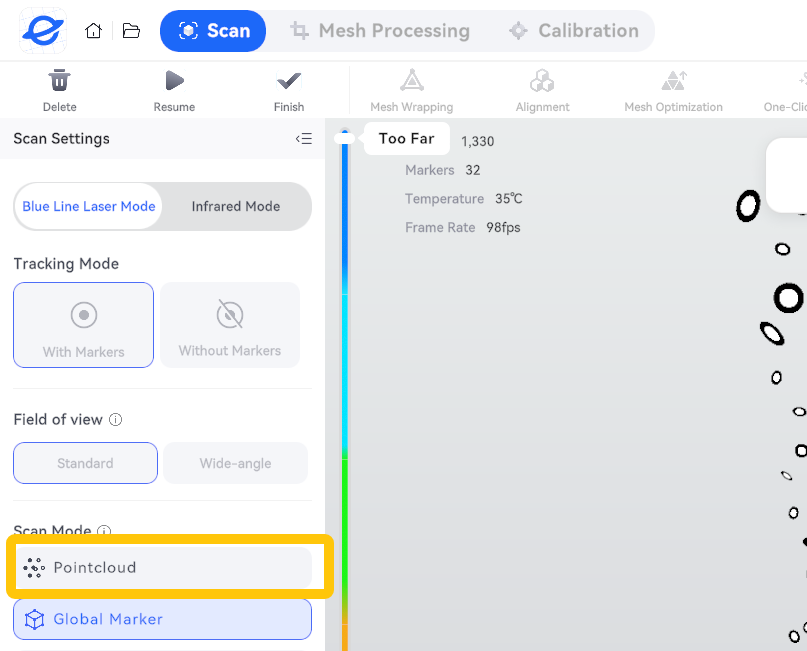
- In the pop-up menu, click OK to start scanning the object's surface.

¶ Step 5 – Scan the Object Surface
- Enter the surface scanning stage and select the Global Marker data you just created.
- Point the scanner at an area covered by the captured Global Markers and wait for the software to complete positioning.
- Move the scanner slowly to capture the object's surface.
- Check the model and rescan any missing areas.
If tracking is lost during scanning, stop moving the scanner first. Then move it back to a previously recognized position and wait for tracking to be restored before continuing.
¶ Step 6 – Process and Export the Model
After scanning is complete:
- Delete unnecessary data, such as the workbench and supports.
- Align and merge multiple scan results as needed.
- Generate the mesh and check for missing areas, ghosting, or misalignment.
- Select the required file format and export the model.
If the model is used for 3D printing, also check that the model is watertight and make sure actual holes have not been incorrectly filled.
¶ 4. How to Save and Reuse Global Markers
To reuse Global Markers, make sure that the relative positions between the object and the Global Markers have not changed.
If you are unsure whether the original positional relationship has changed, we recommend capturing the Global Markers again.
¶ 4.1 Scenarios and Recommendations
| Scenario | Recommendation |
|---|---|
| The object and reflective markers have not moved. | Can be reused. |
| The object has moved relative to the external reflective markers. | Capture the Global Markers again. |
| Multiple reflective markers have been reapplied. | Capture the Global Markers again. |
| The object has deformed or its components have moved. | Capture the Global Markers again. |
| The object needs to be turned over for scanning. | Create a new project and scan again, then perform alignment. |
¶ 4.2 How to Save Global Markers
Method 1
After scanning is complete, click Export Global Marker in the lower-left corner of the software.
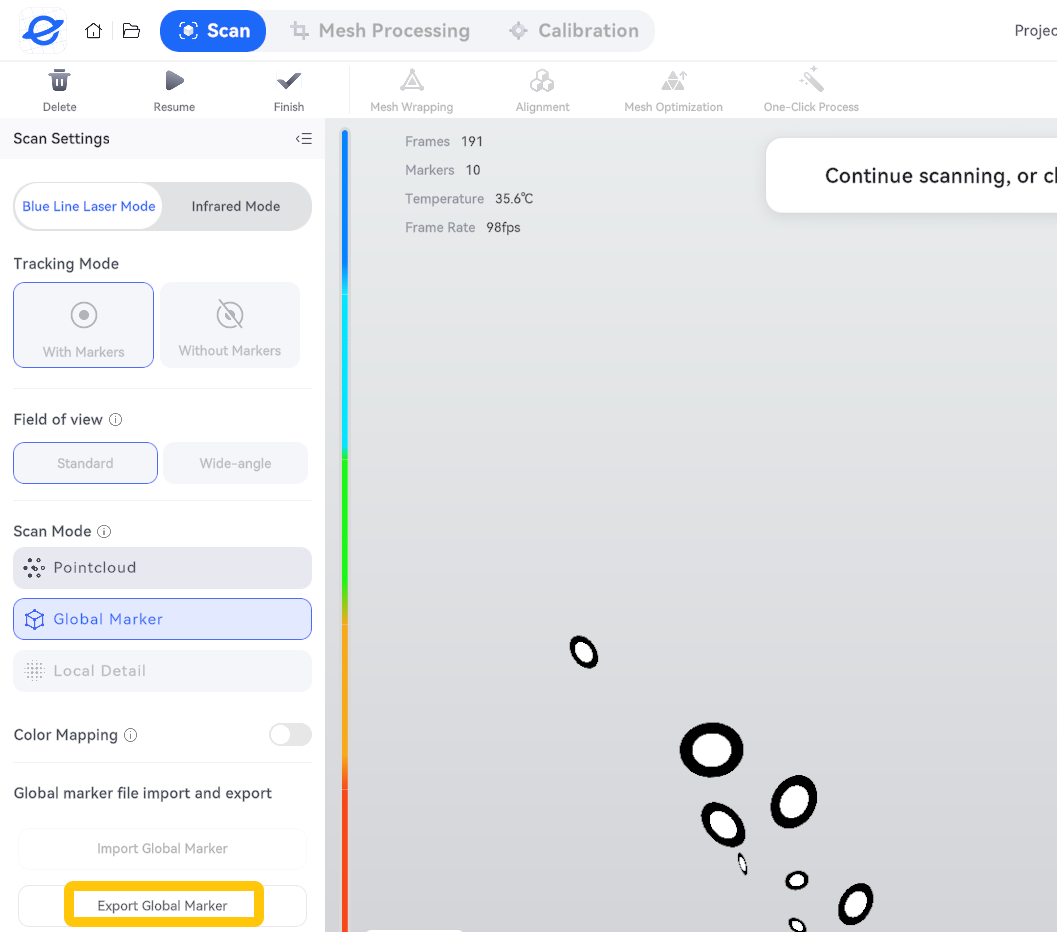
Method 2
After scanning is complete, click Finish. Find the Global Marker data in the scanning project and click the export button on the right to export it.
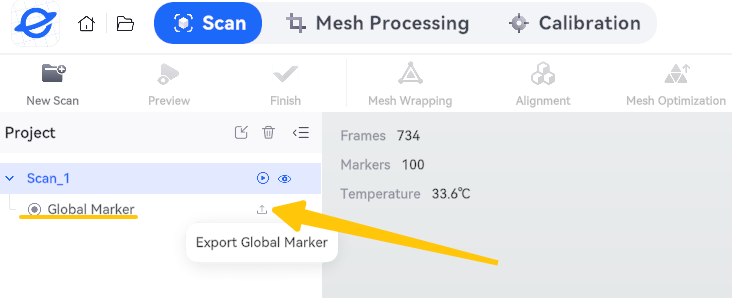
¶ 4.3 How to Load Global Markers
Enter Blue Line Laser Mode – Global Marker, find Import Global Marker at the bottom of the menu, and click it to import the Global Marker data.
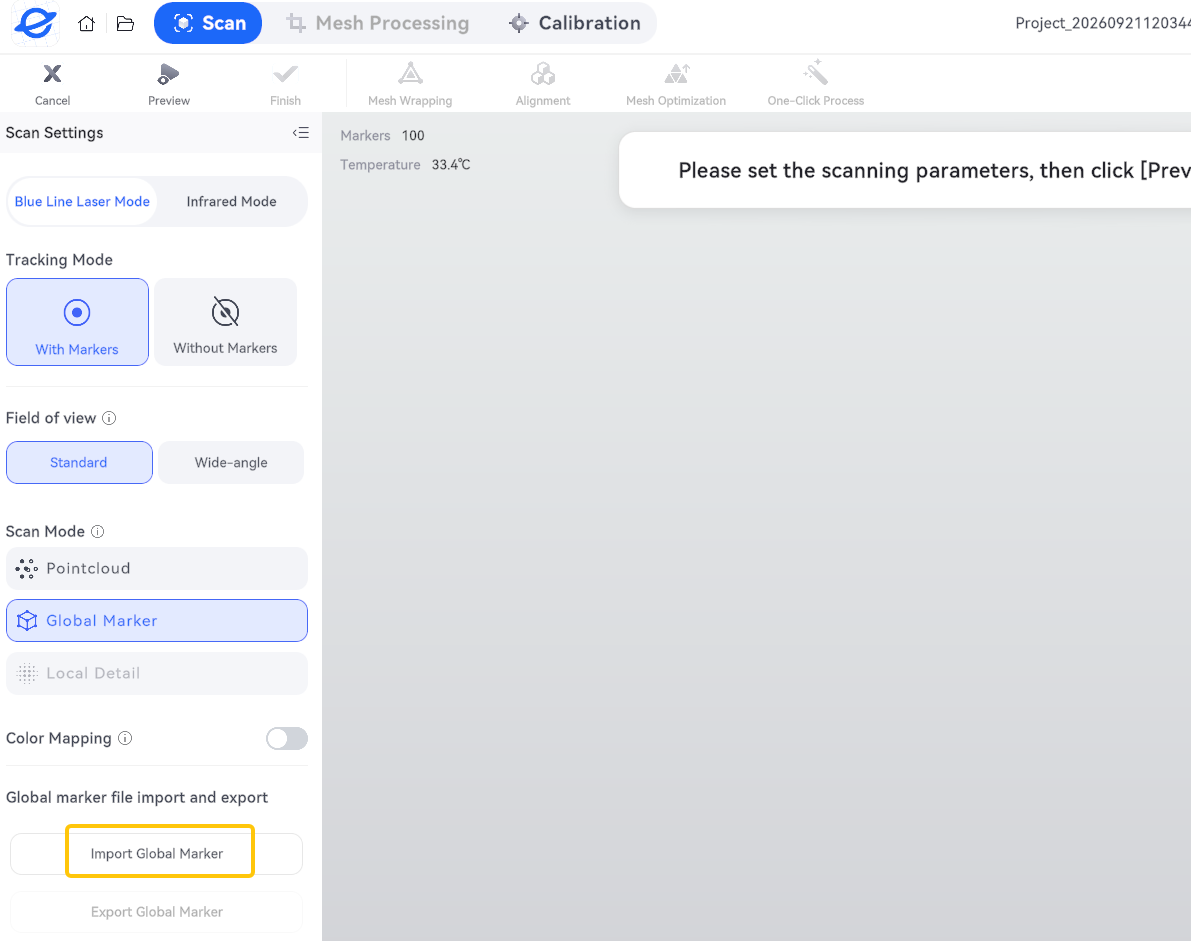
¶ 5. Frequently Asked Questions
¶ Q1. What Should I Do If the Reflective Markers Cannot Be Detected?
Check whether the reflective markers are flat, clean, and unobstructed. Adjust the scanning distance, angle, or exposure settings as needed.
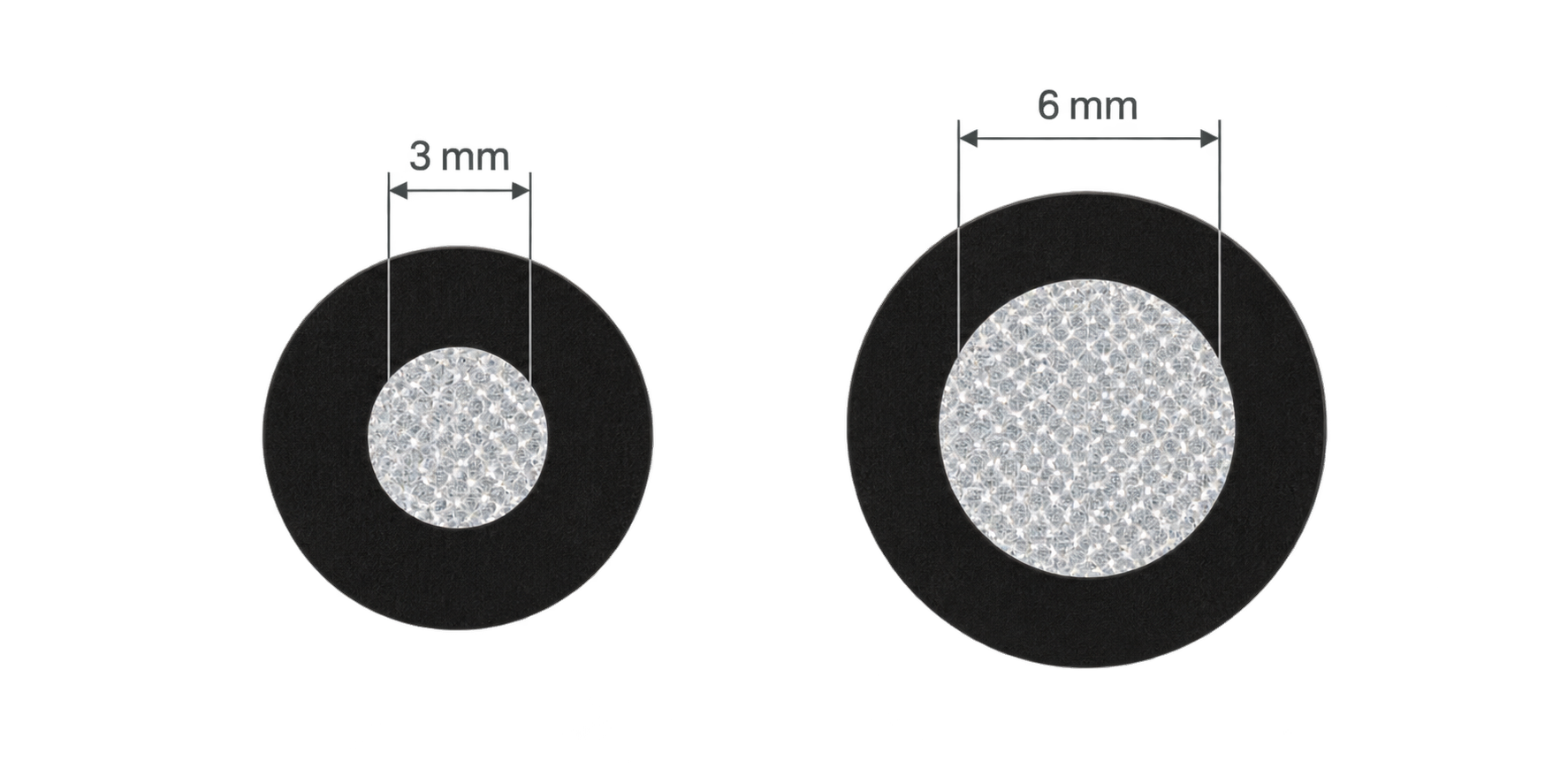
Tip: M1 Ultra only supports 3 mm and 6 mm diameter reflective markers. The 3 mm and 6 mm dimensions shown in the figure refer to the diameter of the central reflective area and do not include the surrounding black border.
¶ Q2. Why Is Tracking Lost When I Move to the Side?
The side may not have enough reflective markers, or the scanner may have been moved too quickly.
Add more reflective markers, slow down the scanner movement, and make sure adjacent views share some of the same reflective markers.
¶ Q3. Why Can't I See the Object Surface After Creating the Global Markers?
This is normal. The Global Marker stage only records positional information. You still need to enter the surface scanning stage to scan the object.
¶ Q4. Why Can't the Scanner Track After I Import the Global Markers?
Check whether you selected the correct Global Marker file and whether the position of the object or reflective markers has changed.
Also, make sure that the current scanning mode supports the imported Global Marker file.
¶ Q5. What Should I Do If the Scan Result Has Ghosting or Misalignment?
Pause the scan and check whether the object or reflective markers have moved, or whether the Global Marker data contains any abnormalities.
Remove or correct the incorrect data before continuing the scan.
¶ Q6. Why Are Some Areas Missing Even Though the Reflective Markers Are Detected Correctly?
Reflective markers are mainly used for positioning and do not guarantee that the entire surface will be captured.
Check whether the object is reflective, transparent, or obstructed, and adjust the scanning distance and angle as needed.
¶ Key Points
- Capture the Global Markers first, then scan the object's surface.
- Keep the relative positions between the reflective markers and the object unchanged throughout the scanning process.
- When moving the scanner, make sure adjacent views share some of the same reflective markers.
¶ Help Us Improve
If you have any suggestions for our wiki pages, please let us know through the official ELEGOO feedback channel.