Thin-walled objects have relatively thin walls, such as thin plates, blades, and plastic housings. Their narrow edges are easy to miss during scanning. Tracking may also be lost or misalignment may occur when moving from the front to the back.
Placing an tracking reference object with distinctive geometric features near the object being scanned provides additional reference features and helps maintain tracking.
¶ Preparation
- Secure the object: Use a stand or clamp to prevent movement or bending. Keep the front, back, and edges as accessible as possible.
- Position the tracking reference object: Choose an object with a matte surface, rich details, and distinctive features. Place it near the thin edges of the object being scanned, especially along the path where the scanner moves from the front to the back. Avoid obstructing the scanning area, and ensure both objects remain visible in the scan view.
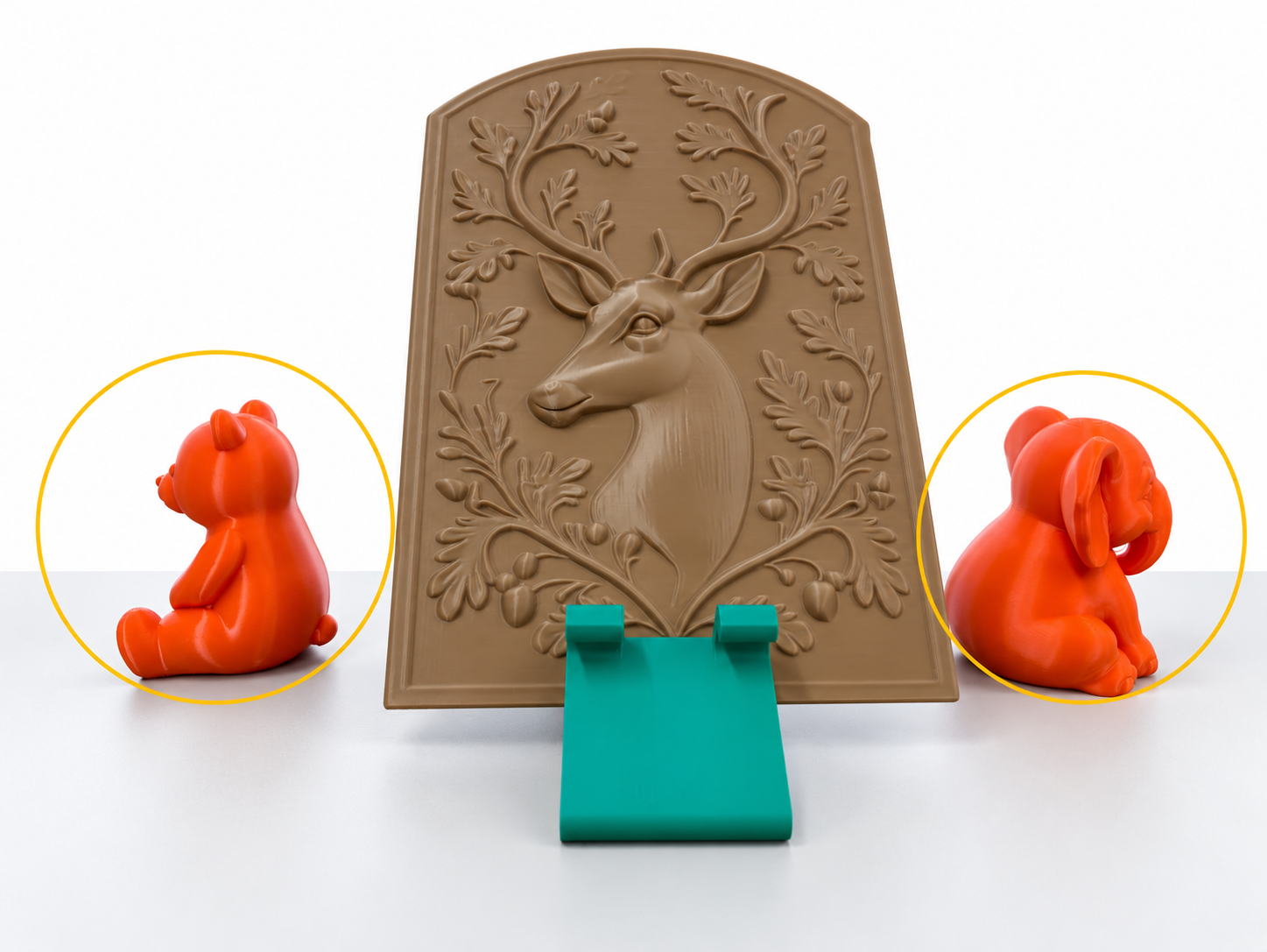
- Keep the relative positions fixed: Do not allow the tracking reference object to move relative to the object being scanned during scanning. If using a turntable, place both objects on it.
- Apply reflective markers or scanning spray as needed: When using with markers mode, place reflective markers according to the scanner's requirements. Do not rely solely on the tracking reference object's shape. For difficult-to-scan surfaces, apply a thin, even coat of 3D scanning spray / matting spray as appropriate for the material and according to the spray manufacturer's instructions. Avoid covering any reflective markers.
¶ Scanning Procedure
¶ 1. Start with a Large Surface Area
Begin with the front or outer surface, keeping both the object being scanned and the nearby tracking reference object visible in the scan view. Follow the software prompts to maintain the appropriate scanning distance, and move the scanner slowly.
Do not start by scanning only the thin edge.
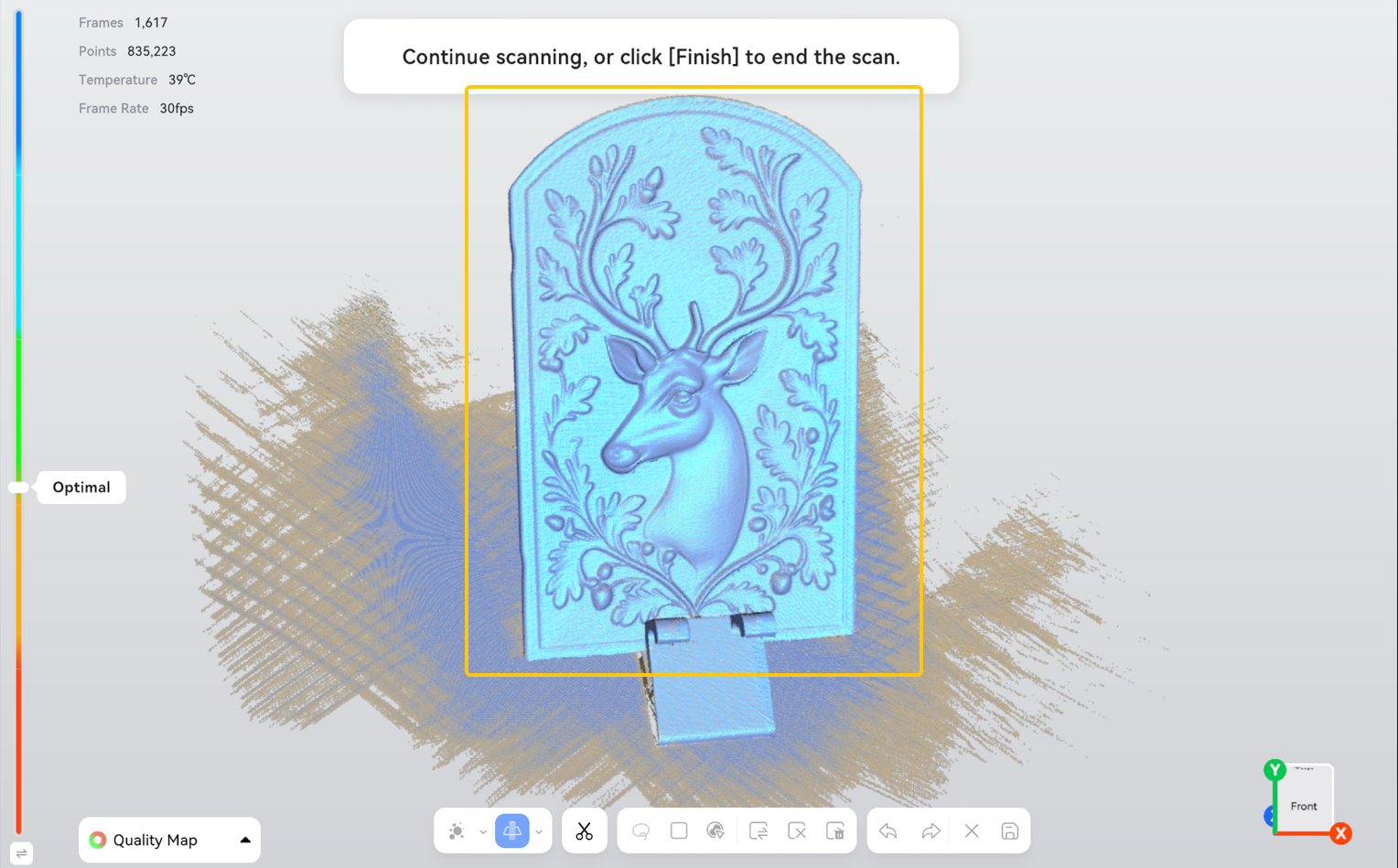
¶ 2. Use the Tracking Reference Object to Maintain Tracking Around the Edge
Move slowly from the front toward the side and then the back, maintaining sufficient overlap between consecutive scan areas.
When moving around the thin edge, keep the tracking reference object's distinctive features visible in the scan view. Avoid reaching a position where only the thin edge remains visible. If using with markers mode, ensure that the software continues to recognize a sufficient number of reflective markers.
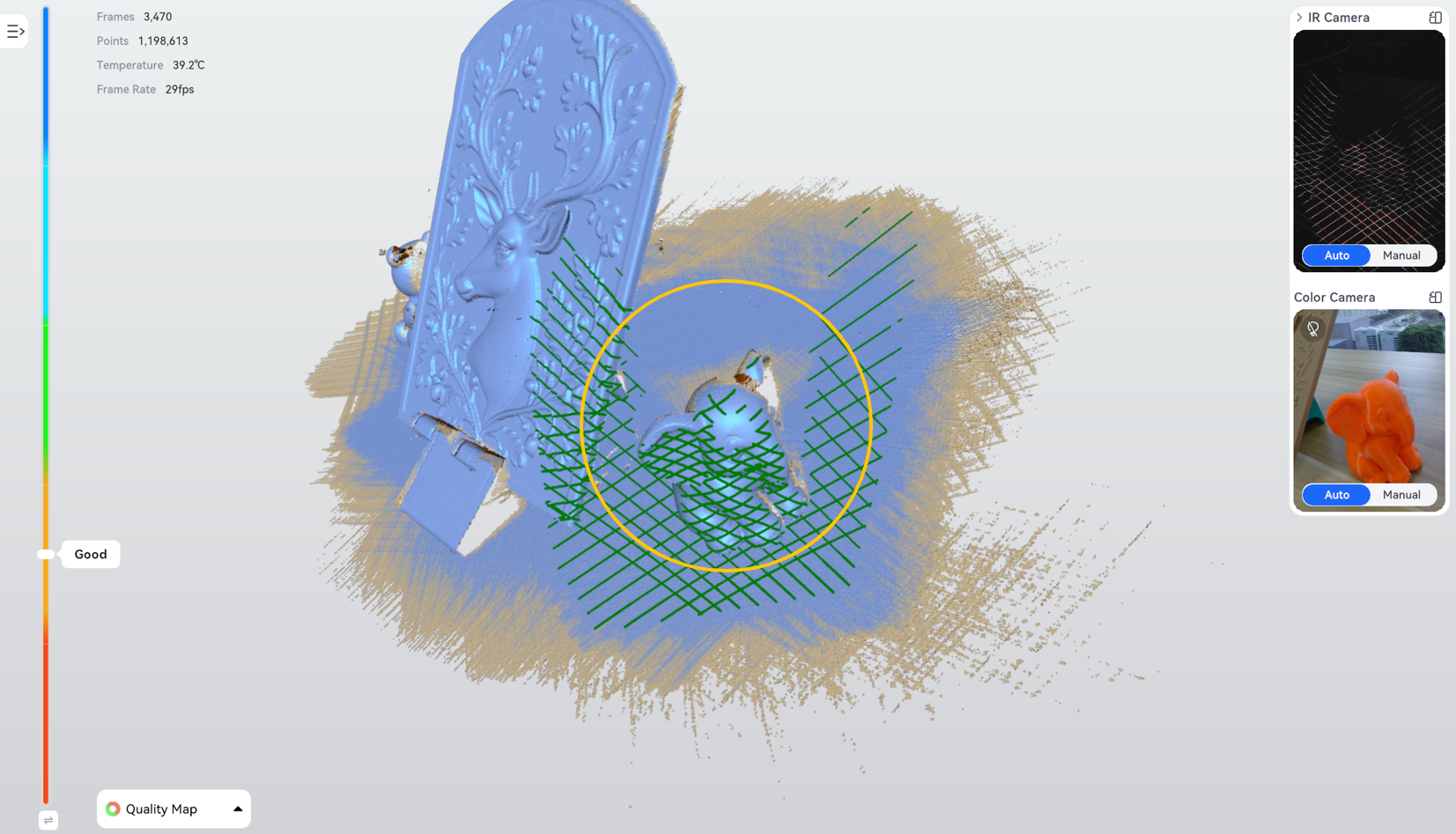
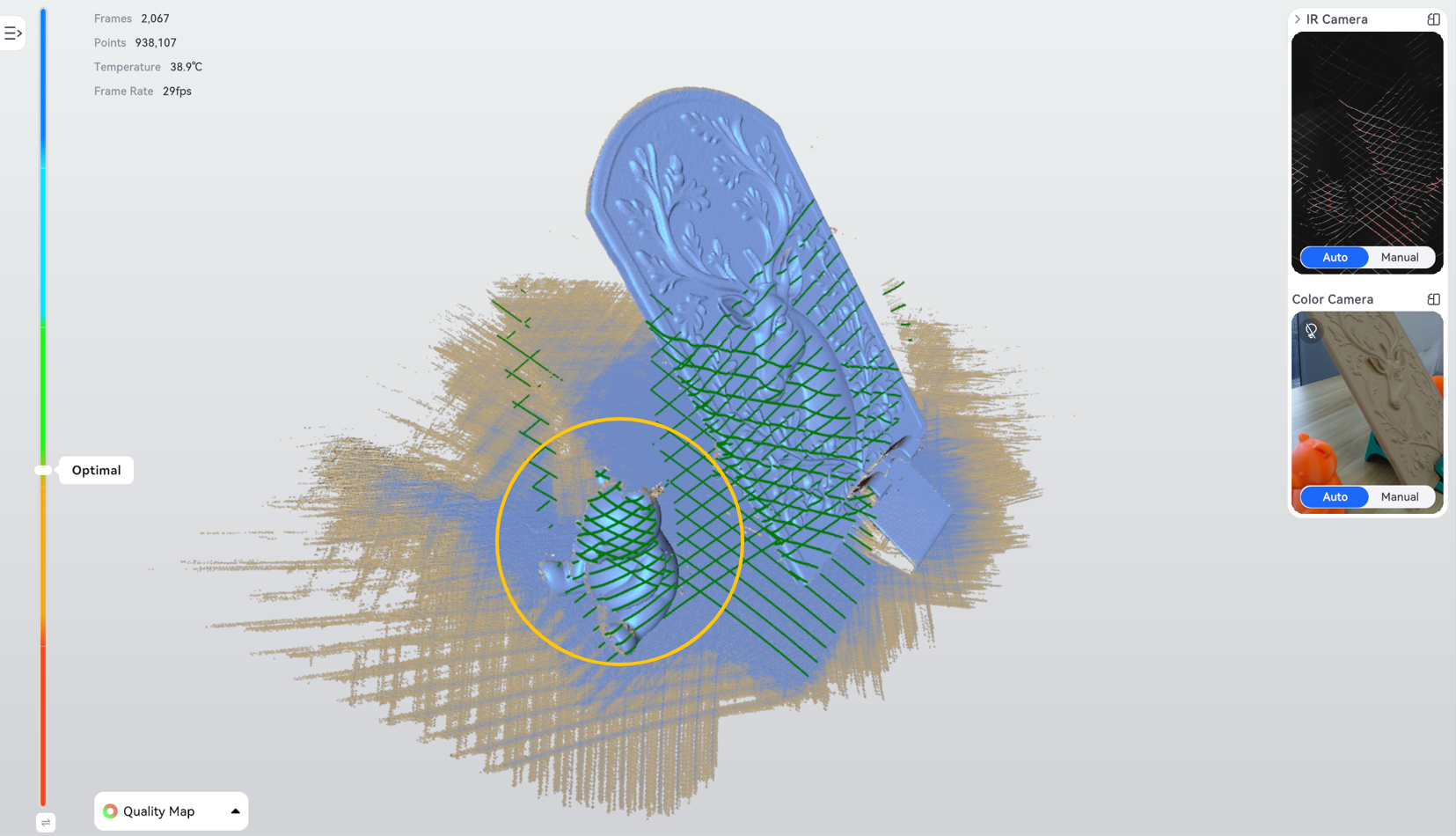
¶ 3. Scan the Back and Fill in Missing Areas
Continue scanning the back, then adjust the scanning angle to capture any missing edges, grooves, and other details. Do not move the tracking reference object or the object being scanned during the process just to expose an obstructed area.
If you need to reposition or flip the object, start a new scan according to the software workflow, then align the scans.
¶ 4. Inspect and Clean Up the Model
Check the following areas carefully:
- Whether the front and back surfaces are misaligned, overlapping, or merged together.
- Whether thin edges are missing or disconnected.
- Whether holes and openings have been incorrectly sealed.
If any areas are missing, scan the missing areas again before proceeding. After data acquisition is complete, use the software's selection or clipping tools to remove the scan data for the tracking reference object and stand before further processing.
If multiple scans need alignment, retain the tracking reference object's scan data if it helps with alignment. Remove it after alignment is complete.
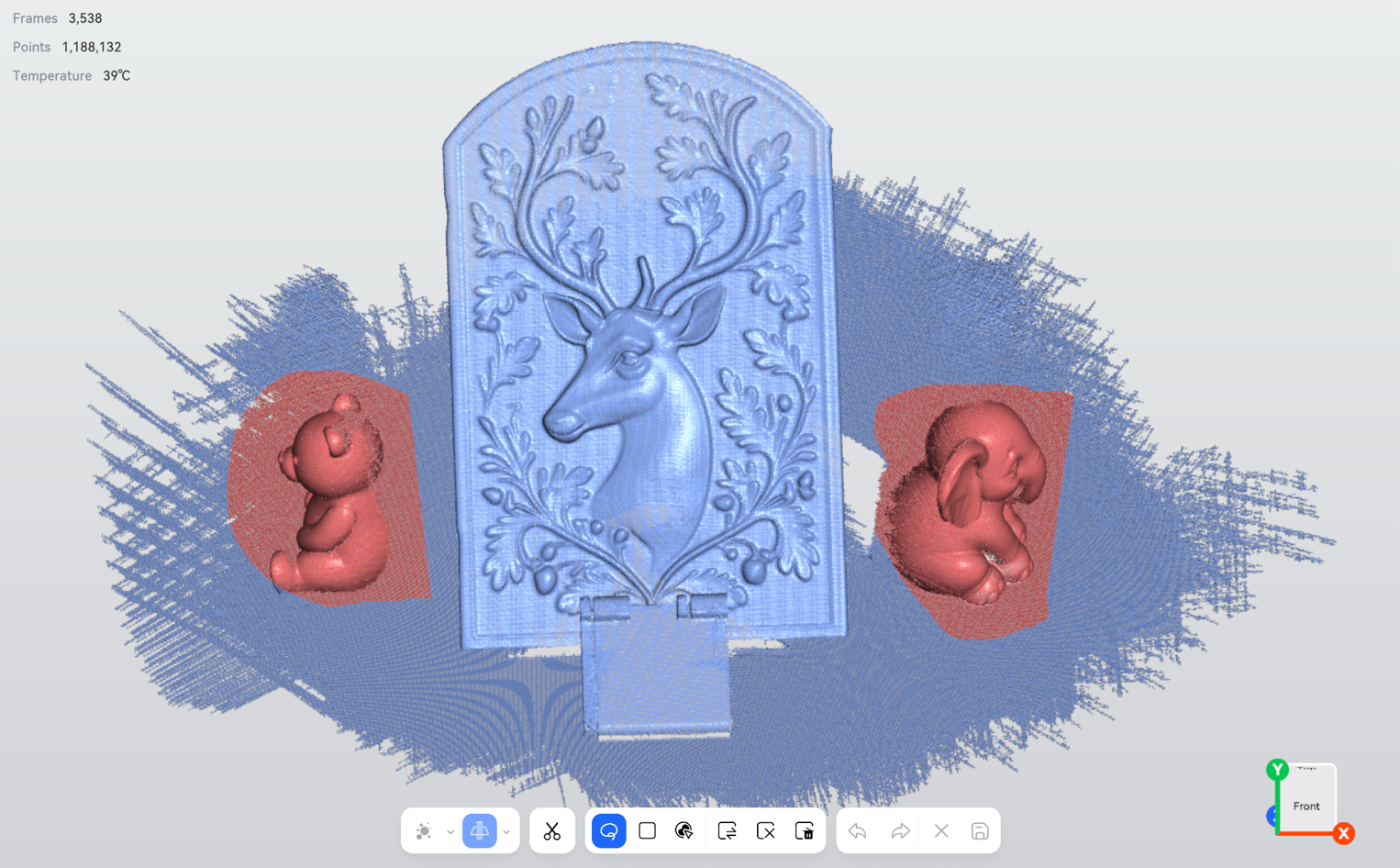
For more information about pointcloud and mesh editing, see the Pointcloud and Mesh Editing Tools Guide.
¶ Frequently Asked Questions
¶ What should I do if tracking is lost when moving to the side?
Return to a previously scanned area with clear features. Once tracking is restored, move the scanner slowly.
If tracking is repeatedly lost at the same position, check whether the tracking reference object is too far away, obstructed, or no longer visible in the scan view. If repositioning is necessary, restart the affected scan.
¶ What should I do if the thin edge cannot be captured?
Try adjusting the scanning angle, distance, and exposure, then scan the missing area again. The tracking reference object can help maintain tracking, but it cannot enable the scanner to capture edges that are beyond its capabilities.
¶ Help Us Improve
If you have any suggestions for our wiki pages, please share them through the ELEGOO Official Feedback Channel.