This guide introduces commonly used pointcloud and mesh editing tools in ELEGOO Scan, including Clipping Plane, Lasso Select, Rectangle Select, Connected Components, Invert Selection, Deselect, Delete Selection, Penetrate Selection, Surface Selection, and Switch Edit Object. These tools allow you to select and trim specific areas of a model, remove unwanted background data and noise generated during scanning, and prepare the model for subsequent mesh processing and export.
Note: Some functions are only available for mesh data after mesh wrapping. Select the appropriate tool according to the current data type of your model.

¶ Clipping Plane – Select Point

¶ Function Description
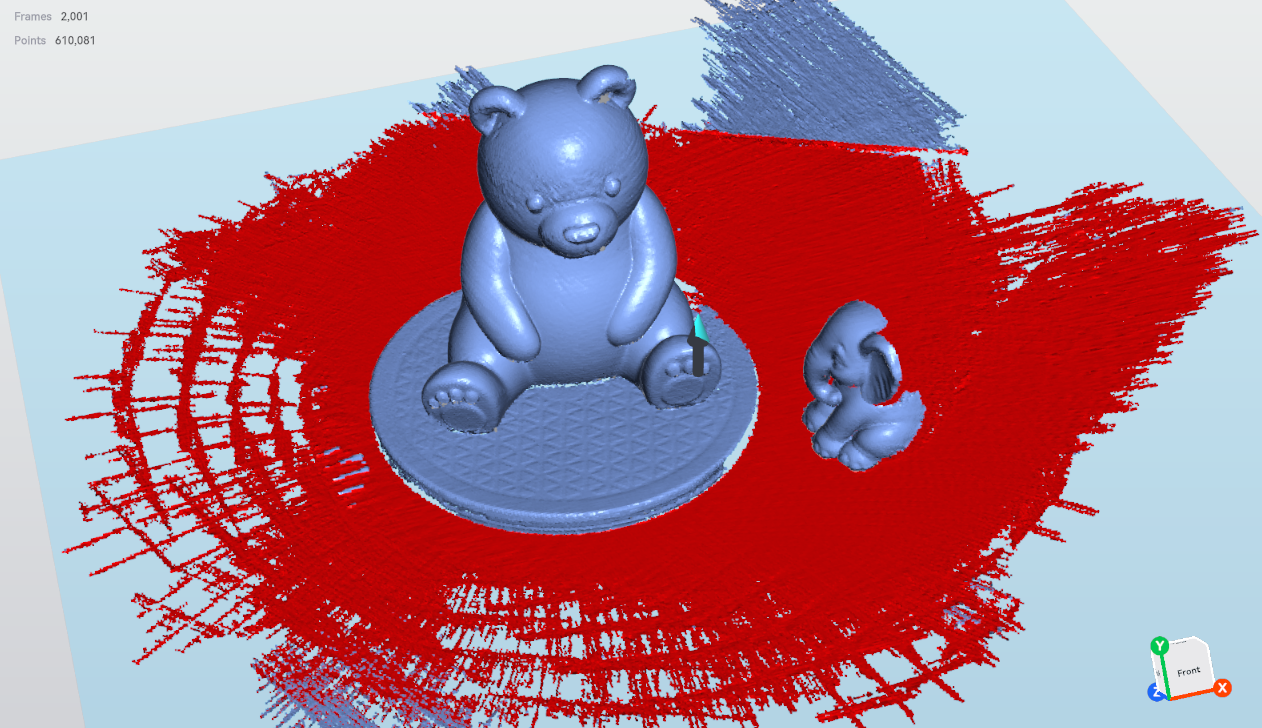
Creates a plane with an adjustable position and angle to trim a pointcloud or mesh model. The plane serves as a boundary, allowing you to retain data on one side and remove unwanted data on the other.
- Manually define the plane by setting three points.
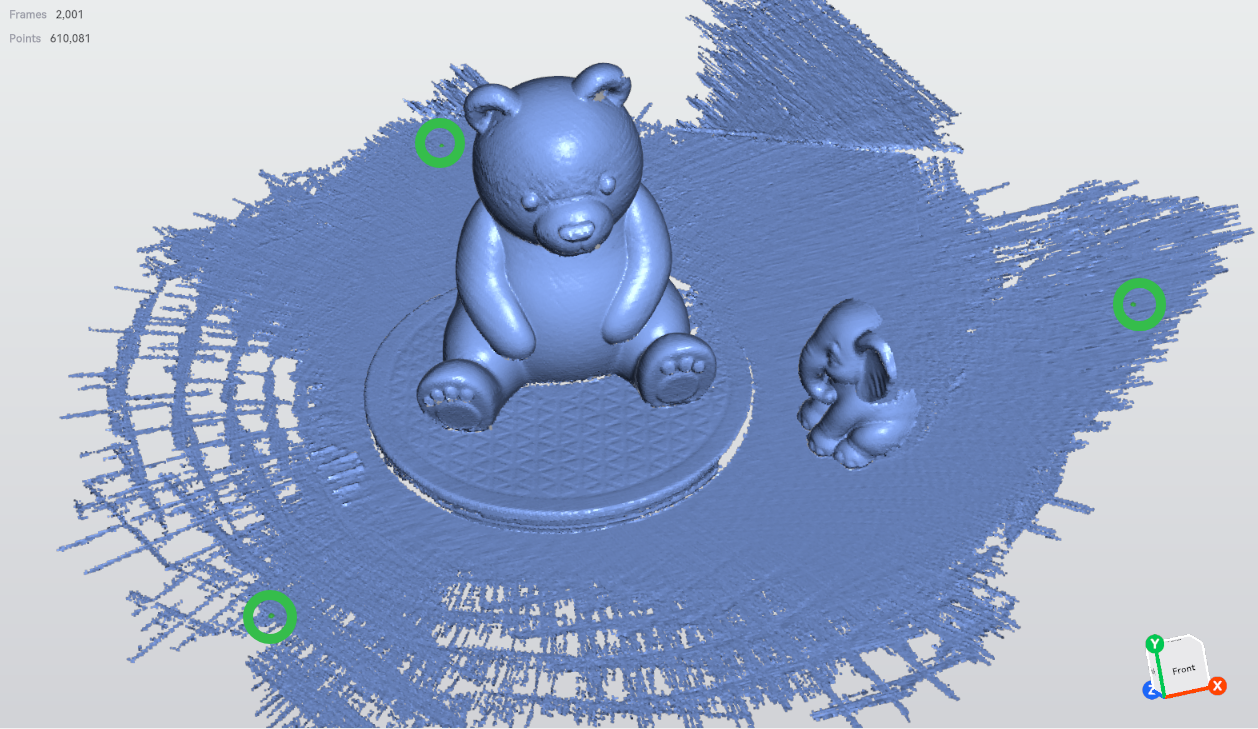
- Click Apply to remove the selected data.
Tip: Selected data is displayed in red.
¶ Use Cases
Quickly remove unwanted bases, tabletops, or background data from scanned models. This tool can also trim specific areas of a model to create a flat cross-section for subsequent model editing and processing.
¶ Clipping Plane – Pointcloud Plane Fitting
¶ Function Description

Calculates a plane that best represents the spatial distribution of a set of 3D points.
- Drag the green arrow to adjust the plane's position.
- Click Apply to remove the selected data.
¶ Use Cases
Identify flat areas of a scanned model and generate a reference plane. For example, fit a plane to the bottom surface of a mechanical part, a tabletop, or another flat surface to facilitate subsequent model alignment, coordinate system setup, or plane deviation measurements.
¶ Lasso Select

¶ Function Description

Draw a closed freeform region with the mouse to select the pointcloud or mesh data within the region.
¶ Use Cases
Select irregularly shaped areas, such as excess data along model edges, local noise points, or complex areas that require separate processing.
¶ Rectangle Select

¶ Function Description

Drag the mouse to draw a rectangular selection box and select the pointcloud or mesh data within the rectangle.
¶ Use Cases
Quickly select regular areas, such as background data surrounding a model, large areas of noise points, or local regions that need to be removed.
¶ Connected Components

¶ Function Description

Connected components are independent regions formed by groups of interconnected points or faces in a pointcloud or mesh.
¶ Use Cases
If a scanned model contains several disconnected parts, the software can use the Connected Components function to identify and separate these regions.
¶ Invert Selection

¶ Function Description

Inverts the current selection, selecting previously unselected data and deselecting previously selected data.
¶ Use Cases
When you want to retain the main body of a model and remove surrounding noise points, select the main body first, then use Invert Selection to quickly select the remaining data.
¶ Deselect

¶ Function Description

Clears the current selection on the pointcloud or mesh.
¶ Use Cases
Use this function to clear the current selection if you selected the wrong area or need to start a new selection.
¶ Delete Selection

¶ Function Description
Deletes the currently selected pointcloud or mesh data.
¶ Use Cases
Remove background data, floating noise points, or unwanted parts of a model generated during scanning.
¶ Penetrate Selection
Note: This function is only available for mesh data after mesh wrapping.

¶ Function Description

Selects all mesh data within the selection box or lasso region, including the front, back, and occluded areas of the model.
Note: When using Penetrate Selection, check the back of the model for data that needs to be retained to avoid accidental deletion.
¶ Use Cases
Select an entire local region of a model, including data on both the front and back surfaces. This is useful for removing unwanted data or background noise extending through the model in a single operation.
¶ Surface Selection
Note: This function is only available for mesh data after mesh wrapping.

¶ Function Description

Selects only the mesh surfaces visible from the current viewing angle, excluding back-facing and occluded data.
¶ Use Cases
Perform detailed editing on local model surfaces, such as removing noise points from the front surface or refining a specific area while avoiding accidental selection of valid data on the back of the model.
¶ Switch Edit Object
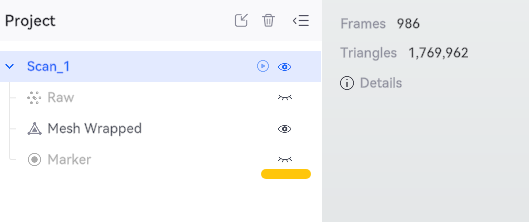
Note: This function is available only in modes that support reflective markers. It cannot be enabled in modes that do not support reflective markers. In supported modes, click the reflective marker visibility icon in the project to enable this setting.
¶ Function Description
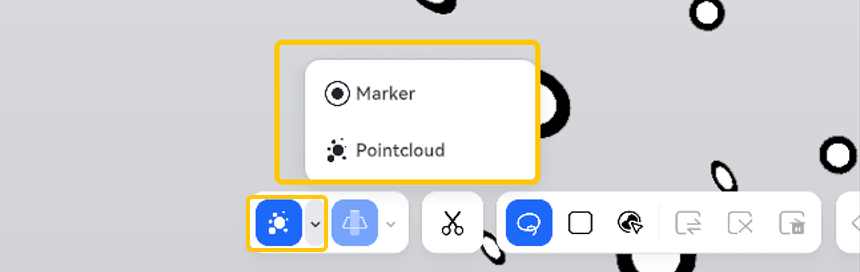
Switches between the pointcloud and reflective markers to specify the object currently being edited. After switching, operations such as selection, trimming, and deletion will apply to the currently selected edit object.
¶ Use Cases
Edit pointcloud data and reflective markers separately. For example, remove background noise points from the pointcloud or delete incorrectly detected or excess reflective markers. Switching the edit object allows you to work on the intended data without affecting the other data type.
¶ Help Us Improve
If you have any suggestions for our wiki pages, please let us know through the official ELEGOO feedback channel.