Note: M1 Ultra supports only reflective markers with 3 mm and 6 mm diameters. In the figure, 3 mm and 6 mm refer to the diameter of the central reflective area, excluding the outer black border.
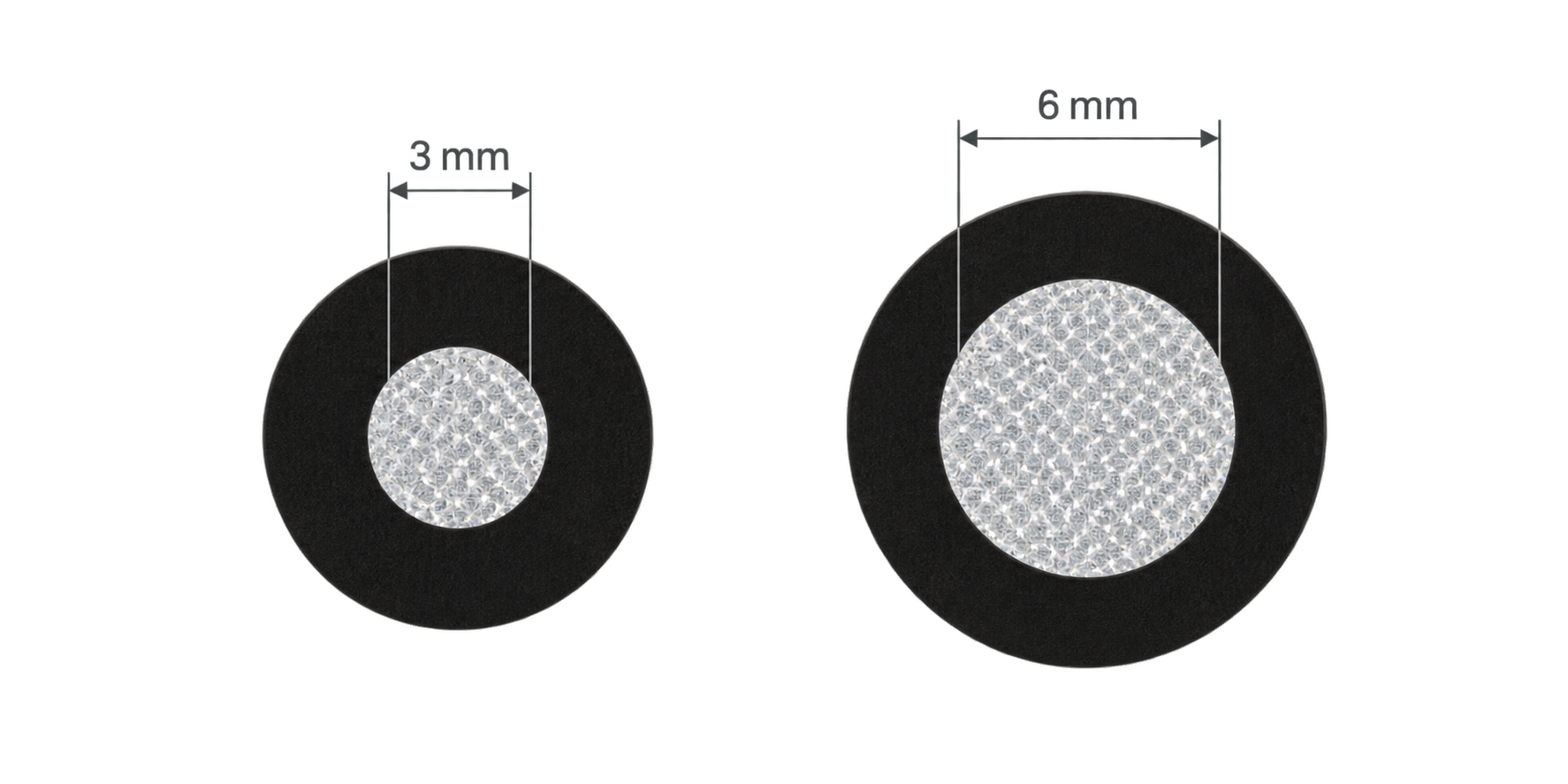
¶ Why Use Reflective Markers
Reflective markers help the scanner determine its position and align data captured from different angles.
When scanning objects with flat surfaces, symmetrical shapes, or many repeated structures, applying reflective markers can reduce tracking loss, ghosting, and misalignment.
¶ Required Tools and Materials
- Reflective markers compatible with the scanning mode
- Cleaning cloth
- Tweezers (optional)
- Base plate, marker block, or scanning stand (optional)
¶ Preparation Before Applying Reflective Markers
¶ 1. Confirm the Scanning Mode
Make sure the current mode supports reflective marker tracking and use the appropriate reflective markers for that mode. Do not use ordinary round stickers as substitutes.
¶ 2. Secure the Object
The object must not slide, shake, or deform during scanning.
¶ 3. Clean the Surface
Remove dust, oil, and moisture. Wait until the surface is completely dry before applying the reflective markers.
¶ 4. Check the Object Surface
If the surface is prone to paint damage or may be damaged or leave adhesive residue, apply the reflective markers to a base plate or scanning stand around the object instead.
If you need to apply 3D Scanning Spray / Matting Spray, make sure that the spray does not cover the reflective area of the reflective markers.
¶ Applying Reflective Markers
¶ 1. Select the Application Positions
Apply the reflective markers to flat, stable areas that are easy for the scanner to see during scanning.
Note: Reflective markers cover part of the object's surface. Do not place them on important dimensions or fine details.
| Precautions | Illustration |
|---|---|
| Do not place reflective markers on edges, sharp corners, holes, or seams. Do not place a single marker across two surfaces. | 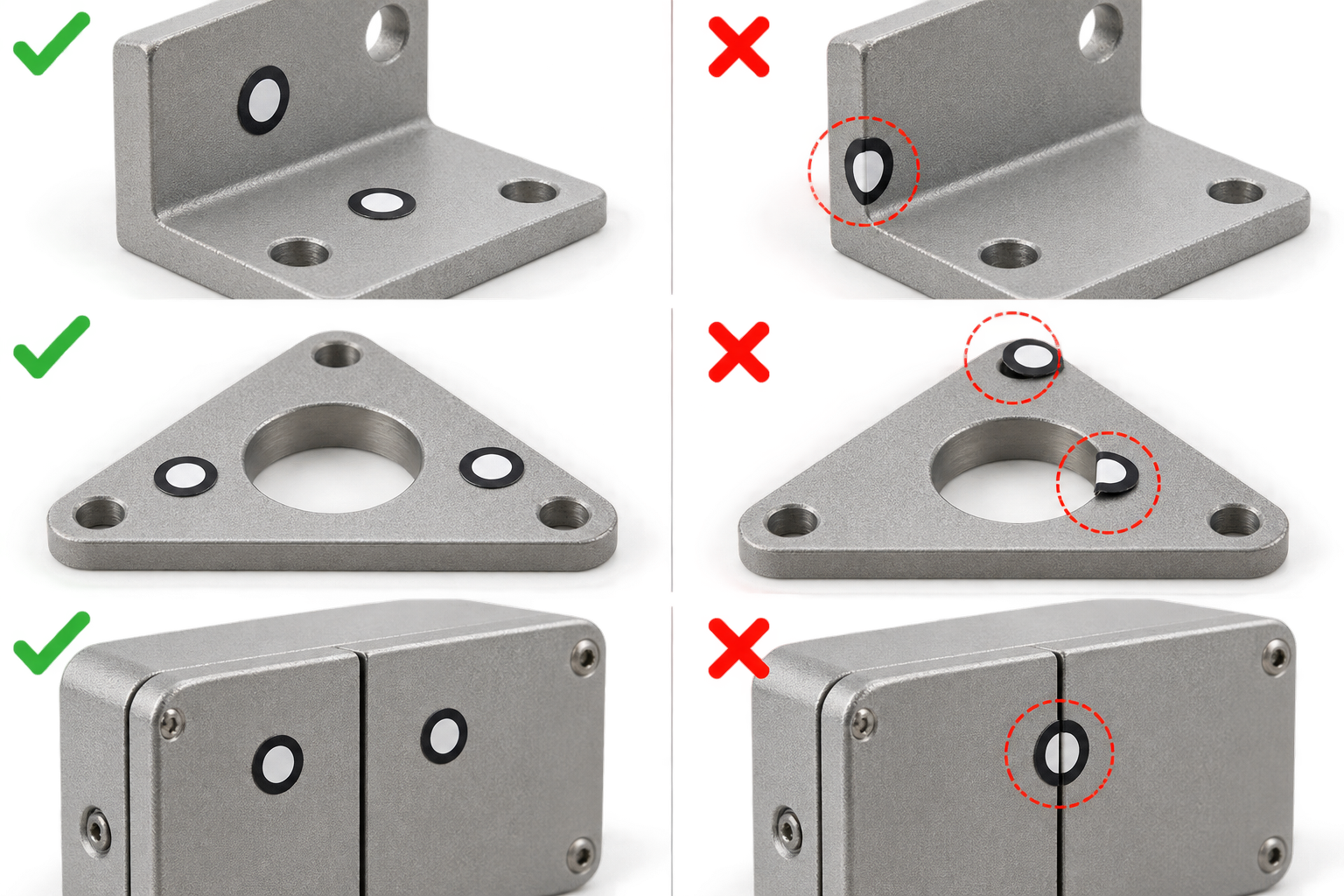 |
| Do not place reflective markers where they may be blocked by your hand, a fixture, or the object itself. | 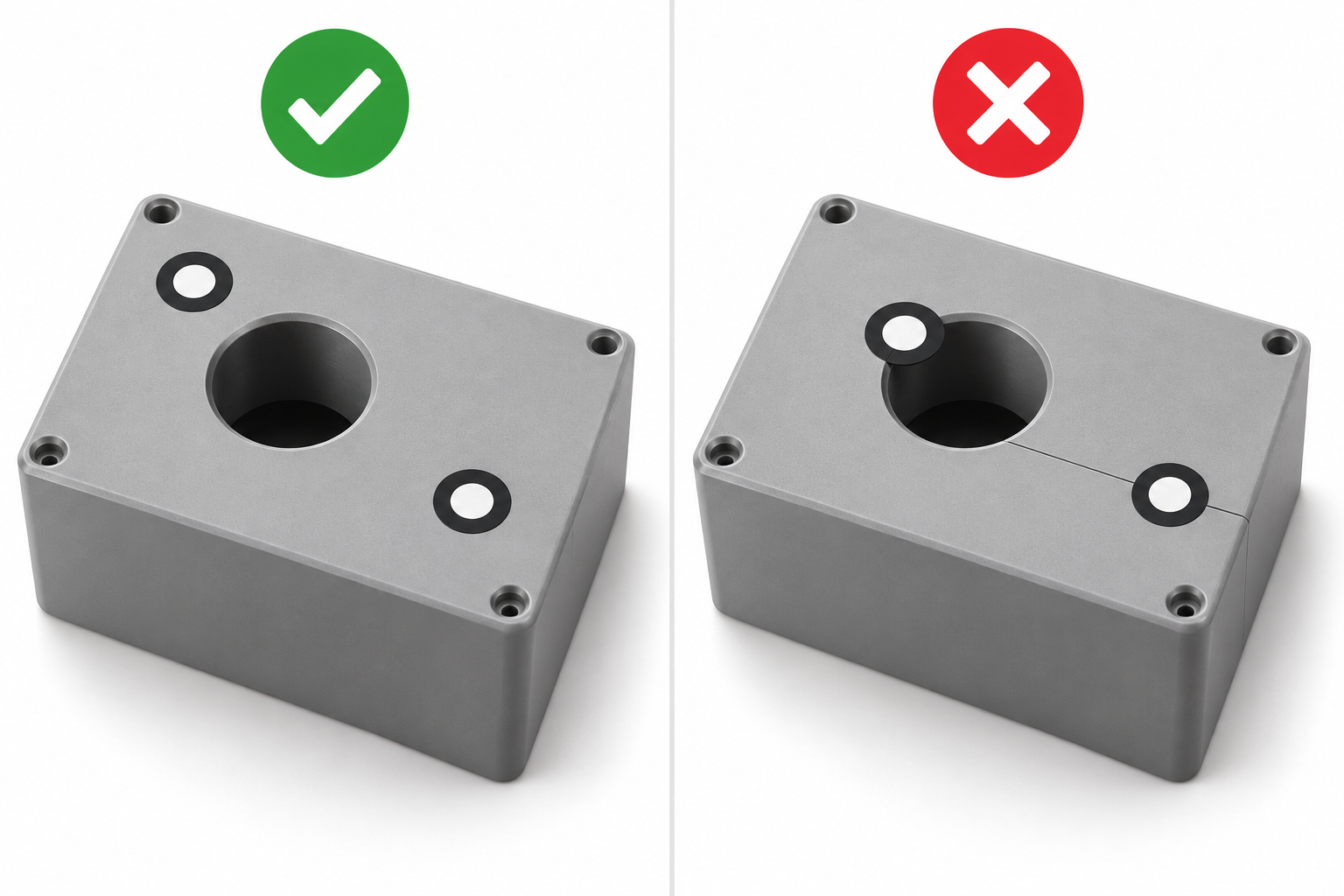 |
| Do not cover threads, engraved text, or other details that need to be scanned. | 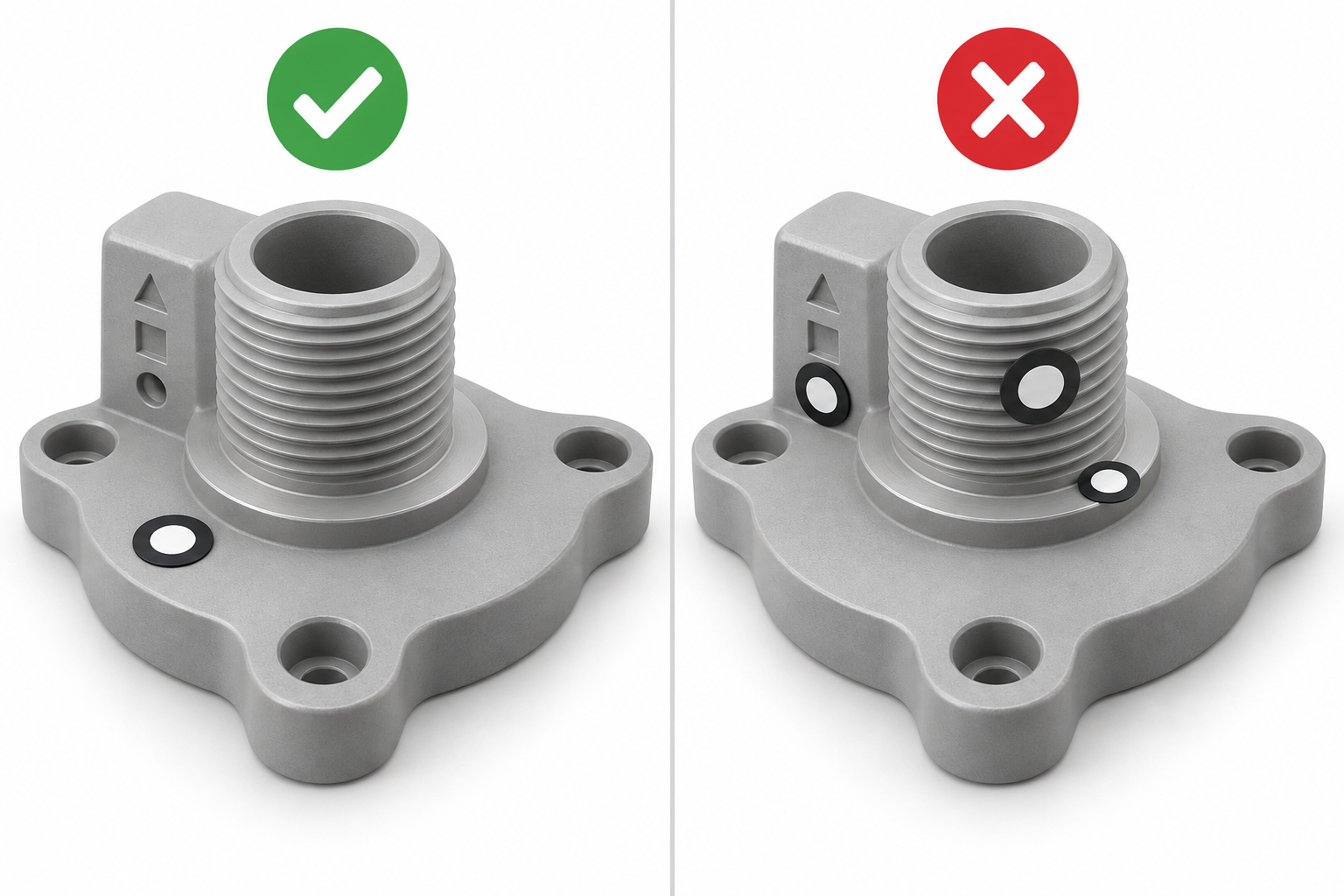 |
| Do not place reflective markers on parts that may loosen, rotate, or deform. | 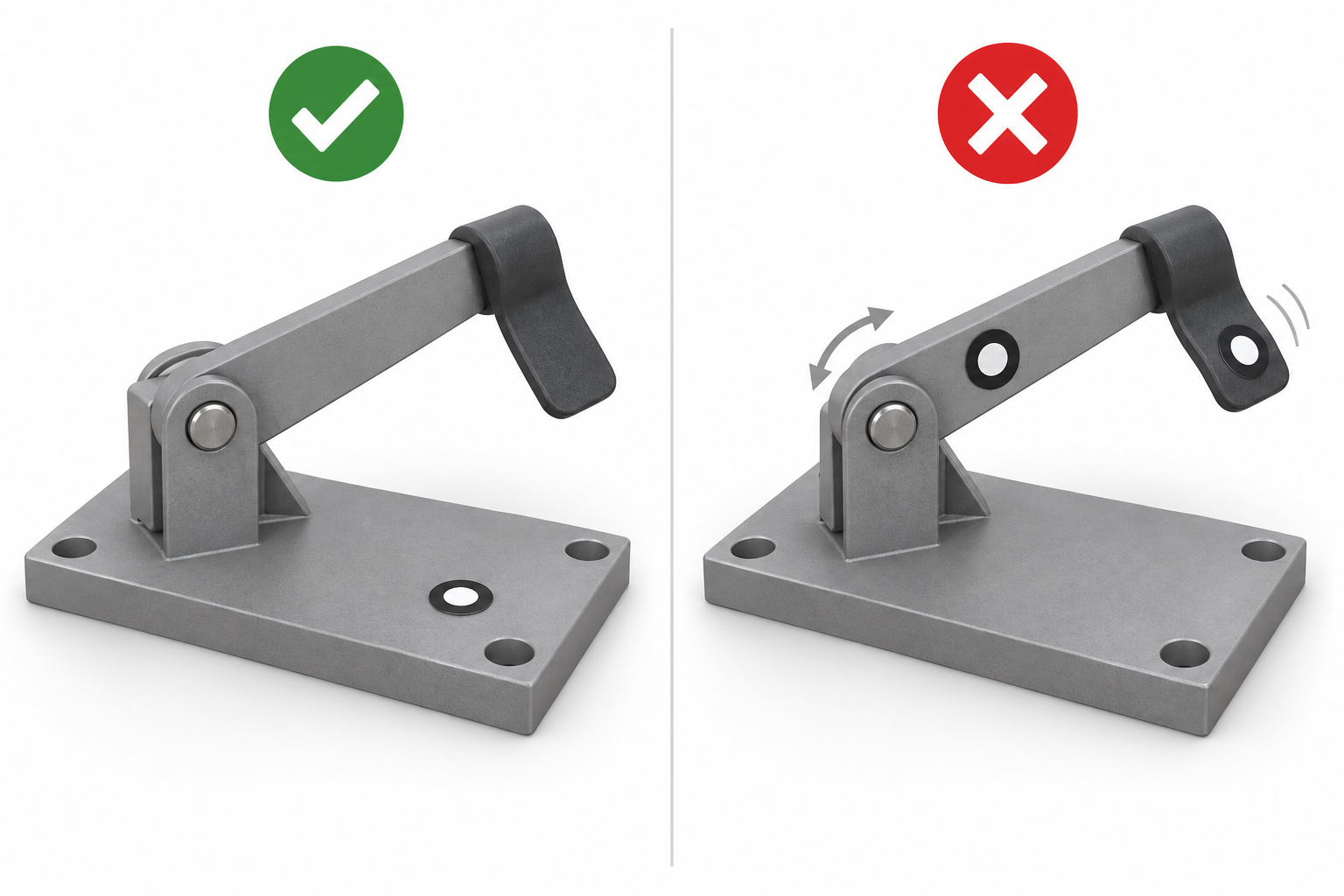 |
¶ 2. Distribute Reflective Markers Irregularly
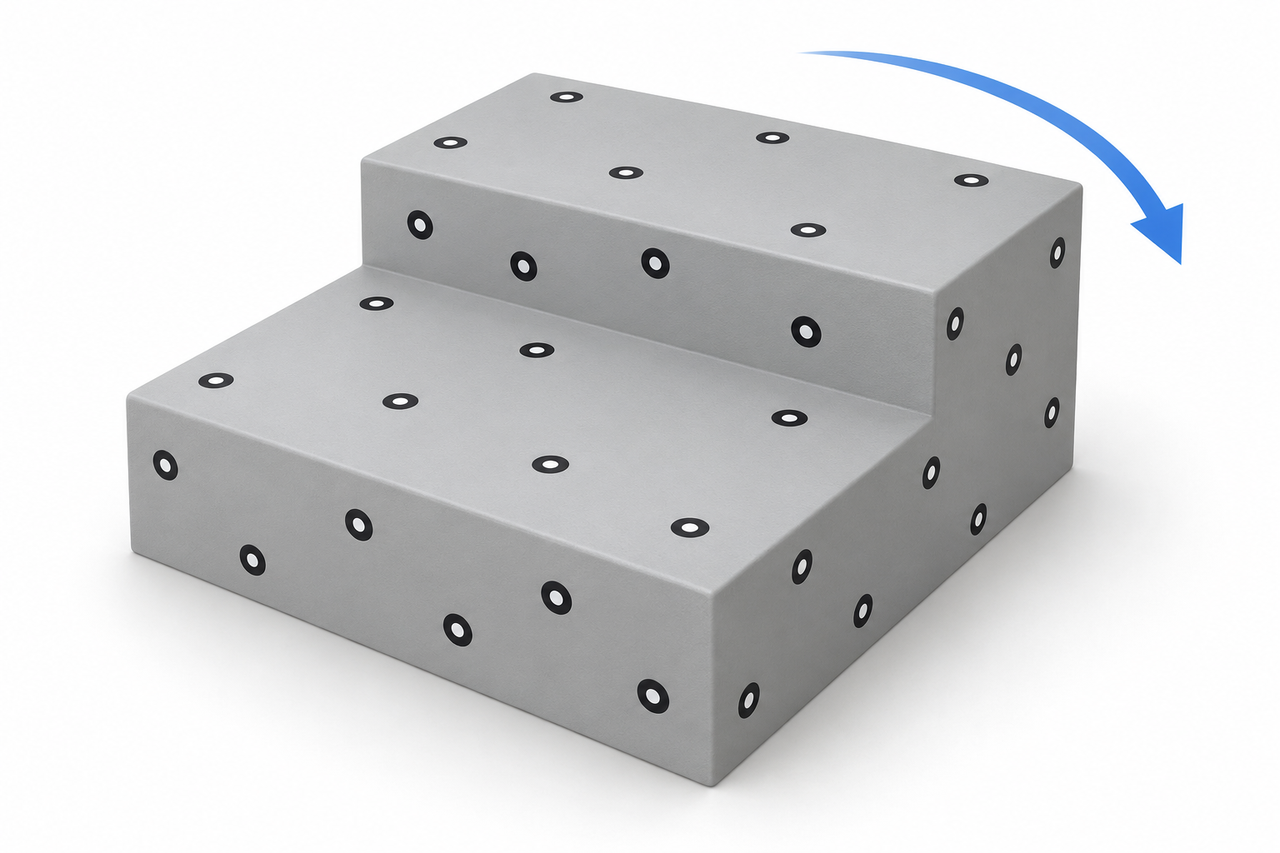
Distribute the reflective markers in a staggered and irregular pattern. Avoid using identical positions or spacing. This makes it easier for the scanner to determine the direction and position.
| Recommended ✅ | Avoid ❌ | Illustration |
|---|---|---|
| Distribute the markers irregularly and asymmetrically | Arrange the markers in straight lines, regular grids, or symmetrical patterns | 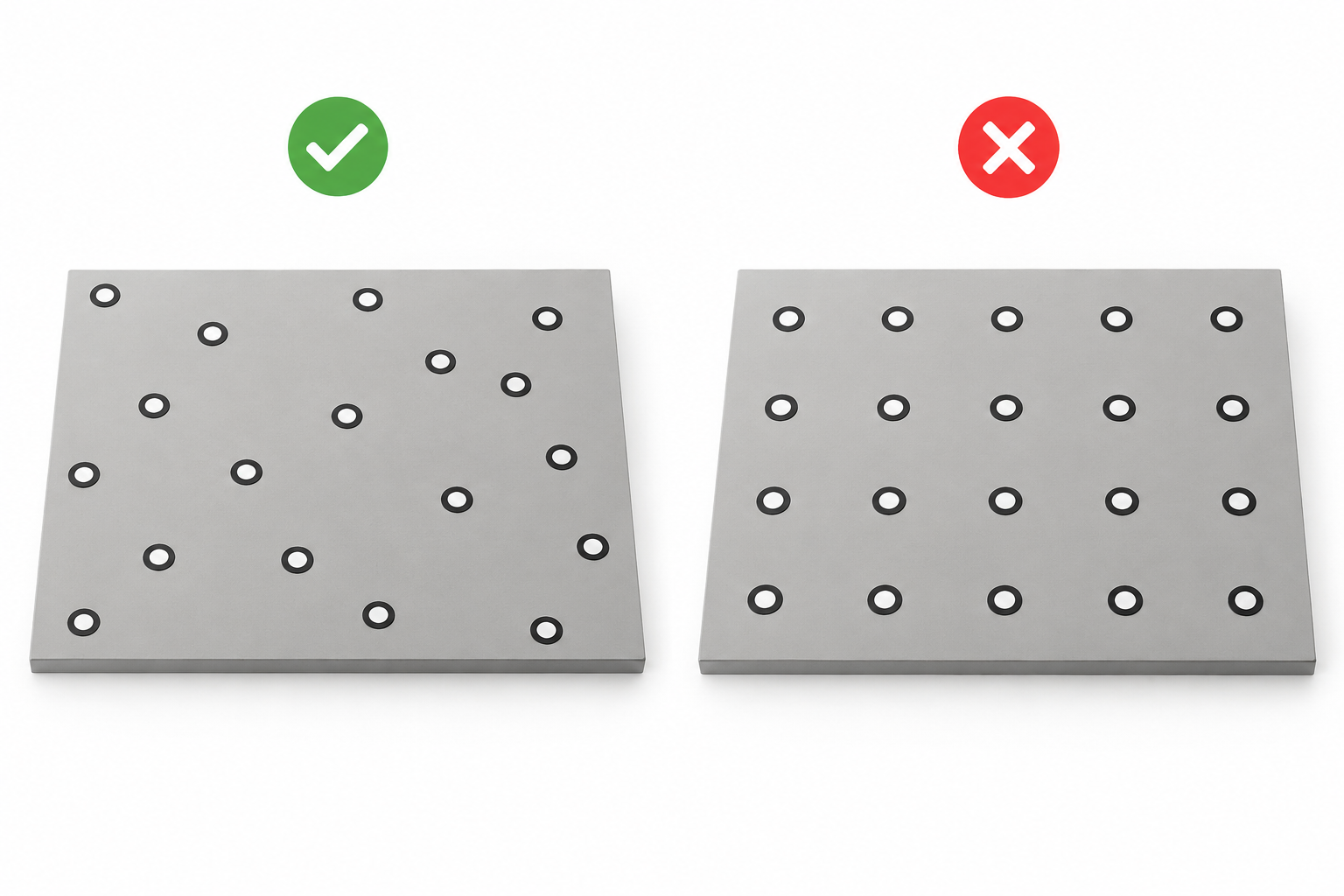 |
| Cover all areas to be scanned | Place too many markers in only one local area | 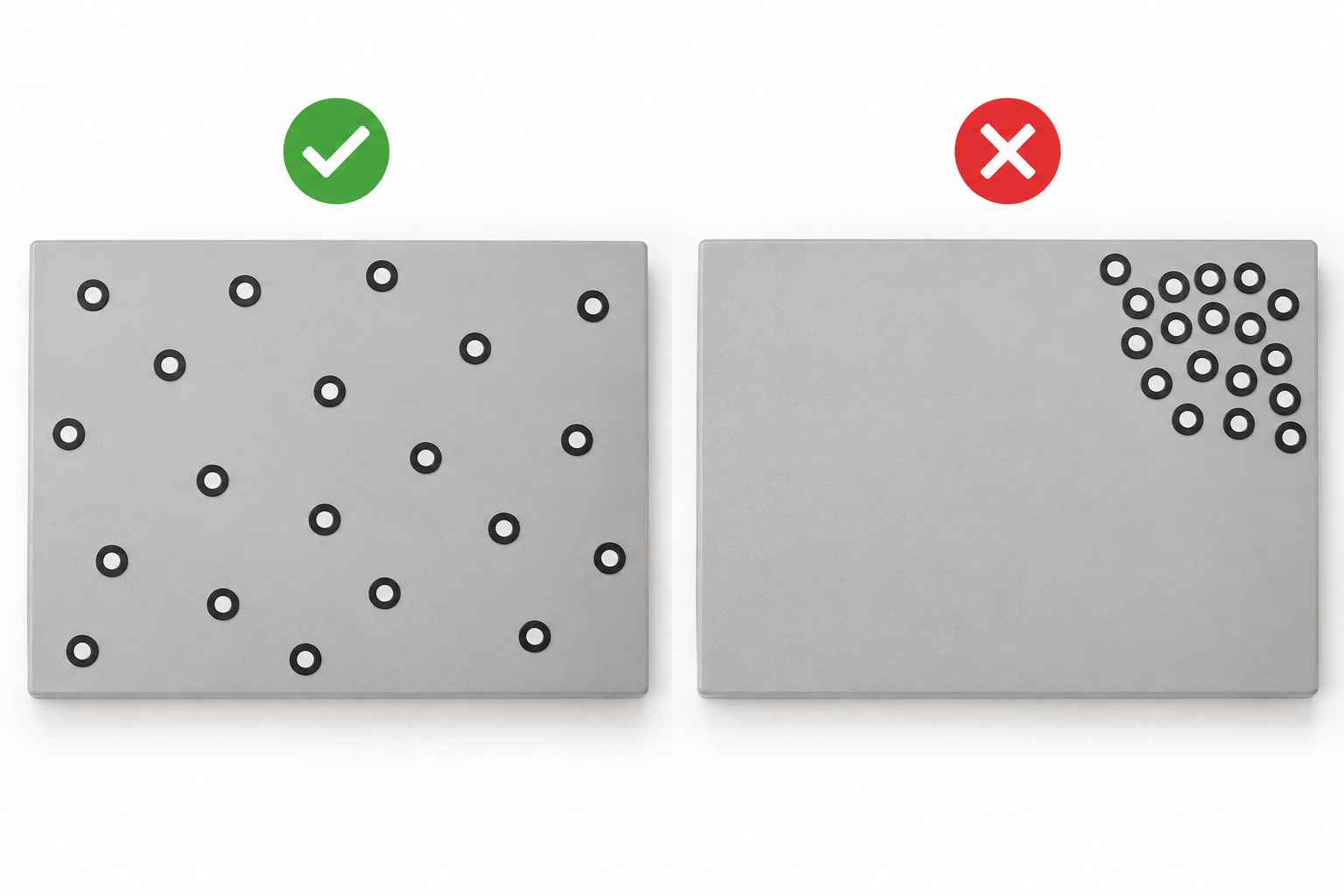 |
| Apply markers continuously along the scanning path | Leave large areas without markers between adjacent scanning areas | 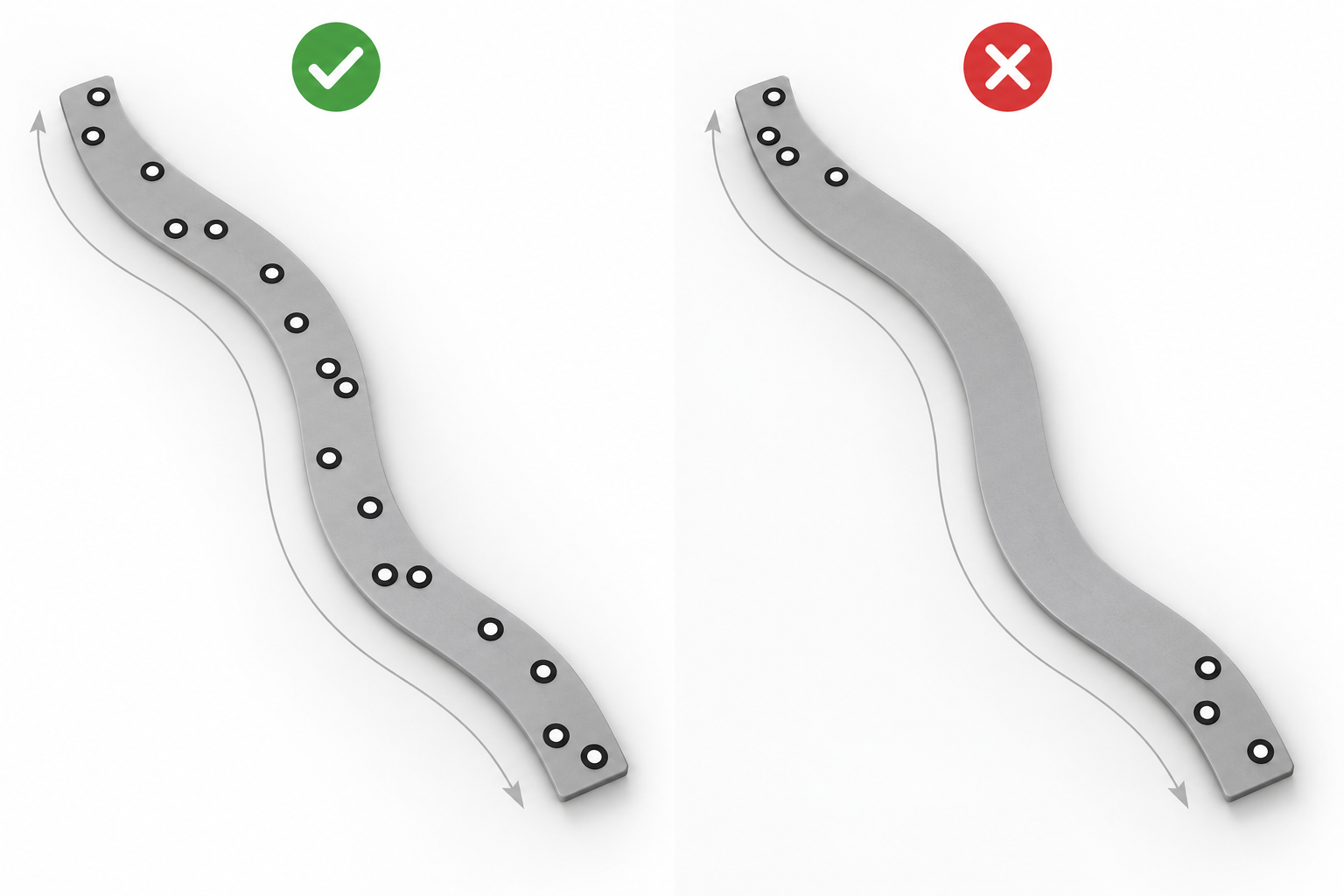 |
| Apply markers separately to flat areas on adjacent surfaces | Fold a single marker over an edge | 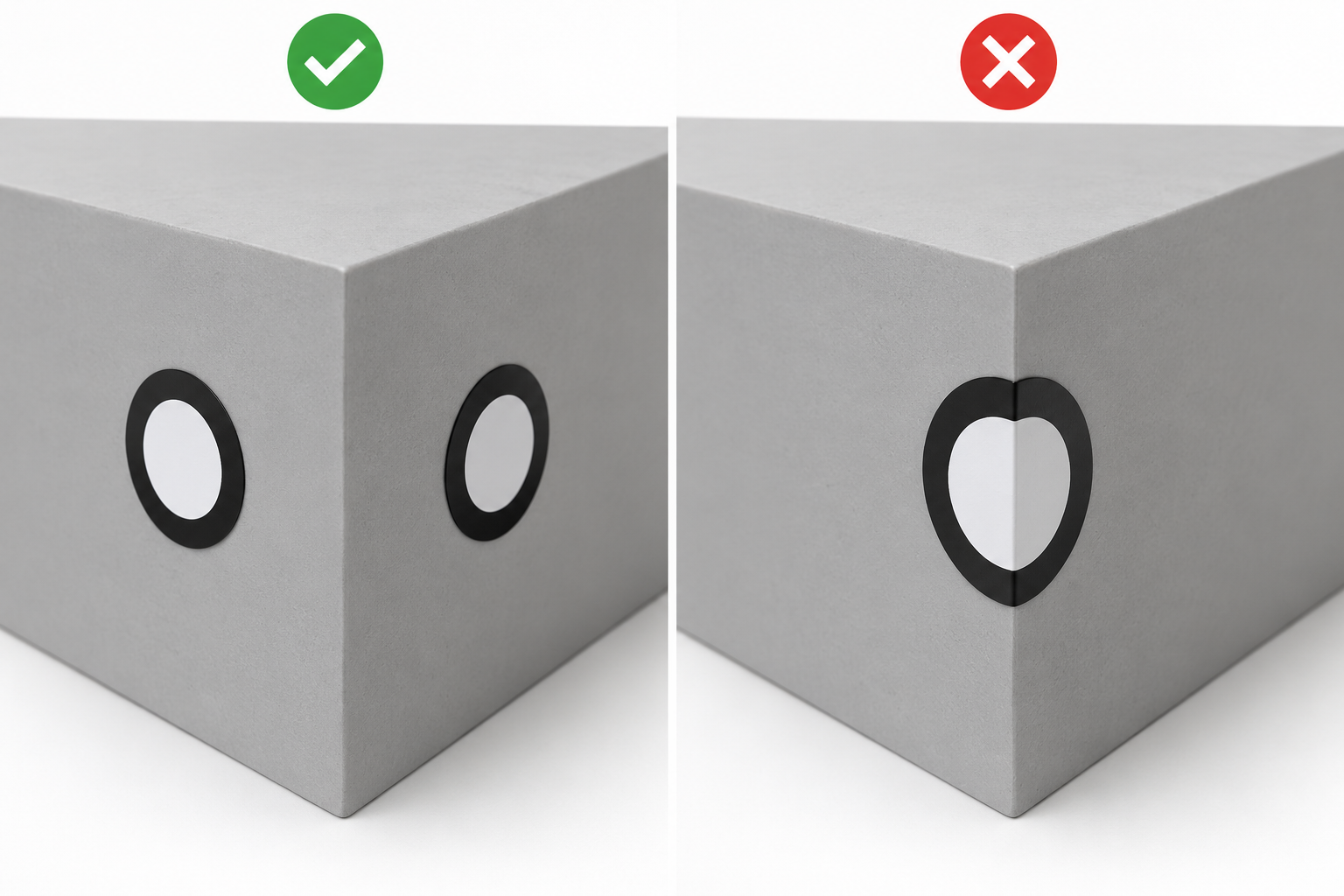 |
Note: Do not overlap reflective markers or place them too close together. Do not use too few markers. The actual number required depends on whether the software can recognize them stably.
¶ 3. Cover Different Scanning Directions
If you need to scan the top and sides of an object, apply reflective markers to both the top and side surfaces.
When moving the scanner from one surface to another, enough reflective markers should remain visible in the scanning view at all times. You can add more markers around edges, corners, and areas that are easily blocked.
¶ 4. Apply the Reflective Markers Flat and Securely
- Hold the edge of the reflective marker with your finger or tweezers. Avoid touching or contaminating the center area.
- Place the reflective marker flat on the surface and press it down gently.
- Check for lifted edges, wrinkles, air bubbles, or stains.
- If the marker is not applied flat or has been damaged, replace it with a new one.
Do not stretch, fold, or cut reflective markers. Do not cover them with transparent tape.
¶ 5. Check Recognition
- Enter the reflective marker scanning mode.
- Position the scanner within the effective scanning distance.
- Check whether the software can stably recognize the reflective markers.
- Move the scanner slowly along the planned path and check the top, sides, and corners.
- If the software indicates that there are not enough reflective markers, check the scanning distance, angle, occlusion, and exposure, and add more markers as needed.
Start the actual scan only after confirming that all areas can be recognized stably.
¶ Precautions During Scanning
- Do not move, remove, or replace reflective markers during scanning.
- When using a base plate or scanning stand for marker placement, the object, base plate, and reflective markers must not move relative to each other.
- When using a turntable, the object and any auxiliary objects with reflective markers must rotate together.
- When you need to scan the other side of an object, it is recommended to create a new scan and then use the software to perform Alignment.
- If tracking is lost, slowly move the scanner back to an area that has already been scanned successfully and where the reflective markers are clearly visible.
¶ Frequently Asked Questions
¶ 1. What Should I Do If I Cannot Apply Reflective Markers Directly to the Object?
You can apply reflective markers to a base plate, marker block, or scanning stand around the object. However, note the following:
- The object, auxiliary objects, and reflective markers must not move relative to each other.
- The surrounding reflective markers must remain visible in the scanning view while scanning the object.
- Auxiliary objects must not block the surface to be scanned.
- When using a turntable, the auxiliary objects must rotate together with the object.
Applying reflective markers around the object does not mean that Global Markers have been fully captured. When using Global Marker mode, you still need to capture Global Markers as prompted by the software.
¶ 2. Is More Always Better When It Comes to Reflective Markers?
No. You only need enough reflective markers distributed appropriately for stable recognition in the scanning view.
Too many reflective markers can cover the object's surface and do not solve the problem of insufficient markers in other areas.
¶ 3. Why Can't the Software Recognize the Reflective Markers After I Apply Them?
Check the following:
- Whether the scanning mode matches the reflective markers
- Whether the scanning distance is appropriate
- Whether the reflective markers are blocked
- Whether the reflective markers are dirty, damaged, or peeling off
- Whether exposure is appropriate
¶ 4. Can Black or Reflective Objects Always Be Scanned Successfully After Applying Reflective Markers?
Not necessarily. Reflective markers are mainly used for positioning and tracking. They cannot solve the data acquisition difficulties caused by black, reflective, or transparent surfaces.
If tracking is normal but surface data is missing, adjust the exposure and scanning angle, or use 3D Scanning Spray / Matting Spray as instructed.
¶ 5. Can Reflective Markers Be Reused?
Disposable reflective markers may become deformed or lose their adhesion after removal. Do not reuse reflective markers that are peeling, dirty, damaged, or no longer adhere firmly.
¶ Help us improve
If you have any ideas about the wiki pages, please let us know via ELEGOO official feedback channel .