¶ Fault Phenomenon
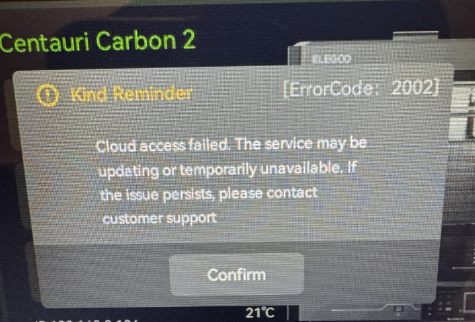
Error code 2002
Cloud access failed. The service may be updating or temporarily unavailable. If the issue persists, please contact customer support
Error code 2003
Failed to retrieve initialization data from the cloud. If this problem continues, please contact customer support
.jpg)
¶ Fault Causes
- Incorrect region selection. If the wrong region is selected during factory reset, the device may fail to connect properly to the cloud server.
- Network abnormality. Unstable network, packet loss, or router issues may cause device initialization failure or inability to communicate with the server.
- Firmware time anomaly. In some cases, the device startup time is abnormal and does not match the cloud server time.
- Server fluctuations.
¶ Troubleshooting Steps
¶ 1. Restart the router and printer power.
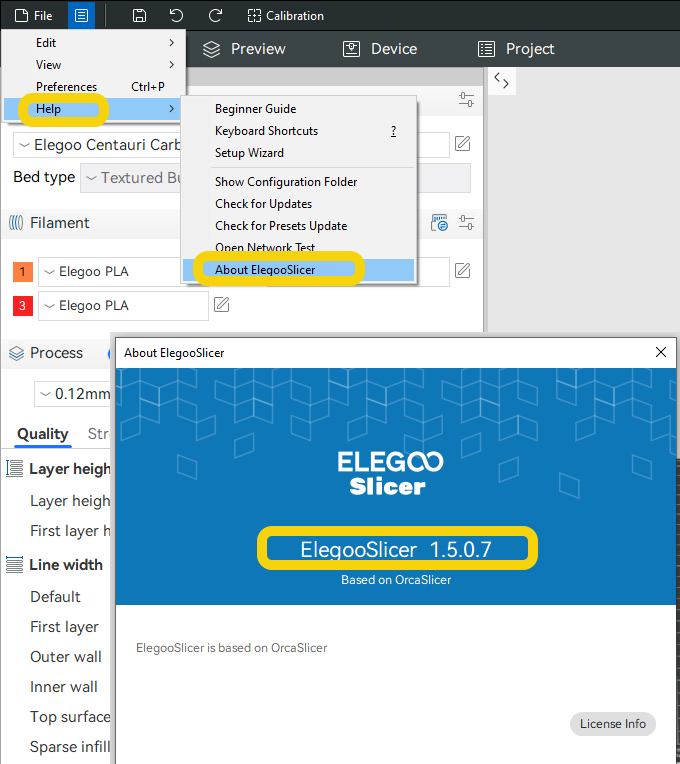
¶ 2. Update the Elegoo Slicer / printer firmware to the latest version.
- How to check for updates in Elegoo Slicer:
.jpg)
- How to check for firmware updates on Centauri Carbon 2 Combo:
.jpg)
¶ 3. Enable and then disable LAN-only mode.
a. On the touchscreen, go to Settings → LAN only → Enable.
b. Tap LAN only → Disable.
c. Restart the printer.
.jpg)
¶ 4. Restore printer default settings and reselect the time zone.
a. On the touchscreen, go to Settings → Factory Reset.
b. Reselect the time zone.
.jpg)
¶ 5. Test using a mobile hotspot.
Enable the hotspot on your phone and connect the printer to it via the touchscreen.
- If the printer no longer shows the error when connected to the mobile hotspot, check your computer network / router.
¶ 6. Check your computer network.
a. Press Win + R on your computer, type cmd, and open the command window.
.jpg)
b. Type ping [printer IP address] and press Enter. Wait for the ping to complete.
.jpg)
- If there is no packet loss and latency is around a few tens of milliseconds, your computer network is normal. See image below.
.jpg)
- If you see "Request timed out," your computer network is abnormal. Please check your computer network.
¶ 7. Test by switching WiFi bands.
Some routers support both 2.4G Hz and 5G Hz WiFi.
- If the printer is far from the router or not in the same room, use 2.4G Hz WiFi.
- If the printer is very close to the router and in the same room, prefer 5G Hz WiFi.
The WiFi signal will be weaker if the printer is far from the router. Try to place the printer and router in the same room to ensure they are not too far apart
¶ 8. Check whether Elegoo Matrix can connect to and control the printer.
Refer to the link below to connect to Elegoo Matrix:
https://wiki.elegoo.com/centauri-carbon-2-combo/how-to-connect-the-printer-using-elegoo-slicer-and-elegoo-matrix-app
If the Elegoo Matrix app cannot connect to the printer, try enabling or disabling a VPN.
If the issue persists after completing steps 1–8, please provide the following information to technical support at:
3dp@elegoo.com
- Printer log files and Elegoo Slicer log files:
- How to export logs on the Centauri Carbon 2 Combo:
https://wiki.elegoo.com/centauri-carbon-2-combo/how-to-export-logs - How to export logs from Elegoo Slicer:
https://wiki.elegoo.com/fdm-slicing-software/elegoo-slicer-how-to-export-log-files
- Printer firmware version (Touch screen-settings-check for updates)
- Elegoo Slicer version information
4. Approximate time when the error occurred
5. A video recording of the process to reproduce the error
6. Whether the Matrix app can connect to and control the printer normally