¶ Elegoo Slicer - Local Area Network (LAN) Connection
¶ Prerequisites
- Install the latest version of Elegoo Slicer
https://github.com/ELEGOO-3D/ElegooSlicer/releases - The printer is connected to Wi-Fi. Connect to Wi-Fi via the touch screen: Settings → Network.
- Ensure the computer and the printer are on the same local area network.
¶ Automatic Discovery and Connection
- On the touch screen: Settings → LAN Only → Enable LAN Only → Access Code (optional).
.png)
The access code is an optional security setting. If it has been enabled, it must be entered during subsequent connections.
- Open Elegoo Slicer, click Device → Add Printer.
.png)
- Left-click to select the printer you want to connect → click Connect.
.png)
• If an access code has already been set on the printer, an “Enter Access Code” dialog will appear → enter the access code.
.png)
• If no access code has been set on the printer, the printer will appear in the local printer list after clicking Connect.
.png)
¶ Connect by Entering IP Address
- On the printer touch screen: Settings → Network, connect to Wi-Fi. Once connected successfully, the IP address will be displayed on the touch screen.
.png)
Please ensure the printer and computer are on the same local area network
-
In the Devices panel, select Add Printer.
.png)
-
Select Manual Connection - Set the connection method to LAN - Enter the IP address - Enter the access code (optional) - Click Connect
The access code is an optional security setting. If it has been enabled, it must be entered during subsequent connections.
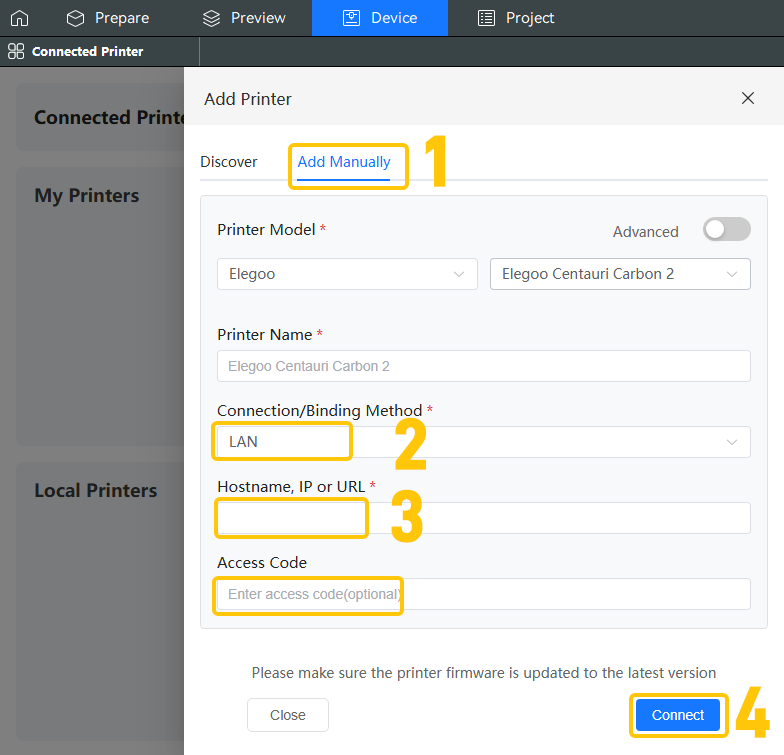
5. After successful connection, the printer will appear in the local printer list.
.png)
If Elegoo Slicer has already connected to the printer via LAN, turning off LAN Only in the printer settings will disconnect the connection in Elegoo Slicer
.png)
¶ Elegoo Slicer - Wide Area Network (WAN) Connection
¶ Prerequisites
- Ensure the printer is connected to Wi-Fi and the Wi-Fi network has normal internet access.
¶ Operation Steps
-
On the Elegoo Slicer main interface, click the Home icon → Login/Register → register an account and log in.
.png)
-
On the printer screen, disable LAN Only mode. Once disabled, the printer will automatically switch to WAN mode.
.png)
-
On the printer screen, go to Settings → Device → Account, view and record the PINCODE.
.png)
-
In Elegoo Slicer, click Device → Manual Add → select WAN → enter the PINCODE → click Connect.
.png)
-
The printer screen will display an “External Connection Request” prompt. Select Bind to confirm.
.png)
-
After successful binding, the printer will appear in the list.
.png)
If Elegoo Slicer has already connected to the printer via WAN, enabling LAN Only in the printer settings will disconnect the connection in Elegoo Slicer.
.png)
¶ Elegoo Matrix App - Wide Area Network (WAN) Connection
¶ Prerequisites
- Update the Centauri Carbon 2 Combo firmware to version V01.03.01.89 or higher.
- Install the Elegoo Matrix App and ensure the app version is 1.0.11 or higher.
- Ensure the Centauri Carbon 2 Combo is connected to Wi-Fi and the Wi-Fi network has normal internet access.
¶ Connection Step 1 (QR Code)
-
On the touch screen: Settings → LAN Only → Disable LAN Only → Confirm.
.png)
-
Go to Settings → Device → Account. The printer will generate a QR code.
.png)
.png)
-
Open the Elegoo Matrix App on your phone → tap the Add Printer button → scan the QR code displayed on the printer’s touch screen.
.png)
.png)
-
Tap Add Device. You will then enter the app’s control interface.
.png)
.png)
¶ Connection Step 2 (Manual PINCODE)
-
In the Elegoo Matrix App, go to Add Printer → Manual Add→Select the printer model Centauri Carbon 2 Combo→Enter the PINCODE to connect
.png)
-
The PINCODE can be found under Settings → Device on the printer screen. It is usually a 6-character uppercase English letter code.
.png)
Reminders:
-
If the Elegoo Matrix App and Elegoo Slicer are logged in with the same account, after successfully connecting the printer via QR code or PINCODE in the Matrix App, the printer information will automatically appear in the Elegoo Slicer list
.gif)
-
If the printer is already connected via the Elegoo Matrix App (WAN), Clicking on the established LAN connection through the elegoo slicer device page will result in the following phenomenon:
• The existing WAN connection in the Elegoo Matrix App to be disconnected.
• The LAN connection in Elegoo Slicer to show as offline.
.png)
If you have already encountered this situation, please close Elegoo Slicer, power cycle the printer (turn the power off and on), and reconnect to the printer via the Elegoo Matrix App.