¶ Preparation
¶ 1. Install Elegoo Slicer
Download link: https://github.com/ELEGOO-3D/ElegooSlicer/releases
¶ 2. Load filaments into CANVAS channels
Load four spools of different colored filament into the four CANVAS channels. On the touch screen, set filament type and color for each channel.
¶ 3. Connect printer via Elegoo Slicer
Connect the printer via Elegoo Slicer. Connect via ELEGOO Slicer
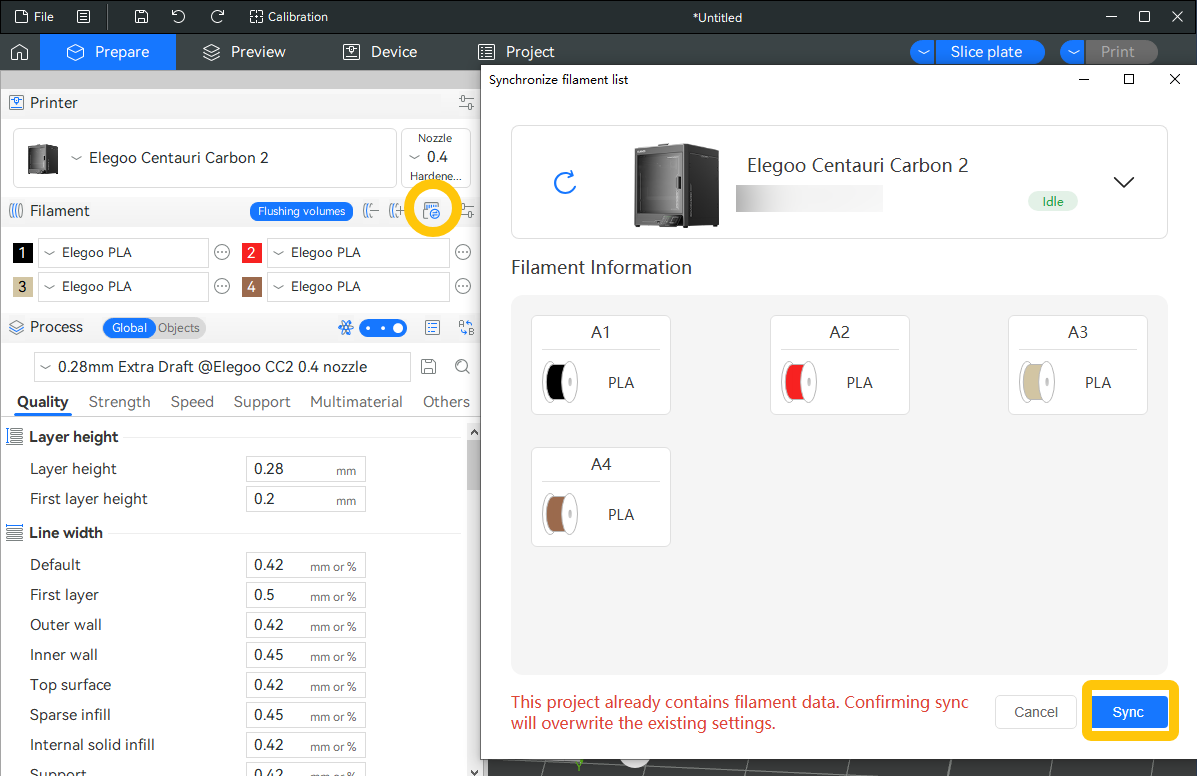
¶ 4. Sync filament list
Click Sync Filament List.
¶ Operation Steps
Load any model into Elegoo Slicer. Left-click the model to select it, then click the Coloring Tool in the top-right corner.
.png)
¶ Switch Brush Color
In the filament menu, click different filament colors to switch the painting color accordingly.
You can also press keyboard shortcuts 1 / 2 / 3 / 4 to switch to the corresponding CANVAS port filament.
.gif)
¶ Brush Color Shortcut Keys
The number keys on the keyboard can also be used to quickly switch between filament channels.
.gif)
¶ Tool Type – Circle
A 2D circular brush based on the model surface. It does not penetrate inside the model.
When holding the left mouse button, you can freely paint on the model surface.
.gif)
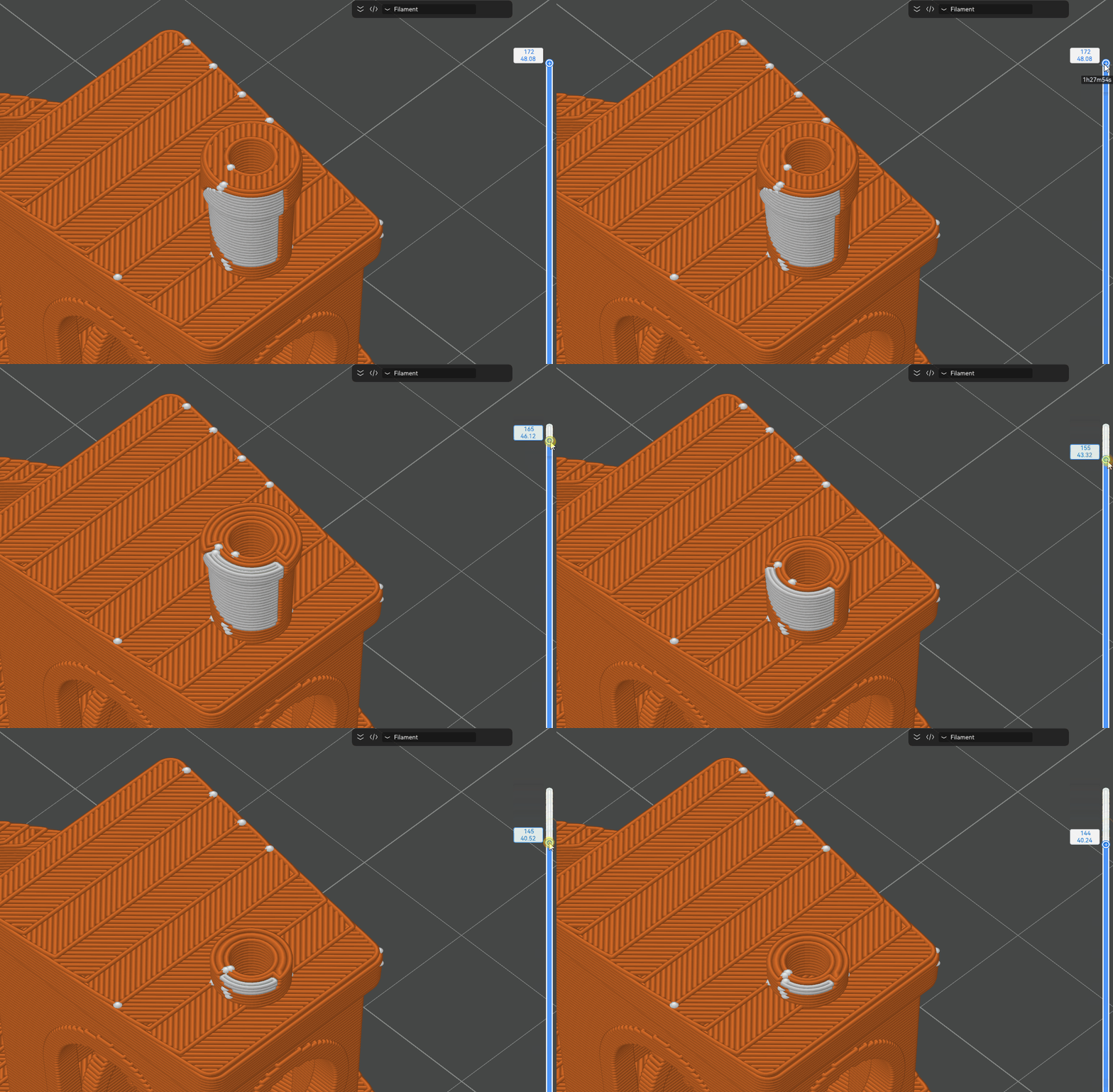
Slicing preview when Circle tool is selected:
¶ Tool Type – Sphere
This tool colors all faces within a spherical range (including back faces, internal hidden faces, and occluded areas).
It acts like a “color sphere” passing through the model and painting everything it touches.
.gif)
Slicing preview when Sphere tool is selected:
.gif)
¶ Tool Type – Triangle
Colors directly based on the model’s triangular mesh.
Clicking or dragging applies color only to the single triangle or adjacent triangles under the cursor (based on mesh geometry).
.gif)
¶ Tool Type – Height Range
Applies color based on Z-axis height range (horizontal slicing layers).
.gif)
¶ Tool Type – Fill
Click an area to automatically fill all connected surfaces with the selected color.
.gif)
¶ Tool Type – Gap Fill
Automatically fills small gaps or unpainted areas left during brush painting.
.gif)
¶ Undo Painting
- Ctrl + Z: Undo painting actions
- Shift + Left Mouse Button: Erase painted areas
¶ Section View
For internal or occluded areas that are difficult to color, Section View can be used to paint the internal structure of the model.
.gif)