¶ Function Overview
By integrating the Nexprint model library, users can browse and search FDM models through the Elegoo Matrix App and directly send print jobs to the printer. (The latest firmware version of Centauri Carbon 2 and Centauri Carbon 2 Combo is required.)
¶ Compatible Models
- Centauri Carbon 2
- Centauri Carbon 2 Combo
¶ Operation Instructions
¶ Preparation
Before use, ensure that the latest version of the Elegoo Matrix App is installed and that you have completed account registration or login.
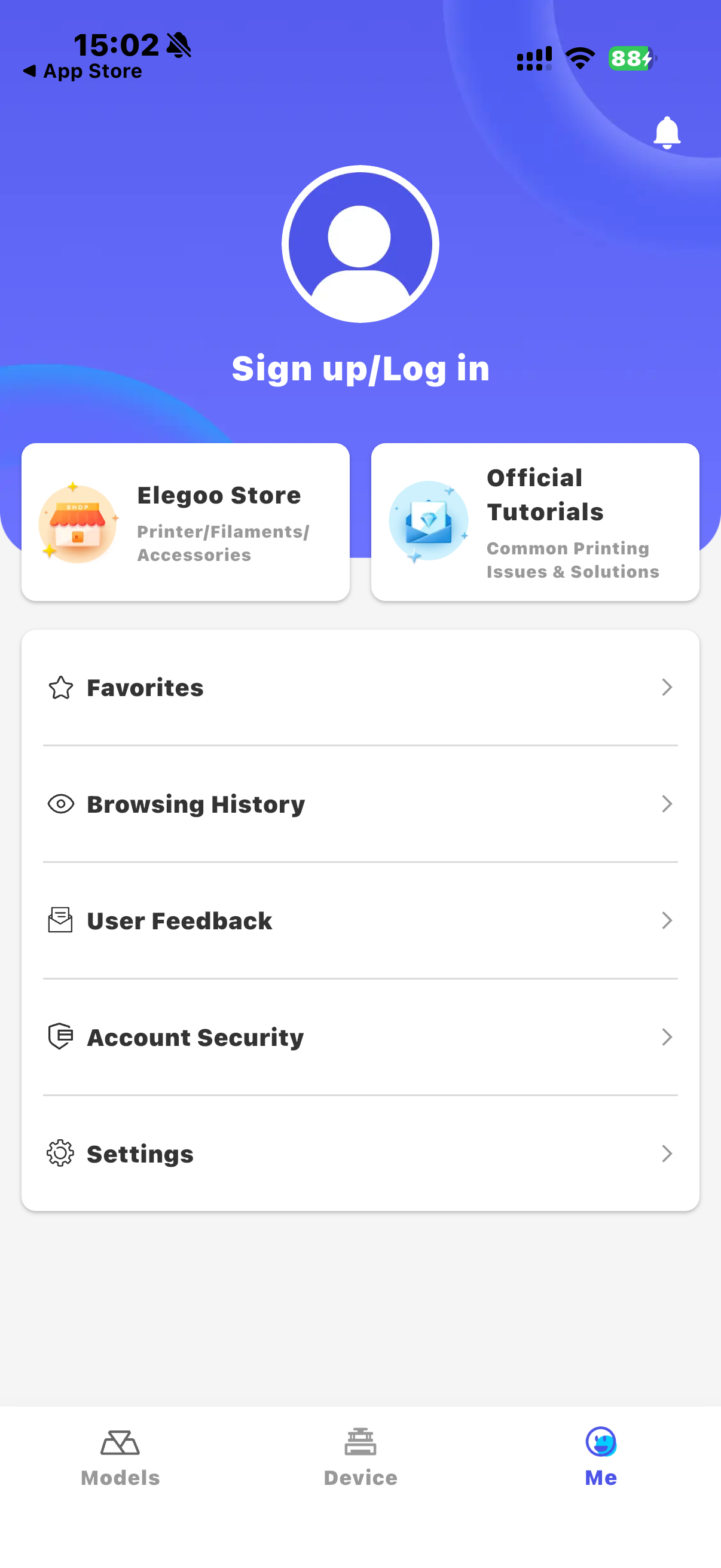
- Open the Elegoo Matrix App and tap "Login/Register Account".
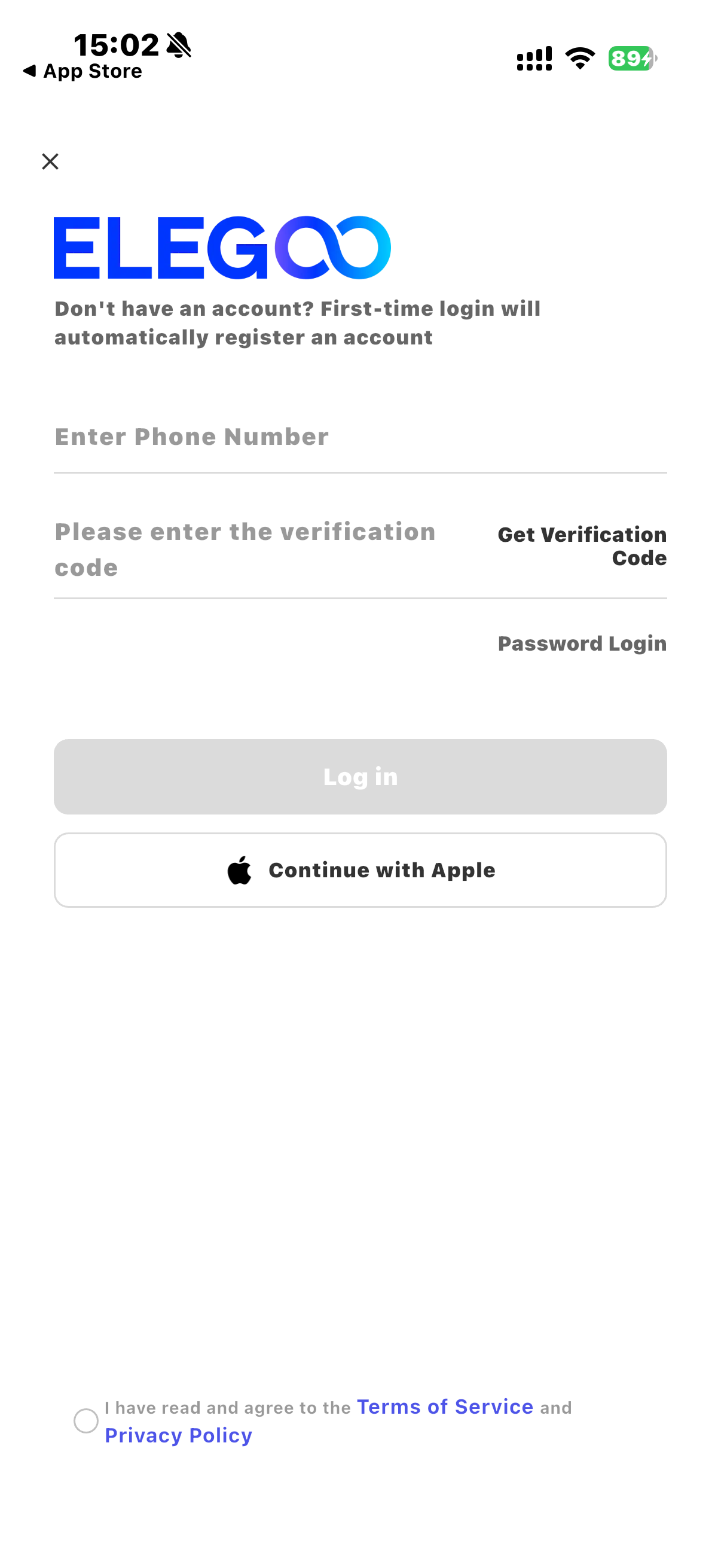
- When registering an account, enter your mobile phone number and verification code to complete verification.
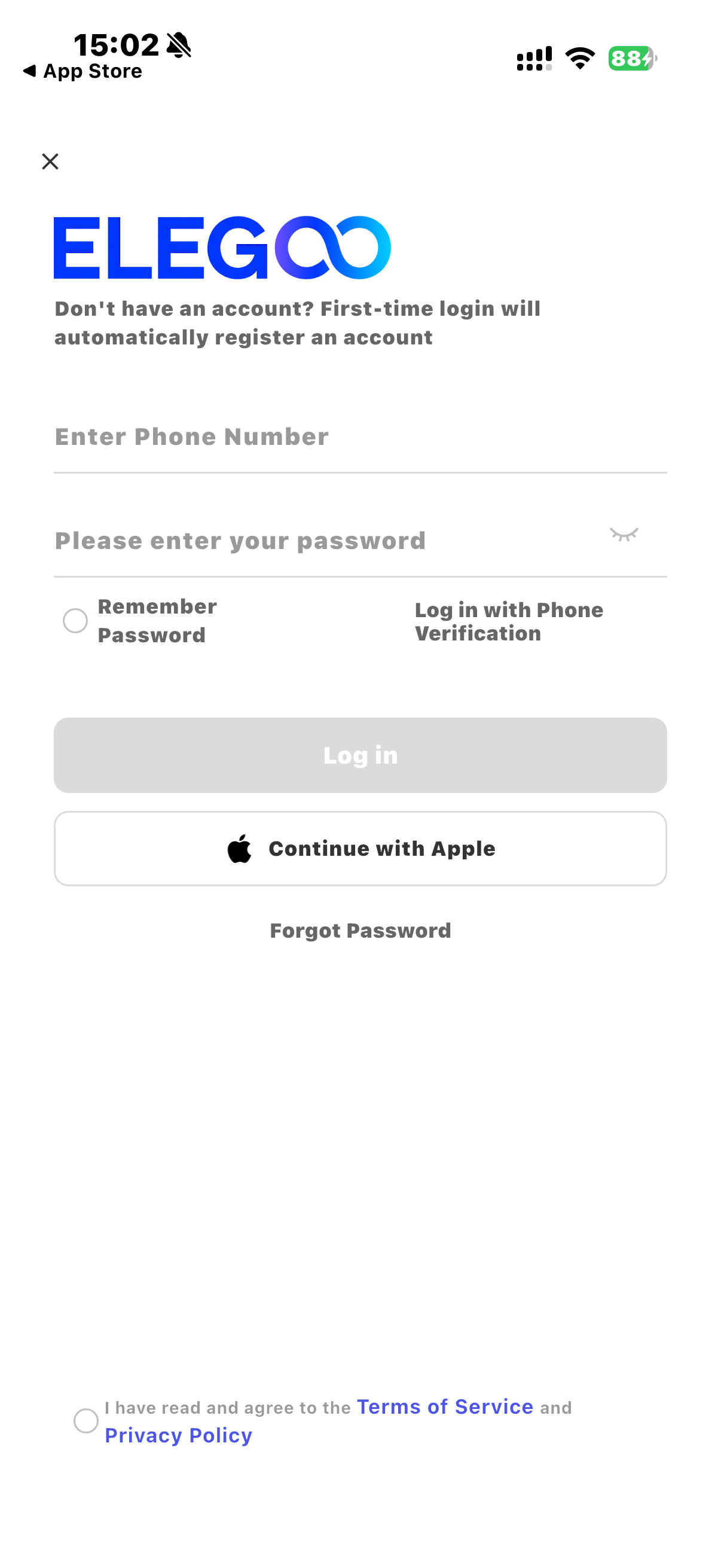
- When logging in, enter your mobile phone number and password.
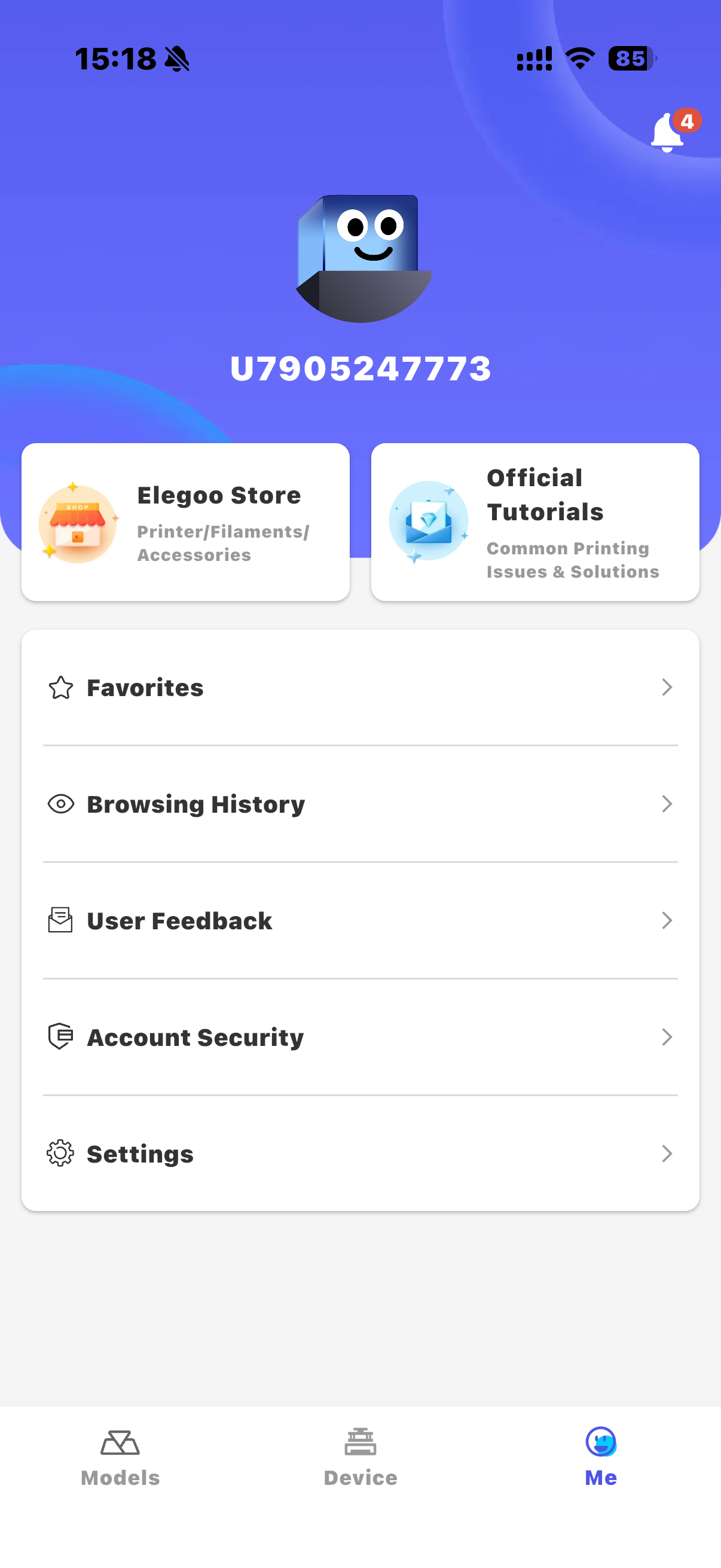
- After completion, you can enter the Elegoo Matrix App main interface.
¶ Connect the Device
For detailed device connection instructions, please refer to the official Wiki tutorial: "Elegoo Matrix App - Wide Area Network (WAN) Connection".
- Scan the QR code displayed on the printer touchscreen.
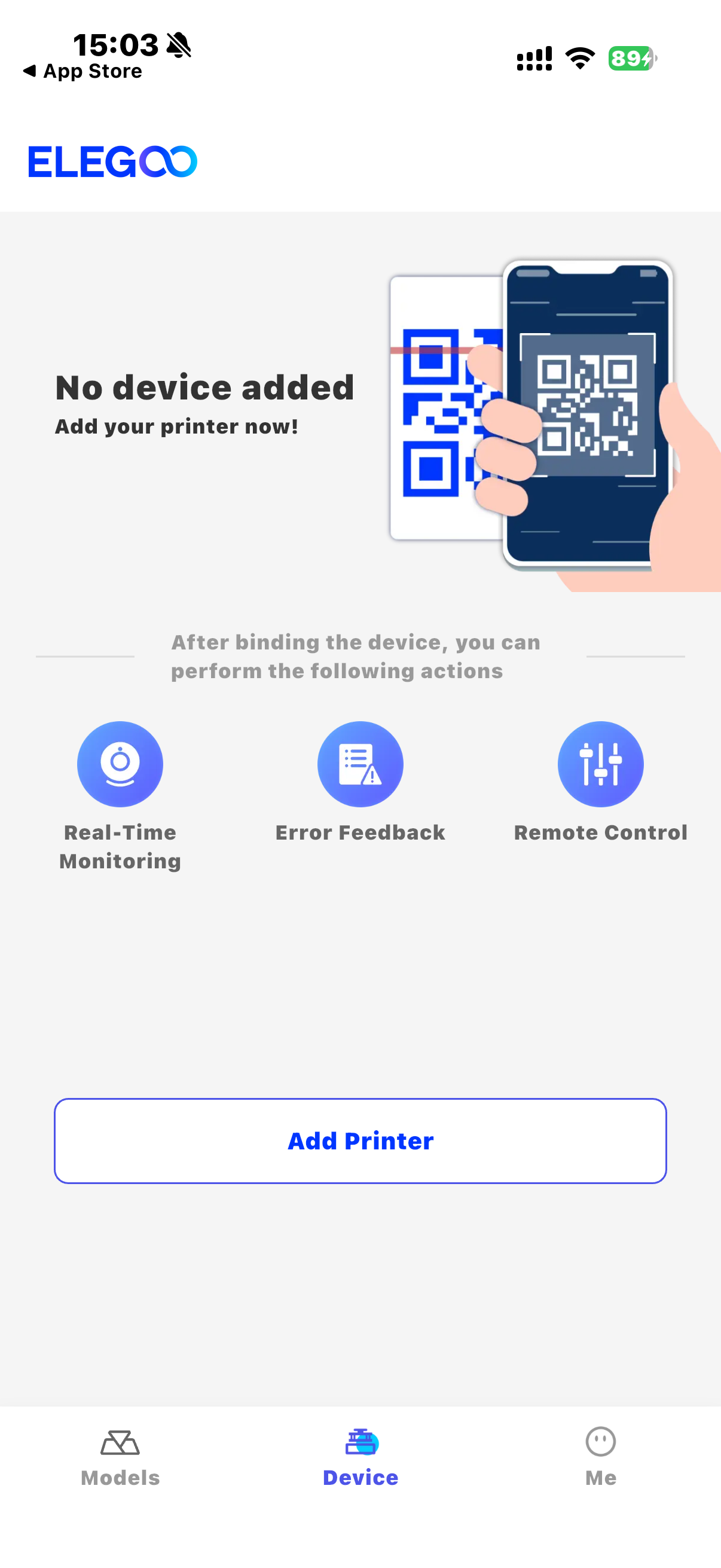
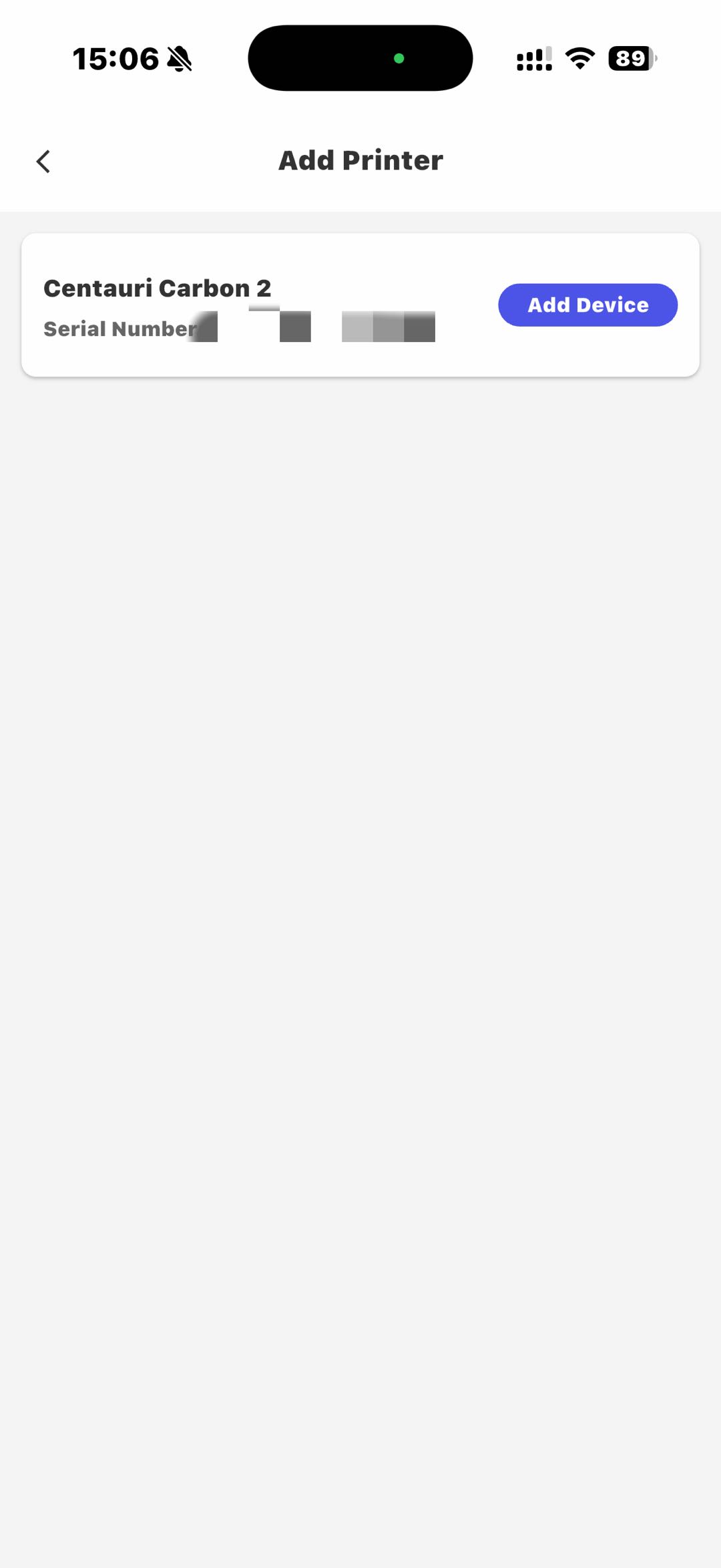
- Tap "Add Device" to complete the connection between the Elegoo Matrix App and the printer.
¶ Select/Search Models
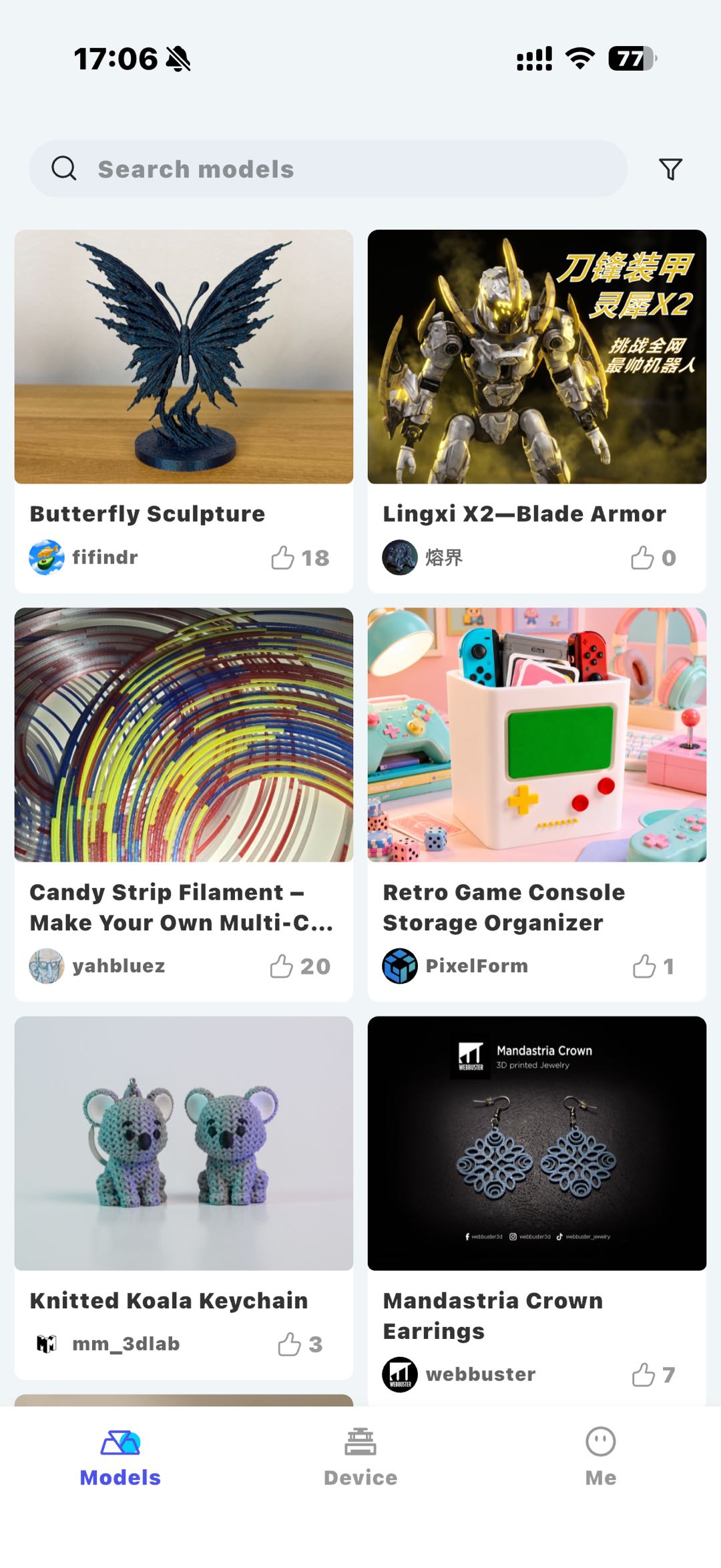
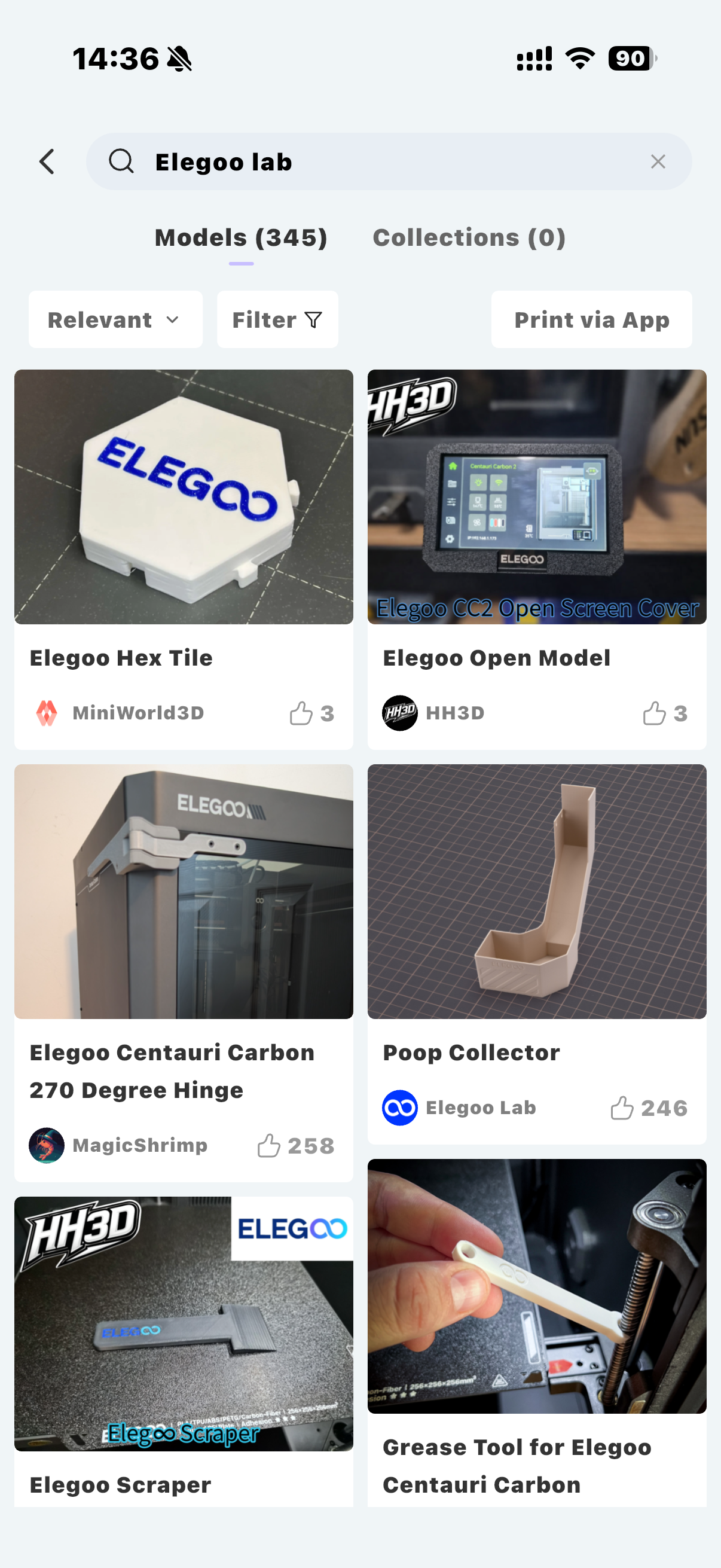
- Tap the "Model" page to browse and select the model you want to print.
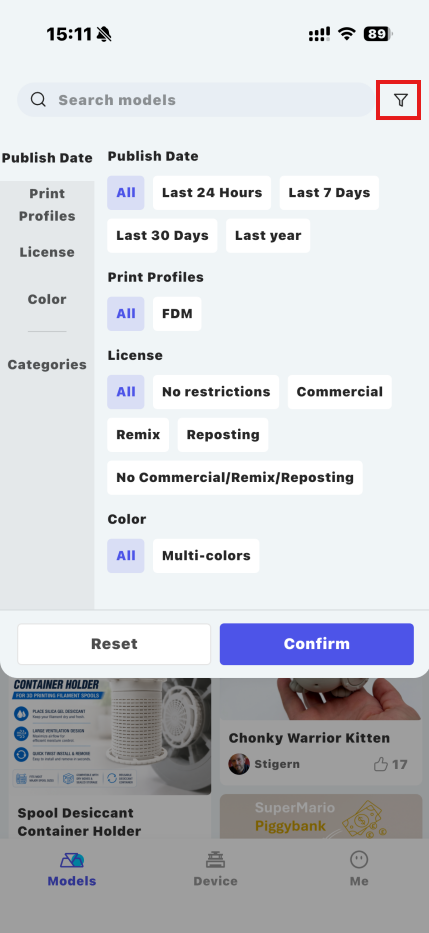
- Tap "Filter" to quickly find the desired model by category.
- If the desired model cannot be found, tap the search bar and enter the model name to search.
¶ Print a Model
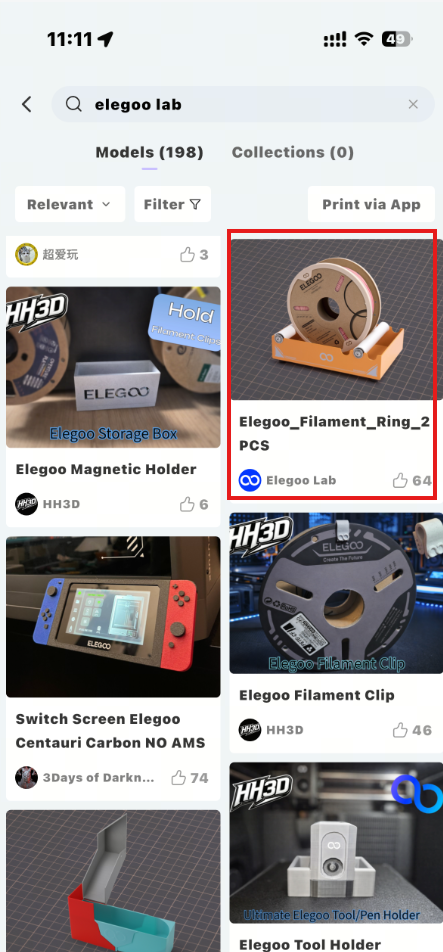
- Select the model you want to print.
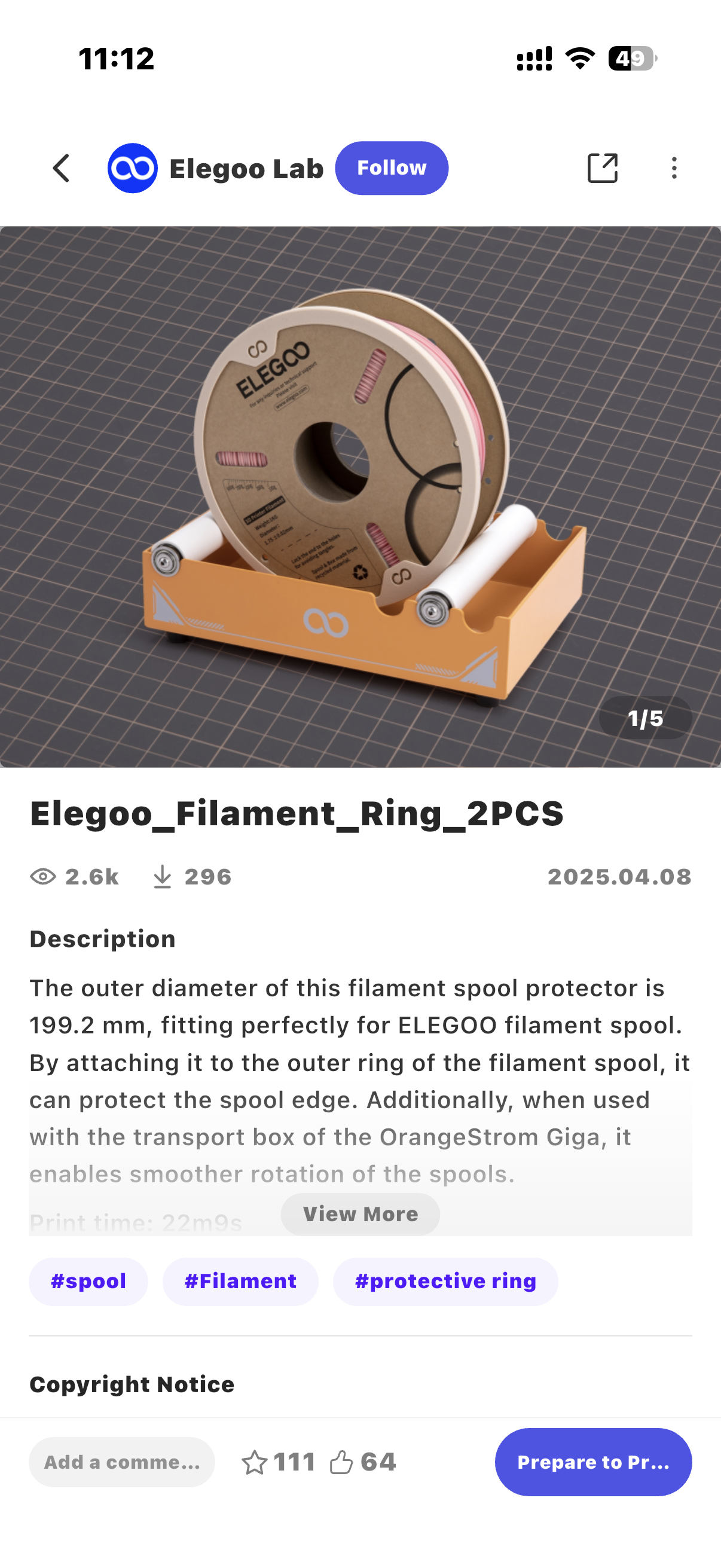
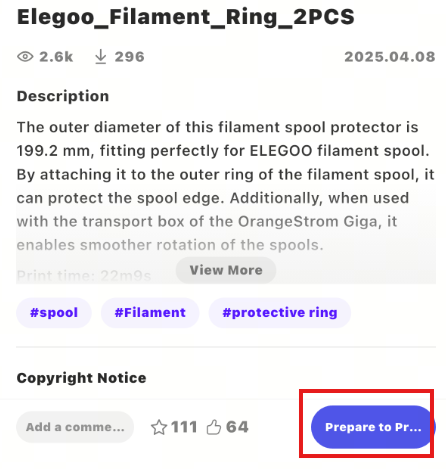
- Tap "Prepare to Print" in the lower-right corner.
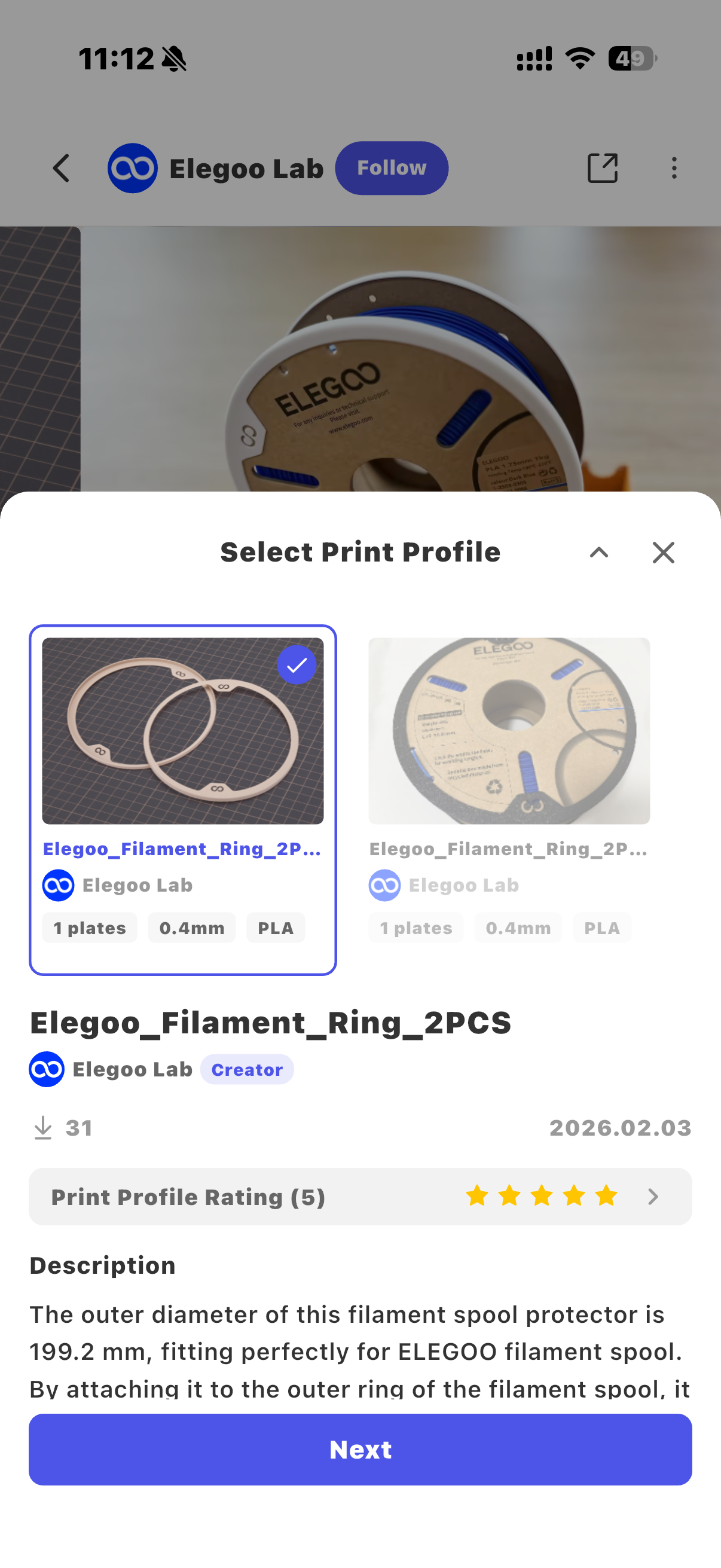
- After entering the print preparation page, tap "Filament Selection".
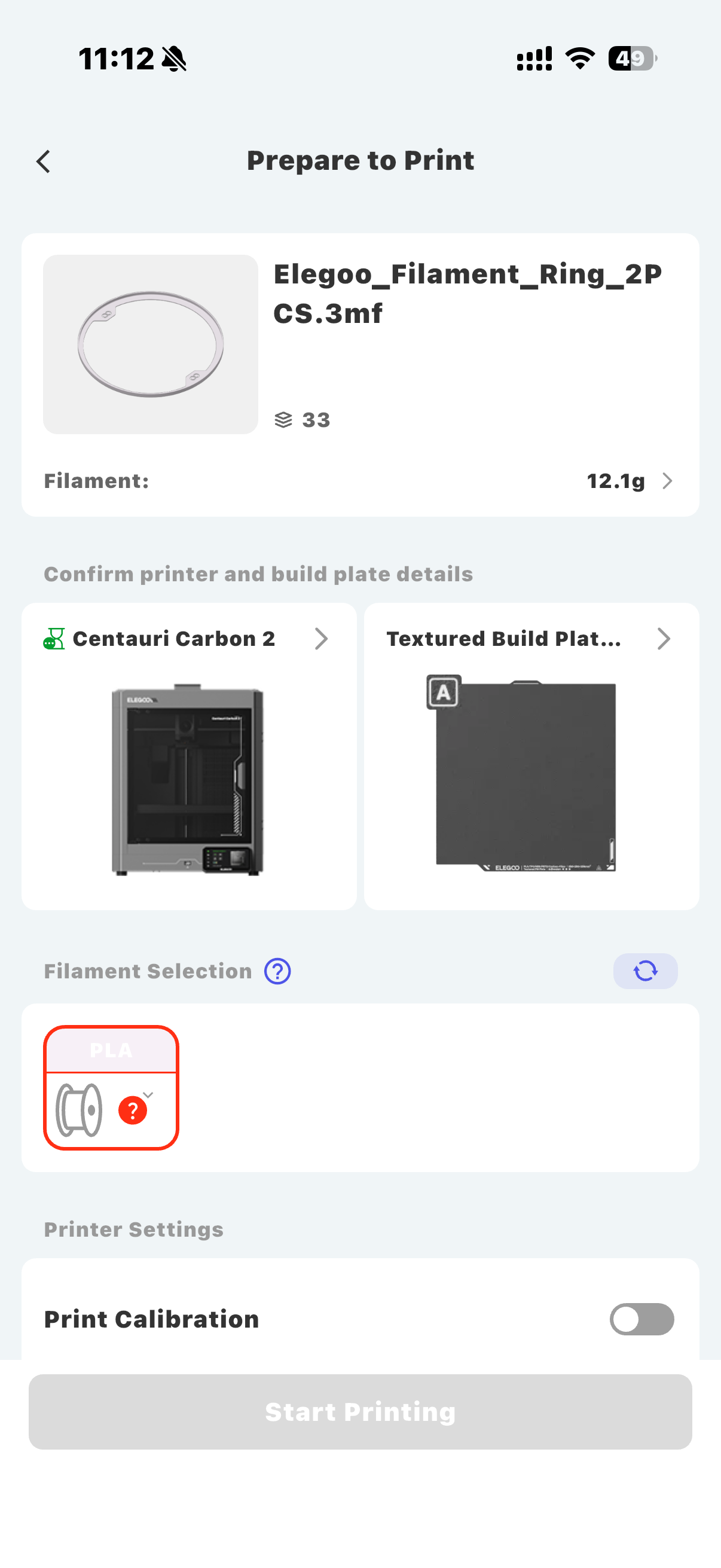
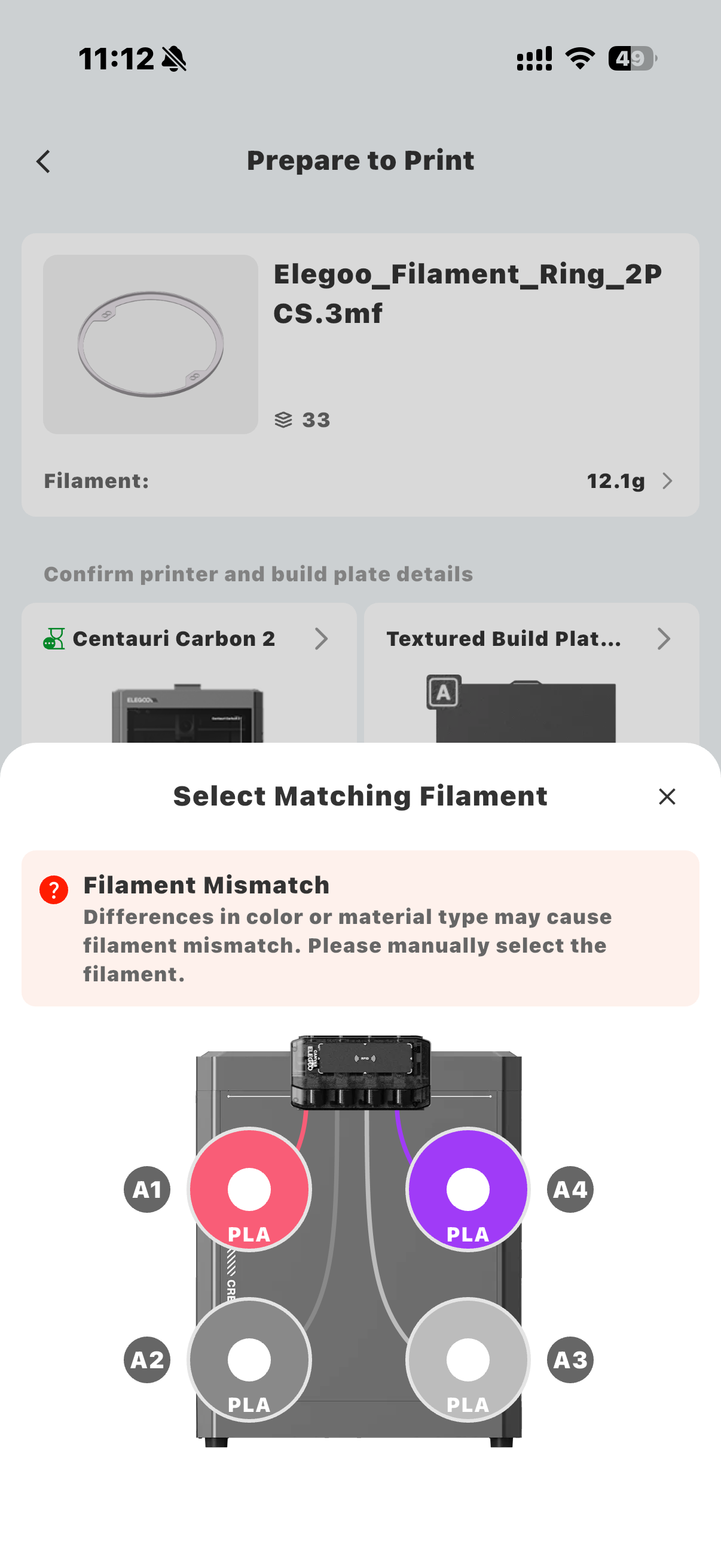
- Select the filament color for printing.
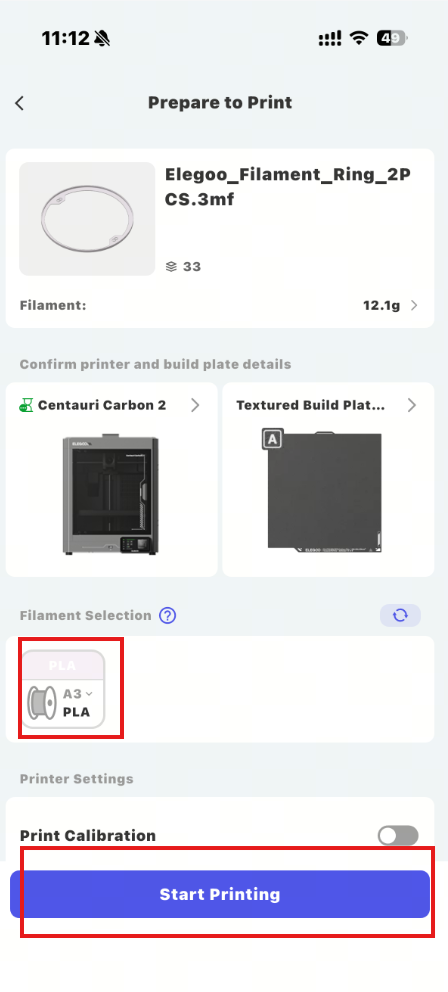
- After selecting the filament color, the system will automatically load the corresponding print parameters. Confirm the settings, then start printing.
¶ Feature Introduction
Note: The following sections introduce the features of the Elegoo Matrix App. These operations are not required and can be used according to user needs.
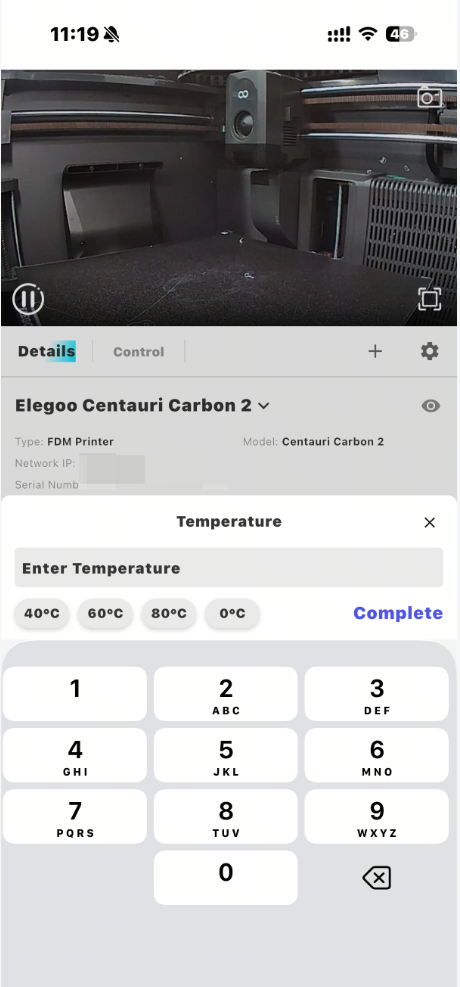
¶ Temperature Adjustment
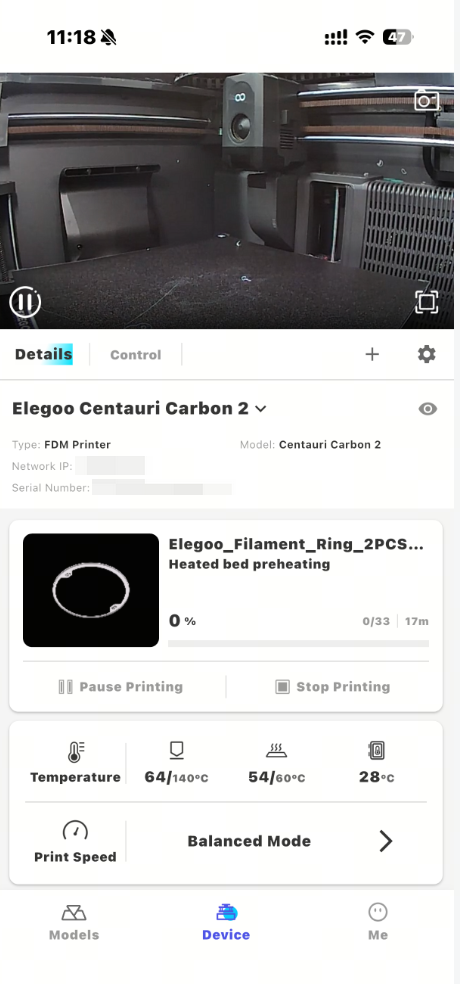
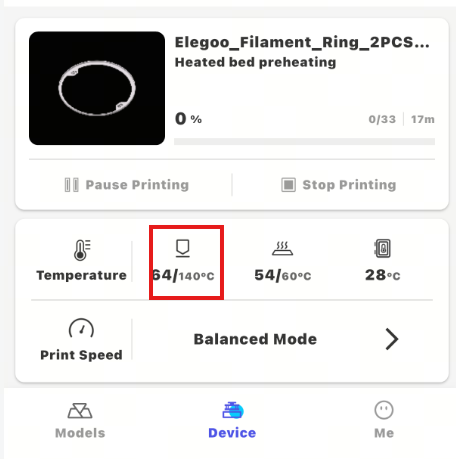
- Tap "Nozzle Temperature" to adjust the target nozzle temperature (℃).
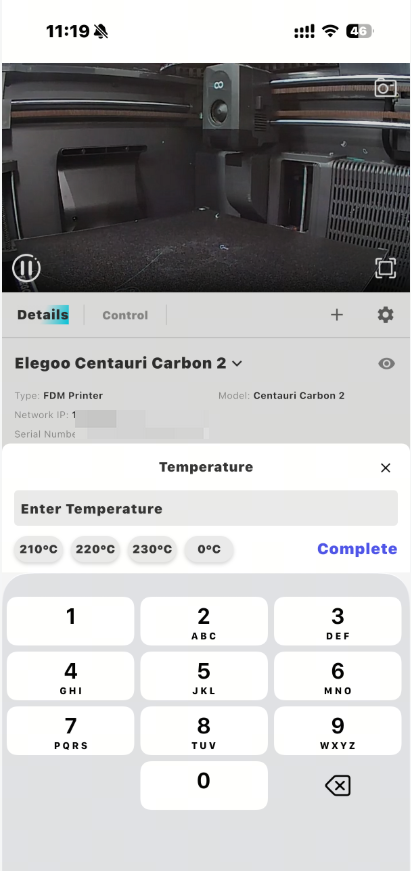
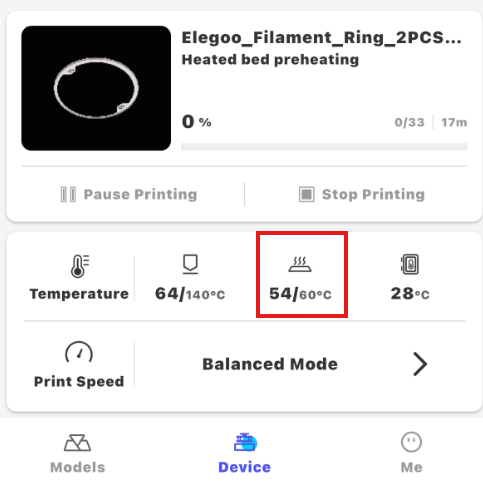
2. Tap "Heated Bed Temperature" to adjust the target heated bed temperature (℃).
¶ Select Print Speed
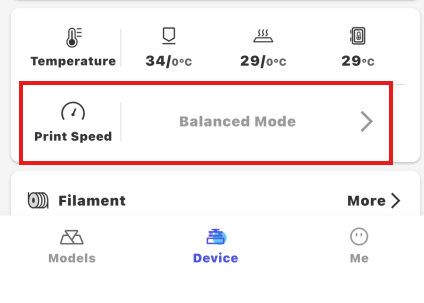
- Tap "Print Speed" to enter the print speed settings page.
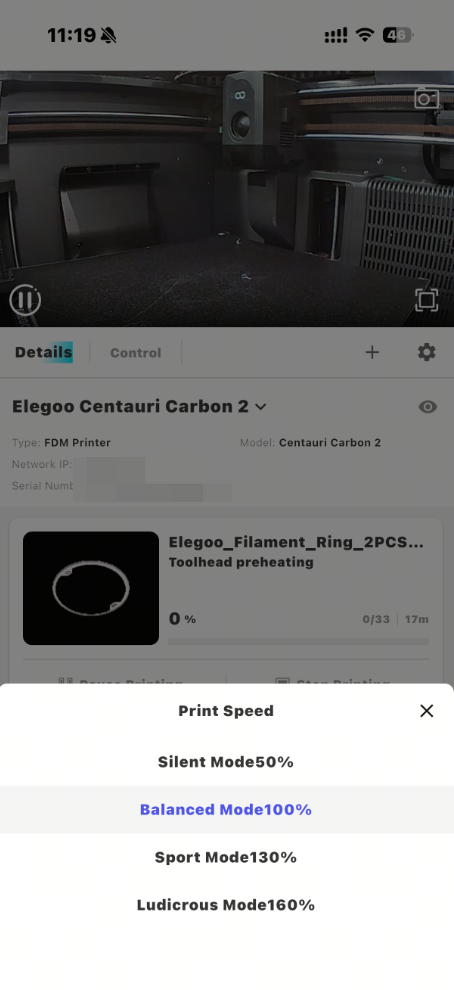
- Select the appropriate print speed.
Available modes:
- Silent Mode (50%): Reduces printing speed and operating noise. Suitable for environments where noise reduction is required.
- Balanced Mode (100%): Uses the standard printing speed and provides a balance between printing speed and print quality. Recommended for daily use.
- Sport Mode (130%): Increases printing speed and is suitable for scenarios where shorter printing times are required.
- Ludicrous Mode (160%): Provides the highest printing speed and is suitable for quickly printing test models. High-speed printing may affect print quality.
¶ Control Page Adjustment
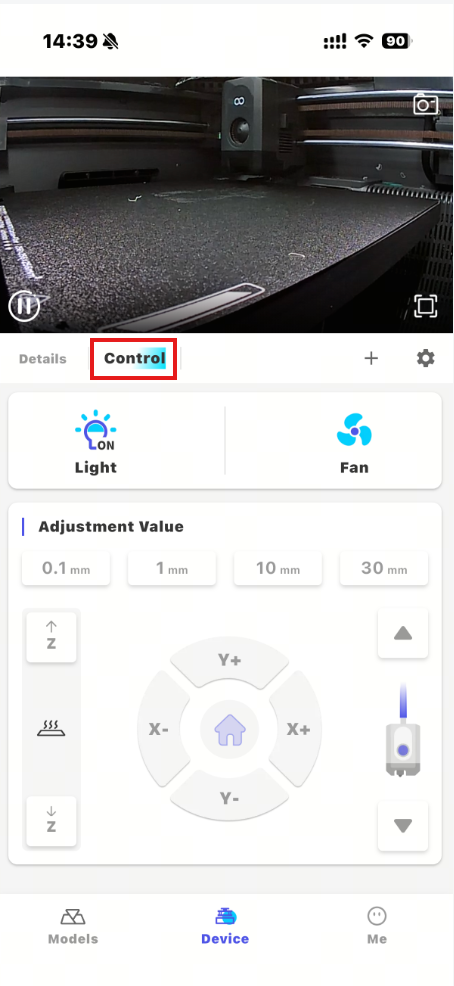
Tap the "Control" page to adjust printer movement, temperature, fan speed, and other parameters.
¶ Stop/Pause Printing
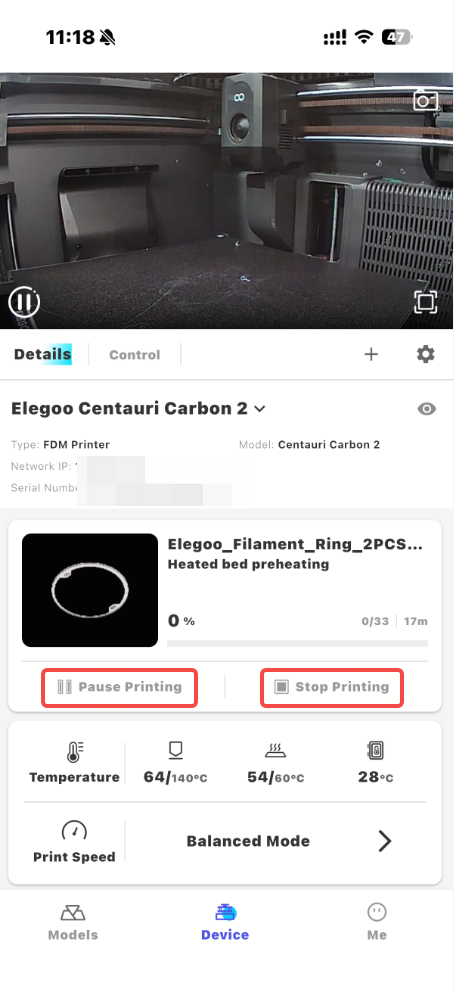
During printing, if you need to stop or pause the print job, tap "Stop Printing" or "Pause Printing", then confirm the operation.
¶ Help us improve
If you have any ideas about the wiki pages, please let us know via ELEGOO official feedback channel