¶ Preparation
To print a multicolor model, you need to install CANVAS. If CANVAS is not currently installed on your printer, please refer to the video below first:
How to Install CANVAS on Centauri Carbon
¶ Required Tools and Materials
- Up to four spools of filament
- It is recommended to use filament of the same material type, such as PLA. Different filaments can be assigned different colors.
¶ Procedure
¶ 1. Install the Filament
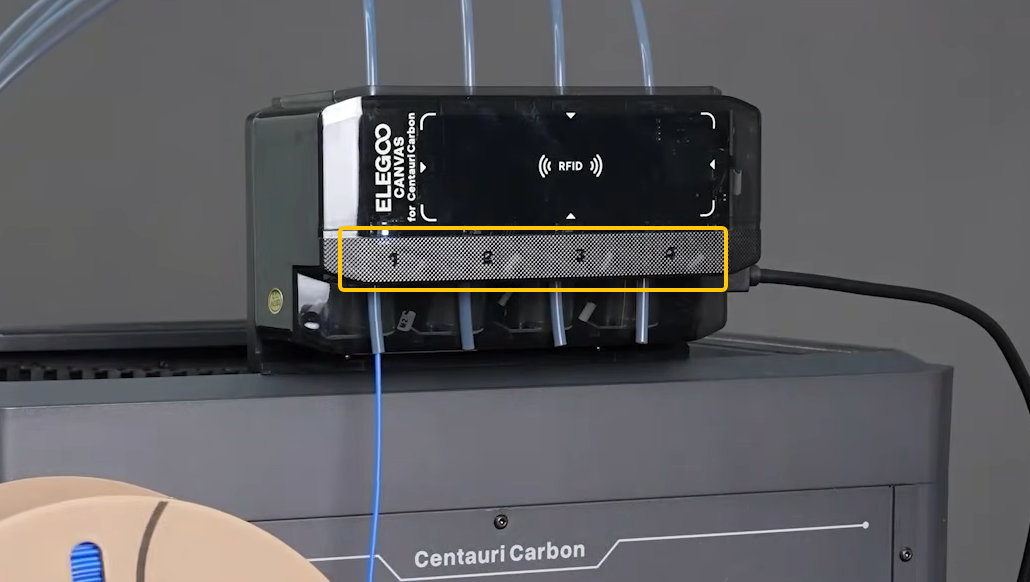
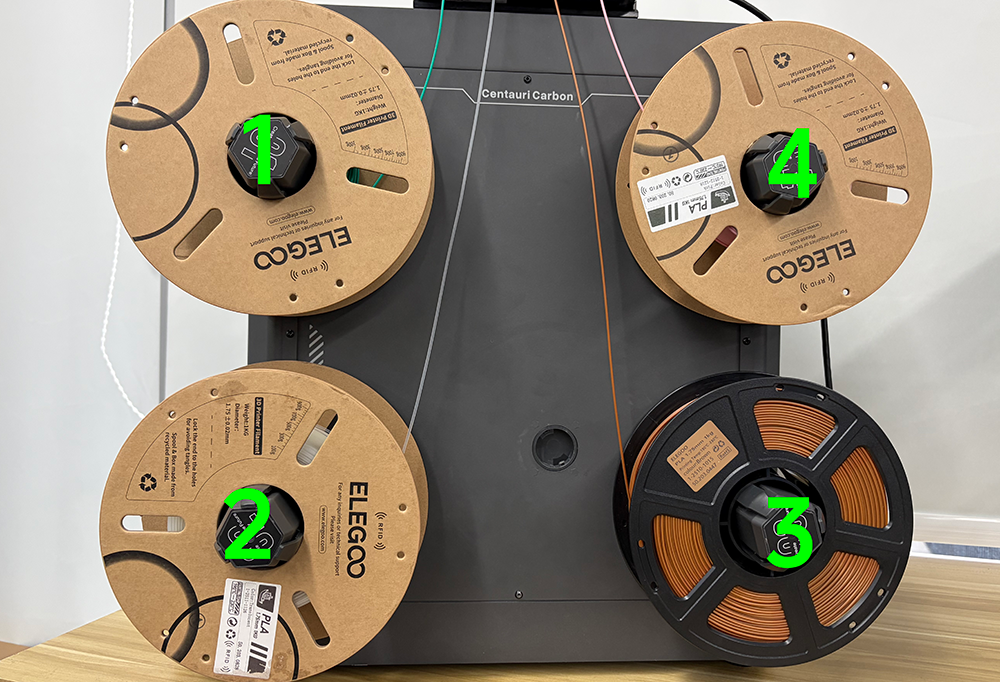
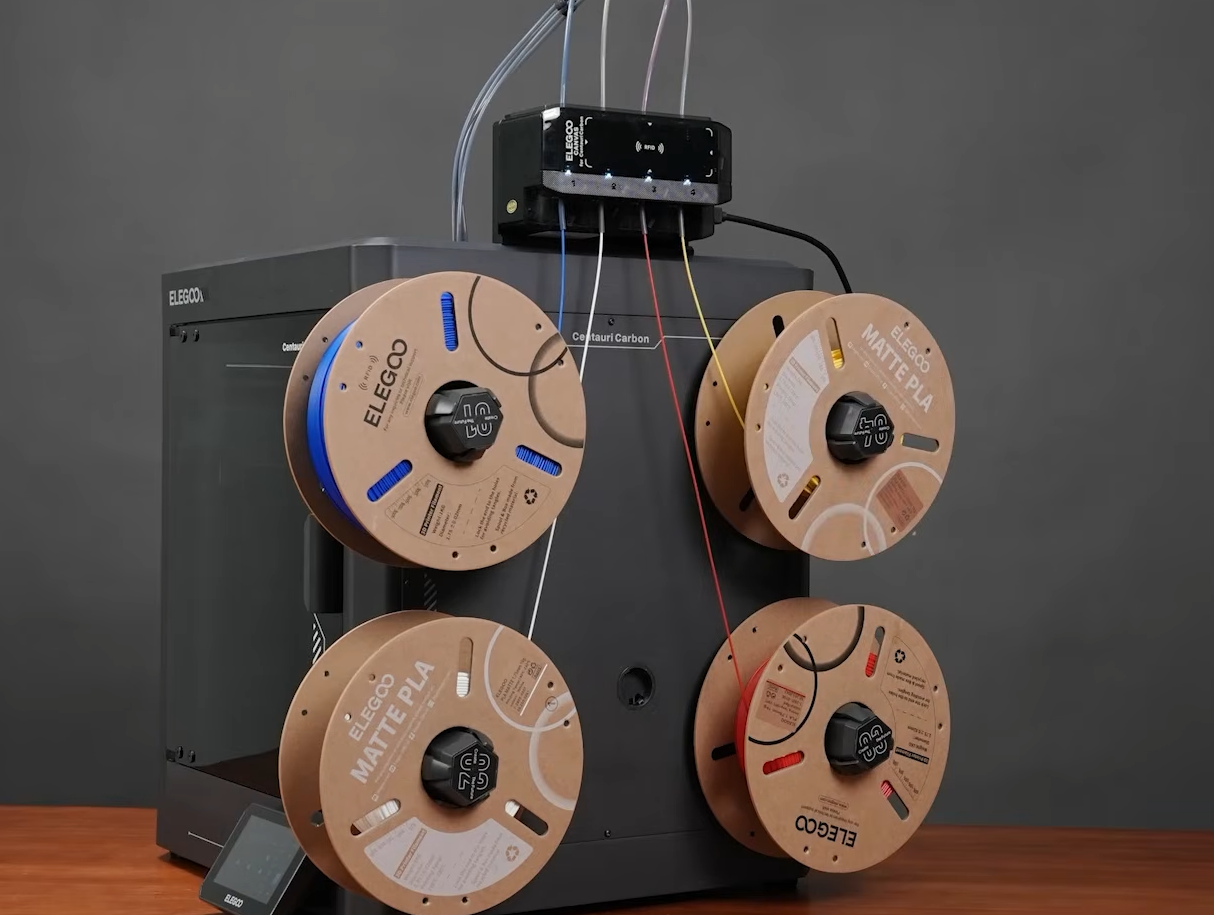
Install the four filament spools and connect them to the corresponding CANVAS channels.
Note: Install the filament spools according to their corresponding numbers. For example, the filament spool on Spool Holder 1 should be connected to CANVAS Channel 1. If the spool holder number does not match the CANVAS channel number, filament unloading or filament recovery issues may occur.
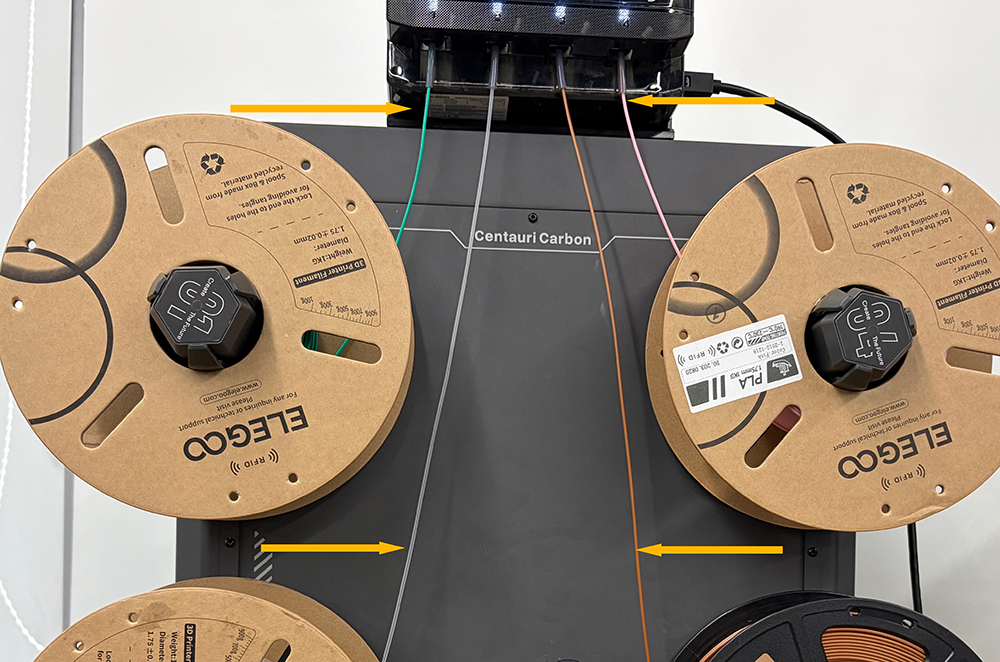
Note: The filament must be routed through the inner side of the spool holder. Incorrect routing may cause loading issues or filament tangling. The image below shows the correct routing.
¶ 2. Set the Filament Color and Type
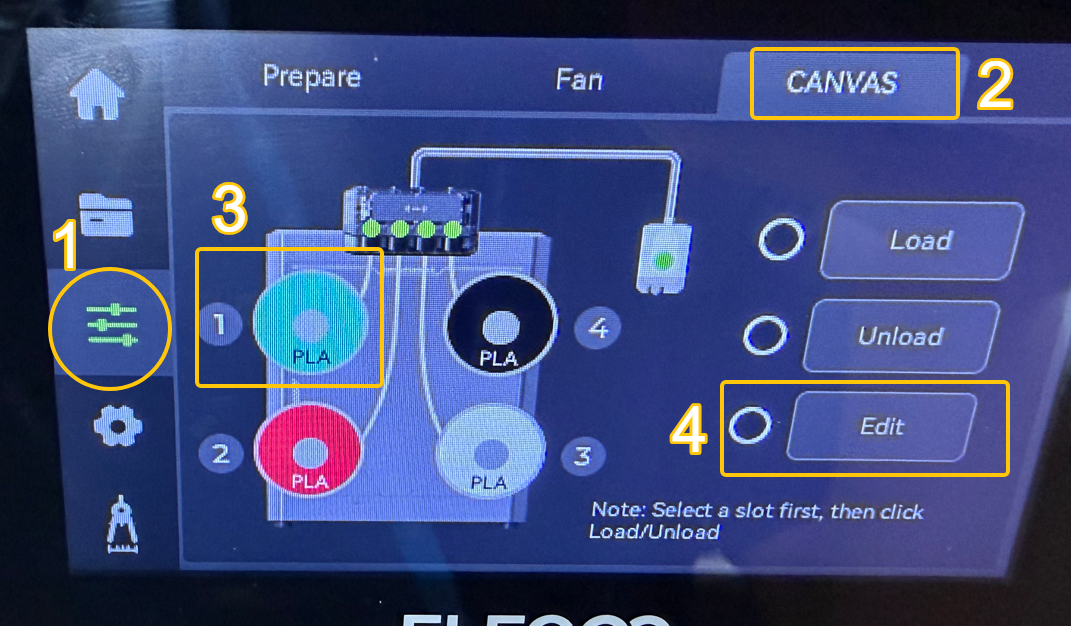
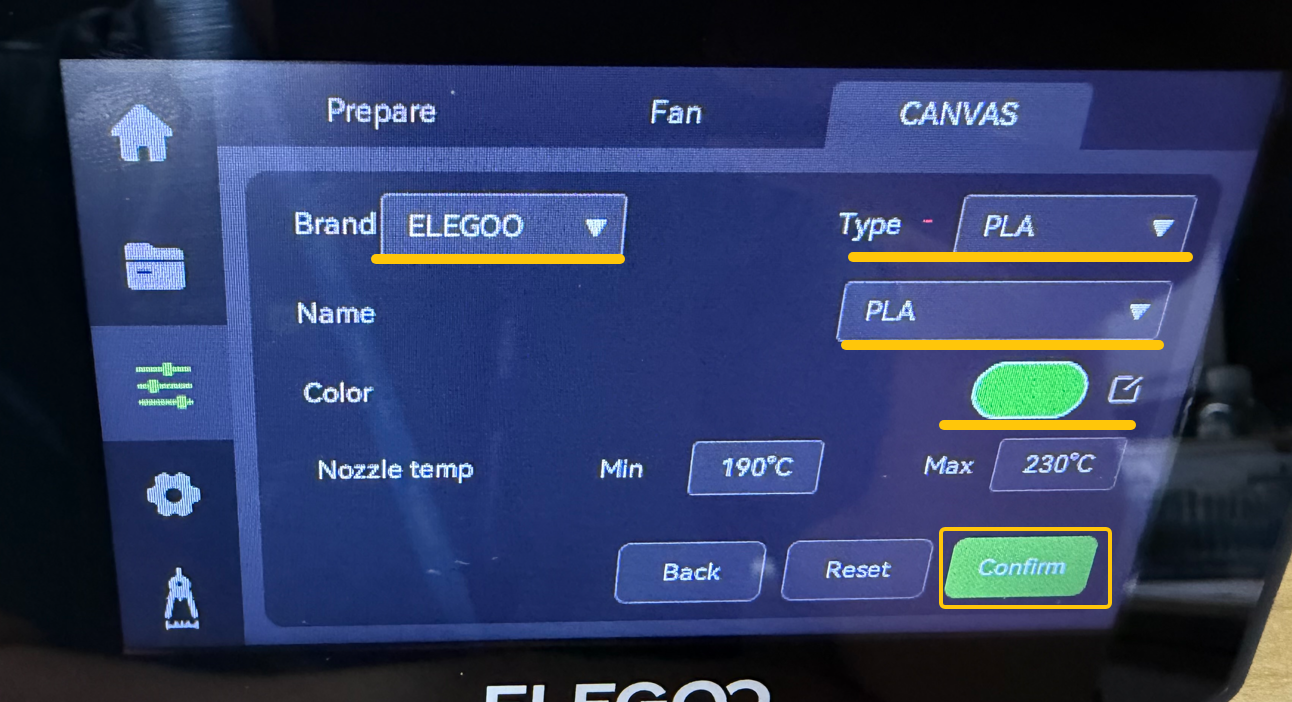
- On the touch screen, tap CANVAS, then select the option to set the filament brand, type, and color.
- After setting the filament brand, type, and color, tap Confirm.
¶ 3. Connect the Printer to Wi-Fi
Note: This step is optional. To ensure a smoother workflow for the subsequent steps, connecting the printer to Wi-Fi is recommended.
Make sure the printer and computer are connected to the same local network.
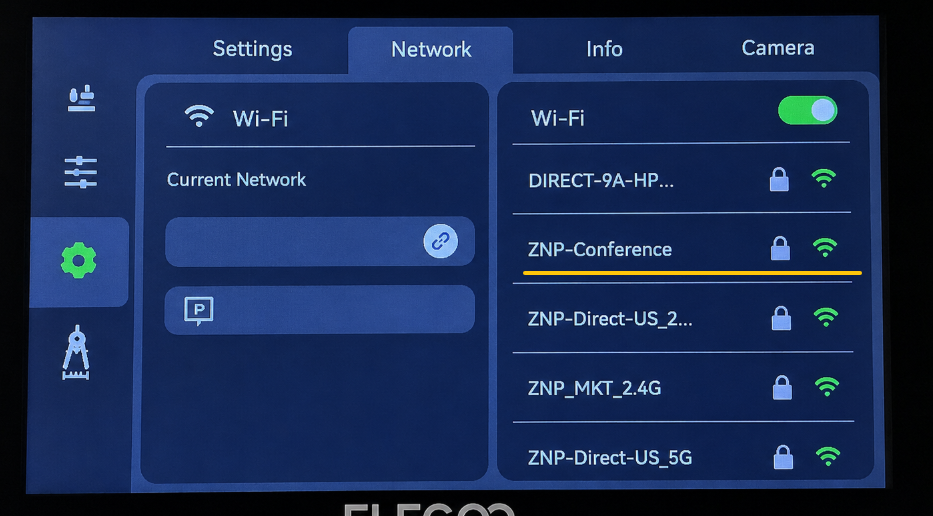
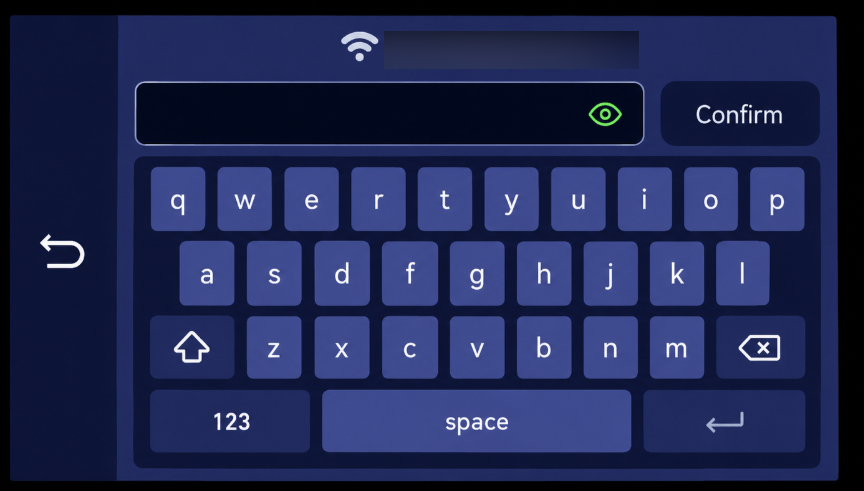
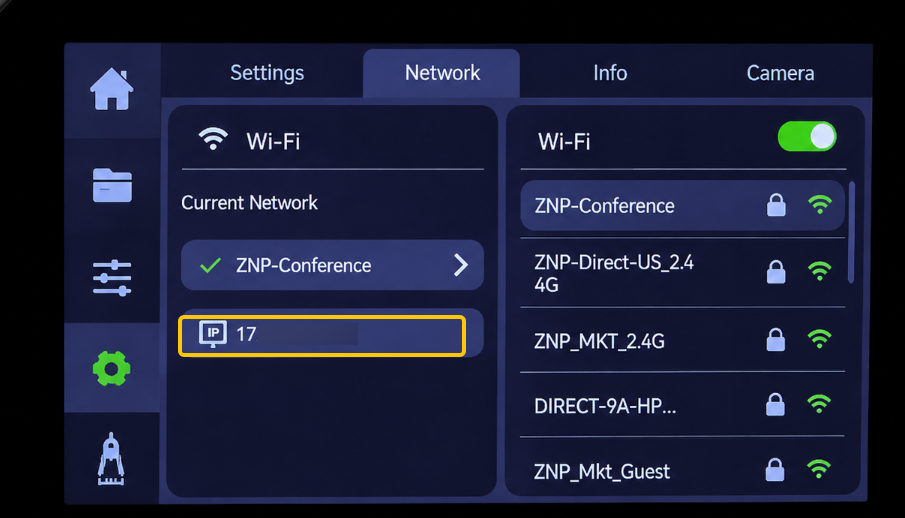
- Tap Settings → Network, then enter the password to connect to Wi-Fi.
- After the printer successfully connects to Wi-Fi, the IP address displayed on the touch screen will be updated. Record the IP address for later use.
¶ 4. Add the Printer to ELEGOO Slicer
Note: If ELEGOO Slicer is not installed, install it first.
Note: If the printer is not connected to Wi-Fi, you can skip this step.
Related Links:
-
Open ELEGOO Slicer and make sure the selected printer model is Centauri Carbon.
-
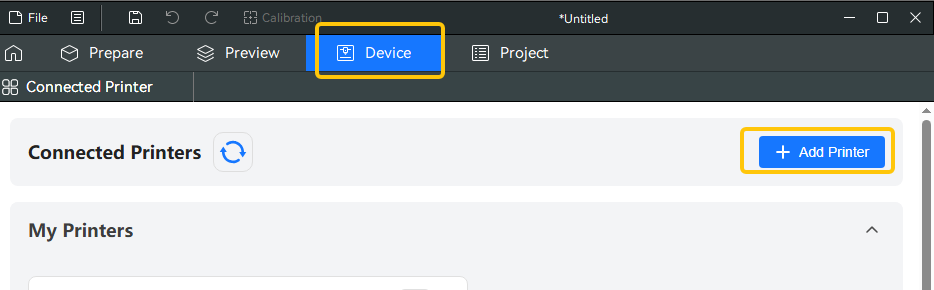
Click Device → Add Printer.
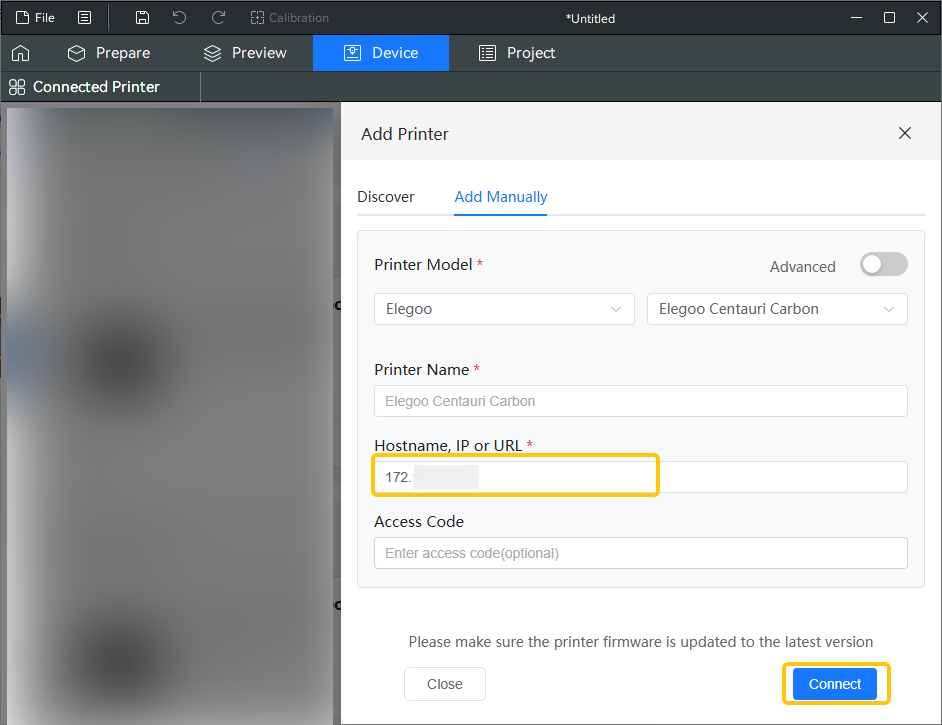
- Enter the printer's IP address, then click Connect.
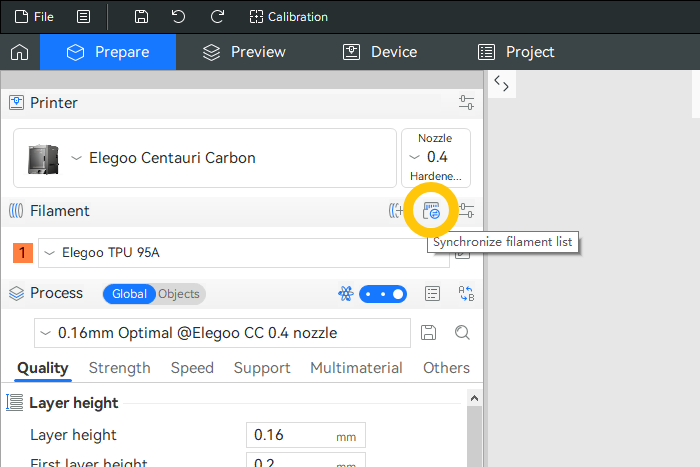
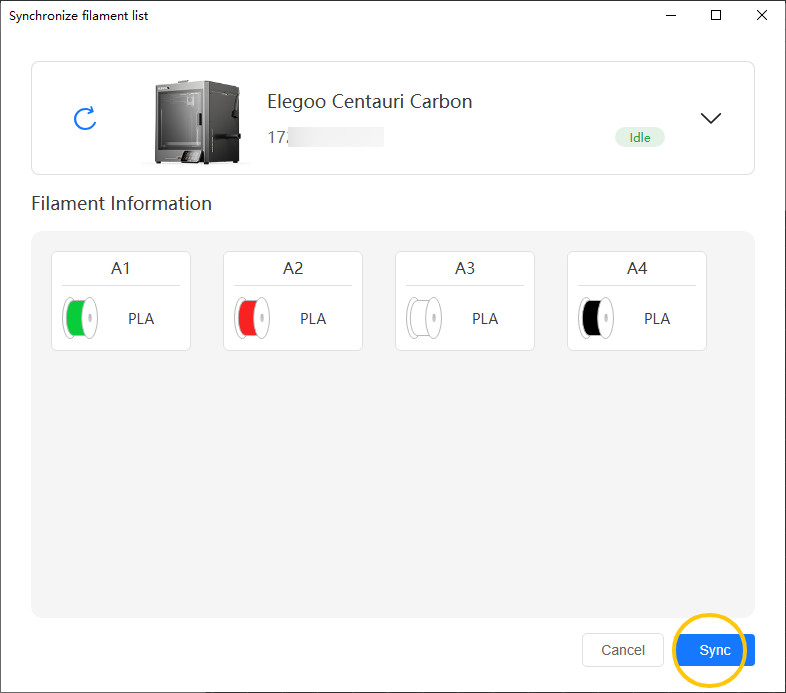
- Click Synchronize Filament List.
- Click Sync.
¶ 5. Load the Model into ELEGOO Slicer
Tip: You can visit Nexprint to download free models.
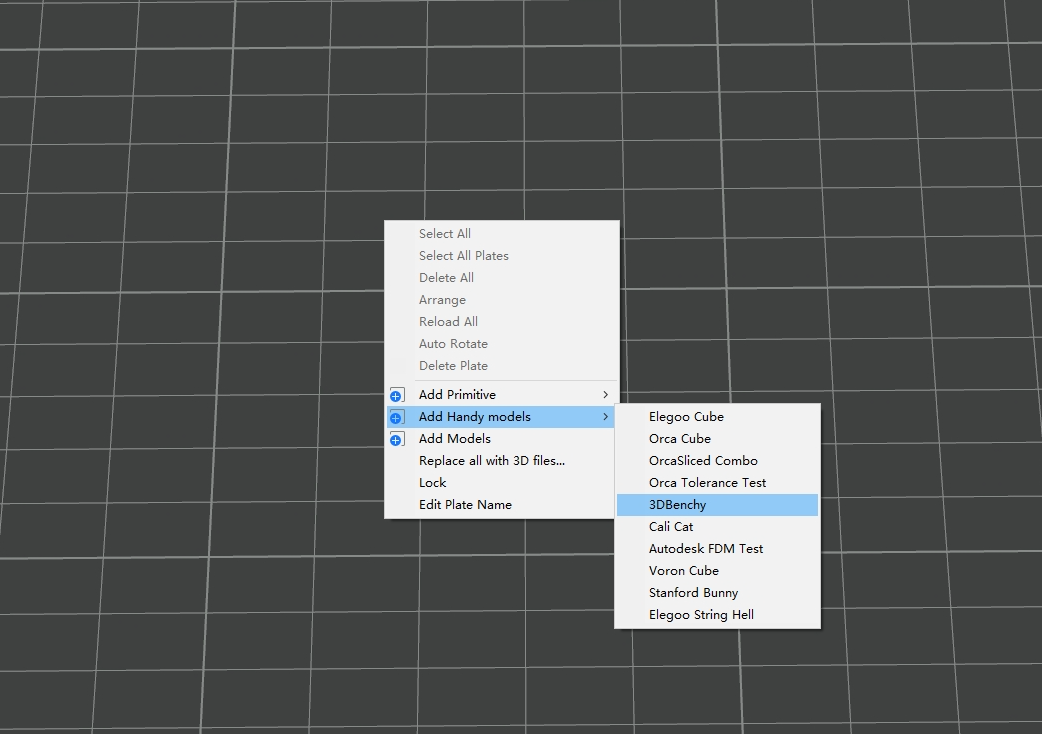
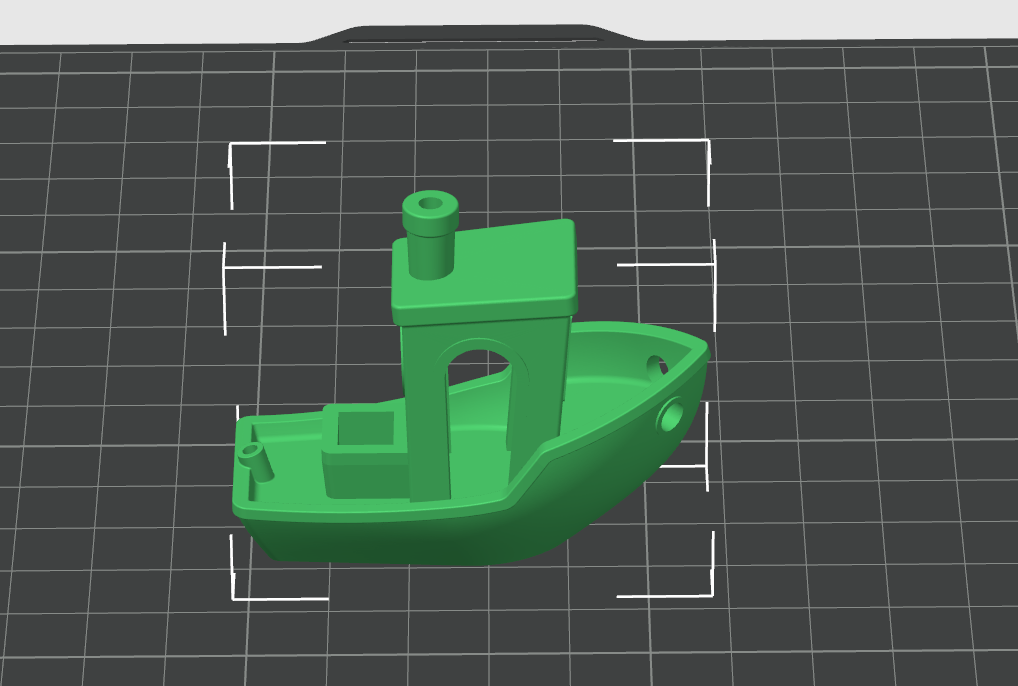
Right-click the build plate and select Add Model to add a model.
¶ 6. Color the Model
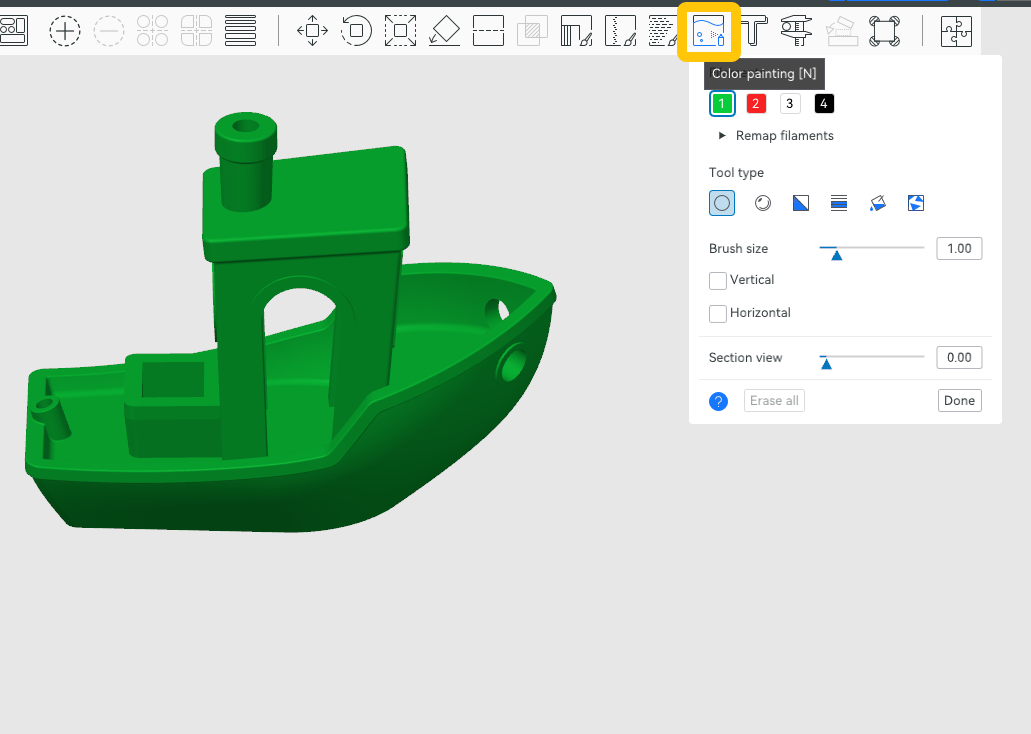
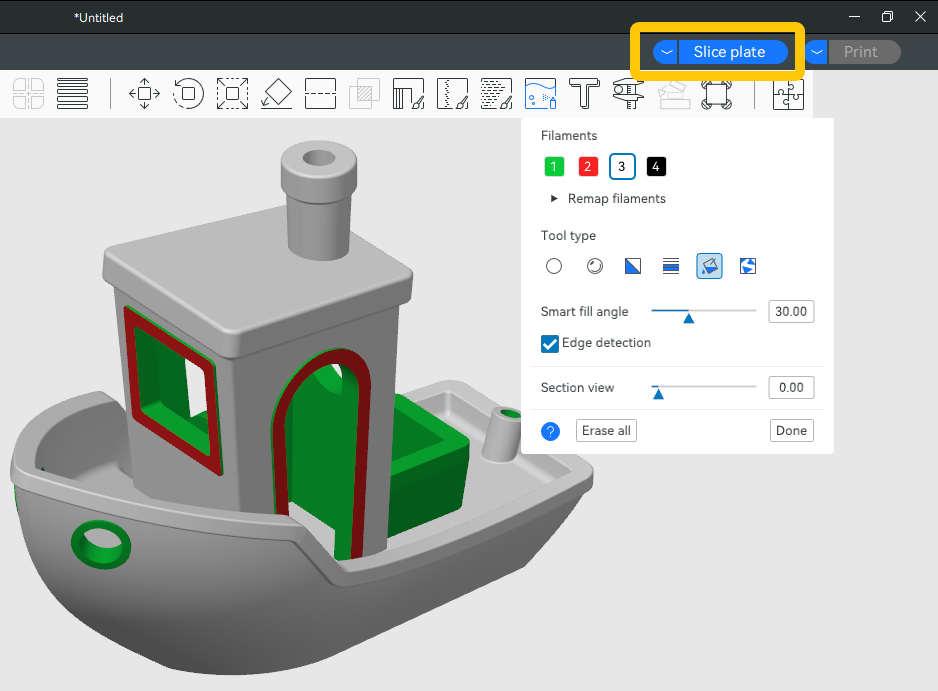
Click Color Painting to enter the model coloring interface.
For details on how to color a model, refer to the Model Coloring Guide.
¶ 7. Send the G-code File to the Printer
- After coloring the model, click Slice Plate.
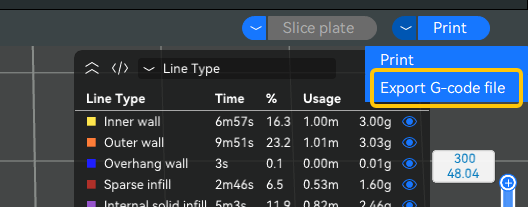
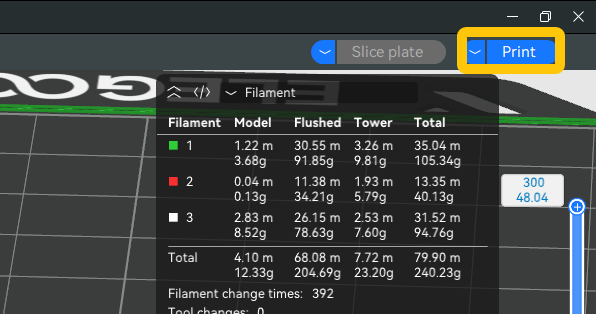
- Click Print.
Note: If the printer is not connected to Wi-Fi, click Export G-code File instead of Print. Copy the G-code file to a USB flash drive and start the print from the USB flash drive.
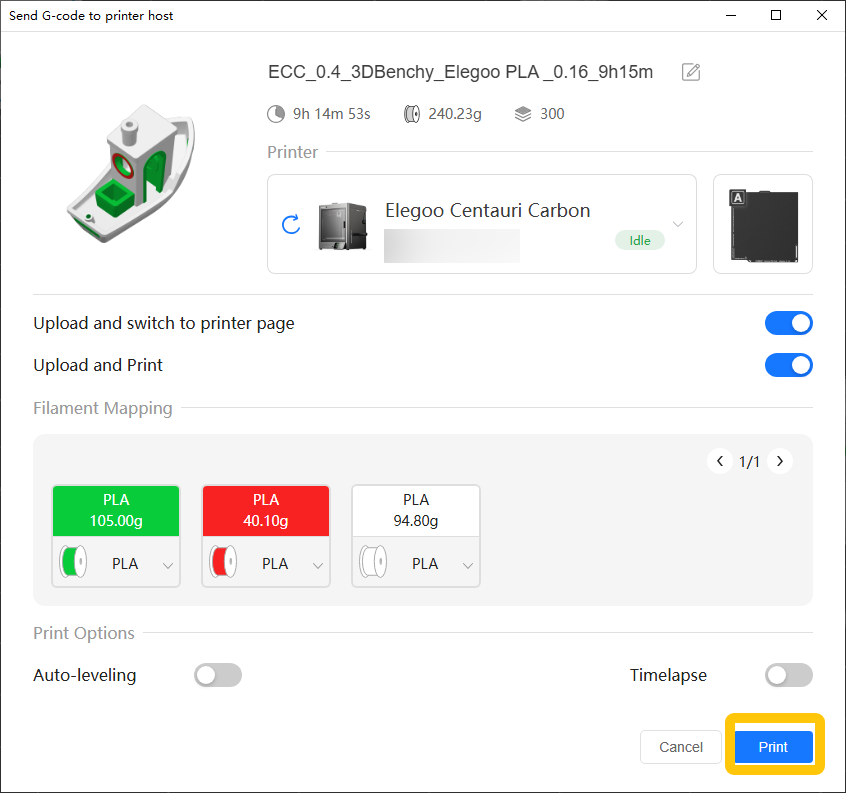
- In the pop-up menu, click Print again.
¶ FAQ
¶ What should I do if I replace the filament with a different color but do not want to slice the model again?
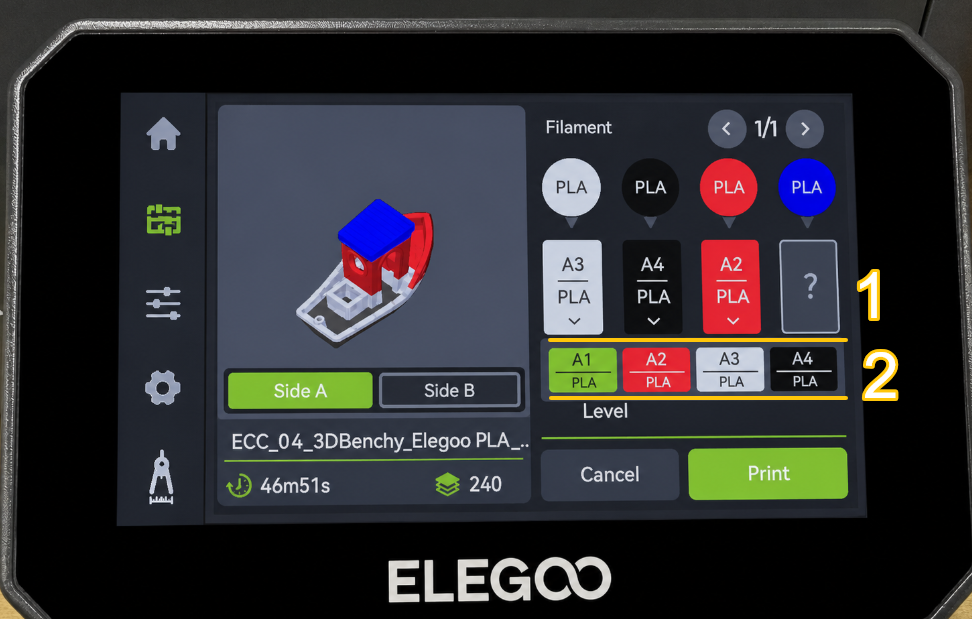
If you only change the filament color while keeping the filament type and other printing parameters unchanged, you can reassign the corresponding CANVAS filament on the touch screen before printing and then print the existing G-code file directly.
Note: If the replacement filament is a different material type, such as changing from PLA to PETG, check the printing temperature and other printing parameters, and re-slice the model before printing.
¶ Help us improve
If you have any ideas about the wiki pages, please let us know via ELEGOO official feedback channel