¶ Fault Symptoms
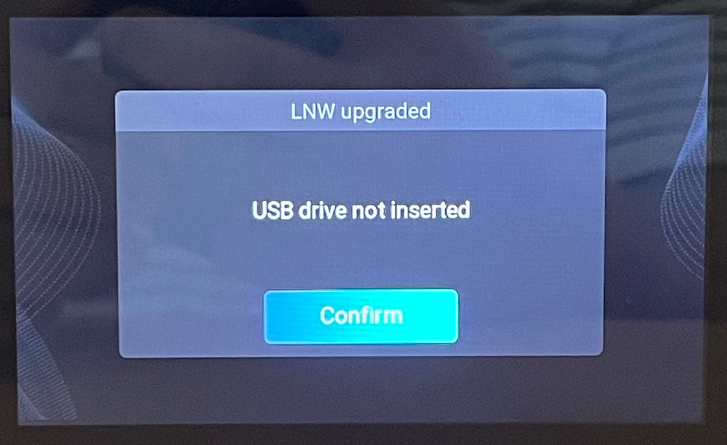
- After inserting a USB drive into the printer's USB interface, the Touch Screen does not display any printable files.
- After tapping the Print icon, the Touch Screen displays a message indicating that no USB drive is inserted.
¶ Possible Causes
- The USB drive does not meet the printer's requirements.
- The USB drive is damaged.
- The file format is unsupported.
- The file name contains special characters.
- The USB extension cable or Power PCB is faulty.
- The mainboard is faulty.
¶ Required Tools
- A new USB drive (FAT32 format, 16 GB or smaller)
- 2.0 mm Allen key
- Cotton swabs
- 75% isopropyl alcohol
- Tweezers
¶ Troubleshooting
¶ 1. Check the USB Drive Format
Insert the USB drive into a computer and verify whether it can be recognized.
- If the computer cannot detect the USB drive, the USB drive is damaged and should be replaced.
- If the computer can detect the USB drive, verify that it is formatted correctly.
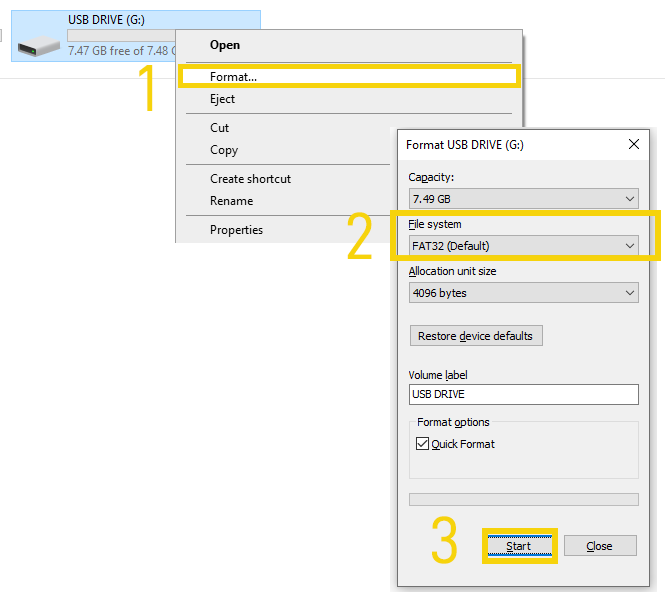
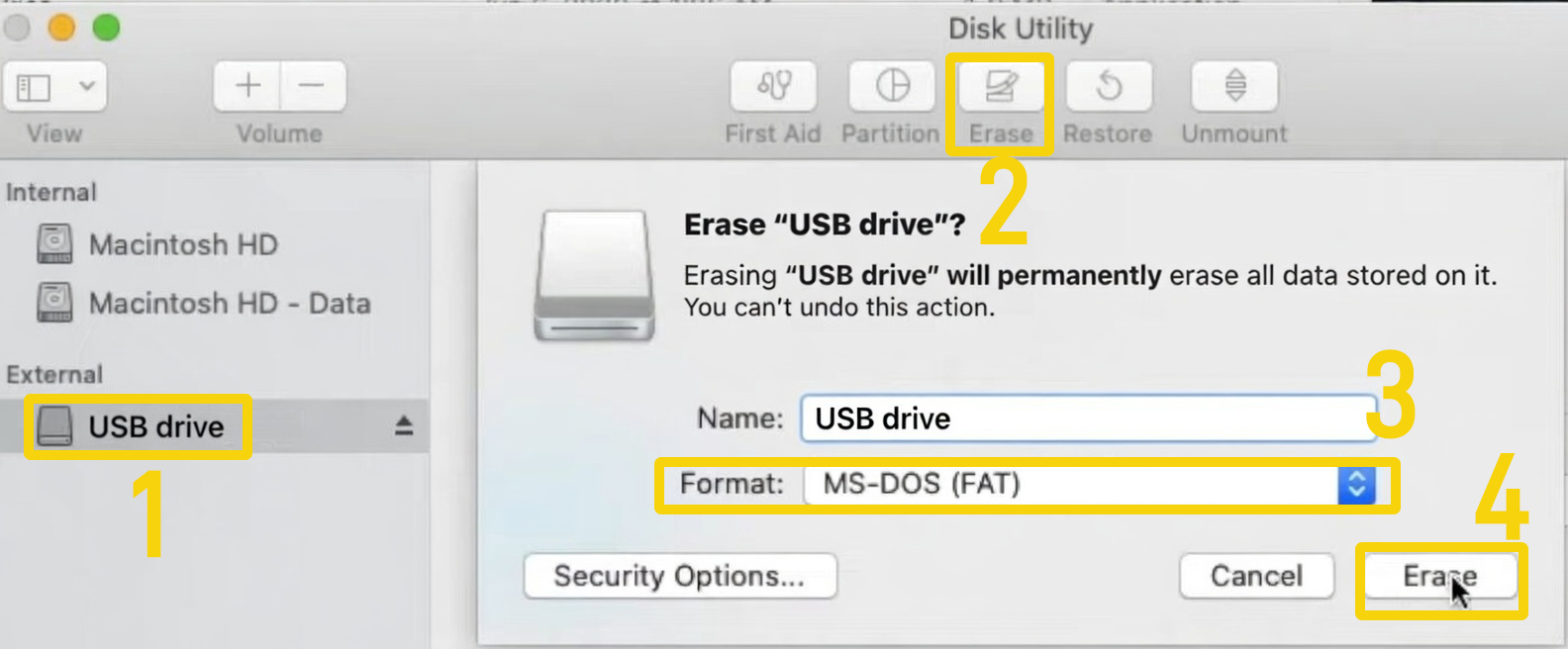
The USB drive used with the printer must be formatted as FAT32 and have a capacity of 16 GB or less. USB drives that do not meet these requirements may fail to be recognized or cause unstable data transfer.
¶ Format a USB Drive in Windows
¶ Format a USB Drive in macOS
If the USB drive is formatted correctly, continue with the following troubleshooting steps.
¶ 2. Check the File Format
Verify that the file format is one of the supported formats listed in the table below. Unsupported file formats cannot be recognized by the printer.
Note: STL files cannot be printed directly and must first be sliced before printing.
Saturn Series
| Model | Saturn 4 Ultra 16K | Saturn 4 Ultra | Saturn 4 | Saturn 3 Ultra | Saturn 2 |
|---|---|---|---|---|---|
| Supported File Format | CTB, GOO | CTB, GOO | GOO | CTB, GOO | CTB |
Mars Series
| Model | Mars 5 Ultra | Mars 5 | Mars 4 Ultra | Mars 4 | Mars 4 Max | Mars 4 DLP | Mars 3 Pro | Mars 3 |
|---|---|---|---|---|---|---|---|---|
| Supported File Format | CTB, GOO | GOO | CTB, GOO | GOO | GOO | GOO | CTB | CTB |
Jupiter Series
| Model | Jupiter 2 | Jupiter SE | Jupiter |
|---|---|---|---|
| Supported File Format | GOO | GOO | CTB |
¶ 3. Check the File Name
Use only English letters and numbers when naming sliced model files.
Scuh as : abc.ctb
Do not use special characters in the file name, as the printer may fail to recognize the file.
¶ 4. Check the USB Interface
-
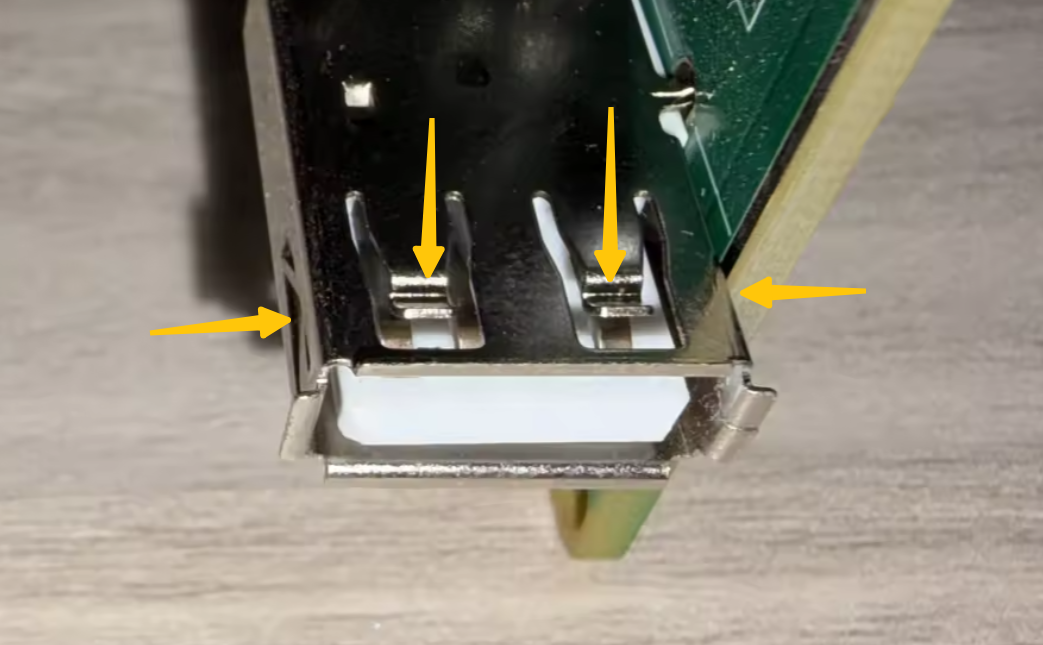
Inspect the USB interface for dust, debris, or other foreign objects that may prevent proper contact.
-
Turn off the printer using the Switch, unplug the power adapter, then use a cotton swab lightly moistened with isopropyl alcohol to clean the contacts inside the USB port.
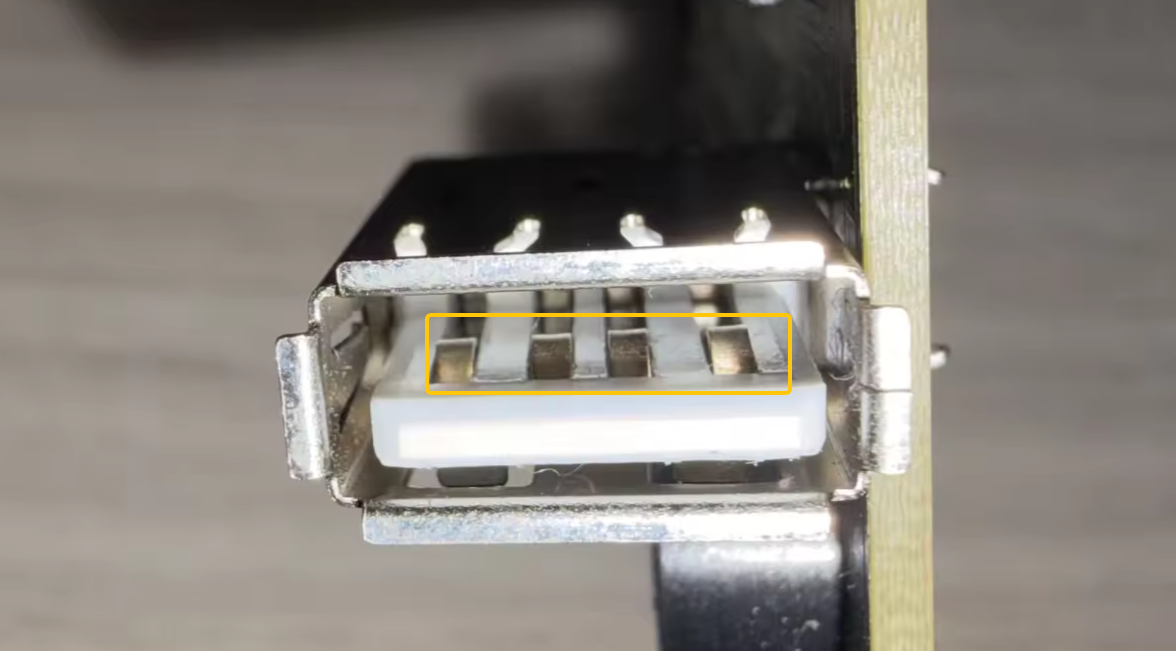
- If the USB drive feels loose after insertion, use tweezers to gently bend the USB retaining spring inward to improve contact.
¶ 5. Reinstall the Firmware
Download the firmware for your printer model from the ELEGOO Download Center, update the firmware, and then restart the printer.
After restarting, check whether the printer can recognize the USB drive.
If the problem persists, continue with the following troubleshooting steps.
¶ 6. Check the USB Extension Cable
Note: If you are using a Jupiter series or Saturn series printer, skip this section.
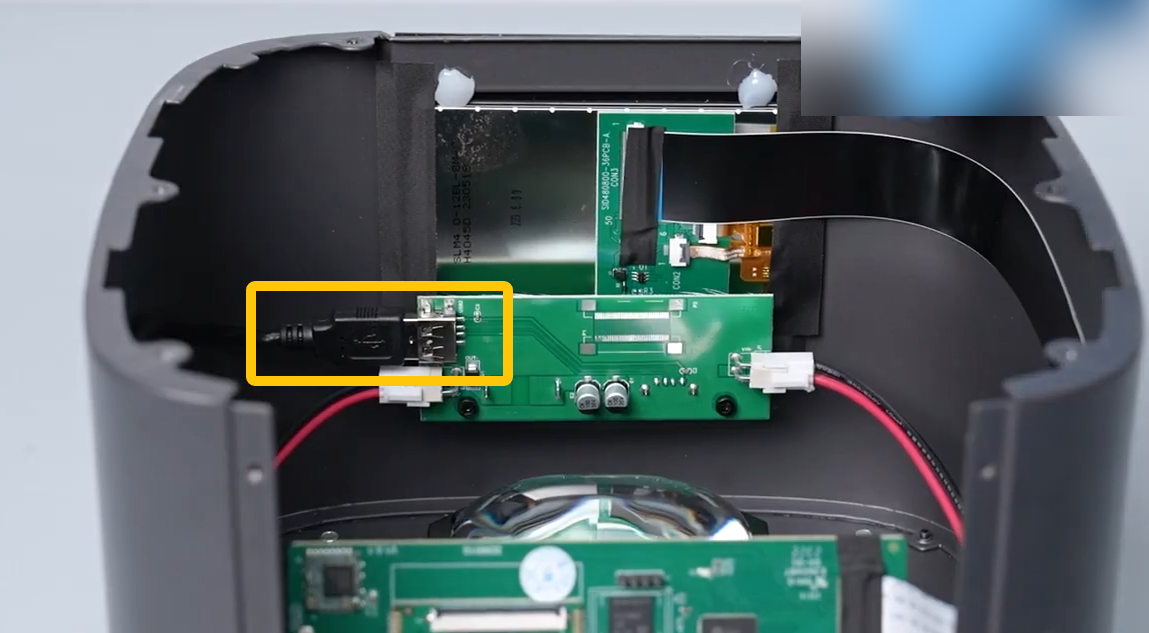
On Mars 1–4 series printers, the mainboard is connected to the Power PCB by a USB extension cable. A loose connection or a faulty extension cable or Power PCB may prevent the printer from reading files.
-
Turn off the printer using the Switch and unplug the power adapter.
-
Check whether both ends of the USB extension cable are securely connected.
-
Disconnect and reconnect both ends of the cable.
Refer to the following videos for disassembly instructions:
Mars 4 Series
Mars 3 Series
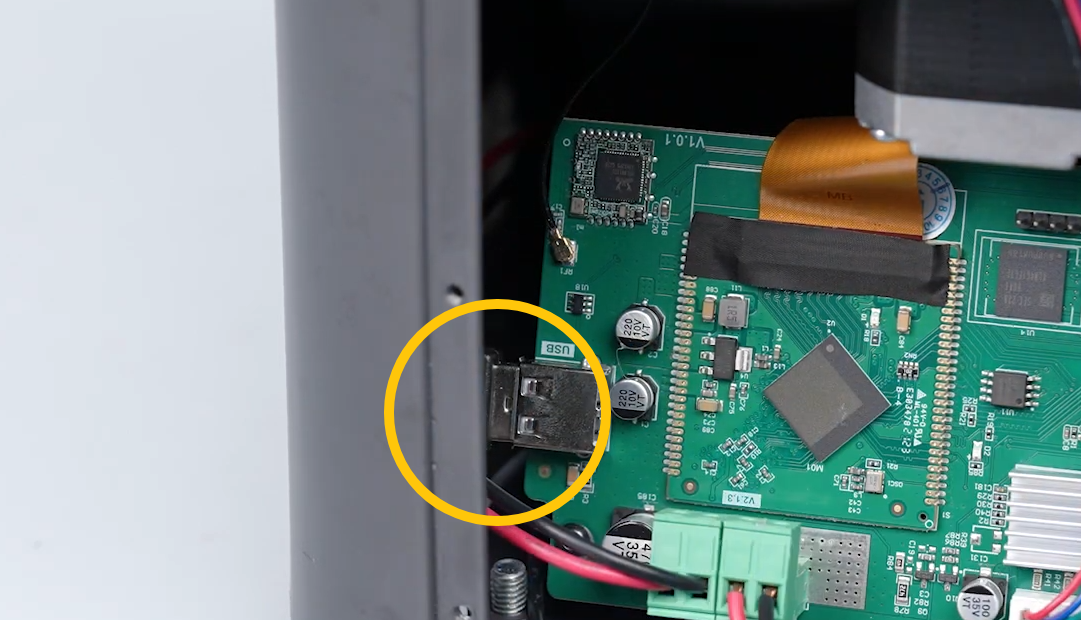
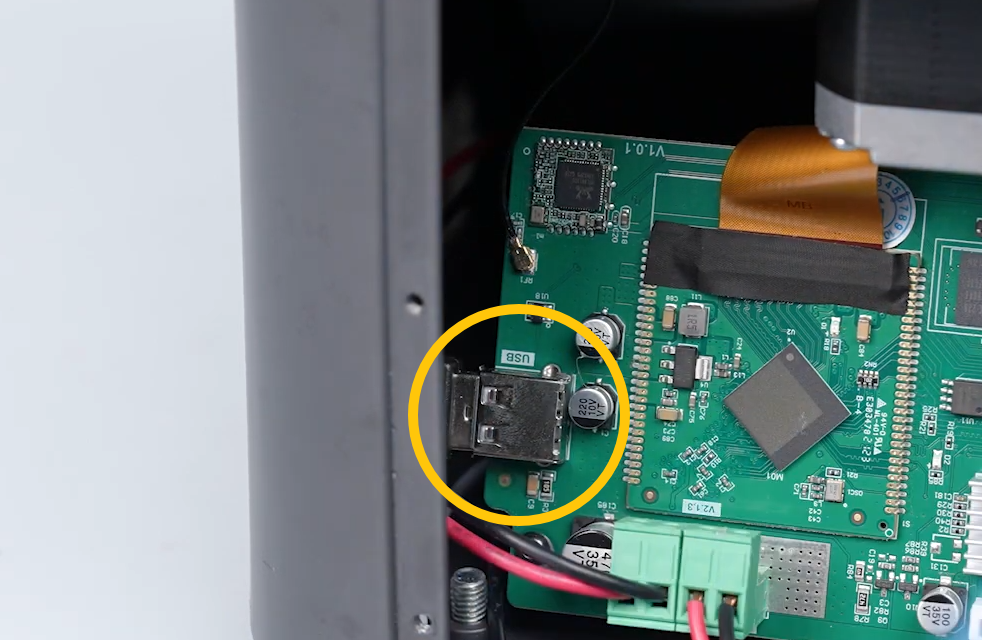
If reconnecting the extension cable does not resolve the issue, remove the screws securing the mainboard and connect the USB drive directly to the USB port on the mainboard for testing.
-
If the USB drive is recognized when connected directly to the mainboard, but cannot be recognized through the extension cable, replace the USB extension cable and the Power PCB.
-
If the USB drive is still not recognized when connected directly to the mainboard, and you have confirmed that:
- The USB drive can be recognized by a computer.
- The file format is correct.
Replace the mainboard.
¶ Still Not Resolved?
Please reproduce the issue, record a video showing the problem, and contact ELEGOO Technical Support at 3dp@elegoo.com.
¶ Help us improve
If you have any ideas about the wiki pages, please let us know via ELEGOO official feedback channel