¶ Applicable Models
- Jupiter 2
- Saturn 4 Ultra
- Saturn 4 Ultra 16K
- Mars 5 Ultra
¶ Compatible Firmware Versions
- Jupiter 2: V01.00.02.04 or later
- Saturn 4 Ultra: V1.4.3/V41.28 or later, or V1.3.9B/V41.30 or later
- Saturn 4 Ultra 16K: V1.4.5/V51.19 or later, or V1.3.5B/V51.19 or later
- Mars 5 Ultra: V1.3.5/V42.25 or later, or V1.3.4B/V42.26 or later
¶ How to Use
¶ 1. Preparation
- Before use, make sure that you have installed the latest version of the Elegoo Matrix App. If you are using the app for the first time, register for or log in to your account.
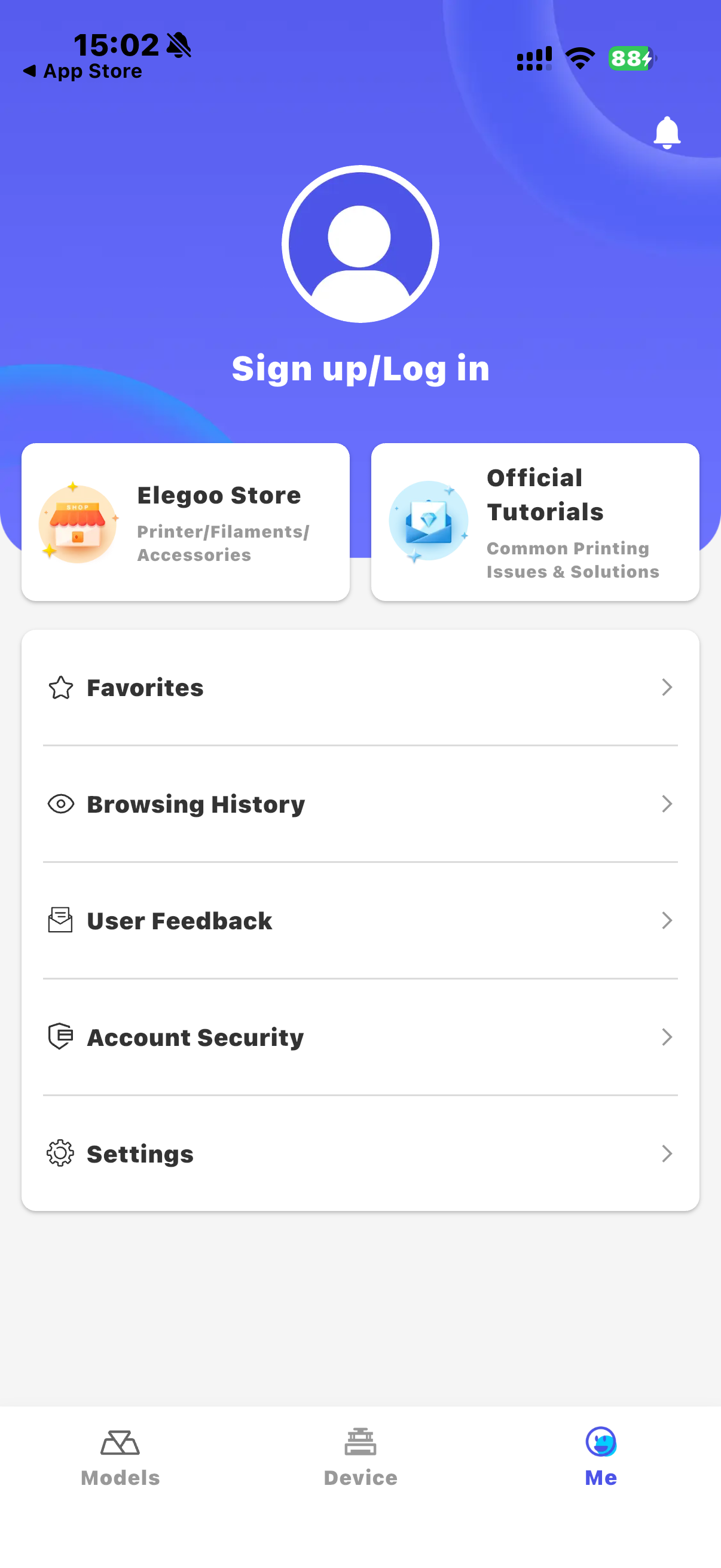
- Open the Elegoo Matrix App and tap “Sign up/Log in.”
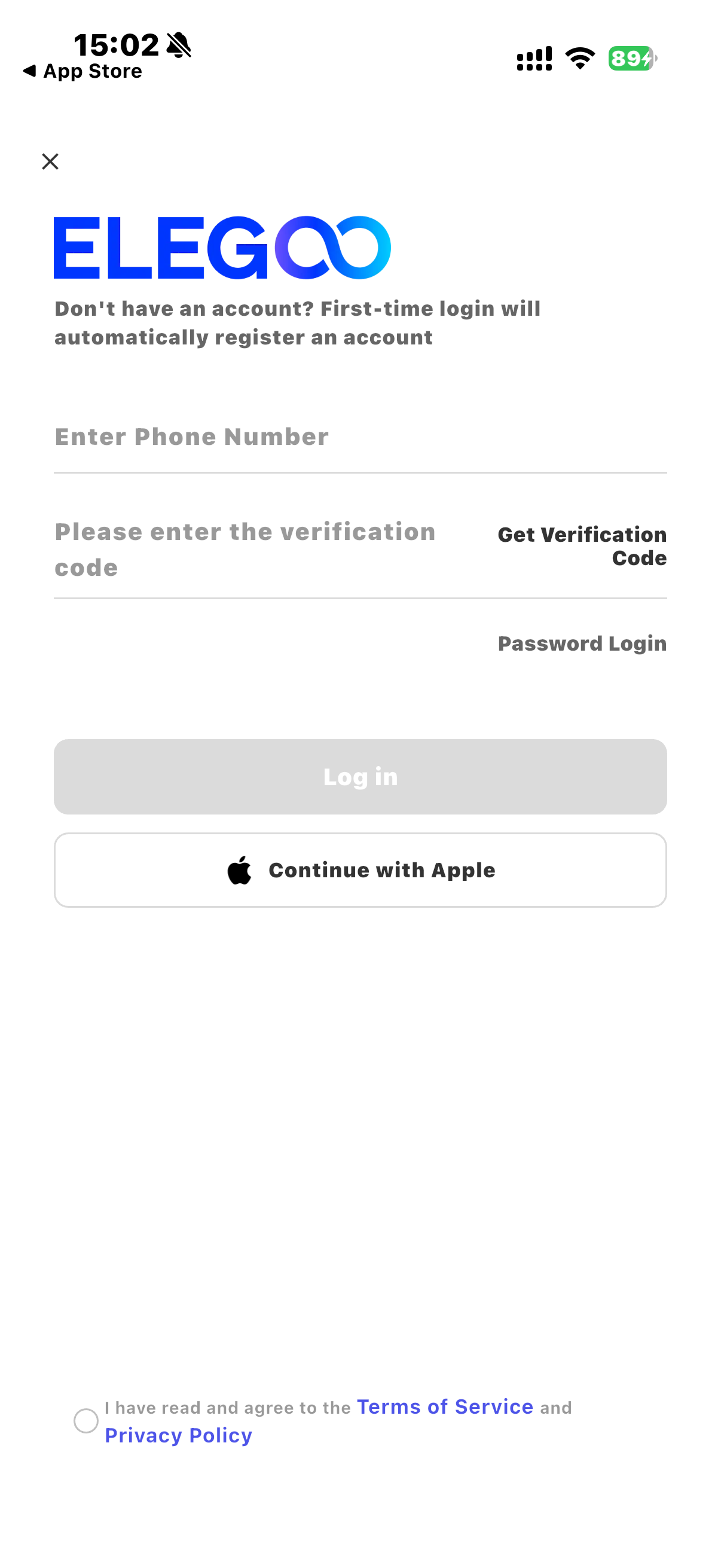
- To register an account, enter your phone number and verification code, then follow the on-screen instructions to set a password.
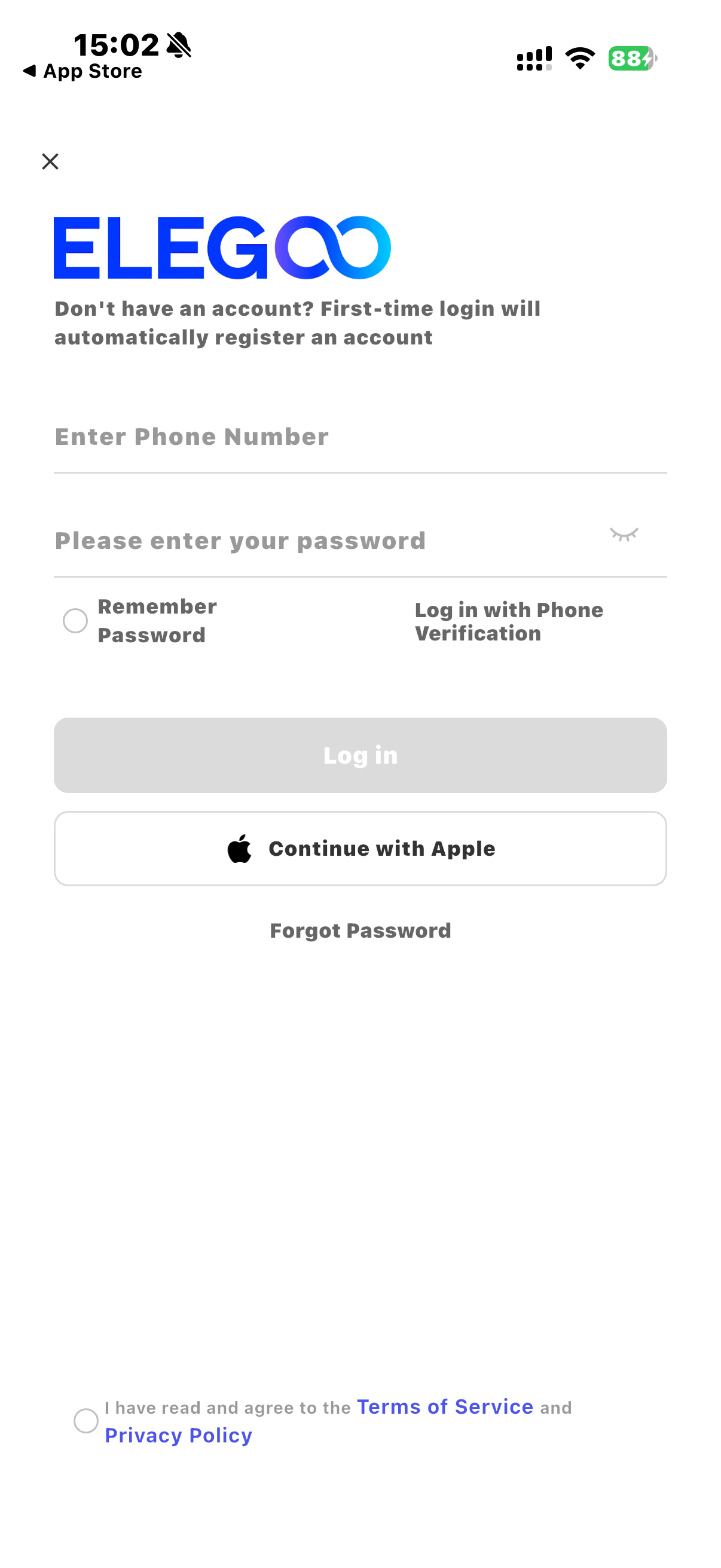
- To log in, enter your phone number and password.
¶ 2. Connect the Printer
¶ On the Printer
Note: The following interface applies to all four models listed above.
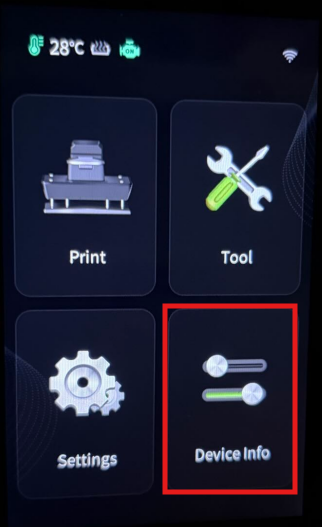
- Tap “Device Info” on the printer's display.
- Tap “Account.”
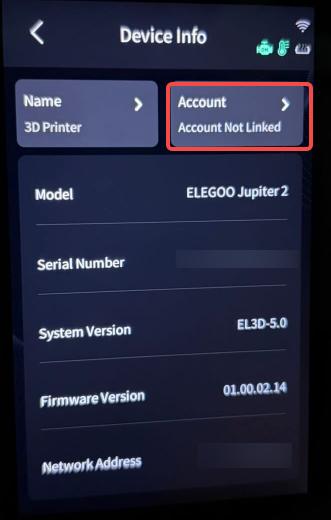
- A QR code will be displayed on the printer's touchscreen.

¶ In the Mobile App
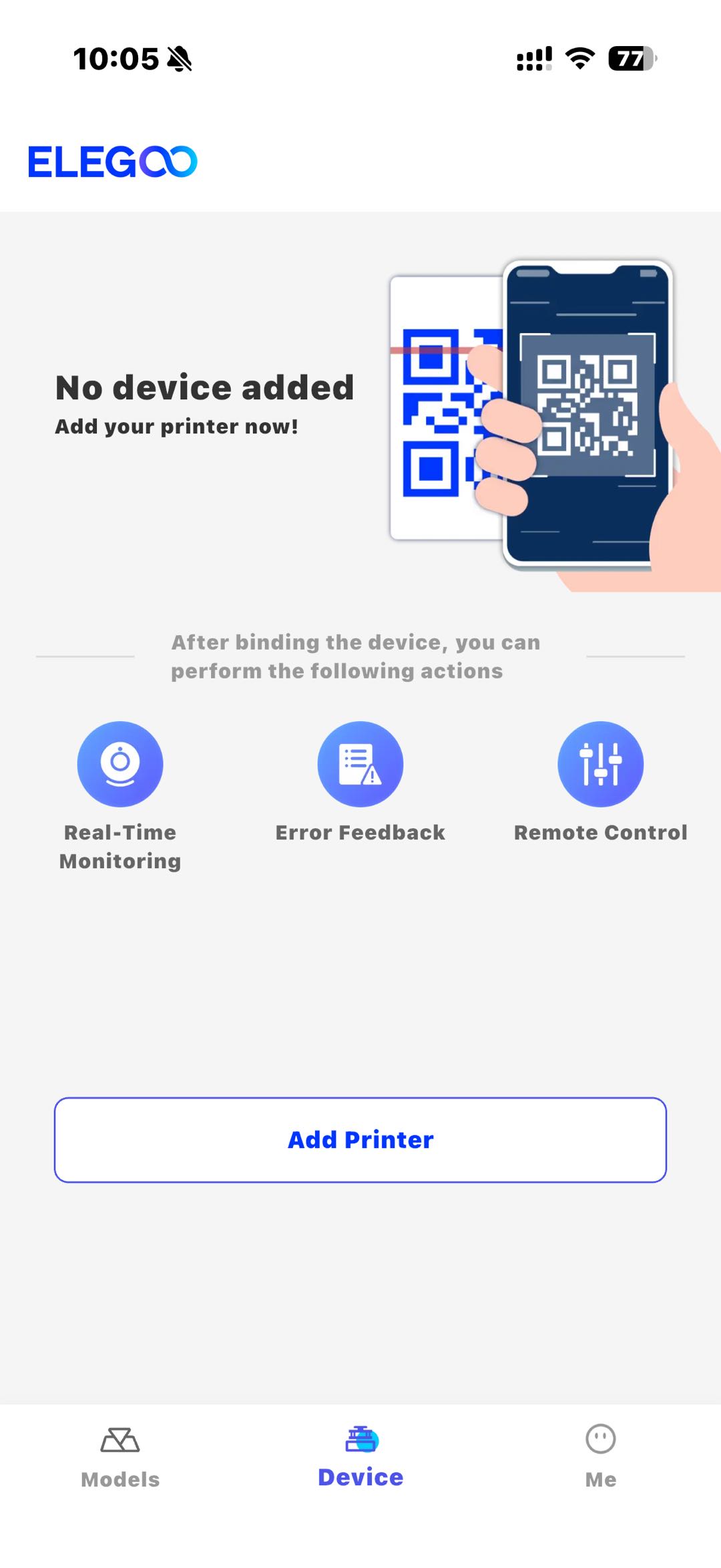
- Open the Elegoo Matrix App on your phone and tap “Add Printer.”
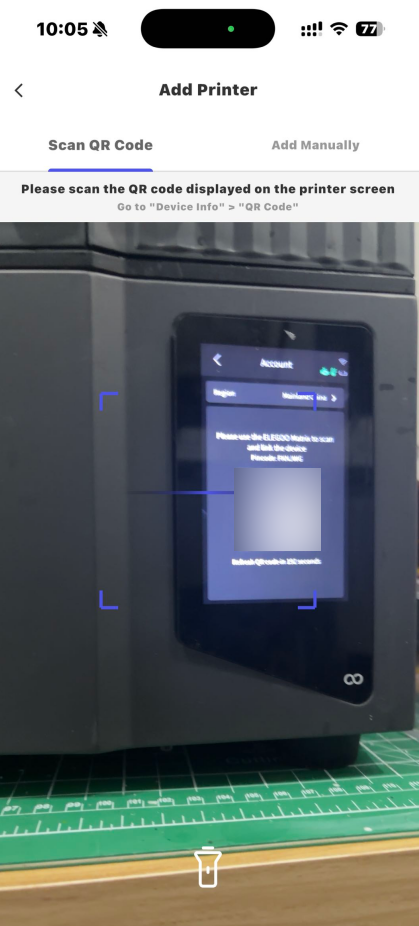
- Scan the QR code displayed on the printer's touchscreen.
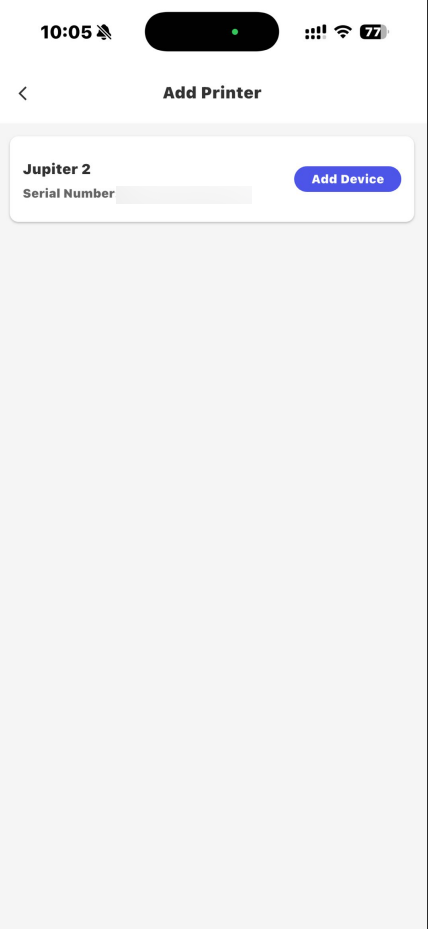
- Tap “Add Device” to complete the connection between the Elegoo Matrix App and the printer.
¶ 3. Print a Model
- Go to the “Device” page.
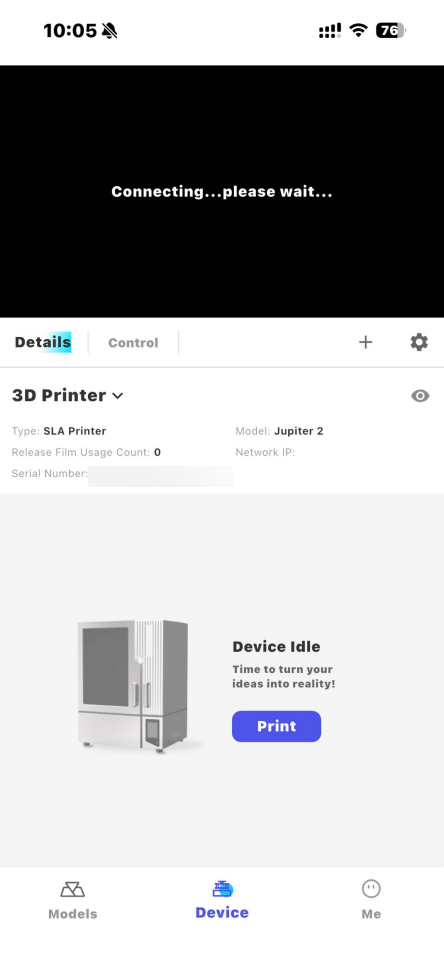
- Tap the “Print” button.

- Select a file from the printer's local files or print history, then tap “Start Printing” to start printing.
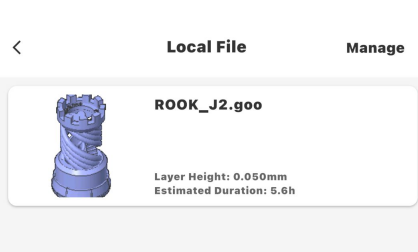
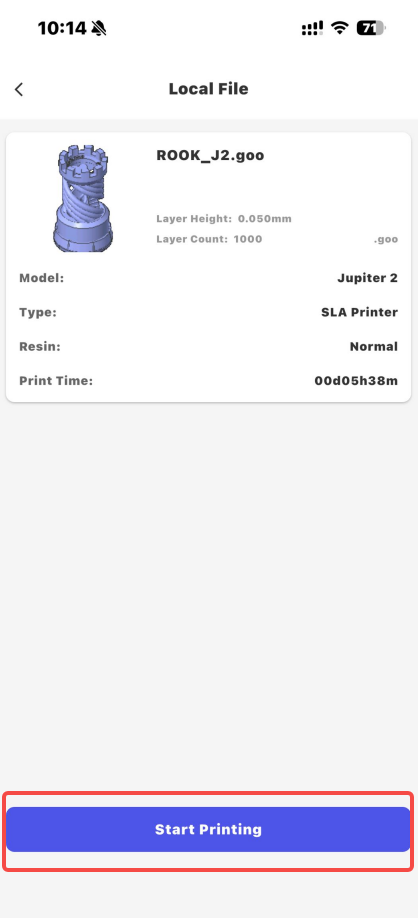
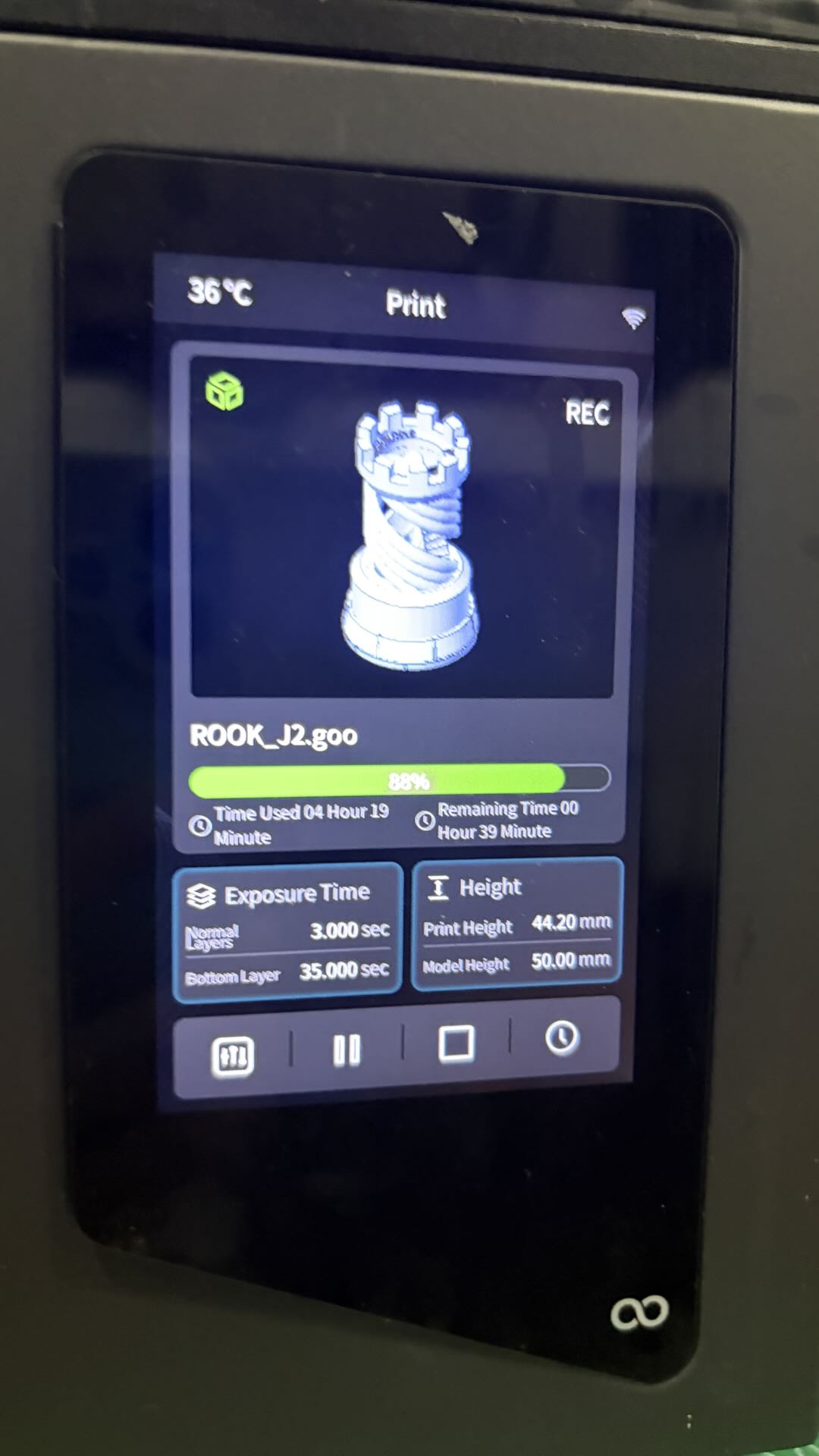
- Once printing starts, you can view the printing progress on the “Device” page.
¶ Other Functions
- Go to the “Device” page.
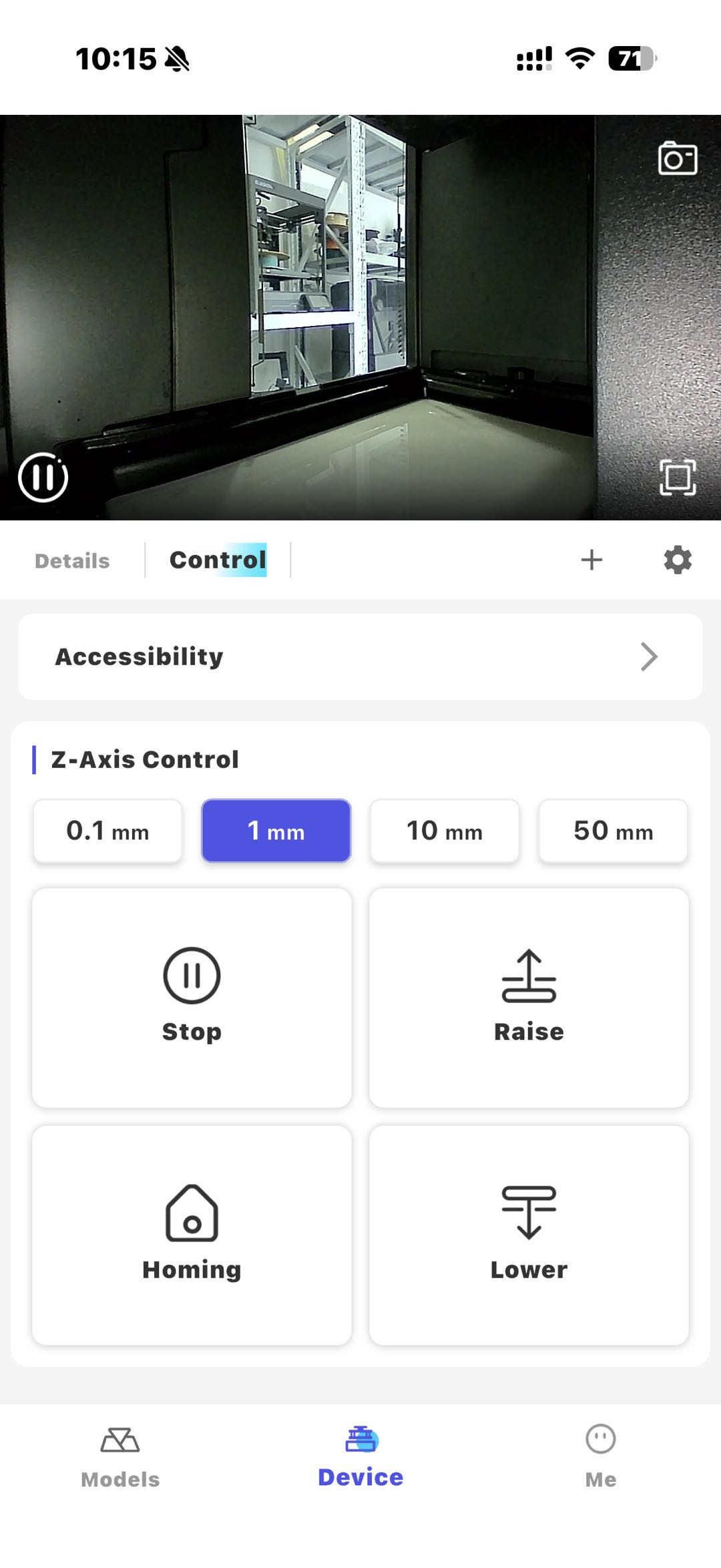
- Tap “Control” to control Z-axis movement.

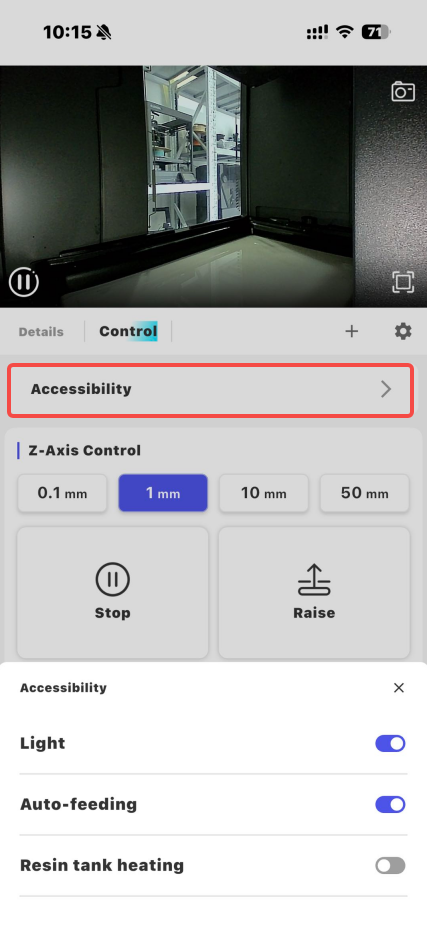
- Tap “Accessibility” to control the “Light,” “Auto-feeding,” and “Resin Tank Heating” switches.
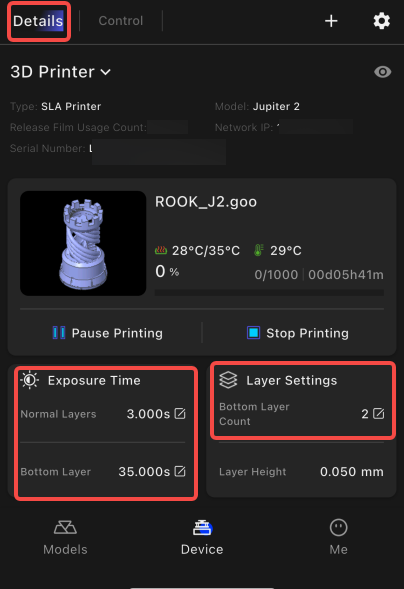
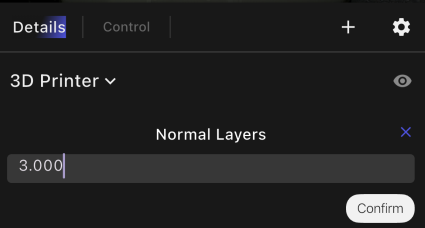
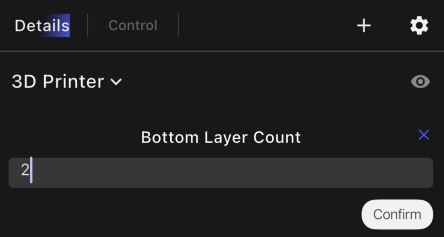
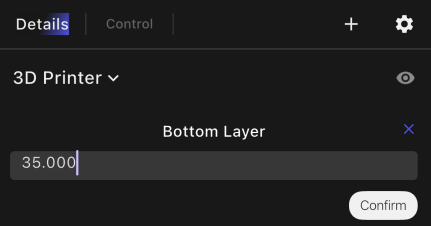
- Click “Details” to adjust the "Exposure Time” nd “Layer Settings” parameters.
¶ Help Us Improve
If you have any suggestions for improving the wiki pages, please let us know through the ELEGOO official feedback channel.