¶ Fault Symptom
The printer may experience one of the following Wi-Fi connection issues:
- The printer reports a connection timeout error.
- The Wi-Fi status is stuck on Connecting.
- The printer reports Wrong Password or Authentication Failed.
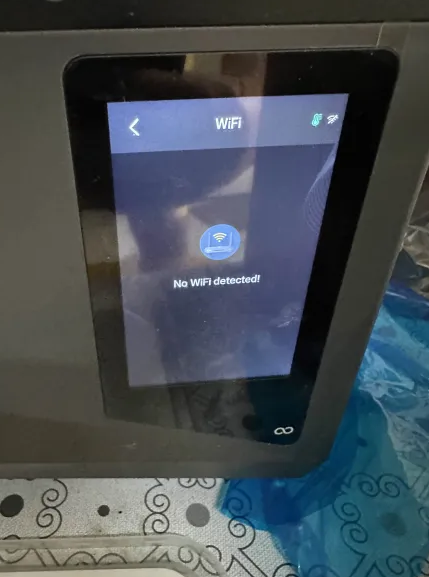
- The printer does not show any available Wi-Fi networks.
- The printer is connected to Wi-Fi, but the software or app cannot find the printer.
- The Wi-Fi connection drops frequently.
¶ Possible Causes
¶ The Printer Reports a Connection Timeout Error or Is Stuck on Connecting
- The printer is too far from the router.
- Walls or other obstacles are weakening the Wi-Fi signal.
- The number of devices connected to the router has reached the router’s maximum limit.
- The router is temporarily abnormal.
- Router cache buildup is affecting the connection.
¶ The Printer Reports Wrong Password or Authentication Failed
- The Wi-Fi password is incorrect.
- The password contains mistyped characters, such as uppercase/lowercase letters, spaces, or visually similar characters.
- The router broadcasts 2.4 GHz and 5 GHz Wi-Fi separately, and each network has a different SSID or password.
- MAC address filtering is enabled on the router, but the printer is not added to the allowed list.
¶ The Printer Does Not Show Any Wi-Fi Options
- The router’s Wi-Fi function is disabled.
- The router only has the 5 GHz band enabled, while the printer only supports 2.4 GHz Wi-Fi.
- The Wi-Fi network is set to hidden mode.
- The printer’s Wi-Fi module may be abnormal.
¶ The Printer Is Connected to Wi-Fi, but the Software or App Cannot Find the Printer
- The router has no internet connection.
- The optical modem is disconnected.
- The broadband service is unavailable or unpaid.
- The router WAN settings are incorrect.
- The broadband account or password entered in the router is incorrect.
- The internet service provider is experiencing temporary maintenance or a network fault.
¶ Wi-Fi Connection Drops Frequently
- The router signal is seriously affected by nearby interference.
- The router hardware is abnormal.
- The router power supply is unstable.
- The router antenna has poor contact.
- The router power adapter is aging or overheating.
- The printer may be incompatible with the router’s wireless protocol.
¶ Required Tools
- Mobile phone with hotspot function
- Computer or mobile device
- Ethernet cable, if checking the external network
- Router management account and password
- Original router power adapter, if replacement is required
¶ Troubleshooting Steps
¶ 1. Test with a Mobile Hotspot
Enable a mobile hotspot and connect both the printer and the computer to the same hotspot.
If the printer connects normally and the software or app can detect the printer, the printer’s Wi-Fi function is working properly. In this case, the issue is likely related to the router, Wi-Fi environment, or network settings.
¶ 2. Improve the Wi-Fi Signal
Move the printer closer to the router. It is recommended to place the printer within 1–3 meters of the router for testing.
Make sure there are no thick walls, metal objects, or large obstacles between the printer and the router.
If the connection returns to normal, the previous issue was likely caused by weak Wi-Fi signal strength.
¶ 3. Reduce the Number of Connected Devices and Restart the Router
- Log in to the router management page.
- Open the Connected Devices section.
- Disconnect idle or unnecessary devices.
- Unplug the router power cable.
- Wait for 30 seconds.
- Power the router back on.
- Wait about 5 minutes, then reconnect the printer to Wi-Fi.
If the connection returns to normal, the issue may have been caused by too many connected devices or router cache buildup.
It is recommended to reduce the number of connected devices and restart the router regularly.
¶ 4. Check the Wi-Fi Password
Verify that the entered Wi-Fi password is correct.
Pay attention to the following common input errors:
- Caps Lock is enabled.
- Uppercase and lowercase letters are entered incorrectly.
- Similar-looking characters are confused, such as
oand0. - Extra spaces are entered before or after the password.
After confirming the password, reconnect the printer to Wi-Fi.
¶ 5. Check Whether the Correct Wi-Fi Network Is Selected
If the router broadcasts 2.4 GHz and 5 GHz networks separately, confirm that the printer is connected to the correct 2.4 GHz Wi-Fi network.
A 5 GHz Wi-Fi network usually contains suffixes such as _5G or -5G, for example:
myWiFi_5G
If the printer only supports 2.4 GHz Wi-Fi, do not connect it to the 5 GHz network.
¶ 6. Check MAC Address Filtering
Log in to the router management page and check whether MAC address filtering or an allowlist is enabled.
If MAC address filtering is enabled, add the printer to the allowed device list, or temporarily disable MAC address filtering for testing.
¶ 7. Check Whether the Router Wi-Fi Function Is Enabled
Check the Wi-Fi button on the router body and make sure the Wi-Fi function is turned on.
If the Wi-Fi function was disabled, turn it on and search for Wi-Fi networks again on the printer.
¶ 8. Enable the 2.4 GHz Band
- Log in to the router management page.
- Go to Wireless Settings.
- Enable the 2.4 GHz Wi-Fi band.
- Save the settings and restart the router if required.
- Search for Wi-Fi networks again on the printer.
The 2.4 GHz band has wider coverage and stronger compatibility, which is more suitable for printers and other smart devices.
¶ 9. Check Whether the Wi-Fi Network Is Hidden
If the router is set to hidden Wi-Fi mode, the printer may not show the network in the Wi-Fi list.
Log in to the router management page and disable hidden Wi-Fi mode, then search again on the printer.
¶ 10. Check Whether Other Wi-Fi Networks Can Be Found
Use the printer to search for other Wi-Fi networks, such as a mobile hotspot.
If no Wi-Fi networks can be found, restart the printer and search again.
If the printer still cannot detect any Wi-Fi networks, the printer’s Wi-Fi function may be abnormal. Please contact ELEGOO Support for further assistance.
¶ 11. Check the External Network
If the printer is connected to Wi-Fi but the software or app cannot find the printer, check whether the external network is working properly.
- Connect the computer directly to the optical modem with an Ethernet cable.
- Dial in or connect to the internet.
- Check whether the computer can access the internet.
If the computer can access the internet, the issue may be related to the router settings.
If the computer cannot access the internet, the issue may be related to the optical modem, broadband account, or internet service provider.
¶ 12. Check for Signal Interference
If the Wi-Fi connection drops frequently, check whether other devices have the same issue.
If other devices also disconnect frequently, the issue is likely on the router side.
Keep the router away from devices that may cause interference, such as:
- Microwave ovens
- Bluetooth speakers
- Wireless speakers
- Cordless phones
- Other high-power wireless devices
After reducing interference, reconnect the printer and test again.
¶ 13. Check the Router Hardware and Power Adapter
Check whether the router antenna is properly connected.
If the antenna is detachable, remove and reinstall it.
Check whether the router power adapter is damaged, loose, overheating, or aging. If the power adapter is abnormal, replace it with an original adapter that matches the router specifications.
¶ 14. Contact ELEGOO Support
If the issue persists after completing the steps above, please contact ELEGOO Support through the official channel:
When contacting ELEGOO Support, please provide the following information:
- Printer model
- A clear photo or video of the Wi-Fi error message
- Router model
- Whether the printer can connect to a mobile hotspot
- Whether other devices can connect to the same router normally
- The troubleshooting steps you have already completed
- The test results after each troubleshooting step