¶ Issue Description
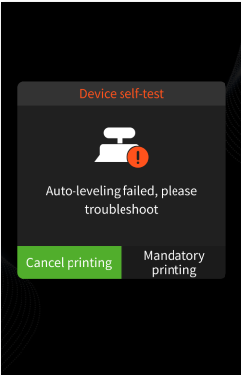
During the pre-print self-test or printing process, the printer displays the following error message:
“Auto-leveling failed, please troubleshoot.”
¶ Possible Causes
- The printer is placed on an unstable or uneven surface, or it is located near equipment that may cause vibration, which can interfere with auto-leveling detection.
- The build plate is not installed correctly, or the build plate mounting screws are loose.
- The cable or adapter board connected to the mechanical leveling sensor is abnormal.
- The detection threshold parameters of the mechanical leveling sensor are abnormal.
¶ Required Tools
- USB flash drive
- Computer
- Resin type and viscosity value of the resin currently in use
¶ Troubleshooting Steps
-
Make sure the printer is placed on a stable and level surface. Keep it away from fans, air compressors, washing machines, or other equipment that may generate vibration.
-
Check whether the build plate is properly installed. If the build plate is not fully locked or is installed incorrectly, reinstall the build plate.
-
Check whether the build plate mounting screws are loose. If any screws are loose, tighten them properly.
-
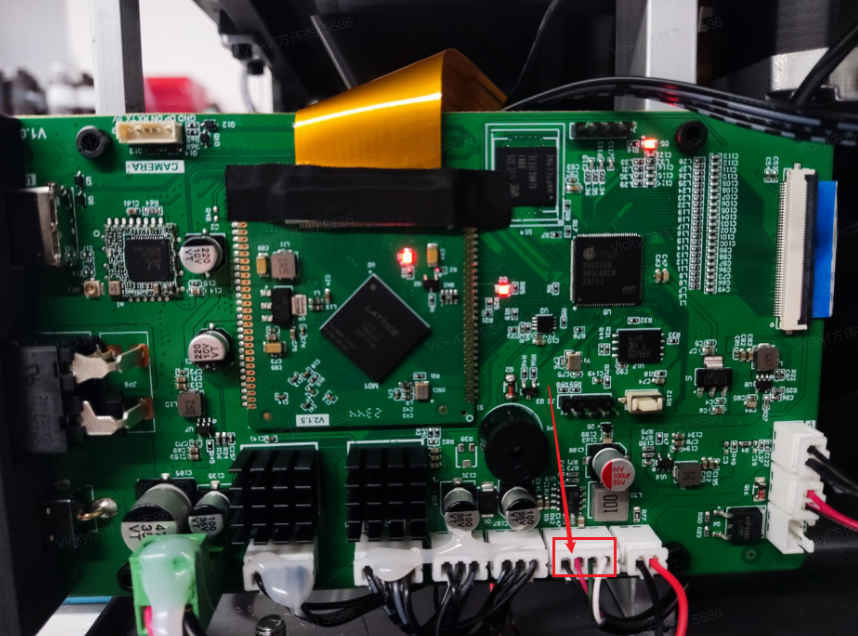
Check whether the cable between the mechanical leveling sensor and the adapter board is securely connected. Also inspect the cable for damage, breakage, or loose terminals.
If the cable or adapter board is abnormal, replace the corresponding cable or adapter board.
-
If the issue persists after completing the checks above, copy the Exporting.gcode file to the root directory of a USB flash drive.
Note: Do not rename the file or place it in any folder.
-
Insert the USB flash drive into the printer, then tap Print to run the file.
-
After the file finishes running, a file named
100MachineParams.gcodewill be generated on the USB flash drive. -
Submit the generated
100MachineParams.gcodefile to the ELEGOO Support Team. Please also provide the resin type and viscosity value of the resin currently in use.