¶ Fault Symptom
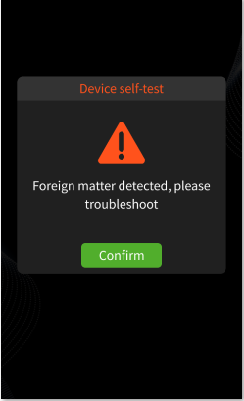
During the pre-print self-check or printing process, the printer displays the following error message:
“Foreign matter detected, please troubleshoot.”
¶ Possible Causes
- The printer is placed on an unstable or uneven surface.
- The printer is too close to vibrating equipment or another source of vibration.
- After a failed print, cured resin or failed print residue remains in the resin tank.
- The resin is exposed to strong light during printing, causing unexpected curing.
- The build plate is not installed correctly.
- The build plate surface is contaminated, damaged, or has cured resin residue or burrs.
- The resin viscosity is too high, which may cause false triggering.
- The mechanical sensor wiring is loose, damaged, or abnormal.
- The sensor adapter board is abnormal.
¶ Required Tools
- Disposable gloves
- Plastic scraper
- Paper towels or cleaning cloth
- Alcohol
- USB drive
¶ Troubleshooting Steps
¶ 1. Check the Printer Placement
Place the printer on a stable, flat, and level surface.
Make sure the printer is not placed near equipment that may generate vibration, such as another printer, washing machine, fan, or unstable workbench.
¶ 2. Clean the Resin Tank After a Failed Print
If the previous print failed, check the resin tank before starting another print.
Remove any cured resin, failed print residue, or foreign objects from the resin tank. Make sure the release film and the bottom of the resin tank are clean before printing again.
¶ 3. Avoid Strong Light During Printing
Do not expose the resin tank to strong sunlight or strong UV light during printing.
Strong light may partially cure the resin and create cured residue in the tank, which can trigger the foreign matter detection error.
¶ 4. Check the Build Plate Installation
Remove and reinstall the build plate.
Make sure the build plate is properly locked and secured. Check whether the fixing screws are loose. If any screws are loose, tighten them before printing.
¶ 5. Clean the Build Plate Surface
Check the build plate surface for cured resin, burrs, or contamination.
If residue is found, clean the surface before printing. Make sure the build plate surface is flat and free from obvious foreign matter.
¶ 6. Check the Resin Viscosity
Avoid using resin with excessively high viscosity.
If the resin viscosity is too high, it may cause false triggering during detection. In this case, warm the resin manually or use suitable resin heating equipment to reduce the viscosity before printing.
¶ 7. Check the Sensor Wiring and Adapter Board
Check whether the connection between the mechanical sensor and the adapter board is loose, damaged, or abnormal.
Reconnect the cable and inspect the connector condition. If the cable or adapter board is damaged, replace it with a new one.
¶ 8. Export the Machine Parameter File
If the issue persists after the checks above, export the machine parameter file and send it to ELEGOO Support for further analysis.
-
Download the Exporting.gcode file.
-
Copy the
Exporting.gcodefile to the root directory of the USB drive.Note: Do not rename the file or place it inside any folder.
-
Insert the USB drive into the printer.
-
Tap Print on the printer screen and run the file.
-
After the process is completed, a file named
100MachineParams.gcodewill be generated on the USB drive. -
Send the
100MachineParams.gcodefile to ELEGOO Support through Support – ELEGOO Official.
When contacting ELEGOO Support, please also provide the resin type and viscosity value currently in use.