¶ TCP Server
This example demonstrates how to implement a TCP server on the ESP32 in WiFi Station (STA) mode. After connecting to a specified WiFi network, the ESP32 acts as a TCP server waiting for client connections, receives data from clients, and displays echo messages on the TFT LCD screen.
¶ Operation Steps
¶ Step 1: Code Configuration
- Open the
wifi_STA_TCP_Server_test.inofile - Modify WiFi network parameters:
const char *ssid = "yourssid"; // Change to your WiFi name const char *password = "yourpwd"; // Change to your WiFi password - Modify the server port (optional, default 10000):
int port = 10000; // Change to your desired port, recommended 8080
¶ Step 2: Compile and Upload
¶ Step 3: Run and Test
- Open the Serial Monitor (set baud rate to 115200)
- Observe the screen display:
- Screen shows "Start connecting to WiFi ...": Connecting to WiFi
- Screen shows "Connection WIFI successful!!!": WiFi connected successfully
- Screen shows SSID, IP, MAC, PORT info: Note down this information
- Screen shows "Waiting for client connection": TCP server started
- Use a TCP client tool to connect to the server:
- Enter the IP address and port number shown on the ESP32 screen
- After successful connection, the screen shows "Client connected."
- Send test data:
- Enter
Hello ESP32!in the debug tool's send box and click Send - Serial Monitor: Displays the received raw data
Hello ESP32!(byte-by-byte output, matching the sent content) - TFT Screen: No change (no carriage return received, display not triggered)
- Debug Tool Receive Area: No display (no carriage return received, echo not triggered)
- Enter
- The above behavior is the expected result of the code design, for the following reasons:
Serial.write(c)is outside theif(c == '\r')block, outputting to serial for every byte receivedclient.print()andmy_lcd.drawString()are inside theif(c == '\r')block, only executed when a carriage return is received- Most TCP debug tools do not automatically append a carriage return (0x0D) when sending, so echo and screen display are not triggered
- Typing
\rdirectly in the input box is not recognized as a carriage return (0x0D); it is treated as two separate characters\andr
- To trigger server echo and screen display, you need to send a carriage return (0x0D):
- Method 1: Enable hexadecimal send, send
48 65 6C 6C 6F 0D(corresponds toHello\r)
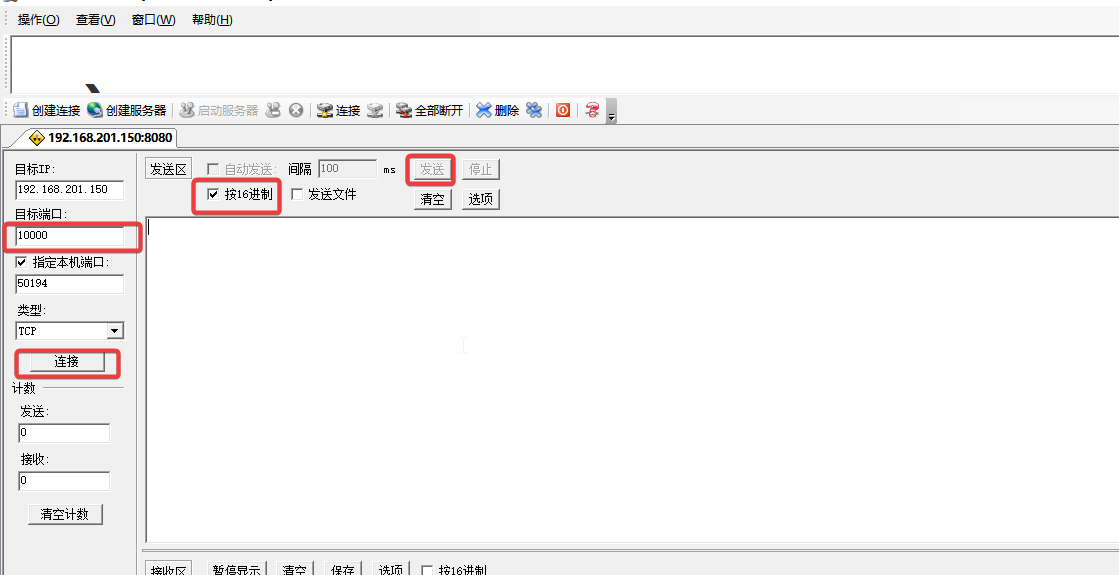
- Method 2: Modify the code, change
if(c == '\r')toif(c == '\n')and enable "Append Line Feed (LF)" in the debug tool
- Method 1: Enable hexadecimal send, send
- After disconnecting, the screen shows "Client Disconnected."
¶ Data Flow Description
This example has four independent data flow channels:
| Channel | Direction | Trigger Condition | Description |
|---|---|---|---|
| TCP Client → ESP32 | Debug tool send area → ESP32 | Triggered on Send click | Data sent from the debug tool is transmitted to ESP32 via TCP |
| ESP32 → Serial Monitor | ESP32 → Arduino Serial | Triggered per byte received | Serial.write() outputs byte-by-byte, no carriage return required |
| ESP32 → TCP Client | ESP32 → Debug tool receive area | Triggered on \r received |
client.print() echoes data, no echo without \r |
| ESP32 → TFT Screen | ESP32 → LCD | Triggered on \r received |
my_lcd.drawString() displays data, no display without \r |
⚠️ Key Notes:
- The Serial Monitor is receive-only; it can only display data received by the ESP32. Text typed in the Serial Monitor is not sent to the TCP client
- By default (when the debug tool does not append a carriage return), data only appears in the Serial Monitor; the TFT screen and debug tool receive area show nothing
Serial.write(c)is outsideif(c == '\r'), outputting to serial immediately for every byte receivedclient.print()andmy_lcd.drawString()are insideif(c == '\r'), only executed when a carriage return (0x0D) is received
¶ Using with the Companion TCP Client Example
-
Client sends data without carriage return
\r:client.print("Hello, this is client!"); // No \r at the endThe Server's
if(c == '\r')never triggers, so no data is echoed back. -
Client uses
readStringUntil('\n')to receive data:String line = client.readStringUntil('\n'); // Waits for line feed \nEven if the Server echoes data back, the Client cannot find
\nand will wait until timeout.
To use both examples together, modify the Client code:
// Modification 1: Append carriage return when sending
client.print("Hello, this is client!\r");

// Modification 2: Wait for carriage return instead of line feed when receiving
String line = client.readStringUntil('\r');
¶ Notes
- ESP32 only supports 2.4GHz WiFi, not 5GHz
- WiFi passwords are case-sensitive
- Data sent by the client must end with a carriage return
\r(0x0D) for the server to echo a response - Ensure your phone/PC and ESP32 are connected to the same WiFi network
¶ Code Explanation
This example code is based on the ESP32-WROOM-32E development board. Before use, you need to correctly configure the WiFi network parameters and server port.
¶ Manual Configuration Parameters (Important)
The program requires the user to modify the following parameters according to their actual situation:
const char *ssid = "yourssid";
const char *password = "yourpwd";

int port = 10000;
⚠️ Parameters that must be modified:
- ssid: WiFi network name, change to your WiFi name
- password: WiFi password, change to the corresponding WiFi password
- port: TCP server port, default 10000, the client must use the same port when connecting
¶ setup() Function Explanation
The setup() function initializes the serial port, screen, and WiFi, then starts the TCP server and displays connection information after WiFi is connected.
void setup()
{
    Serial.begin(115200);
    my_lcd.begin();
    my_lcd.setRotation(0);
    my_lcd.fillScreen(TFT_WHITE);
    my_lcd.setTextColor(TFT_RED);
    WiFi.mode(WIFI_STA);
    WiFi.setSleep(false);
    my_lcd.drawString("Start connecting to WiFi ...", 10,55,2);
    WiFi.begin(ssid, password);
    while (WiFi.status() != WL_CONNECTED)
    {
        delay(500);
        Serial.print(".");
    }
    my_lcd.fillRect(10, 55, my_lcd.width()-1, 25,TFT_WHITE);
    my_lcd.setTextColor(TFT_GREEN);
    my_lcd.drawString("Connection WIFI successful!!!", 10,55,2);
    my_lcd.setTextColor(TFT_BLUE);
    sprintf(t_buf, "SSID : %s", ssid);
    my_lcd.drawString(t_buf, 10,75,2);
    sprintf(t_buf, "  IP : %s", WiFi.localIP().toString().c_str());
    my_lcd.drawString(t_buf, 10,95,2);
    sprintf(t_buf, " MAC : %s", WiFi.macAddress().c_str());
    my_lcd.drawString(t_buf, 10,115,2);
    sprintf(t_buf, " PORT : %d", port);
    my_lcd.drawString(t_buf, 10,135,2);
    my_lcd.setTextColor(TFT_RED);
    server.begin(); //Start server
    my_lcd.drawString("Waiting for client connection", 10,155,2);
}
¶ Serial and Screen Initialization
Serial.begin(115200);
my_lcd.begin();
my_lcd.setRotation(0);
my_lcd.fillScreen(TFT_WHITE);
Serial.begin(115200): Initializes serial communication with a baud rate of 115200my_lcd.begin(): Initializes the TFT screenmy_lcd.setRotation(0): Sets screen rotation to 0 degrees (portrait mode)my_lcd.fillScreen(TFT_WHITE): Clears the screen with a white background
¶ WiFi Mode Configuration
WiFi.mode(WIFI_STA);
WiFi.setSleep(false);
WiFi.mode(WIFI_STA): Sets WiFi to Station mode, connecting to a router as a clientWiFi.setSleep(false): Disables WiFi sleep mode to maintain a stable connection
⚠️ Note:
- In Station mode, the ESP32 connects to an existing WiFi network as a client
- To create an AP hotspot, use
WIFI_APorWIFI_AP_STAmode
¶ WiFi Connection Process
WiFi.begin(ssid, password);
while (WiFi.status() != WL_CONNECTED)
{
    delay(500);
    Serial.print(".");
}
WiFi.begin(ssid, password): Starts WiFi connection using the configured SSID and passwordWiFi.status() != WL_CONNECTED: Loops until connection is successfuldelay(500): Checks every 500 milliseconds
⚠️ Notes:
- If the WiFi password is incorrect or the signal is too weak, the program will get stuck in this loop
- You can observe the connection status via the Serial Monitor (dots are printed while connecting)
- It is recommended to add a timeout mechanism to avoid infinite waiting
¶ Connection Information Display
sprintf(t_buf, "SSID : %s", ssid);
my_lcd.drawString(t_buf, 10,75,2);
sprintf(t_buf, "  IP : %s", WiFi.localIP().toString().c_str());
my_lcd.drawString(t_buf, 10,95,2);
sprintf(t_buf, " MAC : %s", WiFi.macAddress().c_str());
my_lcd.drawString(t_buf, 10,115,2);
sprintf(t_buf, " PORT : %d", port);
my_lcd.drawString(t_buf, 10,135,2);
The program displays the following information on the screen:
- SSID: Connected WiFi name
- IP: IP address assigned to the ESP32
- MAC: ESP32's MAC address
- PORT: TCP server listening port
¶ Starting the TCP Server
server.begin();
my_lcd.drawString("Waiting for client connection", 10,155,2);
server.begin(): Starts the TCP server, begins listening on the specified port- Screen displays a prompt waiting for client connection
⚠️ Notes:
server.begin()must be called after WiFi connection is successful, otherwise clients cannot connect- Clients need to use the IP address and port shown on the ESP32 to connect
- The server continues listening until a client connects
¶ loop() Function Explanation
The loop() function implements the TCP server's client connection waiting, data reception, and echo functionality.
void loop()
{
    WiFiClient client = server.available();
    if(client)
    {
        my_lcd.fillRect(10, 155, my_lcd.width()-1, 25,TFT_WHITE);
        my_lcd.drawString("Client connected.", 10,155,2);
        String readBuff = "";
        while (client.connected())
        {
            if (client.available())
            {
                char c = client.read();
                Serial.write(c);
                readBuff += c;
                if(c == '\r')
                {
                    client.print("Received: " + readBuff);
                    my_lcd.fillRect(10, 175, my_lcd.width()-1, 25,TFT_WHITE);
                    my_lcd.drawString("Received: " + readBuff, 10,175,2);
                    readBuff = "";
                }
            }
        }
        client.stop();
        my_lcd.fillRect(10, 155, my_lcd.width()-1, 25,TFT_WHITE);
        my_lcd.drawString("Client Disconnected.", 10,155,2);
    }
}
¶ Waiting for Client Connection
WiFiClient client = server.available();
if(client)
{
    my_lcd.drawString("Client connected.", 10,155,2);
    ...
}
server.available(): Checks if a client is attempting to connect, returns a WiFiClient objectif(client): Determines whether a client is connected- After successful connection, the screen shows "Client connected."
⚠️ Notes:
server.available()is non-blocking, returns an empty object when no client is connected- Each loop iteration handles only one client connection
- To support multiple clients, use an array to manage multiple WiFiClient objects
¶ Data Reception and Echo
String readBuff = "";
while (client.connected())
{
    if (client.available())
    {
        char c = client.read();
        Serial.write(c);
        readBuff += c;
        if(c == '\r')
        {
            client.print("Received: " + readBuff);
            my_lcd.fillRect(10, 175, my_lcd.width()-1, 25,TFT_WHITE);
            my_lcd.drawString("Received: " + readBuff, 10,175,2);
            readBuff = "";
        }
    }
}
String readBuff = "": Creates an empty string to accumulate received dataclient.connected(): Checks if the client is still connectedclient.available(): Checks if there are readable bytesclient.read(): Reads one byteSerial.write(c): Outputs to the Serial Monitor immediately for every byte received, regardless of whether\ris receivedreadBuff += c: Appends the byte to the bufferif(c == '\r'): Detects carriage return (0x0D), only when this condition is met are the following operations executedclient.print("Received: " + readBuff): Echoes data back to the client via TCP (debug tool receive area)my_lcd.drawString(): Displays the received data on the TFT screenreadBuff = "": Clears the buffer, ready to receive the next message
⚠️ Notes:
Serial.write(c)is outside theif(c == '\r')block, outputting to serial for every byte received, unaffected by carriage returnclient.print()andmy_lcd.drawString()are inside theif(c == '\r')block, only executed when a carriage return is received- If
\ris not sent, data only appears in the Serial Monitor; the TFT screen and debug tool receive area show nothing - The echo function is used to test whether TCP bidirectional communication is working properly
¶ Client Disconnection Handling
client.stop();
my_lcd.drawString("Client Disconnected.", 10,155,2);
client.stop(): Closes the client connection, releases resources- Screen displays client disconnection message
¶ Summary
This example implements the ESP32 WiFi TCP server functionality through the following steps:
- Initialization: Configure serial port, TFT screen, WiFi mode
- WiFi Connection: Connect to the specified WiFi network and display connection information
- Server Start: Start the TCP server, wait for client connections
- Data Communication: Receive client data and echo it back, display on screen
- Disconnection Handling: Release resources after client disconnects, continue waiting for new connections
Key functions used in the program:
WiFi.mode(): Set WiFi operating modeWiFi.begin(): Start WiFi connectionWiFi.status(): Get WiFi connection statusWiFi.localIP(): Get local IP addressWiFi.macAddress(): Get MAC addressserver.begin(): Start TCP serverserver.available(): Check for client connectionsclient.connected(): Check client connection statusclient.available(): Check for readable dataclient.read(): Read one byteclient.print(): Send data to clientclient.stop(): Close client connectionmy_lcd.drawString(): Display text on screenmy_lcd.fillRect(): Fill a rectangular area
¶ Modification Guide
If you need to modify the code for different application scenarios, refer to the following aspects:
¶ 1. WiFi Network Configuration (Must Modify)
const char *ssid = "your_wifi_name";        // Change to your WiFi name
const char *password = "your_wifi_password"; // Change to your WiFi password
¶ 2. Server Port Configuration
int port = 8080; // Change to your desired port
¶ 3. Modify Data End Character
if(c == '\n')                                // Use line feed as end character
{
    // ...
}
// Or
if(c == '!')                                 // Use a custom character as end character
{
    // ...
}
¶ 4. Modify Echo Content
client.print("Custom response: " + readBuff); // Modify echo content
¶ 5. Add Timeout Handling
unsigned long startTime = millis();
while (WiFi.status() != WL_CONNECTED)
{
    delay(500);
    Serial.print(".");
    if (millis() - startTime > 10000) // 10-second timeout
    {
        Serial.println("Connection timeout!");
        break;
    }
}
¶ 6. Modify Screen Display Content
You can add more status information or adjust display positions as needed:
my_lcd.drawString("Custom info", x, y, font_size);
¶ 7. Add Multi-Client Support
WiFiClient clients[5]; // Support up to 5 clients
// Use server.available() in loop() to get new clients and manage them
¶ 8. Add Heartbeat Detection
unsigned long lastReceiveTime = millis();
if (millis() - lastReceiveTime > 5000) // No data for 5 seconds
{
    client.stop();
}
¶ Troubleshooting
-
WiFi Connection Failed
- Check if SSID and password are correct
- Confirm WiFi signal strength is sufficient
- Check if the router supports 2.4GHz band (ESP32 does not support 5GHz)
-
Client Cannot Connect to Server
- Confirm the server has started correctly (
server.begin()has been called) - Check if the client is using the correct IP address and port
- Confirm the firewall allows communication on that port
- Check if the client and ESP32 are on the same network
- Confirm the server has started correctly (
-
Abnormal Screen Display
- Check if pin connections are correct
- Confirm TFT_eSPI library configuration is correct
- Check if the screen backlight is on
-
No Display in Debug Tool Receive Area (Normal Behavior)
- This is the expected behavior of the code design: the code requires a carriage return
\r(0x0D) to echo data back - Most TCP debug tools do not automatically append a carriage return when sending
- If the Serial Monitor shows data, it means the data has reached the ESP32 but is missing
\r - Solutions: Use a tool that supports hexadecimal sending to send
0x0D, or enable "Append Carriage Return", or modify the code's end character
- This is the expected behavior of the code design: the code requires a carriage return
-
Frequent Disconnections
- Check if WiFi signal strength is stable
- Confirm the client code properly closes the connection
- Check for interference sources in the network