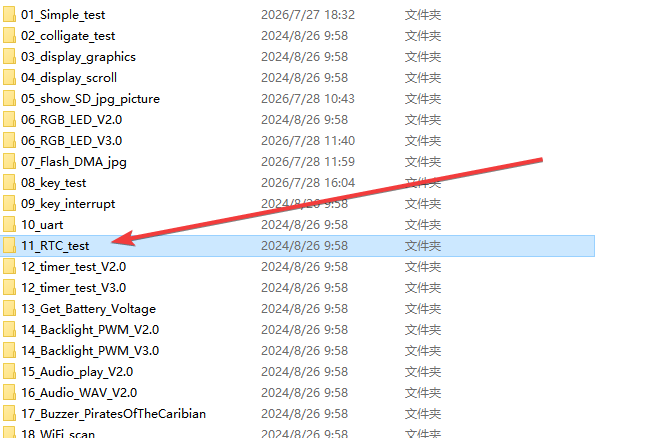
¶ RTC Test
This sample program demonstrates the functionality of the ESP32 internal RTC (Real-Time Clock), displaying the current time, date, and day of week on the TFT LCD screen in real time.
¶ Code Explanation
The sample code is based on the ESP32-WROOM-32E microcontroller, using the TFT_eSPI library to drive the ILI9341 LCD screen and the ESP32Time library to read and set the ESP32 internal RTC.
¶ Basic Configuration (Brief)
The following are the main configurations and objects used in the code:
- Library Introduction: Includes
TFT_eSPI.h(LCD driver library) andESP32Time.h(ESP32 RTC operation library) for screen display and real-time clock functionality respectively. - Pin Definition: This example uses the following pins to connect the ESP32 to the LCD screen (defined in the TFT_eSPI configuration file
User_Setup.h):
| Function | Pin Number |
|---|---|
| CS (Chip Select) | GPIO 15 |
| DC/RS (Data/Command) | GPIO 2 |
| RESET | EN |
| SDI/MOSI (Master Out Slave In) | GPIO 13 |
| SCK (Clock) | GPIO 14 |
| SDO/MISO (Master In Slave Out) | GPIO 12 |
| BL (Backlight) | GPIO 21 |
| VCC | 5V |
| GND | GND |
- RTC Object Instantiation: Creates
ESP32Time esp32_rtcobject as the entry point for RTC operations. - LCD Object Instantiation: Creates
TFT_eSPI my_lcdobject as the entry point for screen operations. - Buffer Definition: Defines
char t_buf[100]character array to temporarily store formatted time strings.
¶ Detailed Explanation of setup() Function
The setup() function completes the initialization of the serial port, LCD screen, and RTC. It runs only once when the ESP32 is powered on or reset.
void setup()
{
    Serial.begin(115200);
    my_lcd.begin();
    my_lcd.setRotation(1);
    my_lcd.fillScreen(TFT_WHITE);
    my_lcd.setFreeFont(&FreeSansBold18pt7b);
    my_lcd.setTextColor(TFT_RED);
    my_lcd.drawString("ESP32 RTC TEST", 10, 30);
    my_lcd.setTextFont(4);
    esp32_rtc.setTime(28, 48, 15, 26, 8, 2024);  //Set initial time
}
¶ Serial Port Initialization
Serial.begin(115200);
Sets the serial baud rate to 115200 for debugging information output. Unlike other examples, this example uses a higher baud rate to ensure data transfer efficiency.
¶ LCD Initialization
my_lcd.begin();
my_lcd.setRotation(1);
my_lcd.fillScreen(TFT_WHITE);
my_lcd.begin(): Initializes the TFT_eSPI library and LCD screen, configuring the SPI communication interface.my_lcd.setRotation(1): Sets the screen rotation angle to 1 (landscape mode), displaying content in landscape orientation.my_lcd.fillScreen(TFT_WHITE): Fills the entire screen with white, clearing any residual content to prepare for display.
¶ Title Display
my_lcd.setFreeFont(&FreeSansBold18pt7b);
my_lcd.setTextColor(TFT_RED);
my_lcd.drawString("ESP32 RTC TEST", 10, 30);
my_lcd.setTextFont(4);
my_lcd.setFreeFont(&FreeSansBold18pt7b): Sets the font to FreeSans Bold 18pt, a custom font loaded from Flash memory that supports large Chinese and English character display.my_lcd.setTextColor(TFT_RED): Sets the text color to red.my_lcd.drawString("ESP32 RTC TEST", 10, 30): Draws the title text at coordinates (10, 30).my_lcd.setTextFont(4): Resets the font to default font 4 (16-pixel-high ASCII font) for subsequent time and date display.
¶ RTC Initial Time Setting
esp32_rtc.setTime(28, 48, 15, 26, 8, 2024); //Set initial time
Calls the setTime() method to set the initial time of the ESP32 internal RTC. The parameters are, in order:
| Parameter | Value | Meaning |
|---|---|---|
| 1st parameter | 28 | Seconds (0-59) |
| 2nd parameter | 48 | Minutes (0-59) |
| 3rd parameter | 15 | Hours (0-23, 24-hour format) |
| 4th parameter | 26 | Day of month (1-31) |
| 5th parameter | 8 | Month (1-12) |
| 6th parameter | 2024 | Year |
The above parameters set the RTC to August 26, 2024, 15:48:28.
¶ Detailed Explanation of loop() Function
The loop() function is the main loop of the Arduino program, which runs repeatedly after the setup() function is executed. It is responsible for reading time data from the RTC in real time and updating the screen display.
void loop()
{
    sprintf(t_buf, "Time : %02d:%02d:%02d", esp32_rtc.getHour(true), esp32_rtc.getMinute(), esp32_rtc.getSecond());
    my_lcd.fillRect(112, 100, my_lcd.width()/2, 32,TFT_WHITE);
    my_lcd.drawString(t_buf, 30, 100);
    sprintf(t_buf, "Date : %04d-%02d-%02d", esp32_rtc.getYear(), esp32_rtc.getMonth() + 1, esp32_rtc.getDay());
    my_lcd.fillRect(112, 140, my_lcd.width()/2, 32,TFT_WHITE);
    my_lcd.drawString(t_buf, 30, 140);
    sprintf(t_buf, "Week : %d", esp32_rtc.getDayofWeek());
    my_lcd.fillRect(120, 180, my_lcd.width()/2, 32,TFT_WHITE);
    my_lcd.drawString(t_buf, 30, 180);
    delay(1000);
}
¶ Time Display (Hours:Minutes:Seconds)
sprintf(t_buf, "Time : %02d:%02d:%02d", esp32_rtc.getHour(true), esp32_rtc.getMinute(), esp32_rtc.getSecond());
my_lcd.fillRect(112, 100, my_lcd.width()/2, 32,TFT_WHITE);
my_lcd.drawString(t_buf, 30, 100);
-
Format Time String: Uses
sprintf()to format the time into"Time : HH:MM:SS"format:esp32_rtc.getHour(true): Gets the current hour. The parametertrueindicates 24-hour format (0-23).esp32_rtc.getMinute(): Gets the current minute.esp32_rtc.getSecond(): Gets the current second.%02d: Format specifier ensuring each value occupies at least two digits, padded with leading zeros if necessary.
-
Clear Old Content:
my_lcd.fillRect(112, 100, my_lcd.width()/2, 32, TFT_WHITE)draws a white rectangle at coordinates (112, 100) with a width of half the screen and height of 32 pixels, covering the time text from the previous frame. This step is crucial for preventing ghosting (residual images) when redrawing text. -
Draw New Time:
my_lcd.drawString(t_buf, 30, 100)draws the formatted time string at coordinates (30, 100).
¶ Date Display (Year-Month-Day)
sprintf(t_buf, "Date : %04d-%02d-%02d", esp32_rtc.getYear(), esp32_rtc.getMonth() + 1, esp32_rtc.getDay());
my_lcd.fillRect(112, 140, my_lcd.width()/2, 32,TFT_WHITE);
my_lcd.drawString(t_buf, 30, 140);
-
Format Date String: Uses
sprintf()to format the date into"Date : YYYY-MM-DD"format:esp32_rtc.getYear(): Gets the current year (four-digit number).esp32_rtc.getMonth() + 1: Gets the current month. Note thatgetMonth()returns a value in the range 0-11 (0 represents January), so adding 1 is necessary to get the human-readable month.esp32_rtc.getDay(): Gets the current day of the month.%04d: Format specifier ensuring the year occupies at least four digits.
-
Clear Old Content and Redraw: Draws a white rectangle at (112, 140) to clear the old date, then draws the new date at (30, 140).
¶ Day of Week Display
sprintf(t_buf, "Week : %d", esp32_rtc.getDayofWeek());
my_lcd.fillRect(120, 180, my_lcd.width()/2, 32,TFT_WHITE);
my_lcd.drawString(t_buf, 30, 180);
-
Format Week String: Uses
sprintf()to format the day of week into"Week : N"format:esp32_rtc.getDayofWeek(): Gets the current day of week, with a return value range of 0-6, where 0 represents Sunday, 1 represents Monday, and so on.
-
Clear Old Content and Redraw: Draws a white rectangle at (120, 180) to clear the old week display, then draws the new week at (30, 180).
Note: The
fillRectstarting x-coordinate is 120 instead of 112 because the "Week" text is shorter and requires a smaller clear area.
¶ Delayed Update
delay(1000);
Delays for 1000 milliseconds (1 second) before repeating the loop. This causes the screen to update the time display once per second, keeping it synchronized with the actual time.
¶ ESP32Time Library Key API Reference
| API Function | Description |
|---|---|
setTime(sec, min, hour, day, month, year) |
Sets RTC time. Parameters are seconds, minutes, hours, day, month, year in order |
getHour(true) |
Gets current hour. true for 24-hour format, false for 12-hour format |
getMinute() |
Gets current minute (0-59) |
getSecond() |
Gets current second (0-59) |
getYear() |
Gets current year (e.g., 2024) |
getMonth() |
Gets current month (0-11, needs +1 for display) |
getDay() |
Gets current day of month (1-31) |
getDayofWeek() |
Gets current day of week (0-6, 0 is Sunday) |
¶ Summary
This sample program demonstrates the ESP32 RTC functionality through the following steps:
- Initialization: Includes necessary libraries, instantiates LCD and RTC objects, initializes the serial port and LCD screen.
- Set Initial Time: Calls
esp32_rtc.setTime()to set the RTC to a specified date and time. - Loop Display: In
loop(), reads RTC data once per second, formats time/date/day-of-week strings, and updates them to the LCD screen. - Anti-Ghosting: Uses
fillRectto clear old display areas before each redraw, ensuring clear display output.
The key functions used in the program include:
Serial.begin(): Initializes serial communicationmy_lcd.begin(): Initializes the LCD screenmy_lcd.setRotation(): Sets screen rotation orientationmy_lcd.fillScreen(): Fills the entire screen with a specified colormy_lcd.setFreeFont(): Sets a custom fontmy_lcd.setTextColor(): Sets text colormy_lcd.setTextFont(): Sets the default fontmy_lcd.drawString(): Draws a string at a specified positionmy_lcd.fillRect(): Draws a filled rectangle (used for clearing old content)esp32_rtc.setTime(): Sets the RTC timeesp32_rtc.getHour(): Gets hoursesp32_rtc.getMinute(): Gets minutesesp32_rtc.getSecond(): Gets secondsesp32_rtc.getYear(): Gets yearesp32_rtc.getMonth(): Gets monthesp32_rtc.getDay(): Gets day of monthesp32_rtc.getDayofWeek(): Gets day of weeksprintf(): Formats strings
¶ Modification Instructions
If you need to modify the code display effect, you can refer to the following aspects for adjustment:
-
Modify Initial Time:
- Modify the parameter values of
esp32_rtc.setTime()in thesetup()function to set the RTC to a different start time.
- Modify the parameter values of
-
Modify Update Speed:
- Change the delay value in
delay(1000)within theloop()function, e.g., change todelay(500)to increase the update frequency.
- Change the delay value in
-
Modify Display Color and Font:
- Modify the color parameter in
my_lcd.setTextColor()to change the text color. - Modify the font in
my_lcd.setFreeFont()to change the title font style.
- Modify the color parameter in
-
Modify Display Position:
- Adjust the coordinate parameters of
drawString()andfillRect()to change the display position of time/date/day-of-week.
- Adjust the coordinate parameters of
-
Add New Display Information:
- Add new
sprintf()anddrawString()calls inloop()to display more information (e.g., temperature, humidity sensor data, etc.).
- Add new
-
Modify Day of Week Display Format:
- Change from numeric to text display: create a day-of-week name array and display the corresponding name based on the
getDayofWeek()return value.
- Change from numeric to text display: create a day-of-week name array and display the corresponding name based on the
-
Switch 12/24-Hour Format:
- Change
getHour(true)togetHour(false)to use 12-hour time format.
- Change