¶ TFT Paint
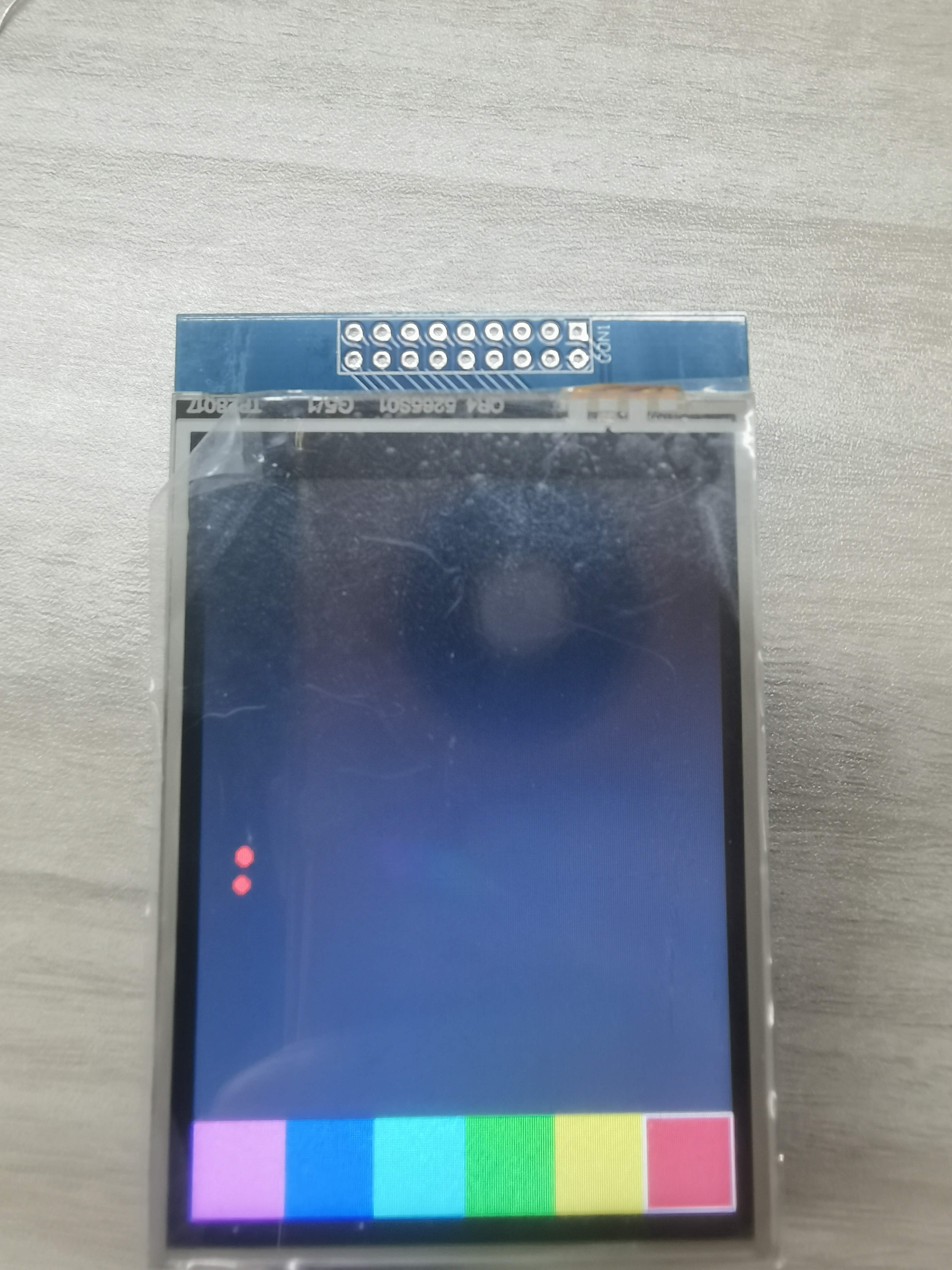
This sample program demonstrates the drawing capability of the TFT LCD touchscreen. Users can select colors and draw on the screen by touching, with support for one-click canvas clearing.
¶ Code Explanation
The sample code demonstrated here is based on Arduino UNO R3. The operation logic of other microcontrollers is roughly the same.
¶ Basic Configuration (Brief)
The following content has been explained in detail in the DisplayString and GraphicsTest examples, so only a brief introduction is provided here:
- Library Introduction: Includes
Elegoo_GFX.h(core graphics library),Elegoo_TFTLCD.h(hardware driver library), andTouchScreen.h(touchscreen driver library) for LCD display and touch input functionality. - Pin Definition: Defines five control pins (LCD_CS, LCD_CD, LCD_WR, LCD_RD, LCD_RESET) and four touchscreen pins (YP, XM, YM, XP).
- Color Definition: Defines eight RGB565 color values (BLACK, BLUE, RED, GREEN, CYAN, MAGENTA, YELLOW, WHITE) for direct use in code.
- Object Instantiation: Creates
Elegoo_TFTLCD tftobject andTouchScreen tsobject as the entry points for screen operations and touch input.
¶ Detailed Explanation of Touchscreen Pin Configuration
The touchscreen uses four pins for coordinate detection:
#define YP A3  // must be an analog pin, use "An" notation!
#define XM A2  // must be an analog pin, use "An" notation!
#define YM 9   // can be a digital pin
#define XP 8   // can be a digital pin
¶ Pin Assignment Description
- YP (A3): Y+ pin, must be connected to an analog pin, used for reading Y-axis coordinates
- XM (A2): X- pin, must be connected to an analog pin, used for reading X-axis coordinates
- YM (9): Y- pin, can be a digital pin
- XP (8): X+ pin, can be a digital pin
¶ Important Pin Sharing Note
There is a significant hardware design feature in the code: touchscreen pins are shared with LCD control pins:
YP = A3shares the same pin asLCD_CS = A3XM = A2shares the same pin asLCD_CD = A2
This means the pin directions need to be switched during different operation phases. After reading the touch point in the loop() function, the pin directions are reconfigured:
pinMode(XM, OUTPUT);
pinMode(YP, OUTPUT);
This approach saves Arduino's limited digital pin resources and is a common hardware optimization technique.
¶ Touchscreen Calibration Parameters
The code defines the calibration range for the touchscreen, used to convert analog signals to screen coordinates:
#define TS_MINX 120
#define TS_MAXX 900

#define TS_MINY 70
#define TS_MAXY 920
These values are obtained through actual testing and represent the minimum/maximum analog readings on the X and Y axes of the touchscreen. Different touchscreens may require adjustment of these parameters for accurate coordinate mapping.
¶ TouchScreen Object Initialization
TouchScreen ts = TouchScreen(XP, YP, XM, YM, 300);
Creating a TouchScreen object requires five parameters:
XP: X+ pinYP: Y+ pinXM: X- pinYM: Y- pin300: Resistance between X plates (ohms), used to improve pressure detection accuracy
¶ Global Variable Definition
#define BOXSIZE 40
#define PENRADIUS 3
int oldcolor, currentcolor;
- BOXSIZE: Size of the color selection box (40 pixels)
- PENRADIUS: Pen brush radius (3 pixels)
- oldcolor: Previously selected color
- currentcolor: Currently selected color
¶ Detailed Explanation of setup() Function
The setup() function completes the initialization of the serial port, LCD screen, and touchscreen, and draws the color selection panel.
void setup(void) {
  Serial.begin(9600);
  Serial.println(F("Paint!"));

  tft.reset();

  uint16_t identifier = tft.readID();
  if(identifier == 0x9325) {
    Serial.println(F("Found ILI9325 LCD driver"));
  } else if(identifier == 0x9328) {
    Serial.println(F("Found ILI9328 LCD driver"));
  } else if(identifier == 0x4535) {
    Serial.println(F("Found LGDP4535 LCD driver"));
  }else if(identifier == 0x7575) {
    Serial.println(F("Found HX8347G LCD driver"));
  } else if(identifier == 0x9341) {
    Serial.println(F("Found ILI9341 LCD driver"));
  } else if(identifier == 0x8357) {
    Serial.println(F("Found HX8357D LCD driver"));
  } else if(identifier==0x0101)
  {
      identifier=0x9341;
       Serial.println(F("Found 0x9341 LCD driver"));
  }else {
    Serial.print(F("Unknown LCD driver chip: "));
    Serial.println(identifier, HEX);
    identifier=0x9341;
  }

  tft.begin(identifier);
  tft.setRotation(2);

  tft.fillScreen(BLACK);

  tft.fillRect(0, 0, BOXSIZE, BOXSIZE, RED);
  tft.fillRect(BOXSIZE, 0, BOXSIZE, BOXSIZE, YELLOW);
  tft.fillRect(BOXSIZE*2, 0, BOXSIZE, BOXSIZE, GREEN);
  tft.fillRect(BOXSIZE*3, 0, BOXSIZE, BOXSIZE, CYAN);
  tft.fillRect(BOXSIZE*4, 0, BOXSIZE, BOXSIZE, BLUE);
  tft.fillRect(BOXSIZE*5, 0, BOXSIZE, BOXSIZE, MAGENTA);

  tft.drawRect(0, 0, BOXSIZE, BOXSIZE, WHITE);
  currentcolor = RED;

  pinMode(13, OUTPUT);
}
¶ Screen Initialization
tft.reset(): Reset the LCD screentft.readID(): Read the driver chip ID and identify ittft.begin(identifier): Initialize the screen using the identified driver IDtft.setRotation(2): Set screen rotation to 180° to align touchscreen coordinates with display coordinates
¶ Canvas and Color Panel Drawing
tft.fillScreen(BLACK);
Fill the entire screen with black as the canvas background.
tft.fillRect(0, 0, BOXSIZE, BOXSIZE, RED);
tft.fillRect(BOXSIZE, 0, BOXSIZE, BOXSIZE, YELLOW);
tft.fillRect(BOXSIZE*2, 0, BOXSIZE, BOXSIZE, GREEN);
tft.fillRect(BOXSIZE*3, 0, BOXSIZE, BOXSIZE, CYAN);
tft.fillRect(BOXSIZE*4, 0, BOXSIZE, BOXSIZE, BLUE);
tft.fillRect(BOXSIZE*5, 0, BOXSIZE, BOXSIZE, MAGENTA);
Draw six color selection boxes at the top of the screen, from left to right: RED, YELLOW, GREEN, CYAN, BLUE, MAGENTA.
tft.drawRect(0, 0, BOXSIZE, BOXSIZE, WHITE);
currentcolor = RED;
Draw a white border around the first color box (RED) to indicate the currently selected color, and initialize currentcolor to RED.
¶ Detailed Explanation of loop() Function
The loop() function is the main loop of the Arduino program, responsible for detecting touch input and performing corresponding drawing operations.
#define MINPRESSURE 10
#define MAXPRESSURE 1000

void loop()
{
  digitalWrite(13, HIGH);
  TSPoint p = ts.getPoint();
  digitalWrite(13, LOW);

  pinMode(XM, OUTPUT);
  pinMode(YP, OUTPUT);

  if (p.z > MINPRESSURE && p.z < MAXPRESSURE) {

    if (p.y < (TS_MINY-5)) {
      Serial.println("erase");
      tft.fillRect(0, BOXSIZE, tft.width(), tft.height()-BOXSIZE, BLACK);
    }

    p.x = map(p.x, TS_MINX, TS_MAXX, tft.width(), 0);
    p.y = (tft.height()-map(p.y, TS_MINY, TS_MAXY, tft.height(), 0));

    if (p.y < BOXSIZE) {
       oldcolor = currentcolor;

       if (p.x < BOXSIZE) {
         currentcolor = RED;
         tft.drawRect(0, 0, BOXSIZE, BOXSIZE, WHITE);
       } else if (p.x < BOXSIZE*2) {
         currentcolor = YELLOW;
         tft.drawRect(BOXSIZE, 0, BOXSIZE, BOXSIZE, WHITE);
       } else if (p.x < BOXSIZE*3) {
         currentcolor = GREEN;
         tft.drawRect(BOXSIZE*2, 0, BOXSIZE, BOXSIZE, WHITE);
       } else if (p.x < BOXSIZE*4) {
         currentcolor = CYAN;
         tft.drawRect(BOXSIZE*3, 0, BOXSIZE, BOXSIZE, WHITE);
       } else if (p.x < BOXSIZE*5) {
         currentcolor = BLUE;
         tft.drawRect(BOXSIZE*4, 0, BOXSIZE, BOXSIZE, WHITE);
       } else if (p.x < BOXSIZE*6) {
         currentcolor = MAGENTA;
         tft.drawRect(BOXSIZE*5, 0, BOXSIZE, BOXSIZE, WHITE);
       }

       if (oldcolor != currentcolor) {
          if (oldcolor == RED) tft.fillRect(0, 0, BOXSIZE, BOXSIZE, RED);
          if (oldcolor == YELLOW) tft.fillRect(BOXSIZE, 0, BOXSIZE, BOXSIZE, YELLOW);
          if (oldcolor == GREEN) tft.fillRect(BOXSIZE*2, 0, BOXSIZE, BOXSIZE, GREEN);
          if (oldcolor == CYAN) tft.fillRect(BOXSIZE*3, 0, BOXSIZE, BOXSIZE, CYAN);
          if (oldcolor == BLUE) tft.fillRect(BOXSIZE*4, 0, BOXSIZE, BOXSIZE, BLUE);
          if (oldcolor == MAGENTA) tft.fillRect(BOXSIZE*5, 0, BOXSIZE, BOXSIZE, MAGENTA);
       }
    }
    if (((p.y-PENRADIUS) > BOXSIZE) && ((p.y+PENRADIUS) < tft.height())) {
      tft.fillCircle(p.x, p.y, PENRADIUS, currentcolor);
    }
  }
}
¶ Touch Point Acquisition
digitalWrite(13, HIGH);
TSPoint p = ts.getPoint();
digitalWrite(13, LOW);
- Set pin 13 HIGH as a signal marker for reading touch data
- Call
ts.getPoint()to get touch coordinates, returning a TSPoint object containing x, y coordinates and pressure value z - Set pin 13 LOW to indicate reading is complete
¶ Pressure Value Check
if (p.z > MINPRESSURE && p.z < MAXPRESSURE) {
Only when the pressure value is within the valid range (10-1000) is it considered a valid touch operation. A pressure value of 0 means no touch.
¶ Canvas Clear Function
if (p.y < (TS_MINY-5)) {
  Serial.println("erase");
  tft.fillRect(0, BOXSIZE, tft.width(), tft.height()-BOXSIZE, BLACK);
}
When the raw Y coordinate of the touch point is less than the calibration minimum minus 5, it is considered that the user pressed the clear area at the bottom of the screen, and the entire canvas area (below the color panel) is filled with black.
¶ Coordinate Mapping
p.x = map(p.x, TS_MINX, TS_MAXX, tft.width(), 0);
p.y = (tft.height()-map(p.y, TS_MINY, TS_MAXY, tft.height(), 0));
Convert the raw analog coordinates of the touchscreen to screen pixel coordinates:
- The
map()function maps the raw coordinate range to the screen size range - X-axis coordinates are reversed (right to left), Y-axis coordinates are also reversed (top to bottom) to match the screen display orientation
¶ Color Selection
if (p.y < BOXSIZE) {
   oldcolor = currentcolor;

   if (p.x < BOXSIZE) {
     currentcolor = RED;
     tft.drawRect(0, 0, BOXSIZE, BOXSIZE, WHITE);
   } else if (p.x < BOXSIZE*2) {
     currentcolor = YELLOW;
     tft.drawRect(BOXSIZE, 0, BOXSIZE, BOXSIZE, WHITE);
   } else if (p.x < BOXSIZE*3) {
     currentcolor = GREEN;
     tft.drawRect(BOXSIZE*2, 0, BOXSIZE, BOXSIZE, WHITE);
   } else if (p.x < BOXSIZE*4) {
     currentcolor = CYAN;
     tft.drawRect(BOXSIZE*3, 0, BOXSIZE, BOXSIZE, WHITE);
   } else if (p.x < BOXSIZE*5) {
     currentcolor = BLUE;
     tft.drawRect(BOXSIZE*4, 0, BOXSIZE, BOXSIZE, WHITE);
   } else if (p.x < BOXSIZE*6) {
     currentcolor = MAGENTA;
     tft.drawRect(BOXSIZE*5, 0, BOXSIZE, BOXSIZE, WHITE);
   }

   if (oldcolor != currentcolor) {
      if (oldcolor == RED) tft.fillRect(0, 0, BOXSIZE, BOXSIZE, RED);
      if (oldcolor == YELLOW) tft.fillRect(BOXSIZE, 0, BOXSIZE, BOXSIZE, YELLOW);
      if (oldcolor == GREEN) tft.fillRect(BOXSIZE*2, 0, BOXSIZE, BOXSIZE, GREEN);
      if (oldcolor == CYAN) tft.fillRect(BOXSIZE*3, 0, BOXSIZE, BOXSIZE, CYAN);
      if (oldcolor == BLUE) tft.fillRect(BOXSIZE*4, 0, BOXSIZE, BOXSIZE, BLUE);
      if (oldcolor == MAGENTA) tft.fillRect(BOXSIZE*5, 0, BOXSIZE, BOXSIZE, MAGENTA);
   }
}
When the touch point is located in the color panel area (Y coordinate < BOXSIZE):
- Save the current color to
oldcolor - Determine which color box the user selected based on X coordinate
- Update
currentcolorto the newly selected color - Draw a white border around the newly selected color box
- If the color changed, clear the white border on the old color box
¶ Drawing Function
if (((p.y-PENRADIUS) > BOXSIZE) && ((p.y+PENRADIUS) < tft.height())) {
  tft.fillCircle(p.x, p.y, PENRADIUS, currentcolor);
}
When the touch point is located in the canvas area (below the color panel and not exceeding the bottom of the screen):
- Use
tft.fillCircle()to draw a filled circle at the touch position - The circle radius is defined by
PENRADIUS(3 pixels) - The circle color is the currently selected color
¶ Summary
This sample program implements touchscreen drawing functionality through the following steps:
- Initialization: Introduce libraries, define pins and colors, create LCD and touchscreen objects, identify and initialize the driver chip.
- Interface Drawing: Draw six color selection boxes at the top of the screen, set the initial color to RED.
- Touch Detection: Continuously detect touchscreen input in the main loop, obtain touch coordinates and pressure values.
- Coordinate Mapping: Convert raw touchscreen coordinates to screen pixel coordinates.
- Interaction Handling: Perform color selection, drawing, or canvas clearing based on touch position.
The key functions used in the program include:
ts.getPoint(): Get touch coordinates and pressure valuetft.fillRect(): Draw filled rectangle (used for color boxes and clearing canvas)tft.drawRect(): Draw outline rectangle (used for selected color box border)tft.fillCircle(): Draw filled circle (used for drawing)map(): Coordinate mapping functiondigitalWrite(): Control digital pin output
¶ Modification Instructions
If you need to modify the code display effect, you can refer to the following aspects for adjustment:
-
Modify Color Selection Box Size:
- Change the value of
BOXSIZEconstant to adjust the size of color boxes
- Change the value of
-
Modify Pen Brush Radius:
- Change the value of
PENRADIUSconstant to adjust the size of drawn dots
- Change the value of
-
Modify Color Panel Colors:
- Change the color parameters in
fillRect()in thesetup()function to add or replace colors
- Change the color parameters in
-
Modify Pressure Detection Range:
- Adjust the values of
MINPRESSUREandMAXPRESSUREto change touch sensitivity
- Adjust the values of
-
Modify Screen Rotation Angle:
- Change the parameter of
tft.setRotation()(0-3) to adjust the screen display orientation
- Change the parameter of
-
Modify Touchscreen Calibration Parameters:
- Adjust the values of
TS_MINX,TS_MAXX,TS_MINY,TS_MAXYto optimize coordinate mapping accuracy
- Adjust the values of
-
Modify Clear Area Position:
- Adjust the condition
p.y < (TS_MINY-5)to change the trigger area of the clear function
- Adjust the condition