If the board is connected to your computer via USB cable but cannot be detected by either the Arduino IDE or your computer's device manager, the serial port driver may not be installed or may be incompatible. Please follow the appropriate troubleshooting steps for your operating system.
¶ Introduction to CH340 Series Chips
¶ 1. Manufacturer
The CH340 series chips are independently developed and manufactured by Nanjing Qinheng Microelectronics (WCH), a professional supplier dedicated to interface conversion and data communication chips.
¶ 2. Main Product Models
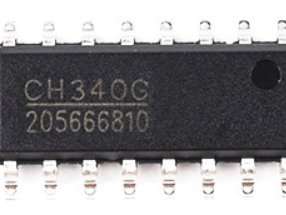
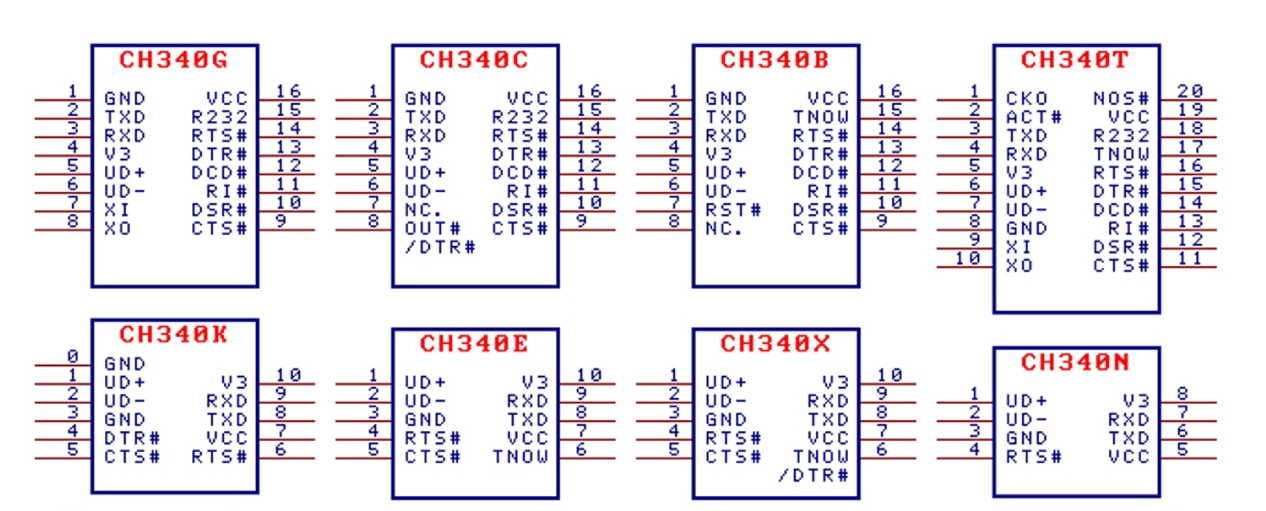
- CH340G: Classic universal model with SOP-16 package. It is the most widely used version, commonly adopted on development boards and serial adapter devices.
- CH340C / CH340N / CH340K: Compact-sized versions with built-in clock circuit. No external crystal oscillator is required, which simplifies peripheral circuit design and fits lightweight mini devices.
- CH340E: Supports high-speed synchronous serial port conversion to meet high-speed data transmission requirements.
- CH340R: Integrated with infrared communication function and compatible with standard infrared communication protocols.
- CH340B: Designed for USB-to-smart card interface conversion, ideal for card reading and encryption devices.
- CH340H / CH340S: Achieve USB to parallel printer port signal conversion for connection with traditional printing equipment.
¶ 3. Core Functions
-
USB to Serial Communication
Compliant with USB 2.0 full-speed specification, it converts USB signals into standard TTL-level serial signals and supports stable full-duplex data transmission. It supports baud rates ranging from 50bps to 2Mbps, equipped with built-in transmit and receive buffers for smooth and reliable data transfer. -
Virtual COM Port Recognition
It can be recognized as a standard COM port on Windows, macOS and Linux systems. It is compatible with mainstream serial control signals including RTS and CTS. With level shifting circuits, it can be expanded to support common industrial communication interfaces such as RS232 and RS485. -
Wide Voltage Compatibility
It supports both 3.3V and 5V power supply, matching the voltage standards of most single-chip microcontrollers and embedded main controllers. It is built with electrostatic protection for stable operation.
¶ 4. Common Applications
- Program uploading and serial port debugging for various main controller development boards
- Production of USB serial adapter modules and offline program download tools
- Data transmission and connection for industrial instruments and intelligent control devices
- Mainboard debugging and data interaction of desktop 3D printers
- Interface upgrade of traditional serial devices to realize standard USB connection
¶ 5. Driver Compatibility
Official dedicated drivers are available for Windows, Mac and Linux operating systems. After driver installation, the device can be detected and used normally. Featuring strong universality, it can replace most mainstream equivalent interface chips on the market.
¶ How do I download and install the driver?
The CH340 is made by WCH. You can find the latest version of their drivers in their English translated website and select the driver version required by your host.
Or you can visit the Chinese version of the website, which provides more detailed information but needs to be translated into the language you require.
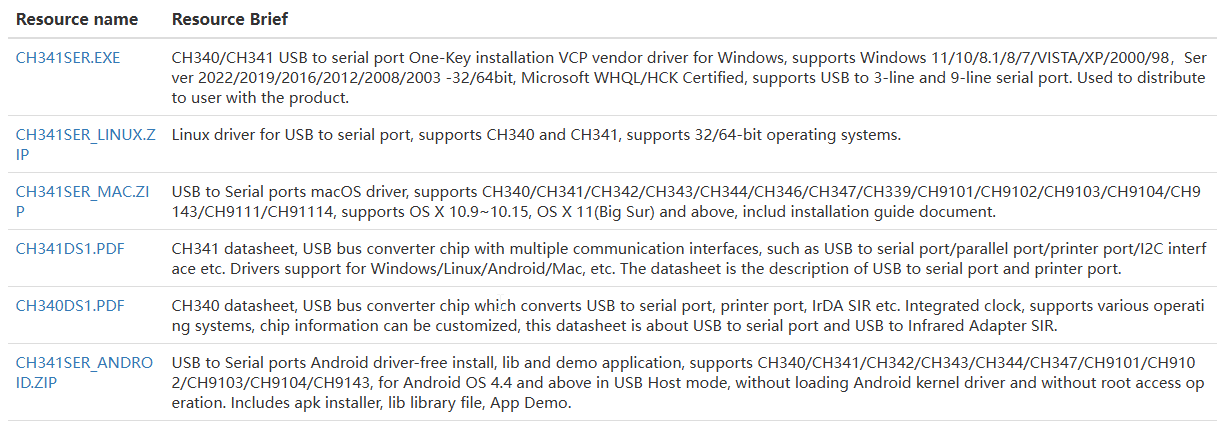
Of course, you can also directly download the resource package on the current page and then select the corresponding computer version. Download
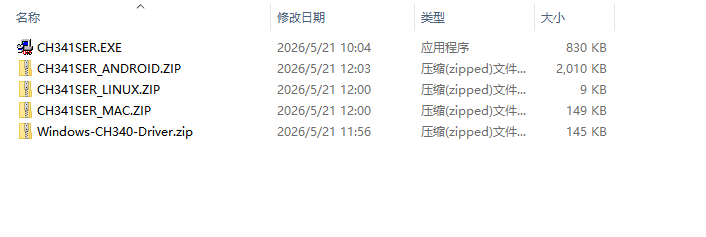
When you click the Download button, your browser will automatically download the resource package, which contains drivers for multiple versions, as shown in the figure below.
¶ For Windows systems
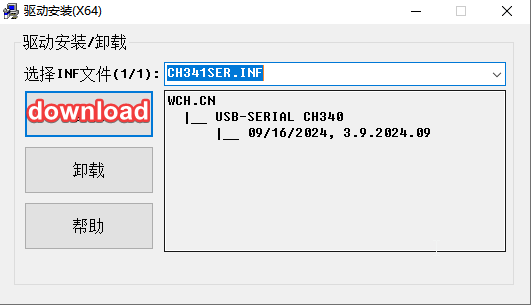
the resource package contains the pre-extracted executable file.
Simply double-click CH341SER.EXE, click the Install button in the installer, and wait for the pop-up confirmation window to indicate the installation is complete.
¶ For macOS users
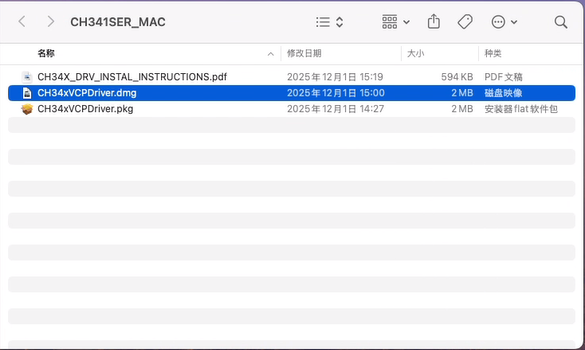
pen your downloaded folder and extract the CH341SER_MAC.ZIP file. You will see several files as shown in the figure. Double-click the
.pkg file to launch the driver installation process. Simply follow the on-screen prompts and click Next to finish the setup. No extra configuration is required.
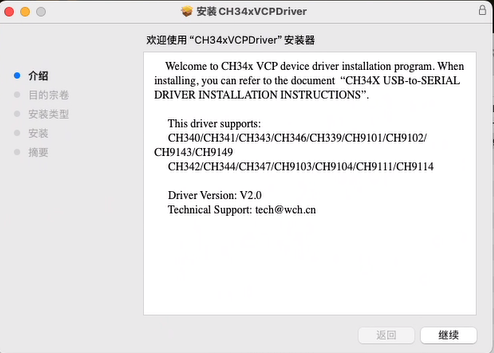
After double-clicking the .pkg file, a pop-up window as shown below will appear. Click the button at the bottom right to proceed.
Once installation finishes, a pop-up similar to the one below will show up, indicating the driver is successfully installed.,
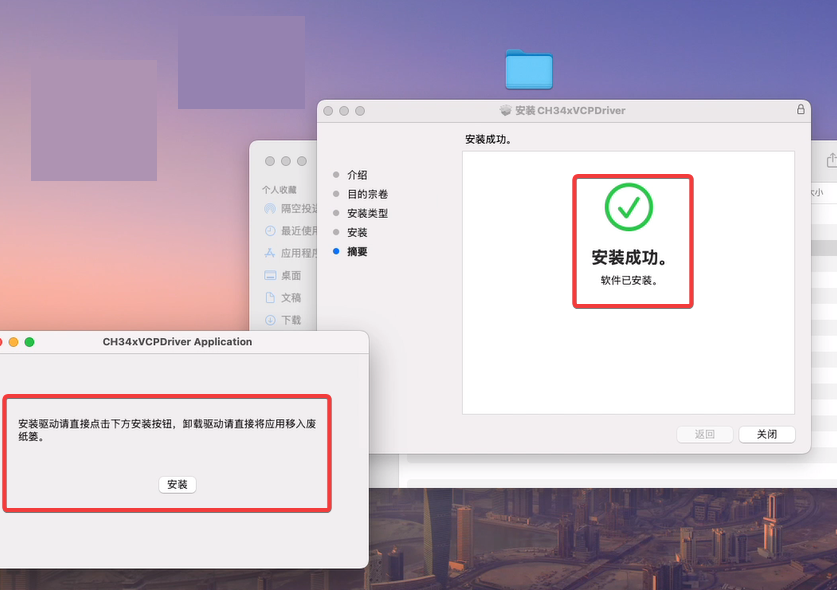
At this step, simply click the Install button and wait a few seconds. A small pop-up window will appear as shown below.

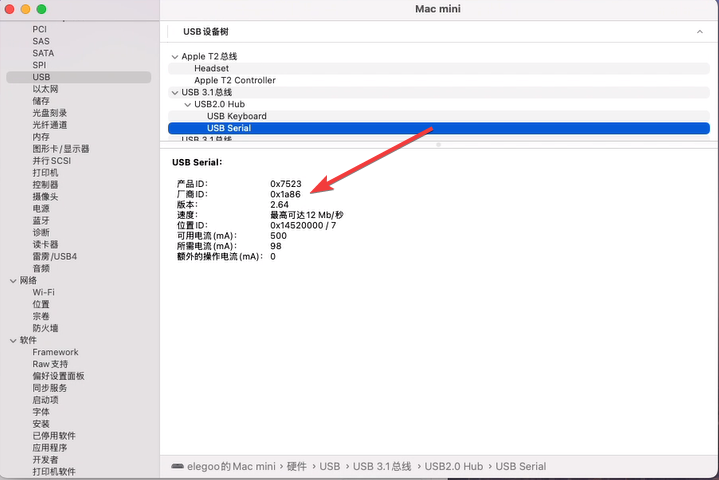
When plug the USB-to-SERIAL device into the USB port, you can open “System Report”->Hardware->USB, the right side is “USB Device Tree” and you will find a device whose “Vendor ID” is 0x1a86 if USB device is working properly.
Or Click the Apple icon in the top-left corner → About This Mac → More Info… → Scroll to the bottom and click System Report… → Expand Hardware on the left → Click USB → Locate the USB-to-SERIAL device in the USB Device Tree on the right → Check if the "Vendor ID" in the details is 0x1a86
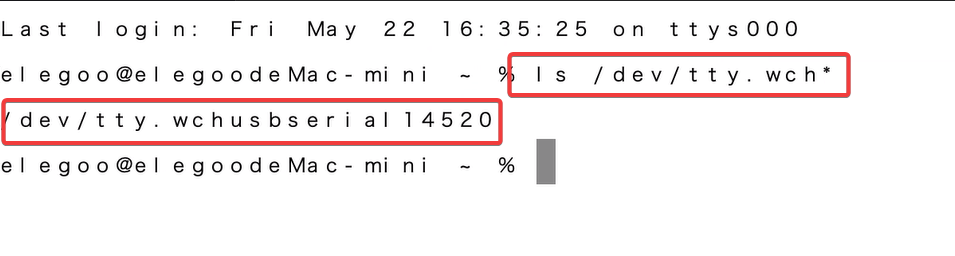
Open “Terminal” program under Applications-Utilities folder and type the command ls /dev/tty.wch*.You should see the “tty.wchusbserialx” where “x” is the assigned device number similar to Windows COM port assignment.
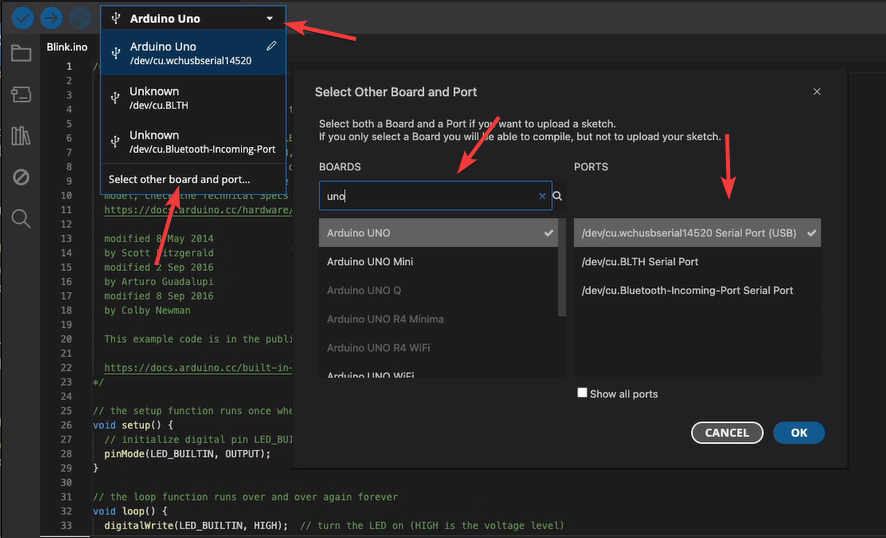
Open the Arduino IDE and follow the instructions shown. If the USB serial port with the matching device number (14520) is detected, you can connect to the board and upload sketches normally.
¶ For Linux
If you are using Linux, please refer to the official WCH GitHub repository:https://github.com/WCHSoftGroup/ch341ser_linux。
¶ Method 1: Use Linux Built-in Driver (Recommended, Easiest)
Most modern Linux distributions (Ubuntu 18.04+, Debian, Fedora, etc.) have the CH340/CH341 driver built into the kernel, no files need to be downloaded.
- Connect Your Arduino/Board
Use a USB data cable (not a charge-only cable) to connect your development board to the computer. - Manually Load the Built-in Driver
Open a terminal and execute:
sudo modprobe ch341
- Verify the Driver Loaded Successfully
sudo dmesg | tail -10 # Check system logs
ls /dev/ttyUSB* # Check serial port devices
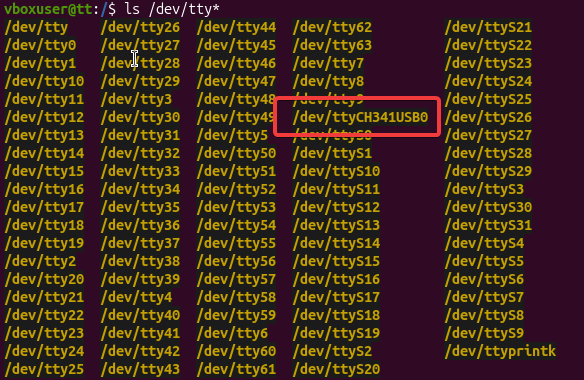
or check if there is the text "ch341USB0" under the tty prefix
ls /dev/ttyCH*
Expected output:
[ 1234.567890] usb 1-2: ch341-uart converter now attached to ttyUSB0
¶ Method 2: Manually Compile and Install WCH Official Driver
Use this when the built-in driver doesn't work, the kernel version is too new and incompatible, or specific features are needed. Download the source code from the chip manufacturer WCH (QinHeng Microelectronics) official website and compile it.
- Download the Official Driver
Visit the WCH official download page:
URL: https://www.wch.cn/downloads/CH341SER_LINUX_ZIP.html
Or search for: CH341SER_LINUX.ZIP
After downloading, you will get the CH341SER_LINUX.ZIP file. - Extract the Driver Package
cd ~/Downloads
unzip CH341SER_LINUX.ZIP
cd CH341SER_LINUX/driver
CH341SER_LINUX/
├── README.md
└── driver/The following three files are located in the drive folder
├── Makefile
├── ch341.c
└── ch341.h
- Install Compilation Dependencies
sudo apt-get update
sudo apt-get install build-essential linux-headers-$(uname -r)
$(uname -r) automatically gets the currently running kernel version number to ensure matching headers are installed.
- Fix Source Code Compatibility (for Linux 7.x+ Kernels)
In newer kernels (such as 7.0.0), the asm/unaligned.h header file path has changed, requiring source code modification:
nano ch341.c
Find line 58:
#include <asm/unaligned.h>
Change it to:
#include <linux/unaligned.h>
Save and exit (Ctrl+O, Enter, Ctrl+X).
- Compile the Driver
make
Enter "ls" to check if there are any files ending with "ch341.ko" in the current folder
- Install and Load the Driver
#Install module to system directory
sudo make install
#Load the driver (if "File exists" error appears, it means already loaded)
sudo insmod ch341.ko
#Or
sudo modprobe ch341
- Verify the Driver Loaded Successfully
#Check system logs
sudo dmesg | tail -10
#Check serial port devices
ls /dev/ttyCH341USB0
#Or
ls /dev/ttyUSB*
¶ note:
If you are using Arduino IDE 2.0 and still encounter various errors or fail to detect the serial port after completing the above steps, please switch to Arduino IDE 1.8.x. Compared to version 2.0, version 1.8.x offers better serial port compatibility. After reinstalling 1.8.x, you can usually detect the serial port and upload sketches normally.
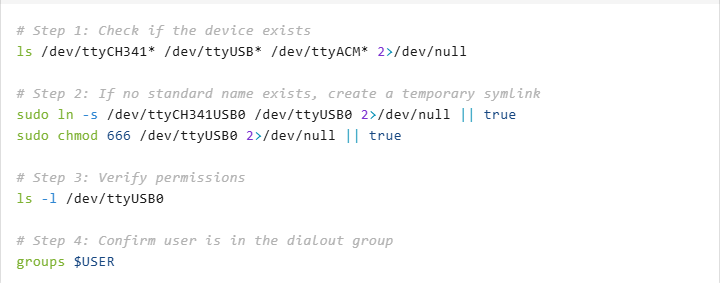
There is also a less common scenario: the name of the CH340/CH341 serial port may differ from what the Arduino IDE expects. For example, the detected port might be named ttyCH341USB0, while the IDE only recognizes standard names like ttyUSB0. In this case, you can modify the serial port name and then try again.
- #Step 1: Check if the device exists
ls /dev/ttyCH341* /dev/ttyUSB* /dev/ttyACM* 2>/dev/null
- #Step 2: If no standard name exists, create a temporary symlink
sudo ln -s /dev/ttyCH341USB0 /dev/ttyUSB0 2>/dev/null || true
sudo chmod 666 /dev/ttyUSB0 2>/dev/null || true
- #Step 3: Verify permissions
ls -l /dev/ttyUSB0
- #Step 4: Confirm user is in the dialout group
groups $USER