¶ LCD 1602
¶ Overview
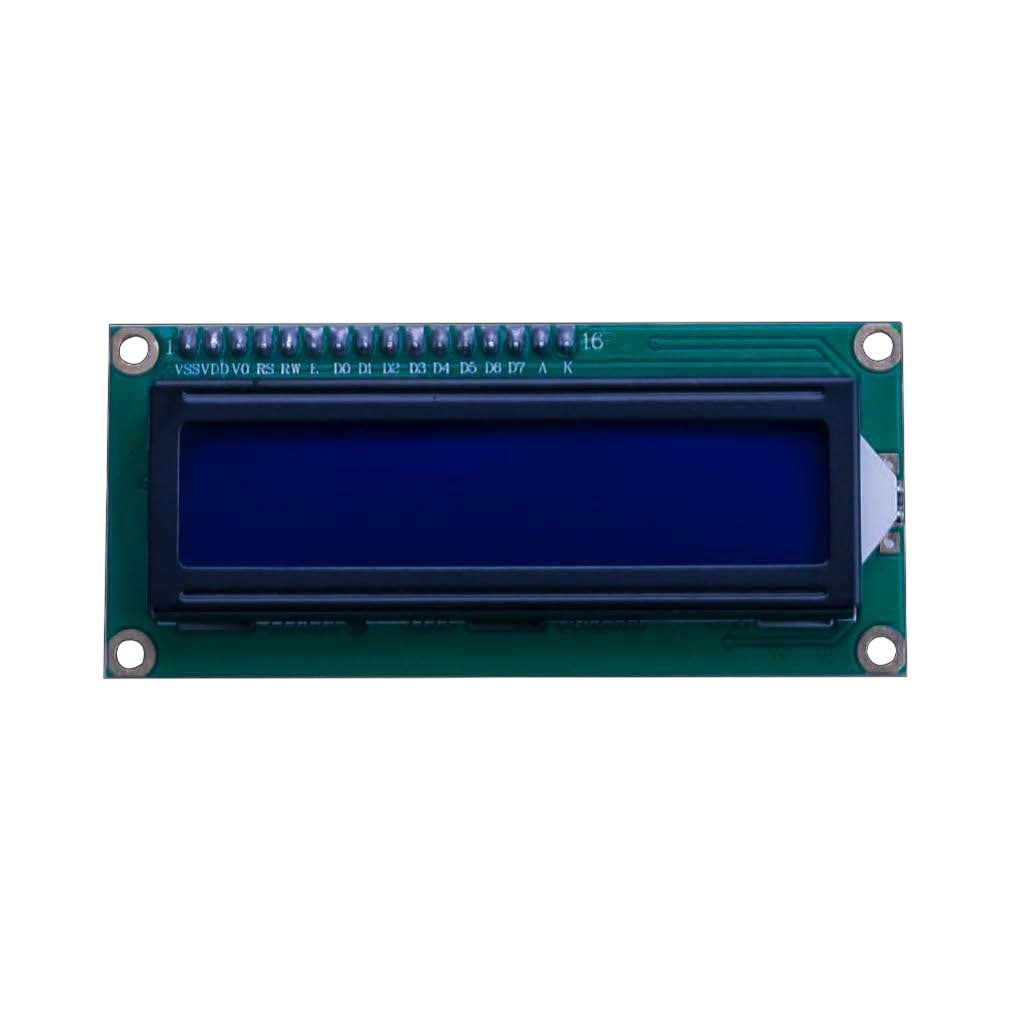
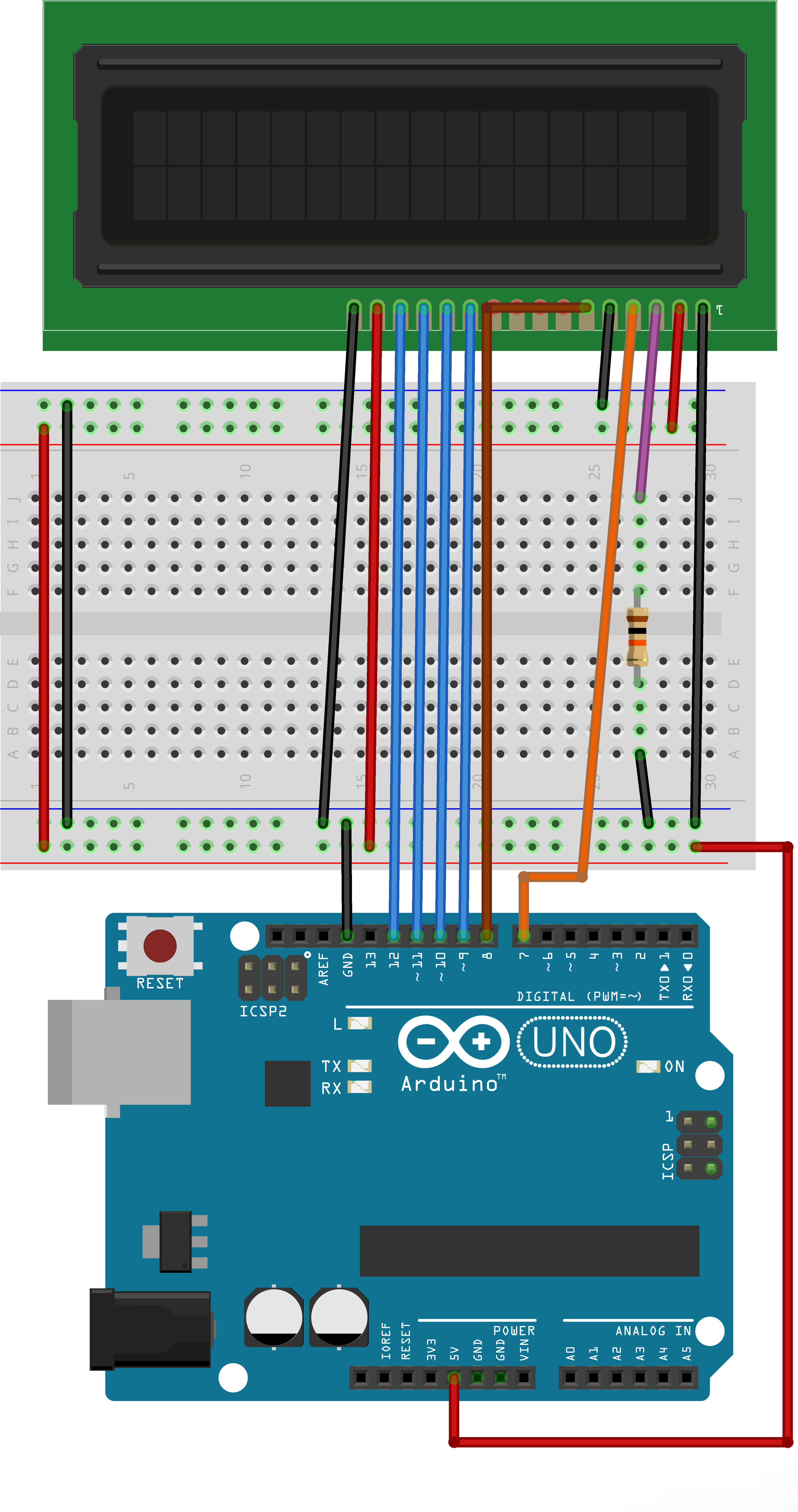
In this lesson, you will learn how to wire up and use an alphanumeric LCD display. The display has an LED
backlight and can display two rows with up to 16characters on each row. You can see the rectangles for
each character on the display and the pixelsthat make up each character. The display isjust white on blue
and isintended for showing text.
¶ Component Introduction
¶ LCD1602
VSS : A pin that connects to ground.
VDD: A pin that connects to a +5V power supply.
VO: A pin that adjust the contrast of LCD1602.
RS: A register select pin that controls where in the LCD’s memory you are writing data to. You can select either the data register, which holds what goes on the screen, or an instruction register, which is where the LCD’s controller looks for instructions on what to do next.
R/W: A Read/Write pin that selects reading mode or writing mode
E: An enabling pin that, when supplied with low-level energy, causes the LDC module to execute relevant instructions.
E: An enabling pin that, when supplied with low-level energy, causes the LDC module to execute relevant instructions.
D0-D7:Pins that read and write data.
A and K: Pins that control the LED backlight.
¶ Connection Schematic
¶ Wiringdiagram
¶ Code
You can click the blue text link to download the program file to your local device, and double-click the file to open it after the download is complete. Please note: Before opening the file, ensure that you have installed the Arduino IDE development environment and completed the installation of relevant components such as the board support package and driver corresponding to the board.
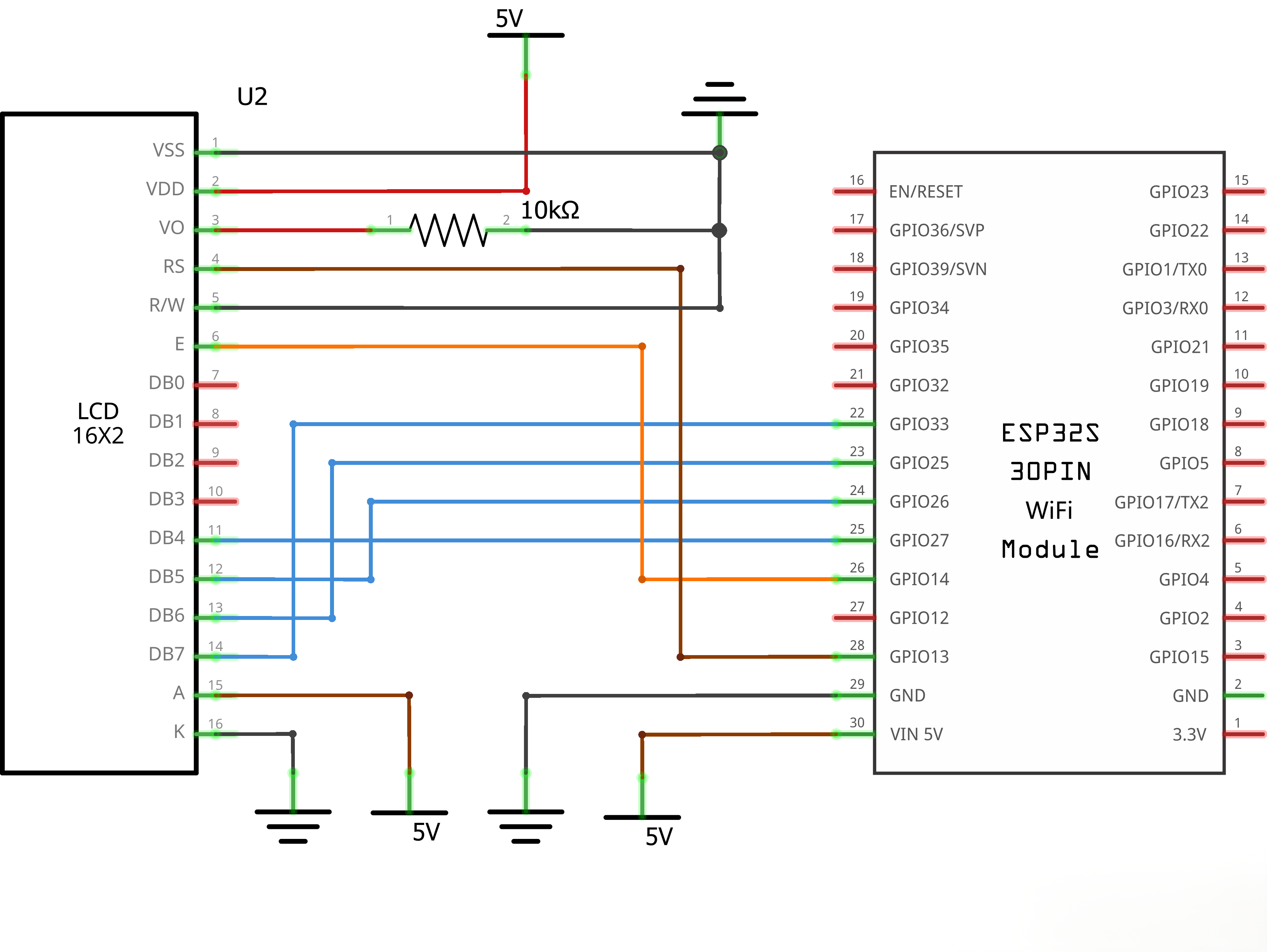
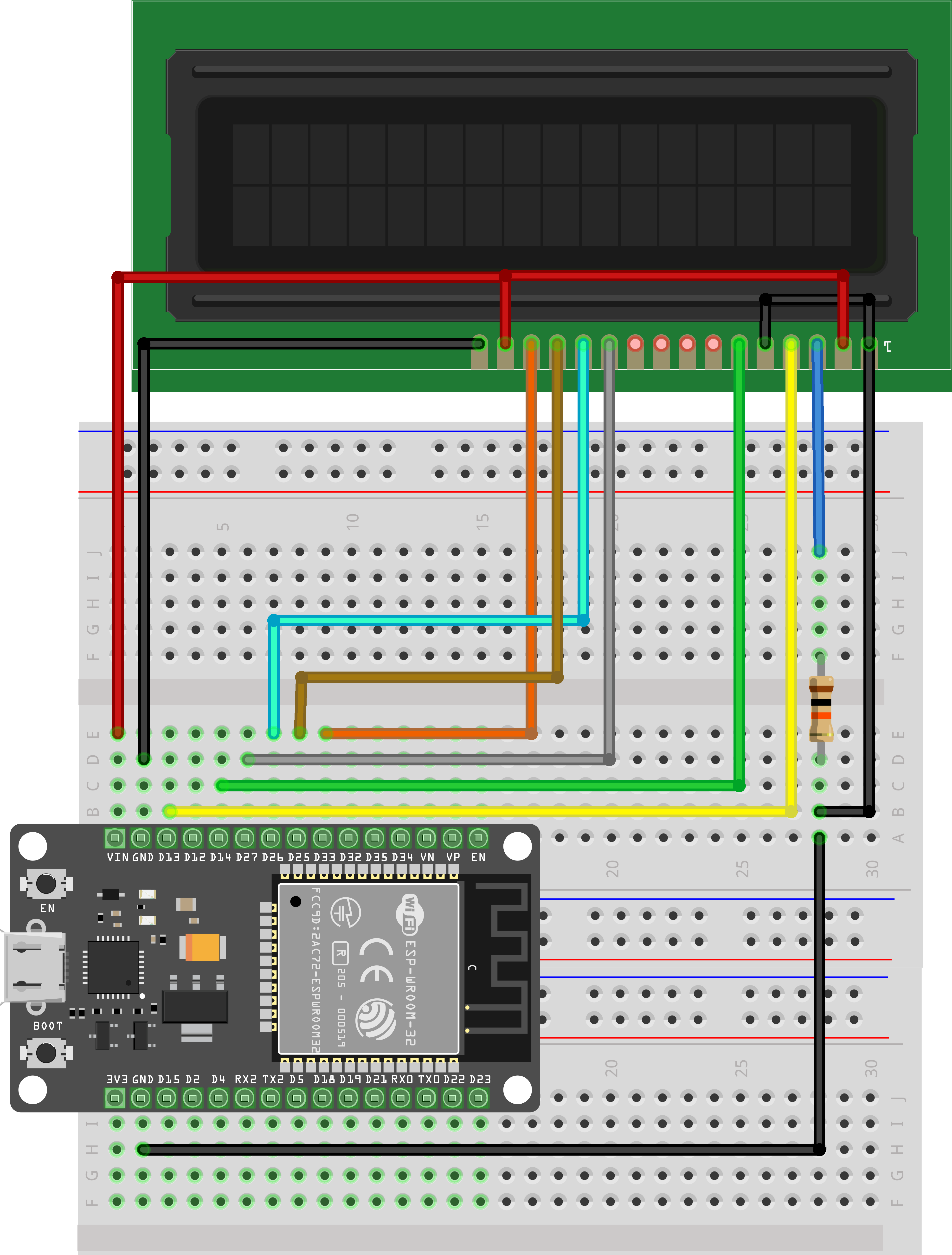
LiquidCrystal lcd(13, 14, 27, 26, 25, 33);
- Creates an LCD object and initializes the connection pins
- Parameter order: RS, EN, D4, D5, D6, D7 (4-bit mode)
- Maps LCD pins to ESP32 GPIO pins:
- RS (Register Select) → GPIO 13
- EN (Enable) → GPIO 14
- D4 → GPIO 27
- D5 → GPIO 26
- D6 → GPIO 25
- D7 → GPIO 33
lcd.begin(16, 2);
Meaning and Usage:
- Initializes the LCD display
- Parameter 1: Number of columns (16 columns)
- Parameter 2: Number of rows (2 rows)
- Must be called in setup(), configures LCD for 16×2 character display mode
lcd.setCursor(0, 1);
Meaning and Usage:
- Sets the cursor position
- Parameter 1: Column index (0-15, left to right)
- Parameter 2: Row index (0-1, 0 is first row, 1 is second row)
setCursor(0, 1)positions the cursor at the beginning of the second row
lcd.print(millis() / 1000);
Meaning and Usage:
- Prints content at the current cursor position
millis(): Returns milliseconds since Arduino startedmillis() / 1000: Converts to seconds- Displays the number of seconds the program has been running (real-time update)
¶ Common LCD Display Functions
| Function | Usage | Description |
|---|---|---|
print(value) |
lcd.print("Hello") |
Prints strings, numbers, or variables |
print(value, format) |
lcd.print(3.14, 2) |
Prints floating point number with specified decimal places |
clear() |
lcd.clear() |
Clears the entire display, moves cursor to (0,0) |
home() |
lcd.home() |
Moves cursor to (0,0), does not clear content |
setCursor(col, row) |
lcd.setCursor(5, 0) |
Sets cursor position (column, row) |
write(char) |
lcd.write('A') |
Writes a single character |
cursor() |
lcd.cursor() |
Shows underline cursor |
noCursor() |
lcd.noCursor() |
Hides cursor |
blink() |
lcd.blink() |
Shows blinking cursor block |
noBlink() |
lcd.noBlink() |
Stops cursor blinking |
display() |
lcd.display() |
Turns on display (restores after turning off) |
noDisplay() |
lcd.noDisplay() |
Turns off display (keeps content) |
scrollDisplayLeft() |
lcd.scrollDisplayLeft() |
Scrolls display left |
scrollDisplayRight() |
lcd.scrollDisplayRight() |
Scrolls display right |
autoscroll() |
lcd.autoscroll() |
Enables automatic scrolling |
noAutoscroll() |
lcd.noAutoscroll() |
Disables automatic scrolling |
leftToRight() |
lcd.leftToRight() |
Sets writing direction left to right |
rightToLeft() |
lcd.rightToLeft() |
Sets writing direction right to left |
createChar(num, data) |
lcd.createChar(0, smiley) |
Creates custom character |