¶ Capacitive Sensing Overview
Capacitive sensing is a technology that detects changes in capacitance to determine the presence or absence of a conductive object, such as a human finger. This principle is widely used in touch-sensitive devices. The Arduino® UNO R4, both the WiFi and Minima versions, come equipped with built-in capacitive sensing capabilities, making it easier to integrate touch inputs into your projects.
¶ Required Hardware
To use the library, you will need one of the compatible boards:
- Arduino UNO R4 WiFi
- Wire
- Something that can affect the electric field to touch (metal objects, materials with moisture, even bananas! Experimentation is key!)
¶ How Capacitive Sensing Works
Imagine the sensor as creating an invisible electric field around itself. When a conductive object (like your finger) approaches, it's like dropping a stone into a calm pond - the field gets disturbed. The sensor detects this disturbance as a change in capacitance, which is essentially how much electrical charge the system can store. Here's the process:
- The sensor electrode creates an electric field by applying a small voltage
- When you approach or touch the sensor, your body becomes part of the capacitive circuit
- This increases the capacitance between the sensor electrode and ground
- The microcontroller detects this capacitance change (often by measuring timing differences) and determines if it's significant enough to register as a "touch"
¶ Using Capacitive Sensing on the UNO R4
The UNO R4 features a Capacitive Touch Sensing Unit (CTSU) that allows you to use certain pins as capacitive touch inputs. To utilize these capabilities, you can use the Arduino_CapacitiveTouch library.
¶ Compatible Pins
For both the UNO R4 WiFi and Minima boards, the compatible pins for capacitive touch are listed in the Arduino_CapacitiveTouch library documentation.
| Arduino Pin | Touch Sensor Channel (TS#) | Channel Control Index (CHAC idx) | Channel Control Bit Mask (CHAC val) |
|---|---|---|---|
| D0 | 9 | 1 | (1 << 1) |
| D1 | 8 | 1 | (1 << 0) |
| D2 | 13 | 1 | (1 << 5) |
| D3 | 34 | 4 | (1 << 2) |
| D6 | 12 | 1 | (1 << 4) |
| D8 | 11 | 1 | (1 << 3) |
| D9 | 2 | 0 | (1 << 2) |
| D11 | 7 | 0 | (1 << 7) |
| D12 | 6 | 0 | (1 << 6) |
| A1 (D15) | 21 | 2 | (1 << 5) |
| A2 (D16) | 22 | 2 | (1 << 6) |
| LOVE_BUTTON | 27 | 3 | (1 << 3) |
¶ Library Functions
The Arduino_CapacitiveTouch library provides several functions to work with capacitive touch inputs:
CapacitiveTouch(uint8_t pin)- Constructs a capacitive touch sensor for the given pin.bool begin()- Initializes the sensor and configures the pin and hardware.int read()- Reads the raw sensor value and returns it.bool isTouched()- Checks if the sensor is touched based on the threshold.void setThreshold(int threshold)- Sets the detection threshold for touch sensitivity.int getThreshold()- Retrieves the current detection threshold.
For more detailed usage and examples, refer to the CapacitiveSensor library documentation.
¶ Detecting Touch Example
¶ Circuit
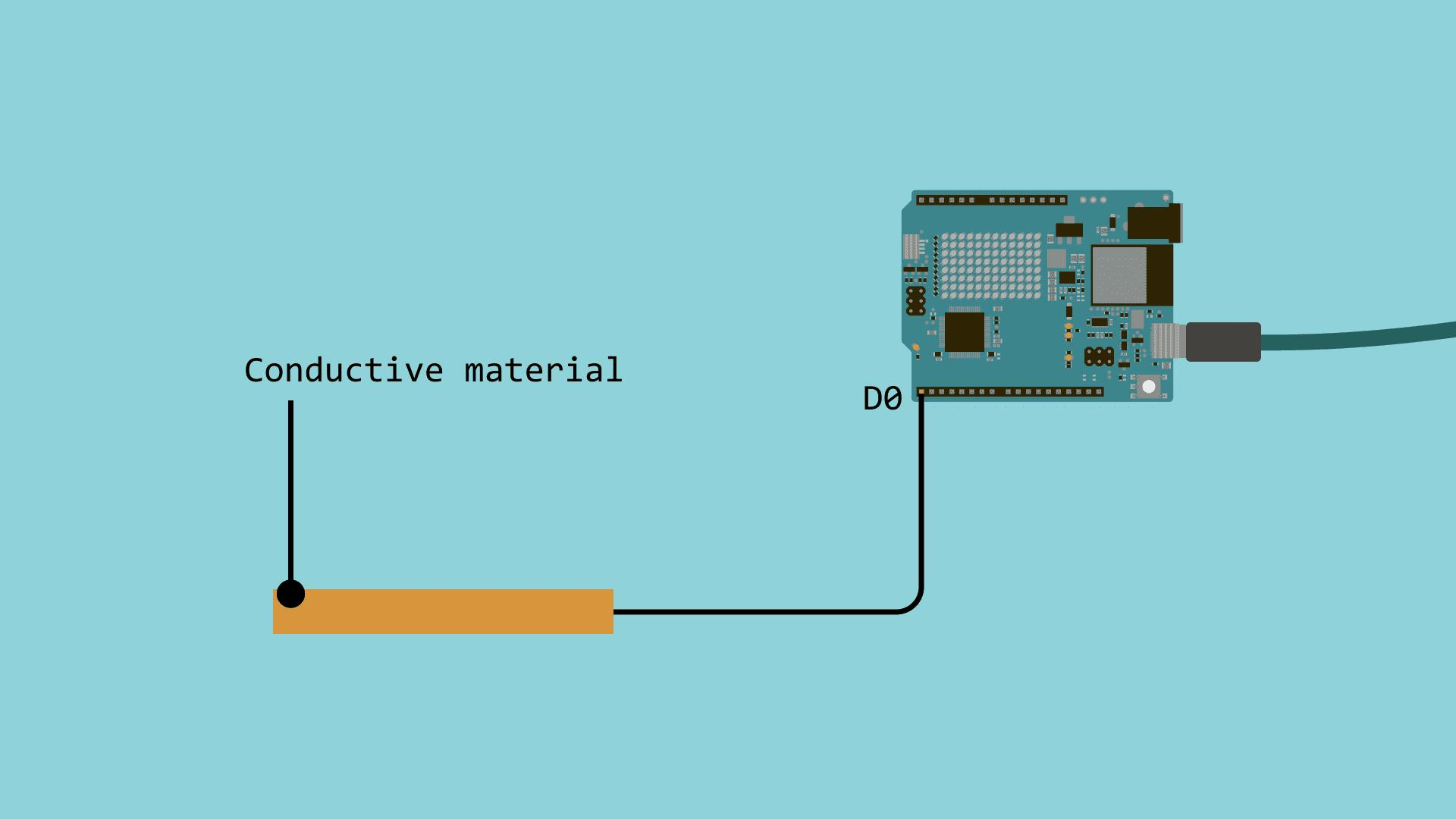
Here's a simple example to get you started with capacitive sensing on the UNO R4. For this example, we are connecting a single piece of any conductive material to the pin D0 on the Board.
¶ Code
You can click the blue text link to download the program file to your local device, and double-click the file to open it after the download is complete. Please note: Before opening the file, ensure that you have installed the Arduino IDE development environment and completed the installation of relevant components such as the board support package and driver corresponding to the uno R4 WIFI development board.
Note: To install the Arduino_CapacitiveTouch library, open the Arduino IDE Library Manager, search for "Arduino_CapacitiveTouch" within the Manage Libraries option, and click Install.
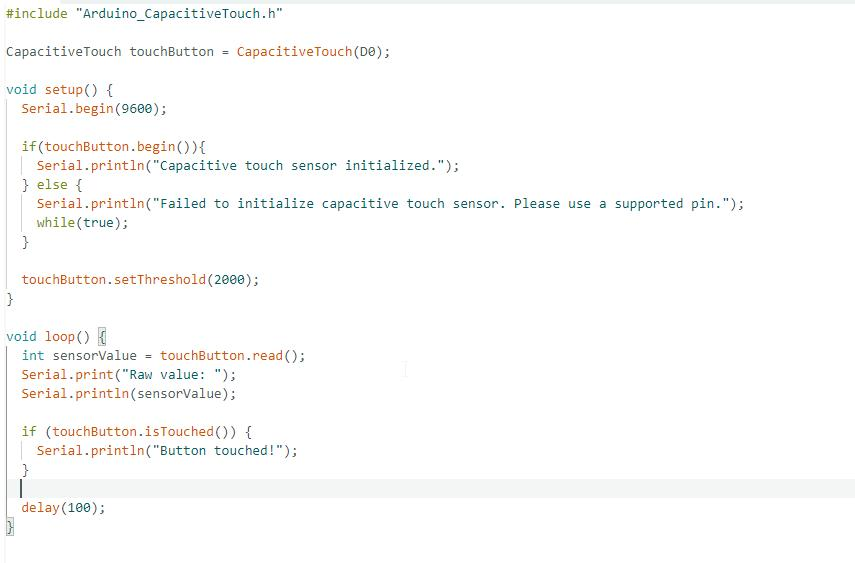
As can be seen from the code above, first, the library file Arduino_CapacitiveTouch.h needs to be imported. This library can be added directly through the IDE via the path: Sketch → Include Library→ Manage Libraries
Next, an instantiated object touchButton is created, with the connected pin set to D0. If you want to change to another pin, you only need to modify the corresponding pin name.
Currently, the supported pins for UNO R4 WiFi are: D0–D4, D6, D8, D9, D11, D12, A1, A2.

In the setup() function, the serial baud rate is set to 9600, and an initialization prompt is printed. You can use this prompt to determine whether the initialization is successful.
void setup() {
Serial.begin(9600);if(touchButton.begin()){
Serial.println("Capacitive touch sensor initialized.");
} else {
Serial.println("Failed to initialize capacitive touch sensor. Please use a supported pin.");
while(true);
}touchButton.setThreshold(2000);
}
In the loop() function, the read() method is used on the touchButton object, and the return value is assigned to sensorValue, which stores the touch value of pin D0.
void loop() {
int sensorValue = touchButton.read();
Serial.print("Raw value: ");
Serial.println(sensorValue);
if (touchButton.isTouched()) {
Serial.println("Button touched!");
}delay(100);
}