¶ Issue Description
The touch screen does not turn on after switching on the printer.
¶ Possible Causes
- A USB drive was inserted before turning on the printer.
- The touch screen connector is loose.
- The ribbon cable on the back of the touch screen is loose.
- The mainboard power supply voltage is set incorrectly.
- The mainboard or power supply is damaged.
- The residual current device (RCD) is damaged or its switch is in the incorrect position.
¶ Tools Required
- 2.0 mm Allen key
- Multimeter
¶ Troubleshooting Steps
¶ 1. Remove the USB Drive
Inserting a USB drive before powering on the printer may cause a mainboard reading error, preventing the touch screen from turning on.
Remove the USB drive and restart the printer.

¶ 2. Check Whether the Touch Screen Connector Is Loose
- Turn off the printer using the power switch and unplug the power cord.

- Reconnect the touch screen connector and make sure the threaded locking ring is securely tightened.

¶ 3. Check Whether the Ribbon Cable on the Back of the Touch Screen Is Loose
- Turn off the printer using the power switch and unplug the power cord.
- Use a 2.0 mm Allen key to remove the eight screws securing the back of the touch screen.

- Check whether the ribbon cable and connector are loose. Disconnect and reconnect them to ensure they are properly seated.

¶ 4. Check Whether the Mainboard Power Supply Voltage Is Set Correctly
- Turn off the printer using the power switch and unplug the power cord.
- Check whether the voltage selector on the mainboard power supply is set correctly.
Note:
1.The mainboard power supply is located on the right side of the printer. Make sure to turn off the printer and unplug the power cord before performing this operation.
2.Setting the voltage selector incorrectly may prevent the touch screen from turning on and may even damage the power supply.

¶ 5. Check Whether the Mainboard Power Supply Outputs 24V
Note: A multimeter is required for this procedure. If you do not have one, skip Step 5 and proceed to Step 6.
- Remove the screws at the marked positions one by one.


- Disconnect all connectors at the marked positions.

- Remove the mainboard cover.

- Use a multimeter to check whether the mainboard power supply outputs 24 V.
- If the power supply does not output voltage, replace the power supply.
- If the power supply outputs 24 V, either the mainboard or the touch screen may be faulty. Replace both components.

¶ 6. Check the Touch Screen Status
Manually move the printhead rapidly along the Y-axis and check whether the touch screen turns on.
- If the touch screen turns on, replace the power supply.
- If the touch screen remains off, replace both the mainboard and the touch screen.

¶ 7. Check Whether the Residual Current Circuit Breaker (RCD) Is Set Correctly
- Check whether the protection button on the RCD is pressed.
As shown below, the switch is ON.
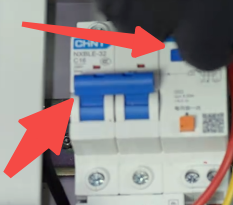
As shown below, the switch is OFF.
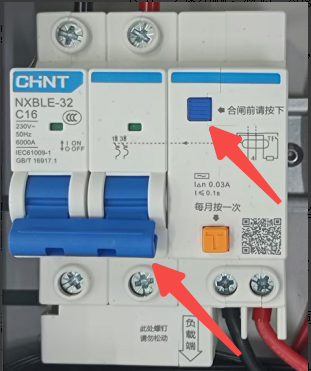
- Check whether the switch is set to the correct position.

¶ Help us improve
If you have any ideas about the wiki pages, please let us know via ELEGOO official feedback channel.