¶ Tools needed
- A FAT32 USB flash drive with the capacity under 16GB
¶ Instructions
- Click the link below and download the fixing firmware.
https://elegoo-supportcenter.oss-us-west-1.aliyuncs.com/ELEGOO_UPDATE_DIR-20260121T032636Z-3-001.zip
- Insert the USB flash drive into your PC and delete other files.
Note: The USB flash drive must be FAT32 format and the capacity must be less than 16G. Otherwise, it cannot be detected by the printer.
-
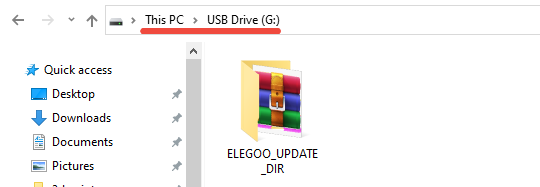
Double-click the compressed file to unzip it and select ELEGOO_UPDATE_DIR.

-
Copy the ELEGOO_UPDATE_DIR into the root directory of the USB flash drive.
Note: The directory which you accessed by double-click the USB flash drive is the root directory.
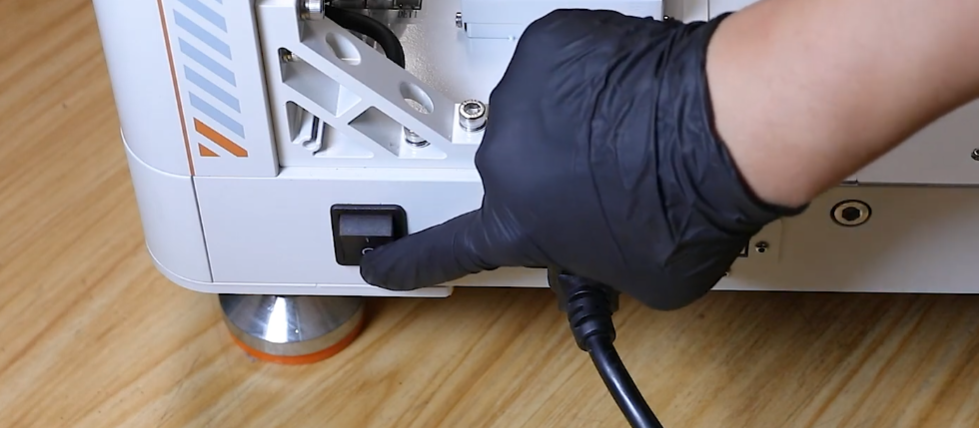
- Turn the printer's power switch OFF (symbol "〇").
Wait for about one minute after powering off.
-
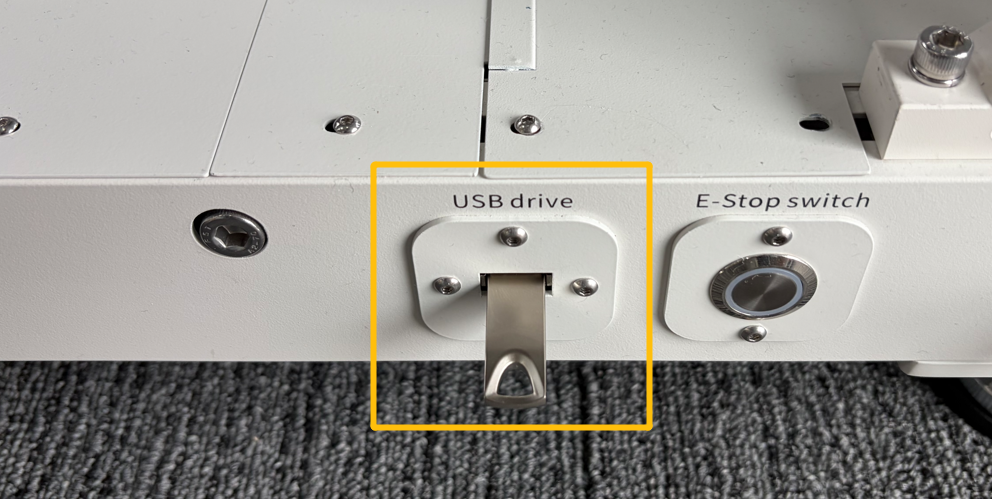
Insert the USB flash drive into the printer and turn the power switch ON (symbol "|"). Wait for about 1 - 3 minutes for the printer to load the fixing firmware automatically.
-
After the fixing firmware being loaded completely and making sure that the printer can work normally, delete the ELEGOO_UPDATE_DIR file in the USB flash drive.
Note: If touch screen is unresponsive, remove the USB flash drive and restart the printer.