¶ Fault Symptoms
After turning on the printer power switch, the touch screen does not light up.
¶ Possible Causes
- Incorrect power supply voltage setting
- Blown fuse
- Loose touch screen ribbon cable
- Faulty mainboard
- Faulty power supply
- Faulty touch screen
¶ Required Tools
- 2.0 mm Allen key
- 2.5 mm Allen key
- Phillips screwdriver
- Multimeter
¶ Troubleshooting Steps
¶ 1. Check the Power Supply Voltage Setting
Note
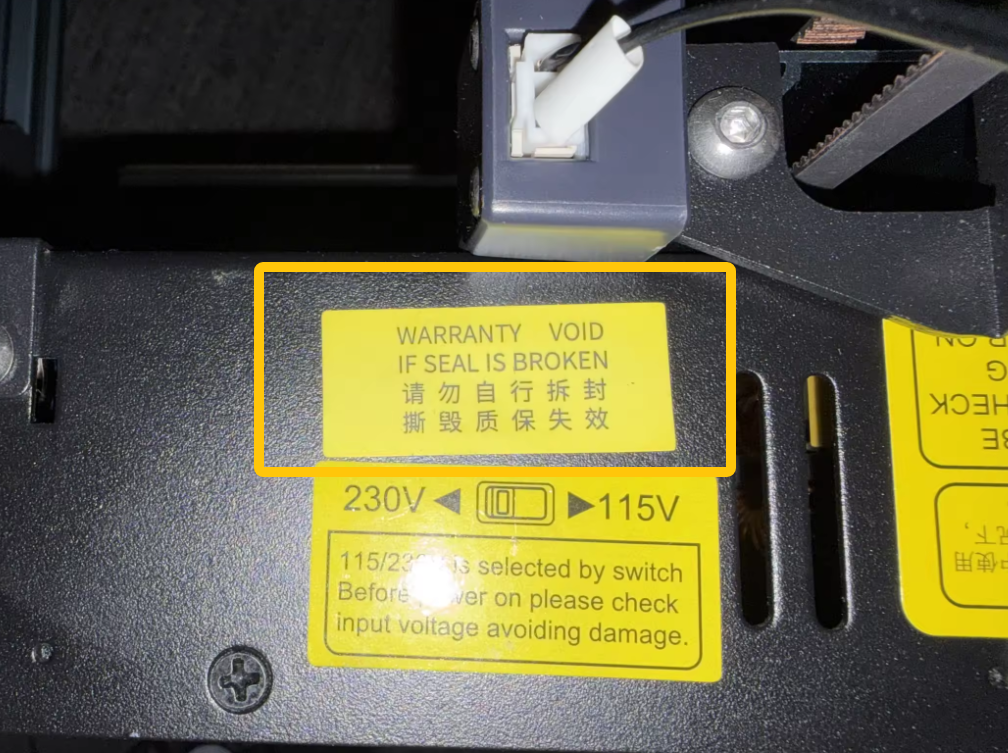
Some printer batches have the voltage preset at the factory. If the voltage selector is covered with a sticker, skip this step and proceed to Step 2.
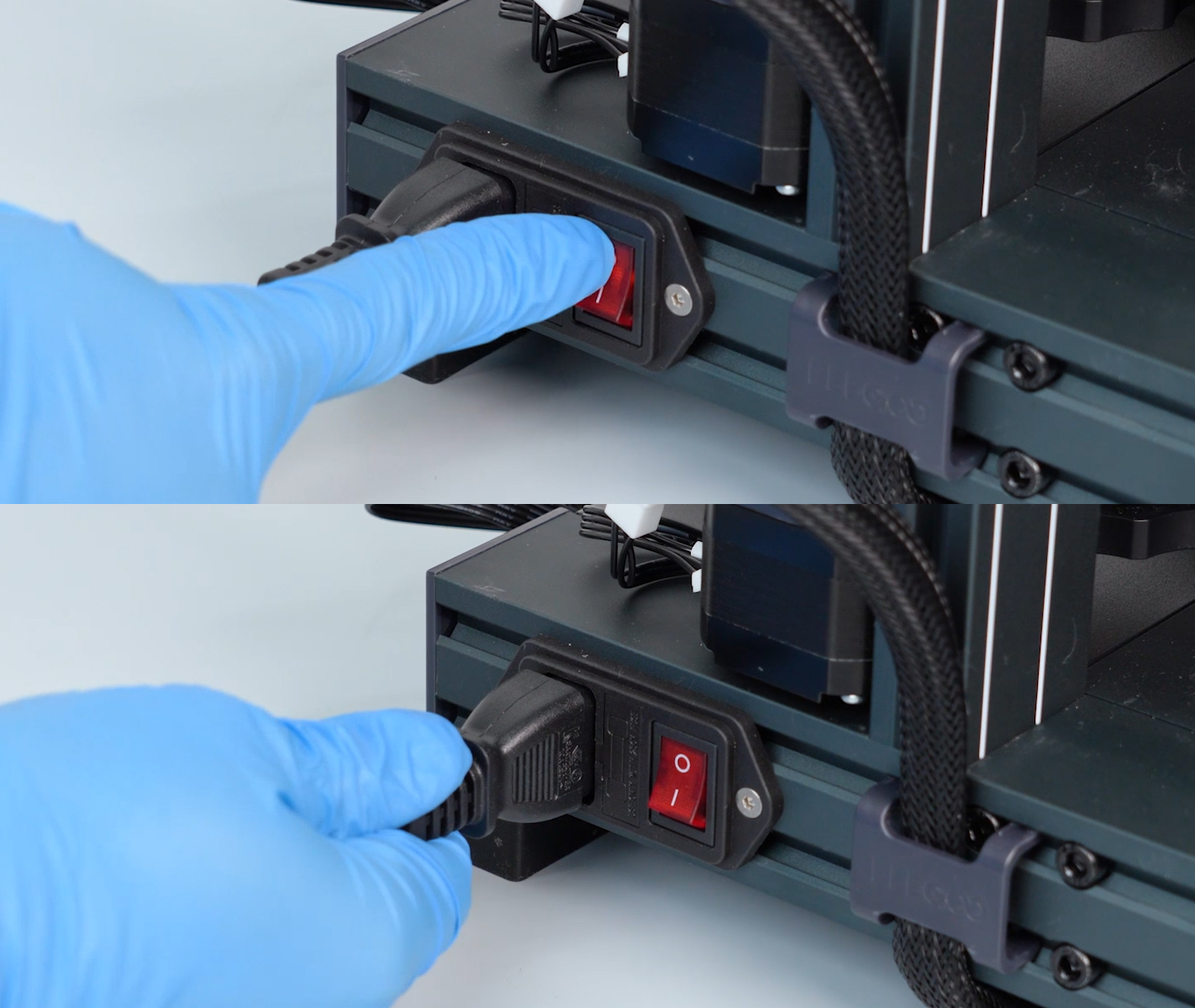
- Turn off the printer power switch and unplug the power cord.
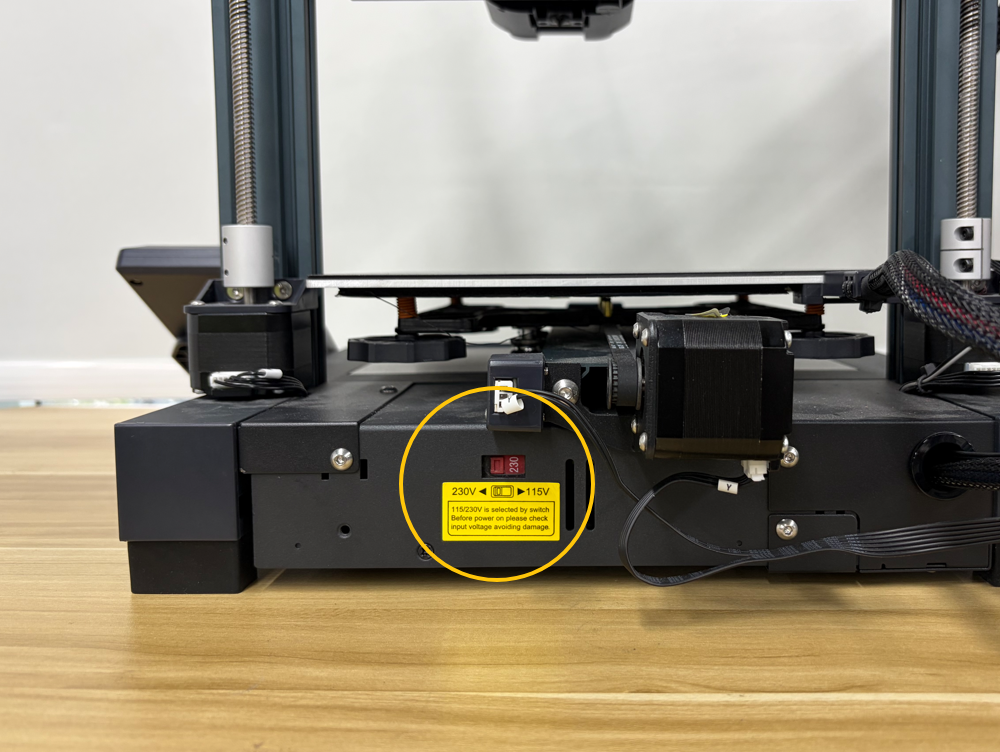
- Locate the voltage selector switch on the rear of the printer.
- Verify that the power supply voltage is set correctly for your local mains voltage.
Note
Always turn off the printer power switch and unplug the power cord before changing the voltage setting.
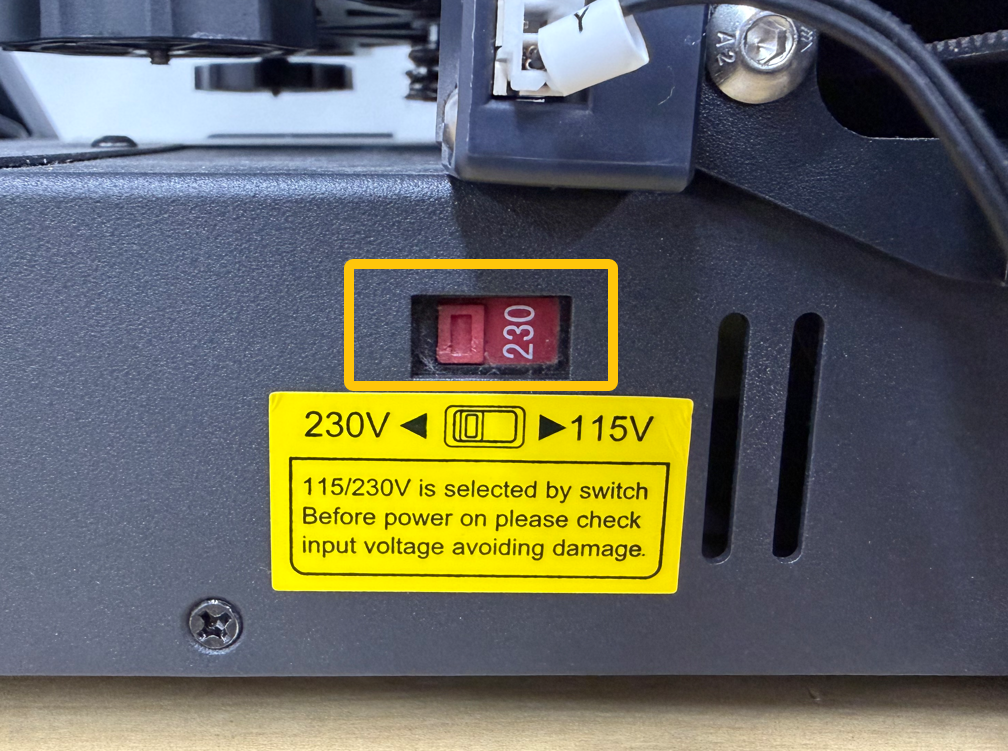
- If your local mains voltage is 110 V, set the selector to 115 V.
- If your local mains voltage is 220 V, set the selector to 230 V.
- If the voltage is set incorrectly, adjust it to the correct setting, reconnect the printer, and test it again.
- If the voltage is already correct, continue with the next troubleshooting step.
¶ 2. Check the Fuse
-
Turn off the printer power switch and unplug the power cord.
-
Remove the fuse as shown below.
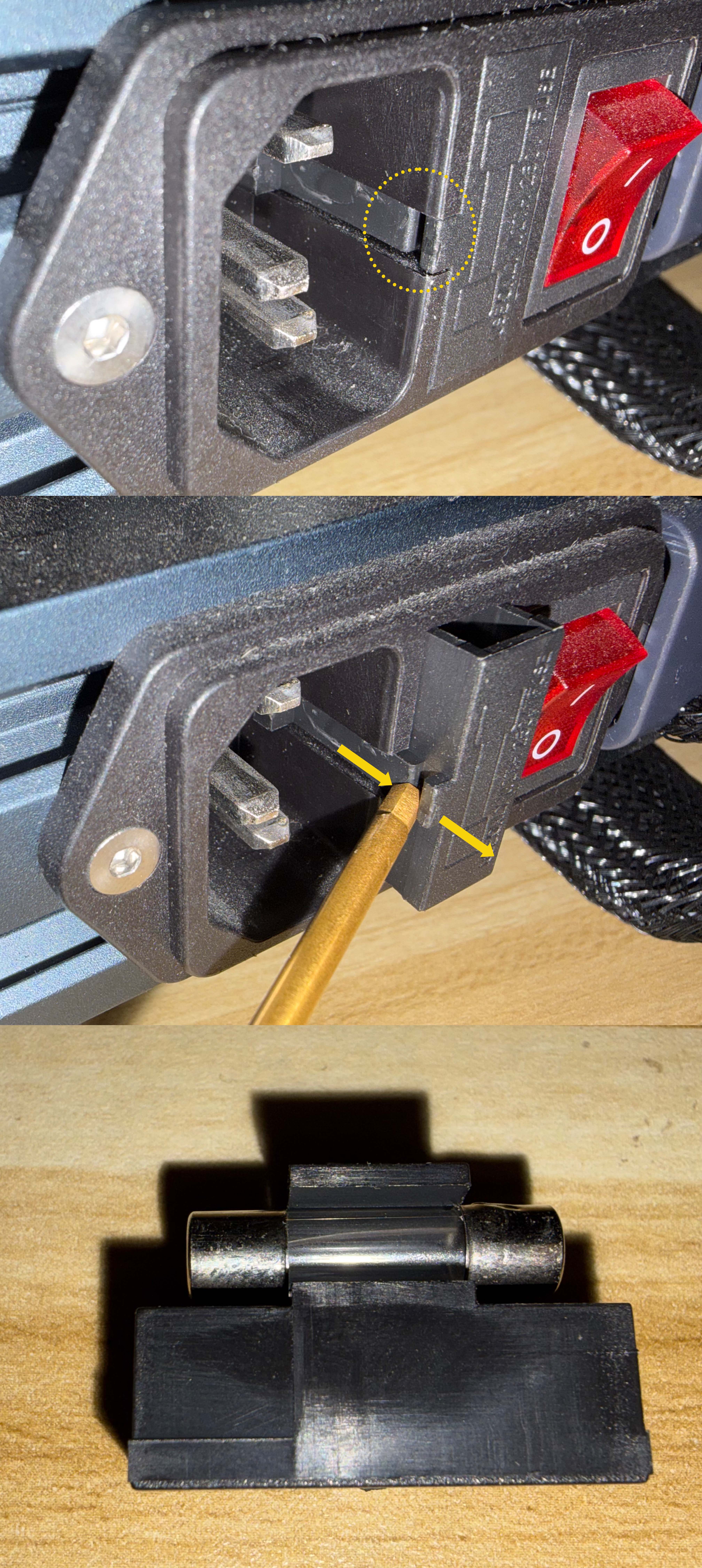
3. Check whether the fuse is blown.
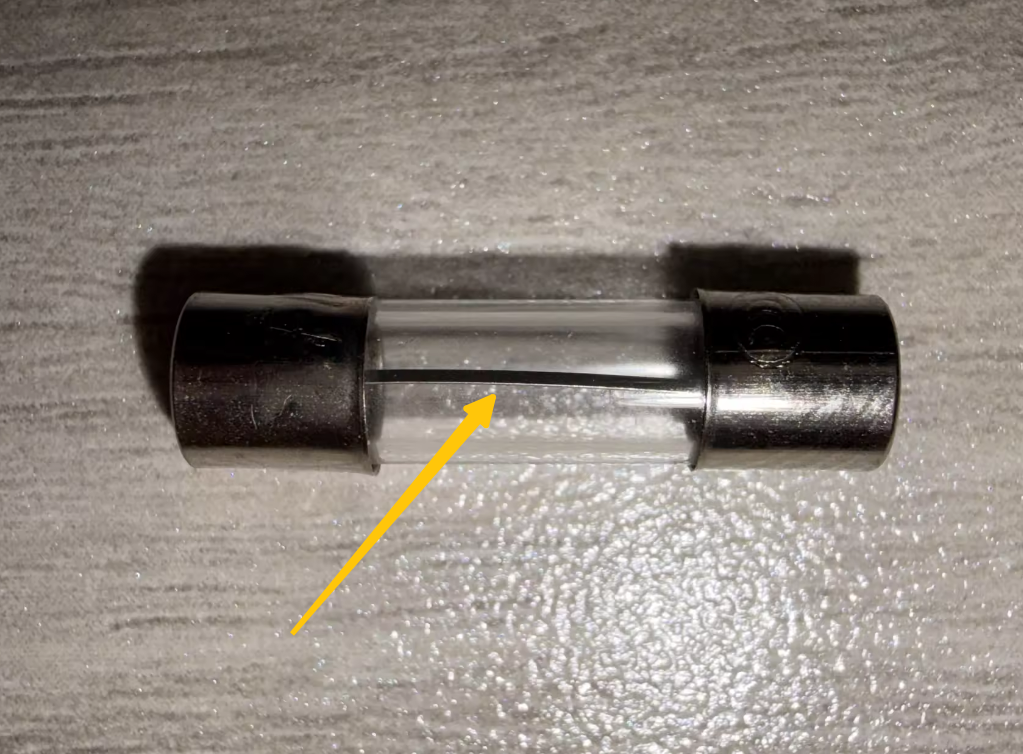
- If the fuse is damaged, replace it with a new one.
Note
The fuse specification is AC 250 V / 10 A. Replacement fuses are available at local hardware stores or on Amazon.
- If the fuse is normal, continue with the next troubleshooting step.
¶ 3. Check the Touch Screen Ribbon Cable
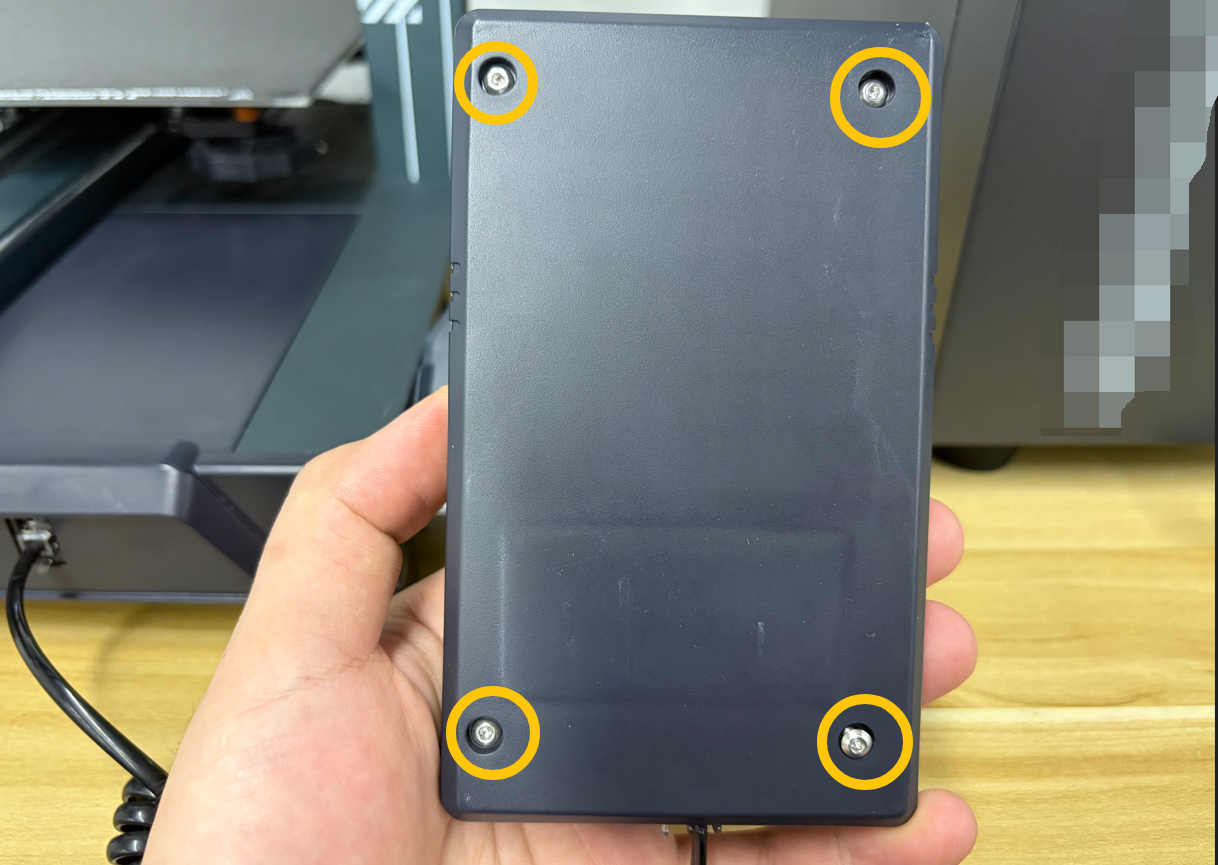
- Turn the touch screen over. Remove the four screws securing the rear cover using a 2.0 mm Allen key, then remove the rear cover.
- Check whether the three ribbon cable connections shown below are loose. The image below shows the correct connection.
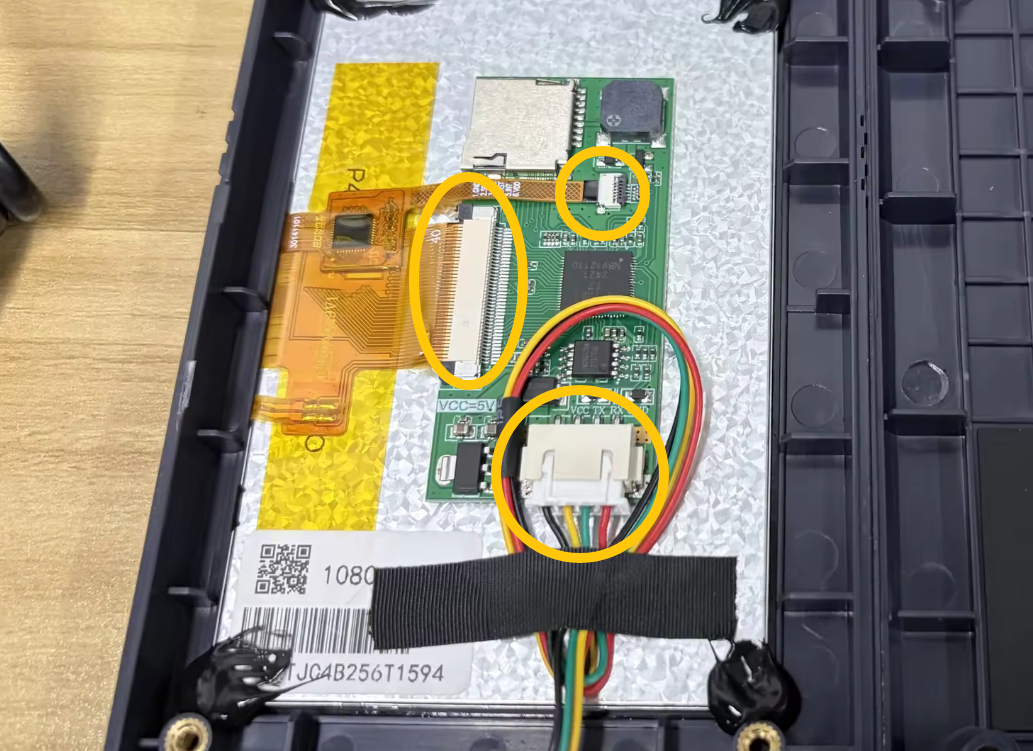
- If any ribbon cable or connector is loose, reconnect it as shown.
- If all ribbon cables and connectors are secure, continue with the next troubleshooting step.
¶ 4. Check the Power Supply Indicator LED
Note
Remove the filament spool beforehand to prevent it from falling and damaging the spool.
- Turn the printer upside down with the power switch side facing up.
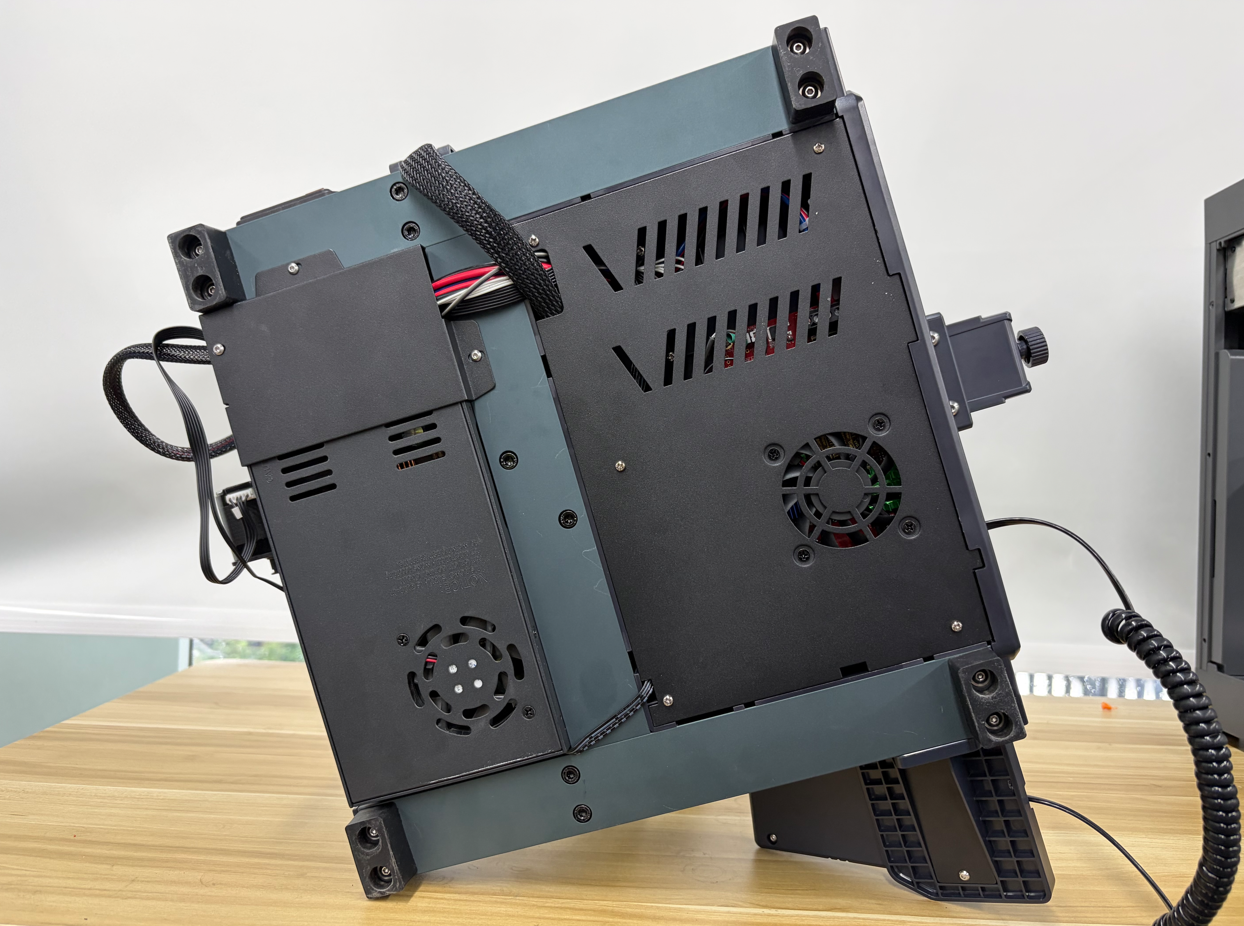
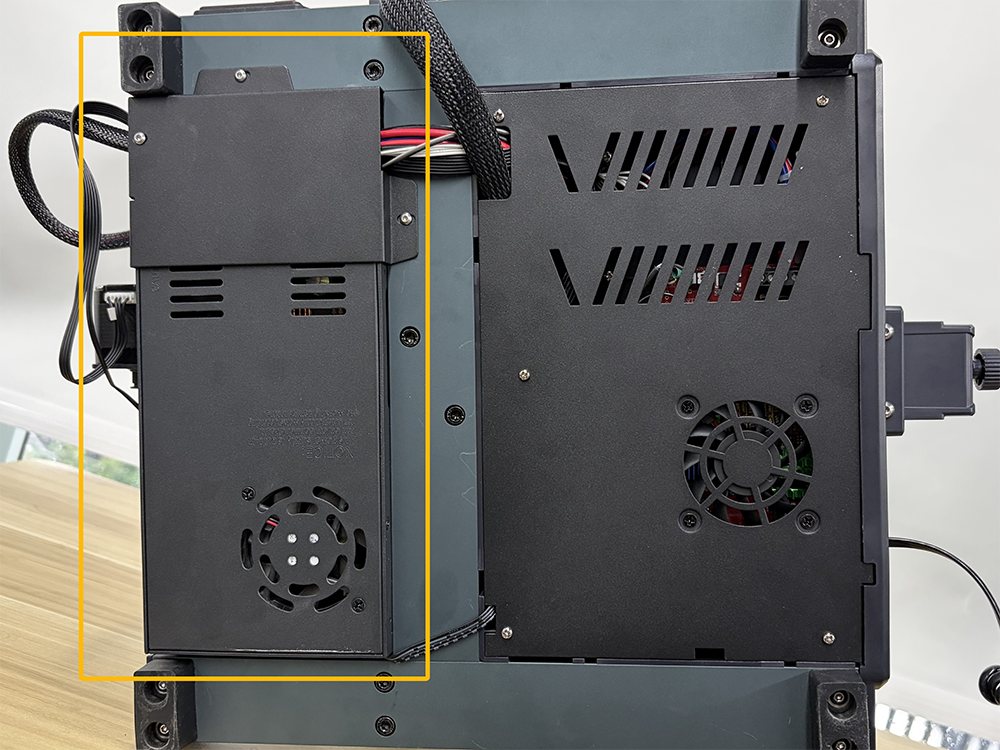
- Locate the power supply as shown below.
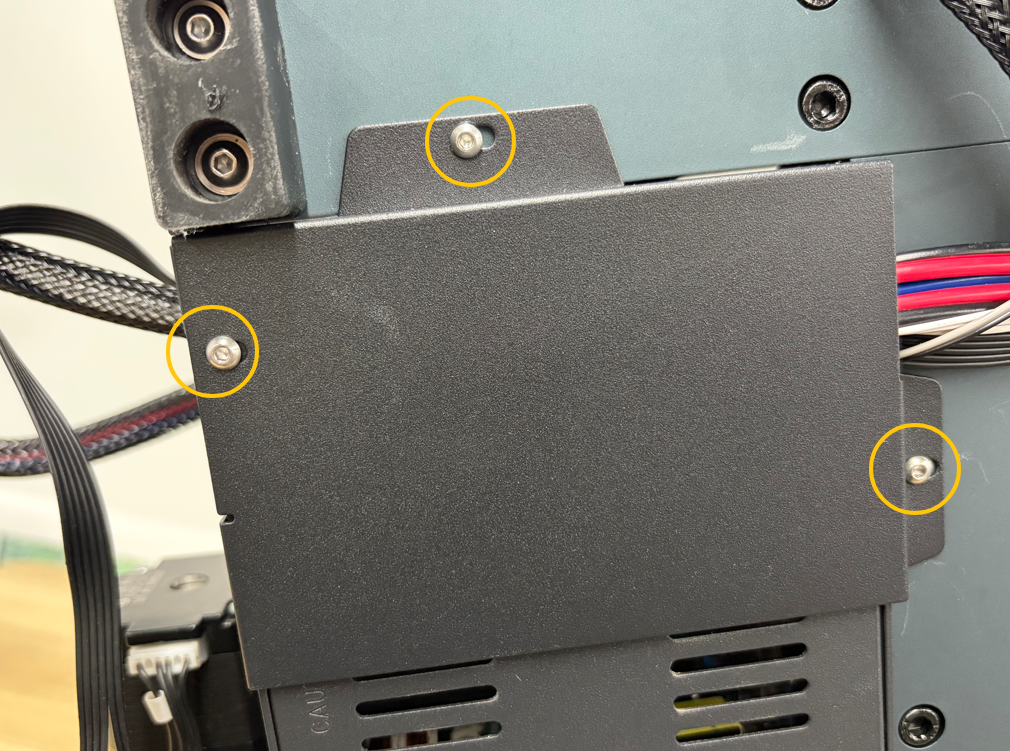
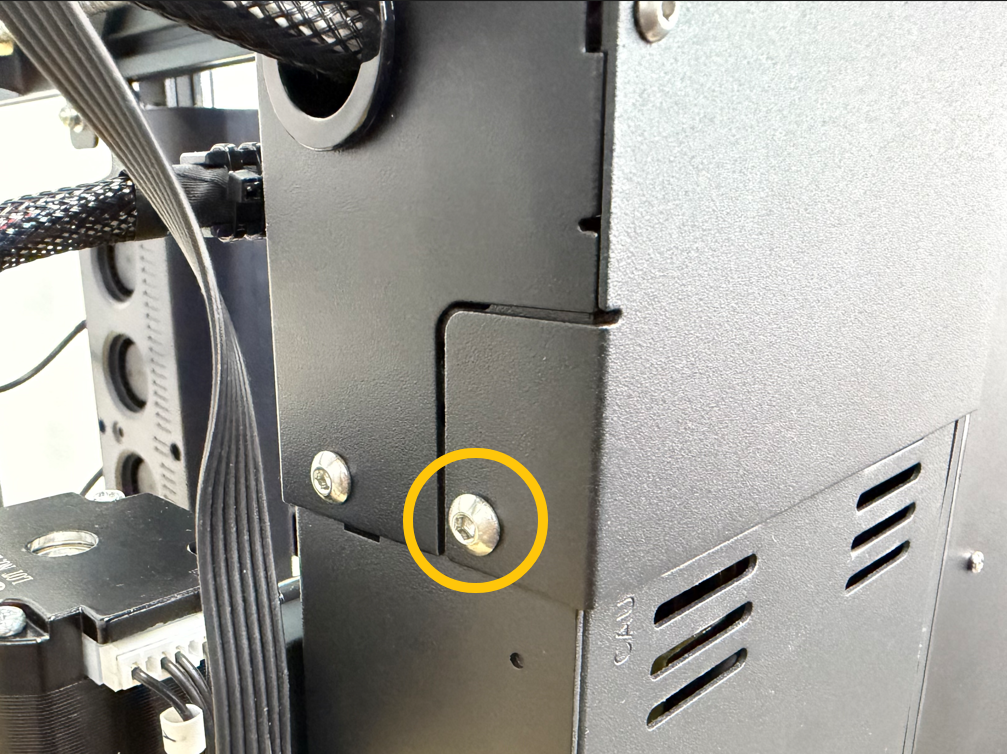
- Use a 2.0 mm and 2.5 mm Allen key to remove the four screws securing the power supply cover, then remove the cover.
- Connect the power cord, turn on the printer power switch, and check whether the power supply indicator LED lights up.
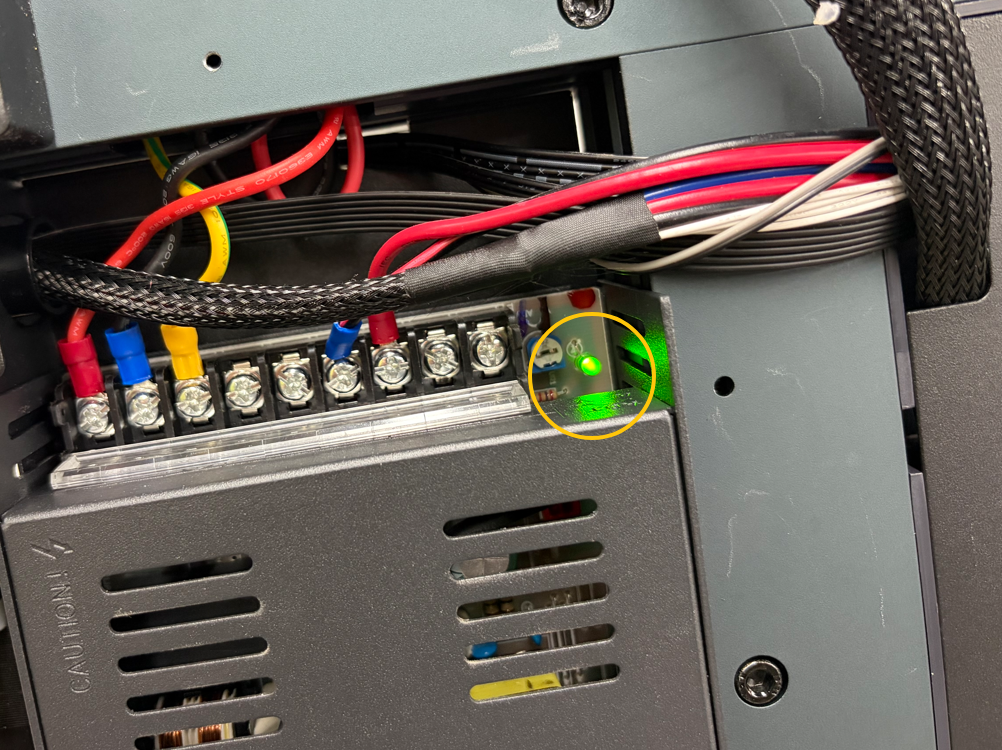
- If the power supply indicator LED does not light up, the power supply may be faulty.
- If the power supply indicator LED lights up, continue with the next troubleshooting step.
¶ 5. Check the Mainboard Indicator LEDs
-
Turn off the printer power switch and unplug the power cord.
-
Use a Phillips screwdriver to remove the five screws securing the bottom cover.
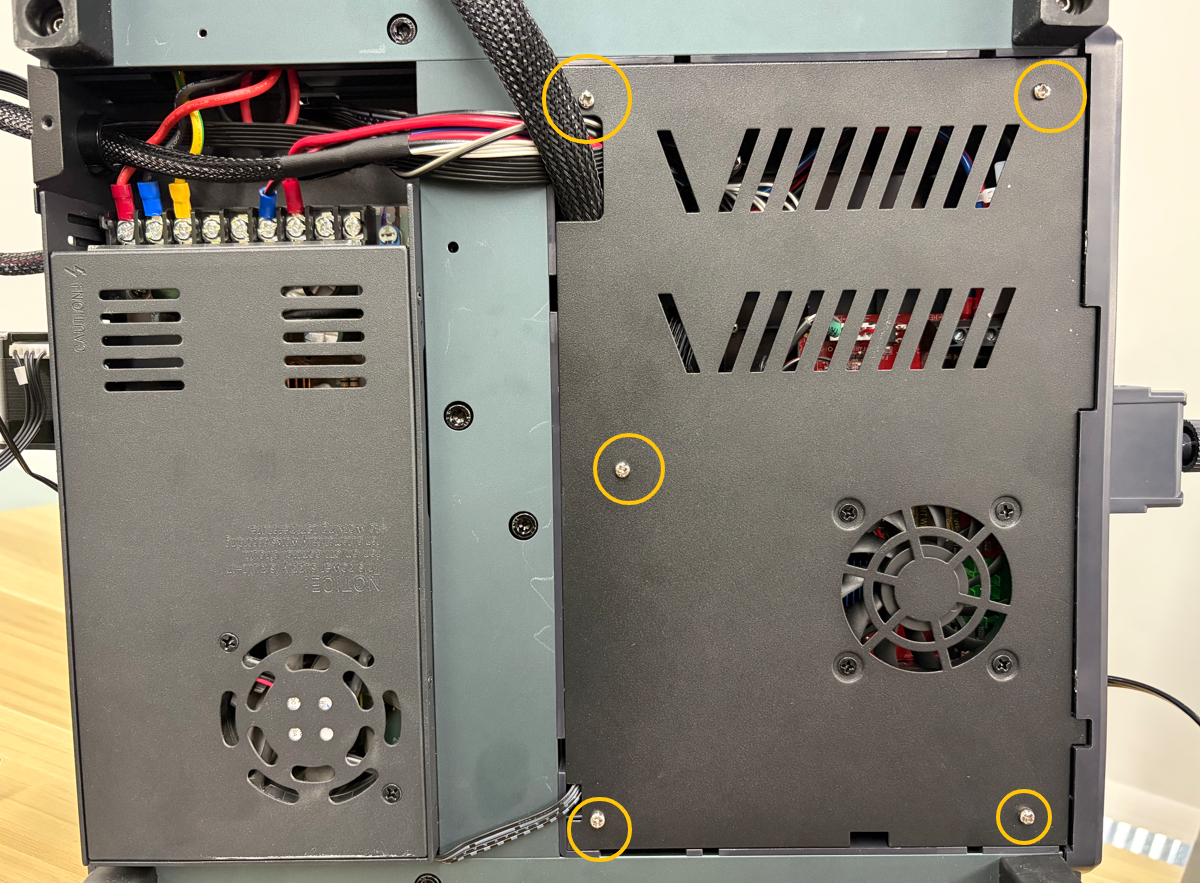
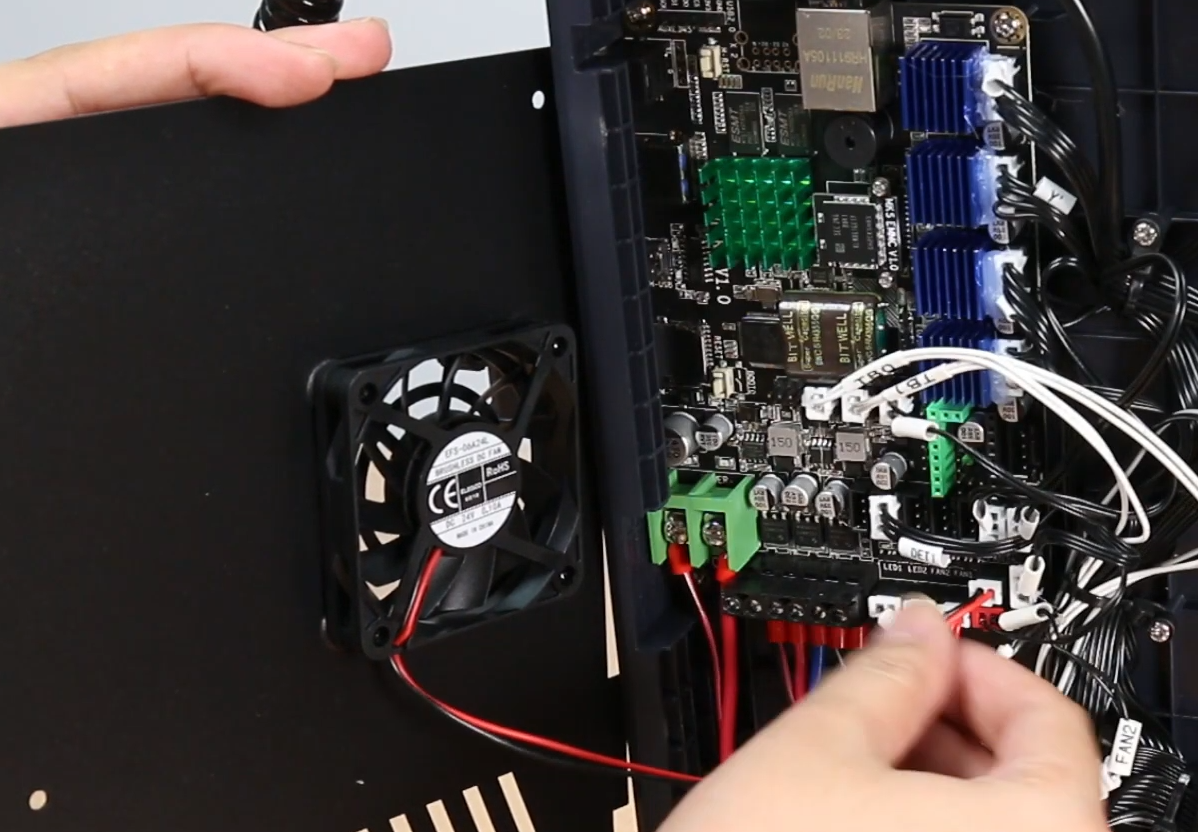
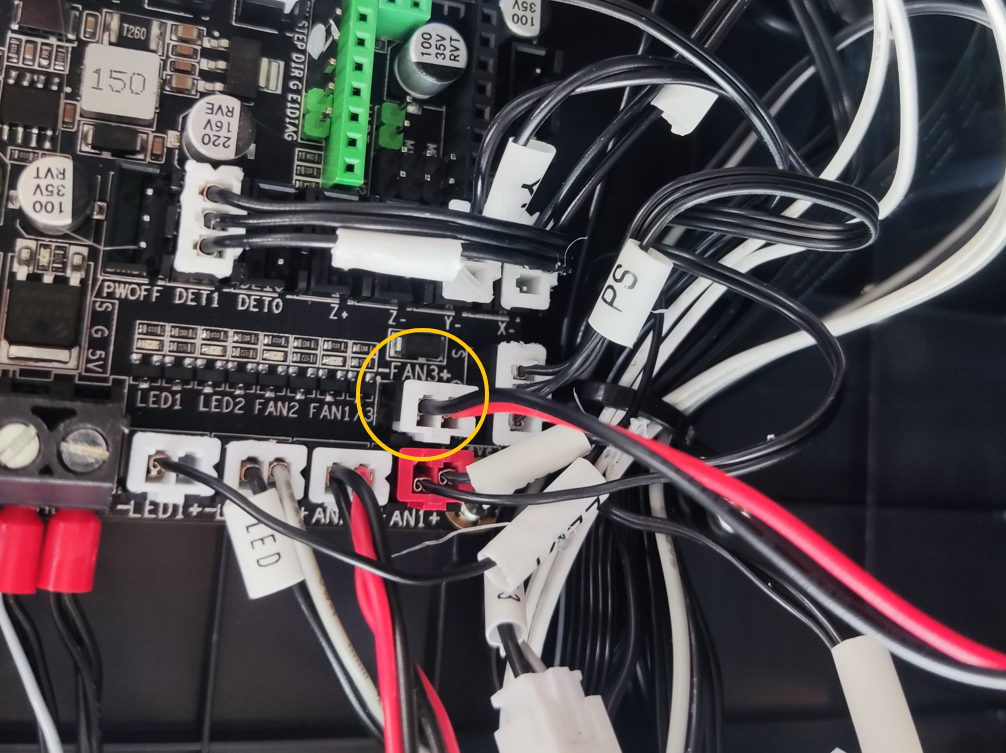
- Carefully open the bottom cover, disconnect the mainboard cooling fan connector, and then remove the bottom cover.
-
Connect the power cord and turn on the printer power switch.
-
Wait approximately 50 seconds, then check whether the four indicator LEDs shown below are illuminated.
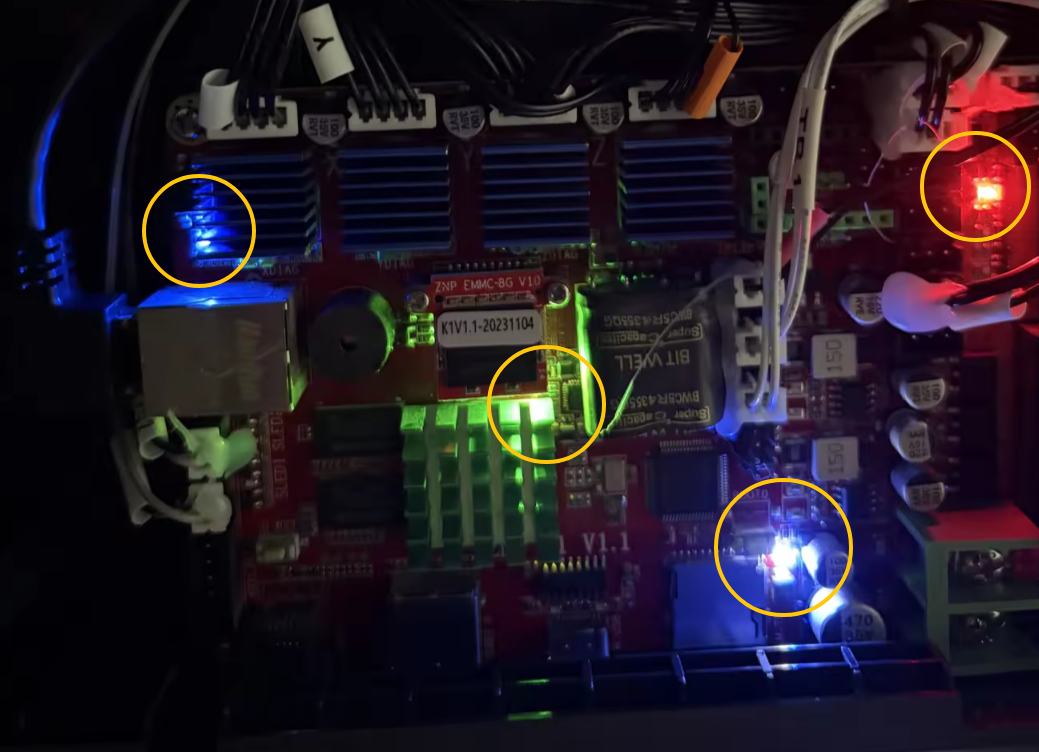
- If none of the mainboard indicator LEDs light up, the mainboard may be faulty.
- If all mainboard indicator LEDs are lit, the touch screen may be faulty.
¶ 6. Check the Power Supply Output Voltage
Note
This step requires a multimeter and experience using one. If you do not have a multimeter, you may skip this step.
-
Set the multimeter to the DC 200 V range.
-
Measure the voltage at the mainboard power connector and verify that a stable 24 V DC is present.
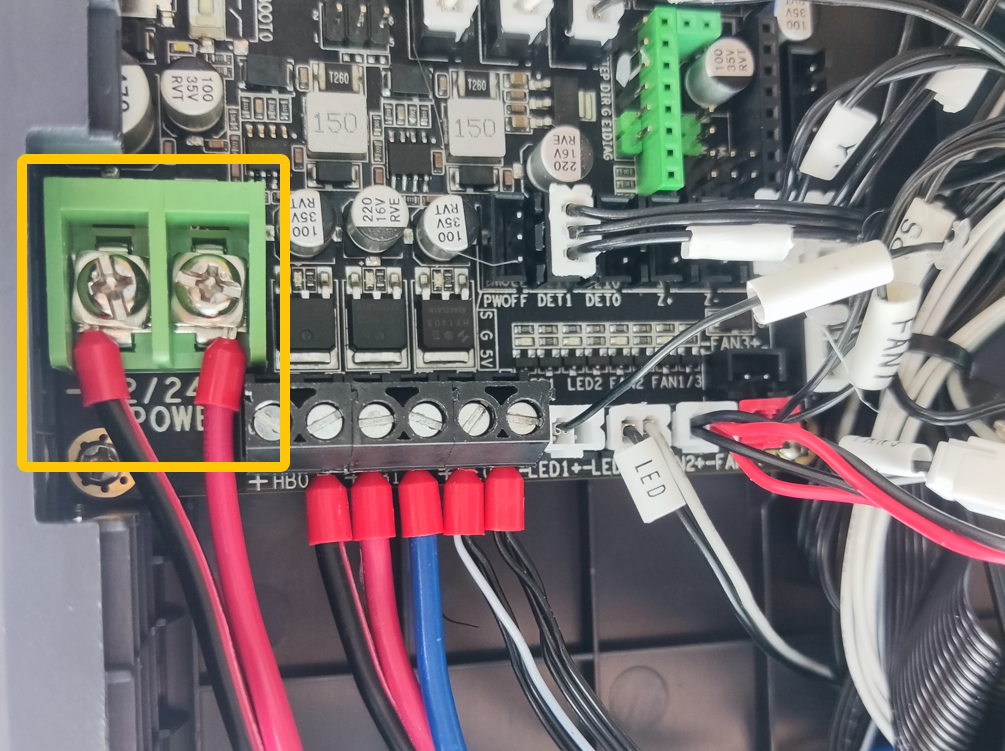
- If there is no output voltage or the voltage is unstable, the power supply is faulty and should be replaced.
¶ Contact Technical Support
If the issue persists after completing all the troubleshooting steps above, please contact technical support at 3dp@elegoo.com and provide the following information:
- Is the power supply voltage set correctly?
- Is the fuse damaged?
- Is the touch screen ribbon cable loose or damaged?
- Do the mainboard indicator LEDs light up after the printer is powered on?
- Does the power supply indicator LED light up after the printer is powered on?
- Does the power supply provide a stable 24 V output? (Skip this item if you do not have a multimeter.)
¶ Help us improve
If you have any ideas about the wiki pages, please let us know via ELEGOO official feedback channel