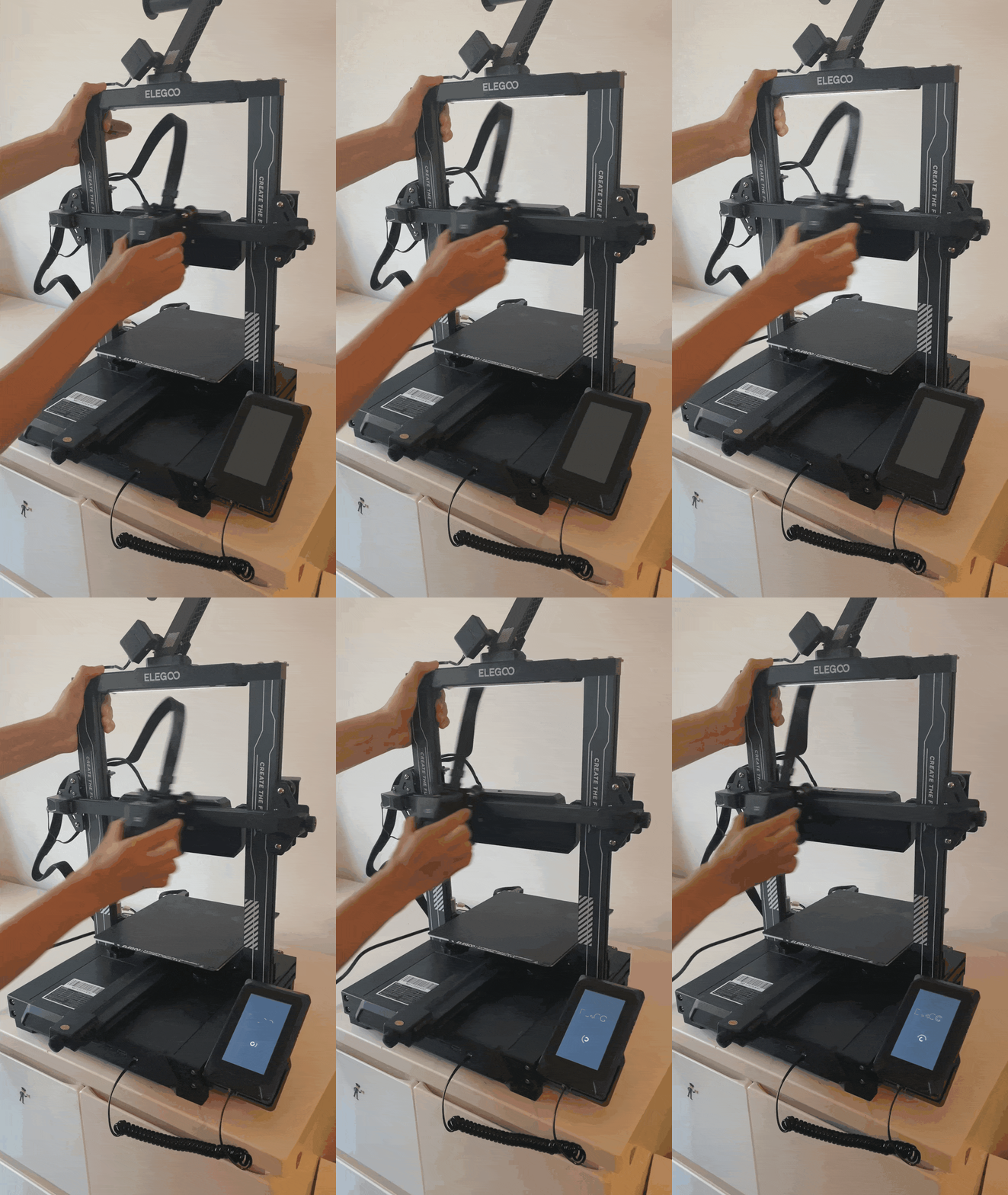
¶ Issue Description
After powering on the printer, the touch screen cannot be enabled.
¶ Reasons
-
The fuse is damaged.
-
Insert a USB flash drive before powering on the printer.
-
The motherboard or touch screen is damaged.
-
The power supply is damaged.
¶ Troubleshooting Steps
¶ Tools needed for toubleshooting
-
A 2.0 mm Allen key
-
A multimeter
¶ Step 1 Check the fuse of the power switch
-
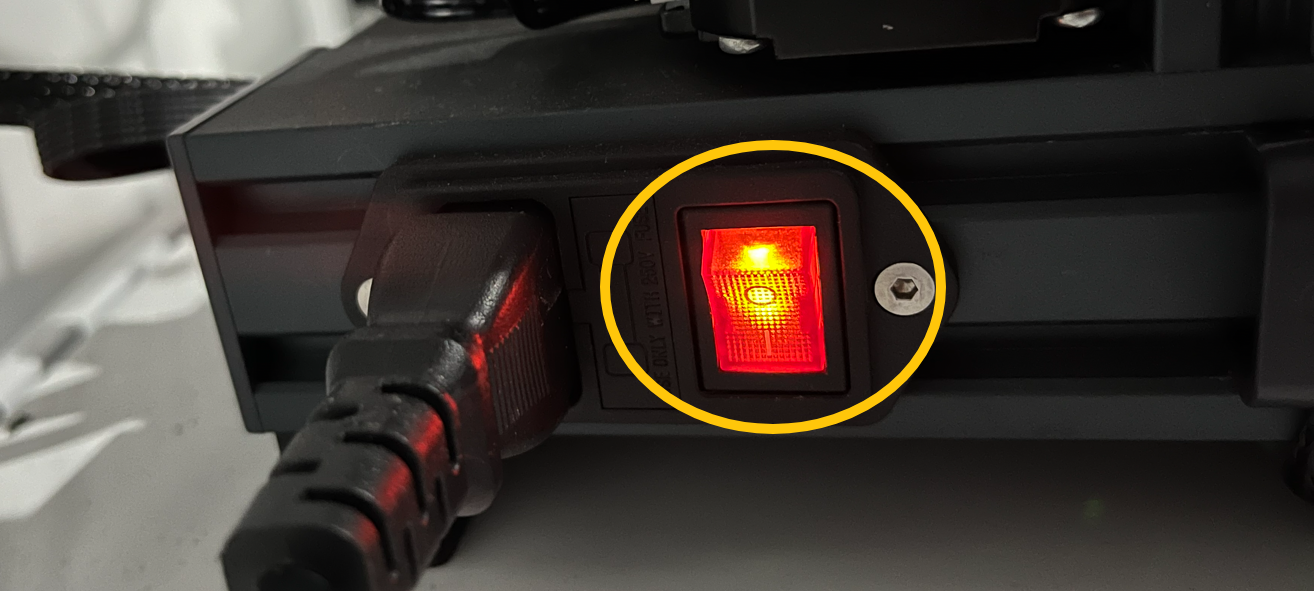
Plug in the power supply cable. Turn the power switch ON (symbol "|") .
-
Check whether the power switch indicator can light up normally.
-
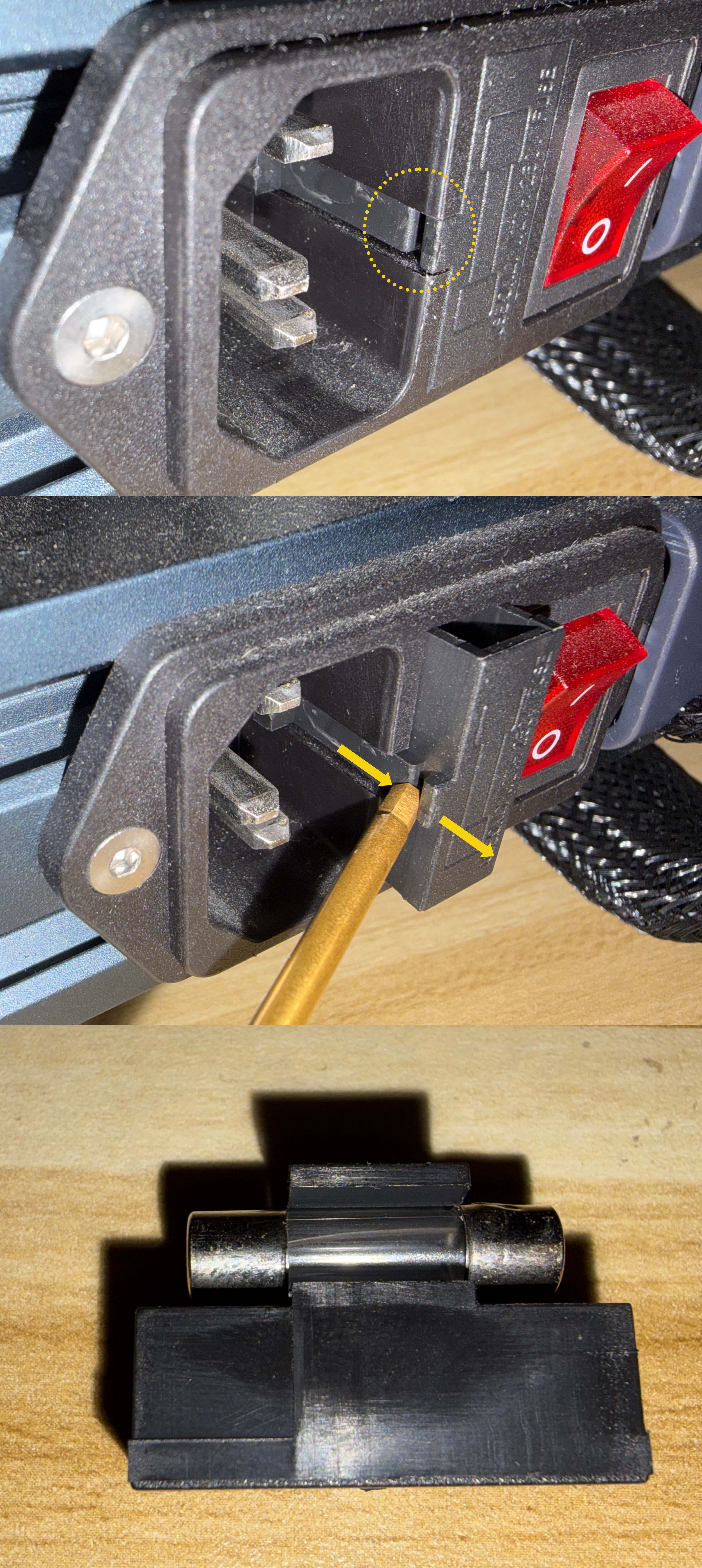
If the power switch indicator light is not illuminated, it indicates that the fuse in the power switch is damaged. Purchase a new fuse from a hardware shop and replace the old fuse with a new one. The specification of the fuse for the power switch is 10A 250V AC.
-
After unplugging the power supply cable and switching off the printer, slide the clip in the direction of the arrow to remove the fuse.
¶ Step 2 Remove the TF card and reboot the printer
Do not insert the TF card before powering on the printer. If the touch screen cannot be enabled and the TF card is inserted, remove the TF card and reboot the printer.
¶ Step 3 Check whether the power supply can output voltage
-
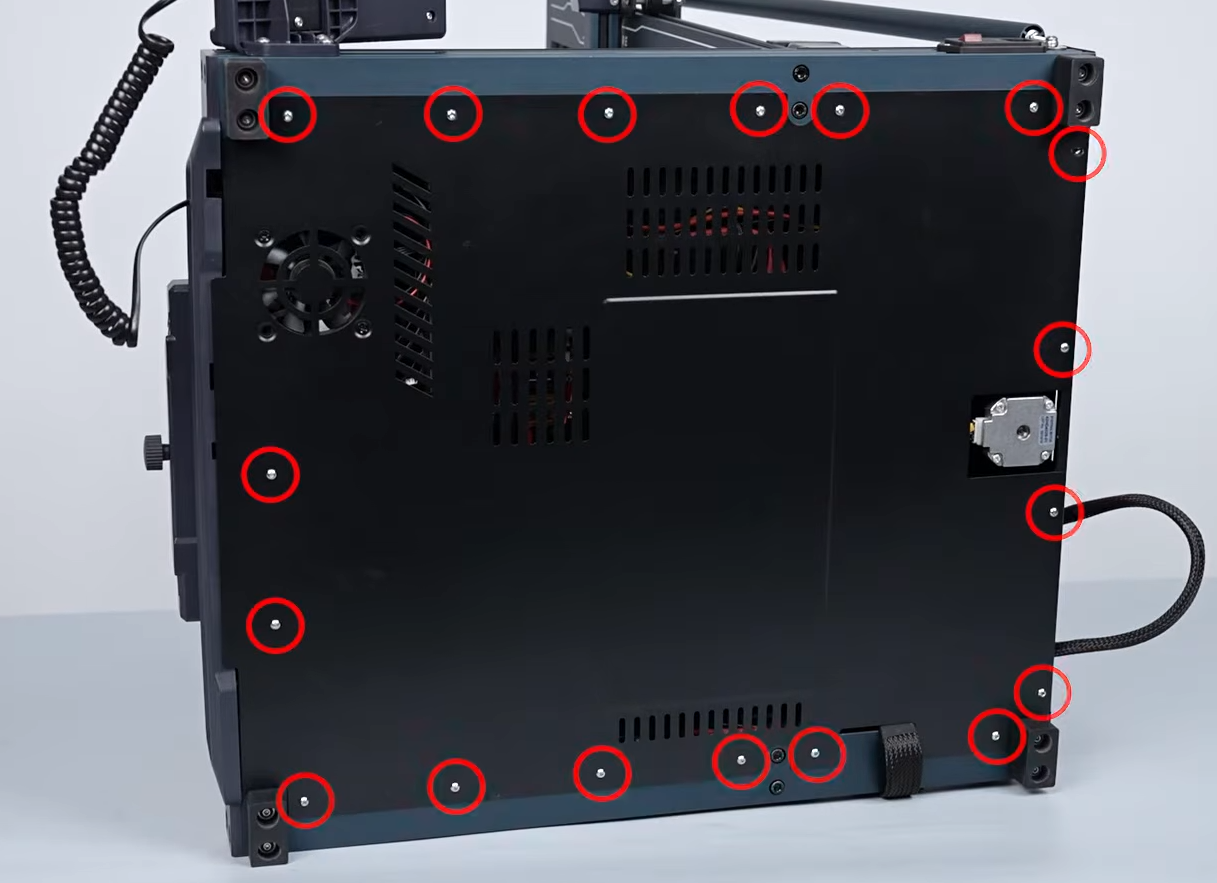
Remove the screws securing the bottom cover.
-
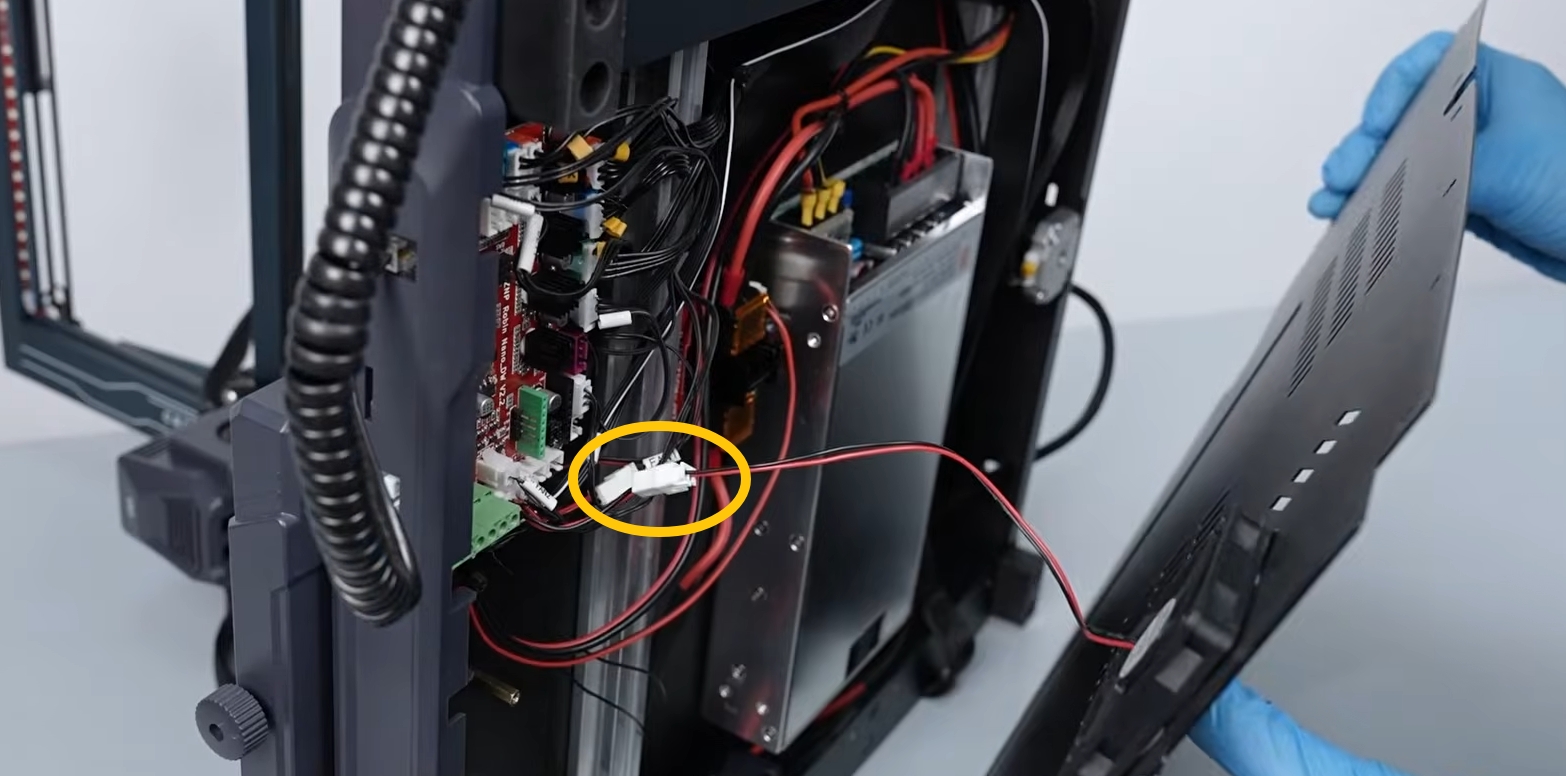
Remove the bottom cover carefully. Disconnect the cable of the motherboard cooling fan.
-
Plug in the power supply cable and turn the power switch ON (symbol "|").
-
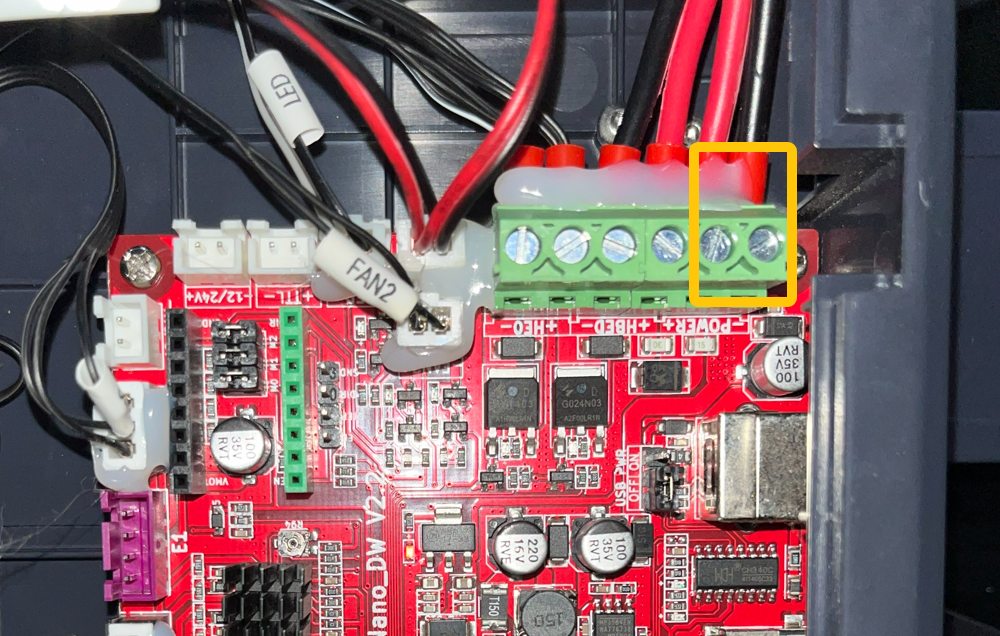
Set the multimeter to 200 V DC and test whether the power supply port on the motherboard has a voltage of 24 V DC.
-
If the input voltage at the power supply port is not 24 V, it indicates that the power supply needs to be replaced.
-
If the input voltage at the power supply port is 24 V, it indicates that the motherboard and the touch screen need to be replaced.
-
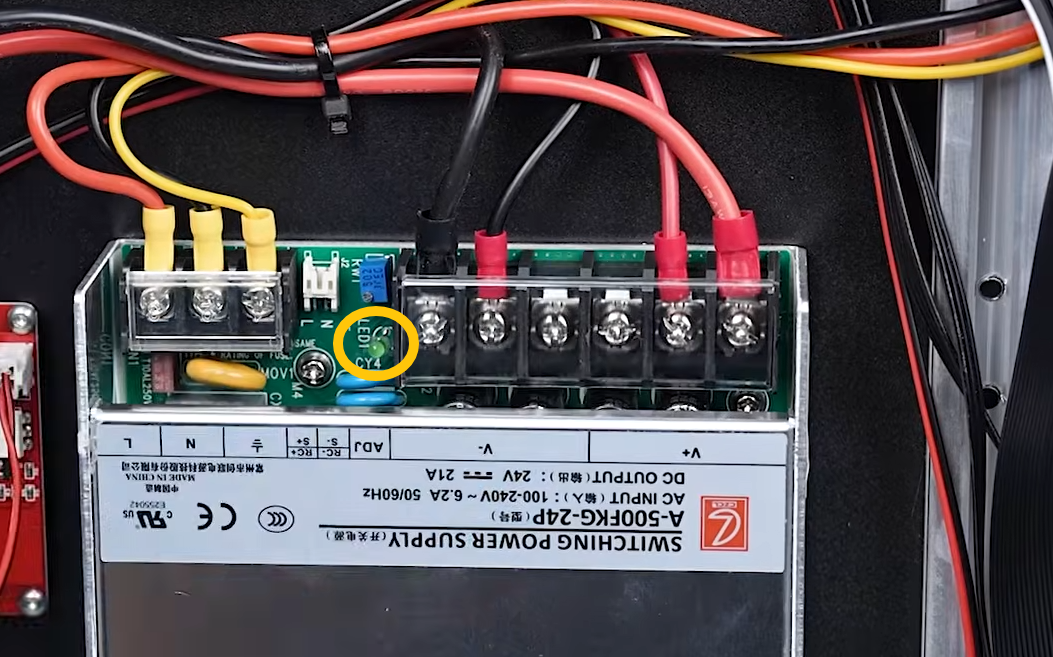
If the multimeter is not available, check whether the power supply indicator can light up normally. If the power switch indicator cannot light up normally after the power switch is turned on, it indicates that the power switch needs to be replaced.
¶ Step 4 Check whether the motherboard or the touch screen is damaged
-
Turn the power switch OFF (symbol "〇") and unplug the power supply cable.
-
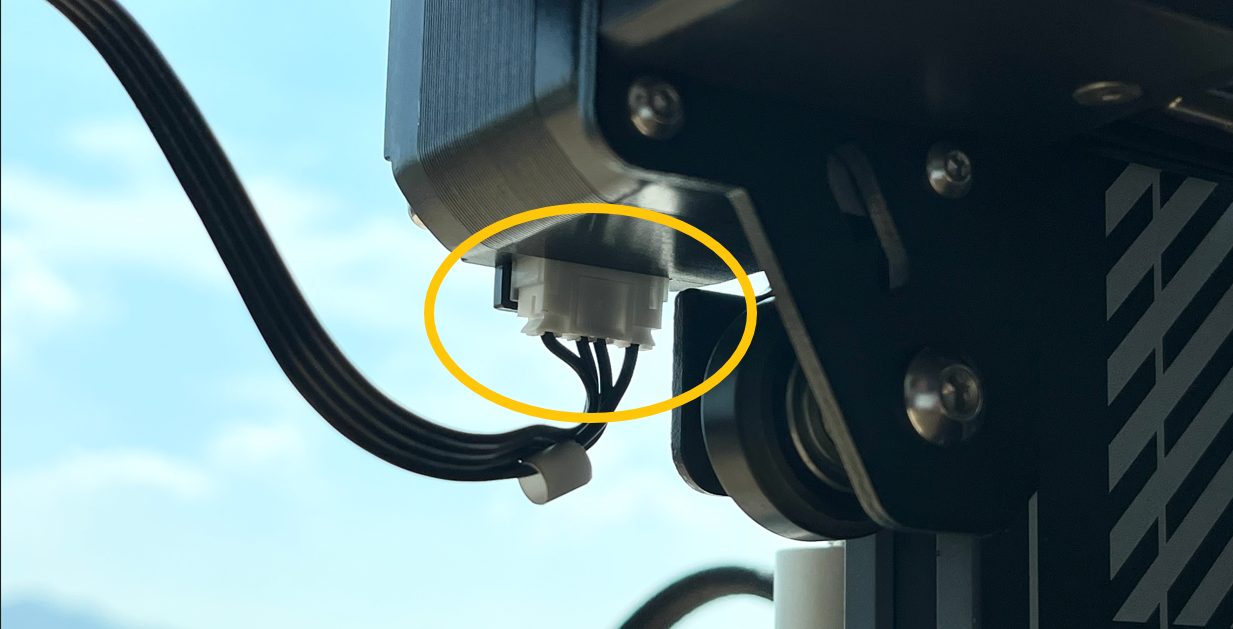
Confirm that the X-axis motor plug is inserted into the X-axis motor.
-
Move the extruder rapidly from side to side to check whether the touch screen lights up when the extruder moves quickly.
-
If the touch screen can light up normally, the power supply needs to be replaced.
-
If the touch screen cannot light up normally, the motherboard and the touch screen need to be replaced.
(The testing procedure is the same for the Neptune series of printers)