¶ Tools and Materials
- A 2.5mm Allen key x 1
- A 2.0mm Allen key x 1
- Phillips screwdriver x 1
- Gloves
¶ Tutorial Video
Coming soon.
¶ Instruction
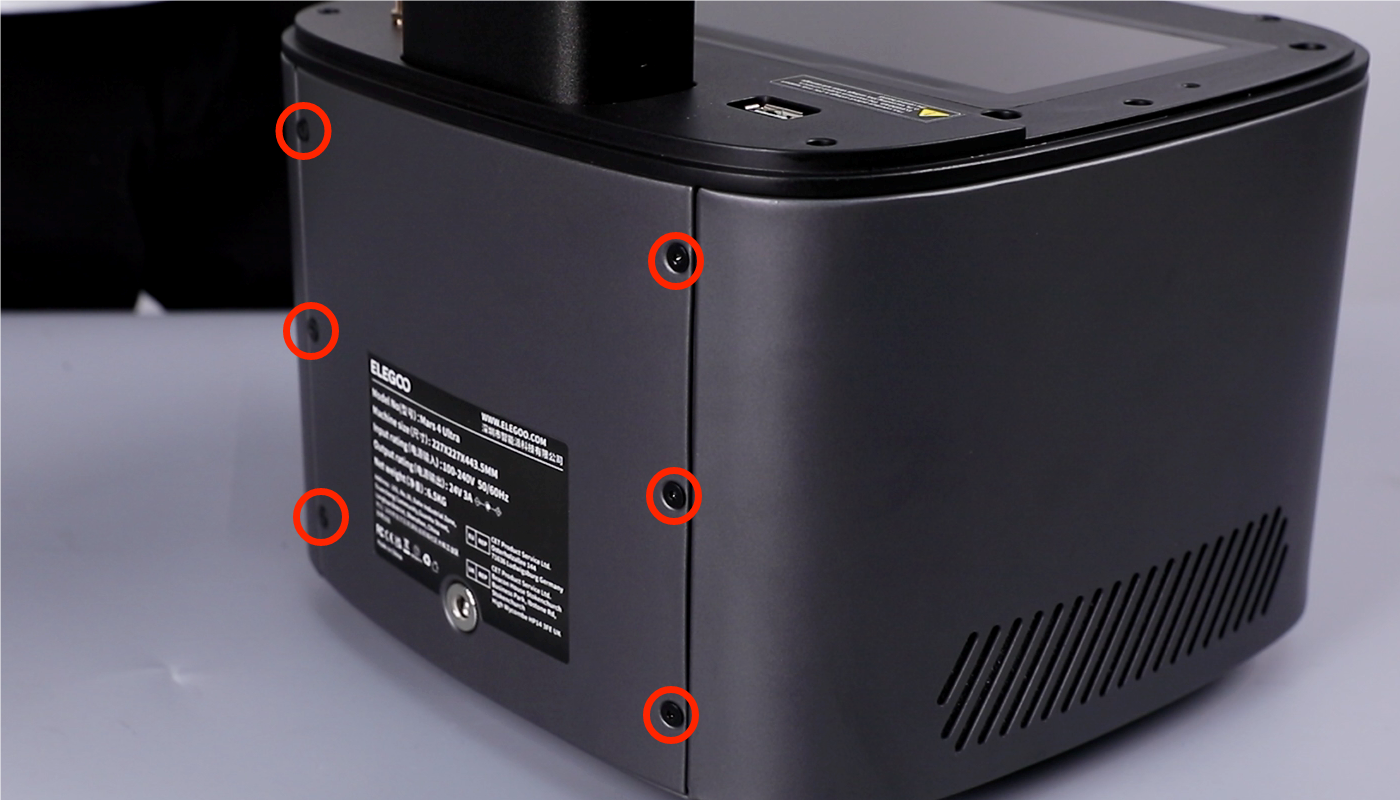
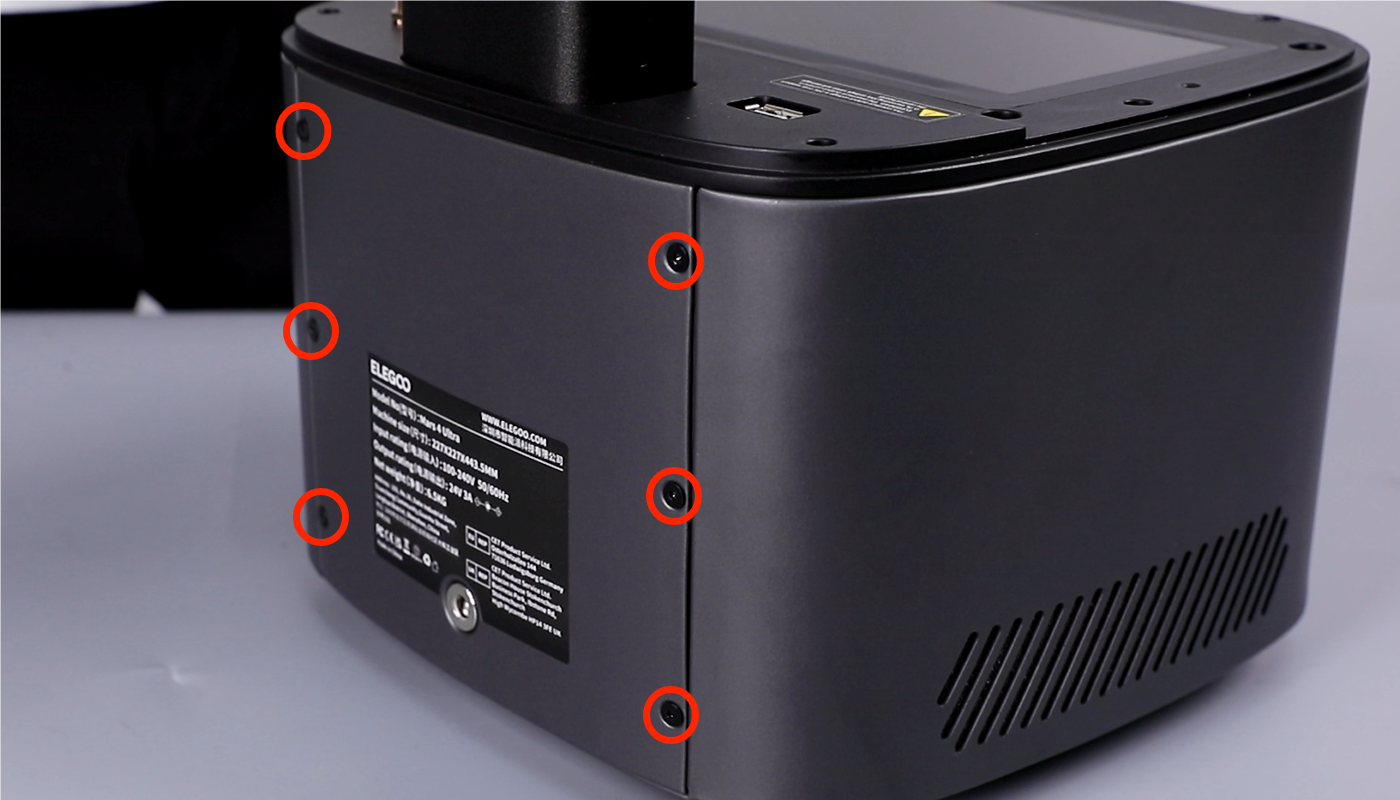
- Using a 2.0mm Allen key, remove the six screws securing the back cover.
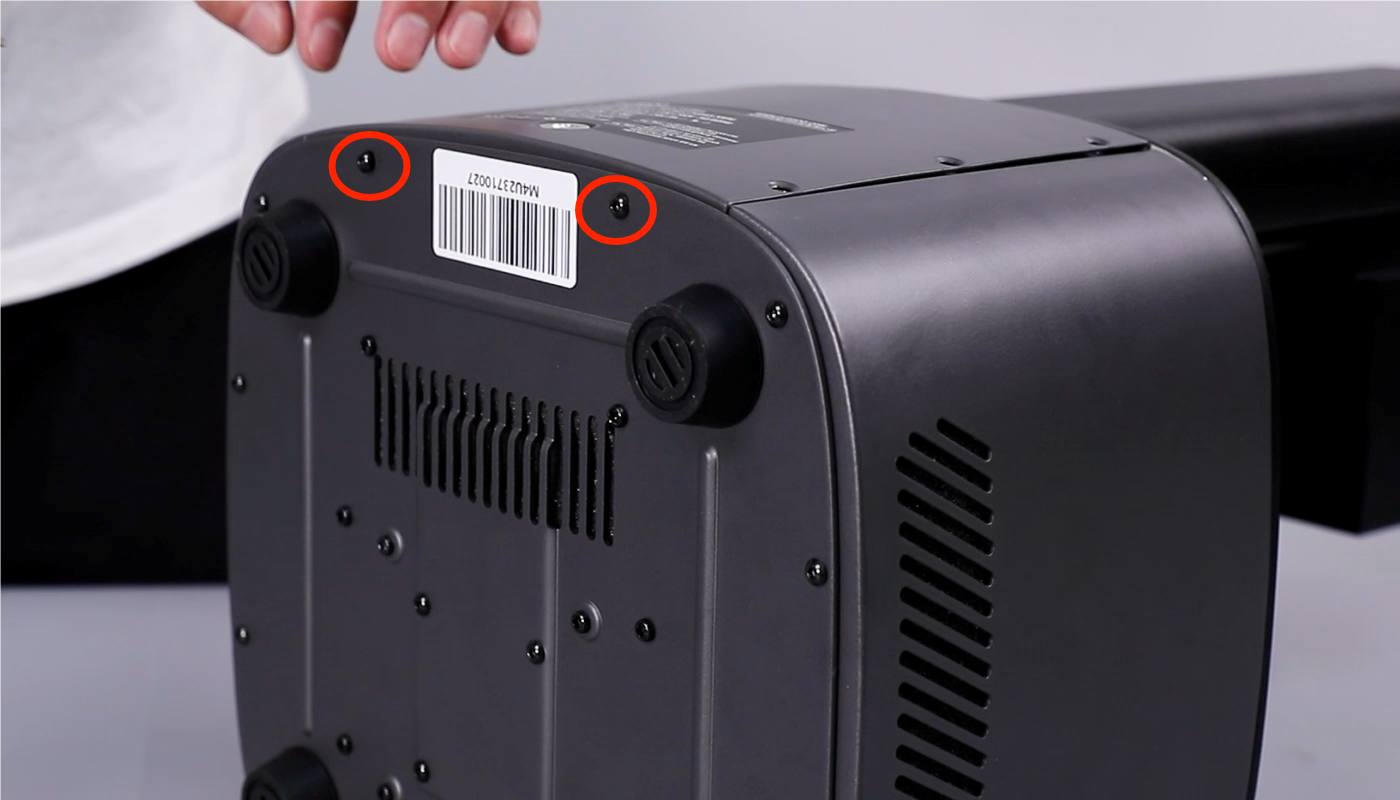
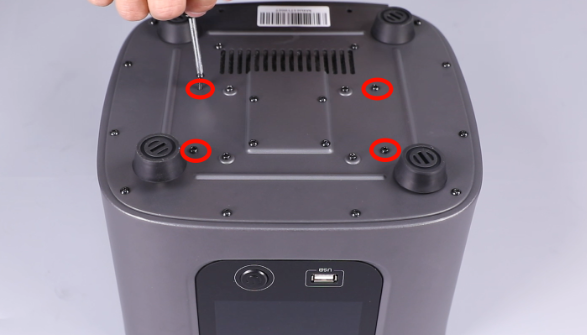
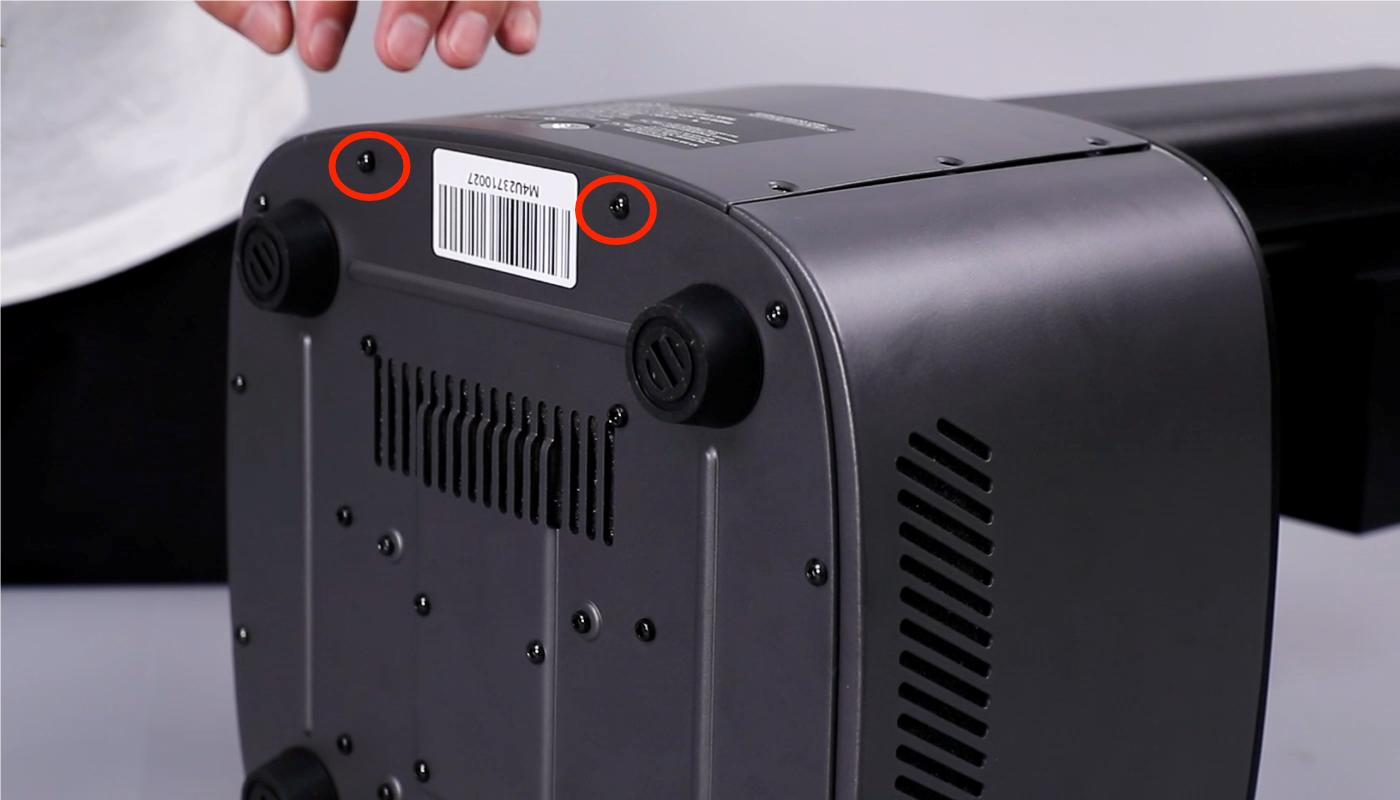
- Using a 2.5mm Allen key, remove the two screws securing the bottom cover of the printer. Remove the bottom cover.
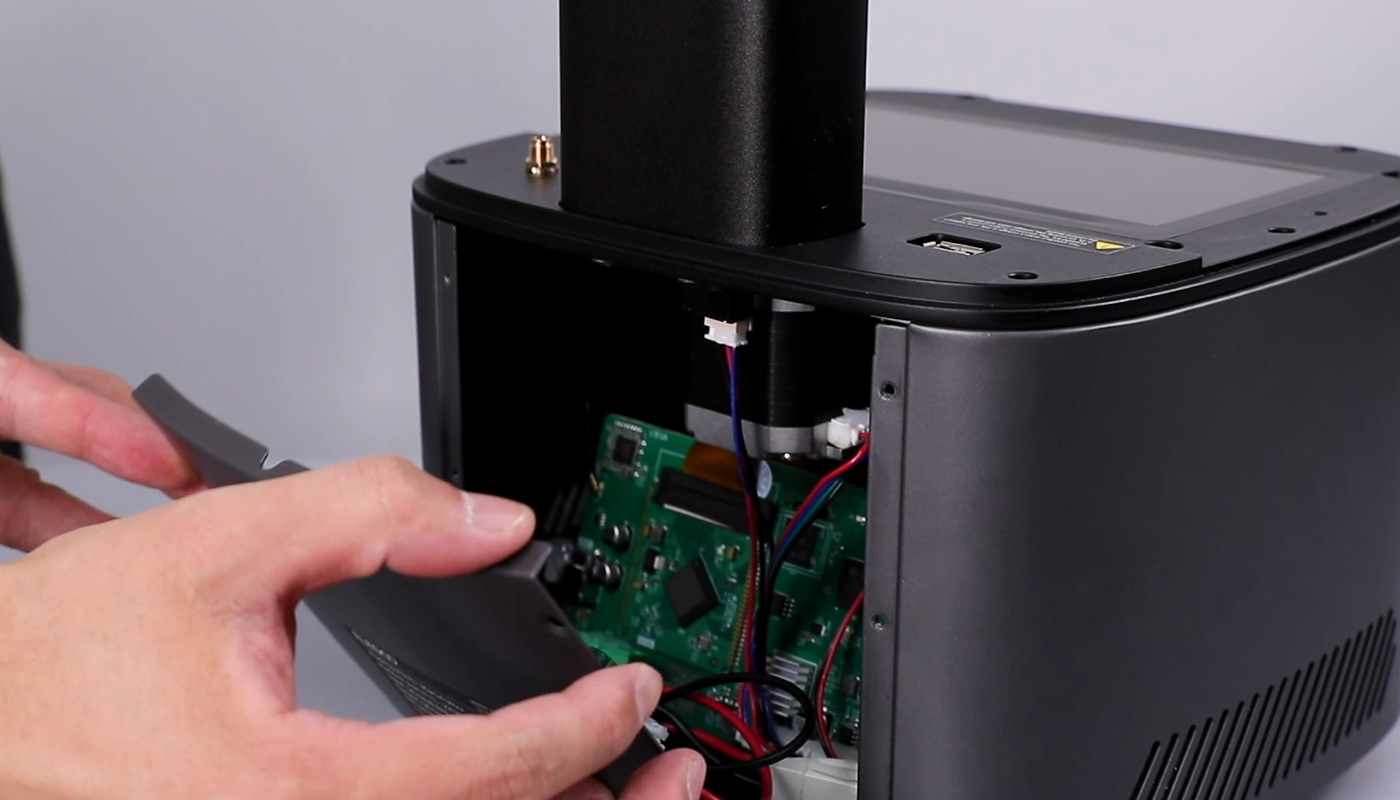
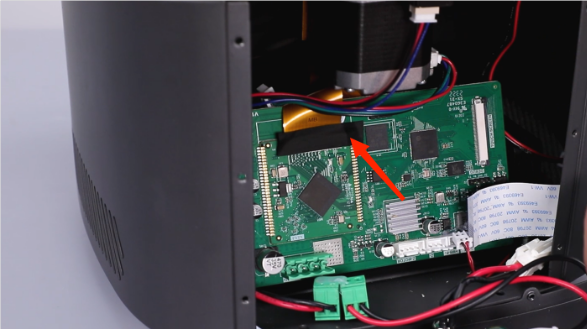
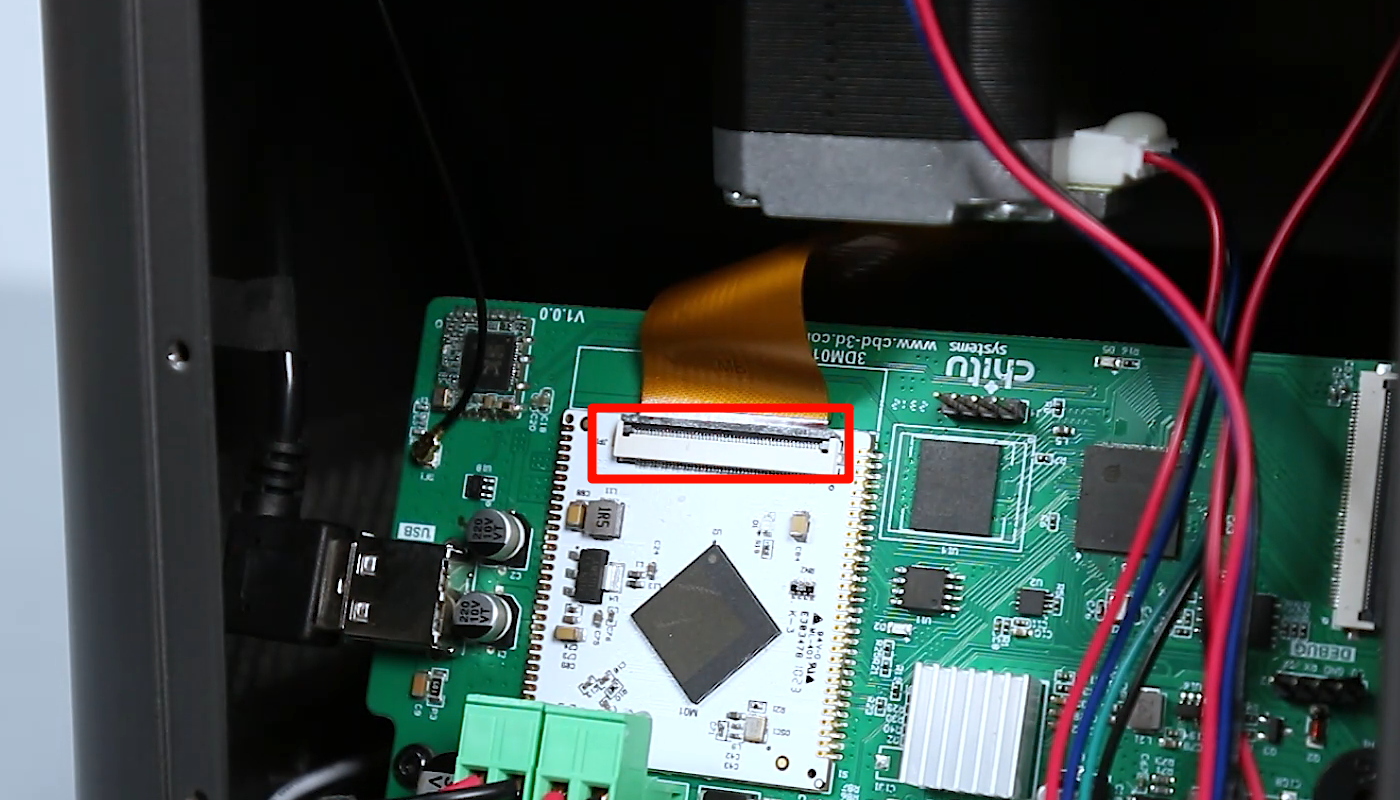
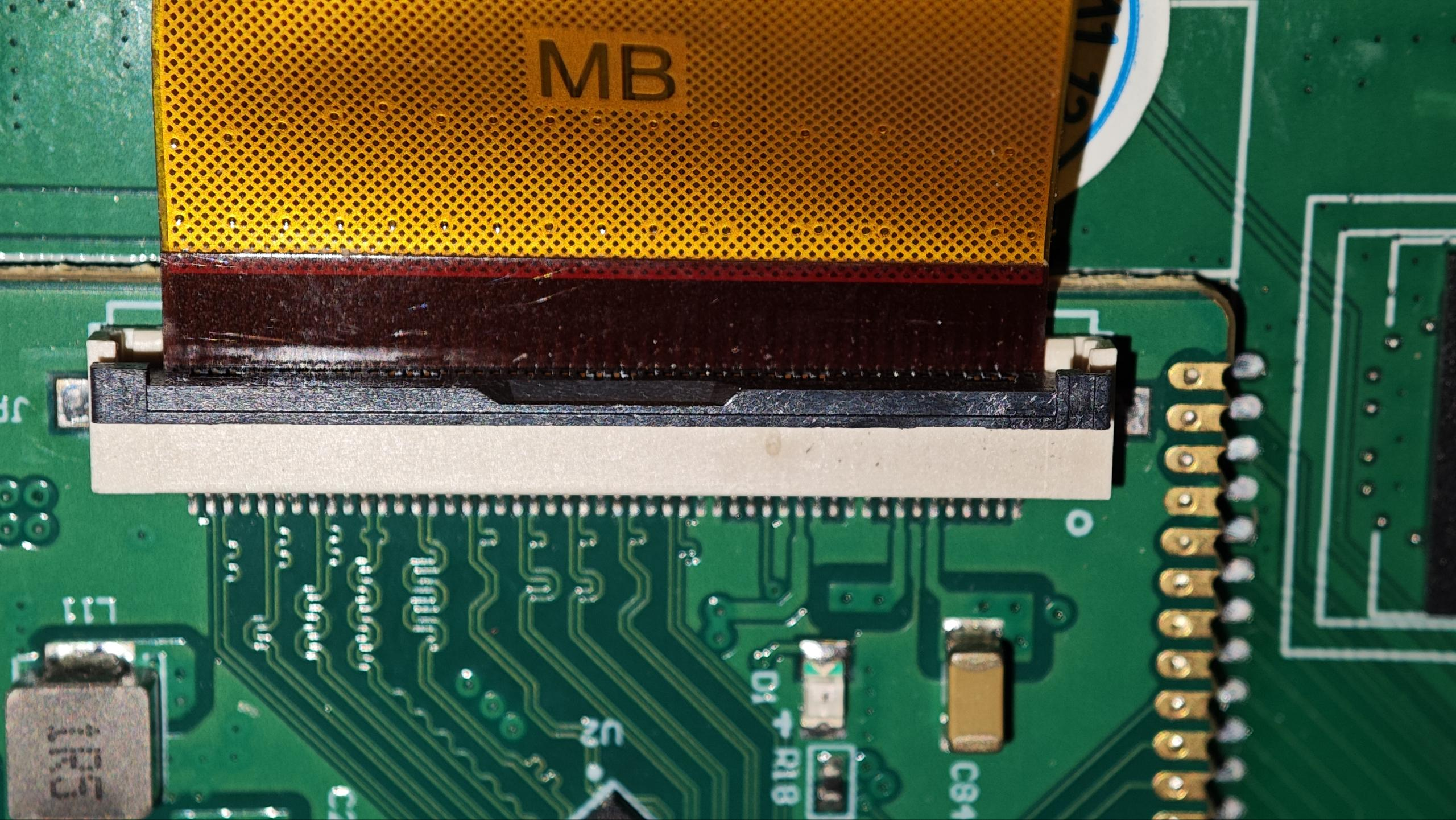
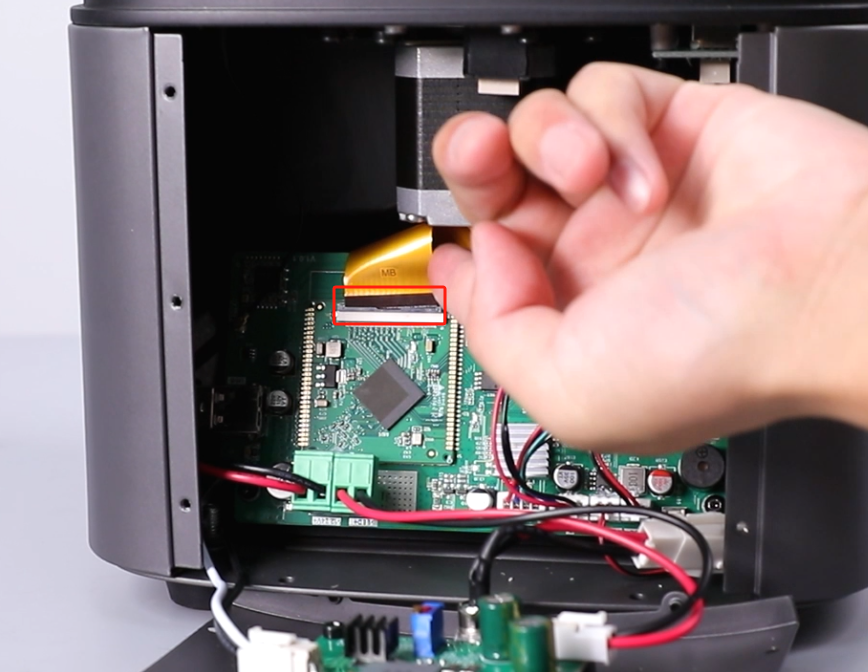
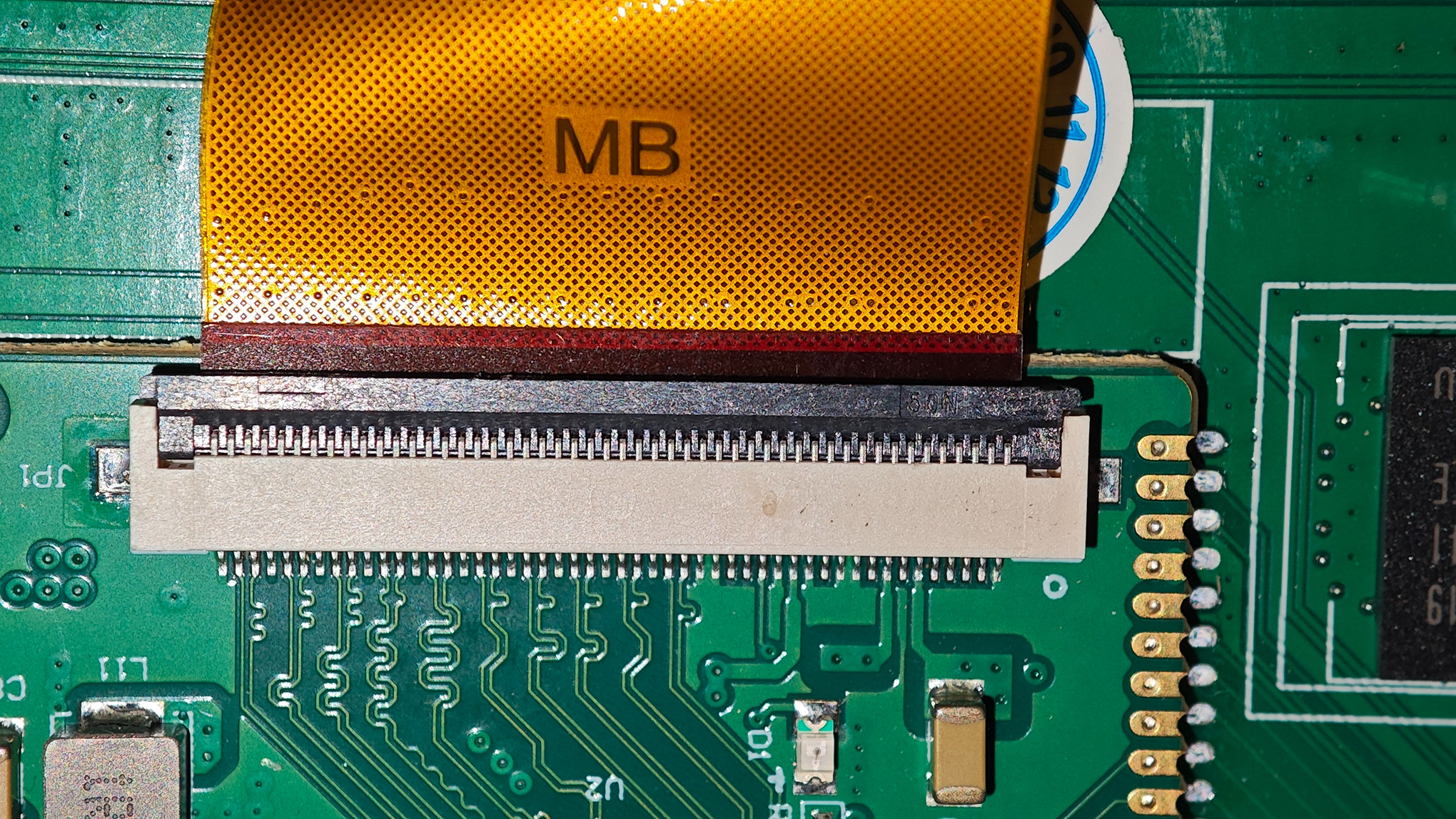
- Peel off the black tape from the LCD ribbon cable port. Lift the cover securing the LCD ribbon cable and remove the ribbon cable.
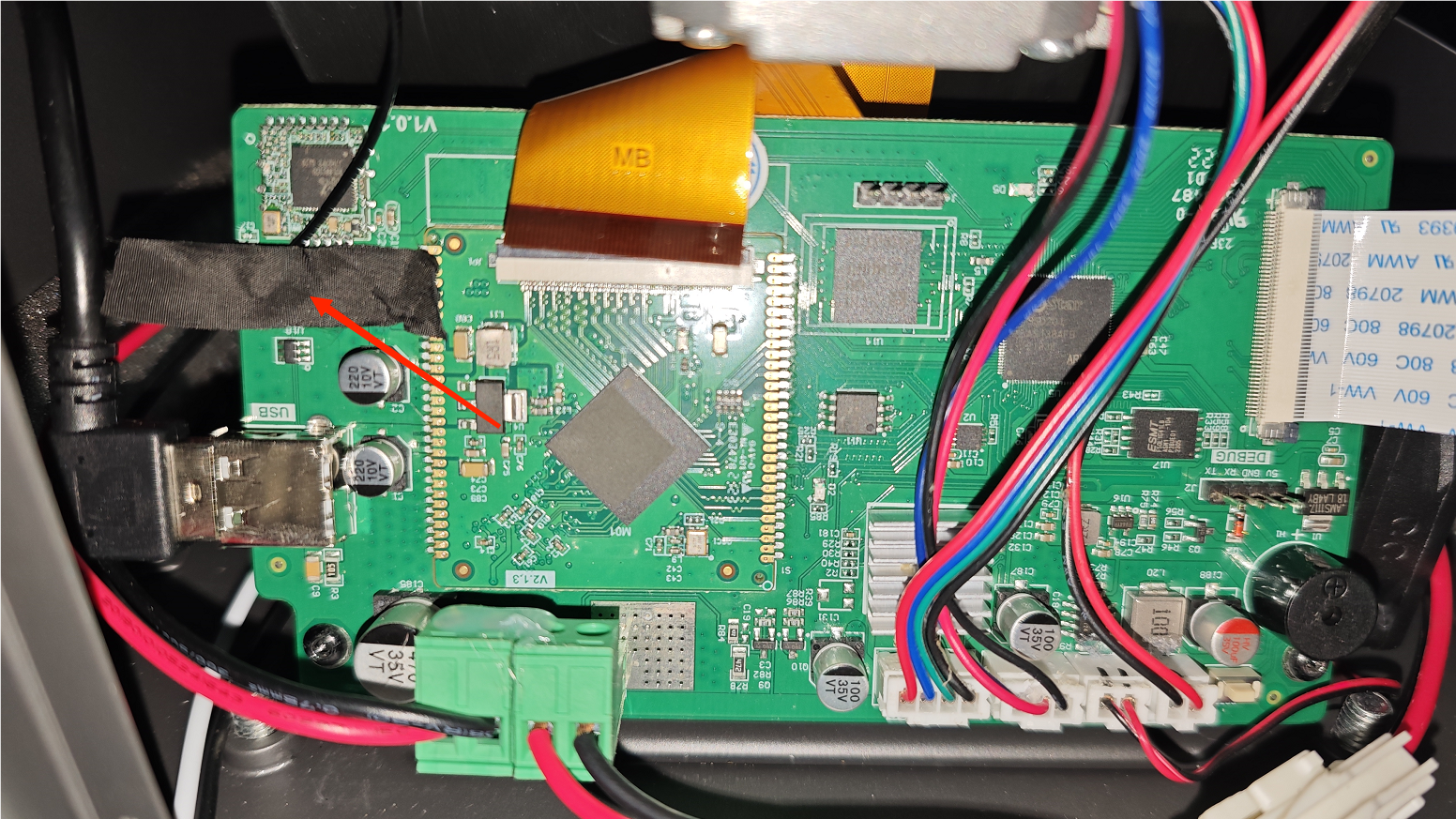
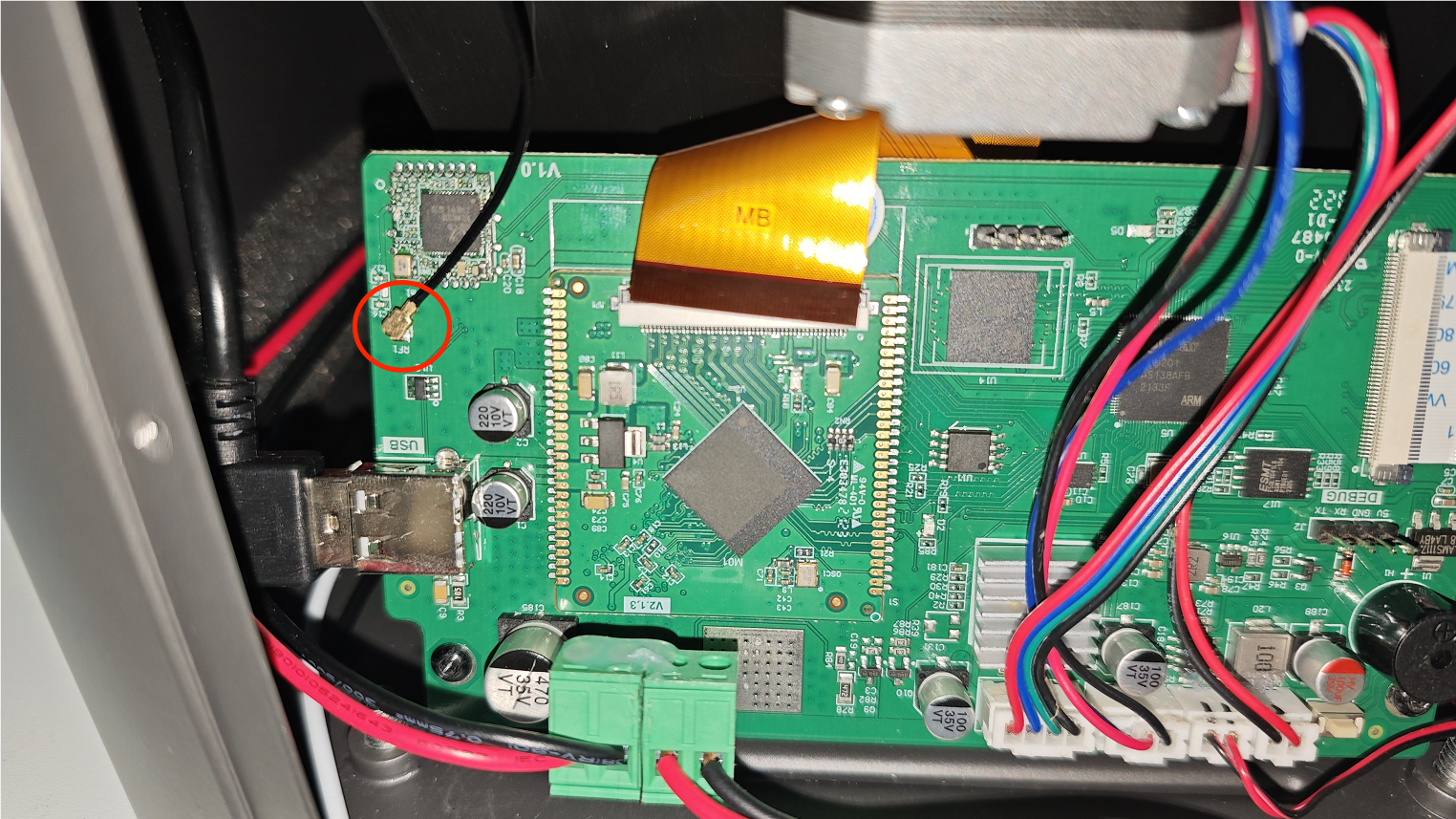
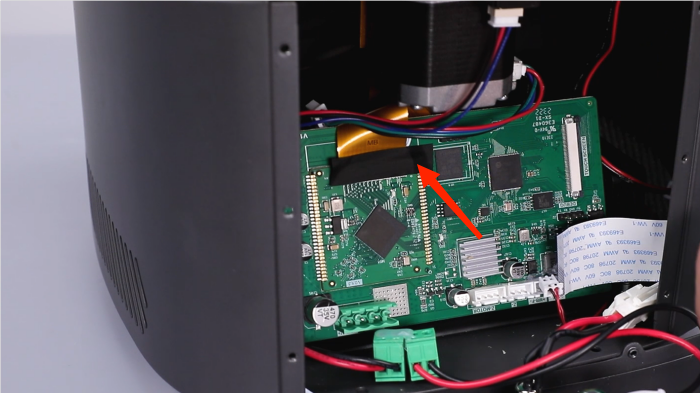
- Peel off the black tape adhered to the Wi-Fi antenna port. Disconnect the Wi-Fi antenna.
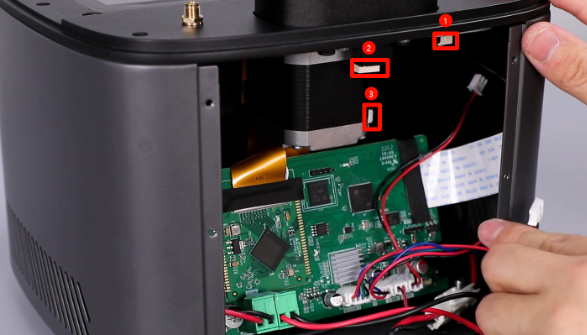
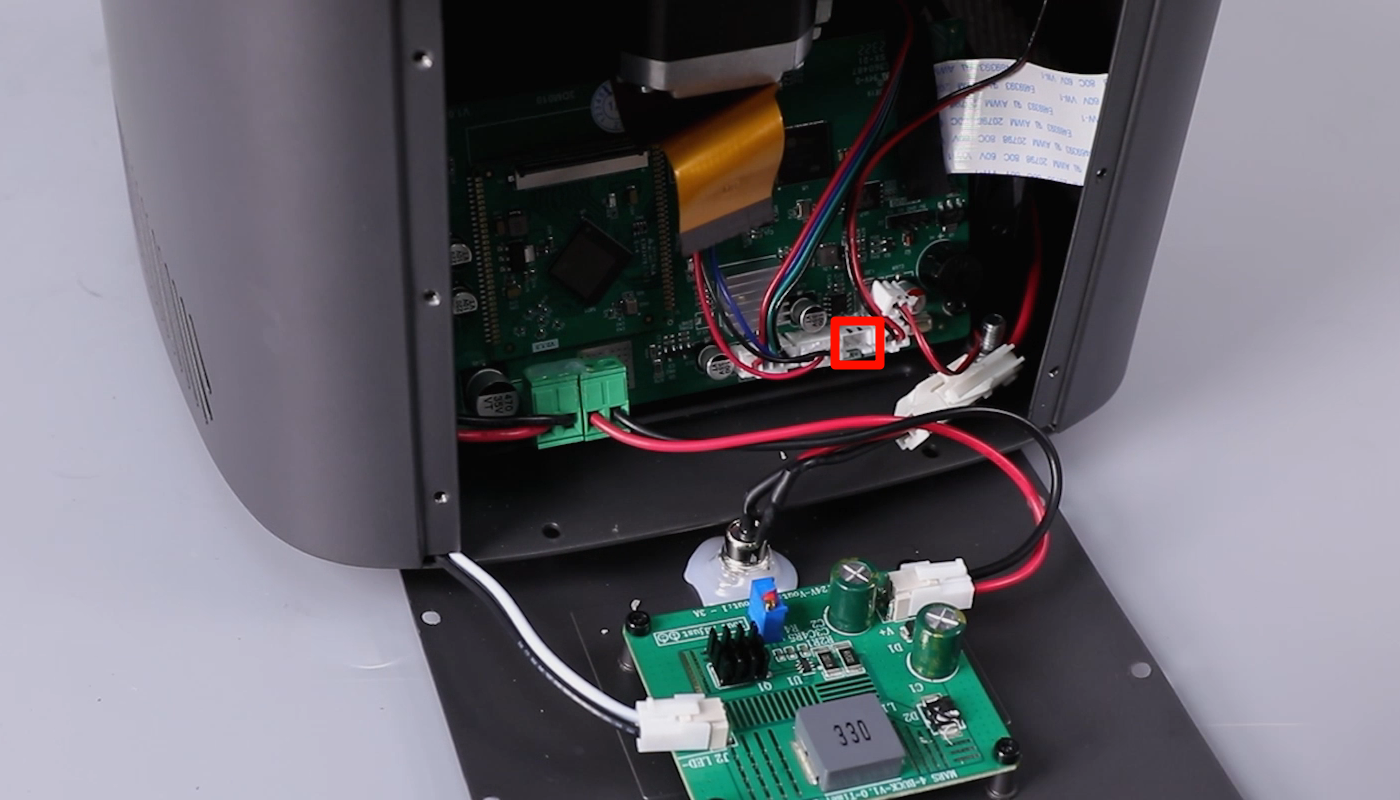
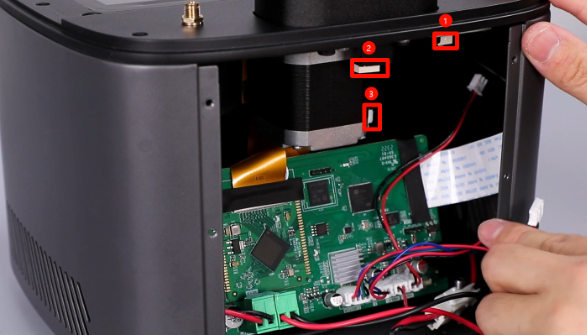
- Disconnect the ①limit switch cable, ②motor connection wire, ③ USB connection cable of the purifier.
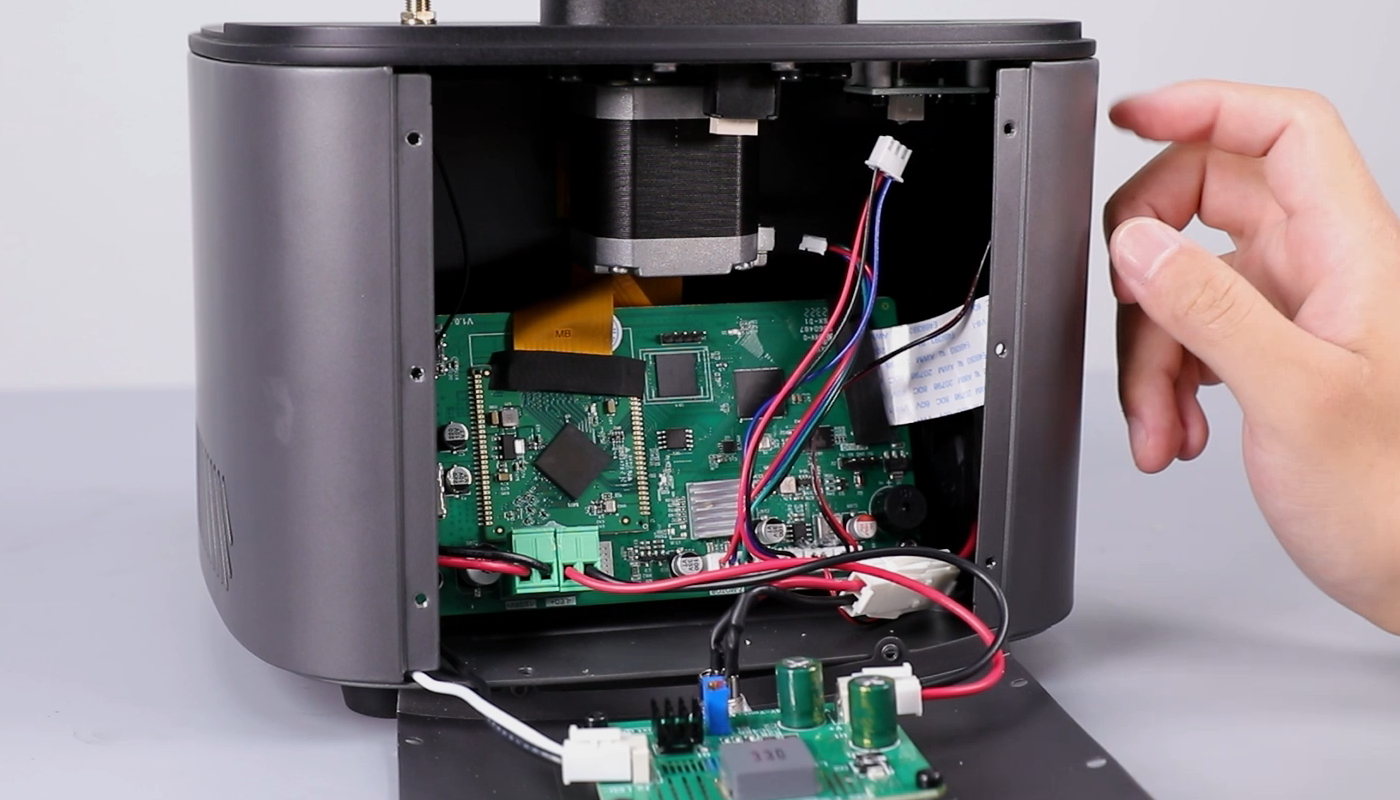
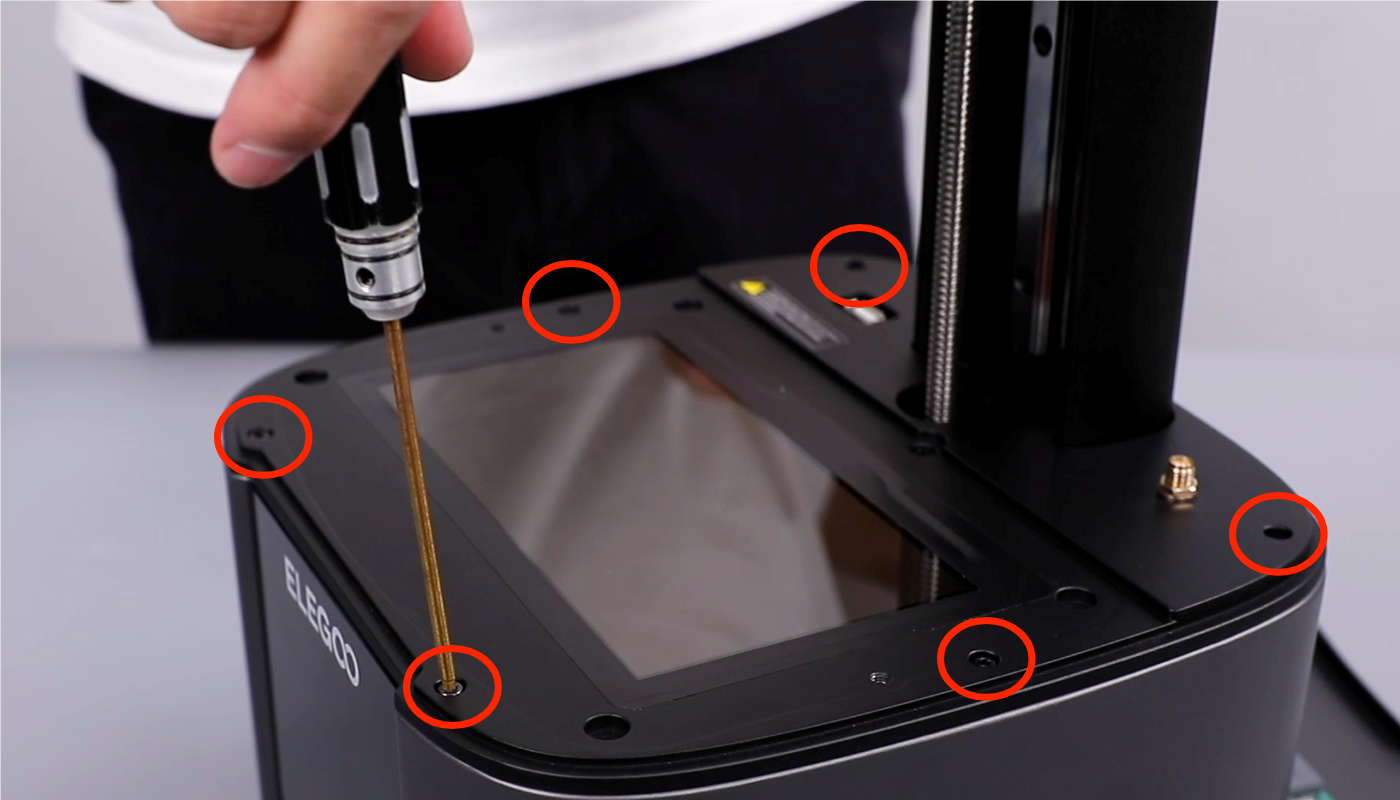
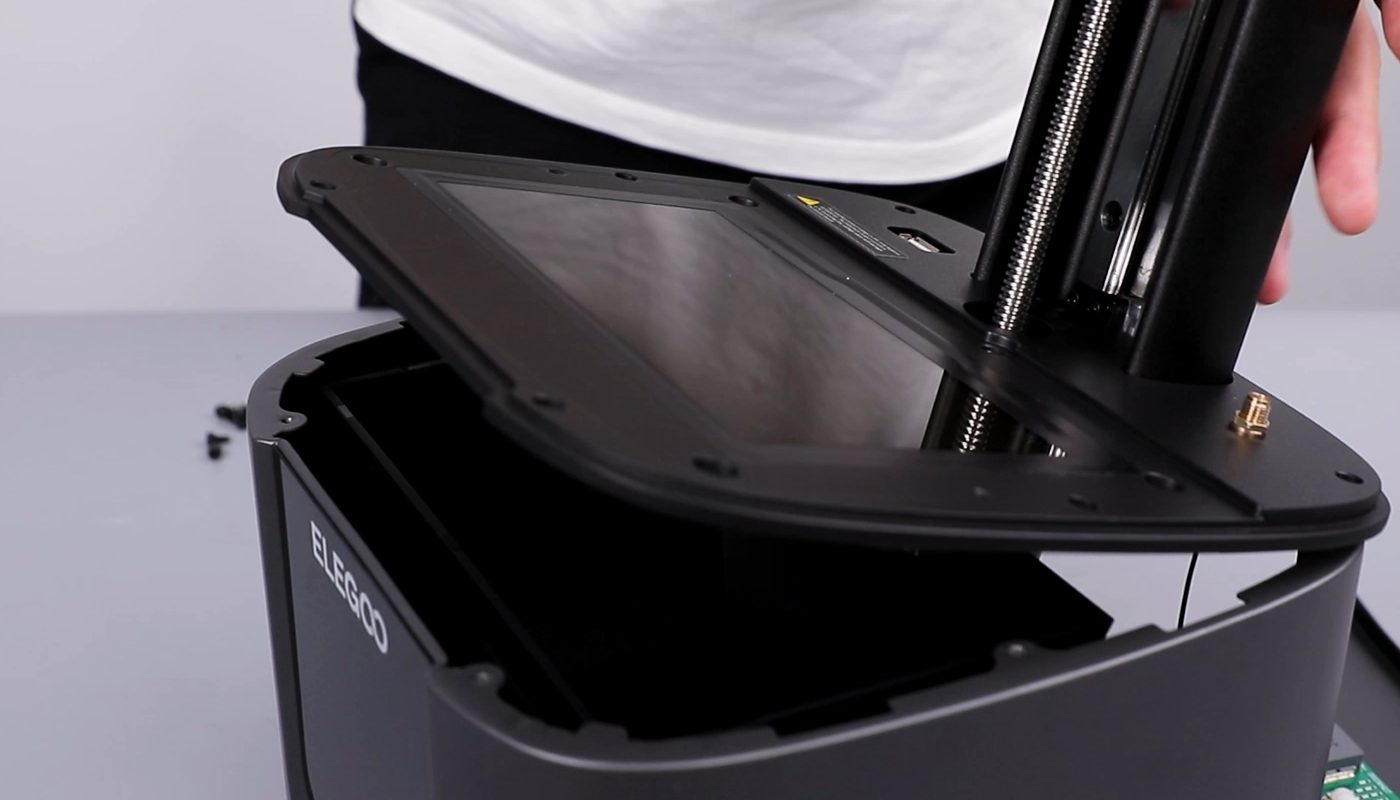
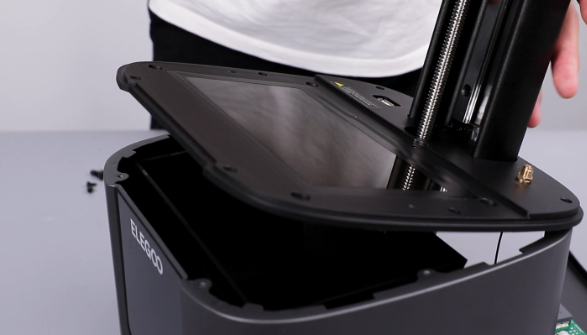
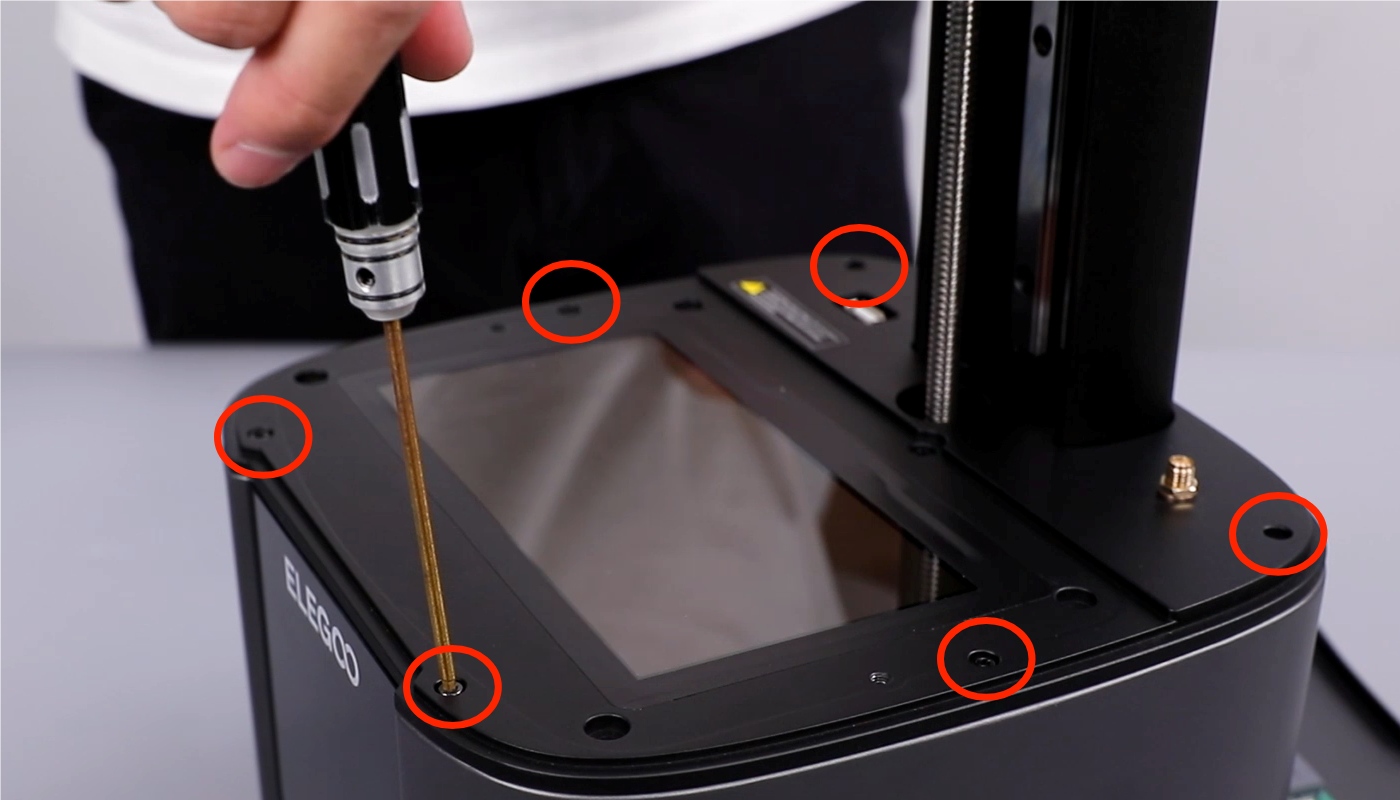
- Using a 2.5 mm Allen key, loosen the six screws securing the middle housing. (Take care of the cables.) Remove the middle housing.
- Using a Phillips screwdriver, loosen the four screws securing the lens shade at the bottom cover of the printer. Disconnect the fan cables on the motherboard. Remove the lens shade.
(NOTE: Above is connected with a cooling fan.)
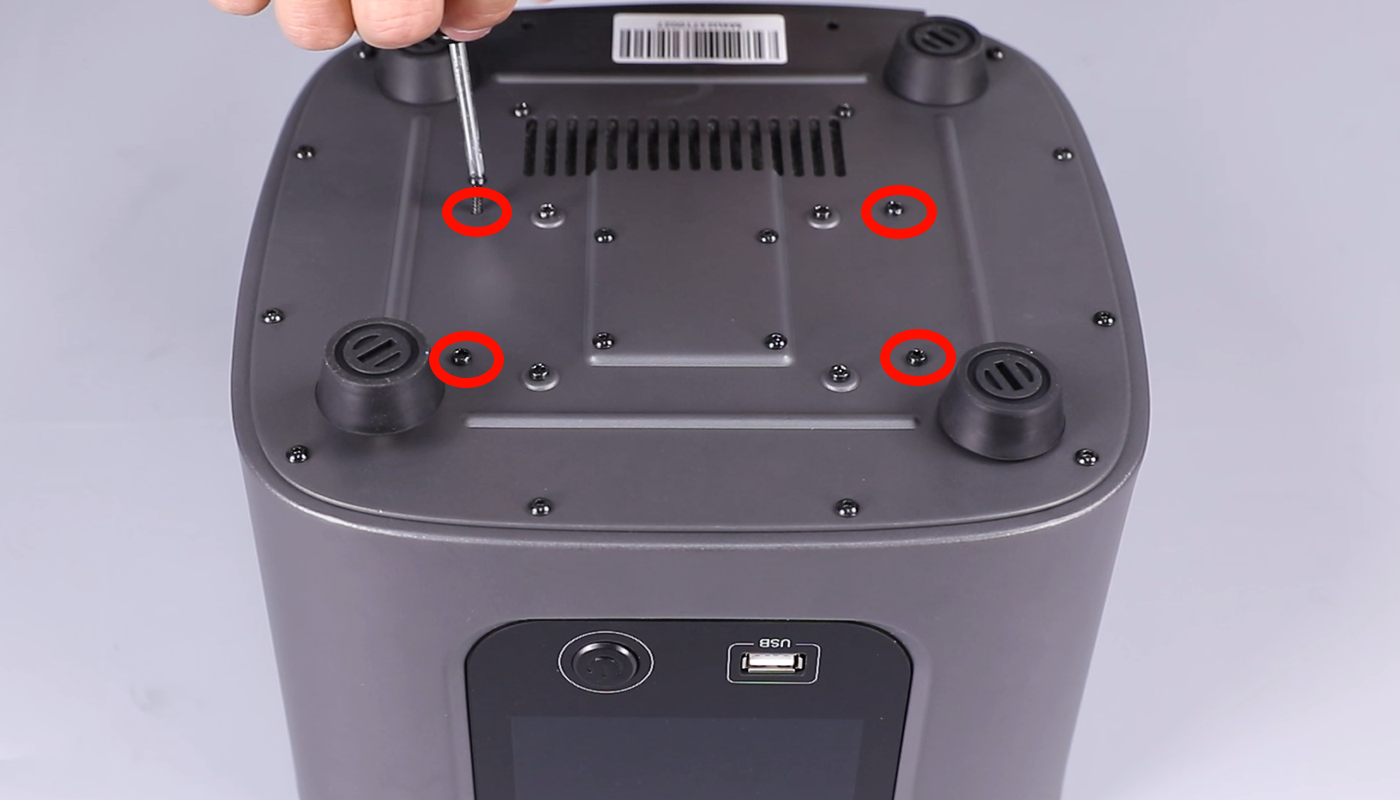
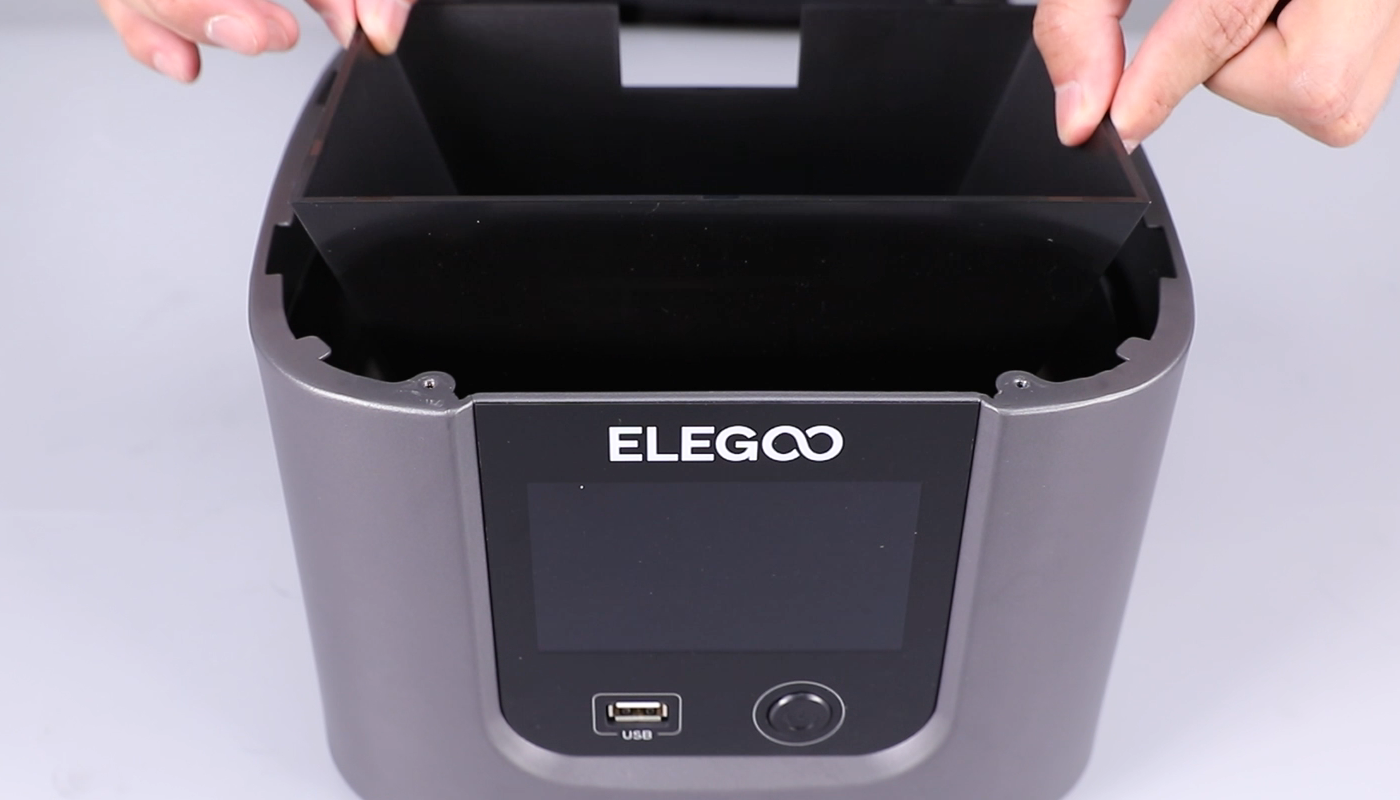
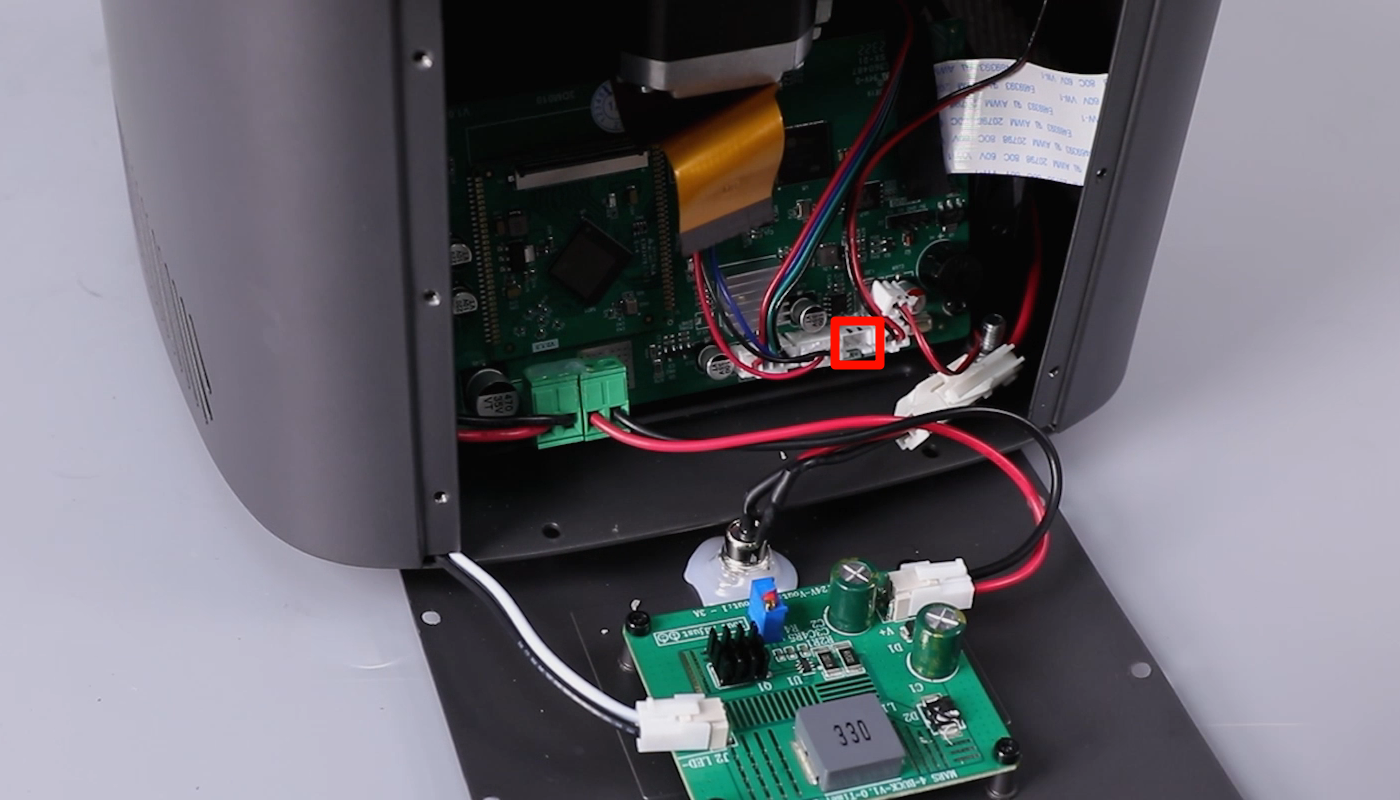
- Using a 2.0mm Allen key, loosen the four screws securing the lens. Remove the lens and the lens gasket.
(Note: If you have a new gasket, skip this step.)
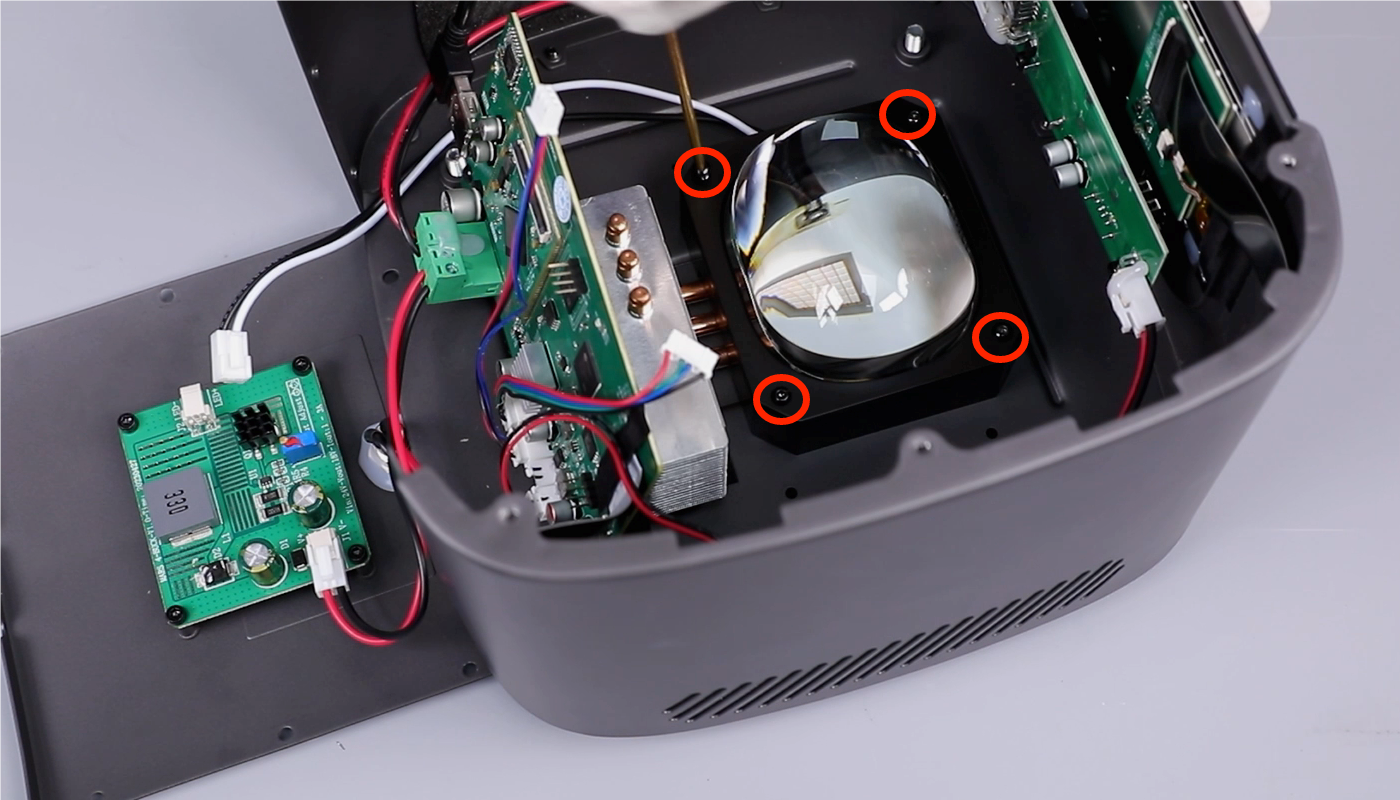
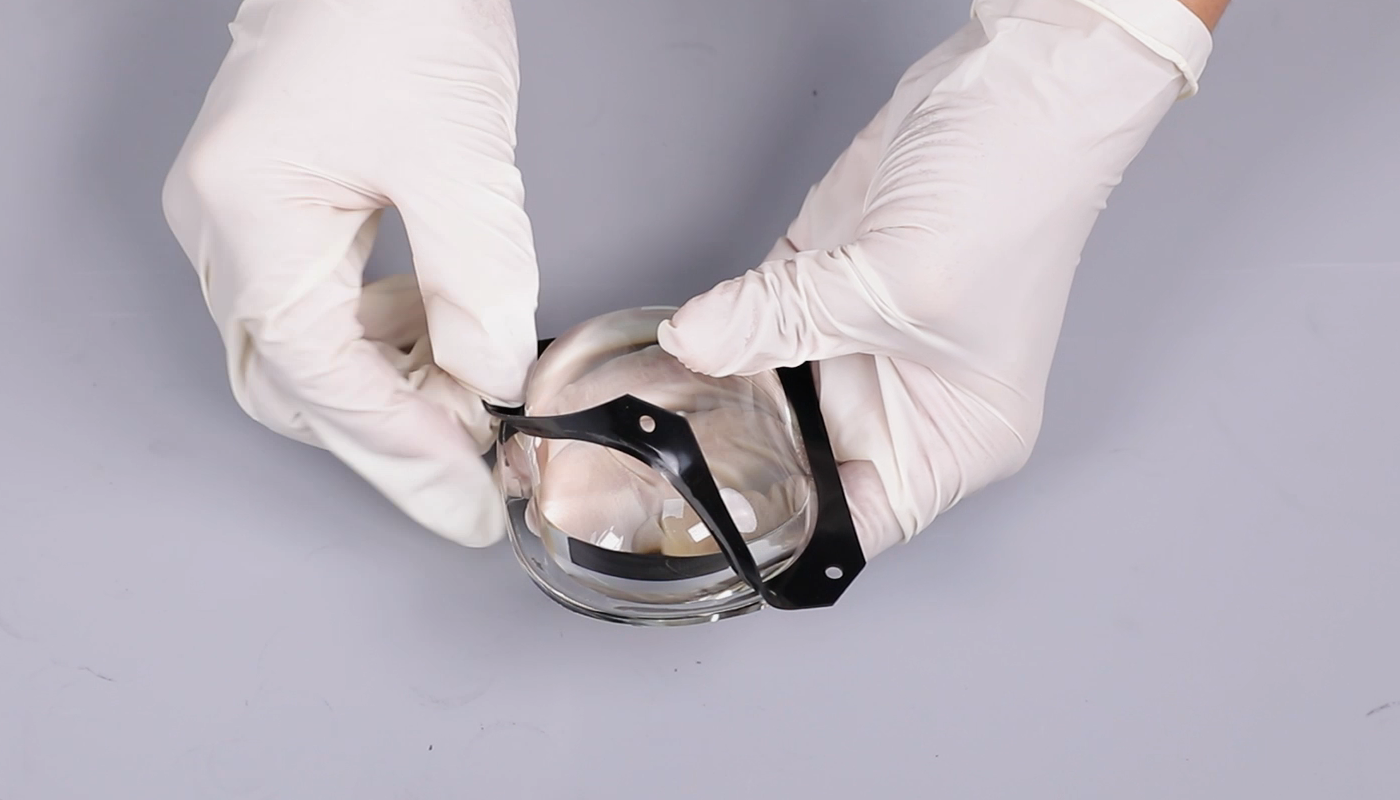
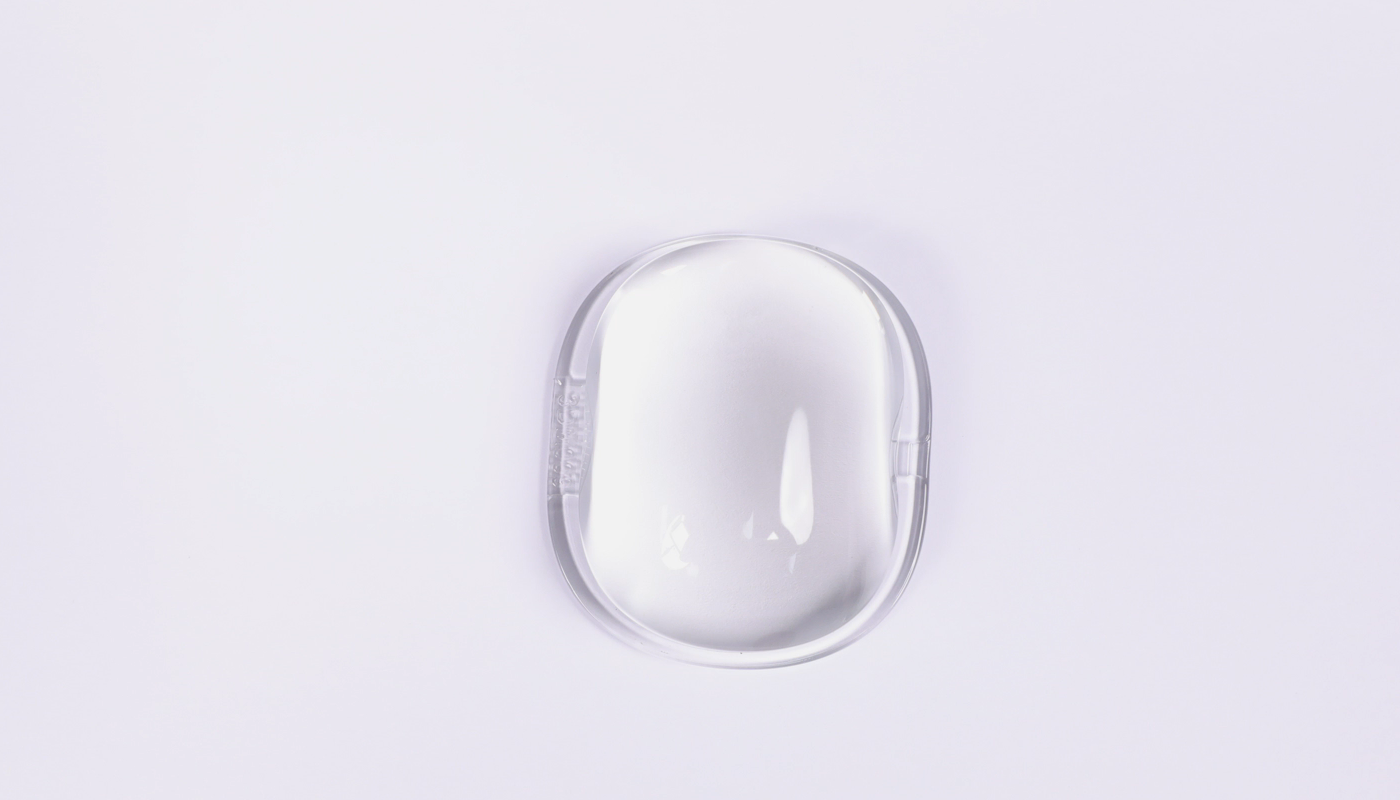
- Prepare the new lens. Put it in the installation position. Install the gasket. Using a 2.0mm Allen key, tighten the four screws securing the lens.
Place a piece of paper between the new lens and the surface. Handle with care to avoid damaging the lens, as this affects print quality.
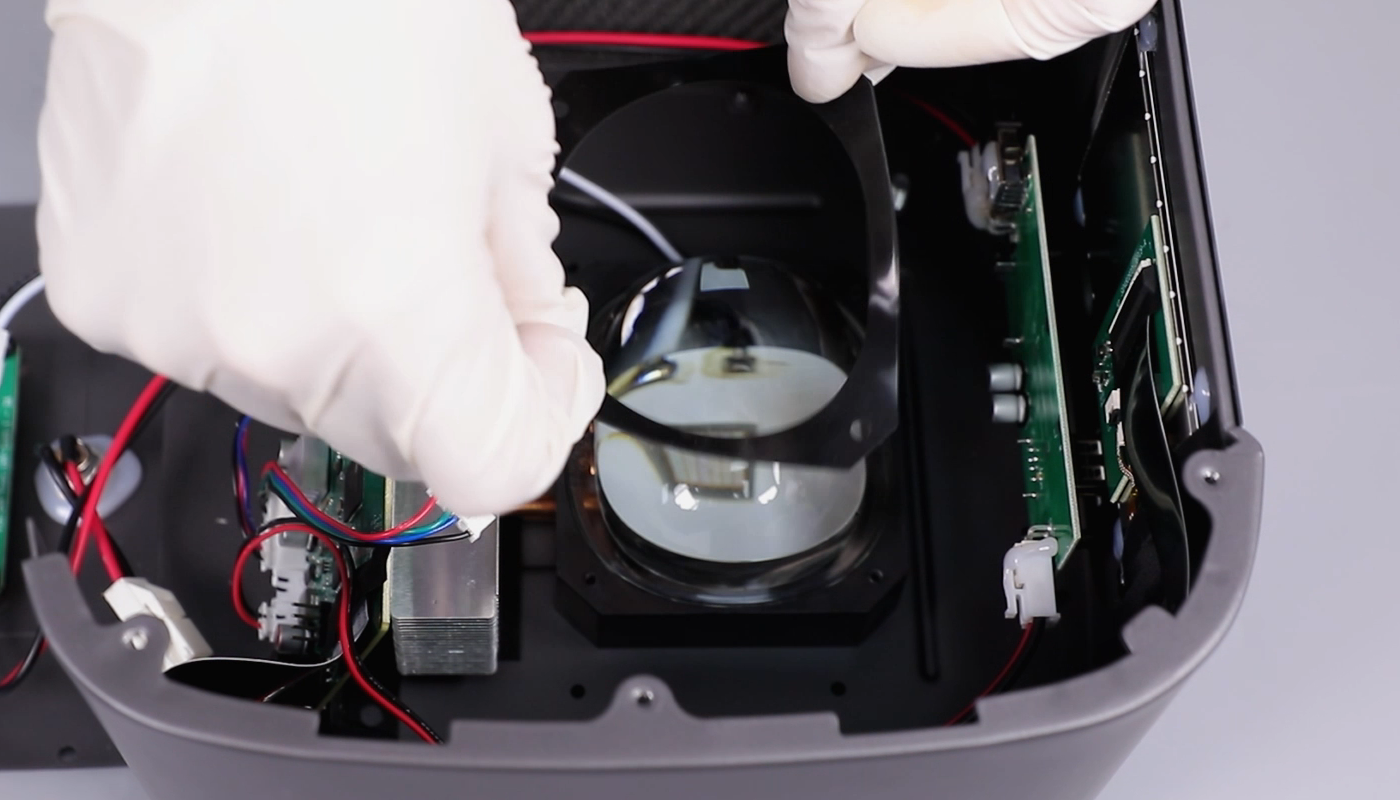
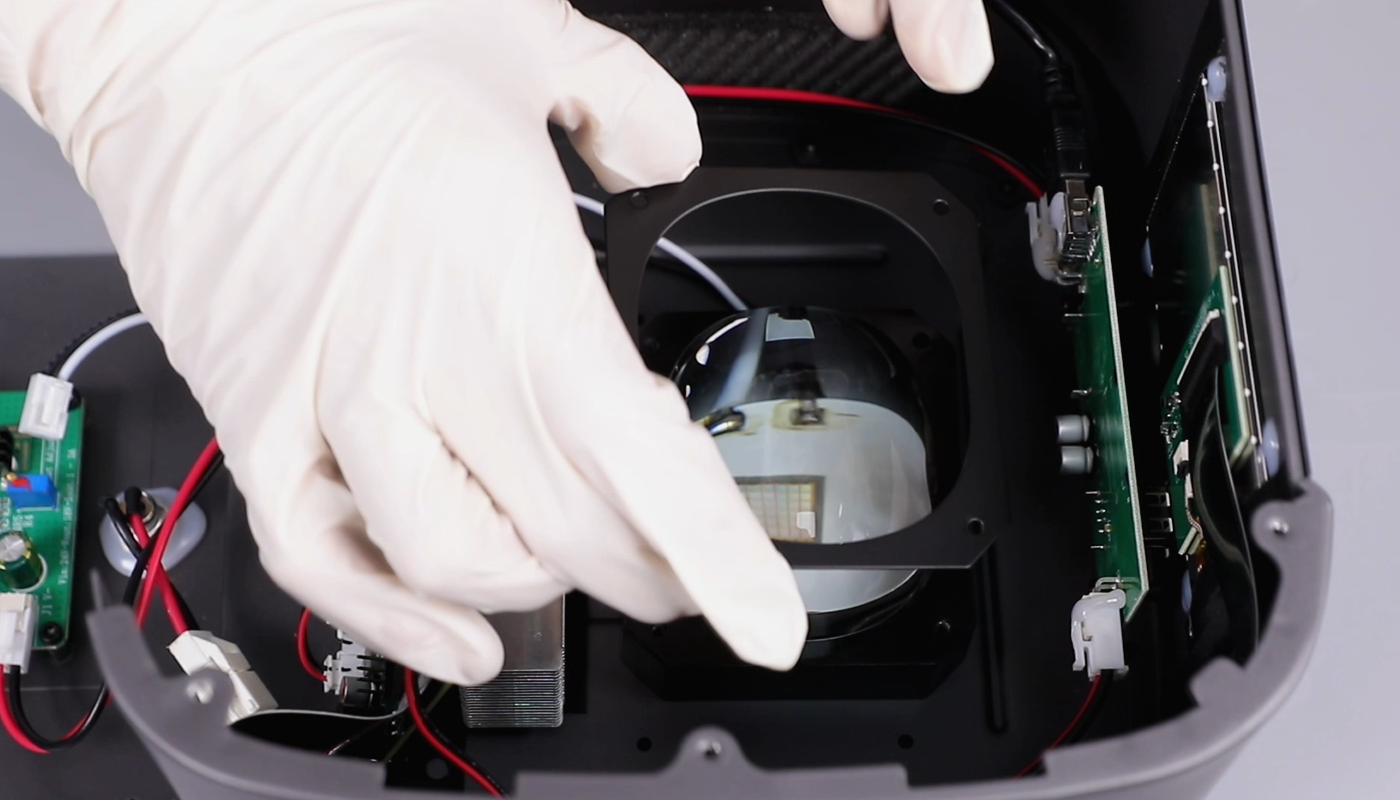
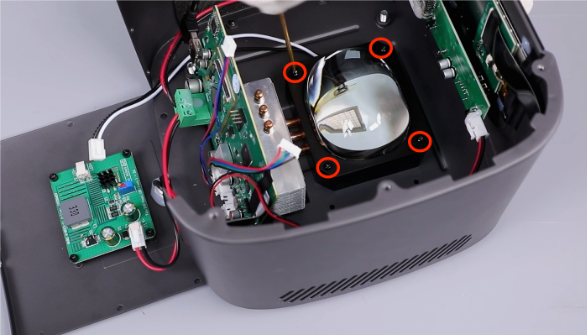
- Align the lens shade with the base plate's mounting holes. Reconnect the fan cable to the lens shade. Using a Phillips screwdriver, tighten the four fixing screws.
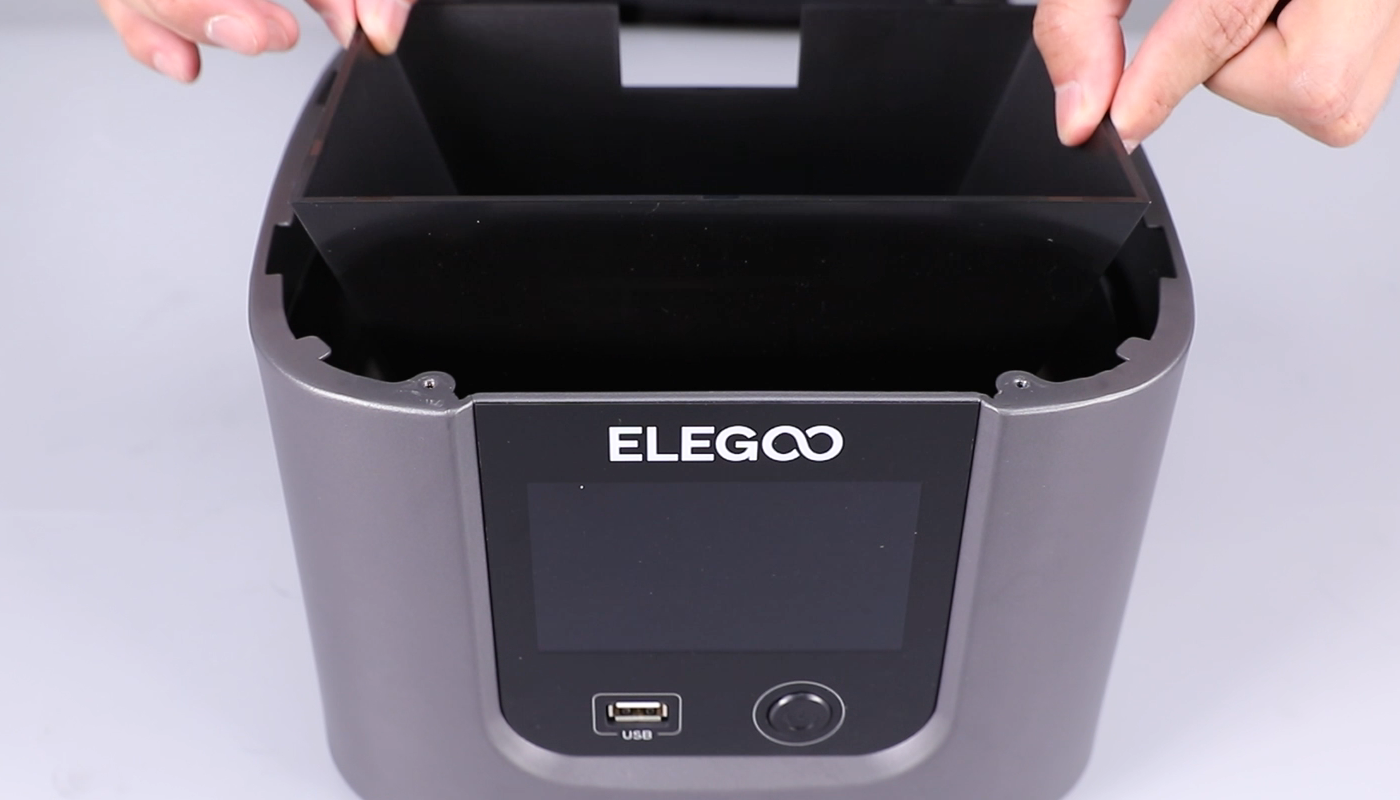
- Align the middle housing with the screw holes and put it in the installation position. Using a 2.5 mm Allen key, tighten the six screws securing the middle housing.
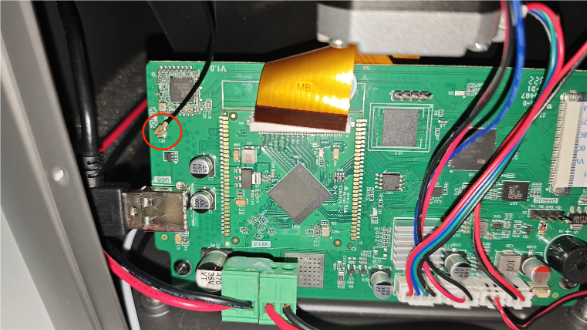
- Insert the Wi-Fi antenna. Secure the Wi-Fi antenna using black tape.
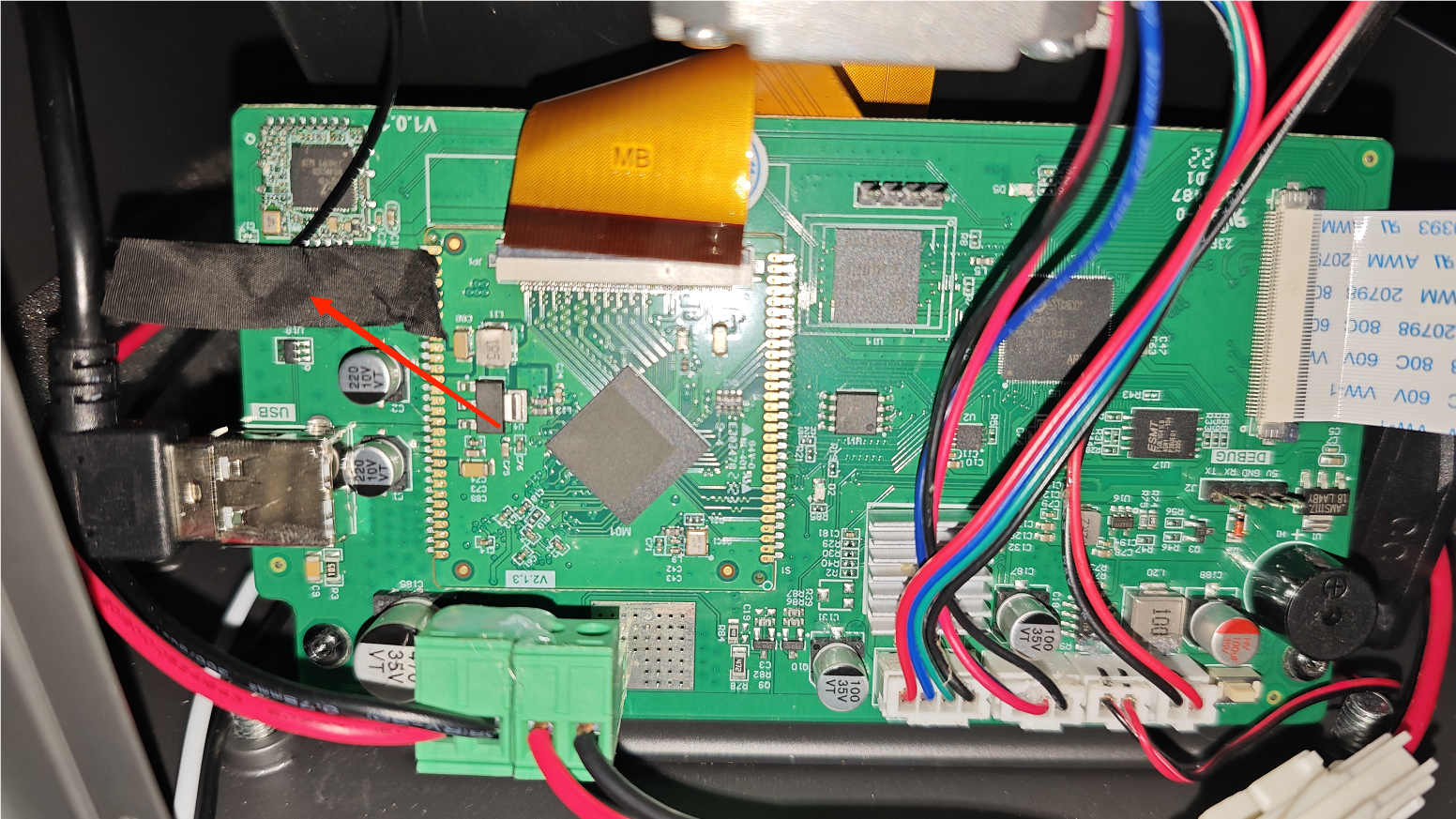
- Lift the LCD cable plate and insert the LCD cable. Press the LCD cable and adhere the black tape.
- Disconnect the ①limit switch cable, ②motor connection wire, ③ USB connection cable of the purifier.
- Install the back cover. Using a 2.5 mm Allen key, tighten the two screws securing the bottom cover of the printer.
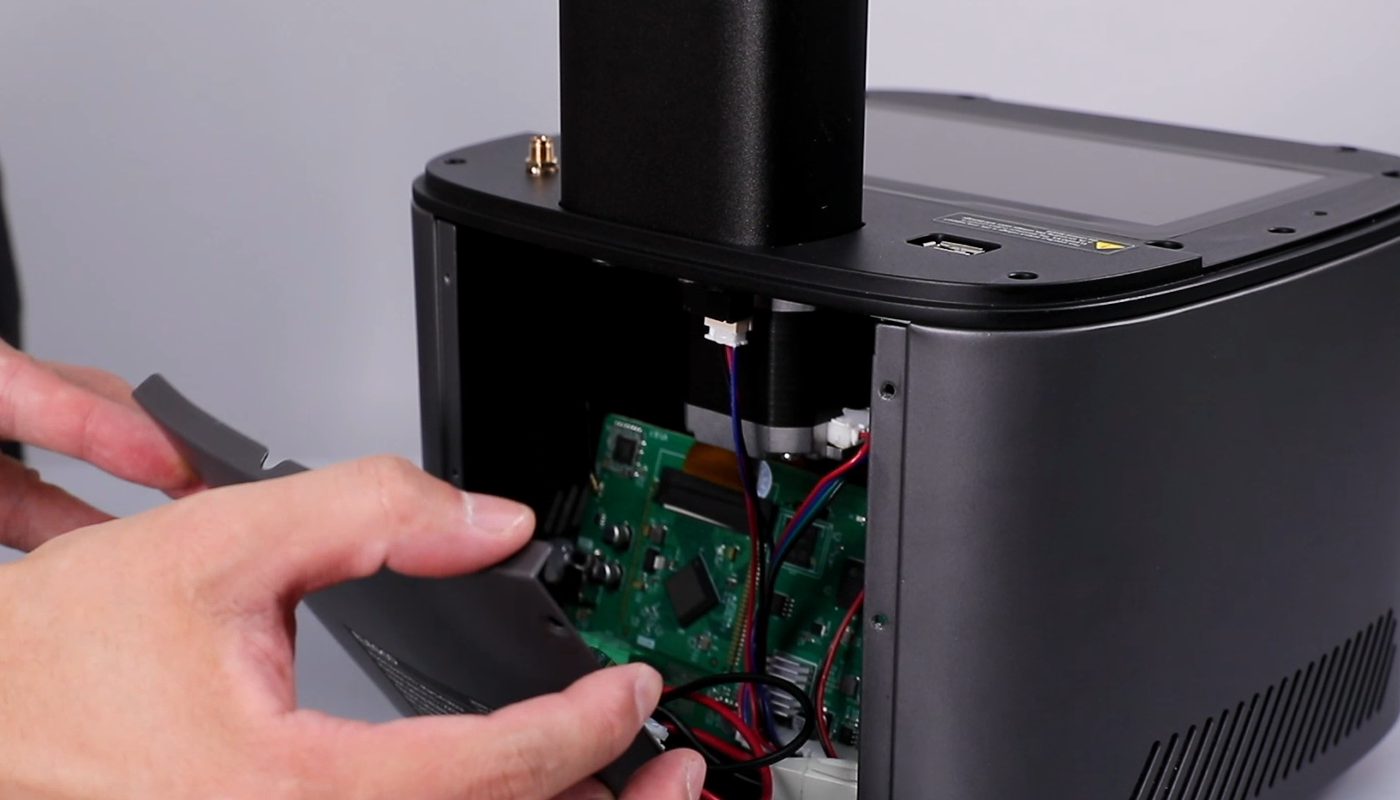
- Using a 2.0mm Allen key, tighten the six screws securing the back cover.
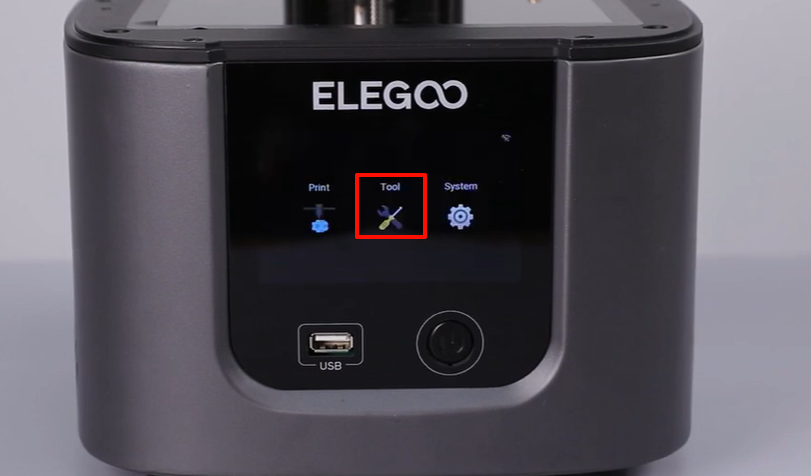
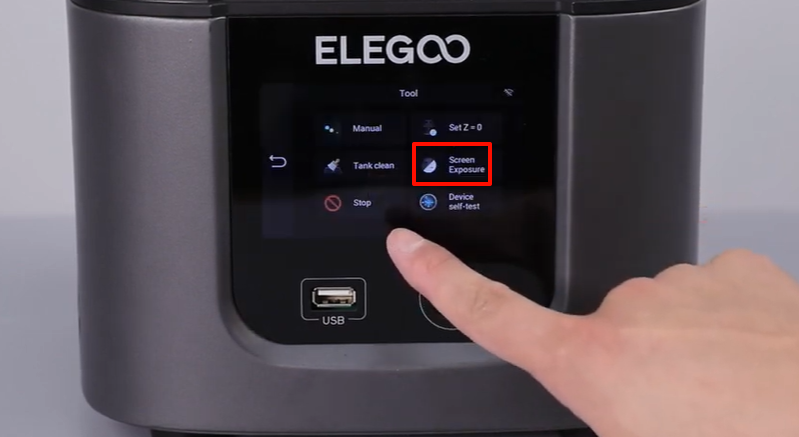
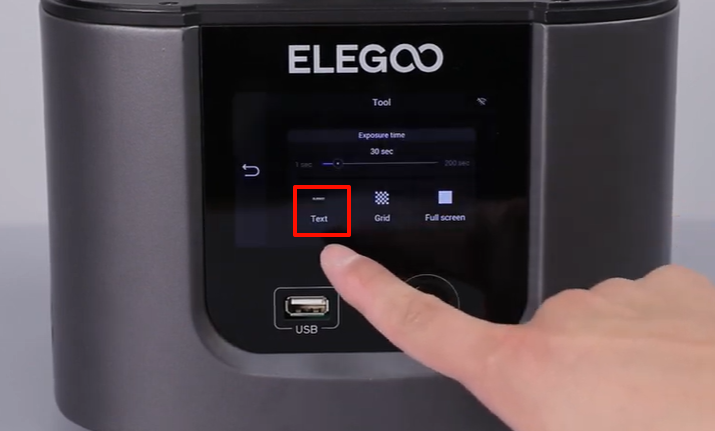
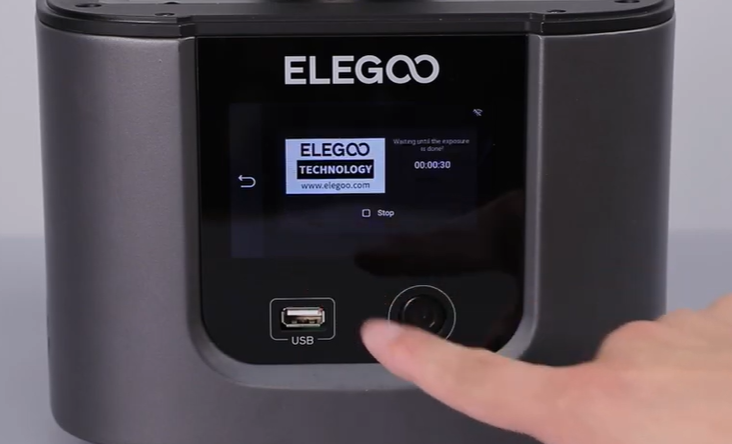
- Power on the printer. On the touchscreen, select Tool - Screen Exposure - ELEGOO. The printer is ready for use if the LCD screen and the touchscreen works normally.