¶ Issue Description
When powering on the printer, the touch screen cannot turn on.
¶ Reasons
-
The USB flash drive was inserted before turning the power switch on (symbol "|").
-
The power adapter is defective.
-
Firmware anomaly or an incorrect firmware has been updated.
-
Poor contact of the touch screen ribbon cable.
-
The motherboard or touch screen is defective.
-
Any component is short-circuited.
¶ Troubleshooting Steps
¶ Tools necessary for toubleshooting
-
2.0 mm Allen key
-
FAT-32 format USB flash drive with a capacity of less than 16GB
¶ Step 1. Remove the USB flash drive and restart the printer.**
Before turning the printer, do not insert the USB flash drive.
-
Remove the USB flash drive and restart the printer.
-
Check whether the touch screen can be enabled.
¶ Step 2. Check the power adapter.
-
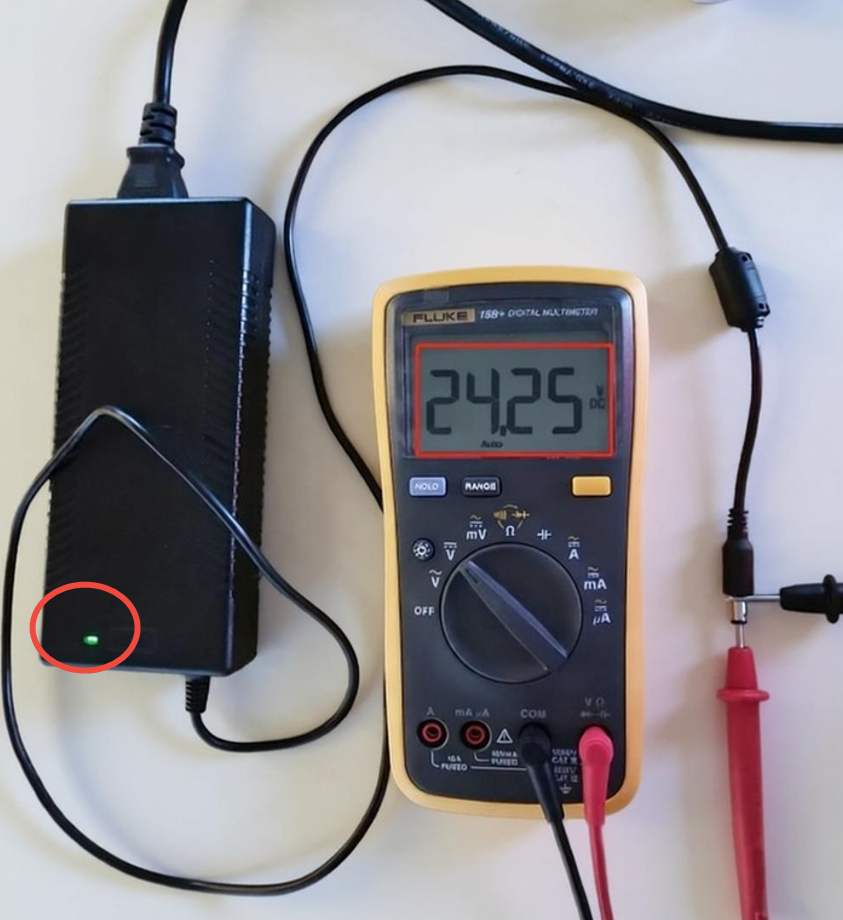
If a multimeter is available, measure the output voltage of the power adapter with a multimeter and check whether the voltage is stable. The default value is 24V.
-
If a multimeter is not available, check whether the power adapter indicator is on after turning the power switch on.
If the voltage of the power adapter is unstable or the indicator does not light up, it is necessary to replace the power adapter.
- If a 12V/24V adapter is available, connect the adapter with the printer for testing.
If the touch screen is enabled when using other adapters, it indicates that the adapter is defective and it is necessary to replace it with a new power adapter.
¶ Step 3. Update the Firmware.
- Download the Bin file in the attachment.
Note: Unzip the package and copy the Bin file into the root directory. Do not use the ZIP package.
https://elegoo-supportcenter.oss-us-west-1.aliyuncs.com/M5U Repair Firmware.rar
-
Copy it to the root directory of your USB flash drive.
-
Restart the printer and the firmware can be updated automatically.
Note:
-
Do not change the name of the Bin file.
-
Double-click the USB flash drive icon on your computer and the directory you have accessed is the root directory.
¶ Step 4. Re-plug the touch screen ribbon cable on the touch screen side.
-
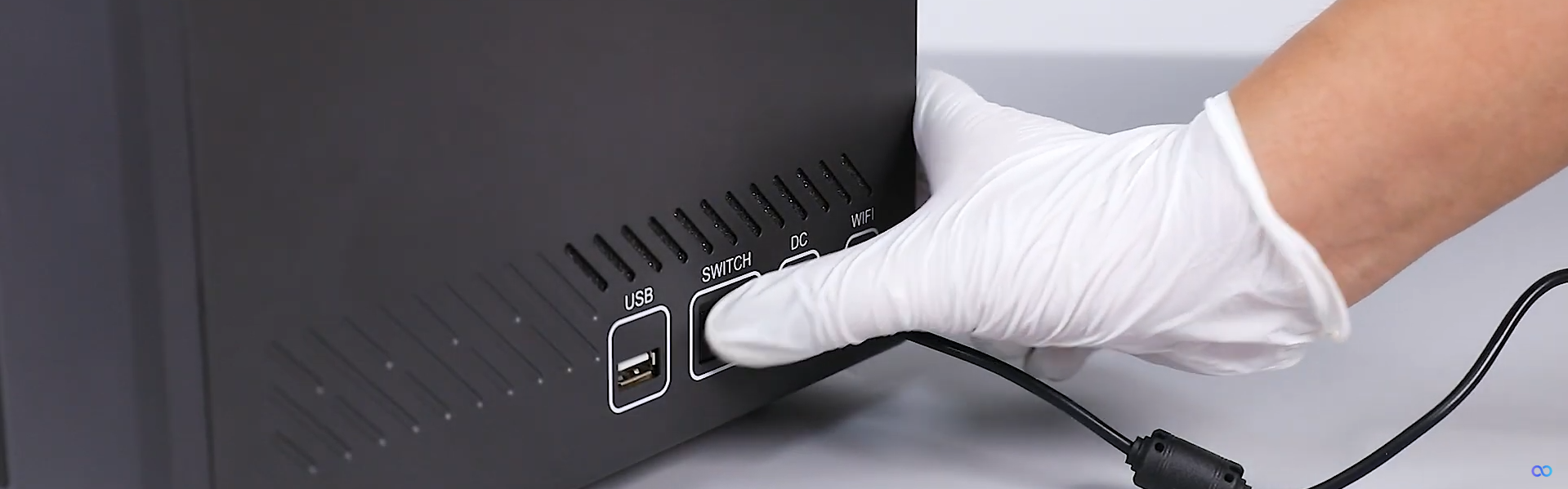
Turn the printer switch off.
-
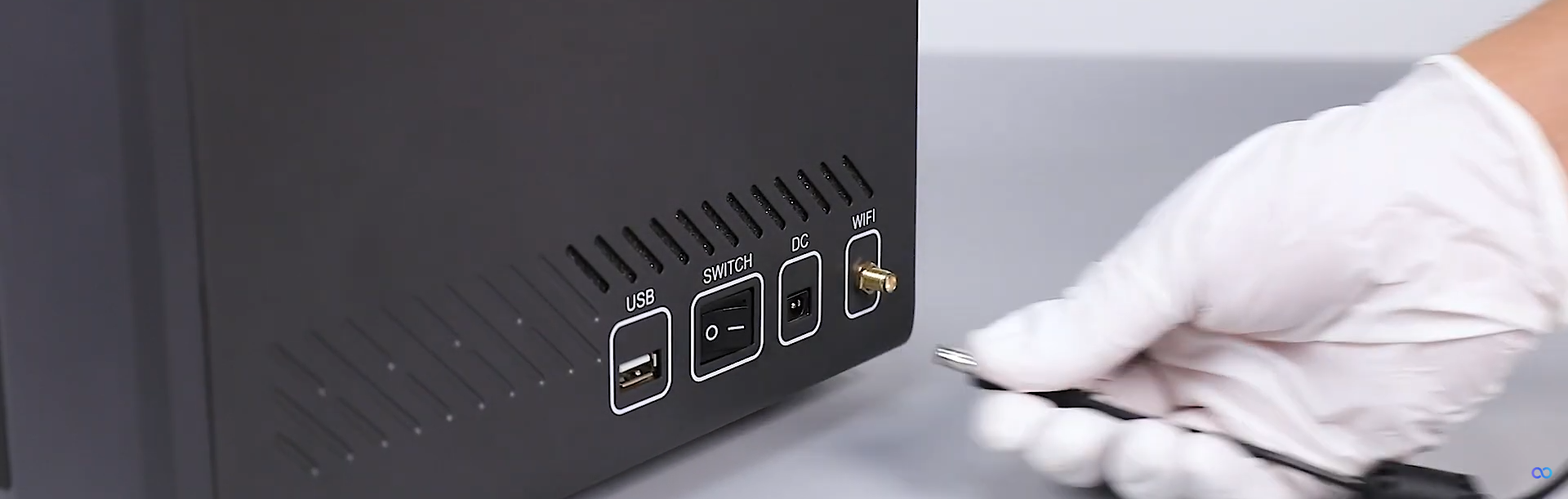
Unplug the power adapter.
-
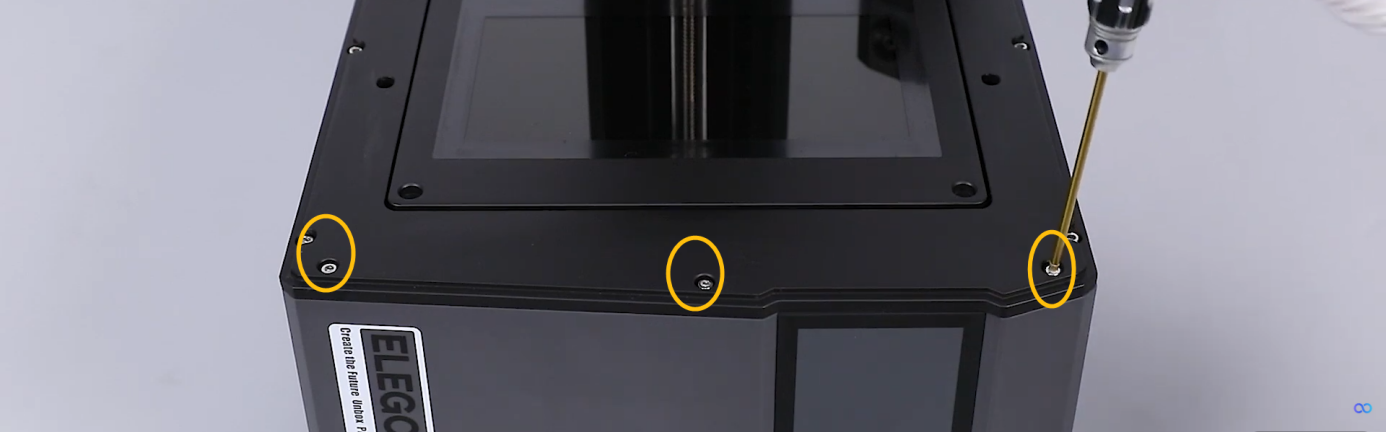
Release and remove the three screws securing the front cover with a 2.0 mm Allen key.
Note: If there is resin in the resin tank, remove it to prevent spillage. -
Release and remove the two screws securing the bottom of the front cover with a 2.0 mm Allen key.
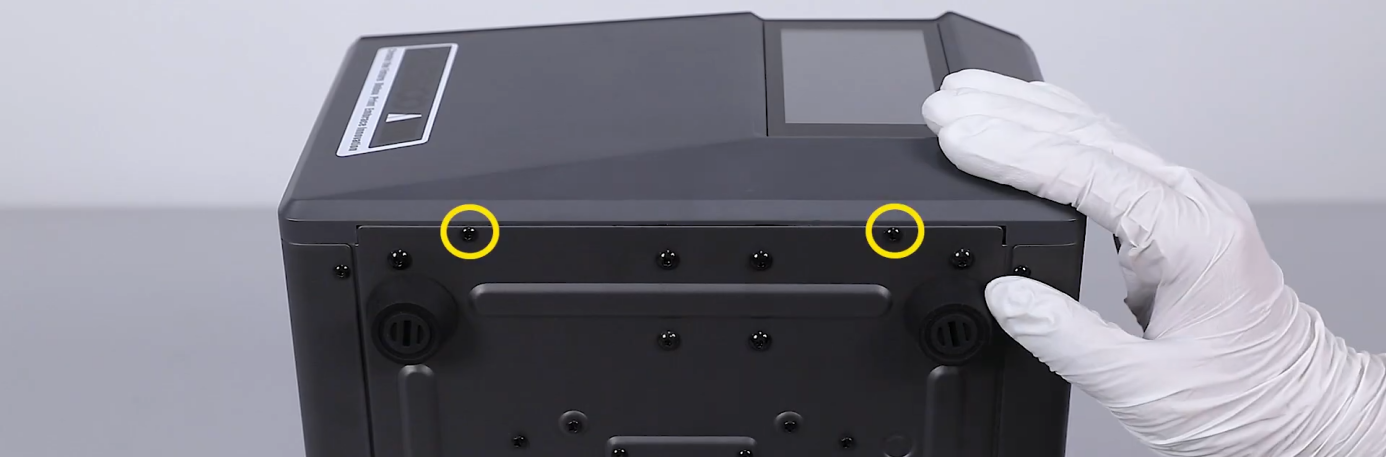
-
Open the front cover carefully.
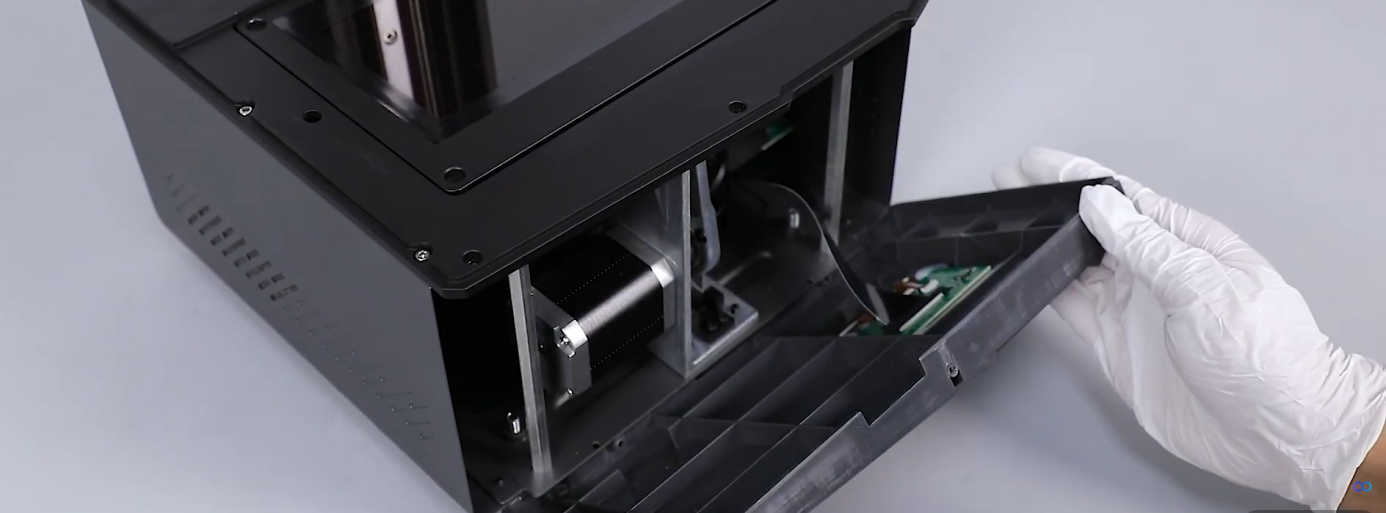
-
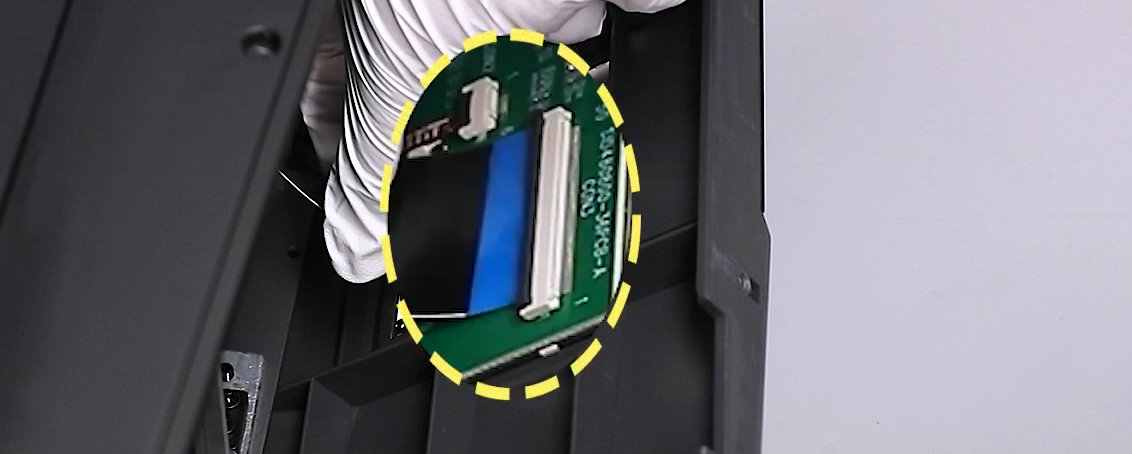
Remove the tape securing the touch screen ribbon cable. Keep the tape at hand as it will be reused later.
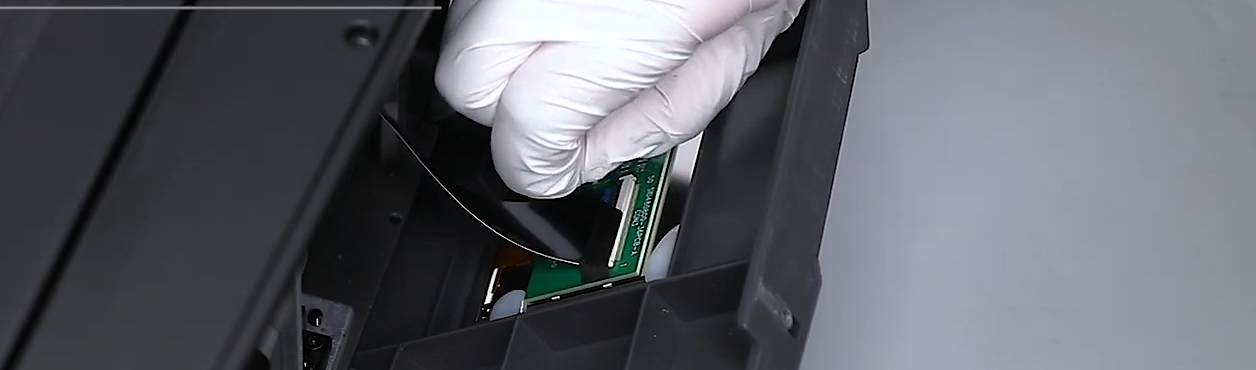
-
Lift the black clip in the direction of the arrow.
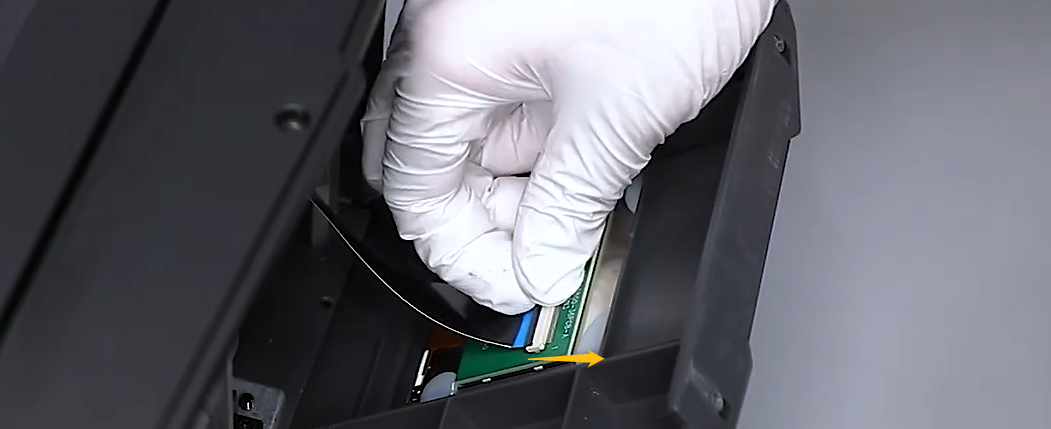
-
Re-plug the touch screen ribbon cable.
¶ Step 5. Re-plug the ribbon cable of the touch screen connected to the motherboard.
-
Turn the power switch OFF (symbol "〇 ").
-
Unplug the power adapter.
-
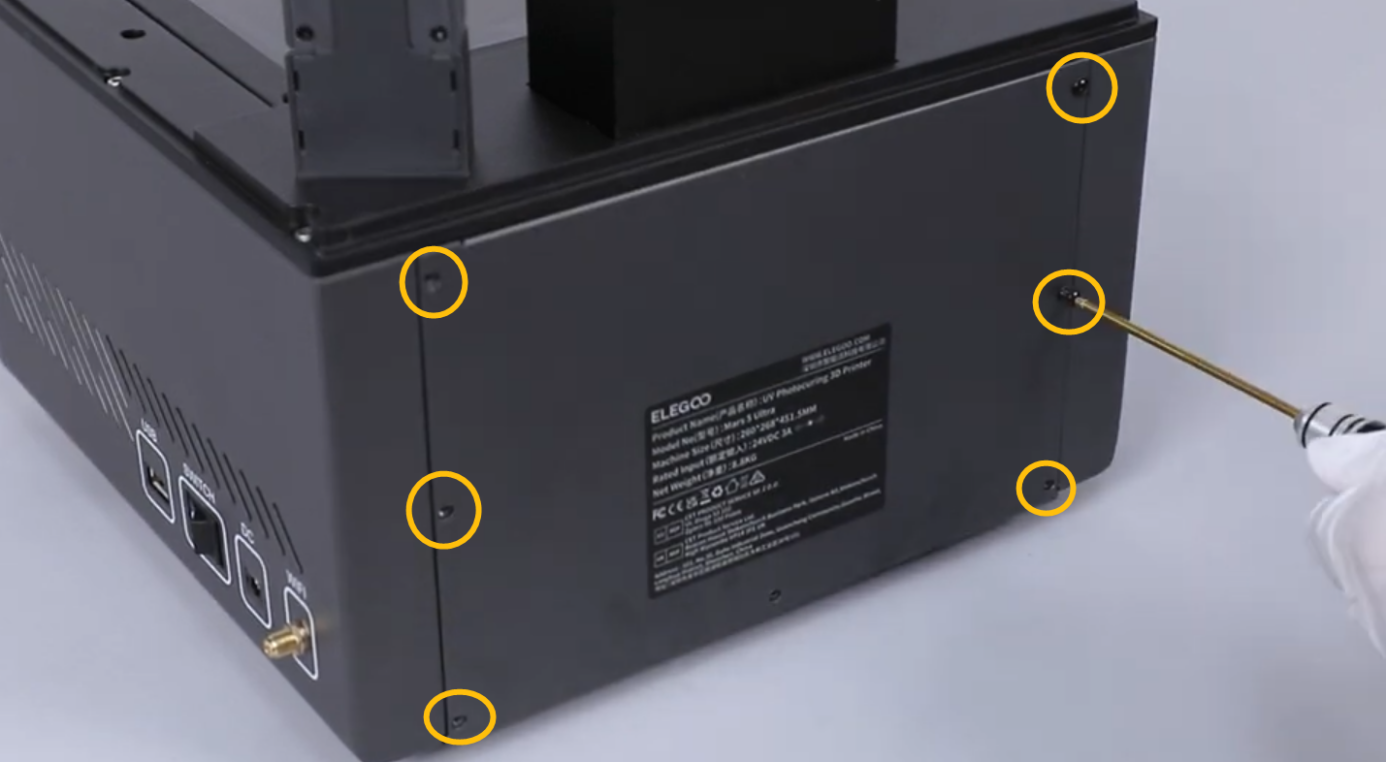
Release and remove the six marked screws shown in the picture below with a 2.0mm Allen key.
-
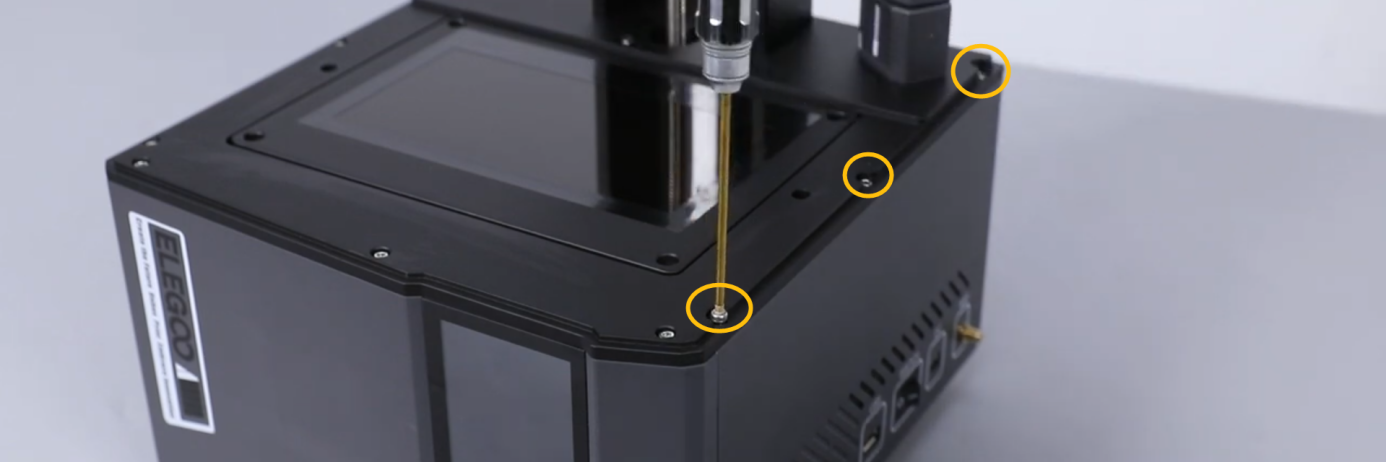
Release and remove the three marked screws shown in the picture below with a 2.0mm Allen key.
-
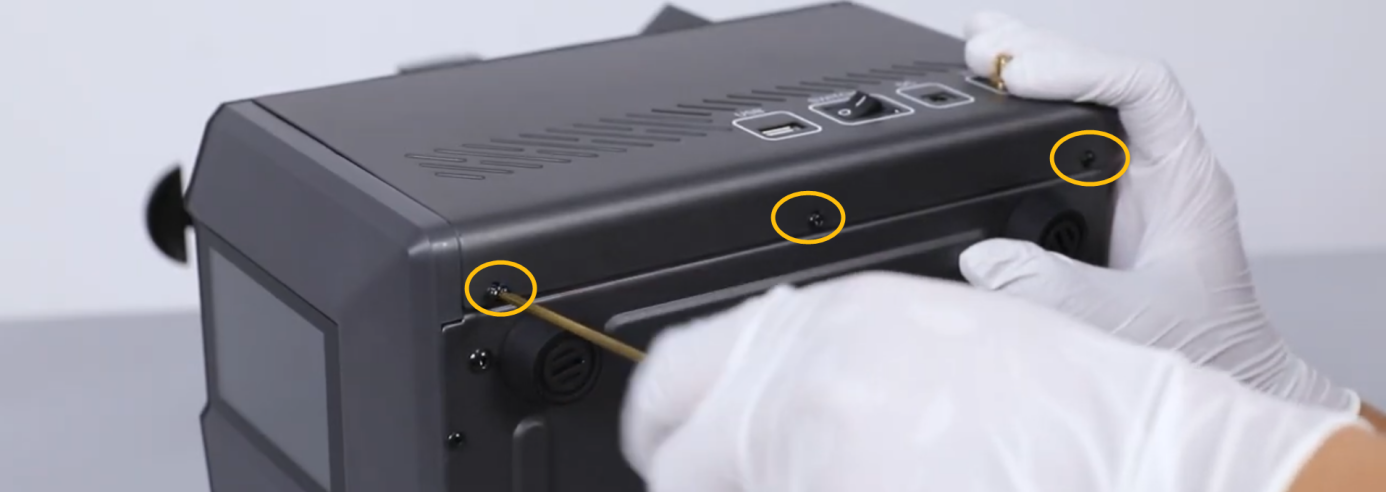
Release and remove the three marked screws shown in the picture below with a 2.0mm Allen key.
-
Remove the right-side cover carefully.
Note: The right-side cover and the motherboard are connected by a WiFi antenna.
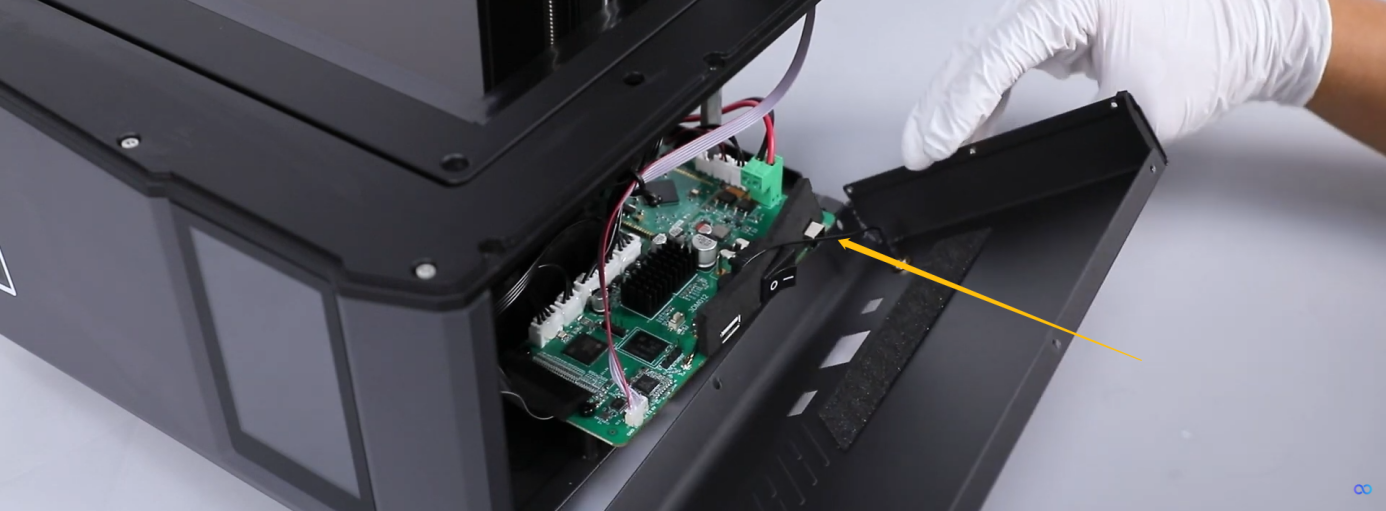
-
Unplug the WiFi antenn and remove the right-side cover.
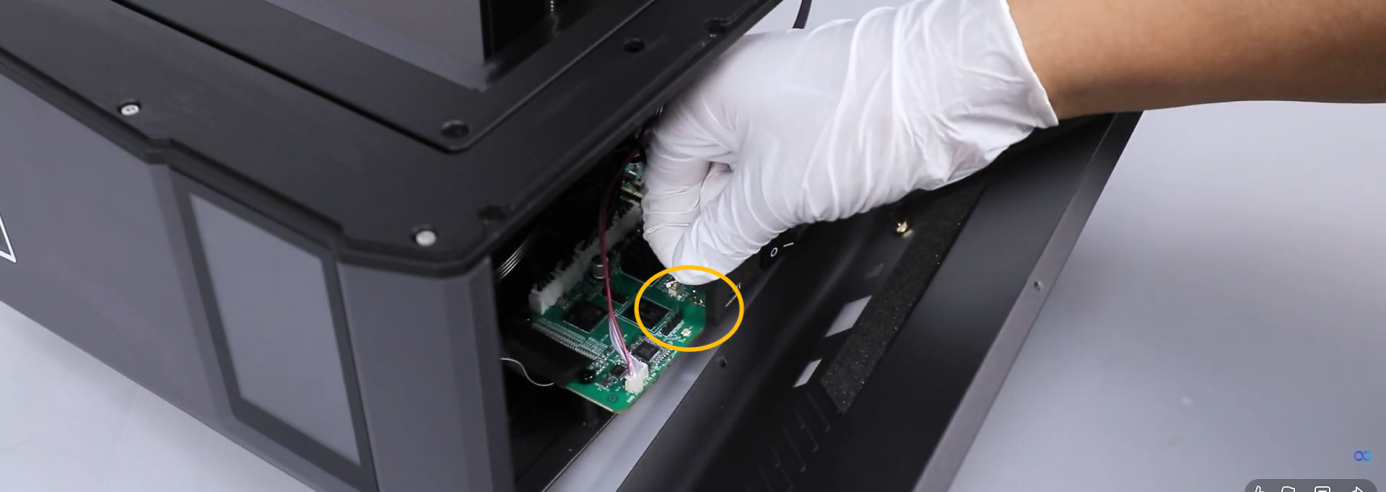
-
Peel off the tape from the touch screen ribbon cable.
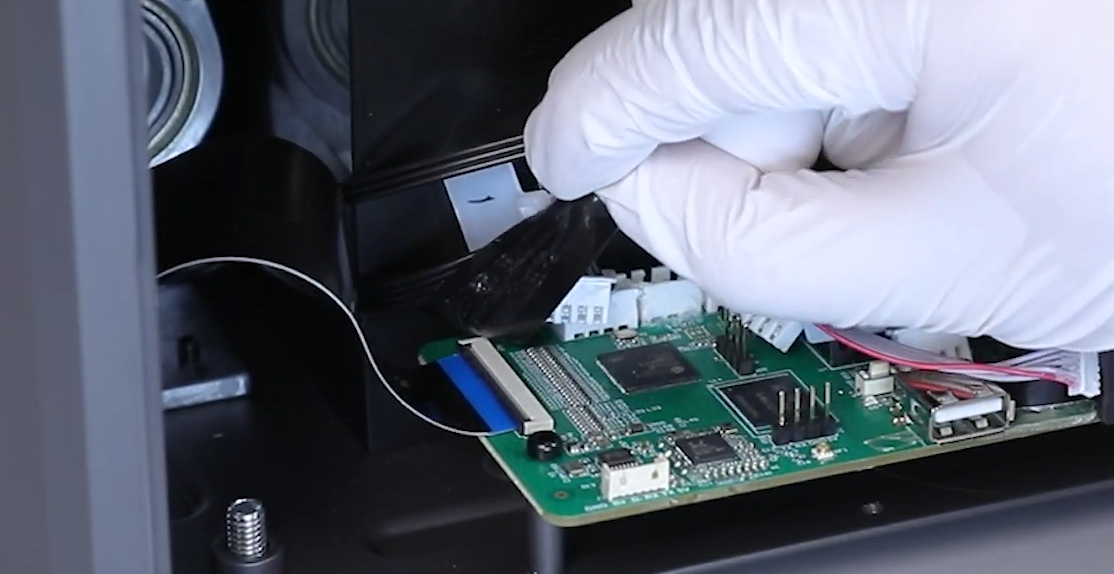
-
Lift the clip and re-plug the touch screen ribbon cable.
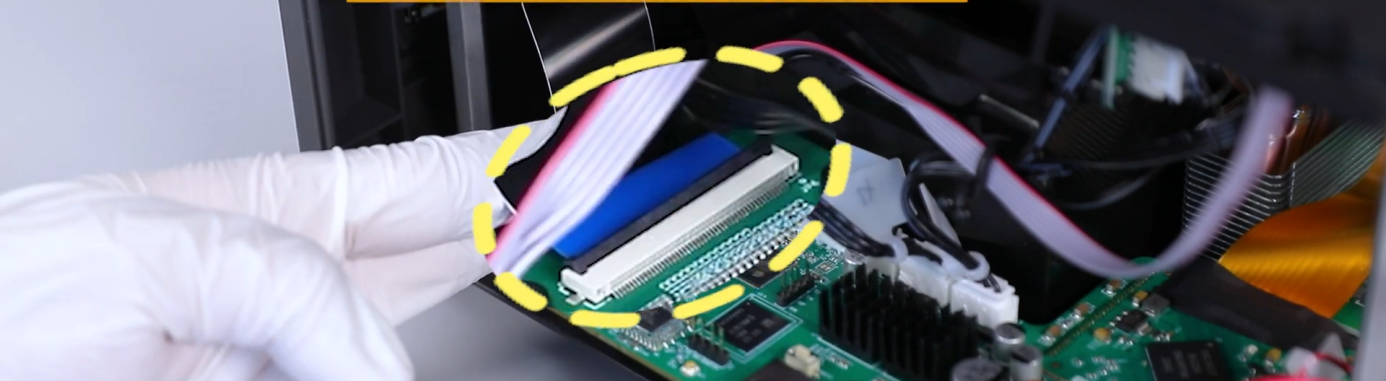
¶ Step 6. Check whether the motherboard indicator light.
-
Plug in the power adapter. Turn the power switch ON (symbol "|").
-
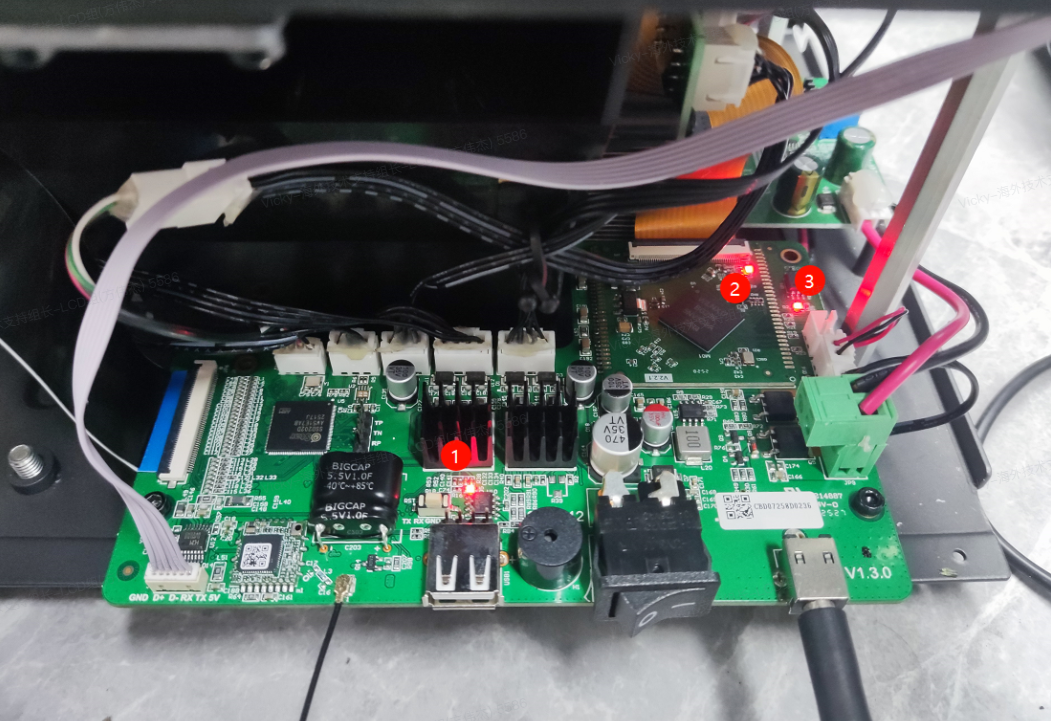
Check the indicator marked in thw picture below can illuminate.
If none of the indicator illuminates, it indicates that a component connected to the motherboard may have a short circuit, or the motherboard itself may be damaged.
Refer to Step 7 for further troubleshooting.
¶ Step 7. Check whether one of the components is short-circuited.
-
Turn the power switch OFF (symbol "〇") and unplug the power adapter.
-
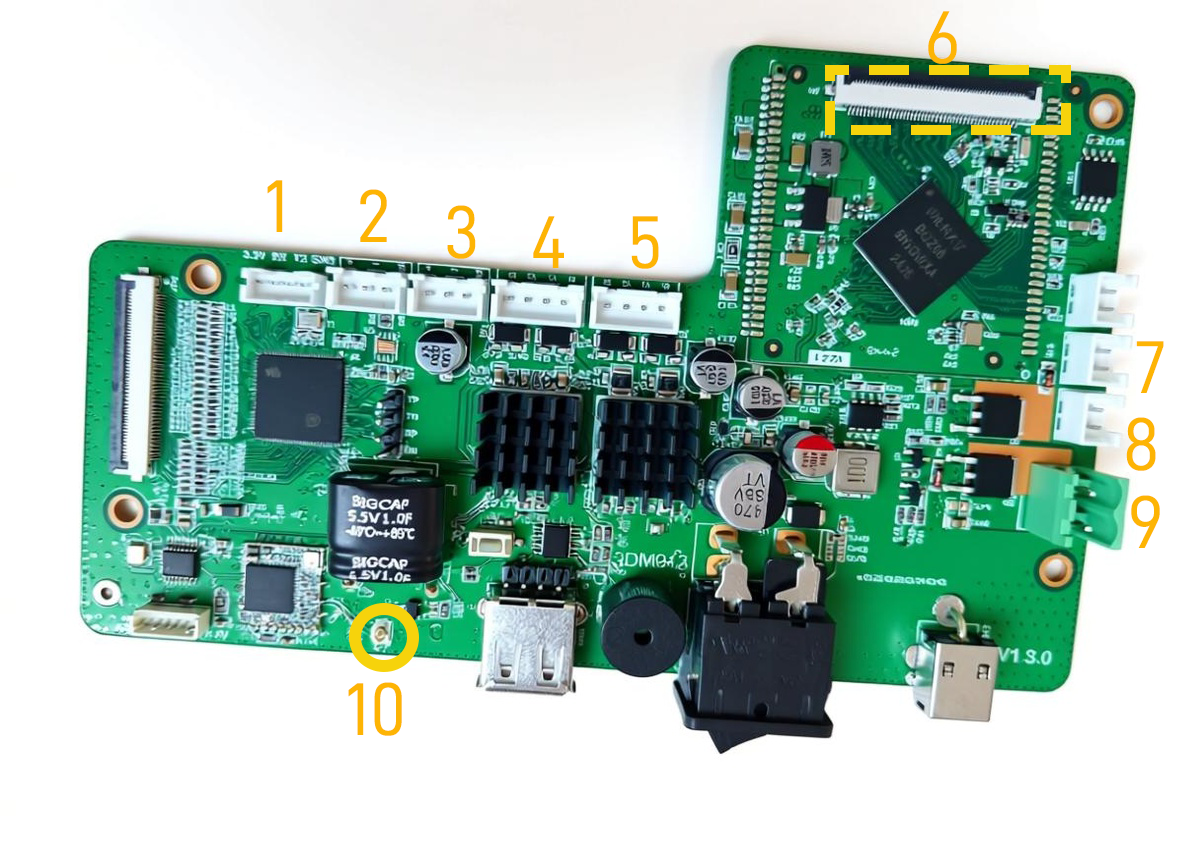
Unplug the marked cables shown in the picture below.
Note: Do not unplug the touch screen ribbon cable.
-
Plug in the power adapter and turn the power switch ON (symbol "|").
-
If the touch screen still cannot be turned on and the motherboard indicator remains off, it indicates that the motherboard should be replaced.
-
If the touchscreen can be turned on, it indicates that one of the 10 components may be short-circuited. Follow the steps below to find the specific component.
(1) Connect only one cable at a time, then turn the power switch on.
(2) If the touch screen fails to be activated when a particular connector is inserted, it indicates that the corresponding component should be replaced. For instance, if the touch screen does not turn on when inserting the No.1 cable, the the No.1 component must be replaced.
Inspecting the printer in accordance with the above instructions will not invalidate the printer's warranty. Should you be uncertain of the defect's location, contact our technical support team and provide the results of checks from item 1to 7.
-
Does the touch screen turn on when the USB flash drive is removed? Is the output voltage of the power adapter 24V? Is the adapter's indicator light on? Does the touch screen turn on when a different adapter is used?
-
Does the touch screen turn on after updating the firmware?
-
Does the touch screen turn on after reinserting the touchscreen ribbon cable?
-
Are all motherboard indicators on?
-
After disconnecting all cables from the motherboard (excluding touch screen/power supply), does the touchscreen turn on when the printer is powered on?
-
Which connector, when plugged in, prevents the touch screen from turning on?