¶ Tools and Materials
-
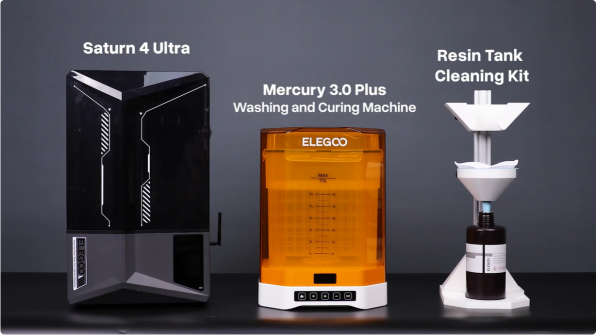
Saturn 4 Ultra
-
Mercury 3.0 Plus Washing and Curing Machine
-
A resin tank cleaning kit
-
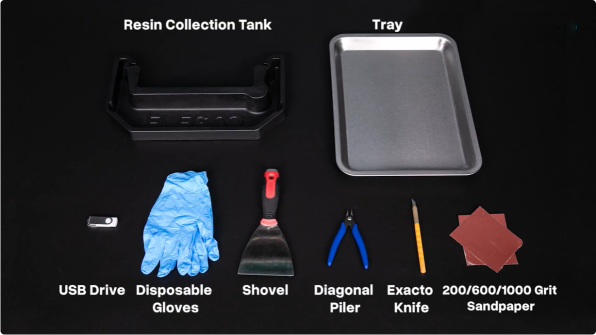
A resin collection tank
-
A tray
-
A USB flash drive
-
Disposable gloves
-
A shovel
-
A pair of diagonal pliers
-
An exacto knife
-
200/600/1000 grit sandpapers
¶ Tutorial Video
https://www.bilibili.com/video/BV1oMtqzSEAz/
¶ Instruction
¶ Slice the model
-
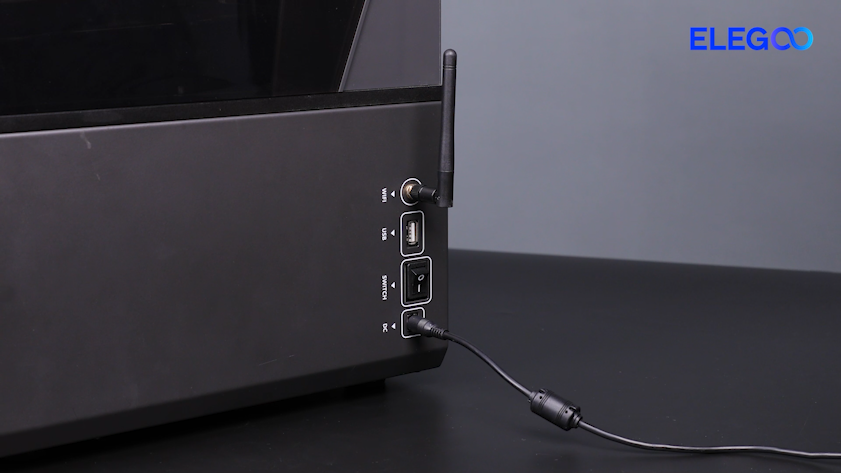
Install the Wi-Fi antenna on the printer. Plug in the power supply cable and turn the power switch ON (symbol "|").
-
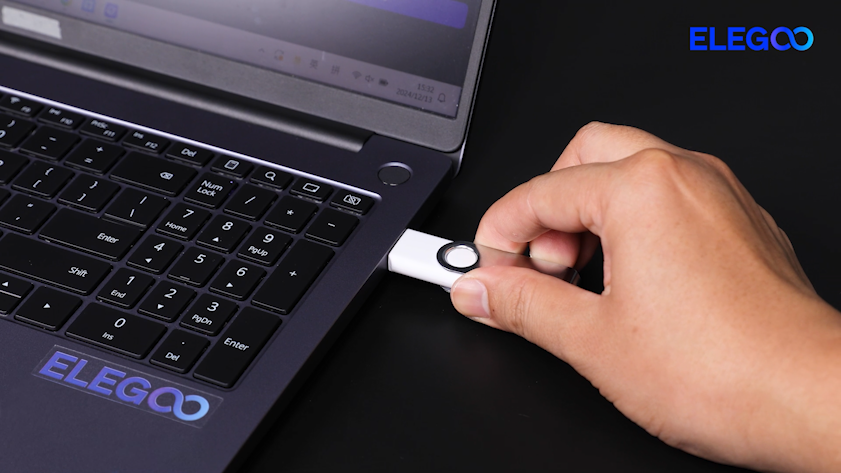
Insert the USB flash drive into the computer.
-
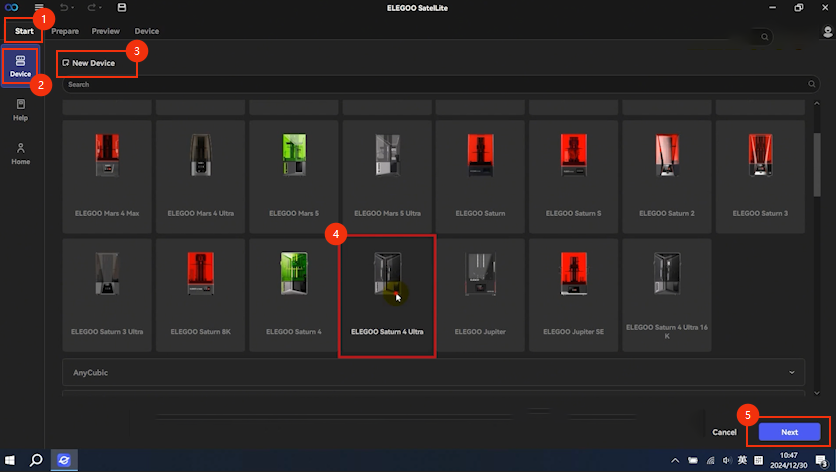
Open ELEGOO Satellite. Click Start - New Device - ELEGOO - ELEGOO Saturn 4 Ultra - Next.
-
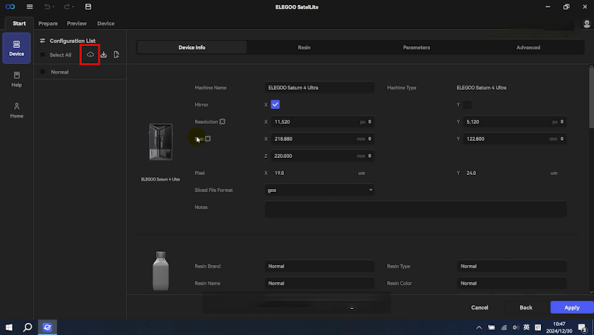
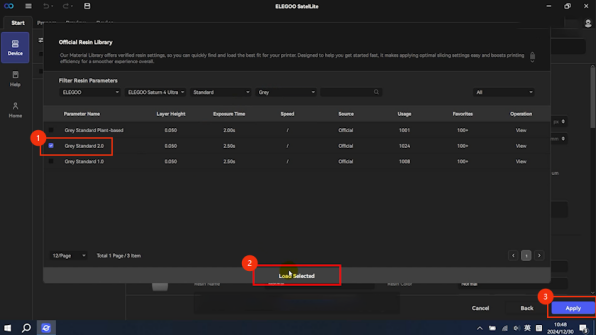
Click Cloud Import. Select the resin and color to be used. Click Load Selected - Apply.
-
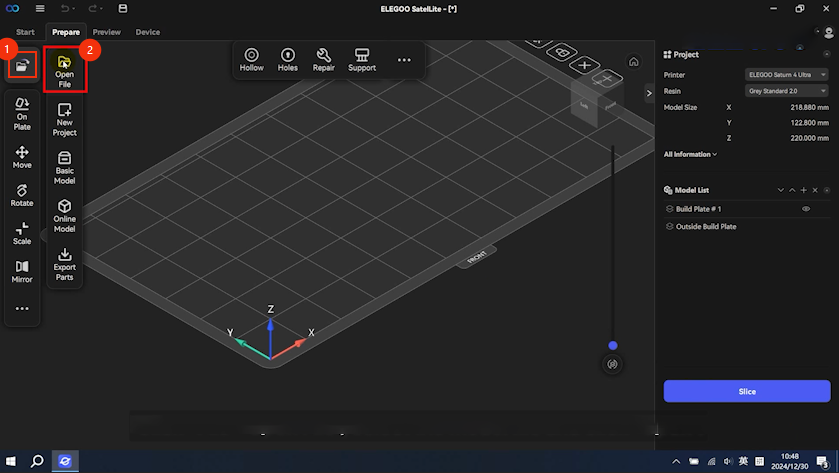
Click File - Open File. Select the model file and click Open.
-
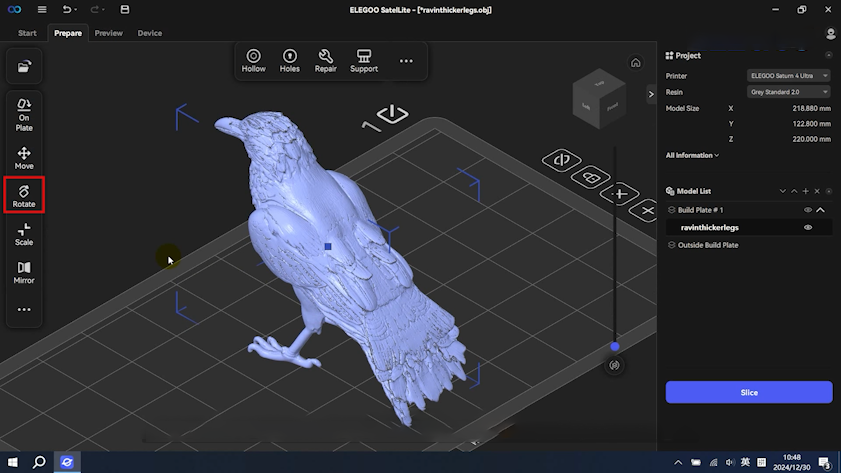
Click Rotate to adjust the model to the appropriate angle.
Note: The surface with more details should be orientated upwards. Otherwise, the features may be affected by the supports.
-
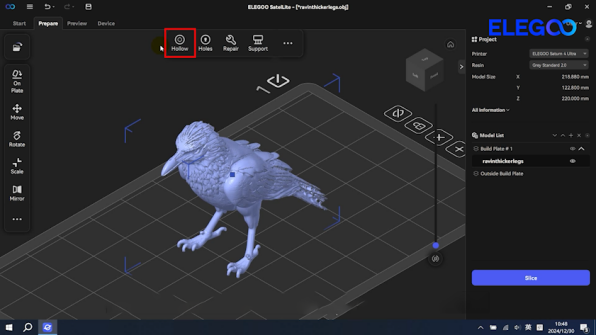
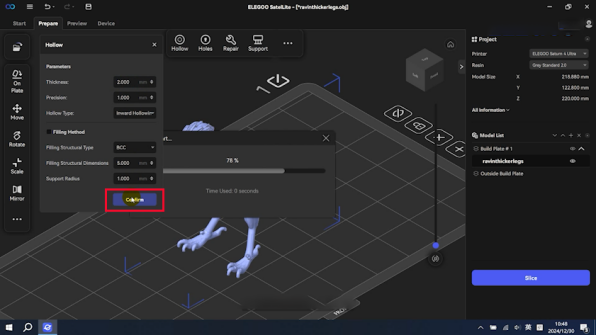
Click Hollow and adjust the thickness of the shell. Click Confirm.
Note: The thickness of the shell influences the strength of the model.
-
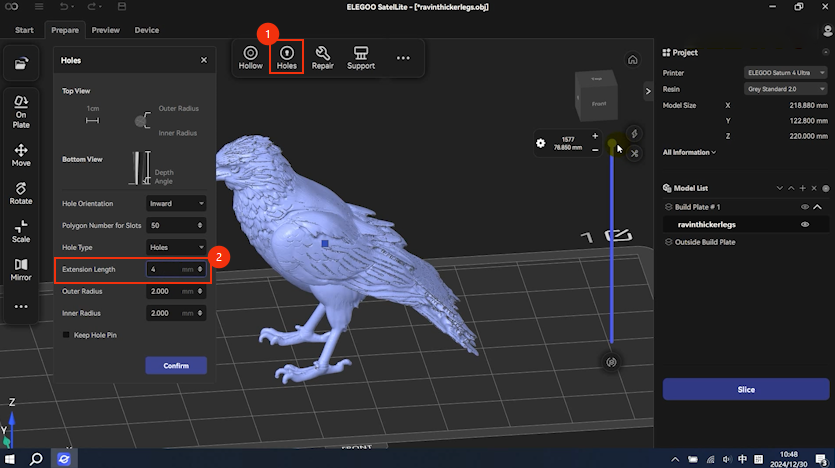
Click Holes and adjust the Extension Length. Add two holes at the bottom of the model.
Note: Add at least two holes on hollowed models to prevent the formation of a vacuum in the center of the model and to facilitate the leaning of resin.
-
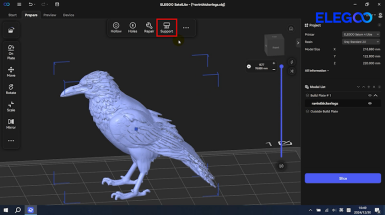
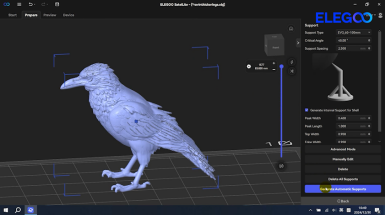
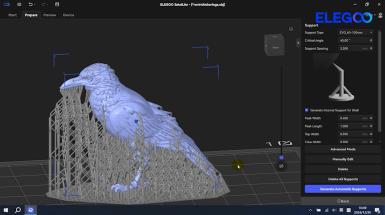
Click Support. After entering the support-adding interface, the software detects the model's height automatically and select the appropriate support type.
-
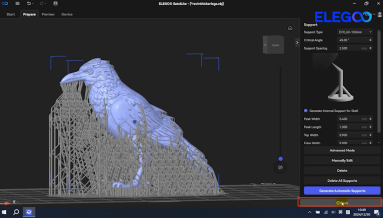
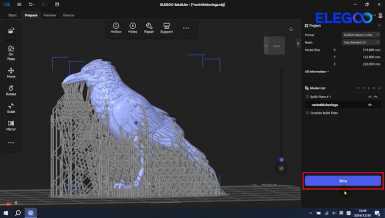
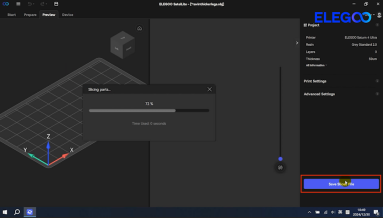
Click Back to return to the Prepare interface. Click Slice - Save Sliced File. Click Confirm to save the file to a USB flash drive.
¶ Print the model
-
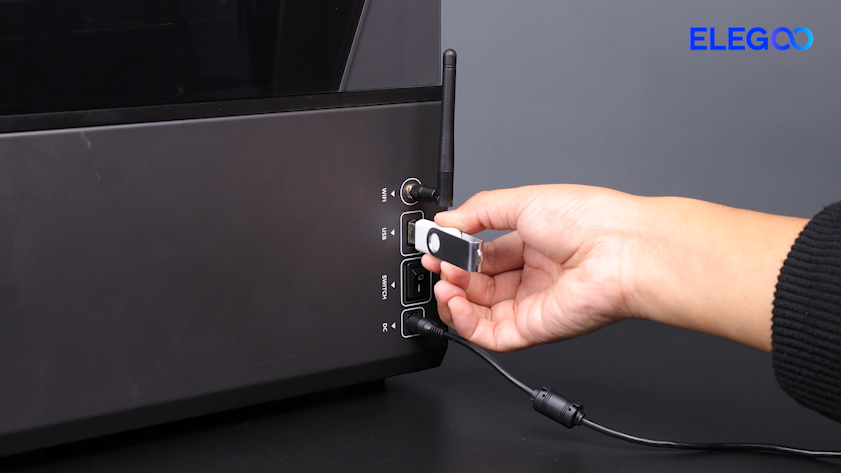
Insert the USB flash drive into the printer.
-
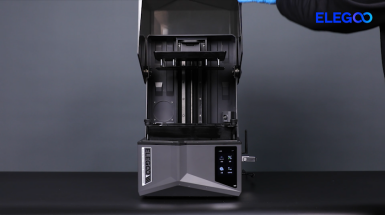
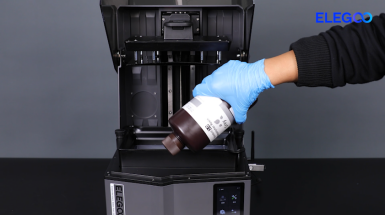
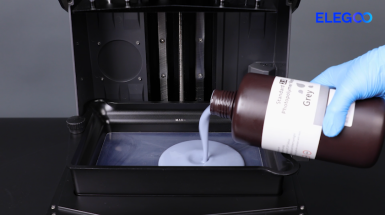
Lift up the front cover. Prepare the resin and shake it thoroughly. Pour the resin into the resin tank.
Note: The resin may settle after prolonged standing. Shake it before use.
-
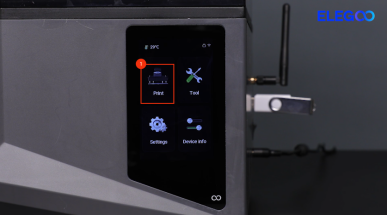
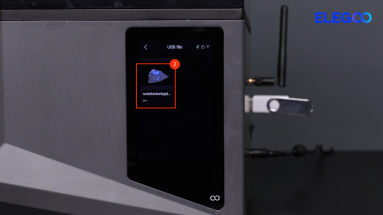
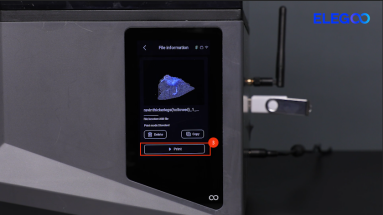
On the touch screen, select Print - USB file. Select the model and click Print.
-
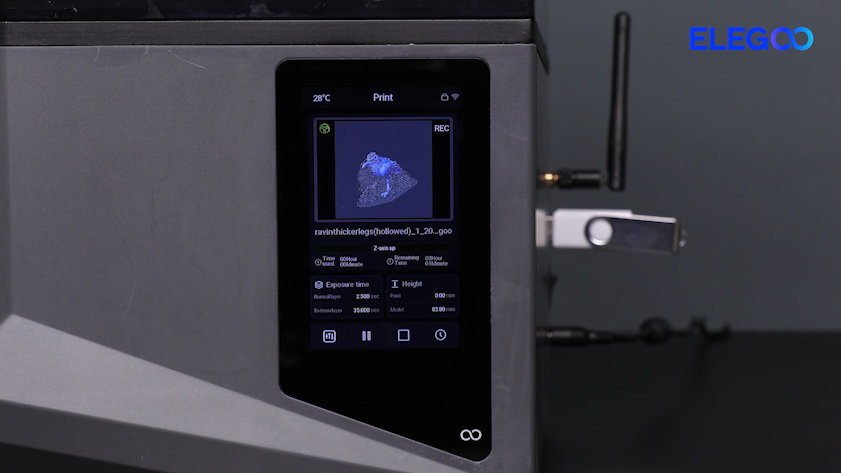
The printer begins detection and auto-leveling. After the auto-leveling process, the printer begins printing.
-
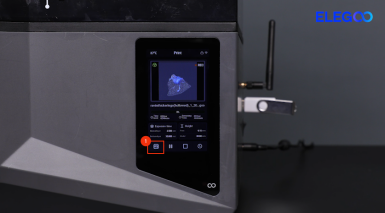
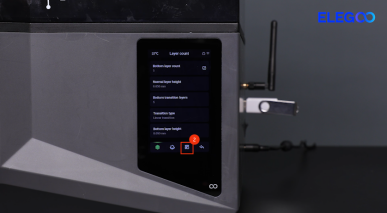
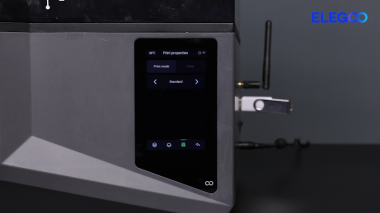
During the printing process, you can select standard mode or fast mode on the touch screen.
Note: It is recommended to select the standard mode.
-
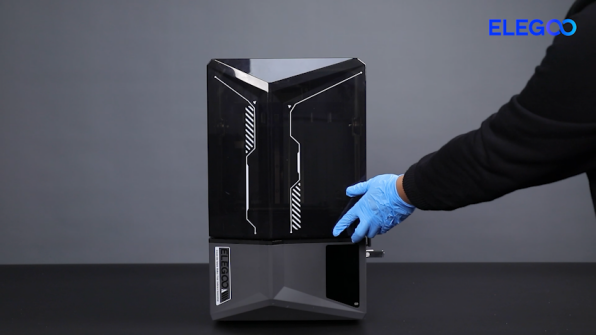
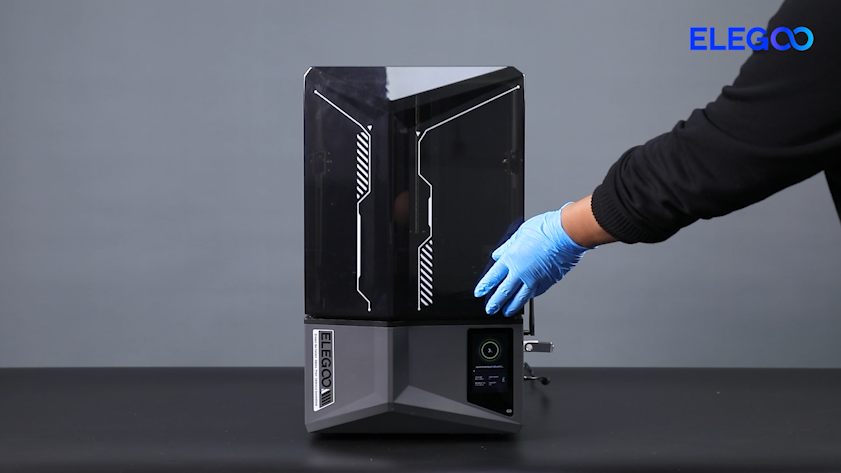
Close the top cover.
Note: Keep the printer away from light while printing.
-
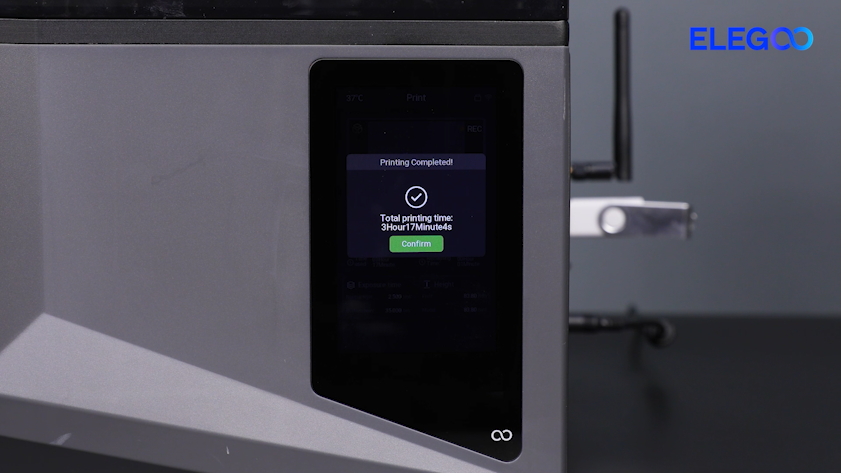
Wait for the printing process to complete.
-
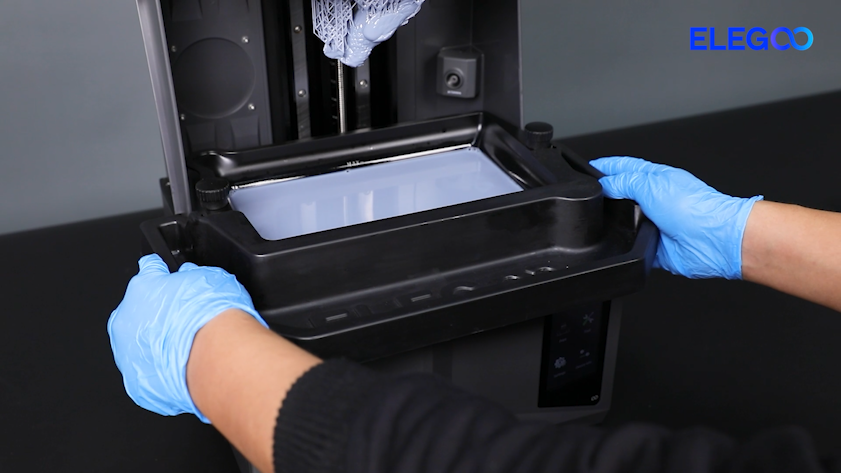
Put the resin collection tank in the mounting position.
-
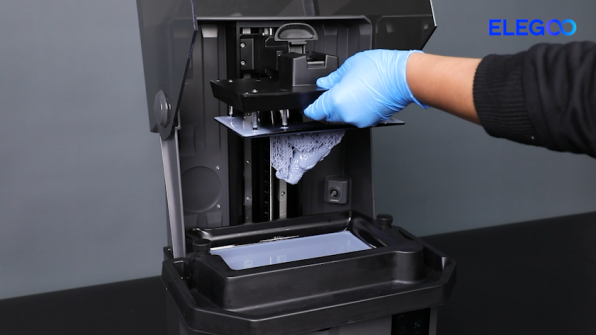
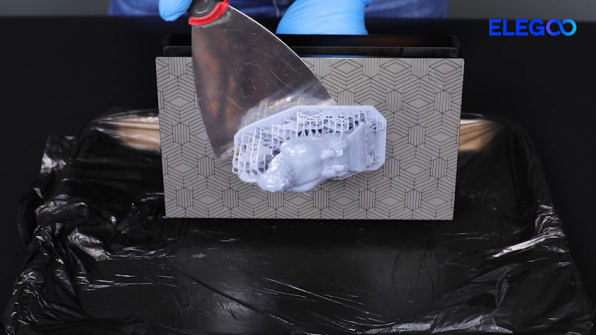
Remove the build plate. Detach the model from the build plate with a shovel.
-
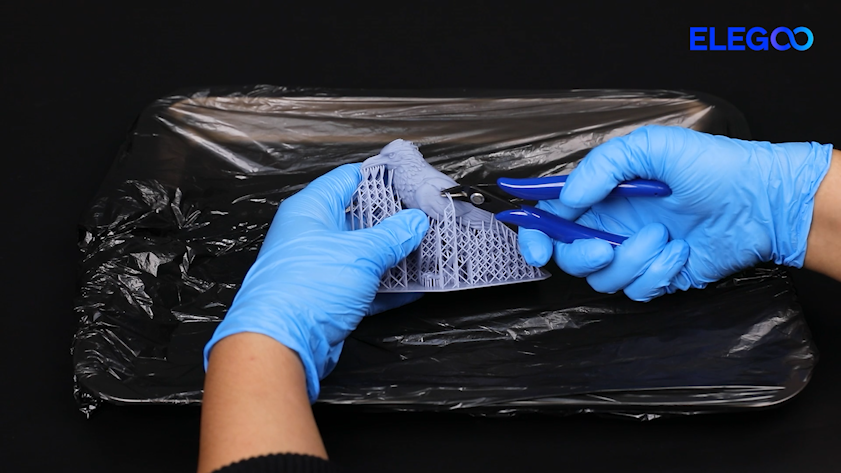
Cut the connections between the supports and the model with a pair of diagonal pliers to prevent damaging small components.
¶ Wash and cure the model
-
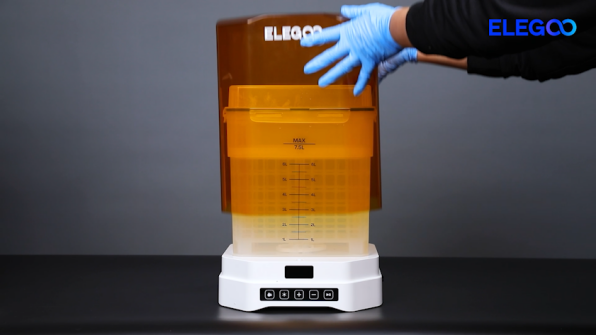
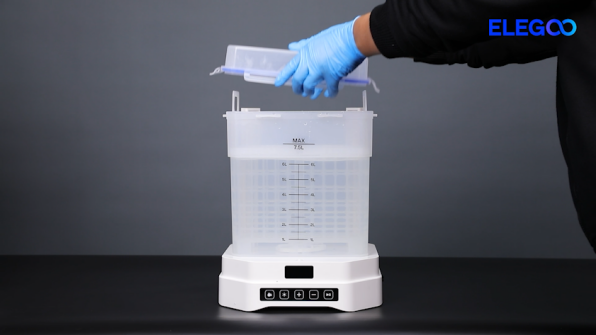
Open the cover of Mercury 3.0 Plus. Remove the lid of the washing bucket.
-
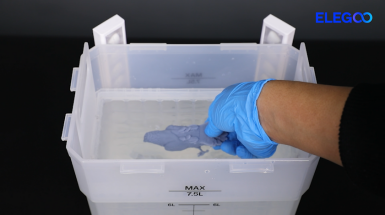
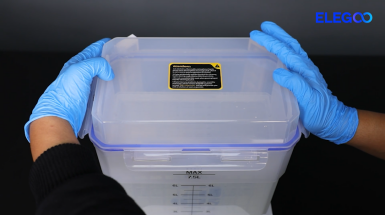
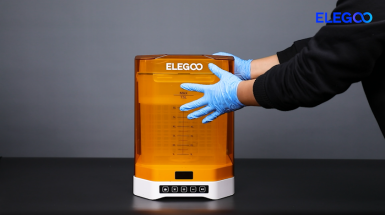
Put the model into the bucket filled with alcohol. Close the lid. Install the cover.
-
Plug in the power supply cable and turn the power switch ON (symbol "|").
-
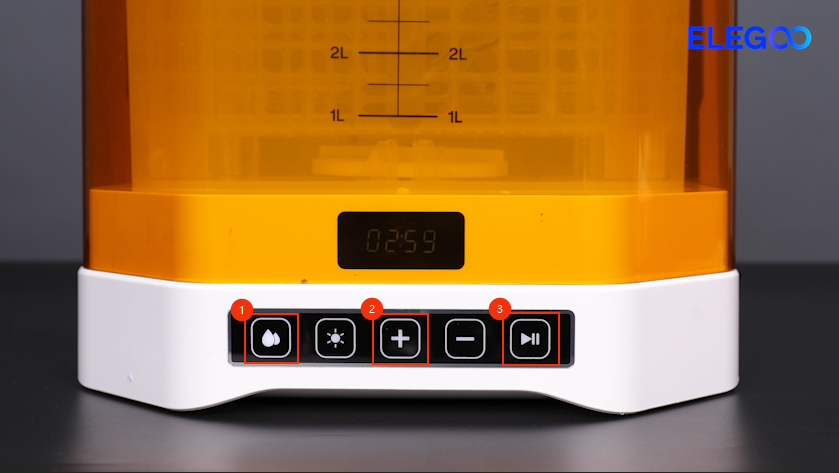
Select Wash. Set the appropriate cleaning time and select Start.
Note: The cleaning time can be adjusted based on the quantity and size of the models.
-
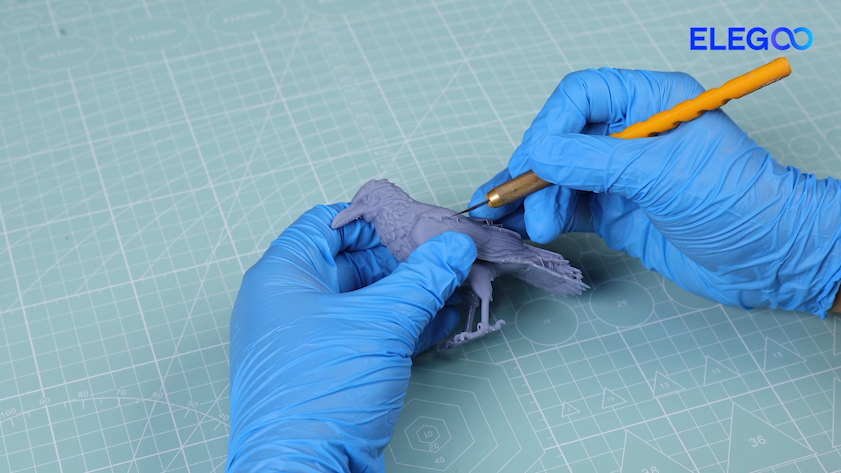
Take out the model to dry after cleaning. Cut off the supports from detailed and concealed areas with an exacto knife.
-
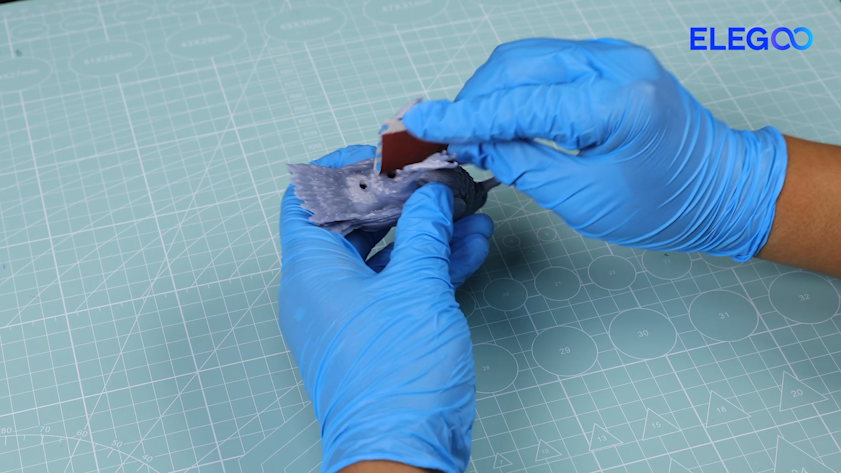
Polish the support points remaining on the surface with 200, 600 and 1000 grit sandpapers.
-
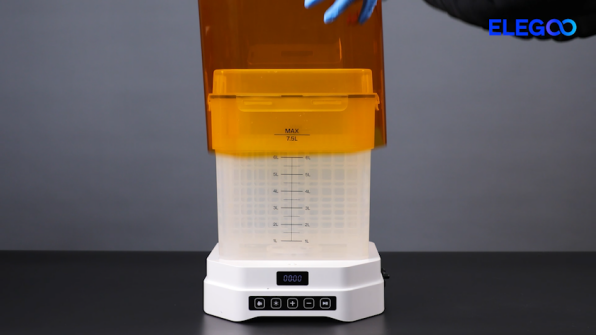
Open the cover of Mercury 3.0 Plus. Remove the cleaning bucket.
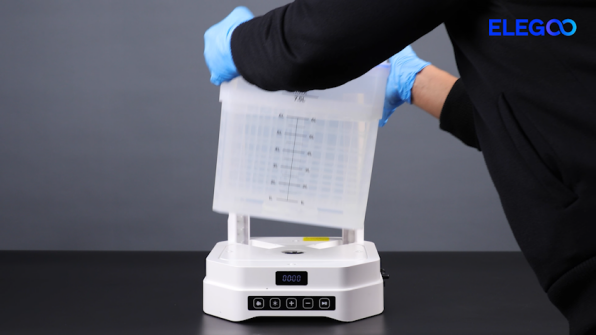
-
Put the curing turntable in the mounting position. Put the processed model at the center of the curing turntable.
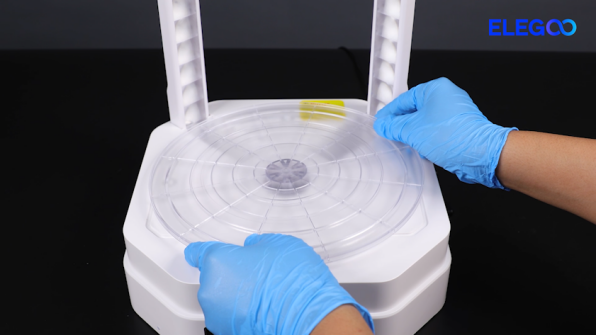
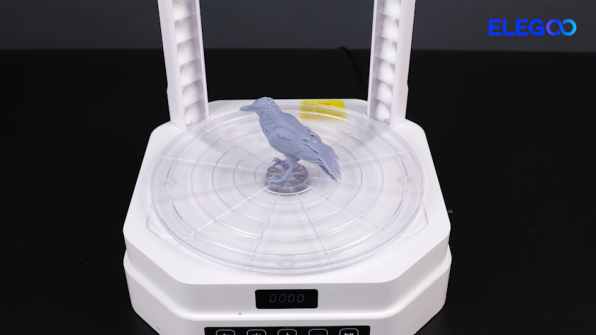
-
Close the cover of Mercury 3.0 Plus. Select Cure and set the appropriate time. Select Start. The turntable begins to rotate and cure the model.
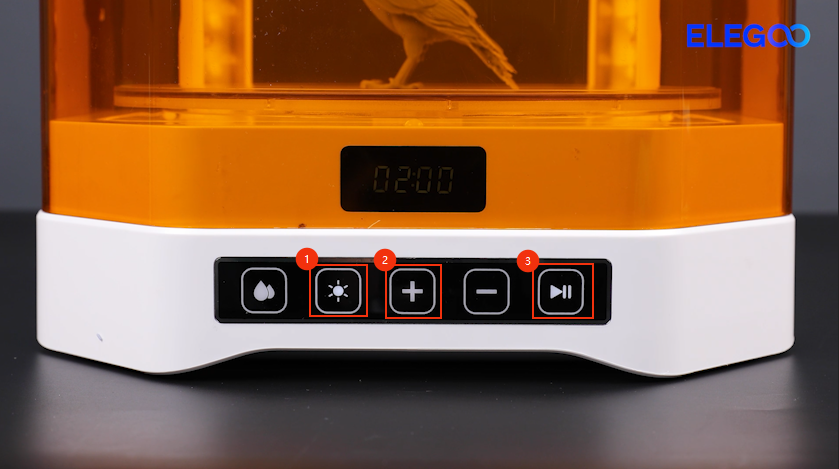
-
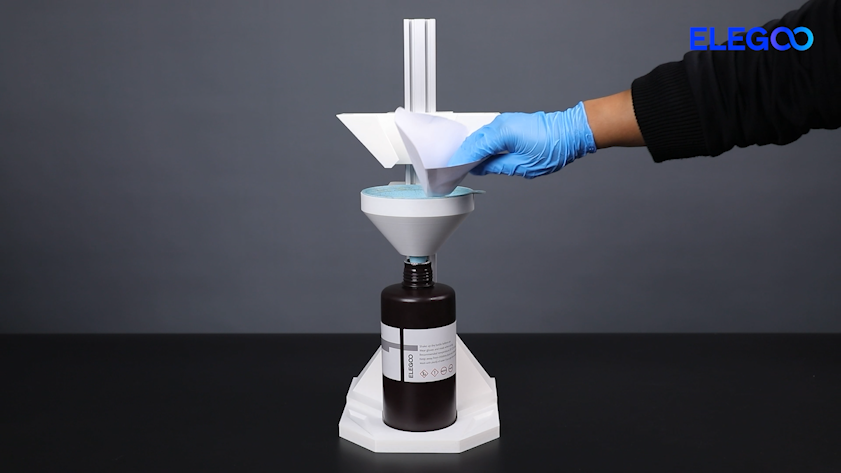
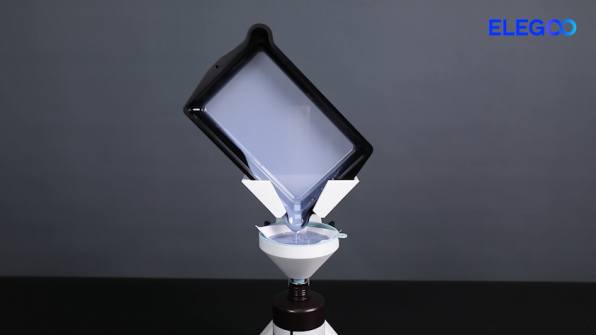
Place the resin bottle on the resin tank cleaning kit. Put the 100-mesh paper funnels.
-
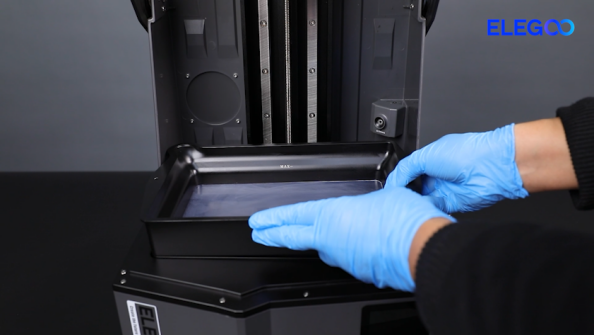
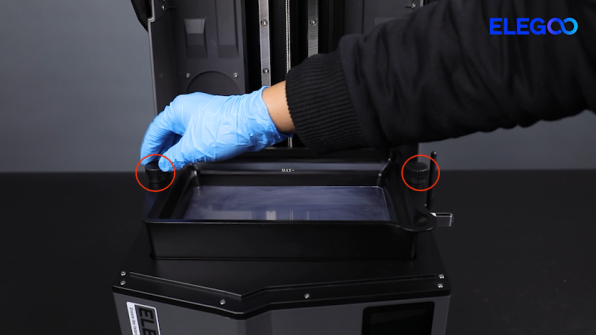
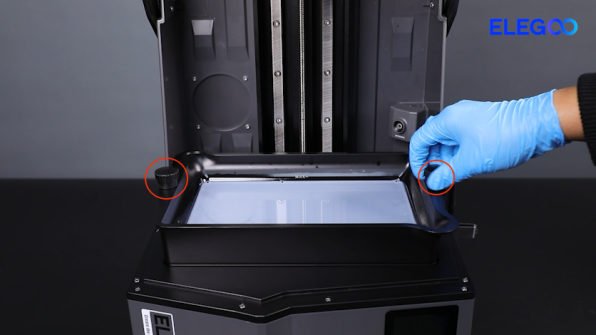
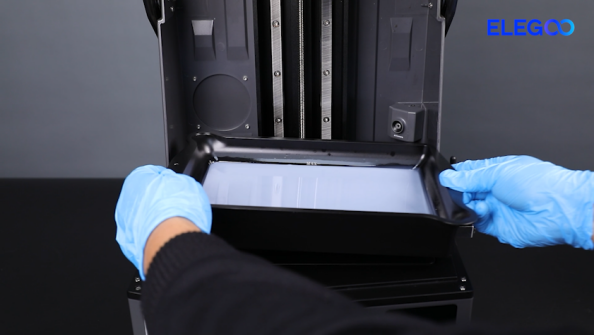
Loosen the two knob screws securing the resin tank. Remove the resin tank.
-
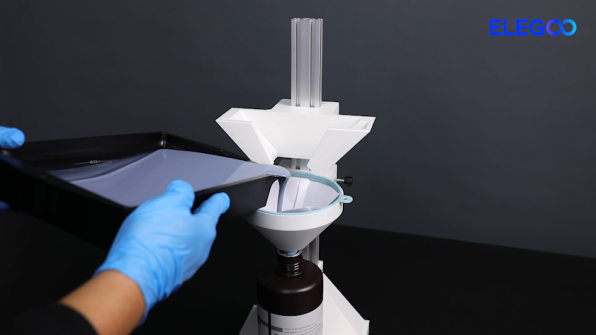
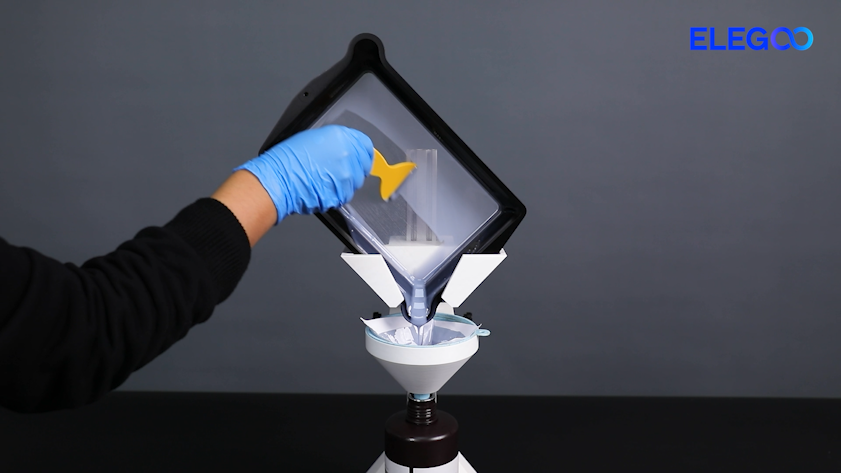
Pour the resin into the funnel. Put the resin tank on the kit for filtration.
-
Clean the resin with a plastic scraper in the resin tank.
-
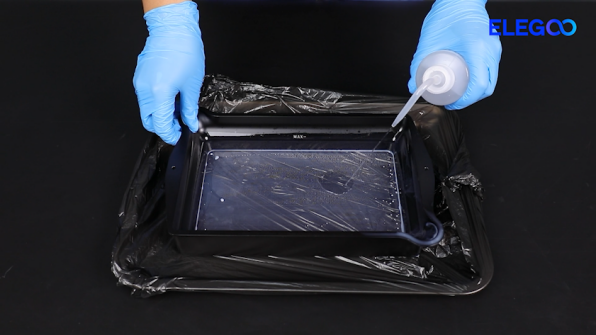
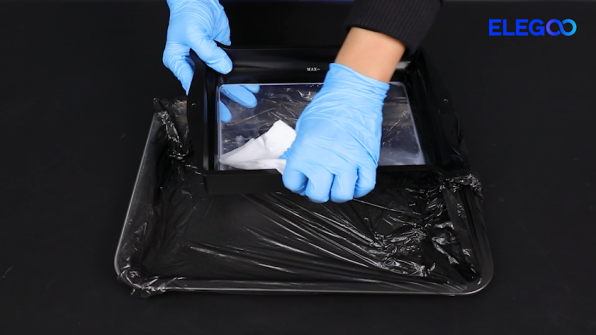
Remove the resin tank. Spary alcohol into the resin tank. Wipe the residual resin with tissues.
-
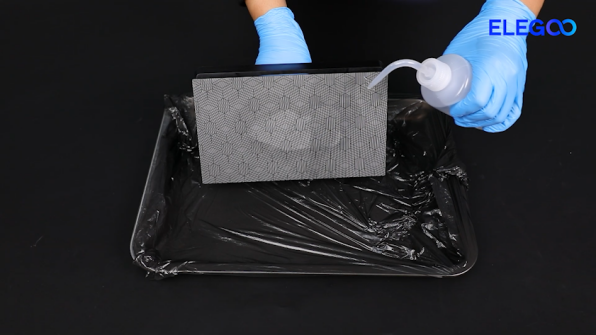
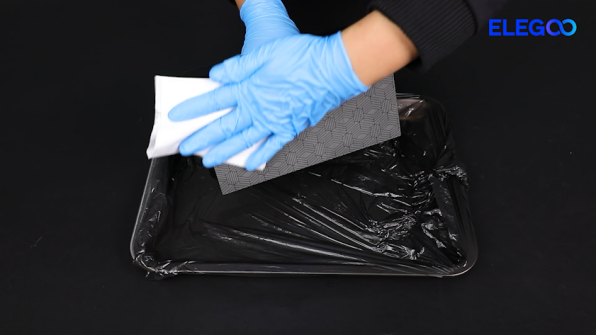
Get the build plate and spray alcohol. Wipe the residual resin on the build plate with tissues.
-
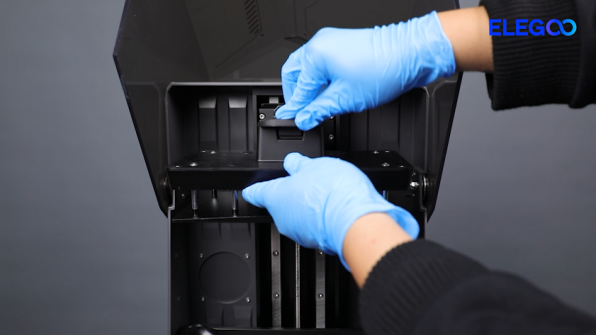
Put the resin tank in the installation position. Tighten the knob screws. Place the build plate in the installation position. Close the top cover.