¶ Tutorial Video
https://www.youtube.com/watch?v=qgNyK64E1so
¶ Instruction
¶ Update Firmware via USB Flash Drive
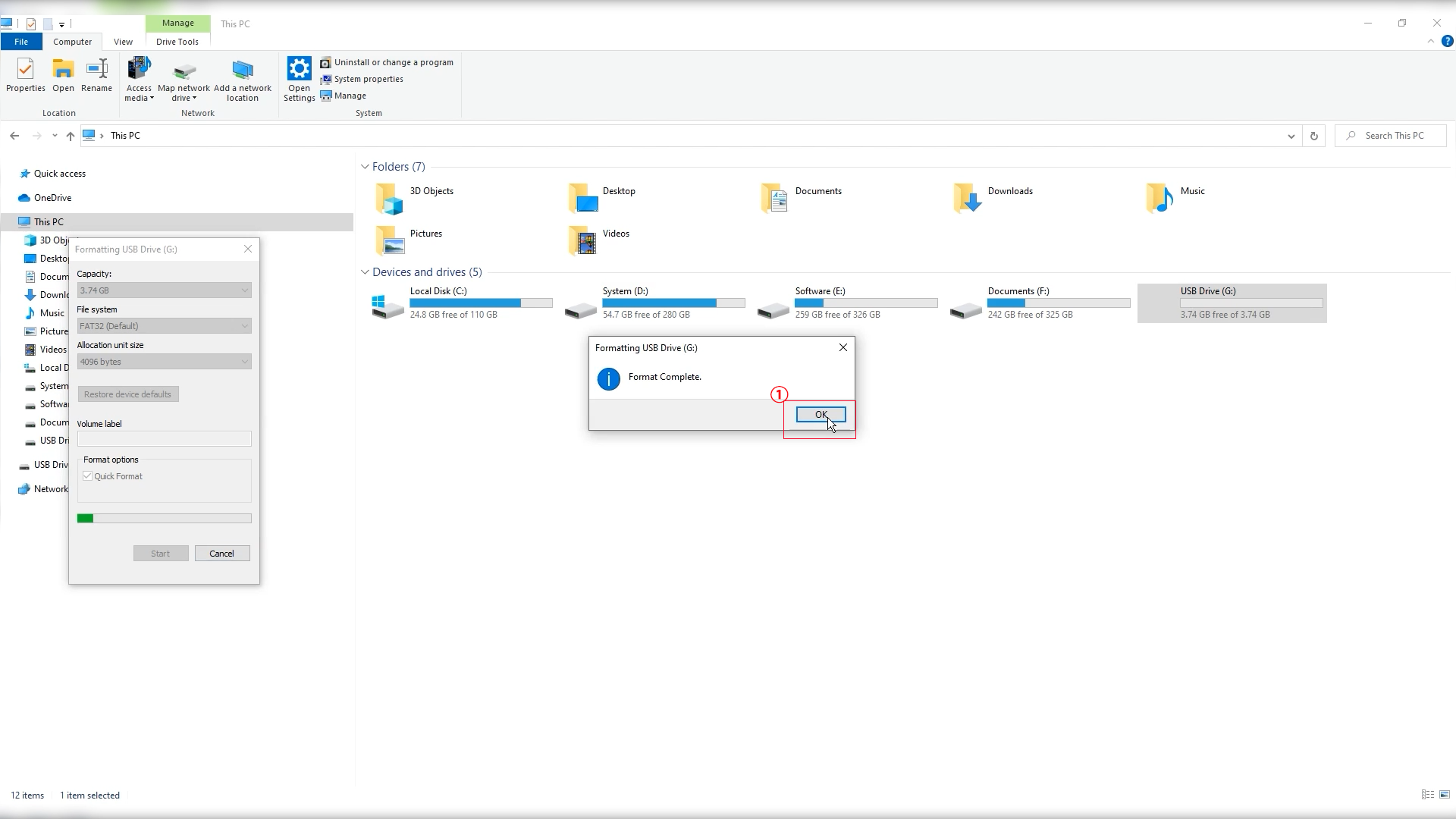
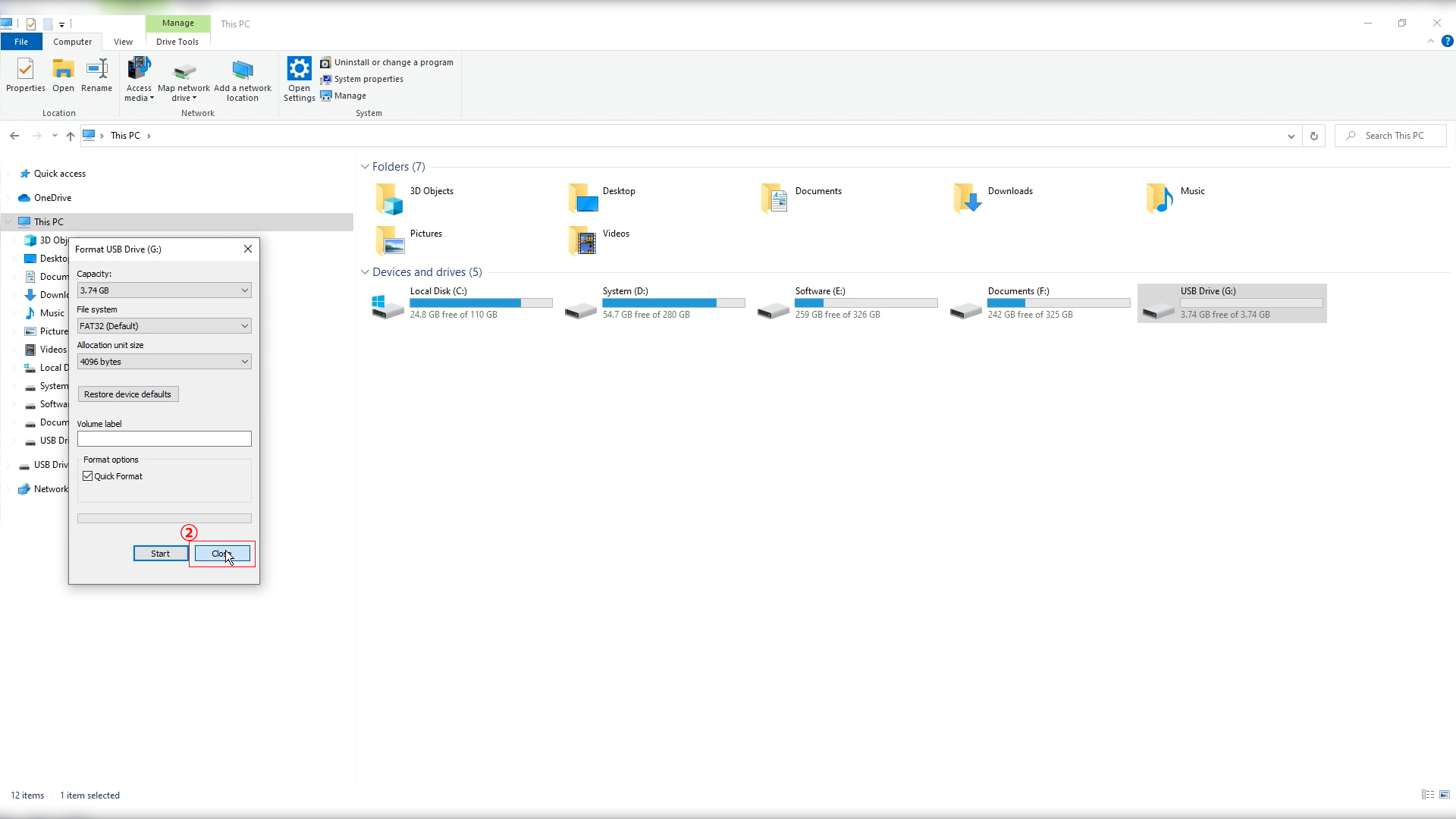
- Right-click the USB flash drive icon in This PC and click Format.
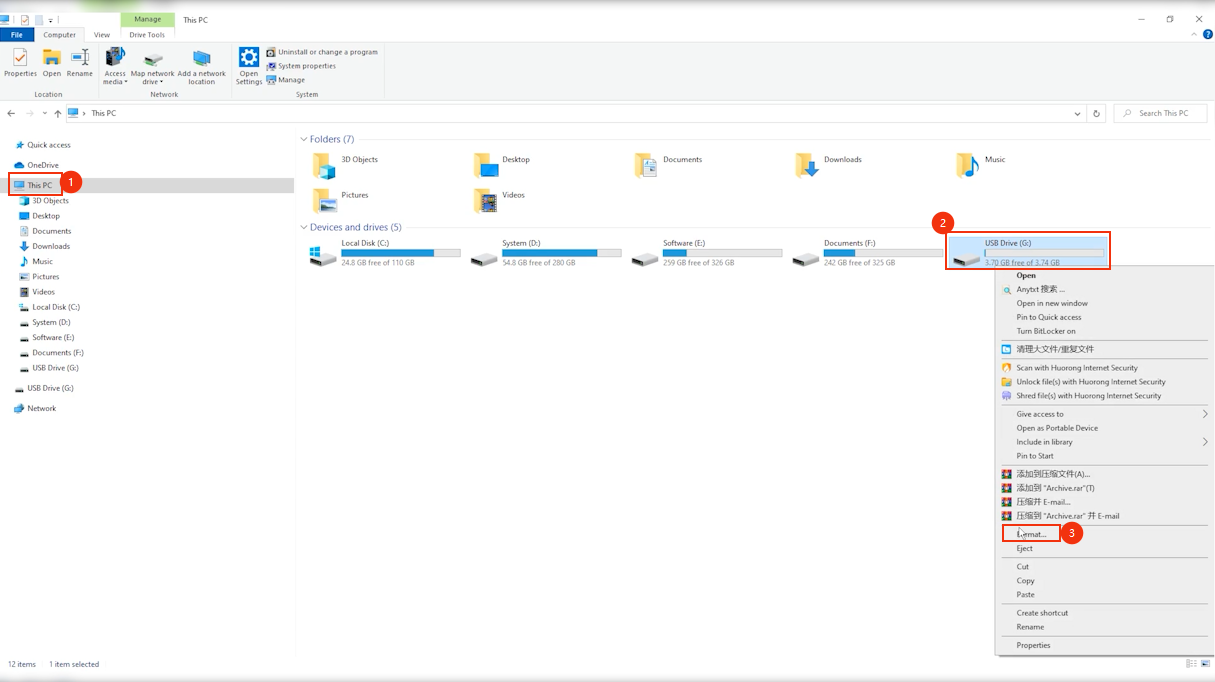
- Confirm the USB flash drive format is FAT32 with allocation unit size of 4096 bytes.
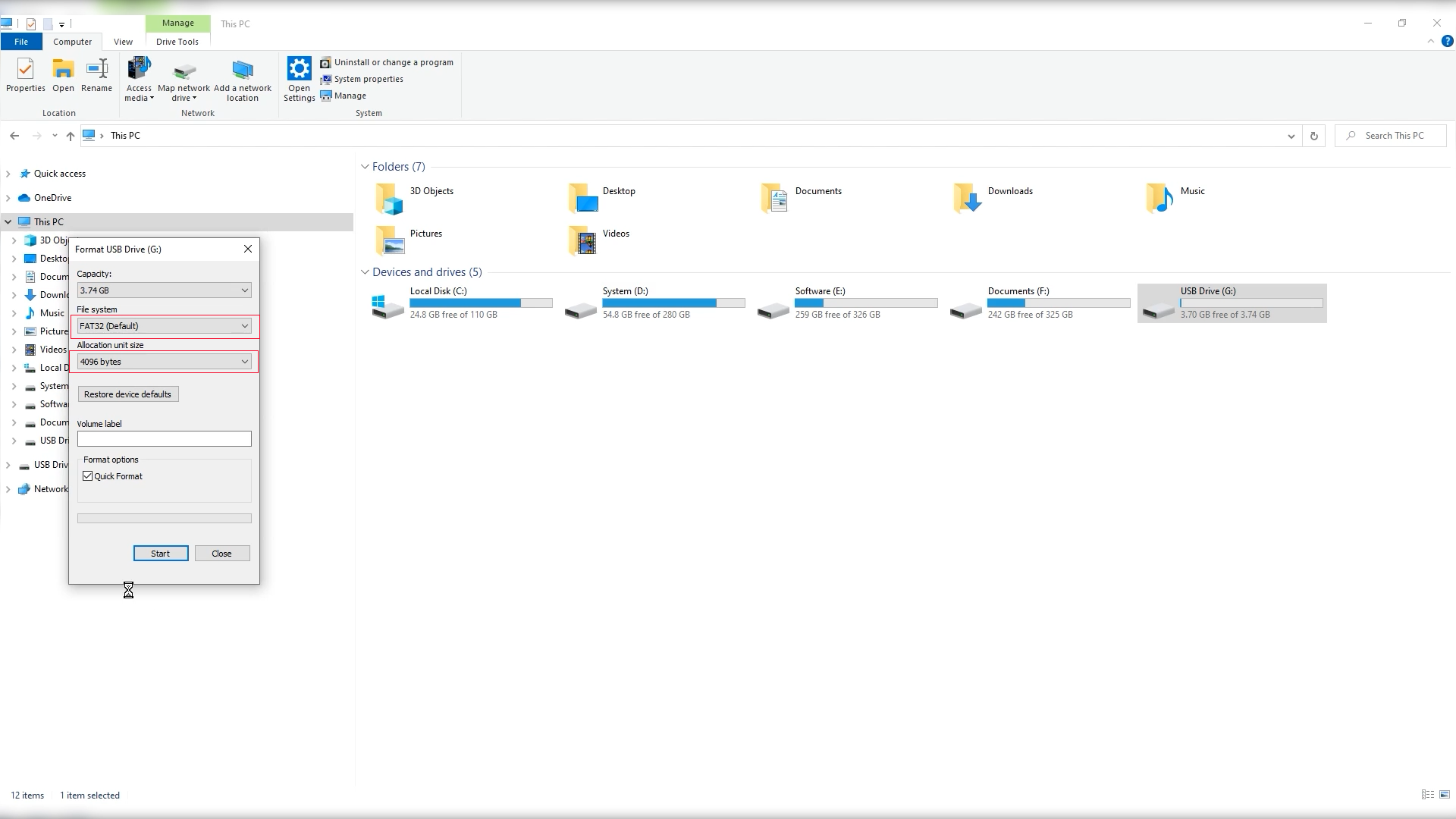
- Click Start - OK.
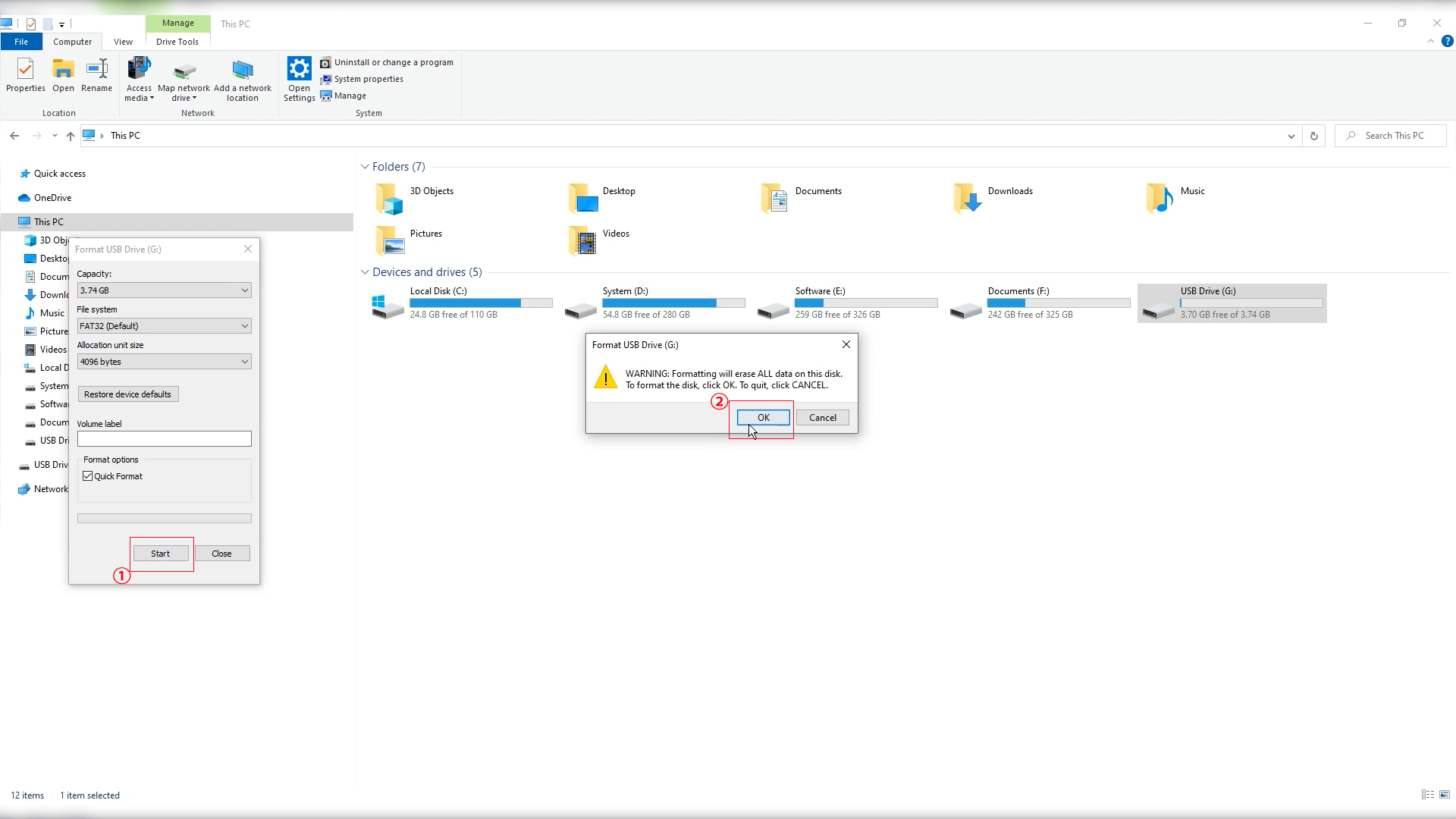
- Wait for the formatting process of the USB flash drive to complete and click OK - Close.
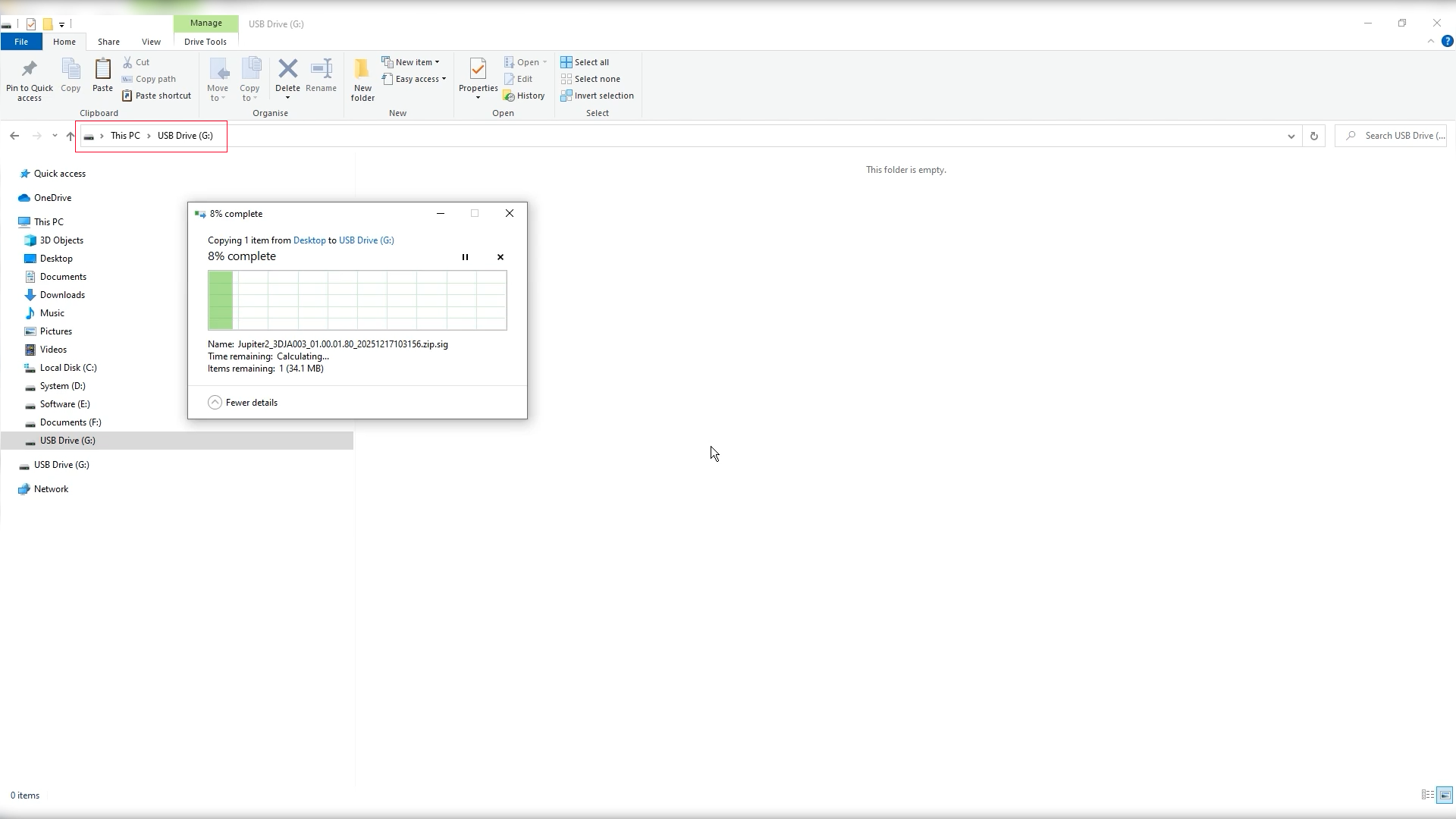
- Copy the Jupiter 2 firmware to the root directory of the USB flash drive.
Note: The root directory can be accessed by double-clicking the USB flash drive.
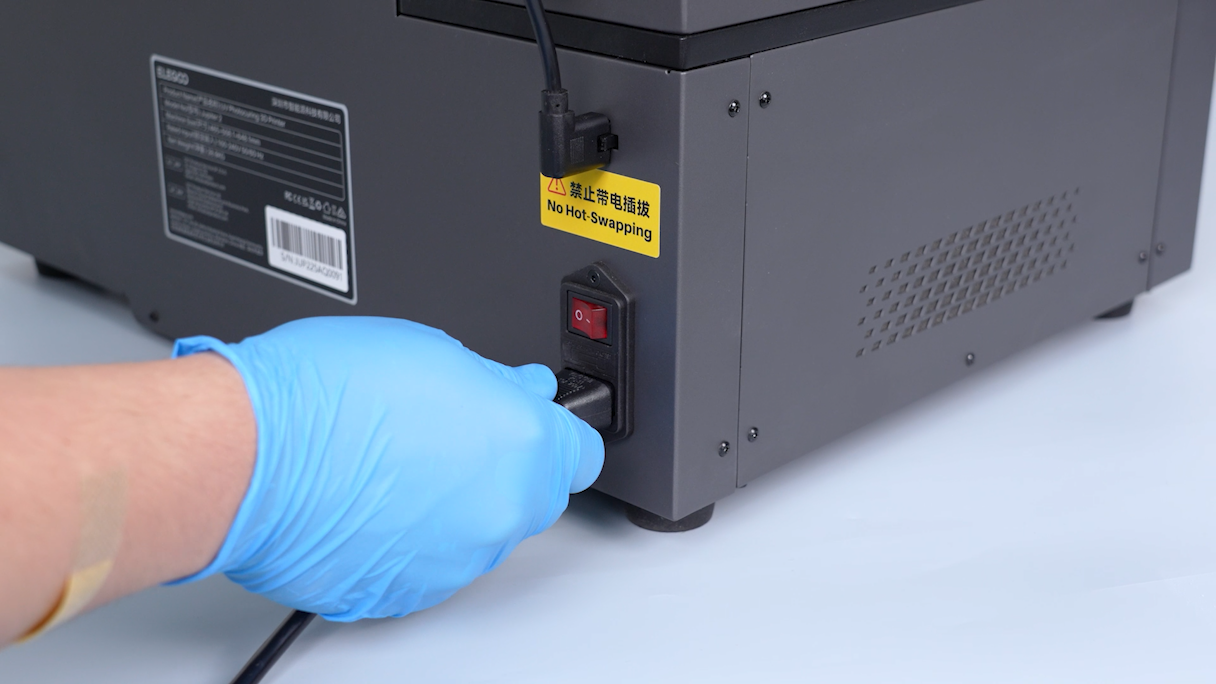
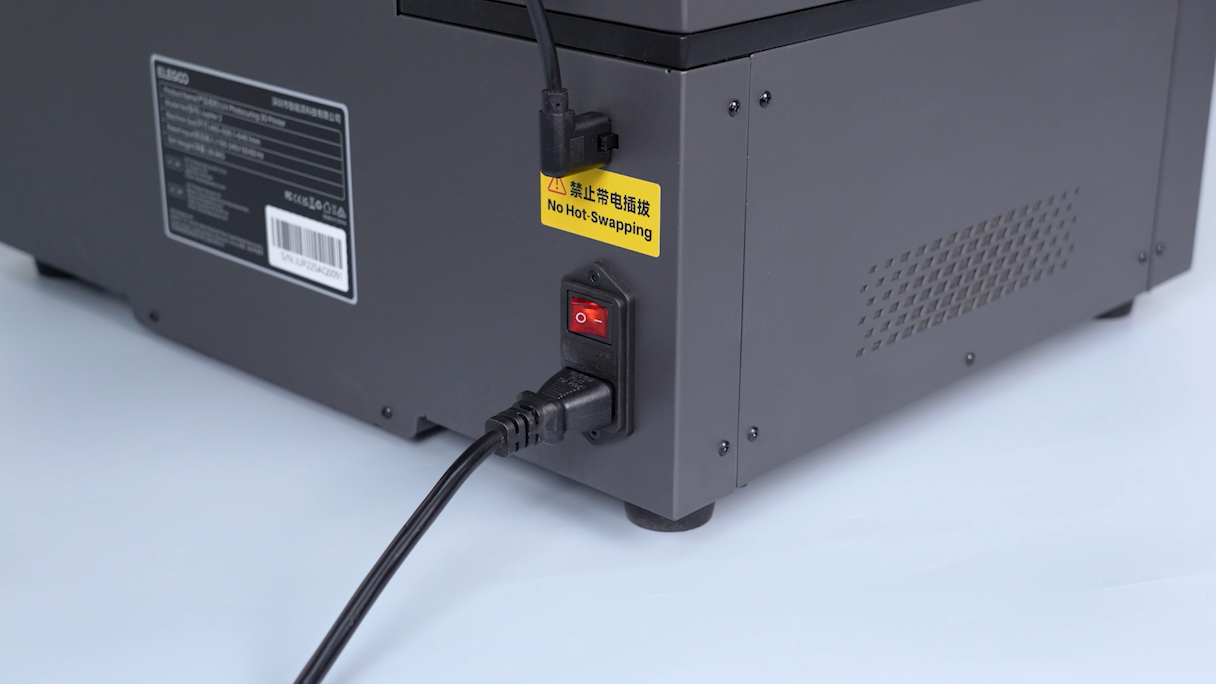
- Plug in the power supply cable and turn the power switch ON (symbol "|").
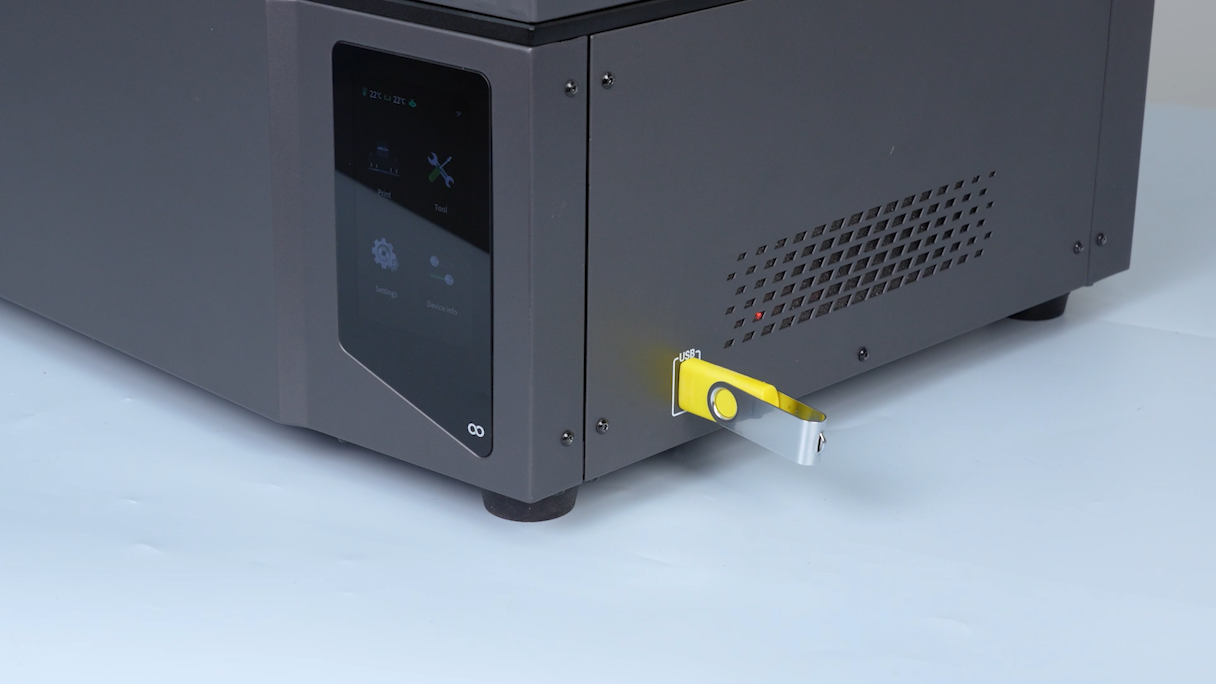
- Insert the USB flash drive into the printer.
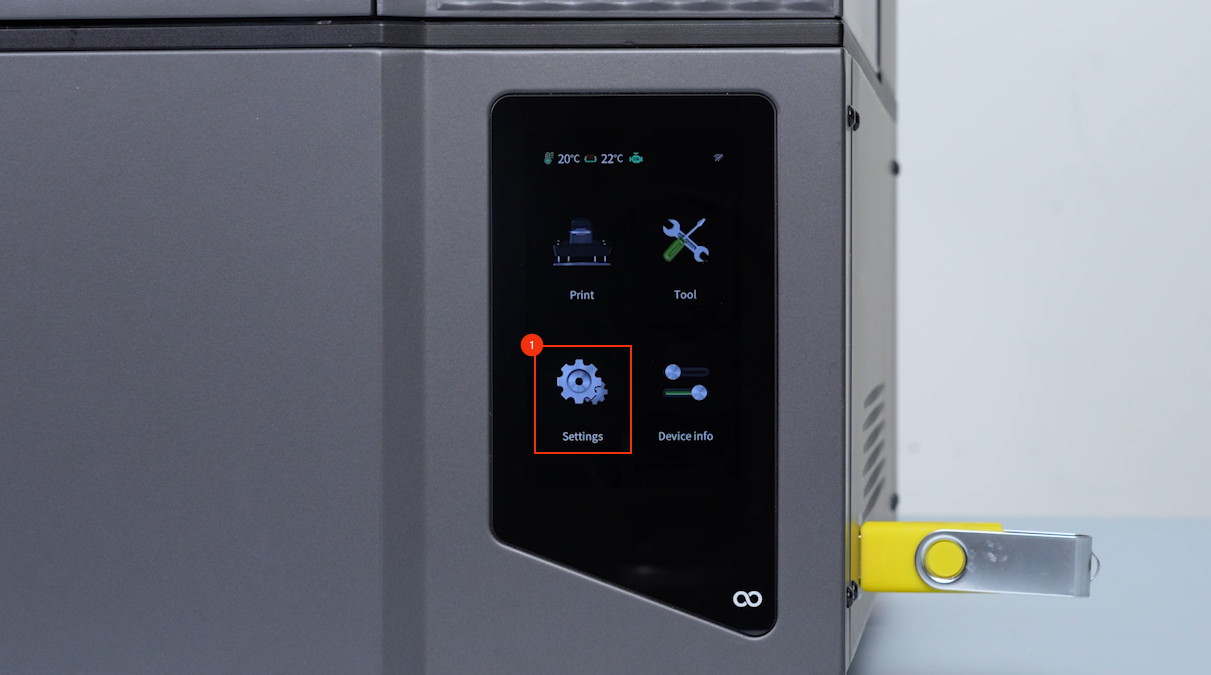
- On the touch screen, select Settings - Version upgrade - Local upgrade.
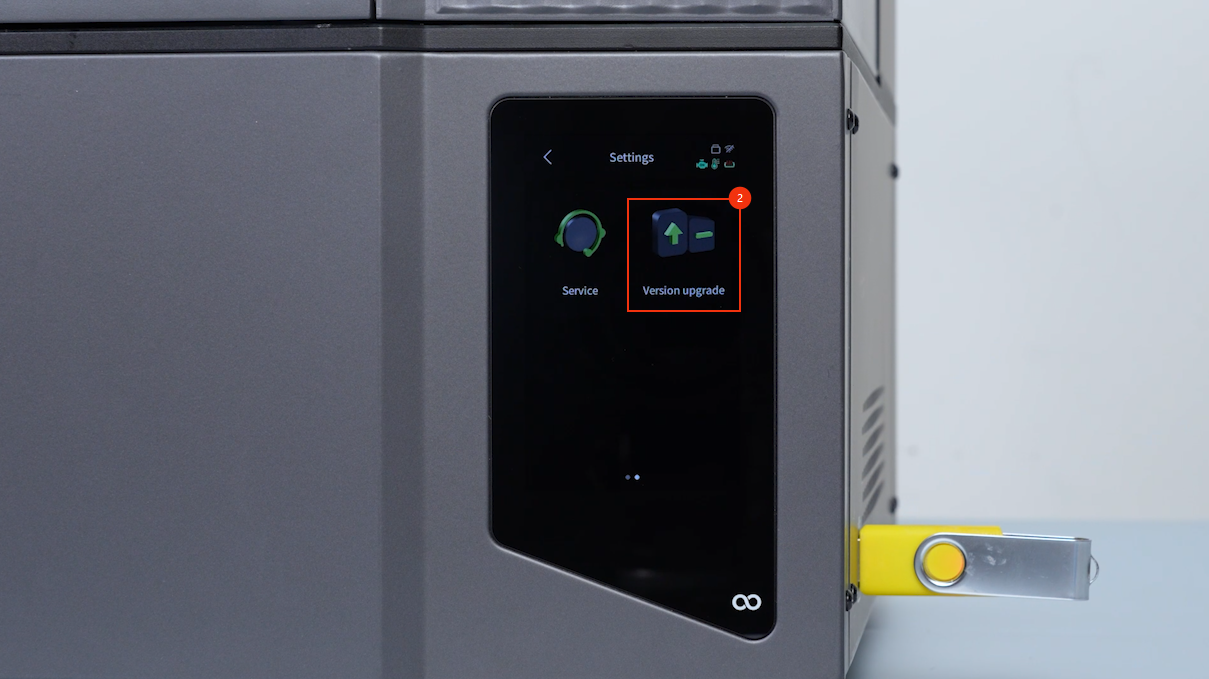
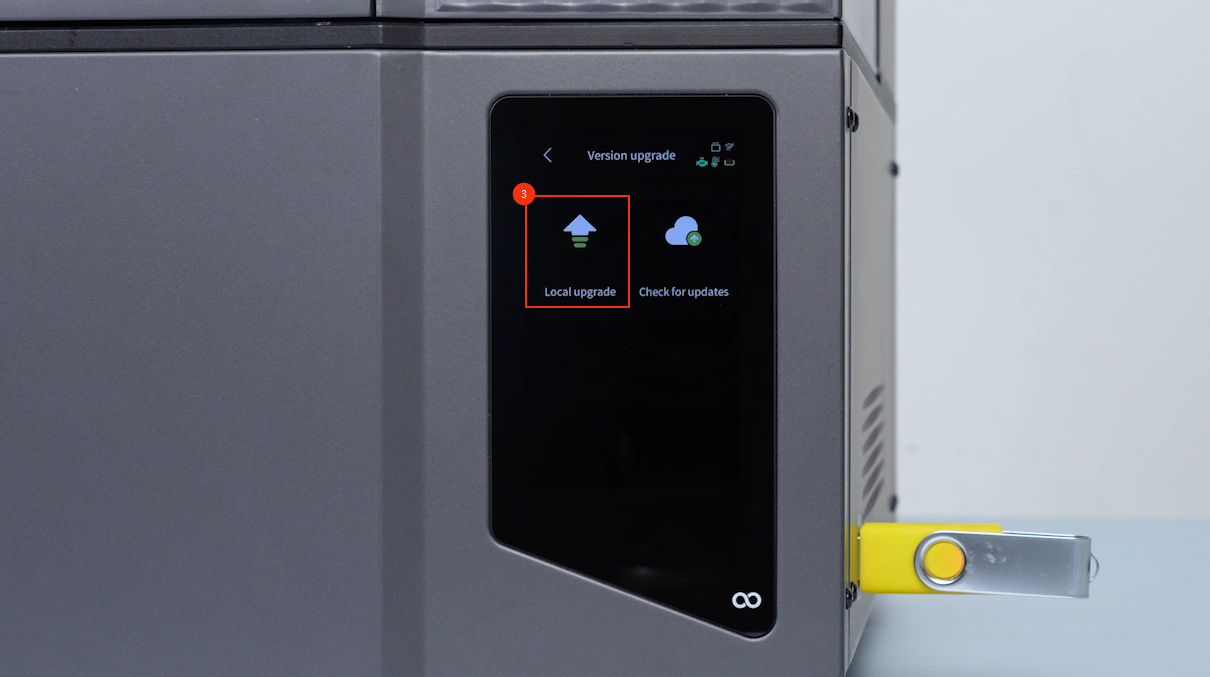
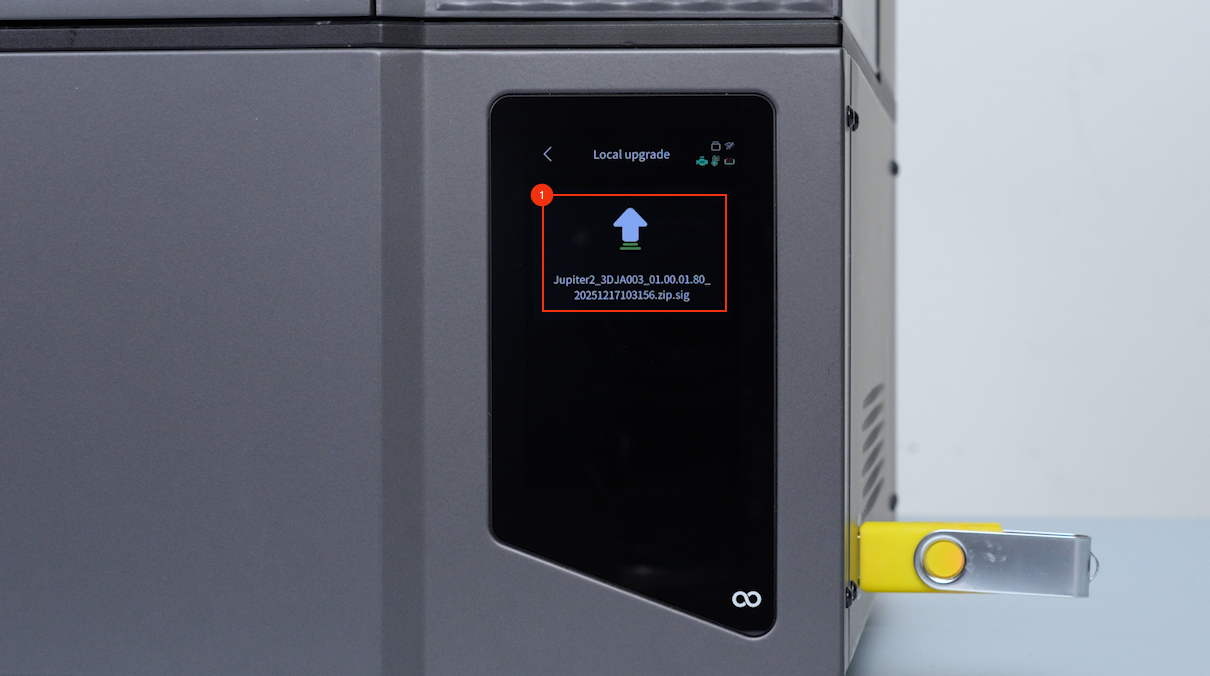
- Confirm the version information and select Upgrade - Confirm.
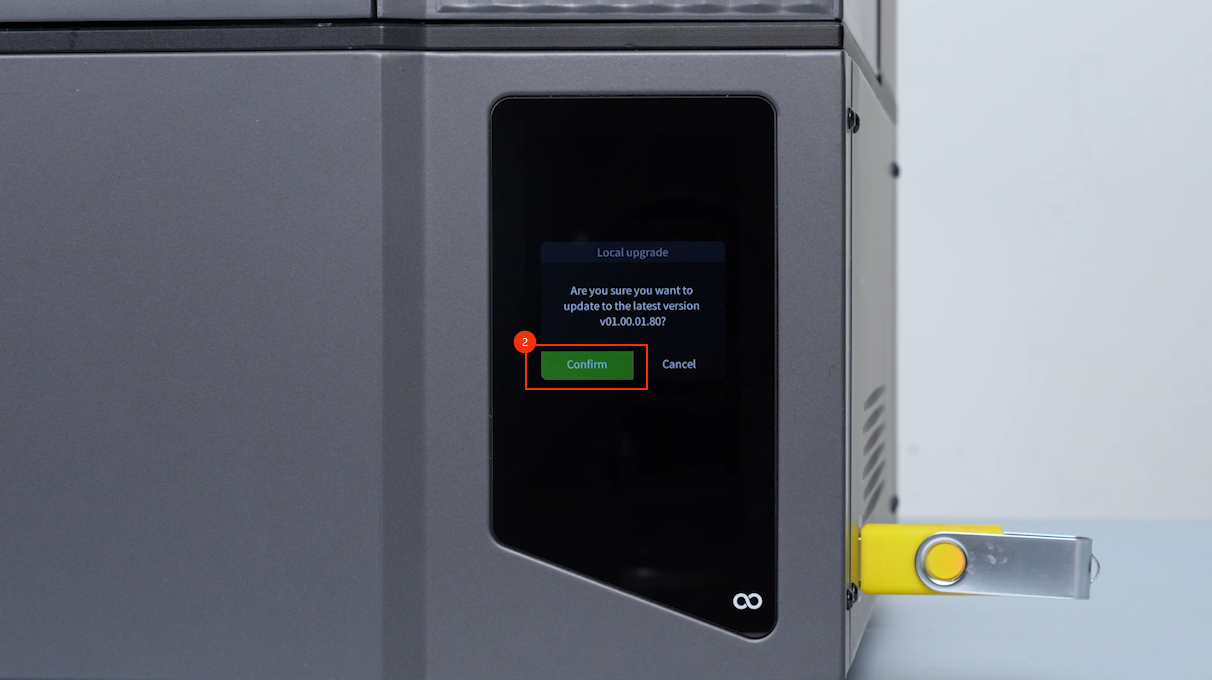
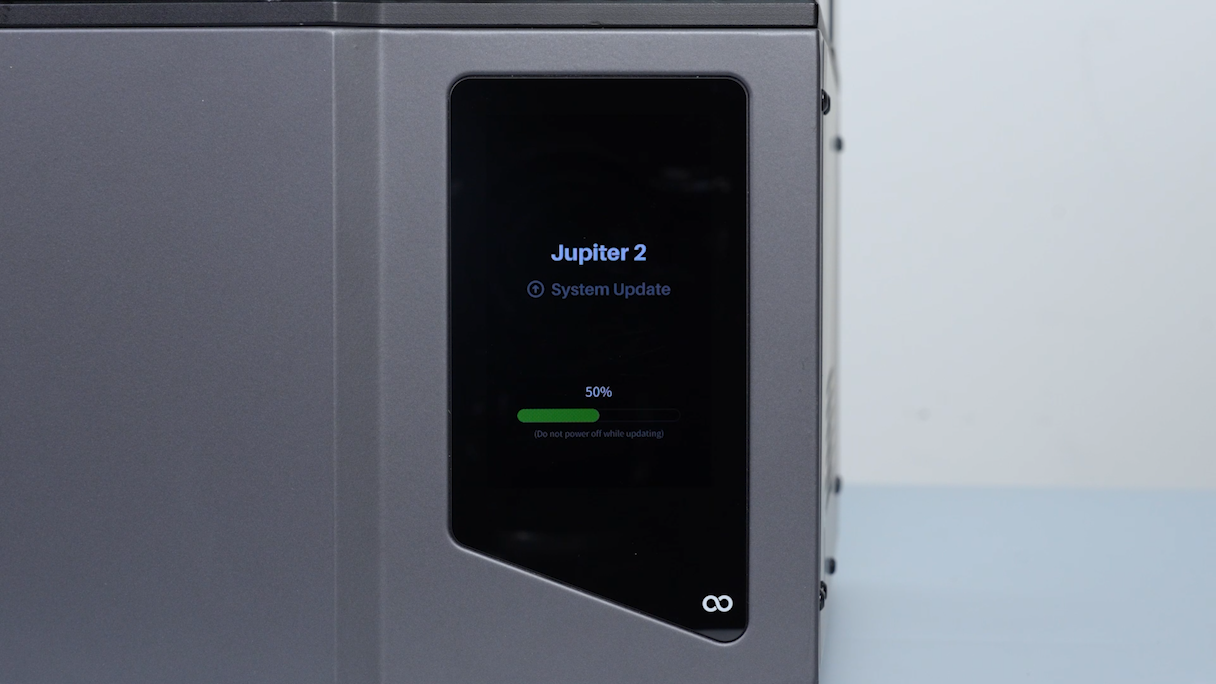
- Wait for the printer to complete the firmware update.
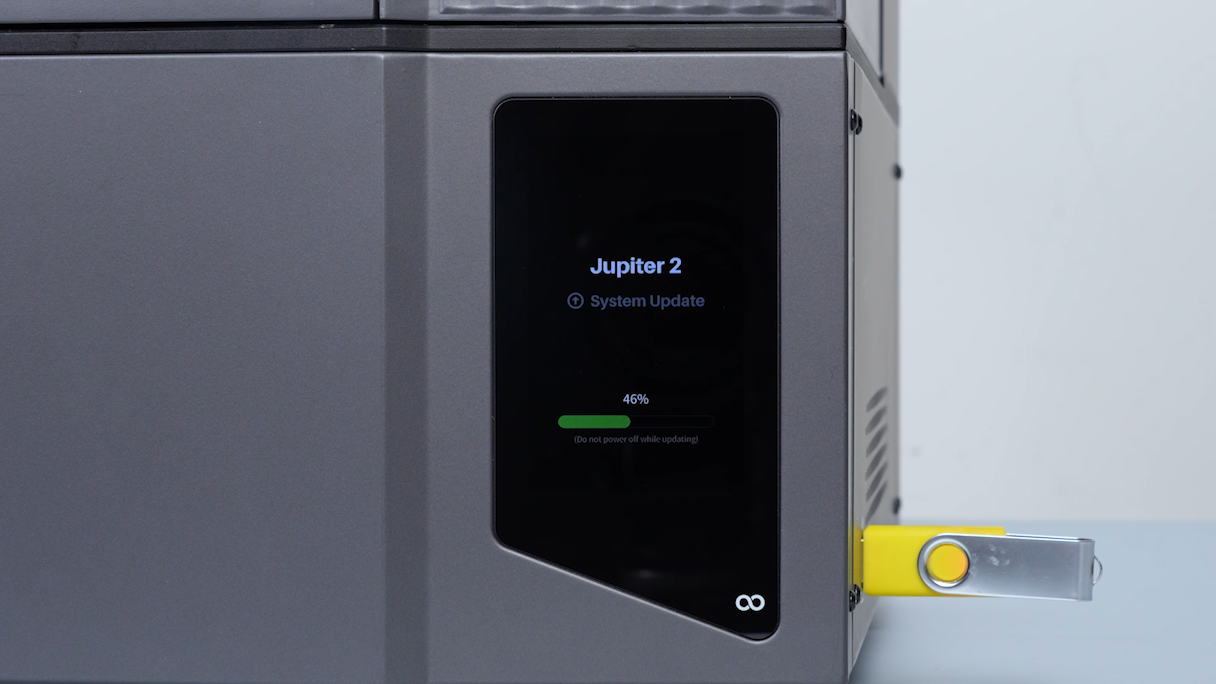
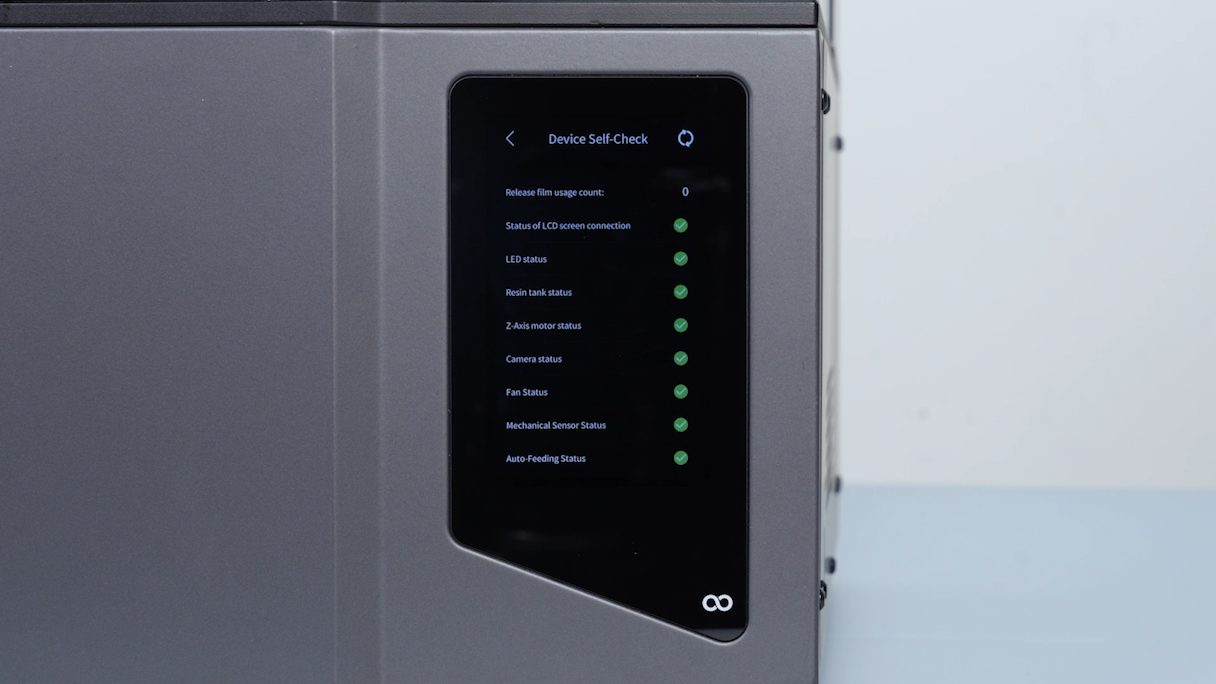
- The printer automatically rebots once firmware update completes and wait for the printer to complete the self-check process.
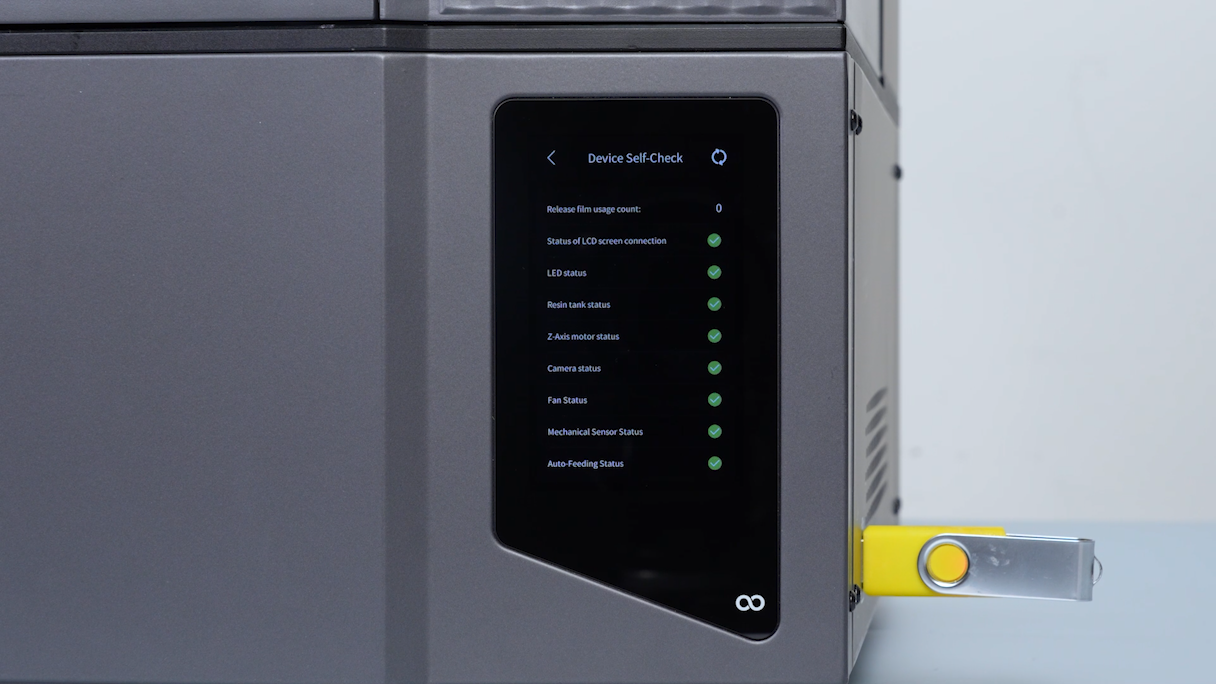
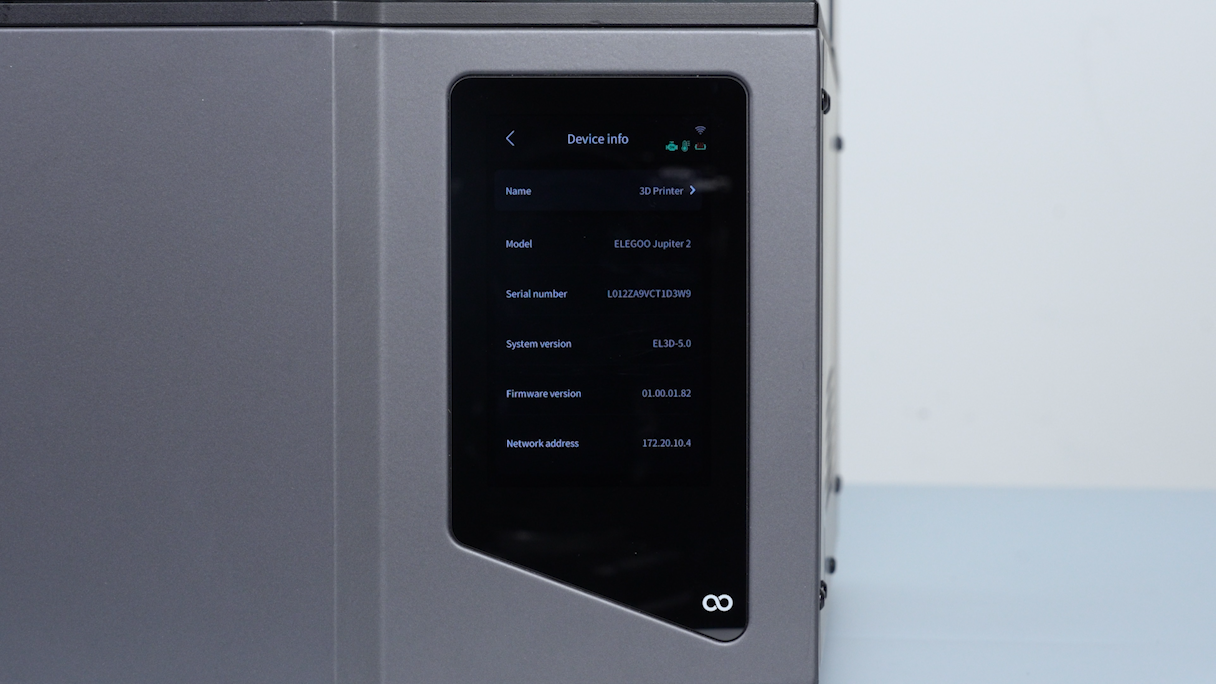
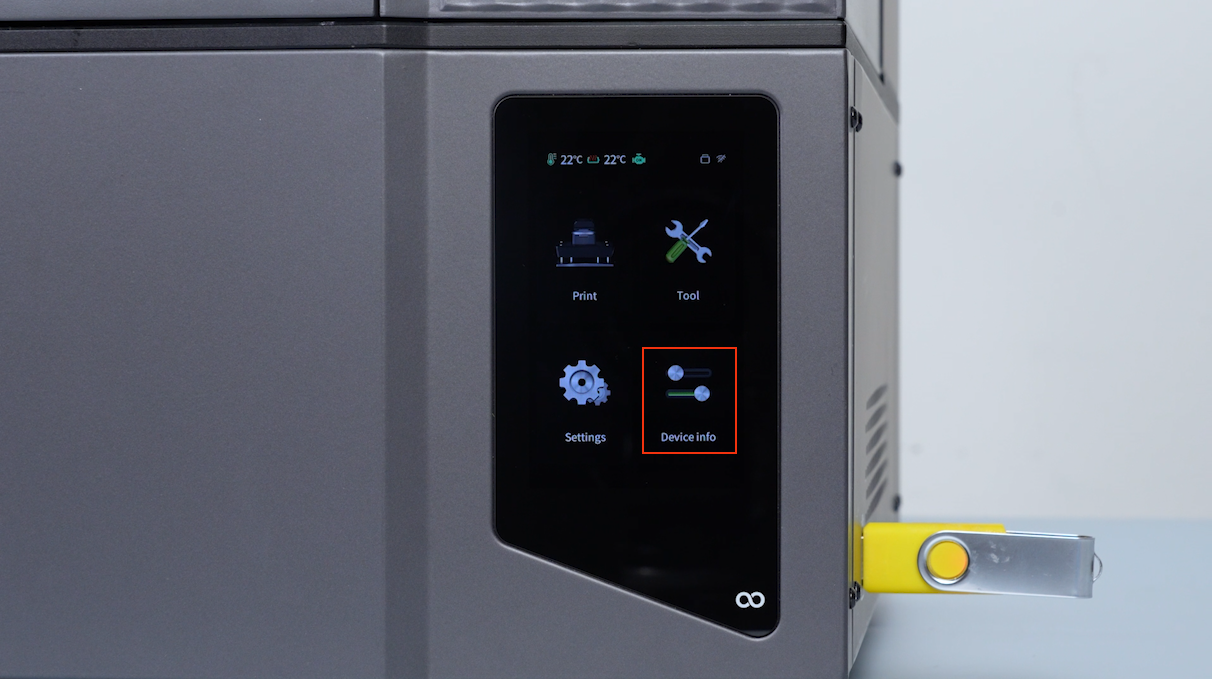
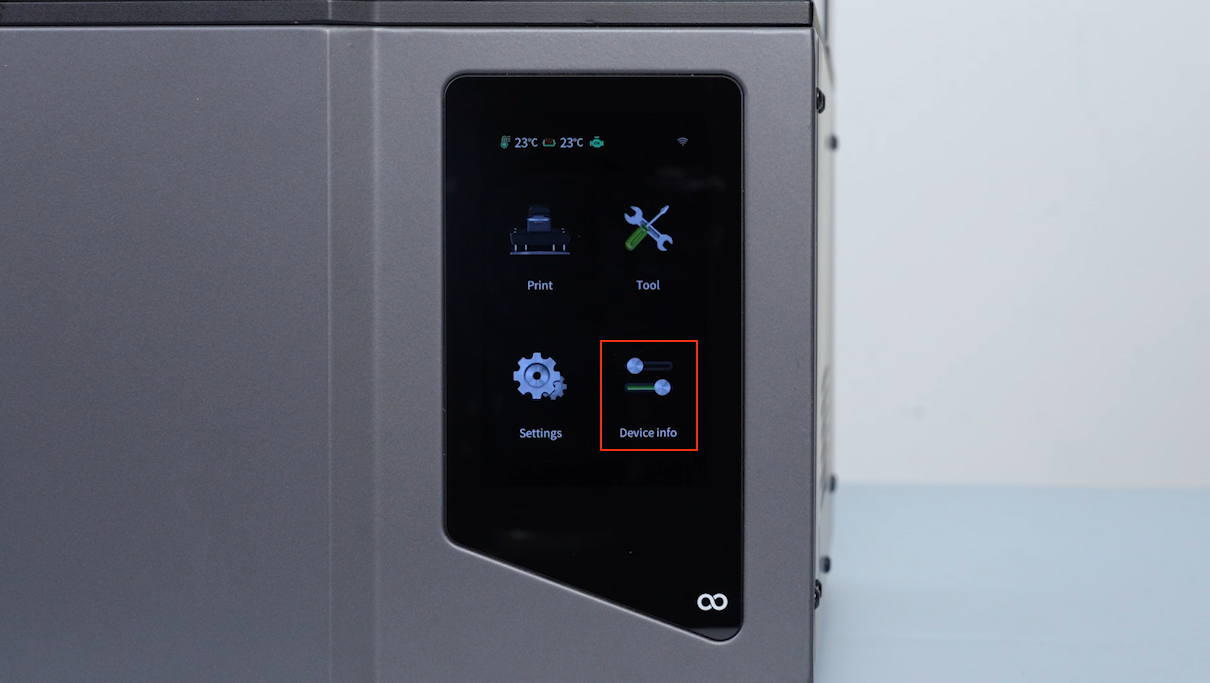
- On the touch screen, select Device Info.
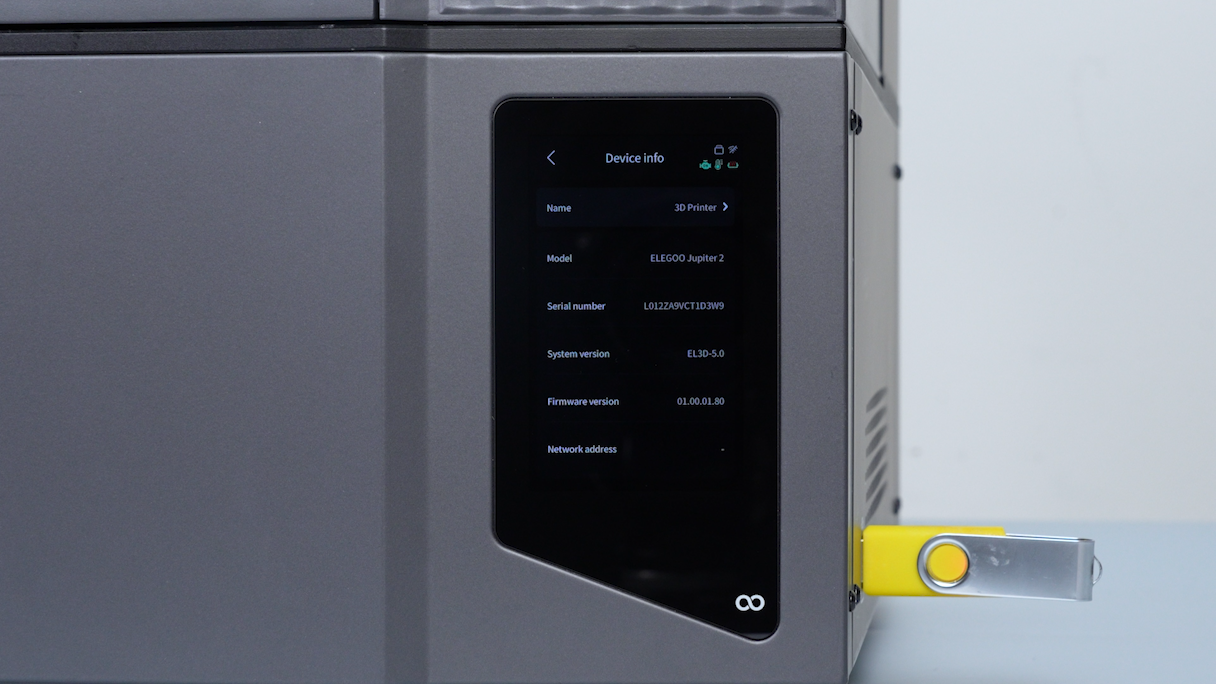
- Confirm that the firmware version is changed. The firmware update completes.
¶ Update Firmware via OTA
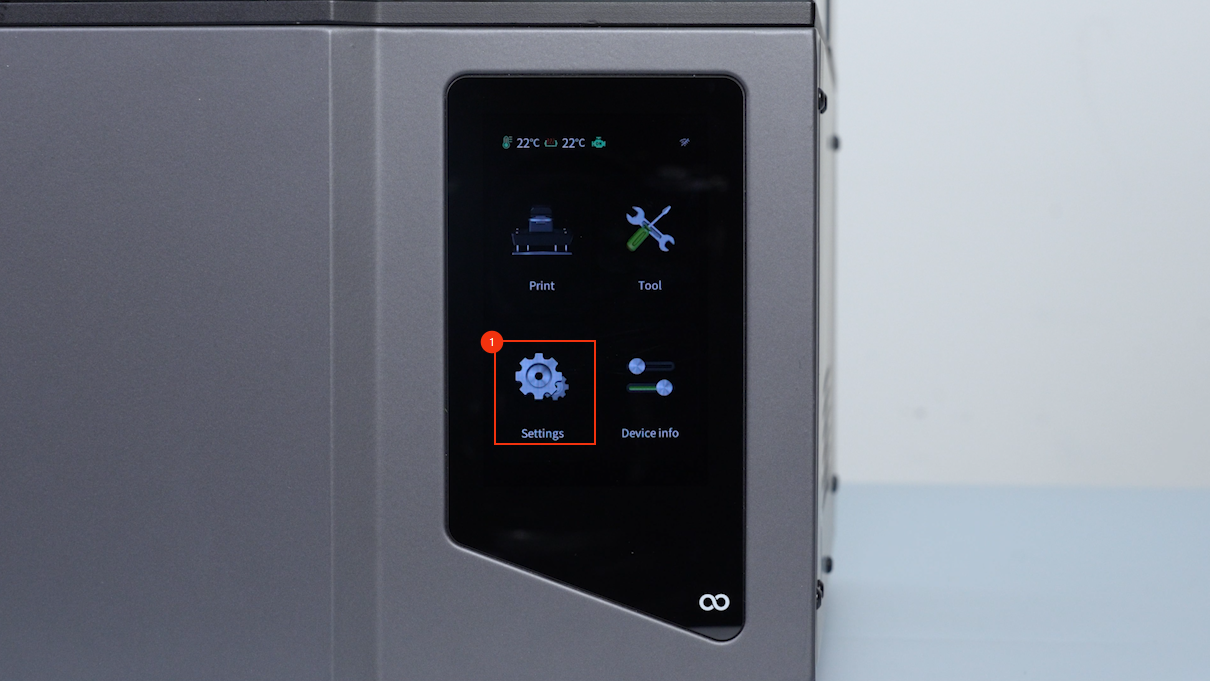
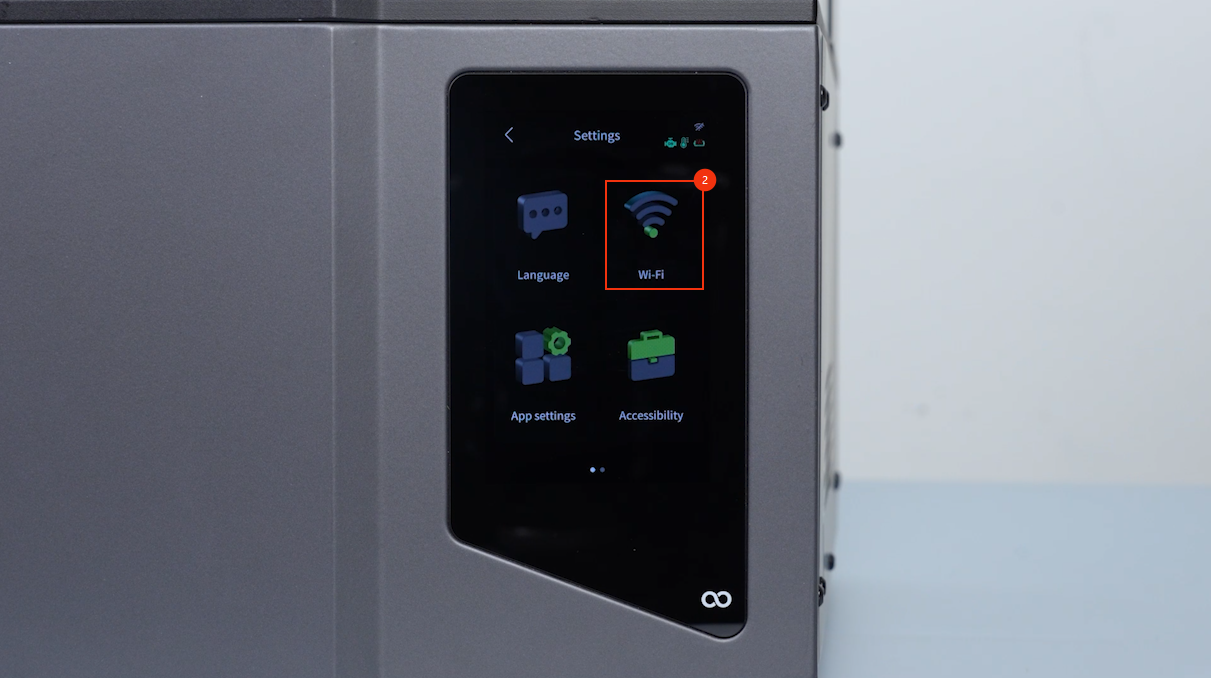
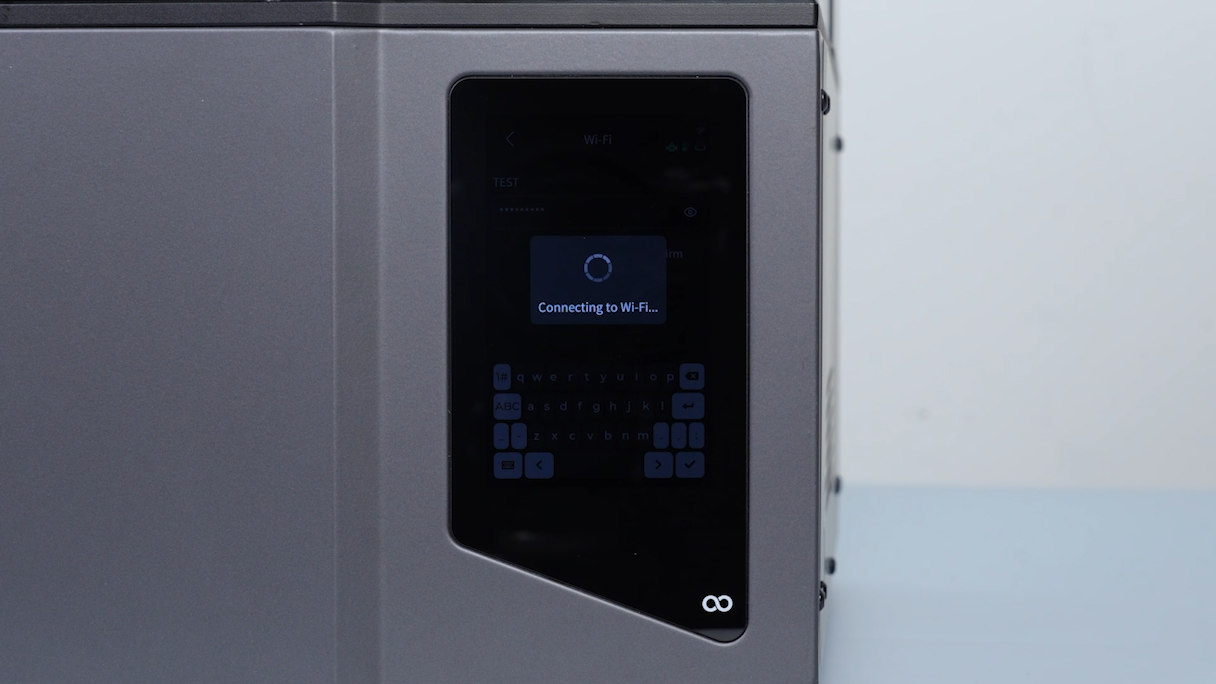
- On the touch screen, select Settings - Wi-Fi. Connect the printer to Wi-Fi.
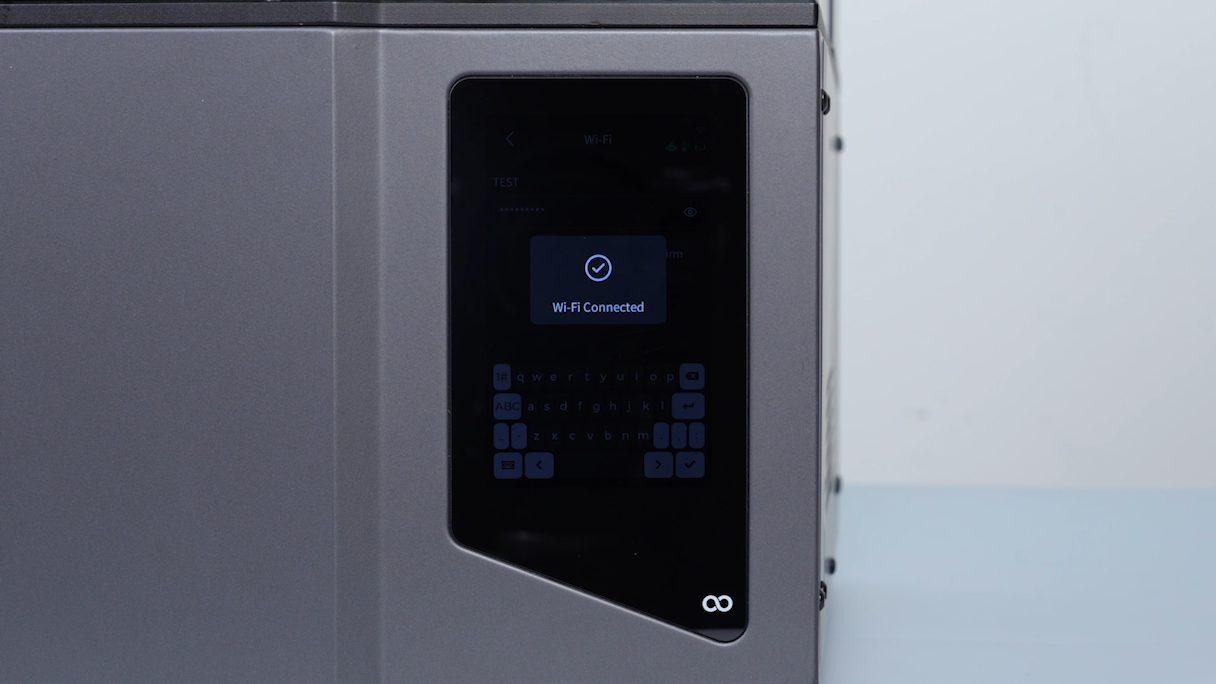
- After connection, select Return - Version upgrade - Check for updates.
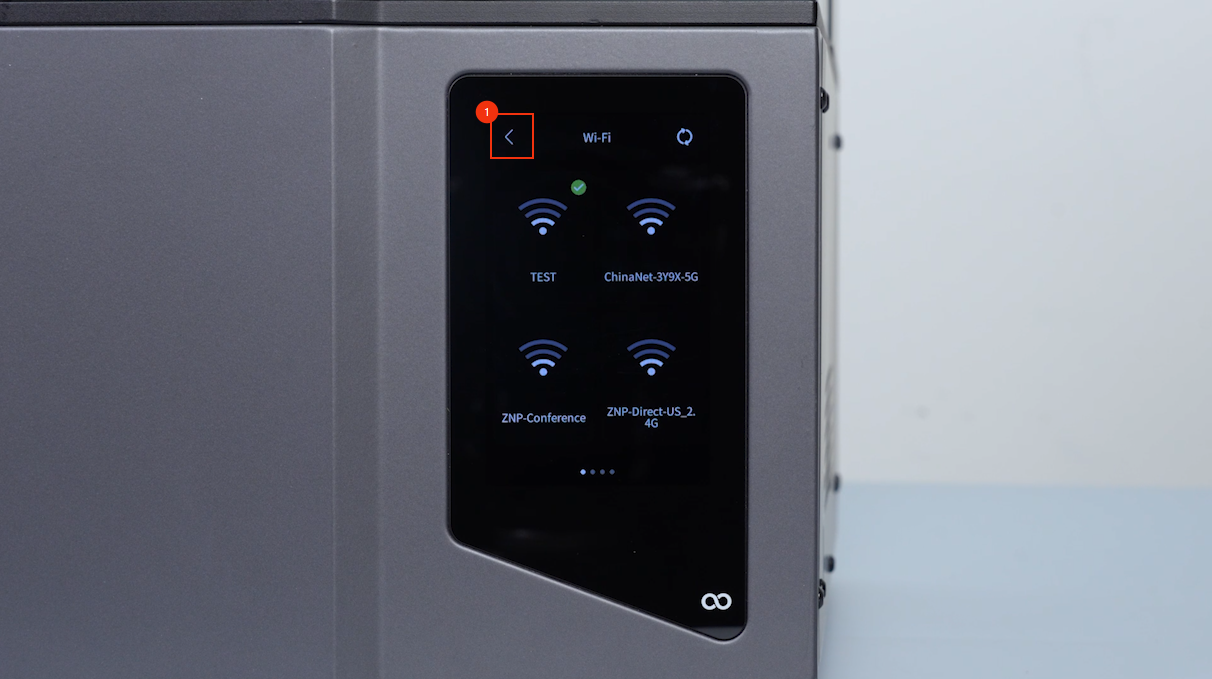
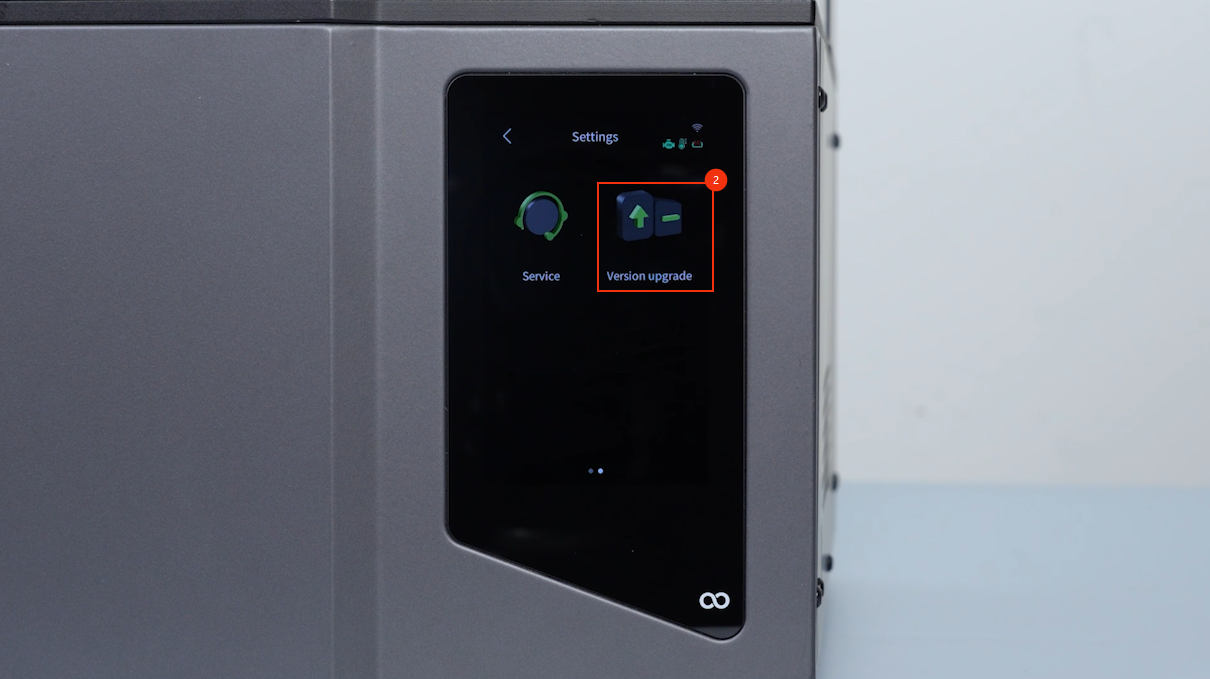
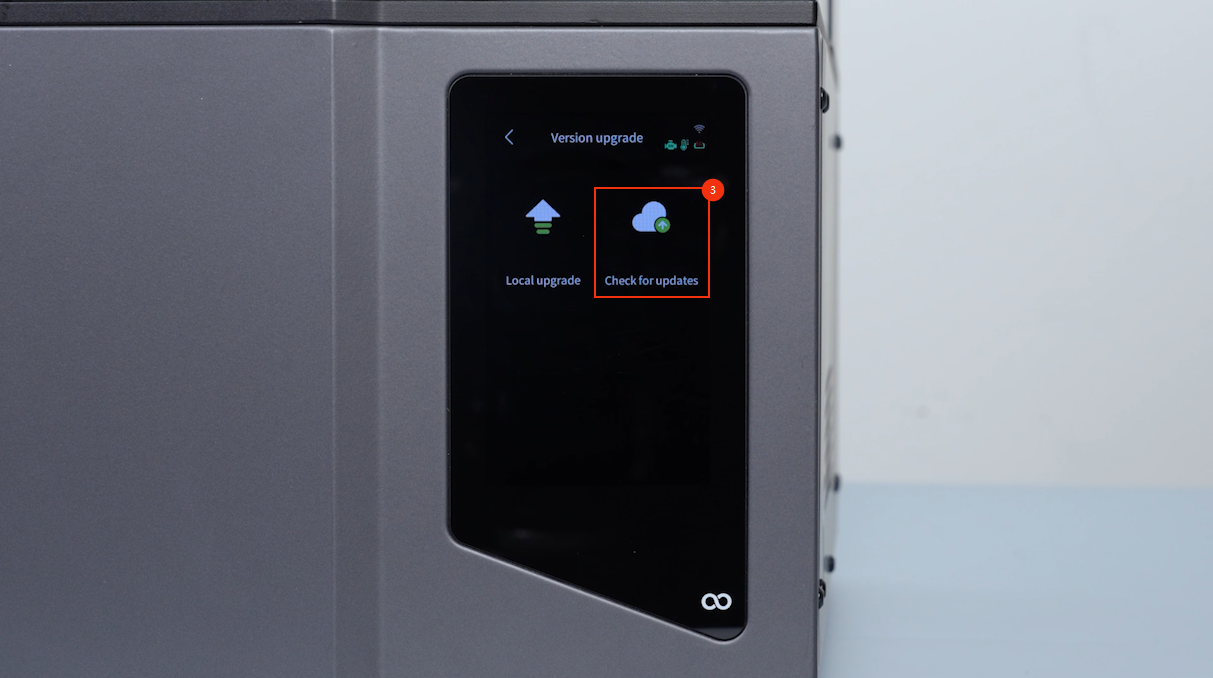
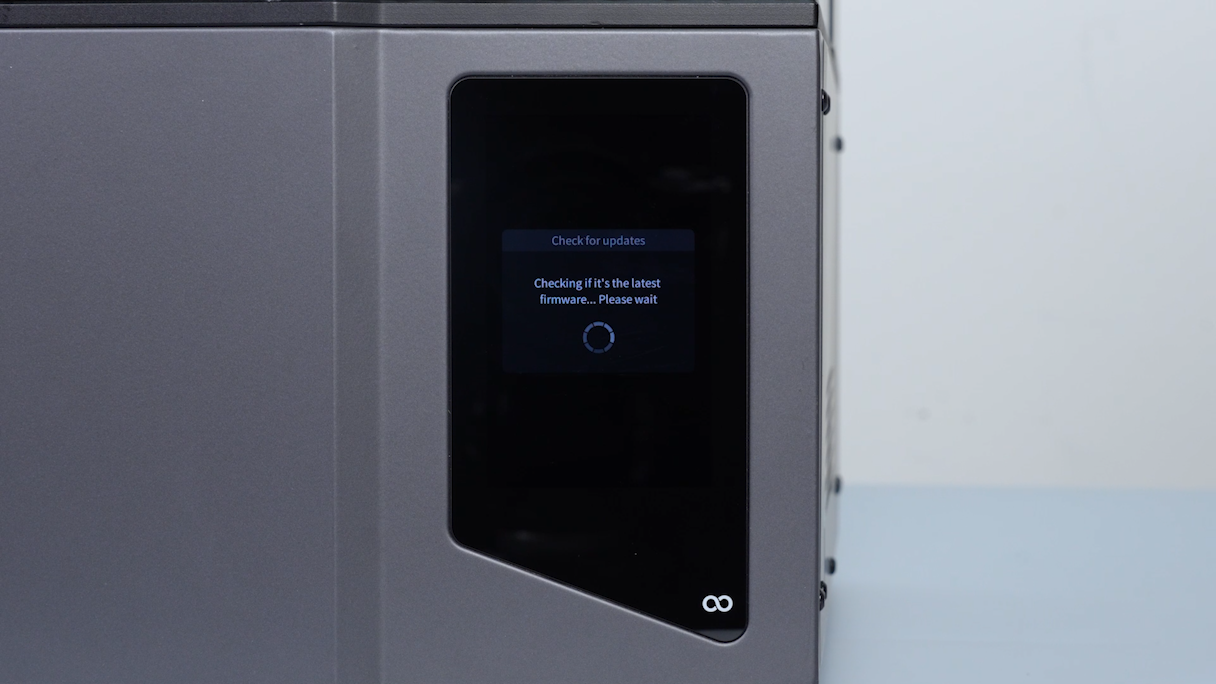
- Select the New version firmware - Confirm.
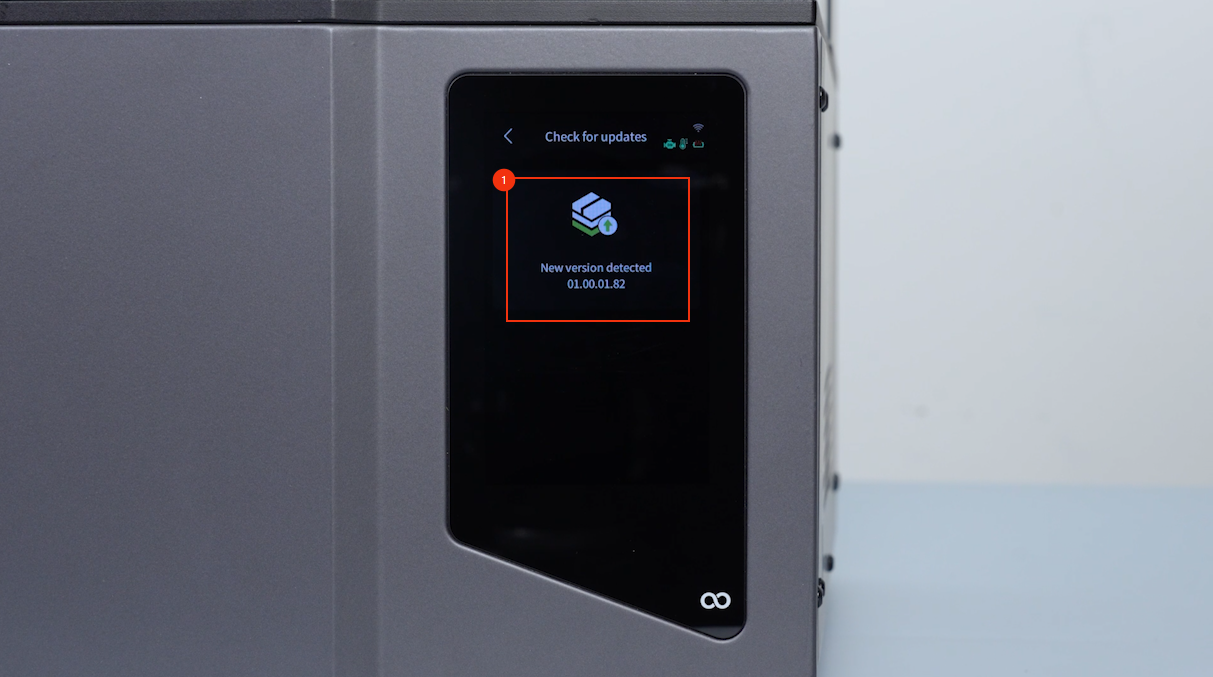
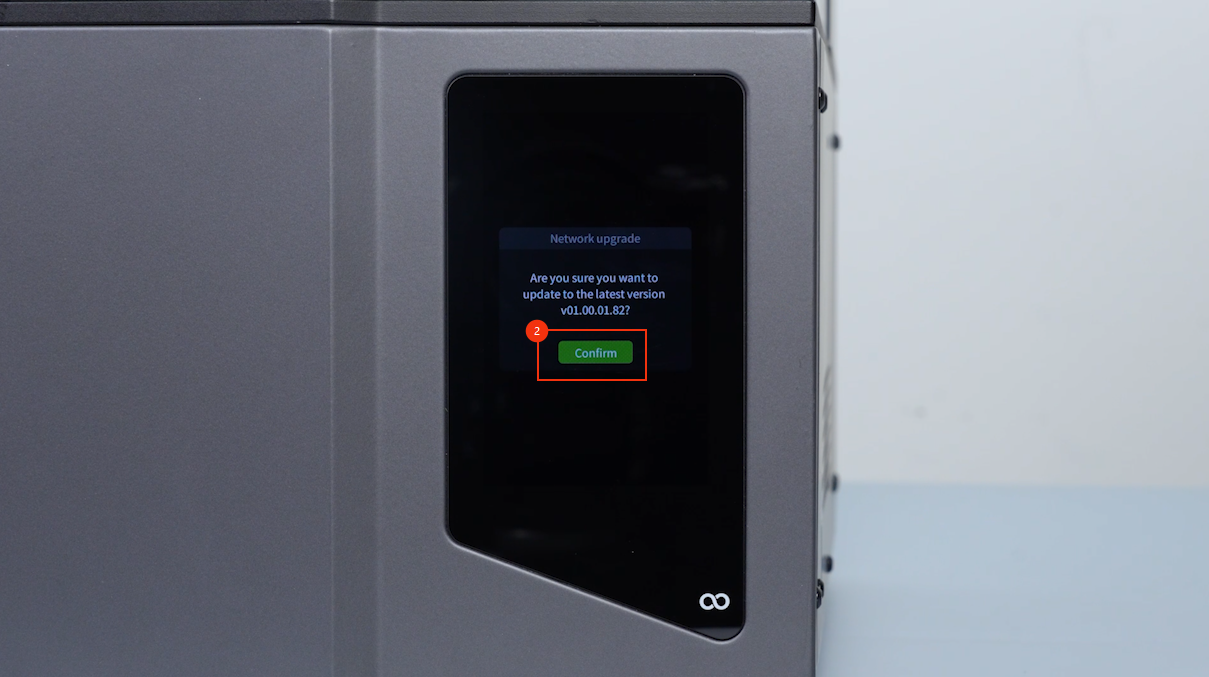
- The firmware upgrades automatically.
- The printer automatically reboots once firmware update completes. Wait for the printer to complete the self-check process.
- On the touch screen, select Device Info.
- Confirm that the firmware version is changed. The firmware update completes.