¶ Required Tools
- 2.5 mm Allen Key
- Phillips Screwdriver
- New Mainboard
- Label Cable Tie
- Marker
- Scissors
¶ Disassembly Steps
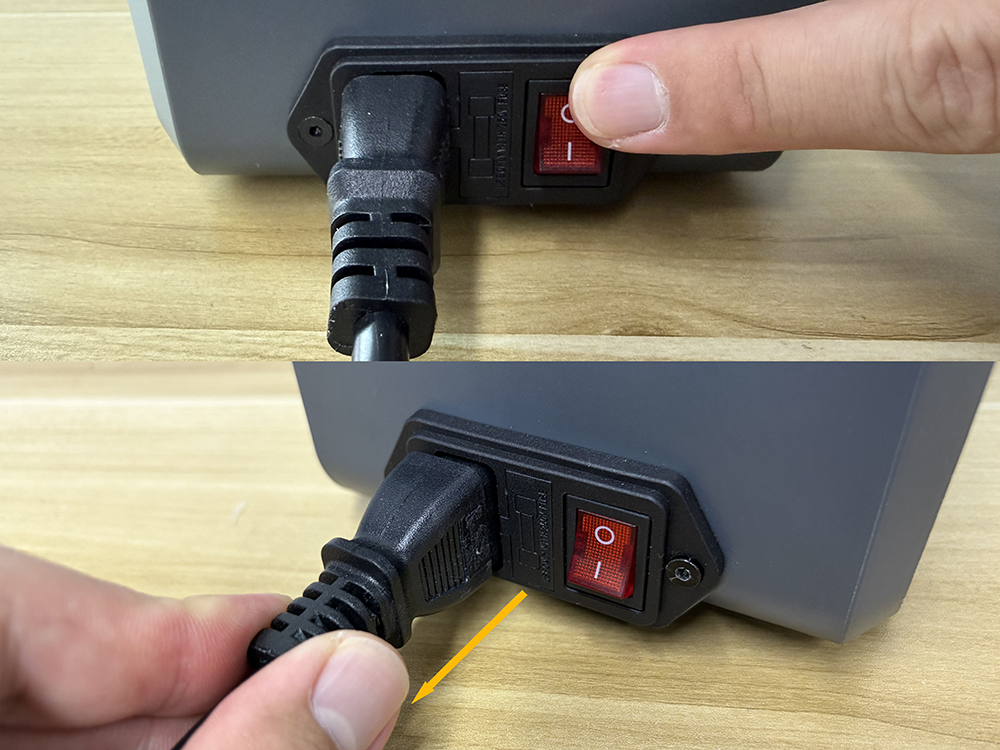
Warning: Before starting the operation, turn off the H1 HT power switch and unplug the power cord.
¶ Remove the Filament Spool
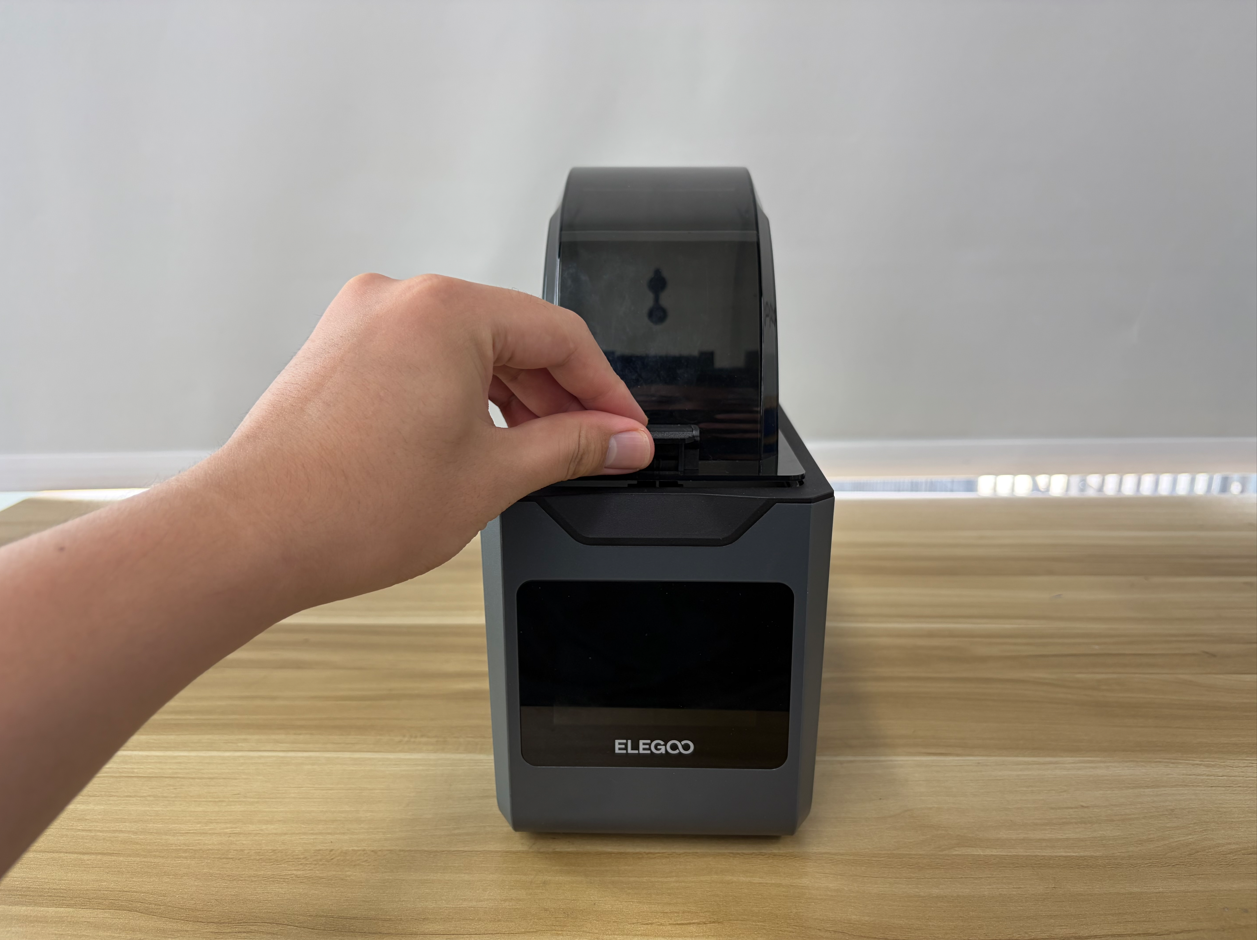
- Open the top cover.
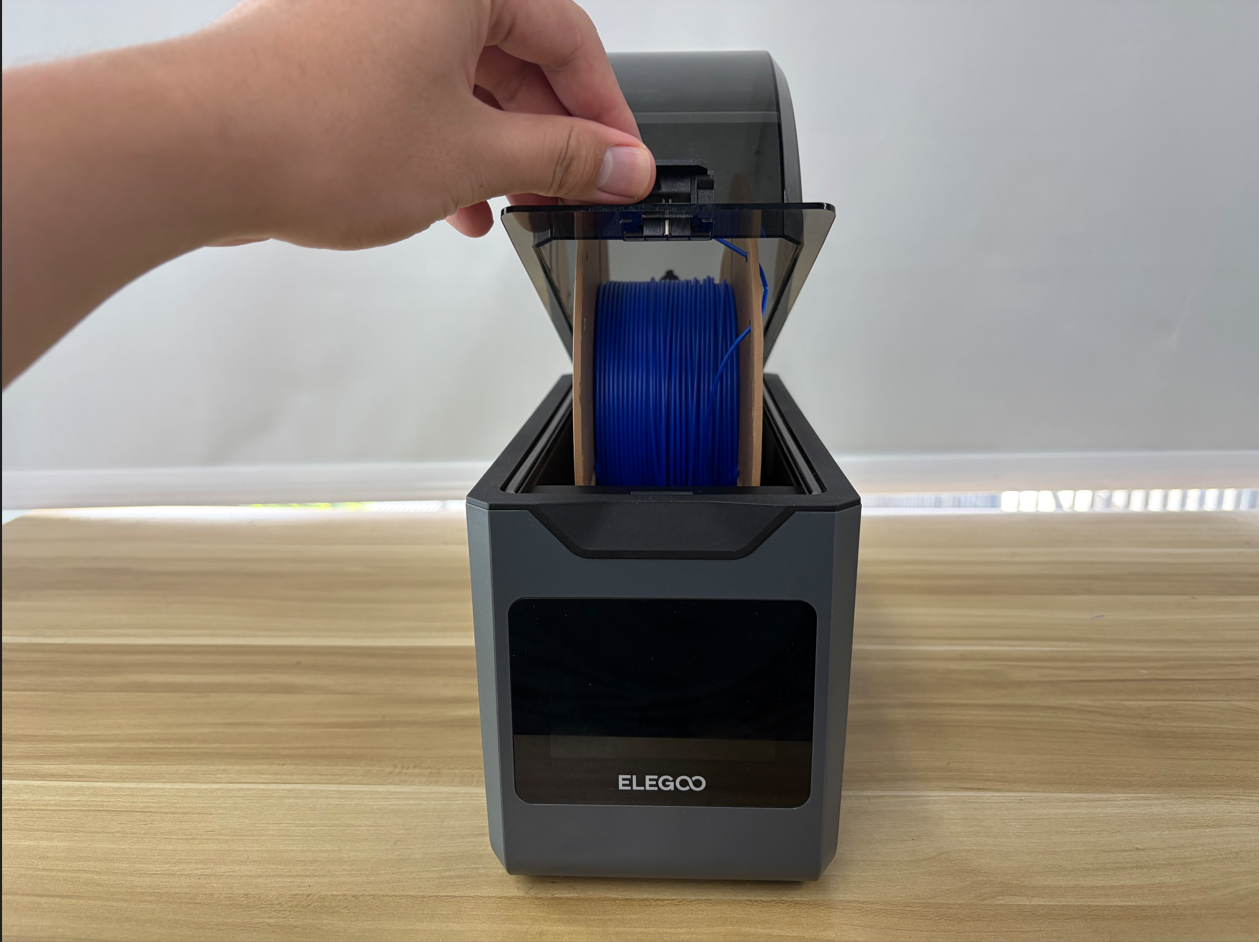
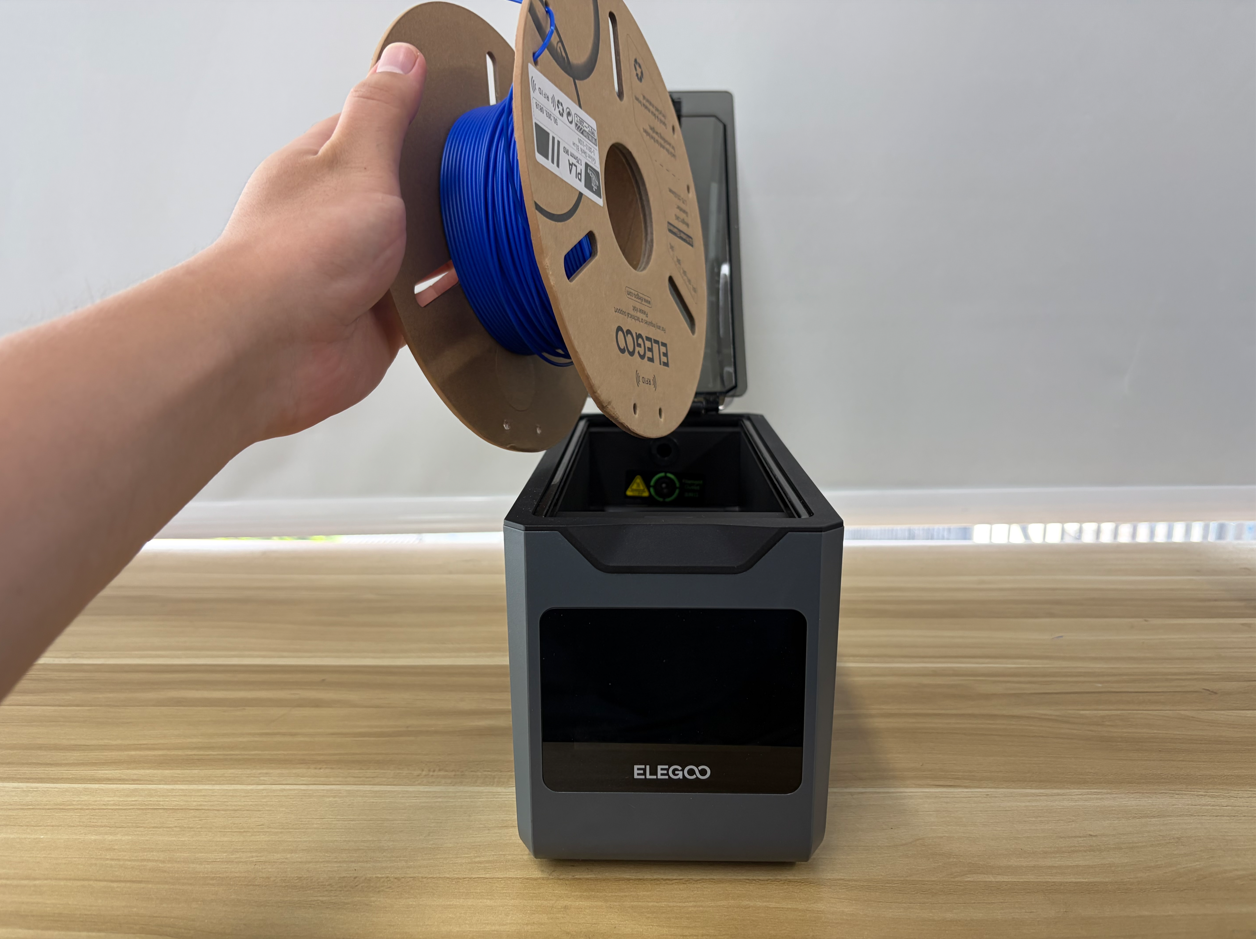
- Remove the filament spool.
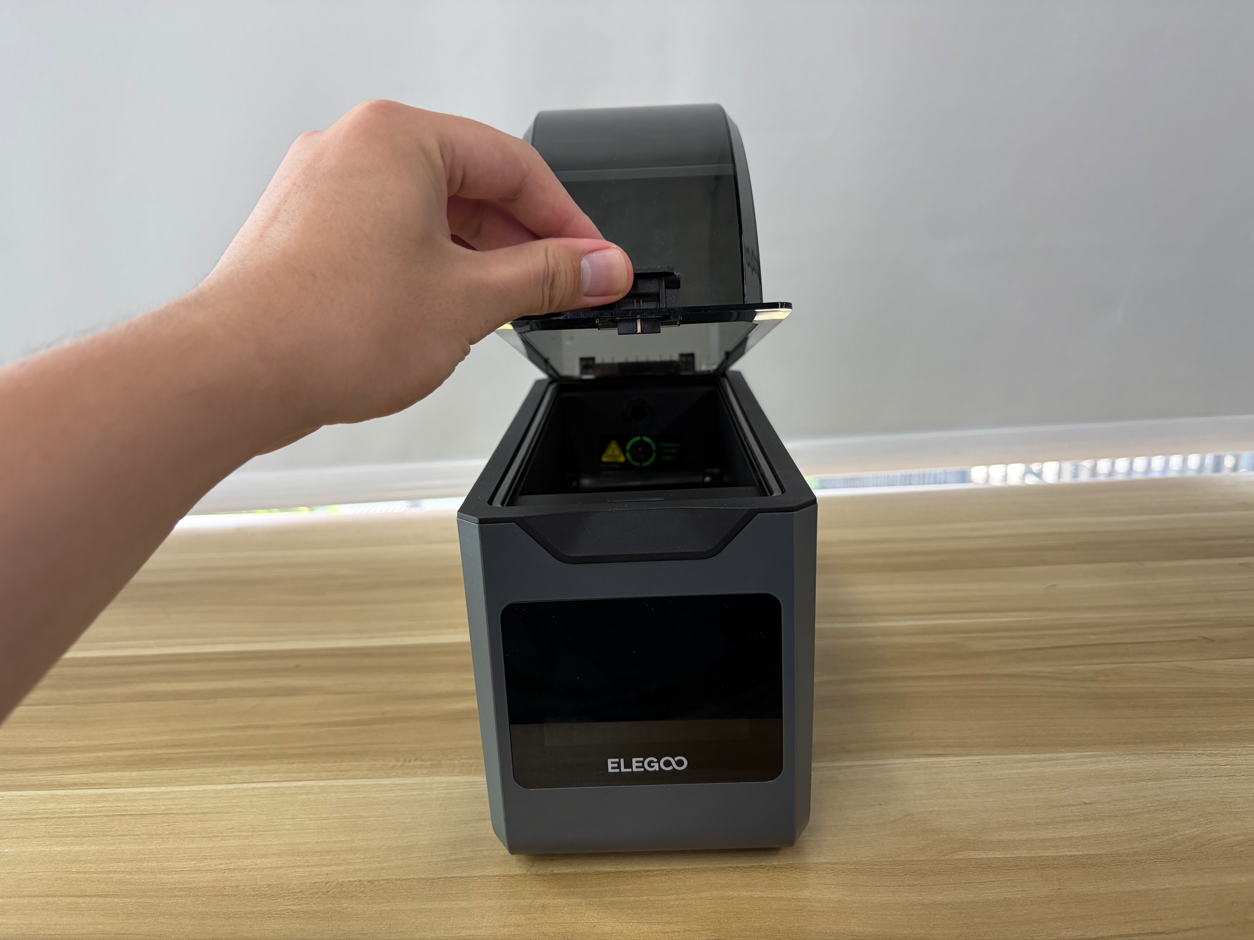
- Close the top cover.
¶ Open the Bottom Cover
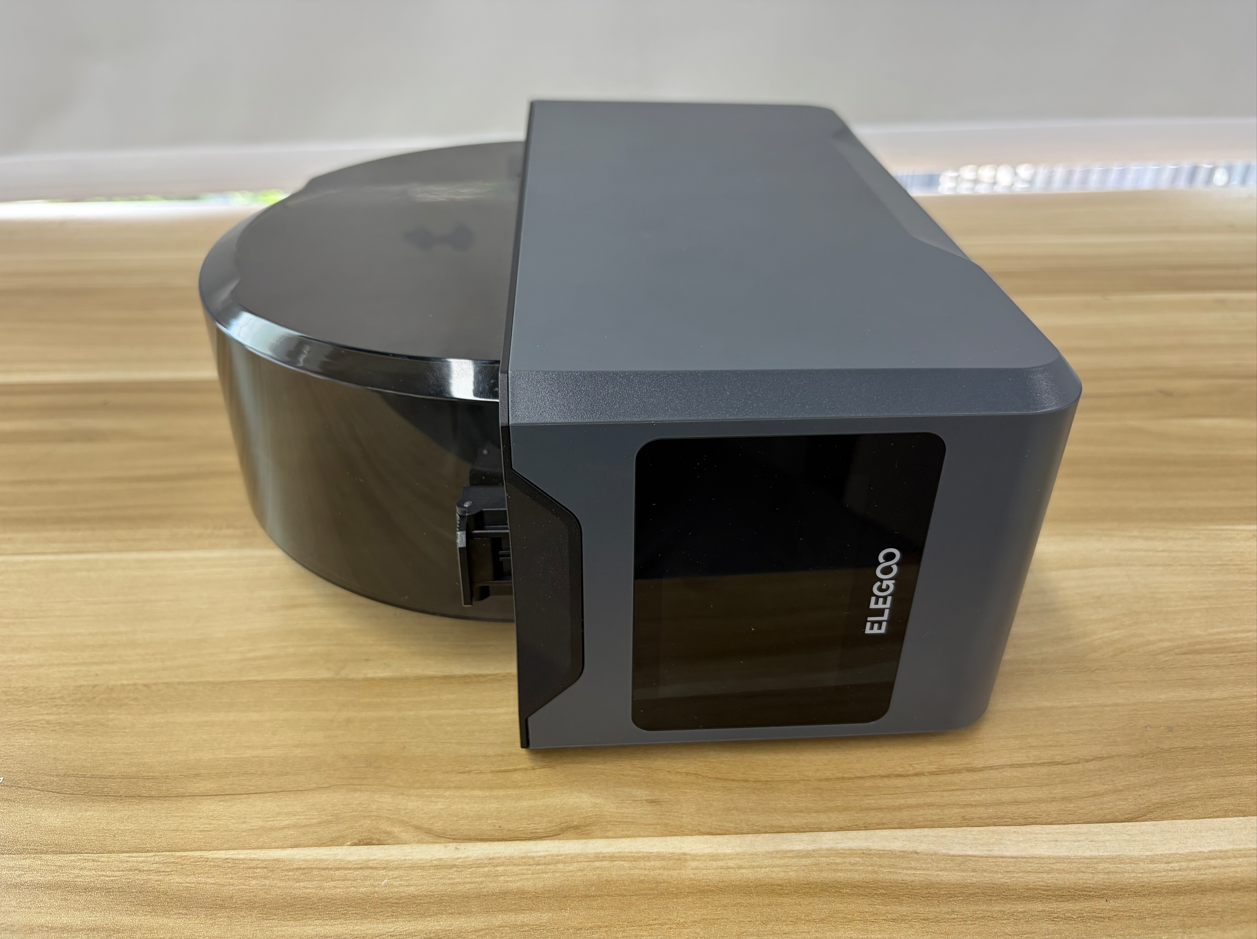
- Place the H1 HT on its side on a flat surface.
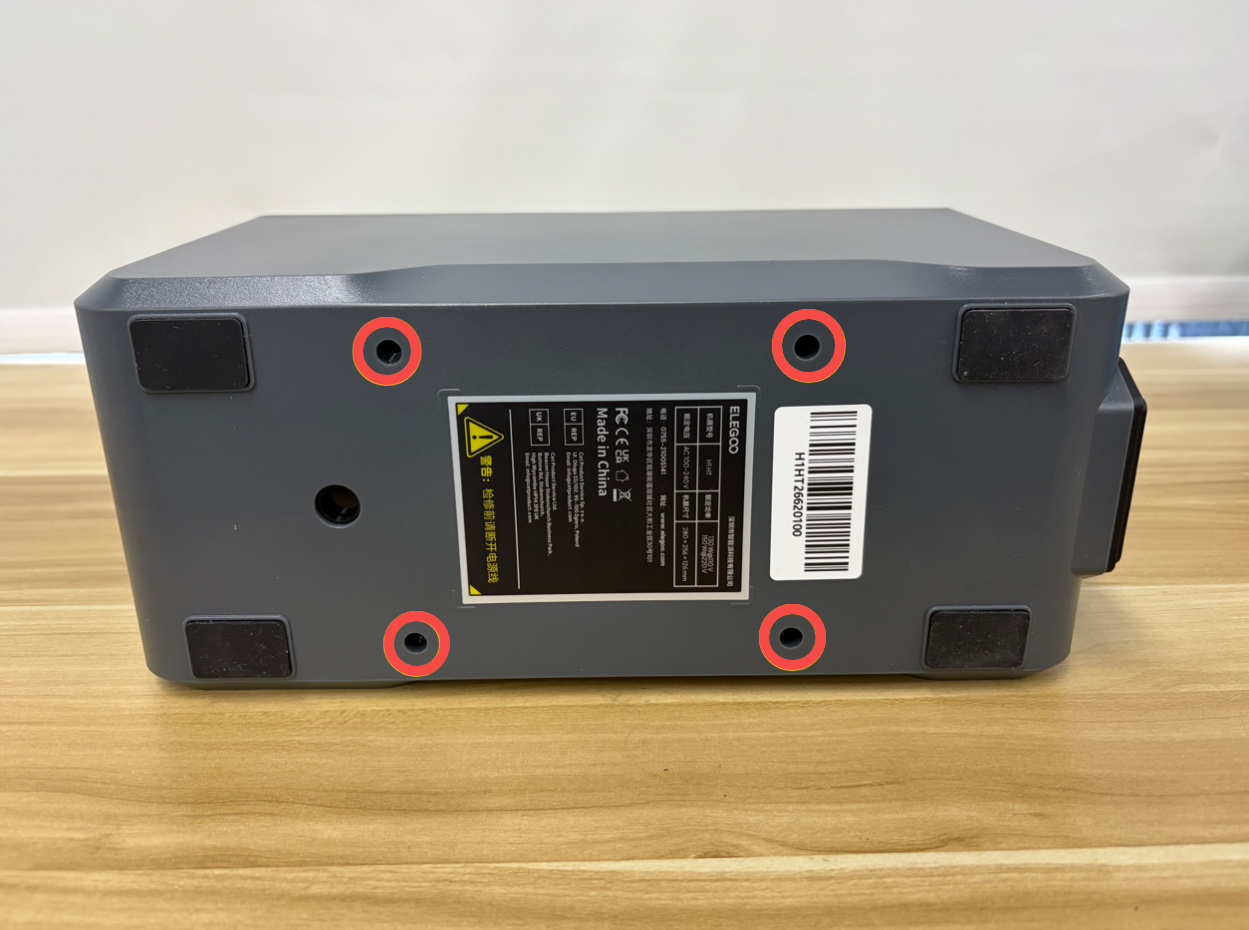
- Use a 2.5 mm Allen Key to remove the four screws securing the bottom cover.
- Slowly open the bottom cover. Be careful not to pull or damage the internal cables.
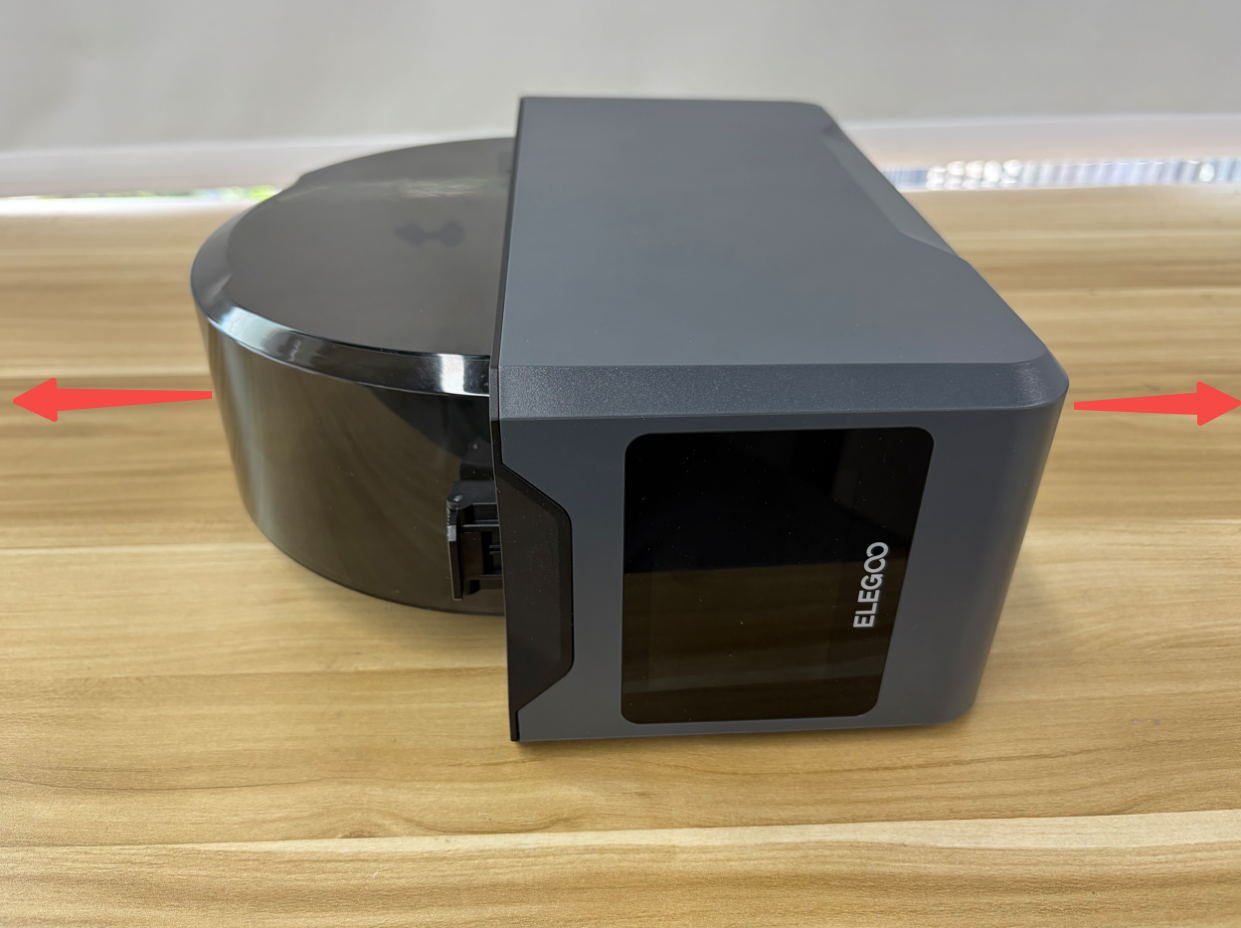
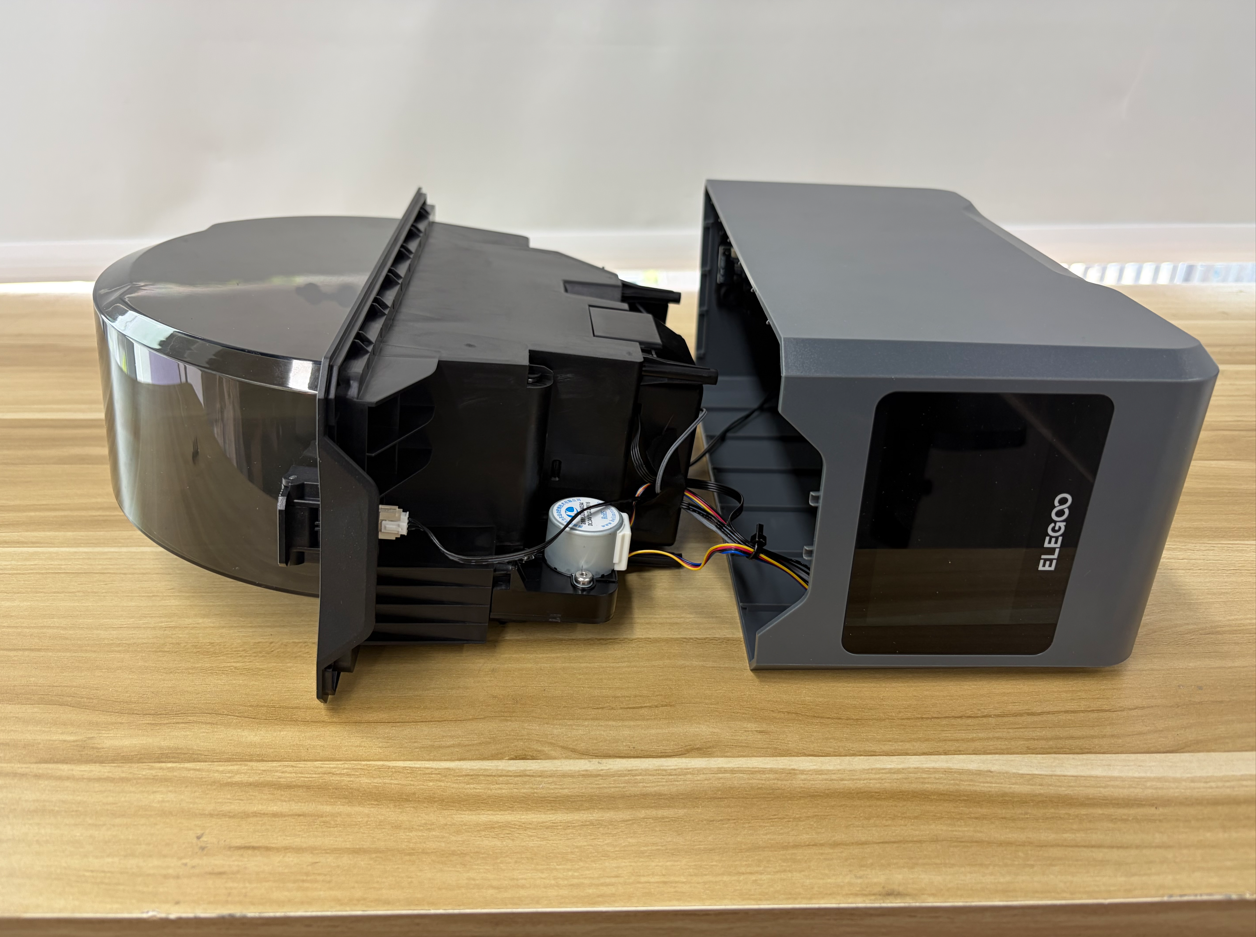
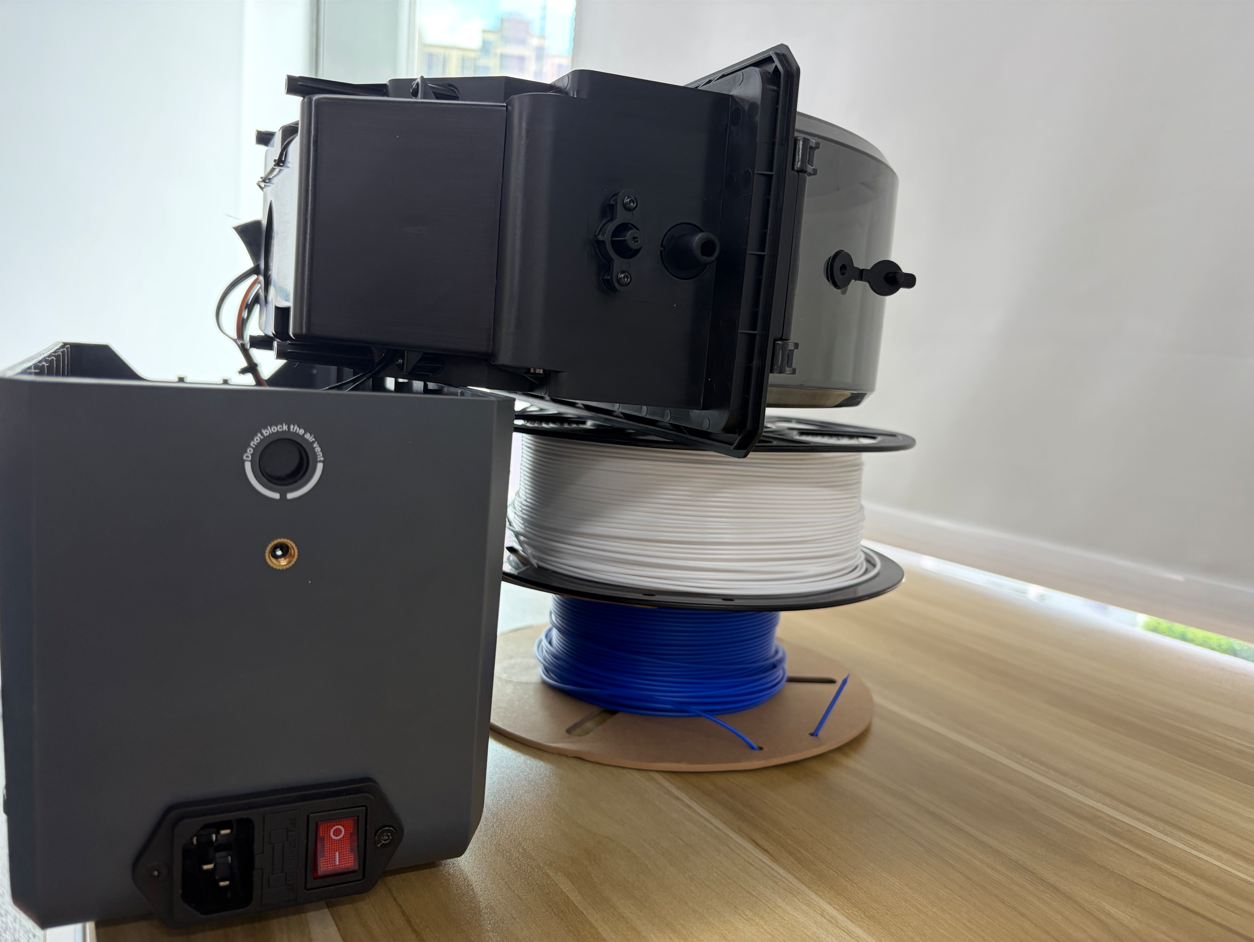
- Place the machine with the bottom side facing downward on a flat surface.
Note: To facilitate subsequent operations, the two rolls of filament can be placed under the Inner Tray Assembly and the top cover as supports.
¶ Disconnect the Display Cable and Touchscreen Cable
Note: Do not install or remove cables while the device is powered on. When disconnecting cables, avoid touching the mainboard component contacts to prevent electrostatic damage.
- Locate the mainboard.
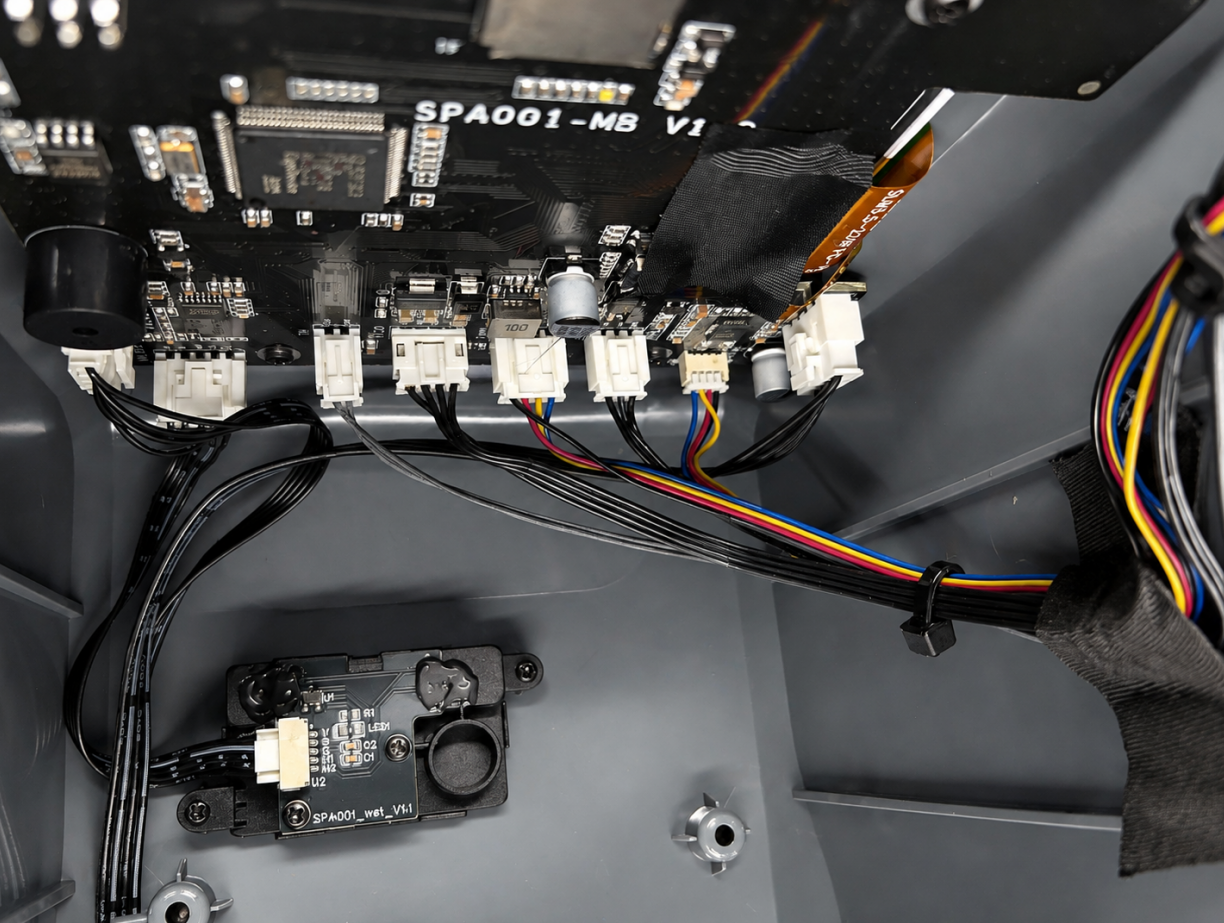
- Carefully remove the acetate tape securing the ribbon cable.
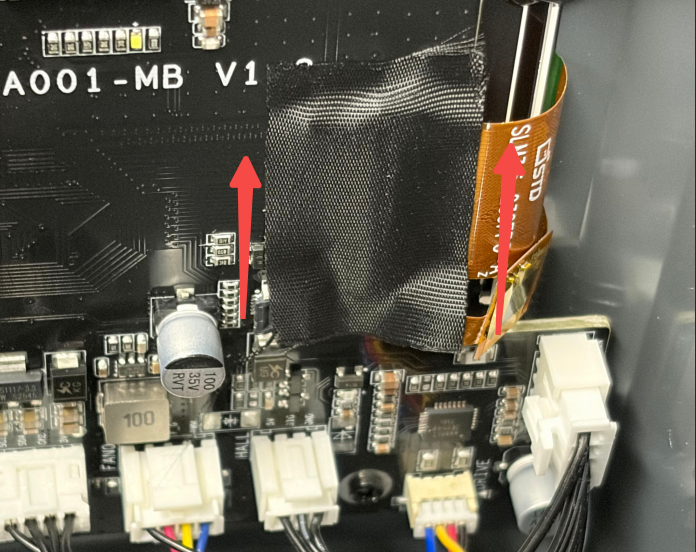
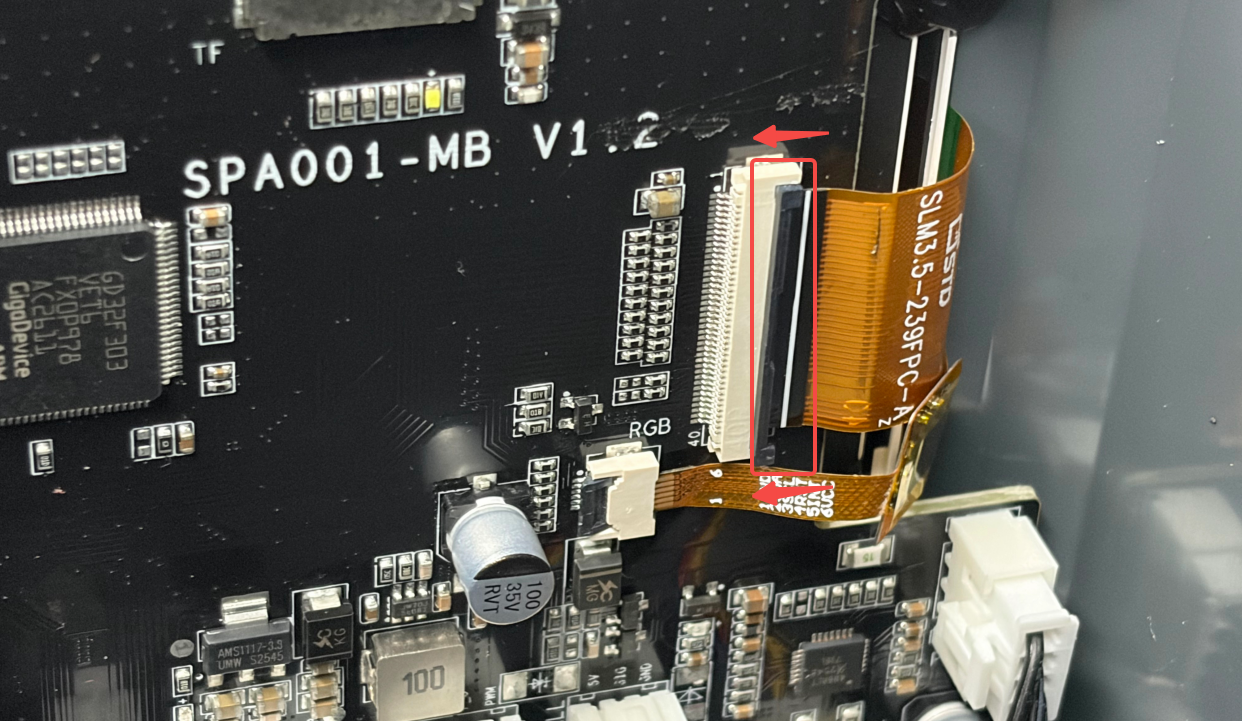
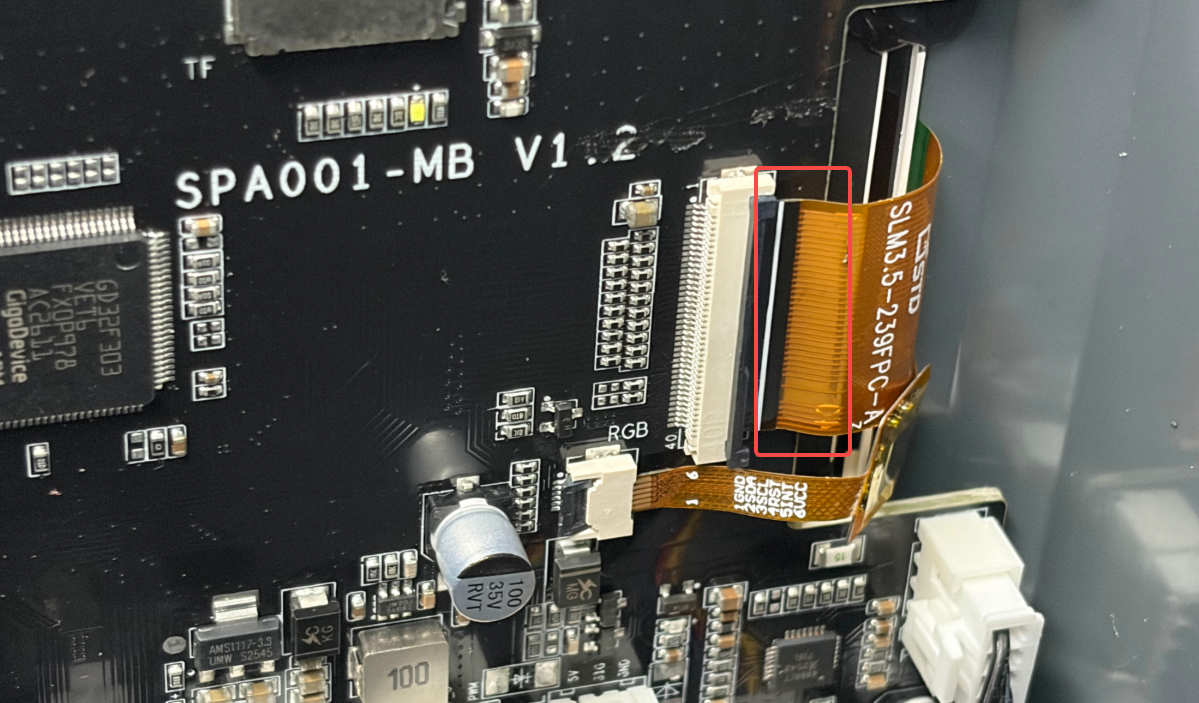
- Lift the latch of the display cable connector and remove the display cable.
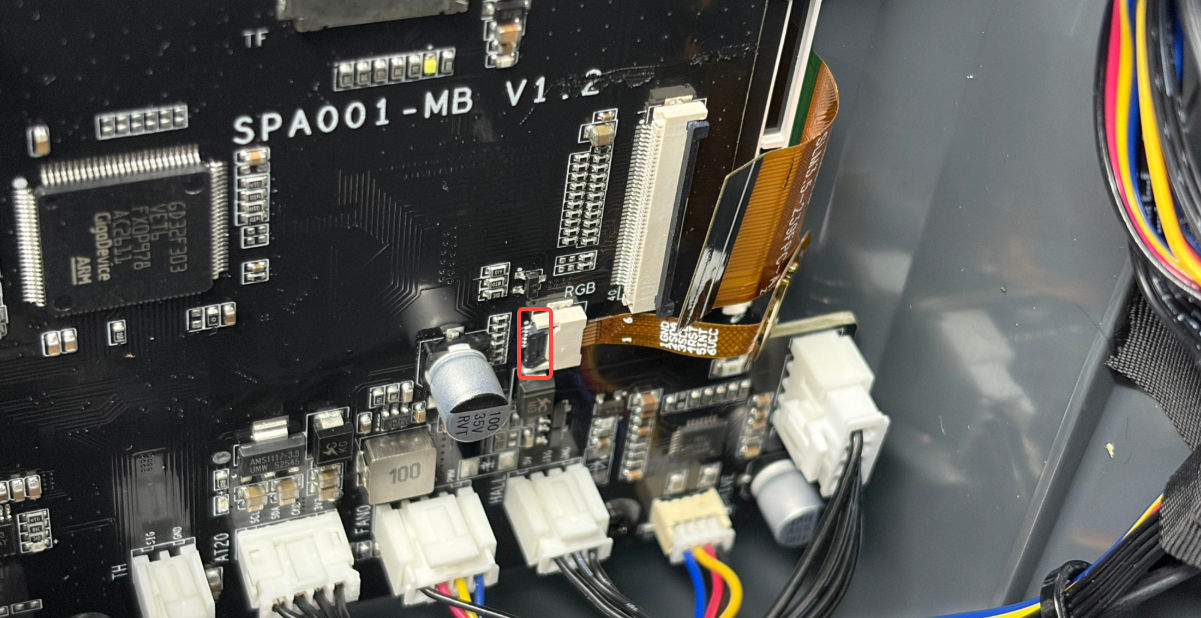
- Open the latch of the touchscreen cable connector and remove the touchscreen cable.
¶ Disconnect the Mainboard Wiring Harnesses
Remove the wiring harnesses from the mainboard one by one.
Note:
Do not remove or install mainboard wiring harnesses while the device is powered on.
Note:
When removing mainboard wiring harnesses, avoid touching the mainboard component contacts to prevent electrostatic damage.
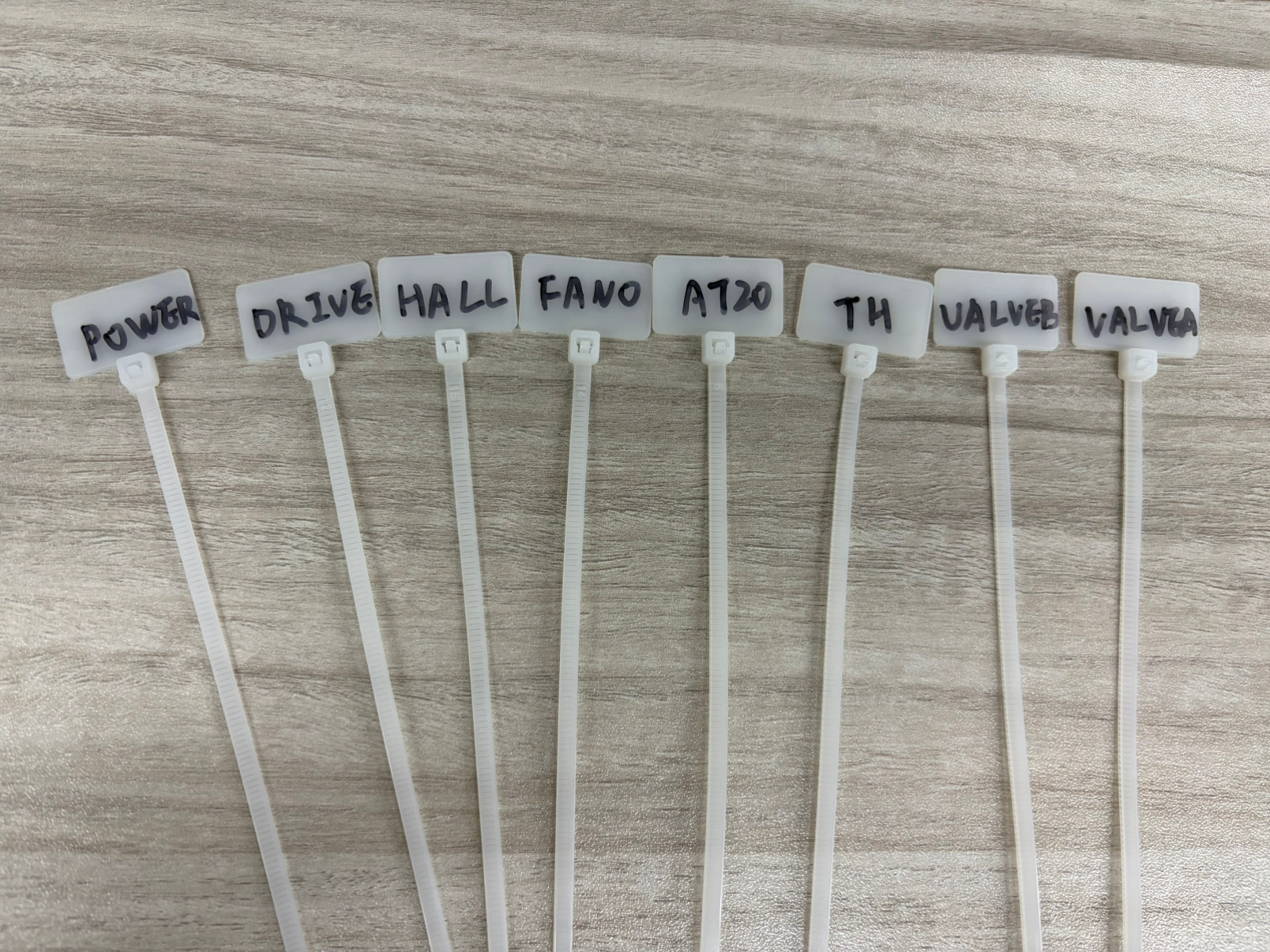
- According to the mainboard port labels, use a marker and labels to mark each connector. Use scissors to trim any excess label length to ensure the wiring harnesses can be correctly reconnected according to the markings and prevent incorrect wiring.
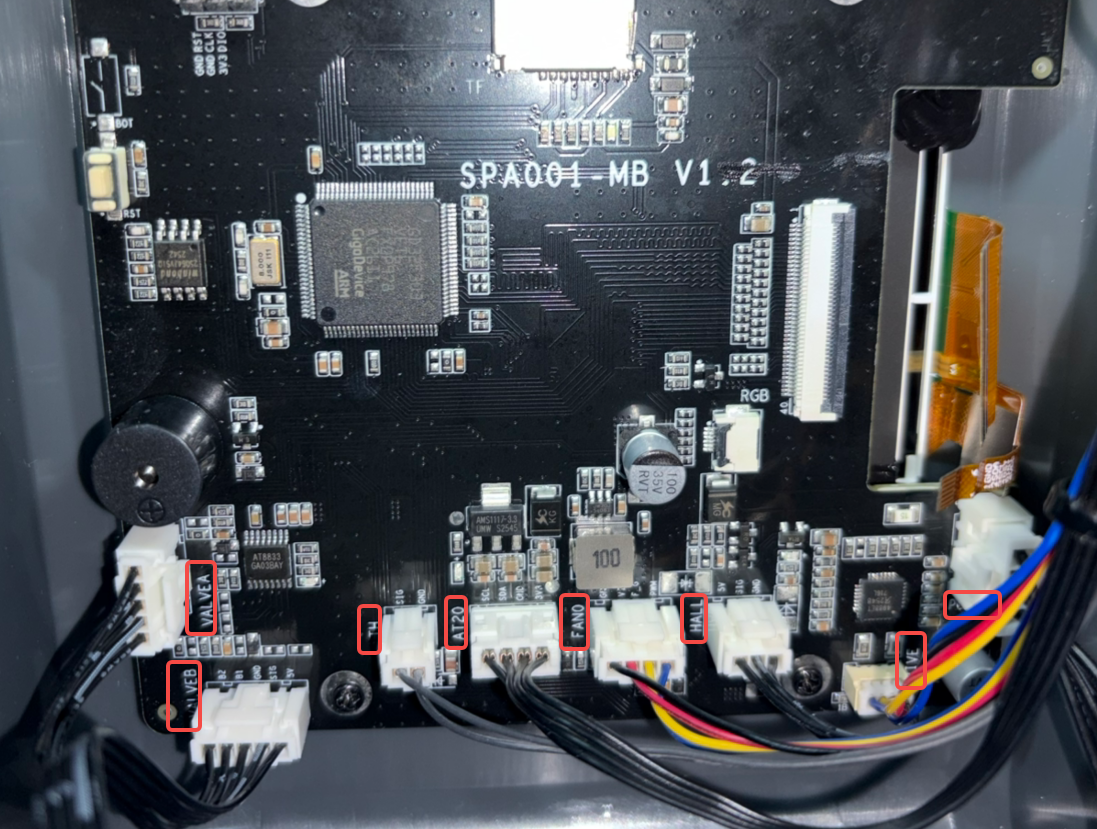
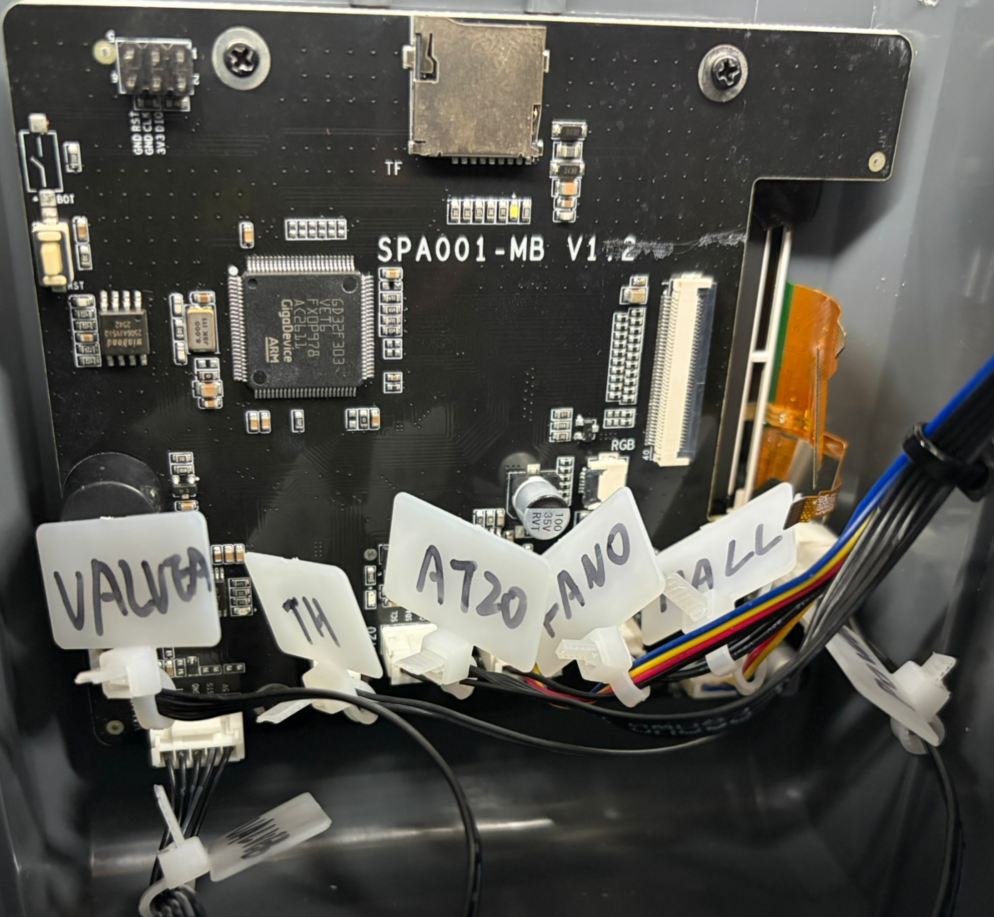
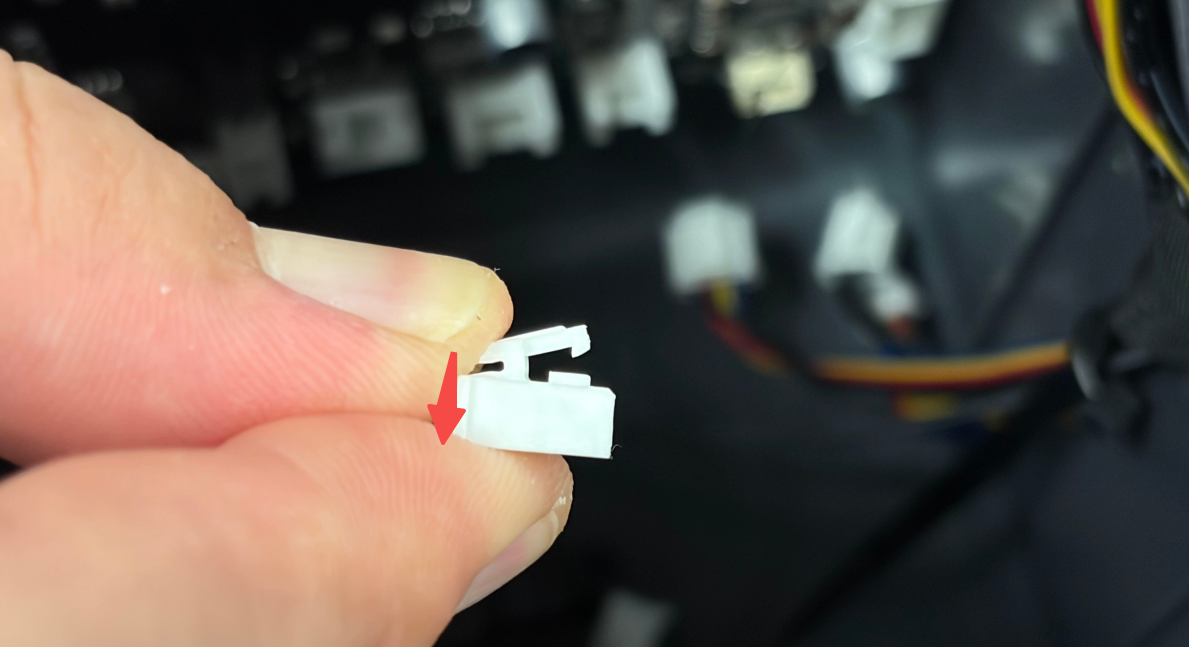
- Press the connector latch and remove the wiring harnesses one by one.
¶ Remove the Mainboard
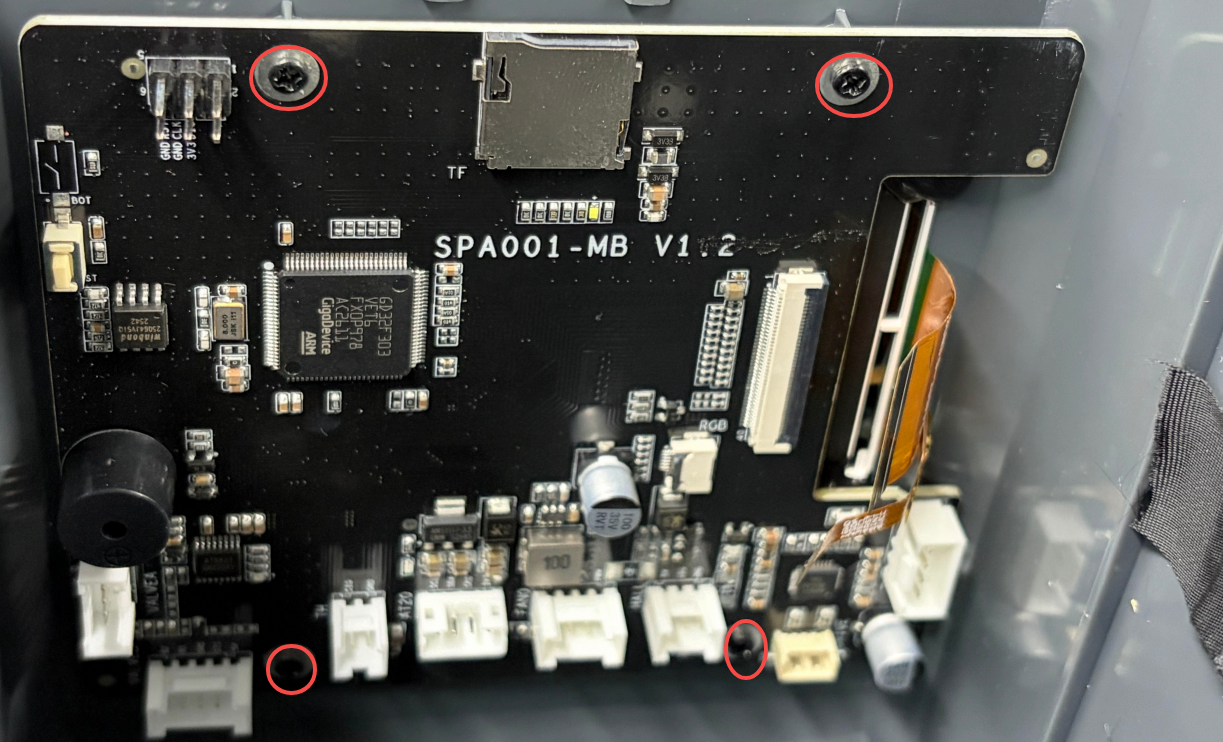
Use a Phillips Screwdriver to remove the four screws securing the mainboard, then remove the mainboard.
¶ Installation Steps
¶ Install the Mainboard
- Take out the new mainboard and align it with the installation holes on the bottom cover according to the original installation direction.
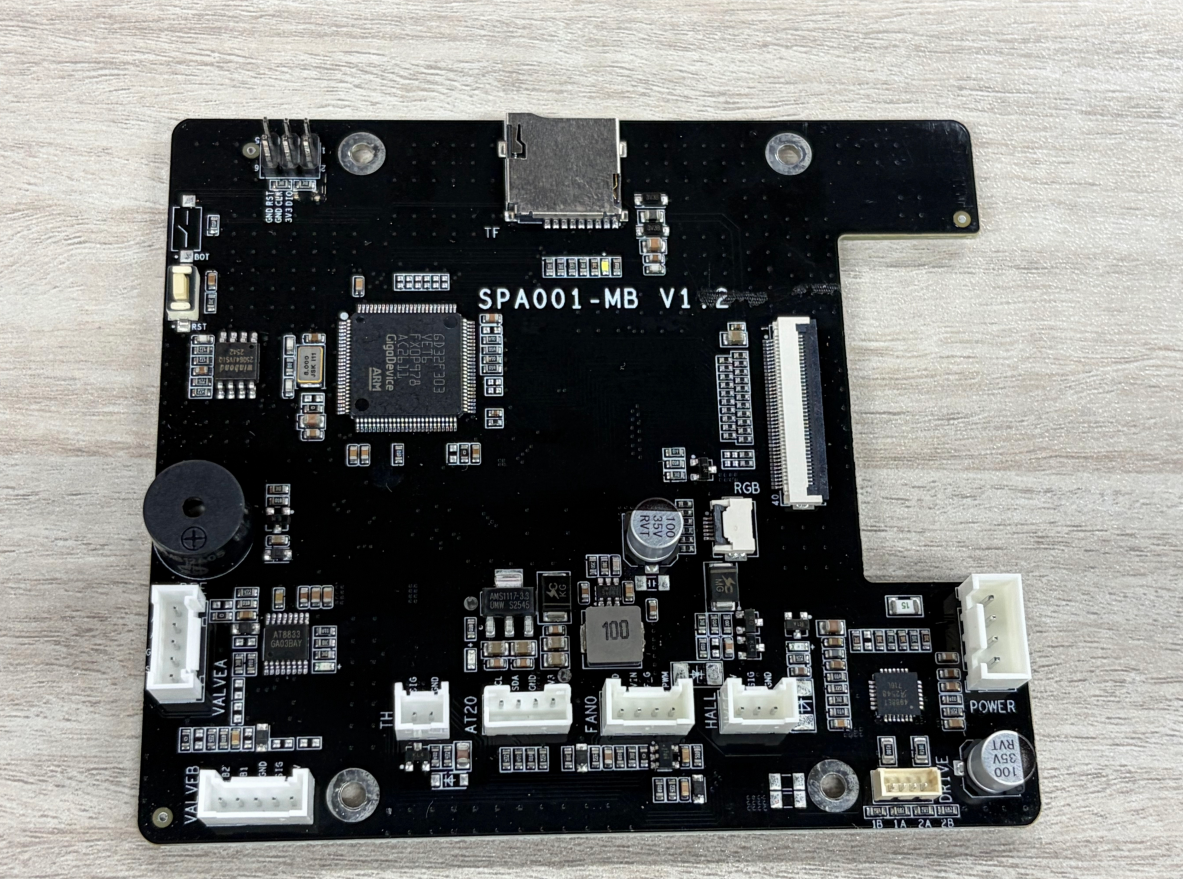
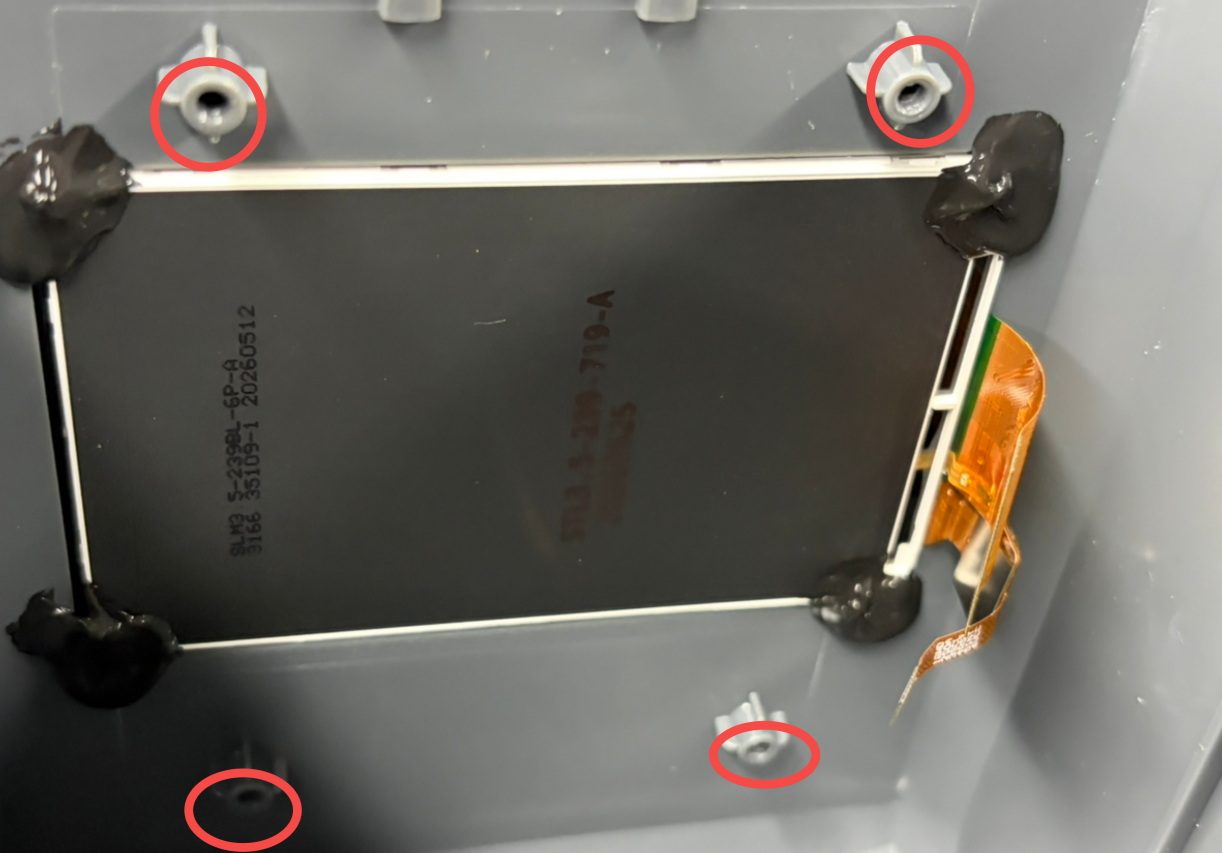
2. Use a Phillips Screwdriver to tighten the four screws securing the mainboard to complete the mainboard installation.
¶ Install the Mainboard Wiring Harnesses
Connect each wiring harness to the corresponding port on the mainboard according to the labels, and ensure that all connectors are fully inserted.
Note: When installing the mainboard wiring harnesses, insert each wiring harness into the corresponding Port and make sure the connector latch is securely locked.
¶ Install the Display Cable and Touchscreen Cable
- Open the touchscreen cable connector latch, insert the touchscreen cable into the corresponding connector, and lock the latch.
- Insert the display cable into the corresponding connector and press down to lock the connector latch.
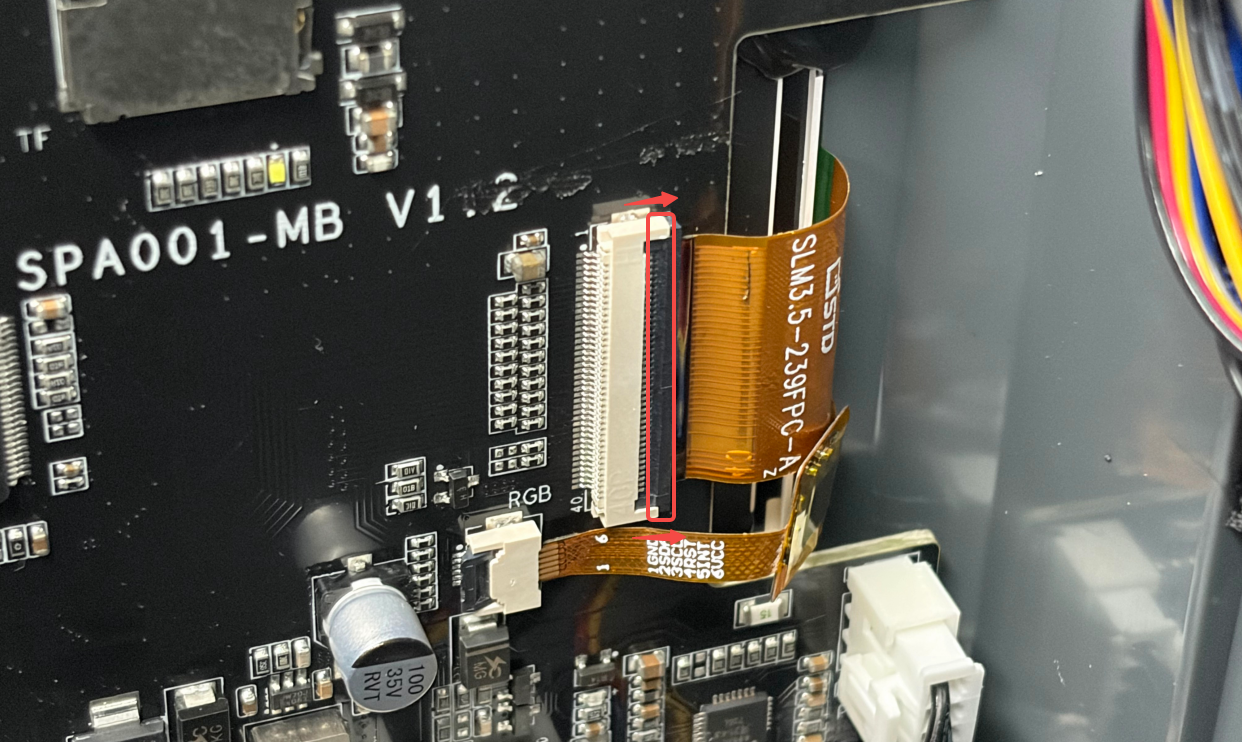
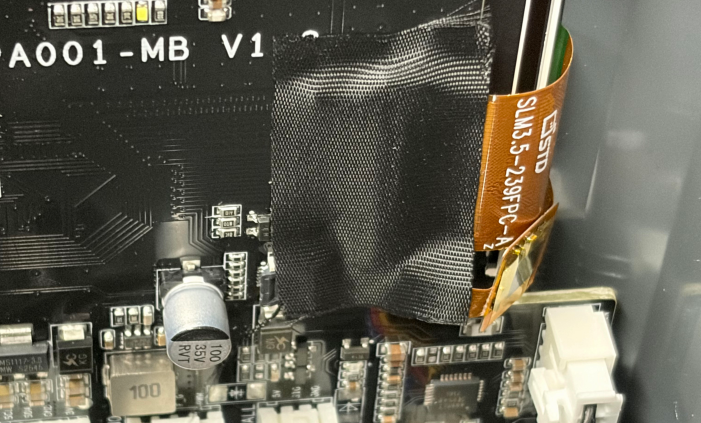
3. Reattach the acetate tape to the display cable and touchscreen cable connectors.
¶ Install the Bottom Cover
- Align the Inner Tray Assembly with the positioning points on the bottom cover and reinstall it inside the bottom cover.
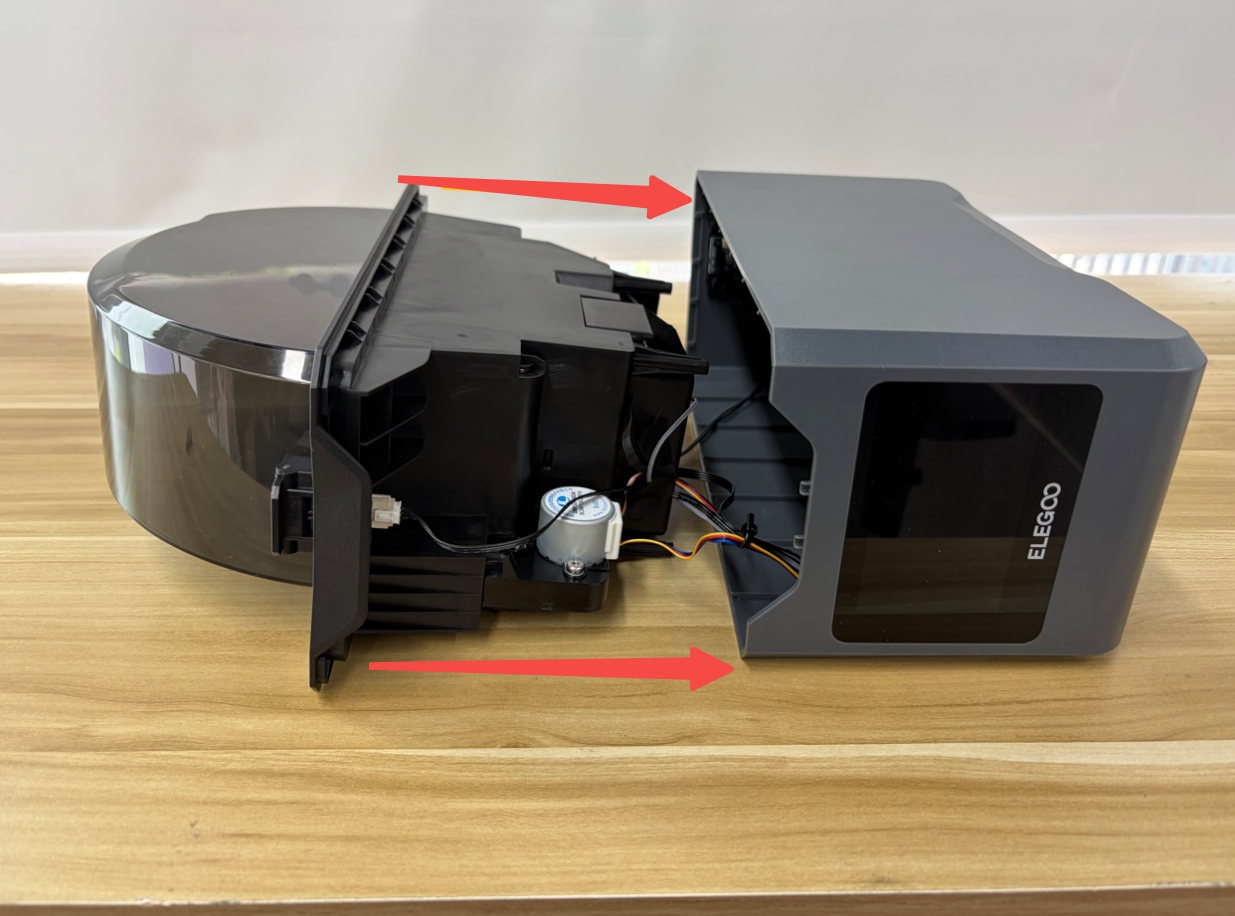
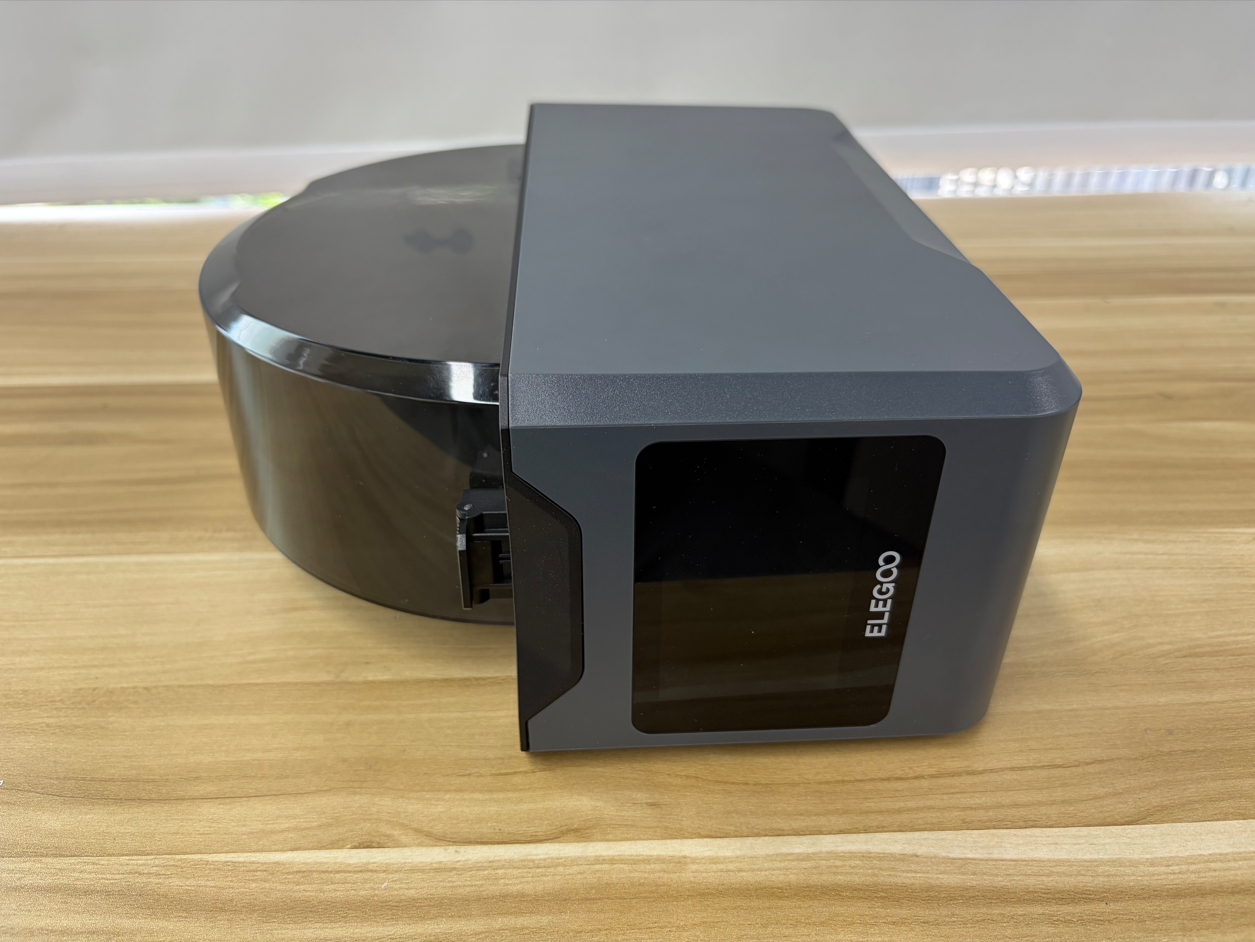
2. Tighten the four screws, securing the bottom cover.
¶ Verification
- Place the H1 HT upright.
- Connect the power cord and turn on the power switch.
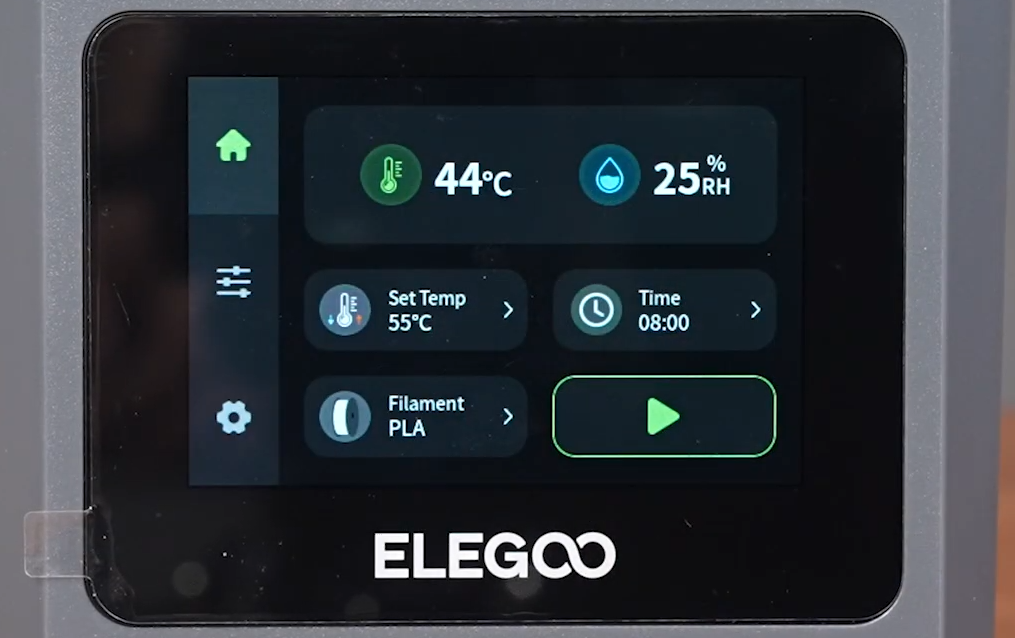
- Wait for the touchscreen to start up and confirm that the display is functioning properly.
- Confirm that the touchscreen function works properly and that the device shows no abnormal notifications. The mainboard replacement is complete.
¶ Help Us Improve
If you have any ideas about the wiki pages, please let us know via ELEGOO official feedback channel