¶ Overview
One-Click Process allows you to configure multiple post-processing parameters for scan data in one place. You can adjust settings such as resolution, noise removal, triangles, mesh smoothing, watertight, and texture options according to the intended use of the model. Click Apply to process the model without having to switch between multiple processing tools.
Applicable Scenarios: Quick processing after scanning, model visualization, and centralized mesh quality adjustments before export. For models that require dimensional accuracy and fine geometric details, carefully inspect the processed results based on your specific requirements.
¶ Understanding the Interface
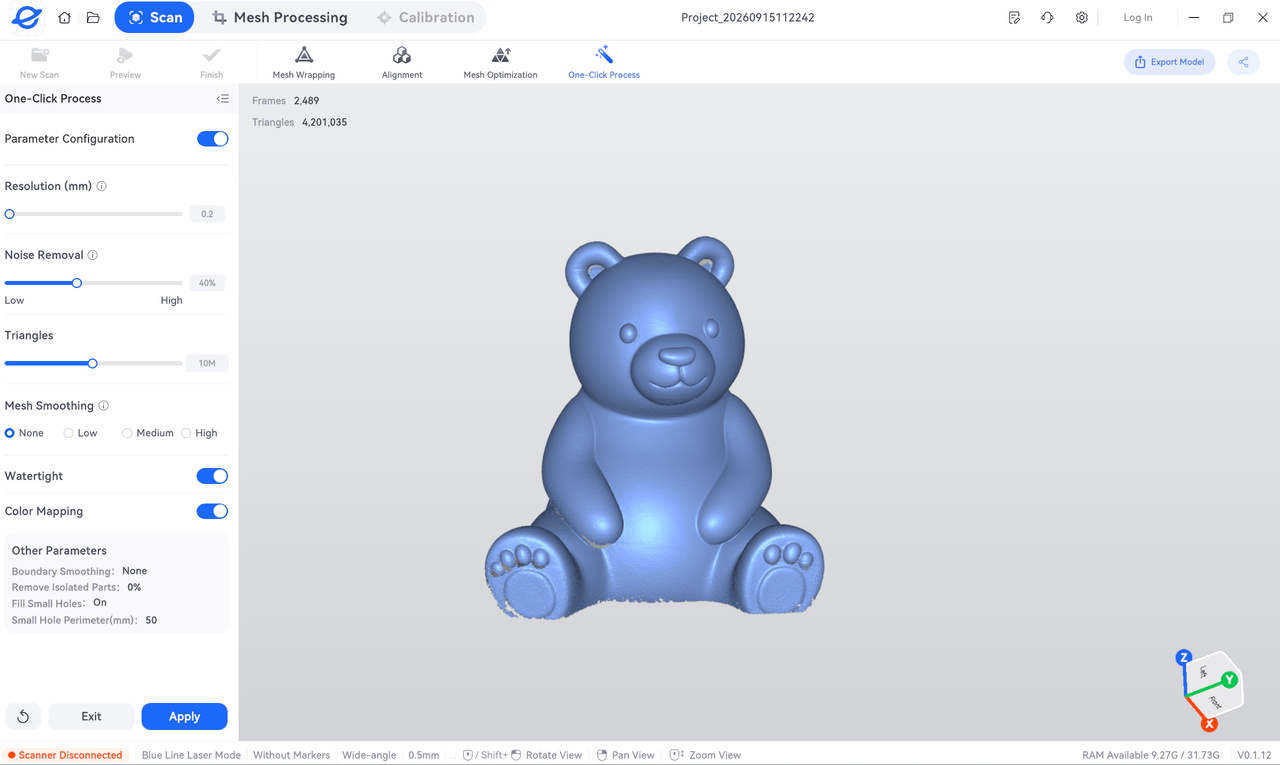
Access: Go to the Scan workspace and click One-Click Process at the top of the interface. The parameter panel is on the left, and the model preview area is on the right. After adjusting the settings, click Apply in the lower-left corner.
¶ Parameter Description
Open Parameter Configuration to adjust the following settings according to your needs. The values shown in the screenshot are examples of the interface and are not universal recommendations for all models.
| Parameter | Function and Recommendations |
|---|---|
| Parameter Configuration – Enable | Enable this option to view and adjust the processing parameters listed below. |
| Resolution (mm) – 0.2 | Controls the target spacing between points in the processed data. A smaller spacing generally preserves more geometric information but may increase data size and processing requirements. Set this value according to scan accuracy, model details, and intended use. |
| Noise Removal – 40% | Reduces noise points and scattered surface artifacts in the scan data. Use this setting moderately, as excessive noise reduction may also remove small geometric features. |
| Triangles – 10M | Sets the target number of polygons in the output mesh. A higher value may preserve more mesh details but can also increase file size and processing requirements. The actual result depends on the original scan data and processing method. |
| Mesh Smoothing – None / Low / Medium / High | Adjusts surface smoothness. If surface artifacts are present, increase the level gradually. Use higher levels with caution around holes, sharp edges, and engraved details. |
| Make Watertight – Enabled | Generates a more complete, closed mesh. Making a mesh watertight does not reconstruct the actual geometry of unscanned internal or bottom regions. Check the generated surfaces after processing to ensure they are suitable for the intended use. |
| Color Texture – Enabled | Preserves or generates color textures on the model surface, depending on the scan data and software processing results. Disable this option if only a single-color geometric model is required. |
¶ Procedure
¶ 1. Inspect the Original Data
Rotate the model in the preview area and check for obvious ghosting, large missing regions, or unwanted objects. It is recommended to save the original project before processing.
¶ 2. Open One-Click Process
Click One-Click Process at the top of the interface and confirm that the settings under Parameter Configuration are enabled or configured as required.
¶ 3. Configure the Processing Parameters
Start with the default or current settings. For models with fine geometric features, pay particular attention to resolution, triangles, and mesh smoothing. If the model has open boundaries, check whether Make Watertight is appropriate for the intended result.
¶ 4. Apply the Settings
Click Apply in the lower-left corner and wait for the software to finish processing. Processing time depends on the data size, computer specifications, and selected parameters.
¶ 5. Inspect and Export the Model
Zoom in to inspect holes, fine details, surfaces, boundaries, and textures. Once the result meets your requirements, click Export Model in the upper-right corner and select an available file format as needed.
¶ Post-Processing Checklist
- Completeness: Check for remaining open holes and inappropriate surfaces generated over the bottom or occluded areas.
- Geometric Details: Check whether holes, thin walls, text, and sharp edges have become smaller, rounded, or lost.
- Surface Quality: Check for remaining noise points and excessive rounding caused by smoothing.
- Color Appearance: If color texture is enabled, check for missing, misaligned, or stretched textures.
- Intended Use: If the model is intended for 3D printing, verify that it can be recognized and sliced correctly in the slicing software.
¶ Frequently Asked Questions
¶ What should I do if fine details become blurred after processing?
Return to the original data or undo the processing, if supported. Try lowering the noise removal, setting mesh smoothing to None or Low, and adjusting the triangle count while checking the results.
¶ Why is the bottom shape inaccurate after enabling Make Watertight?
Automatic watertight processing generally generates surfaces based on existing boundaries and cannot reconstruct the actual geometry of unscanned regions. Scan critical bottom surfaces again or use manual hole filling when necessary.
¶ Is a higher triangle count always better?
No. Increasing the triangle count cannot create details that are missing from the original scan data. Choose a suitable value based on the requirements for visualization, editing, or 3D printing, balancing geometric detail against file size and processing requirements.
¶ Help Us Improve
If you have any suggestions for our wiki pages, please let us know through the ELEGOO Official Feedback Channel.