¶ Fault Description
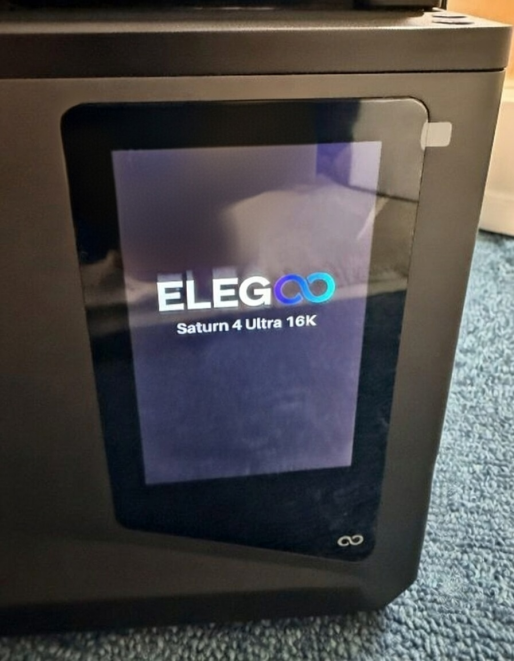
After the printer is powered on, the touch screen remains stuck on the ELEGOO logo screen and cannot enter the main menu.
¶ Possible Causes
- Firmware corruption.
- A component may be short-circuited.
¶ Required Tools and Materials
- A USB flash drive with a capacity of less than 16 GB, formatted as FAT32.
- 2.0 mm Allen key.
¶ Troubleshooting Steps
¶ Step 1: Update the Recovery Firmware
- Insert the USB flash drive into your computer and format it.
| Operating System | Formatting Instructions | Reference Image |
|---|---|---|
| Windows | Select the USB flash drive, then click Format > FAT32 > Start. | 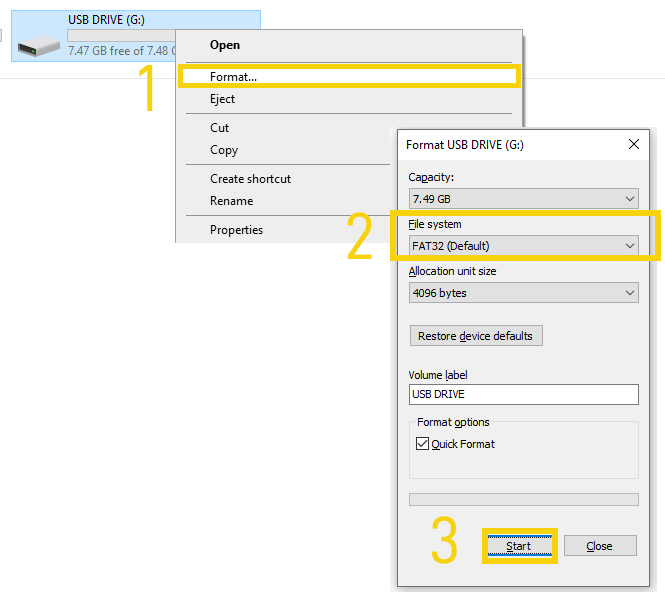 |
| macOS | Select the USB flash drive, click Erase, select MS-DOS (FAT), and then click Erase again. | 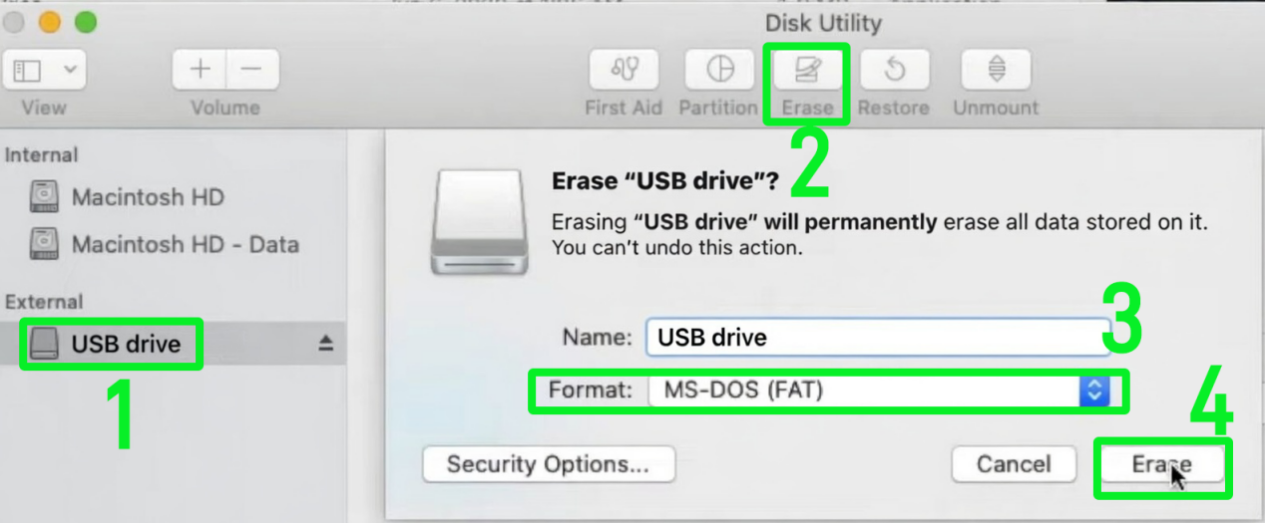 |
-
Download the Recovery Firmware.
-
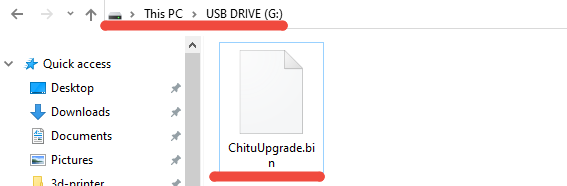
Extract the downloaded ZIP file and copy the recovery firmware file (
ChituUpgrade.bin) to the root directory of the USB flash drive.
Note: The root directory is the main directory displayed when you open the USB flash drive.
-
Insert the USB flash drive into the printer and restart the printer. The recovery firmware will be installed automatically.
-
Determine the next troubleshooting step based on the update result.
- If the touch screen remains stuck on the loading screen, proceed to Step 2: Check for Component Short Circuits.
- If the touch screen can enter the main menu, update the firmware again using the method described below.
Note: Select the appropriate firmware update method based on whether the mainboard has a capacitor. The firmware update methods for the Saturn 4 Ultra and Saturn 4 Ultra 16K are the same.
| Capacitor on Mainboard | Firmware Update Method | Update Guide | Firmware Download |
|---|---|---|---|
| Yes | USB Flash Drive | USB Firmware Update Guide | Firmware for Mainboards with a Capacitor |
| No | OTA | OTA Firmware Update Guide | / |
¶ Step 2: Check for Component Short Circuits
2.1 Turn off the power switch and disconnect the power adapter.
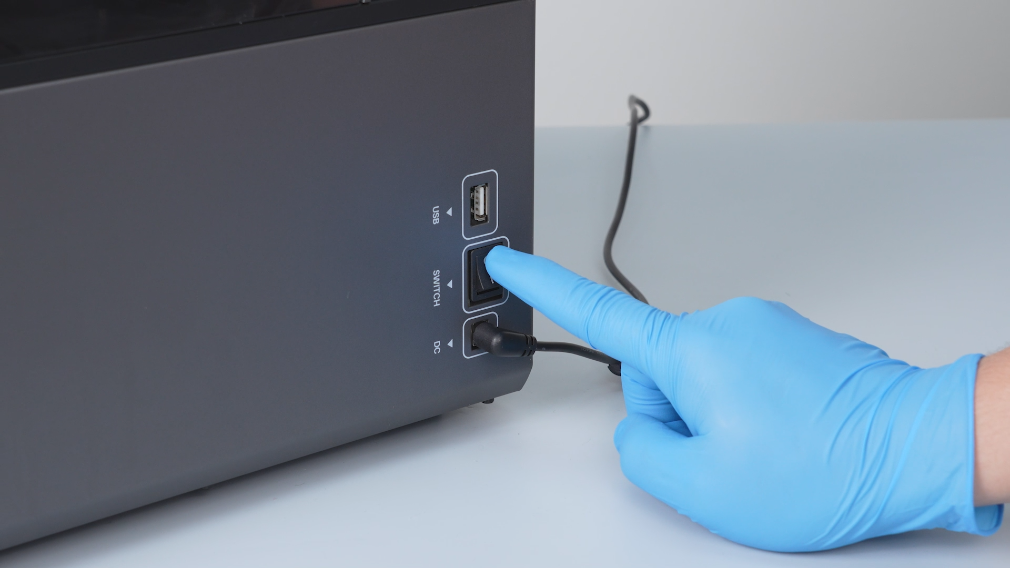
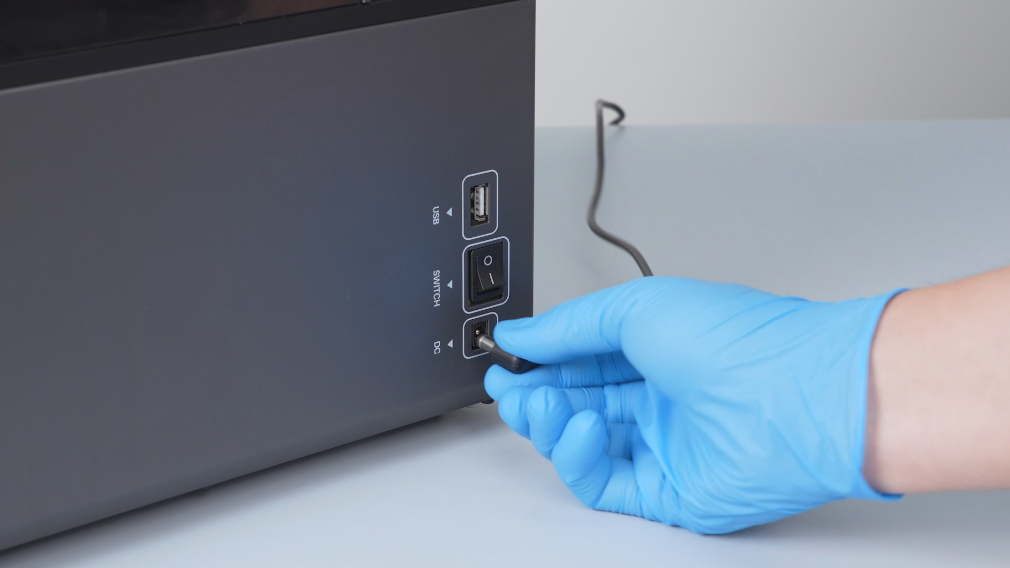
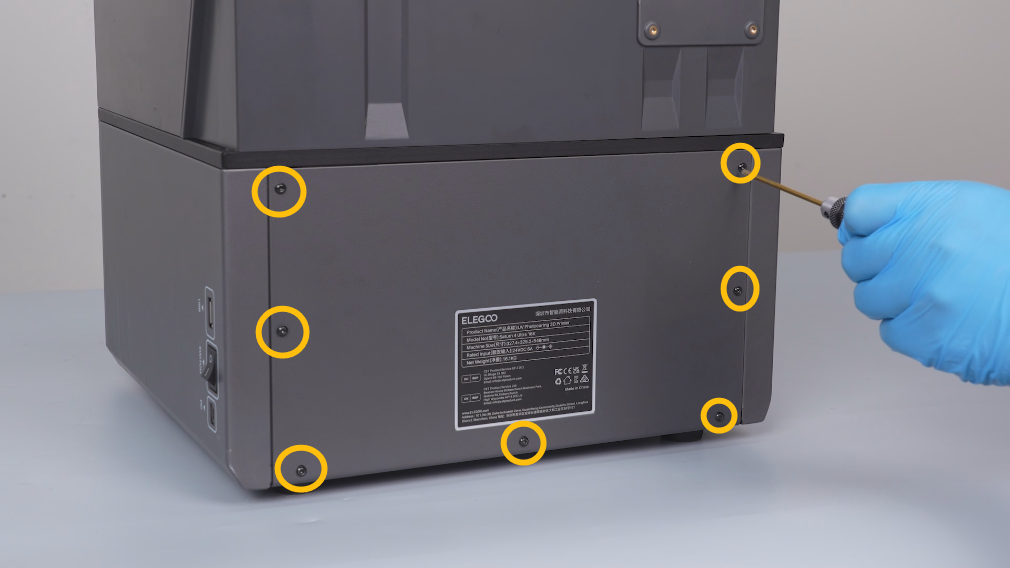
2.2 Remove the seven screws securing the rear panel.
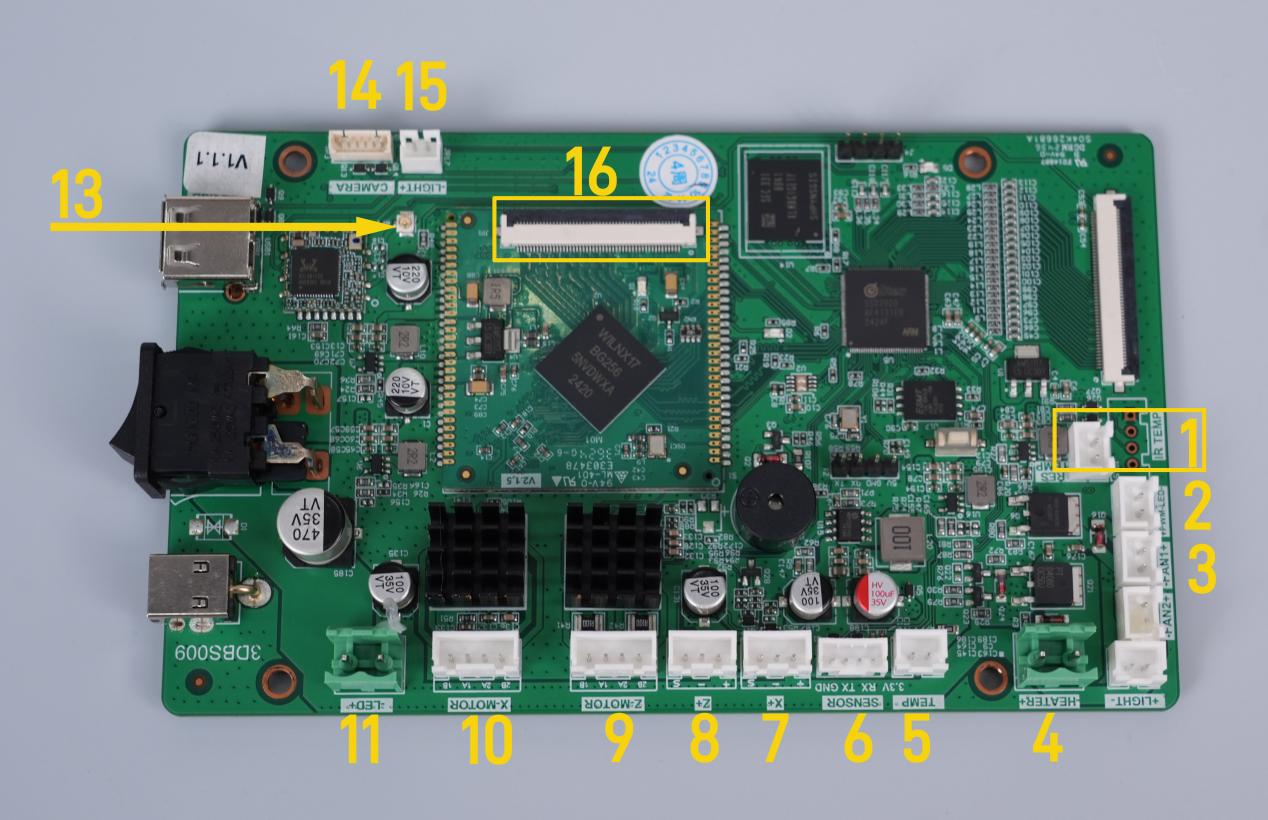
2.3 Disconnect all other cables indicated in the image, but leave the touch screen ribbon cable connected. Then power on the printer and check whether the touch screen can enter the main menu.
- If the touch screen still cannot enter the main menu, the mainboard may be faulty and need to be replaced.
- If the touch screen can enter the main menu, one of the components connected to the mainboard may be causing a short circuit and needs to be replaced. Record the part number or name of the affected component.
¶ Contact Technical Support
If the issue persists after completing all the troubleshooting steps above, please provide the following information when contacting Technical Support:
- Test results: Can the touch screen enter the main menu after updating the recovery firmware?
- With the touch screen ribbon cable connected and all other cables disconnected from the mainboard, can the touch screen enter the main menu?
- Which specific component causes the touch screen to get stuck on the loading screen when connected individually?
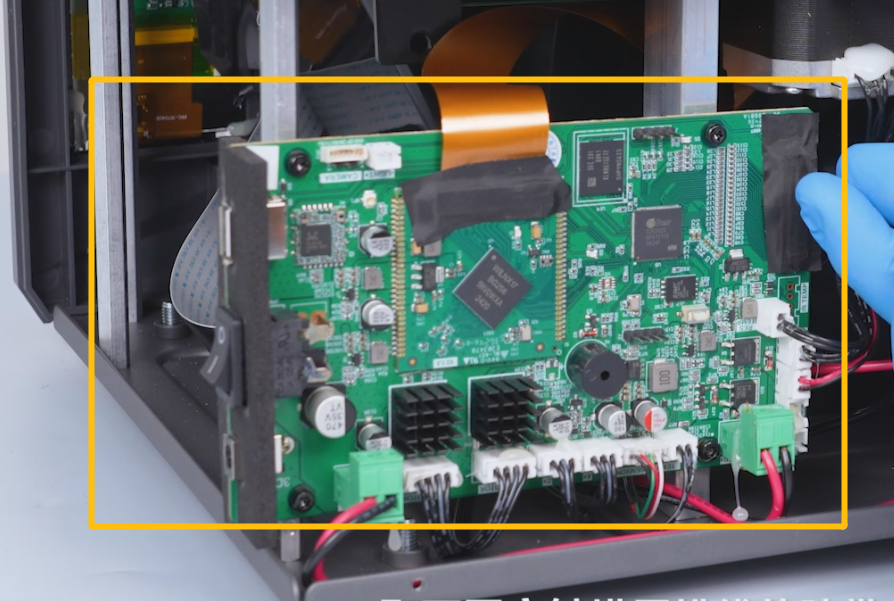
- Take and provide clear, high-resolution photos of the mainboard from the following angles.
¶ Help Us Improve
If you have any suggestions about this page, please contact us through the ELEGOO Official Feedback Channel.