¶ Fault Symptoms
After turning on the printer power switch, the touch screen does not light up.
¶ Possible Causes
- Incorrect power supply voltage setting
- Blown fuse
- Loose touch screen ribbon cable
- Mainboard failure
- Power supply failure
- Touch screen failure
¶ Required Tools
- 2.0 mm Allen key
- Multimeter
¶ Troubleshooting Steps
¶ 1. Check the Power Supply Voltage
Reminder:
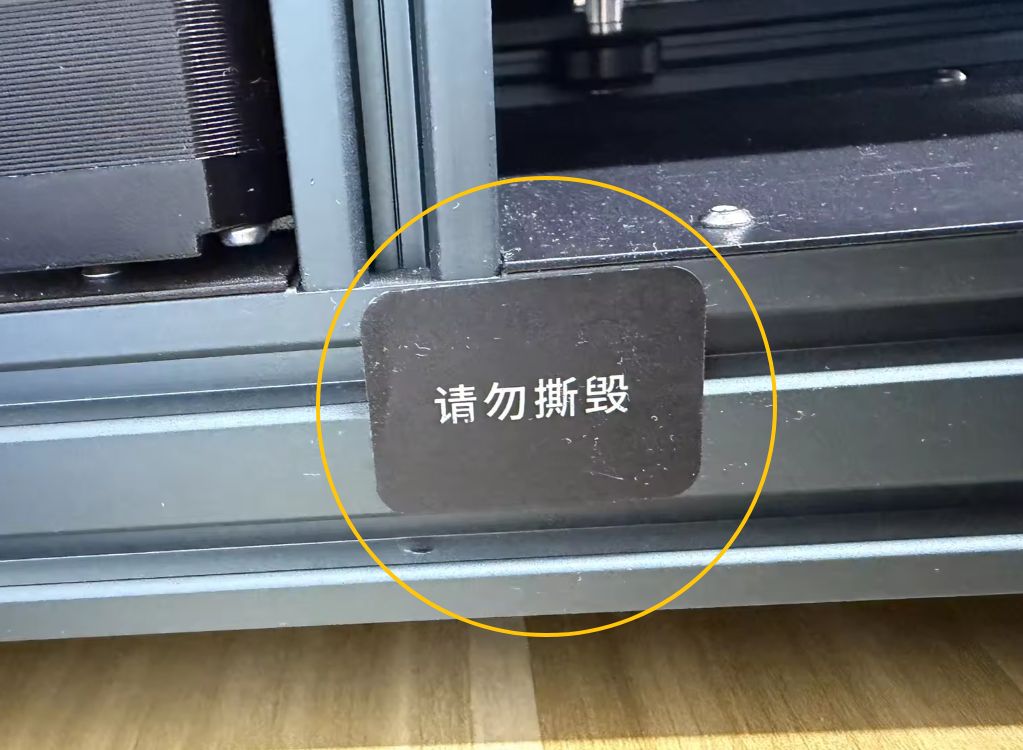
Some printer batches have already been configured with the correct voltage before leaving the factory. If the voltage selector is covered with a sticker, skip this step and proceed directly to Step 2 for further troubleshooting.
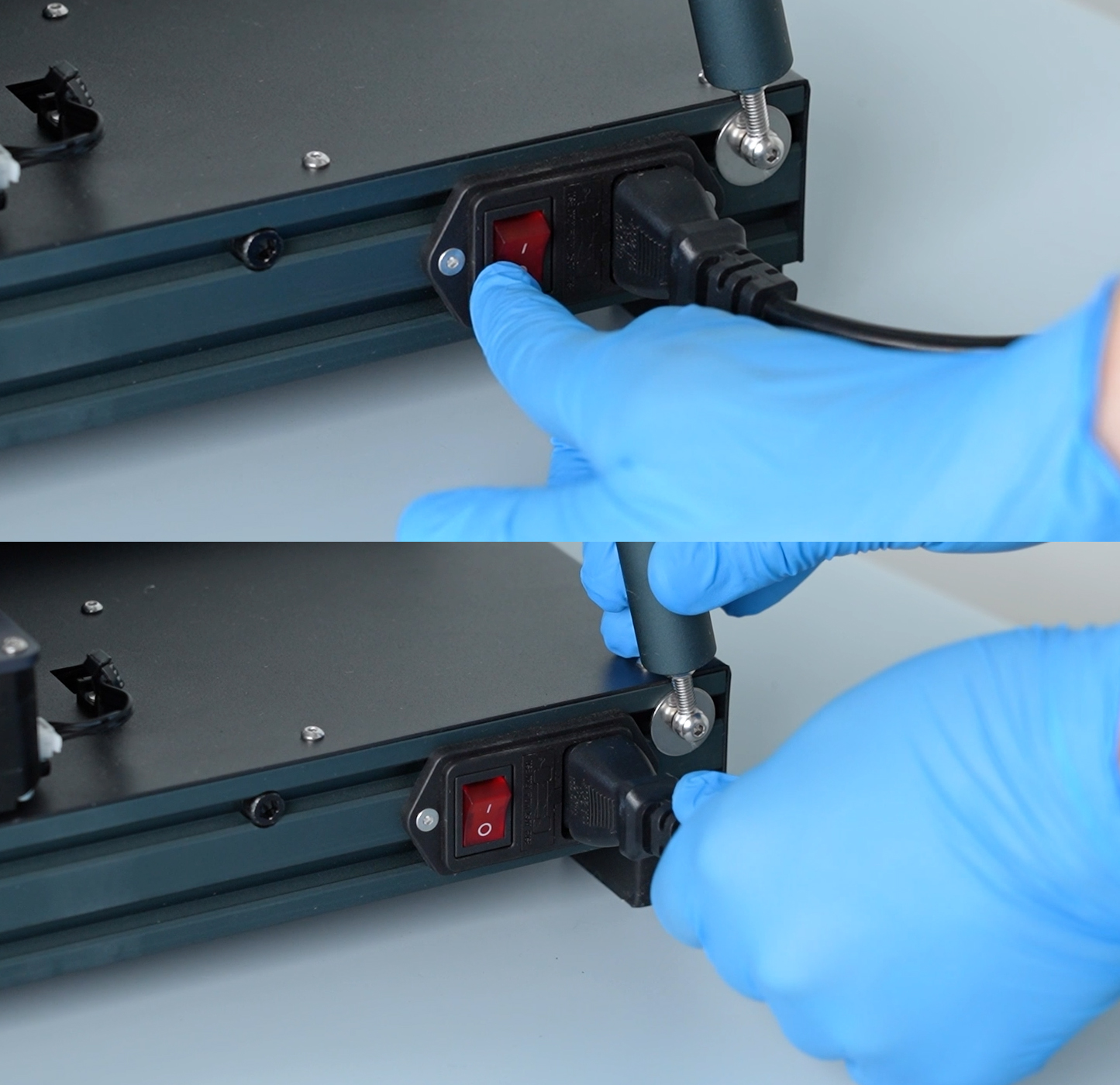
- Turn off the printer and unplug the power cord.
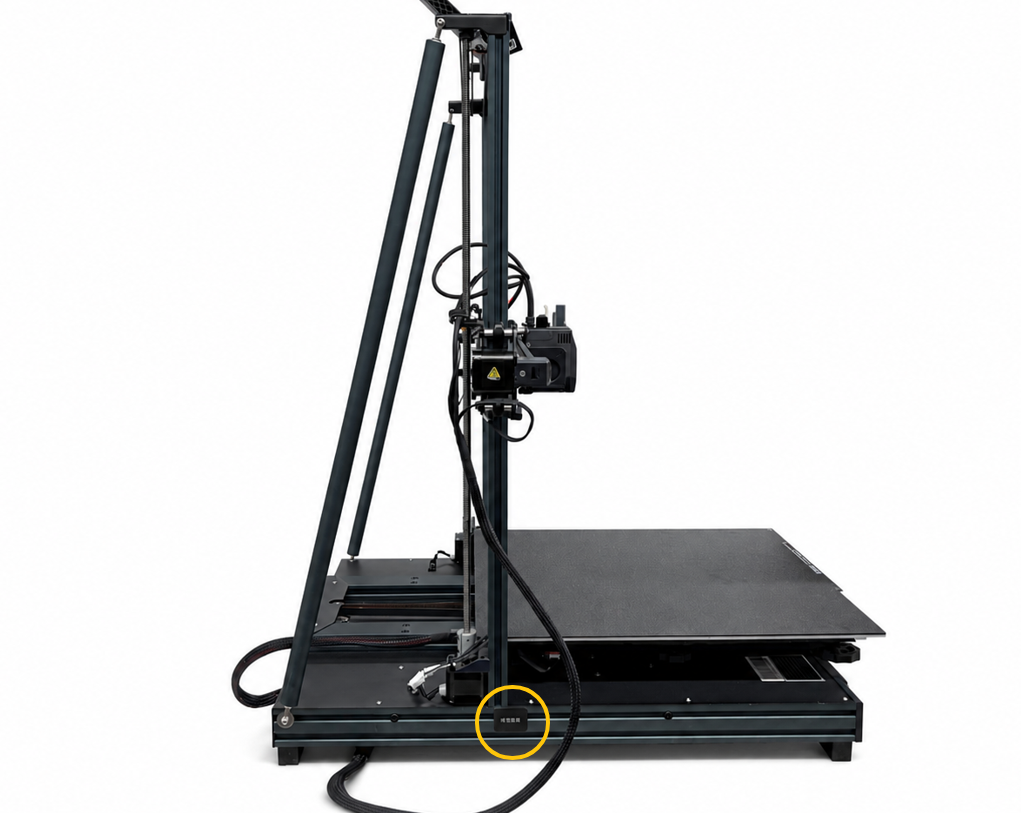
- Locate the voltage selector on the left side of the printer.
Reminder:
The voltage selector is recessed inside the housing. If it is difficult to see the voltage setting, use your phone's flashlight or a flashlight to illuminate the area.
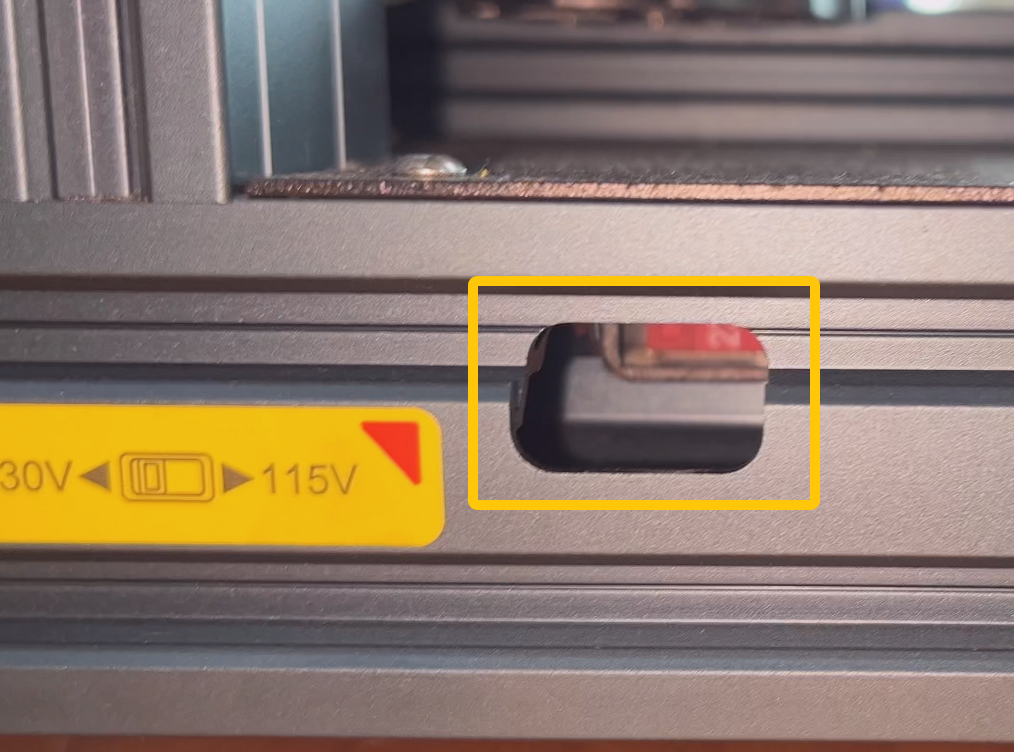
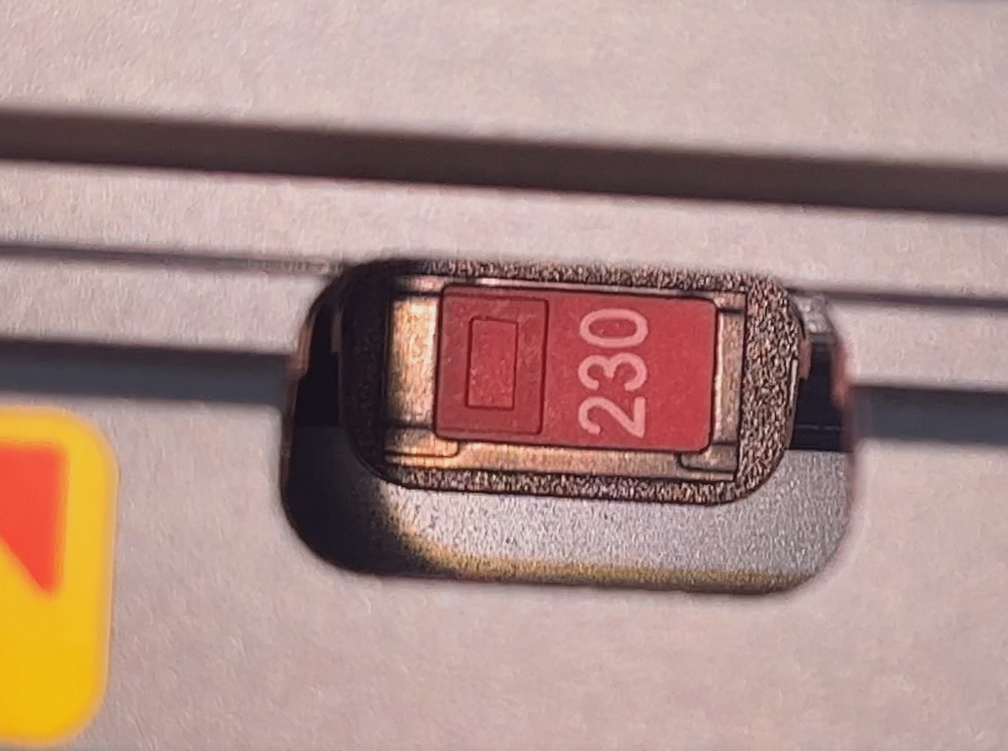
- Verify that the power supply voltage is set correctly according to your local mains voltage.
Reminder:
Always turn off the printer and unplug the power cord before changing the voltage setting.
-
If your local mains voltage is 110 V, set the selector to 115 V.
-
If your local mains voltage is 220 V, set the selector to 230 V.
-
If the voltage is set incorrectly, adjust it to the correct position, reconnect the power, and test the printer again.
-
If the voltage is already set correctly, continue with the next troubleshooting step.
¶ 2. Check the Fuse
-
Turn off the printer and unplug the power cord.
-
Remove the fuse as shown below.
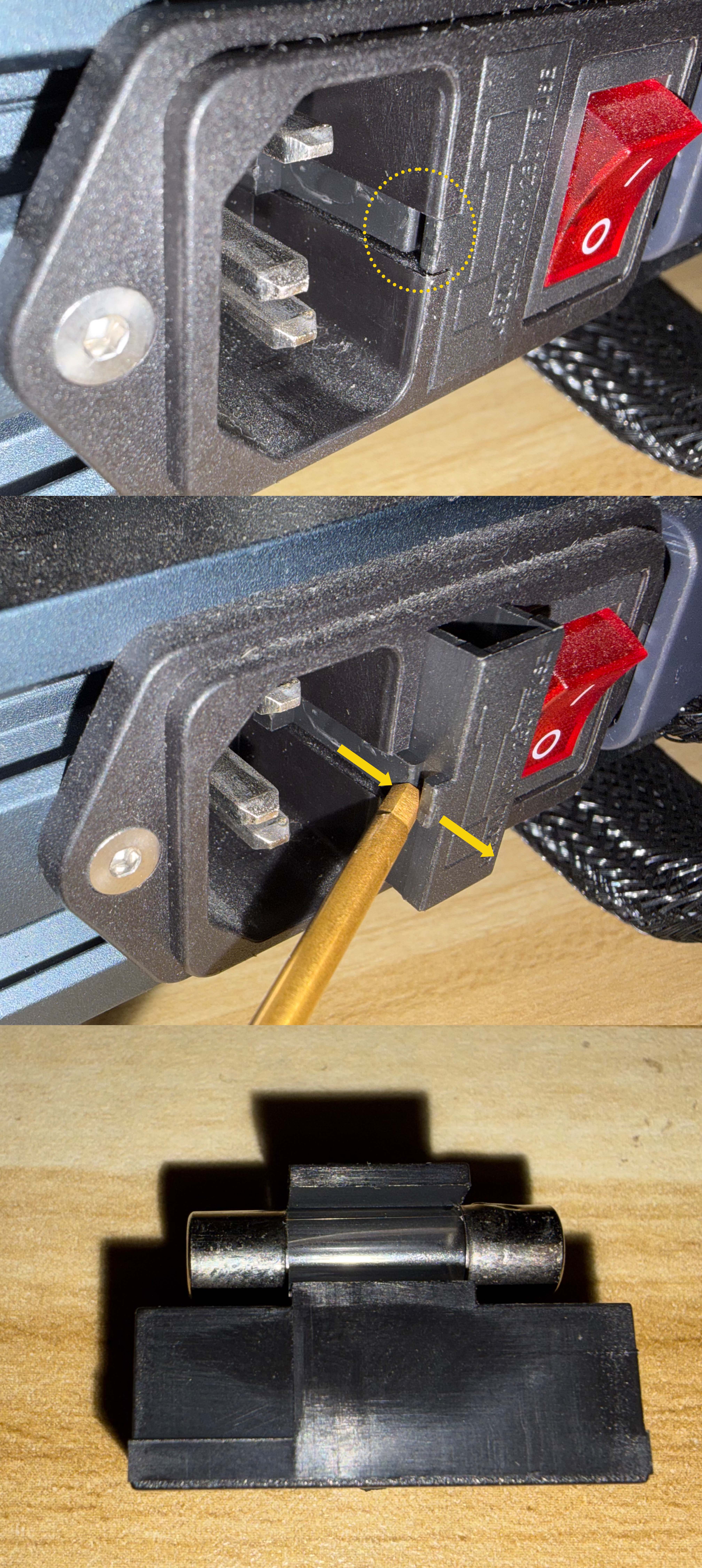
- Check whether the fuse has blown.
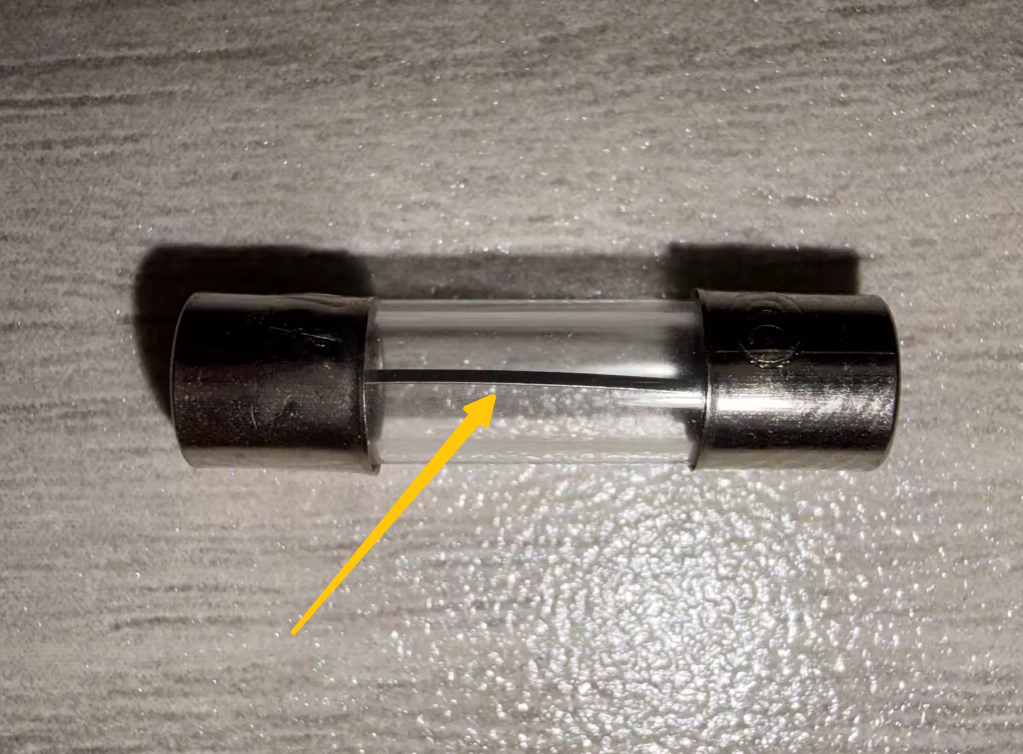
- If the fuse is blown, replace it with a new one.
Reminder:
The fuse specification is AC 250 V / 10 A. If necessary, you can purchase a replacement fuse from a local hardware store or Amazon.
- If the fuse is normal, continue with the next troubleshooting step.
¶ 3. Check the Touch Screen Ribbon Cables
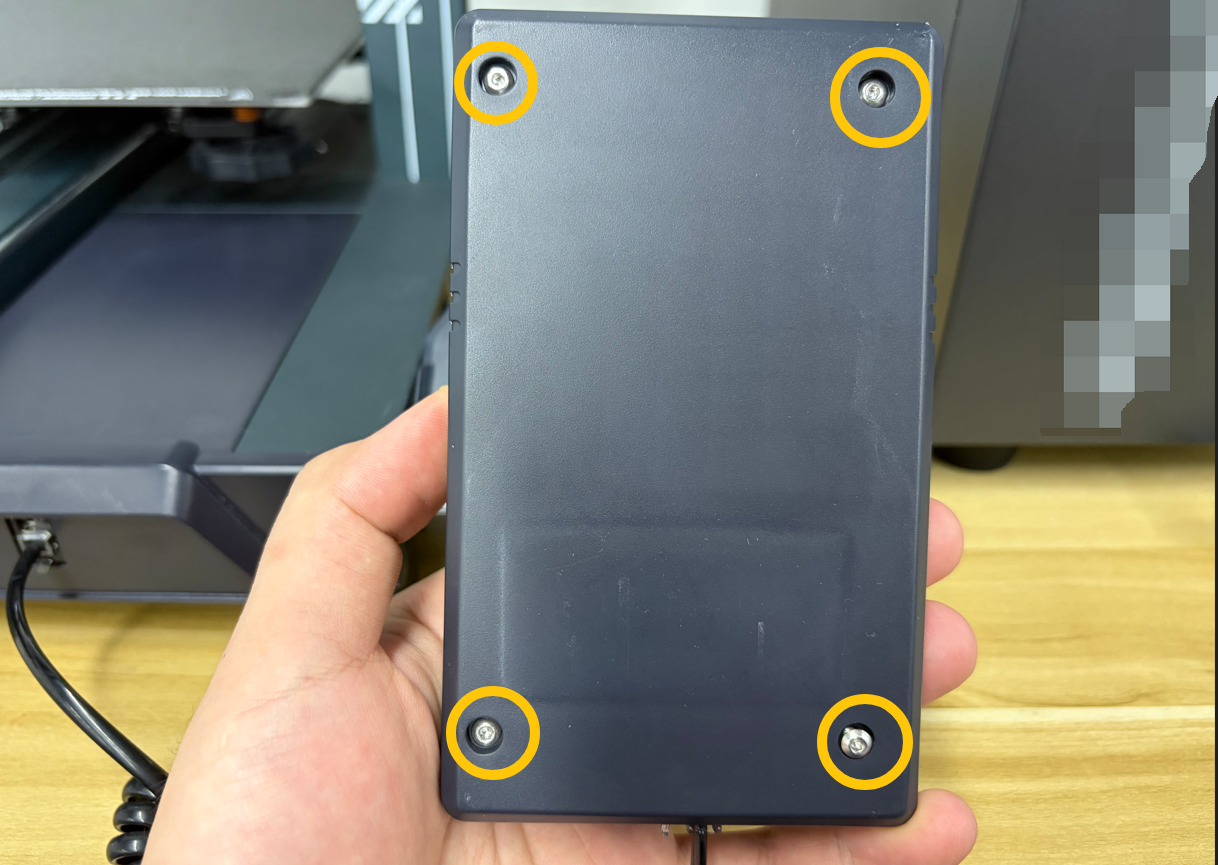
- Turn the touch screen over.
Remove the four screws securing the rear cover using a 2.0 mm Allen key, then remove the rear cover.
- Check whether the three ribbon cables and connectors shown below are loose.
The image below shows the correct connection.
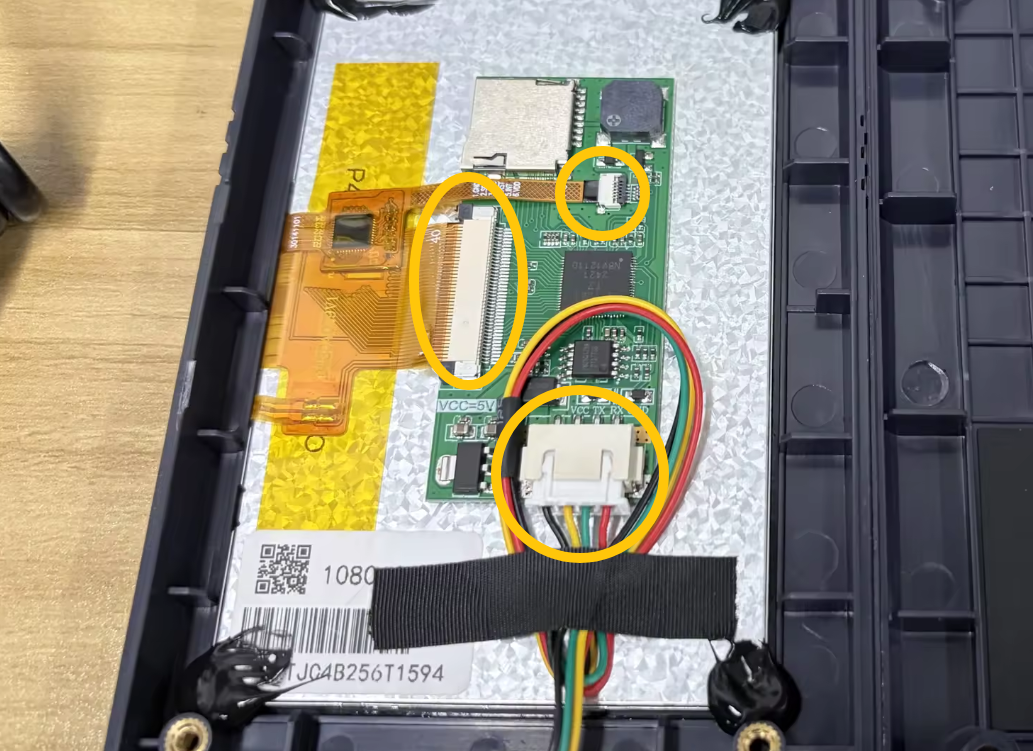
- If any ribbon cable or connector is loose, reconnect it as shown.
- If all ribbon cables and connectors are secure, continue with the next troubleshooting step.
¶ 4. Check the Power Supply Indicator LED
Reminder:
Remove the filament spool beforehand to prevent it from falling off and damaging the spool.
- Carefully place the printer upside down on a table with the touch screen side facing upward.
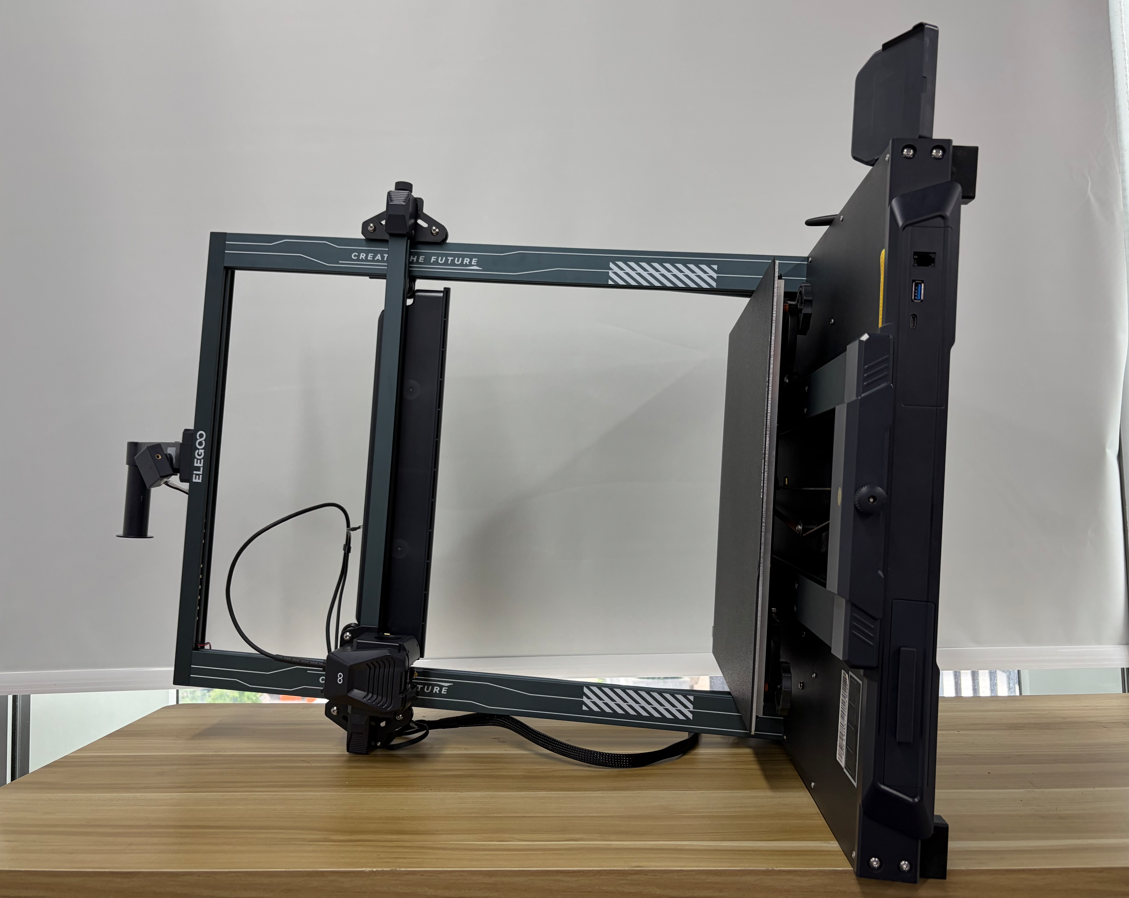
- Locate the power supply indicator LED shown below.
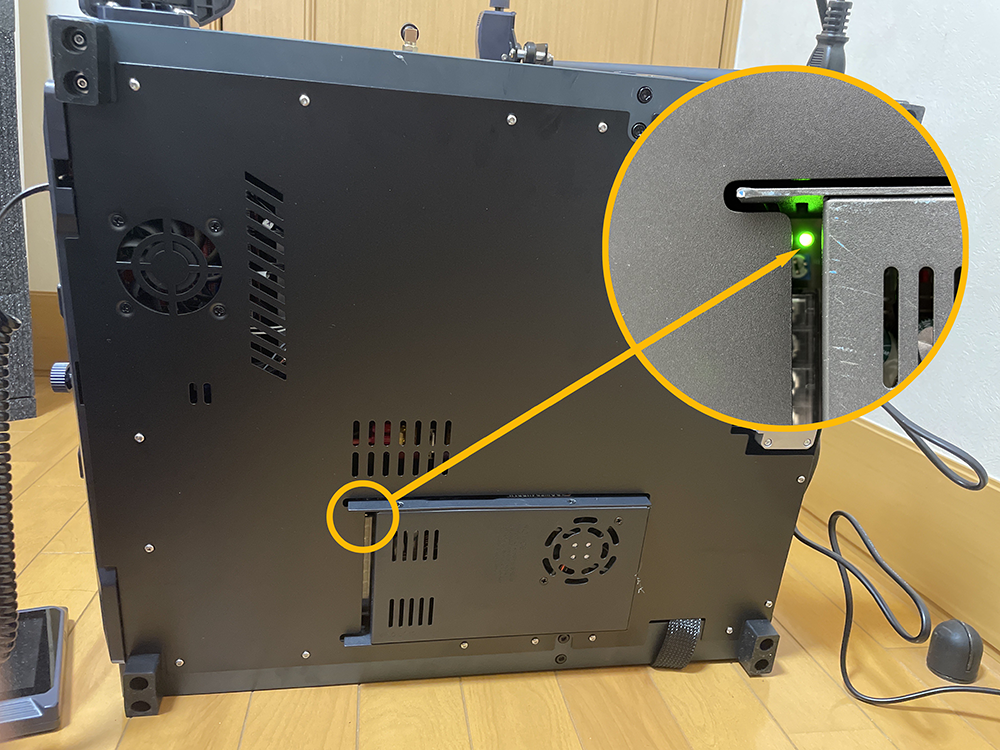
- Connect the printer to power and turn it on.
Check whether the power supply indicator LED lights up.
- If the power supply indicator LED does not light up, the power supply may be faulty.
- If the power supply indicator LED lights up, continue with the next troubleshooting step.
¶ 5. Check the Mainboard Indicator LEDs
-
Turn off the printer and unplug the power cord.
-
Use a 2.0 mm Allen key to remove the 18 screws securing the bottom cover.
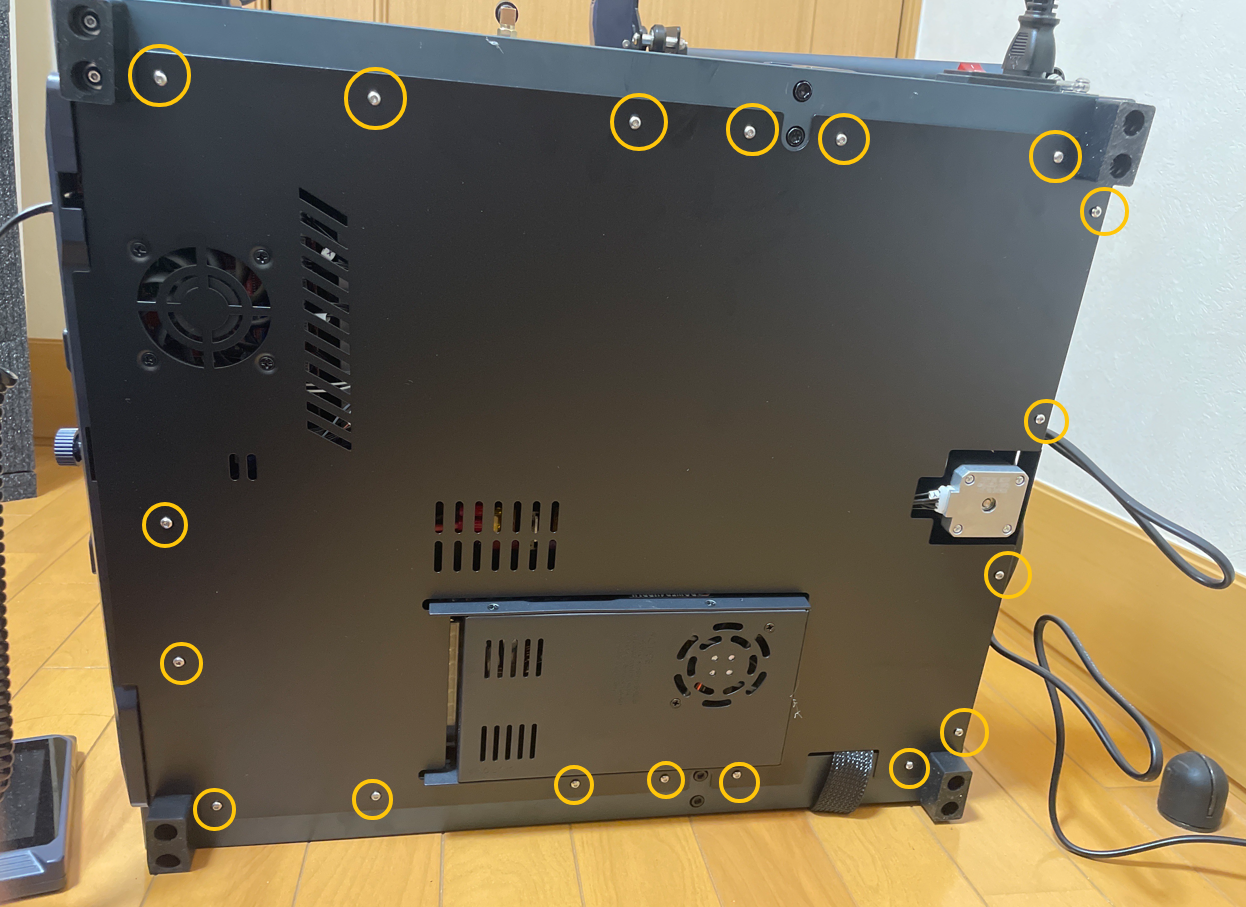
- Carefully open the bottom cover, disconnect the mainboard fan connector, and then remove the bottom cover.
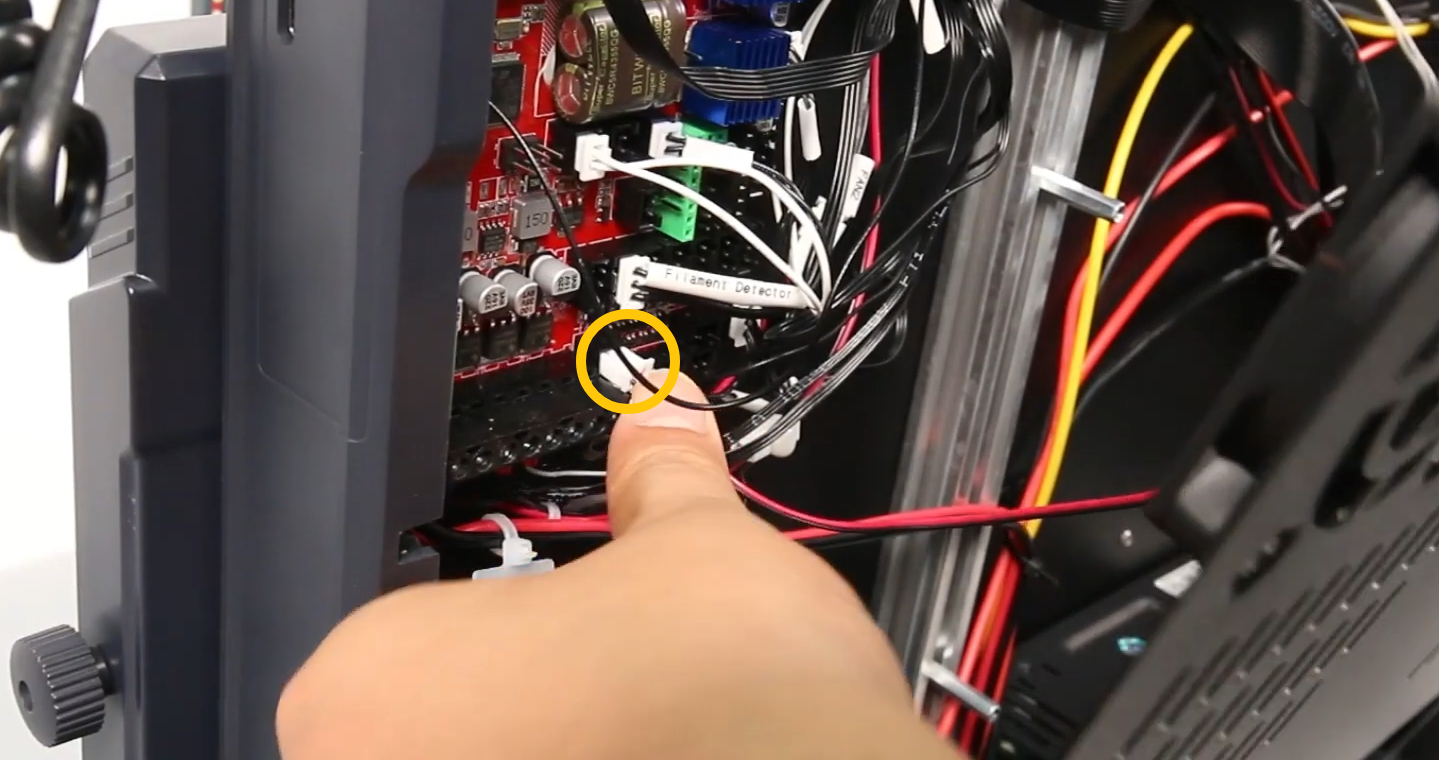
-
Reconnect the power cord and turn on the printer.
-
Wait approximately 50 seconds, then check whether the four indicator LEDs shown below are illuminated.
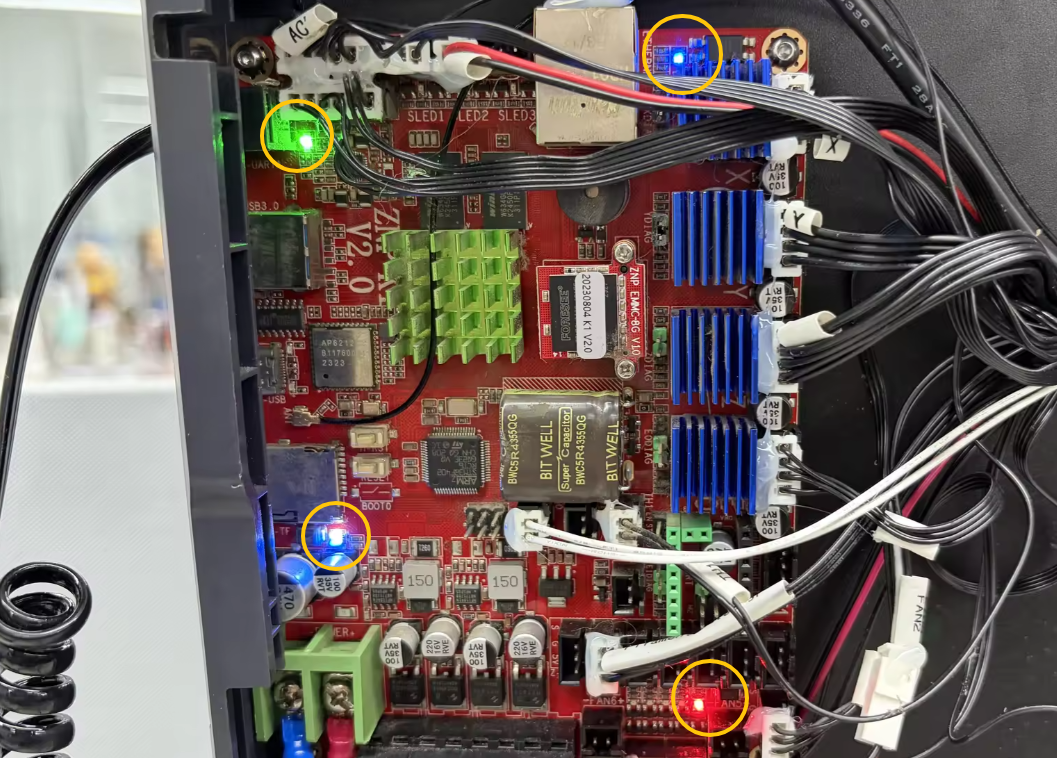
- If the mainboard indicator LEDs do not light up, the mainboard may be faulty.
- If the mainboard indicator LEDs light up normally, the touch screen may be faulty.
¶ 6. Check the Power Supply Output Voltage
Reminder:
This step requires a multimeter and experience using one. If you do not have a multimeter, you may skip this step.
-
Set the multimeter to the DC 200 V range.
-
Measure the voltage at the mainboard power input connector to verify that a stable 24 V DC supply is present.
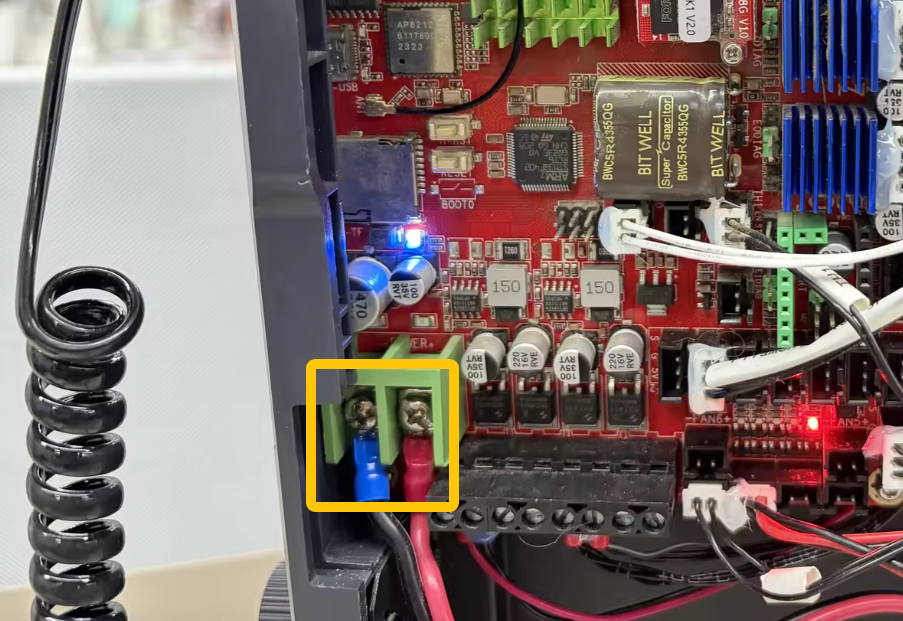
- If there is no output voltage or the voltage is unstable, the power supply is faulty and should be replaced.
¶ Contact Technical Support
If the issue persists after completing all the troubleshooting steps above, please contact technical support at 3dp@elegoo.com and provide the following information:
- Is the power supply voltage set correctly?
- Is the fuse blown?
- Is the touch screen ribbon cable loose or damaged?
- After turning on the printer, do the mainboard indicator LEDs light up?
- After turning on the printer, does the power supply indicator LED light up?
- Is the power supply outputting a stable 24 V DC? (Skip this item if you do not have a multimeter.)
¶ Help us improve
If you have any ideas about the wiki pages, please let us know via ELEGOO official feedback channel