¶ Issue Description
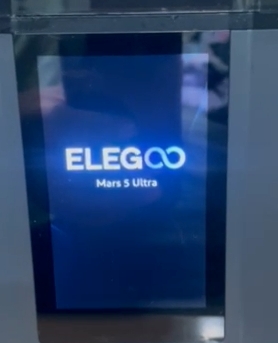
After powering on the printer, the touch screen starts getting stuck at ELEGOO logo and cannot enter the main interface.
¶ Reasons
-
The firmware is crashed.
-
One of the components has a short circuit.
¶ Troubleshooting Steps
¶ Tools needed for troubleshooting
-
A FAT32 USB flash drive with the capacity less than 16GB
-
A 2.0 mm Allen key
¶ Step 1 Update the firmware
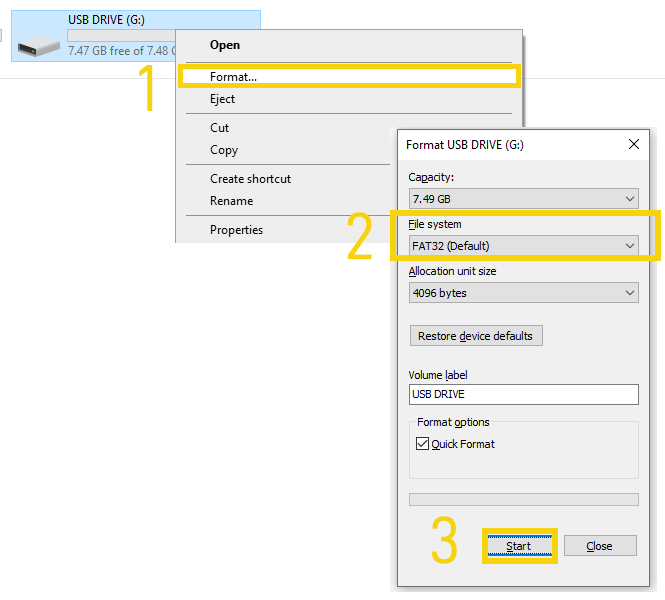
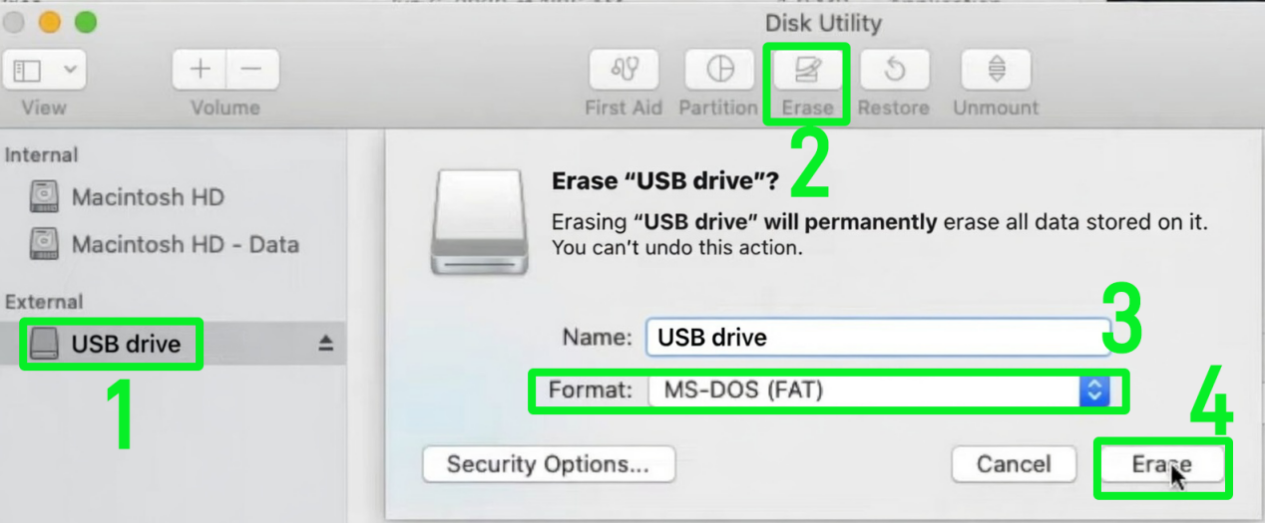
- Insert the USB flash drive into your PC and format it.
-
Format the USB flash drive in Windows
Click USB DRIVE - Format - Start
-
Format the USB flash drive macOS
Click USB drive - Erase - MS-DOS(FAT 32) or MS-DOS(FAT) - Erase.
-
Click the link to download the fixing firmware.
-
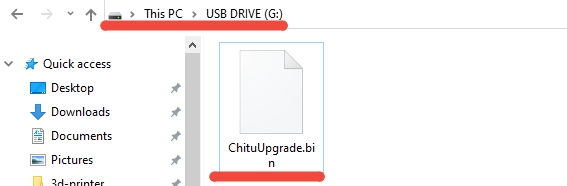
Unzip the compressed package of the fixing firmware. Copy the fixing firmware (ChituUpgrade.bin) to the root directory of the USB flash drive.
Note: The directory which you accessed by double-clicking the USB flash drive is the root directory.
-
Insert the USB flash drive into the printer and restart the printer. The printer updates the fixing firmware automatically.
- If the touch screen enters into the main interface after updating the fixing firmware, it indicates that the issue is resolved and the firmware should be reloaded.
If printer's motherboard contains capacitors, please update the firmware to the version below
Mars 5 Ultra Firmware Download Link
How to Update firmware
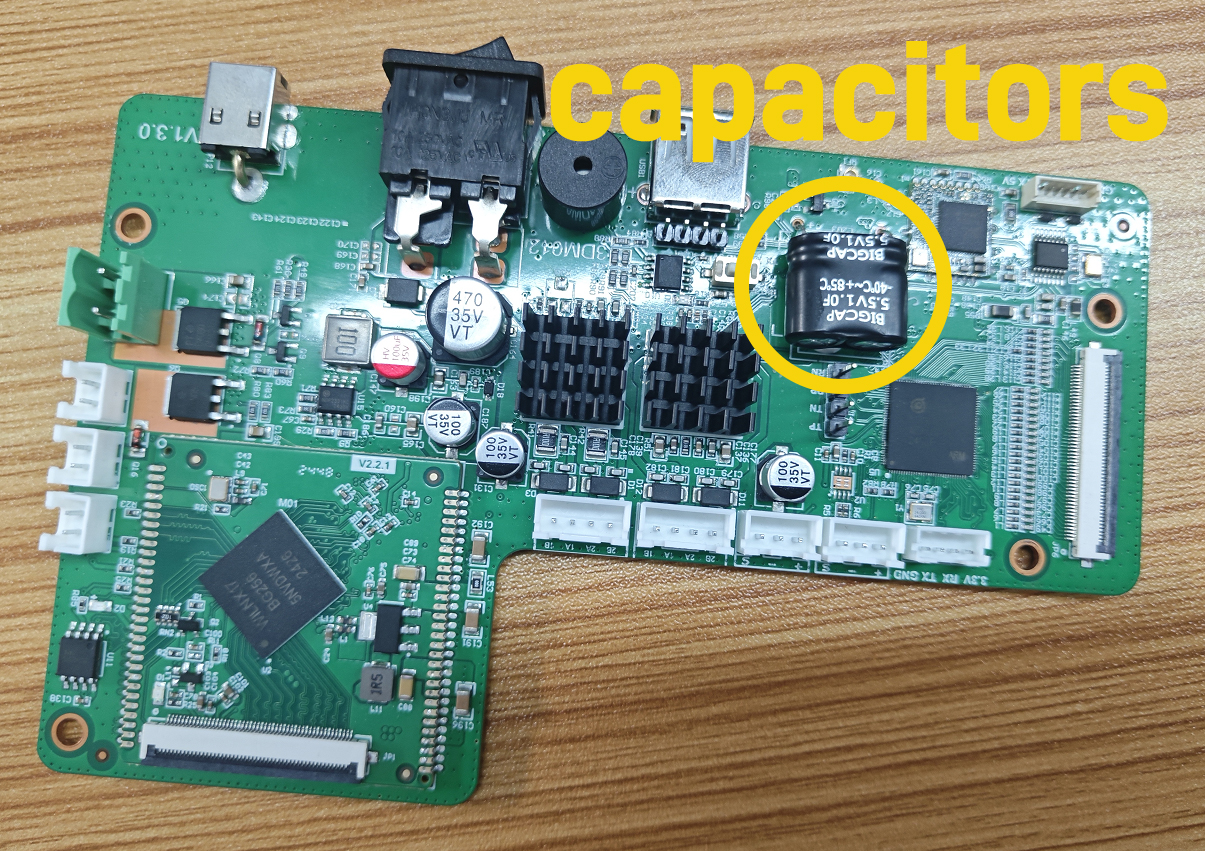
If printer's motherboard does not contain capacitors, please update the firmware via the touchscreen OTA
- If the touch screen still gets stuck, proceed to Step 2 for further troubleshooting
¶ Step 2 Check whether any component has a short circuit
-
Turn the power switch OFF (symbol "〇").
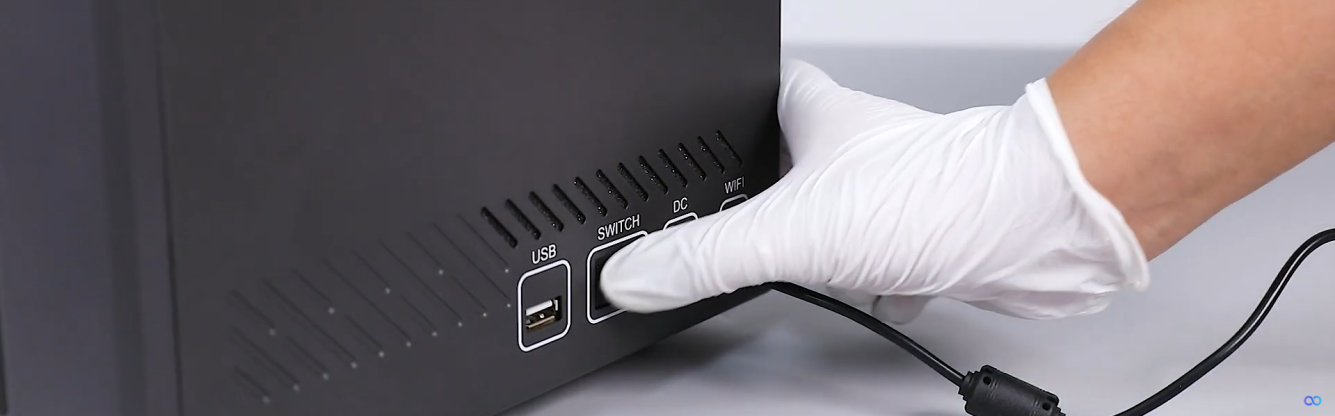
-
Unplug the power adapter cable.
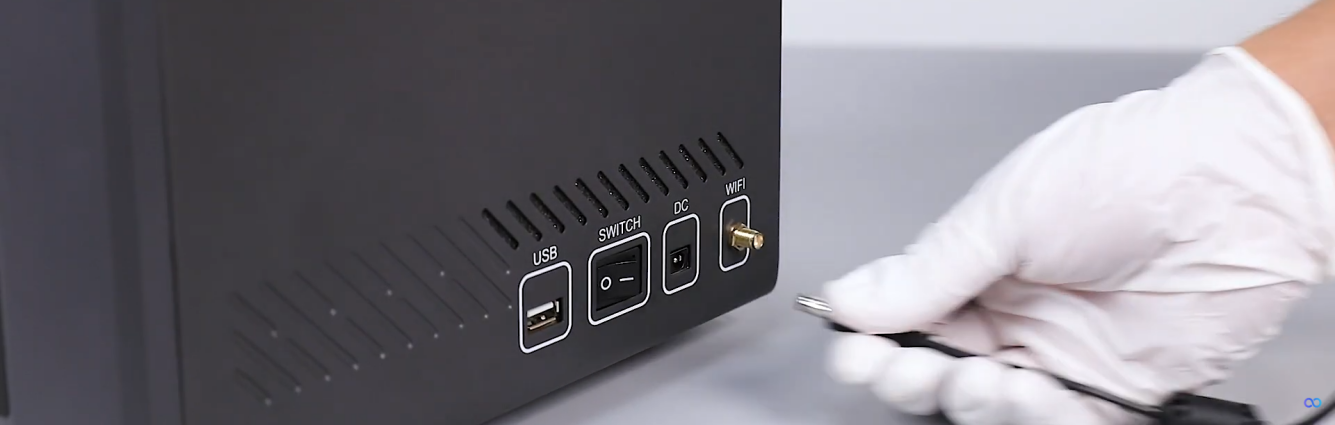
-
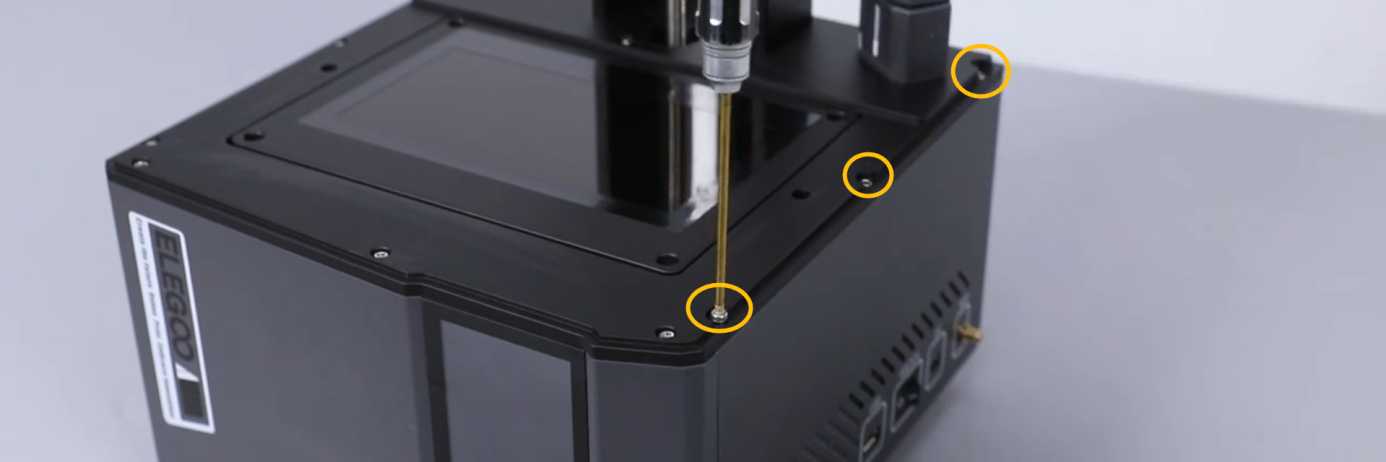
Release and remove the six marked screws shown in the picture below.
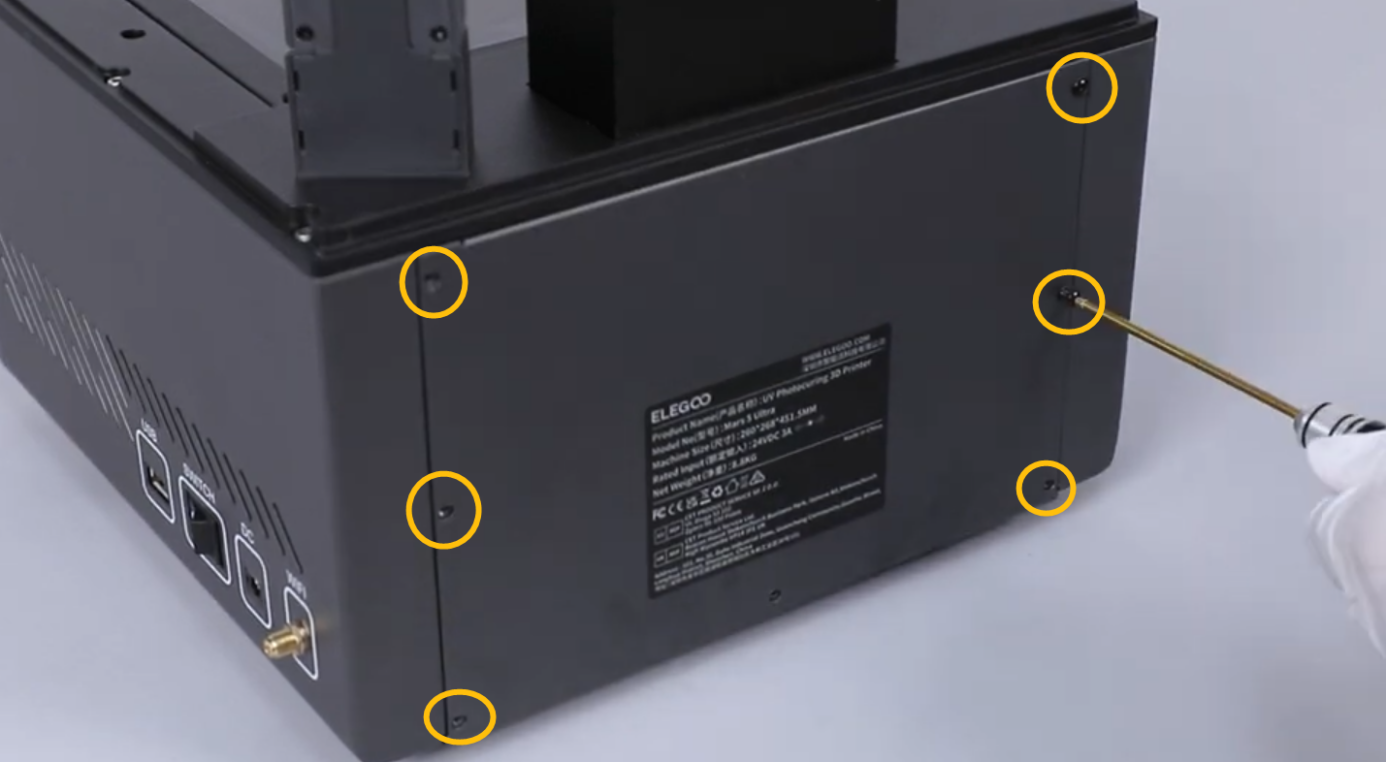
-
Release and remove the marked three screws shown in the picture below with a 2.0 mm Allen key.
-
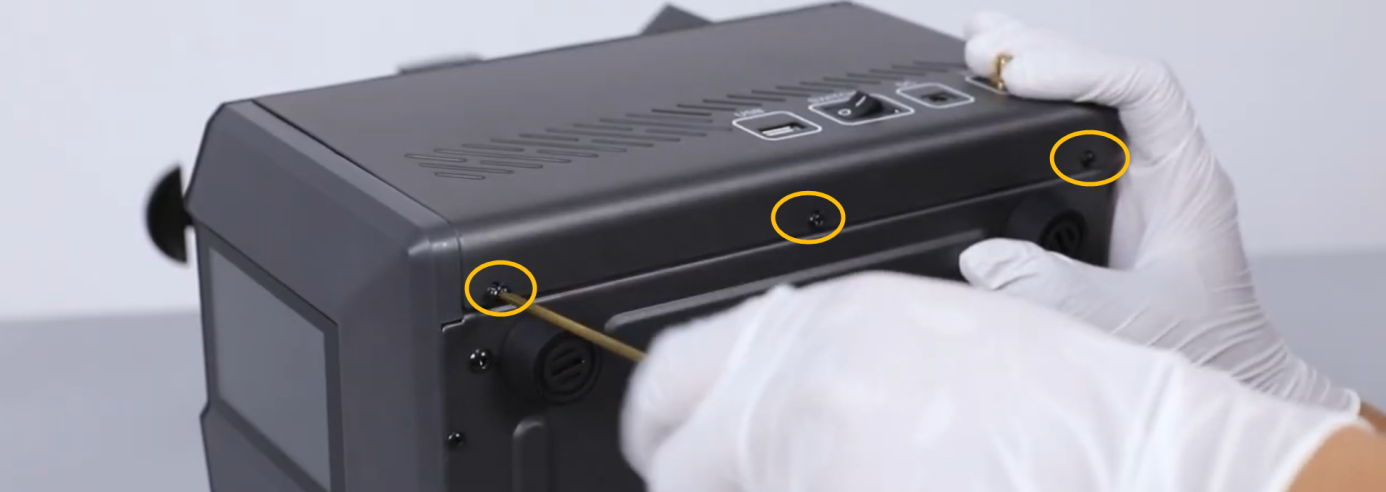
Release and remove the marked three screws shown in the picture below with a 2.0 mm Allen key.
-
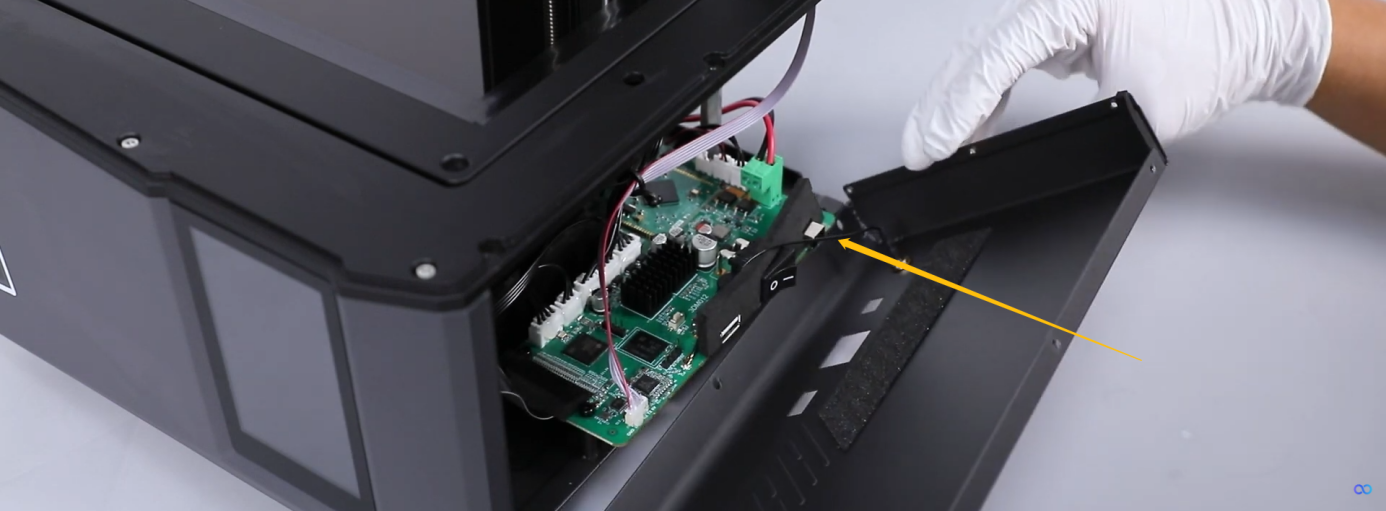
Open the right-side cover carefully.
Note: The right-side cover and the motherboard are connected by the Wi-Fi antenna.
-
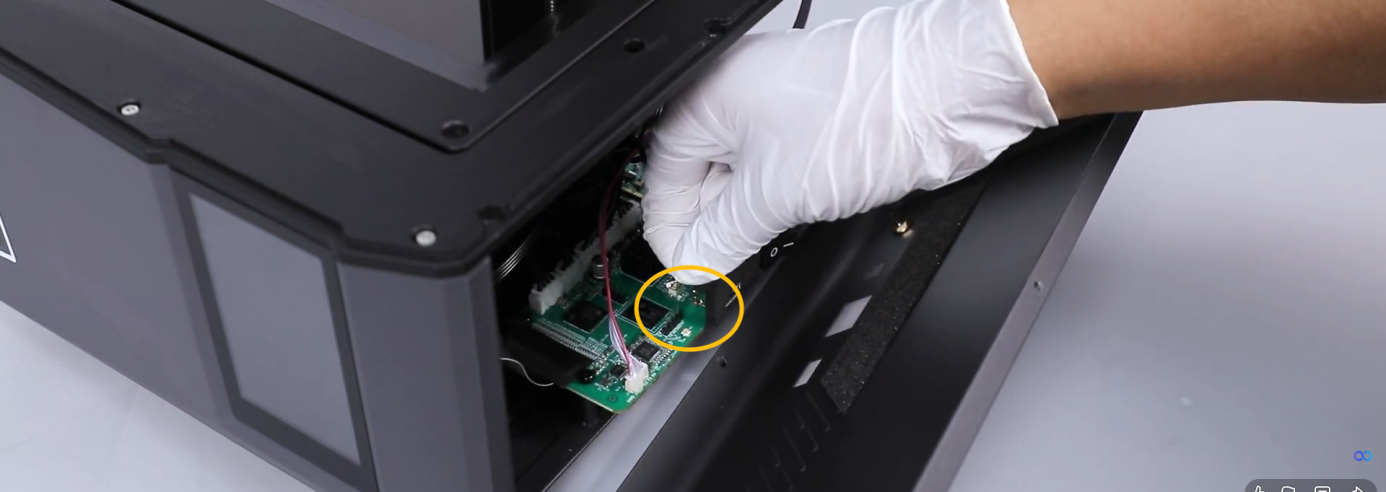
Unplug the Wi-Fi antenna and remove the right-side cover.
-
Unplug the cables on the motherboard except the touch screen ribbon cable.
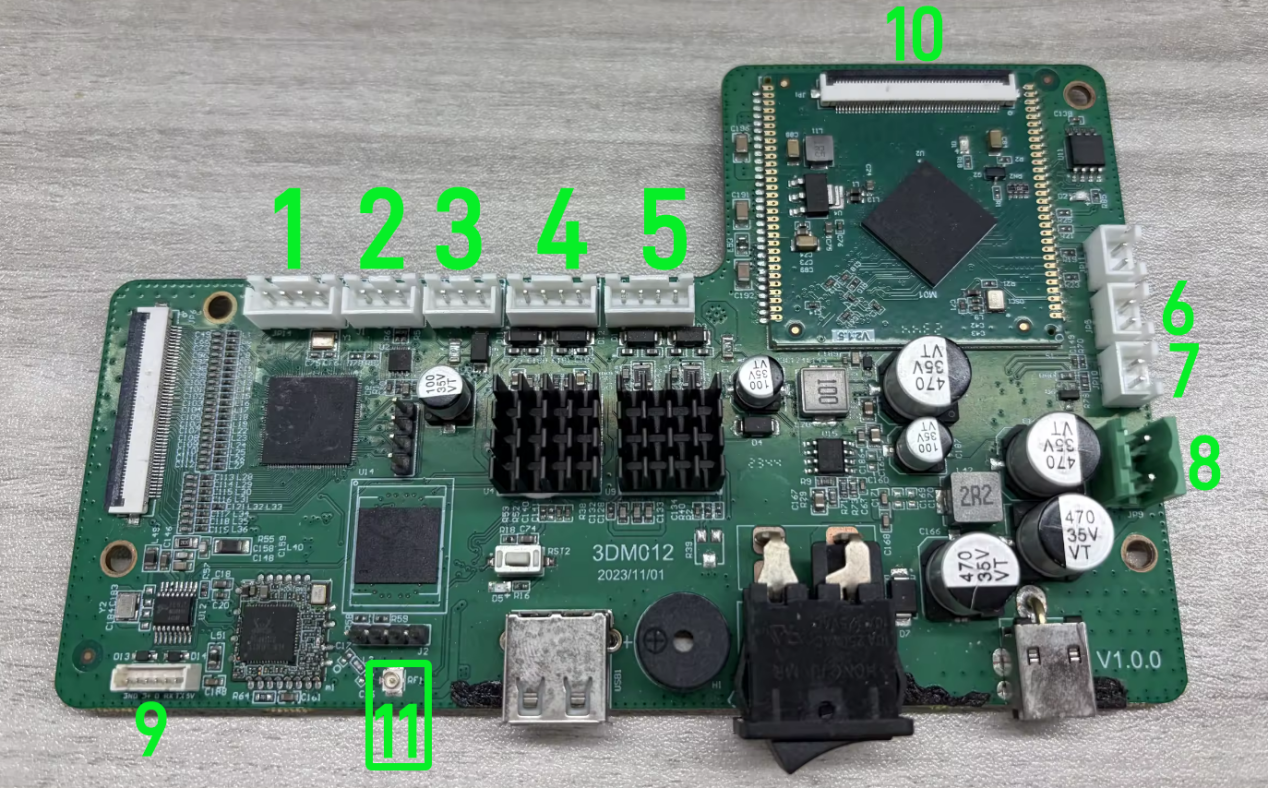
-
Plug in the power adapter cable on the port on the motherboard. Turn the power switch ON (symbol "|").
-
If the touchscreen still cannot enter the main interface, it indicates that the motherboard needs to be replaced. After completing the motherboard replacement, please update the following firmware
Mars 5 Ultra Firmware Download Link
How to Update firmware -
If the touch screen can enter into the main interface, it indicates that one of the components connected to the motherboard may be short-circuited.
To identify the specific defective component:
(1) Turn the power switch OFF (symbol "〇").
(2) Plug in one of the cables at a time. -
If the touch screen gets stuck at ELEGOO logo, it indicates that the corresponding component needs to be replaced. Please contact the technical support team and provide the part number or name.
Technical support email address: 3dp@elegoo.com