¶ Connection and System Requirements
¶ What Should I Do If the Software Cannot Detect the Scanner?
Please check the following items in order:
- Confirm that the scanner is powered on properly.
- Try another battery or connect a USB-C cable that supports USB 3.0 or USB 3.1 and try again.
- Confirm that you are using the original data cable or a cable that meets the required specifications.
- Connect the data cable to another USB 3.0 port on the computer.
- Do not use a USB hub, adapter, or extension cable.
- Close and reopen the scanning software.
- Restart the scanner and computer.
- Check whether the operating system has detected the scanner.
- Reinstall the scanning software.
If possible, replace the data cable or test the scanner with another computer that meets the requirements.
If the issue persists, provide Technical Support with the scanner model, serial number, software version, computer configuration, connection method, a screenshot of the Device Manager interface, and software logs.
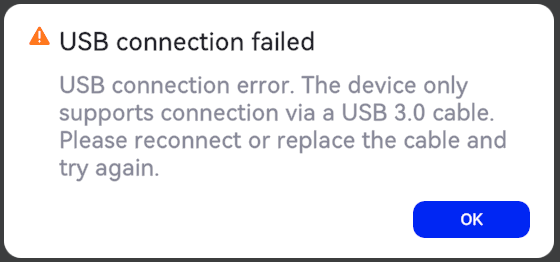
¶ ELEGOO Scan Displays "USB Connection Failed" When the Scanner Is Connected in USB Mode
Check whether the computer's USB port is USB 3.0 or above. If you are using a desktop computer, connect the USB-C plug to a port on the back of the computer. USB 3.0 ports are usually blue.
¶ How Can I Use USB Mode If My Computer Does Not Have a USB-C Port?
You can use a USB-C to USB-A adapter. The adapter must support USB 3.0 or above. The adapter must be purchased separately. Search for "USB-A 3.0 Male to USB-C Female Adapter" on an online shopping platform.
¶ Why Does the Scanner Display Not Show the Scan Preview After Connecting a USB 3.0 Data Cable?
Due to hardware interface limitations, the scan preview cannot be transmitted to the scanner display in wired mode. In wired mode, the cable is used to transmit scanning data.
¶ Differences Between WLAN and USB Modes
| Calibration | Touchscreen Preview | Scanning Mode | Blue Line Laser Frame Rate (Resolution: 1520 × 1200) | Blue Line Laser Frame Rate (Resolution: 1920 × 1200) | Infrared Frame Rate | |
|---|---|---|---|---|---|---|
| Blue Line Laser - No Marker Scanning | Supported | Not Supported | Supported | Supported | Supported | Supported |
| Blue Line Laser - Global Marker Scanning | Not Supported | Supported | Not Supported | Supported | Supported | Supported |
| Local Detail Scanning | 100 fps | 80 fps | 30 fps | |||
| Infrared Mode | 60 fps | 50 fps | 30 fps |
¶ How Can I Change the Scanner Hotspot Password?
First connect the scanner in wireless mode, then go to ELEGOO Scan → Settings → Device Management to change the password.
¶ Which Operating Systems Are Supported by the Scanning Software?
The supported operating systems vary depending on the software version and scanner model. Commonly supported operating systems include:
- Windows
- macOS
¶ Windows Computer Requirements
| Component | Recommended Configuration | Minimum Configuration |
|---|---|---|
| Operating System | Windows 10/11 (64-bit) | Windows 10/11 (64-bit) |
| Processor | 13th Gen Intel Core i7 or above | 7th Gen Intel Core i7 |
| Dedicated GPU | NVIDIA GeForce RTX 4060 or above (8 GB VRAM) | NVIDIA GPU (6 GB VRAM) |
| Memory | ≥32 GB | ≥16 GB |
¶ macOS Computer Requirements
| Component | Recommended Configuration | Minimum Configuration |
|---|---|---|
| Operating System | macOS 14 or above | macOS 14 |
| Processor | Apple M4 or above | Apple M2 |
| Memory | ≥32 GB | ≥16 GB |
¶ Frame Rate and Resolution with the USB 3.0 Data & Charge Cable
The Blue Line Laser frame rate can reach 100 fps at a resolution of 1520 × 1200 or 80 fps at a resolution of 1920 × 1200. The Infrared frame rate is 30 fps.
¶ Frame Rate and Resolution in Wi-Fi Mode
When scanning with a PC over a Wi-Fi 6 connection, the Blue Line Laser frame rate can reach 60 fps at a resolution of 1520 × 1200 or 50 fps at a resolution of 1920 × 1200. The Infrared frame rate is 30 fps.
¶ Scan Quality and Troubleshooting
¶ Why Is Tracking Lost During Scanning?
Tracking loss means that the scanning software cannot determine the current position of the scanner or correctly align newly captured data with the existing pointcloud. Common causes include:
- Insufficient surface features
- Highly symmetrical structures
- Moving the scanner too quickly
- Scanning distance being too close or too far
- Improper exposure settings
- Excessive ambient light
- The object moving during scanning
- Insufficient overlap between valid scanning areas
- Insufficient reflective markers or markers being blocked
When tracking is lost, slowly move the scanner back to an area that has already been scanned successfully and contains clear features. Wait for tracking to be restored before continuing the scan. If tracking loss occurs frequently, reduce the scanning speed, optimize the exposure, add reflective markers, or switch to another scanning mode.
¶ Why Is the Pointcloud Misaligned or Layered?
Pointcloud misalignment or layering usually indicates that newly captured data has been incorrectly aligned with the existing model. Common causes include:
- Insufficient surface features
- Symmetrical structures being incorrectly recognized
- Moving the scanner too quickly
- Continuing to scan after tracking is lost
- Scanning the same area repeatedly
- Improper reflective marker placement
- The scanning object moving during scanning
- Incorrect alignment points selected during multi-section scanning
- Excessive background data or floating noise points in the original data
If misalignment occurs, pause the scan immediately and delete the abnormal data generated after the misalignment occurred. Restart the scan if necessary. For smooth, symmetrical, or large objects, it is recommended to use randomly distributed reflective markers and start scanning from an area with clear geometric features.
¶ Why Can't Black Objects Be Scanned?
Some black materials absorb the structured light, infrared light, or laser emitted by the scanner, preventing the scanner from receiving sufficient reflected signals. Try the following methods:
- Increase the exposure appropriately.
- Reduce the scanning distance without exceeding the recommended range.
- Avoid excessive ambient light or direct sunlight.
- Use a scanning mode suitable for dark-colored objects.
- Apply 3D Scanning Spray / Matting Spray to the surface of the object to create a uniform matte layer. The spray must be purchased separately.
- Add reflective markers to black objects that lack sufficient structural features.
Different black materials have different reflection characteristics. Matte black surfaces, rubber, velvet, and some dark-colored plastics are generally more difficult to scan than light-colored materials.
¶ How Can I Scan Reflective or Transparent Objects?
Reflective and transparent objects generally cannot provide stable depth data directly. Reflective surfaces reflect scanning light in specific directions, which can cause noise points, holes, and incorrect data. Transparent surfaces allow light to pass through or refract, making it difficult for the scanner to determine the actual surface position.
It is recommended to take the following measures:
- Clean the surface of the object.
- Apply 3D Scanning Spray / Matting Spray to create a uniform matte surface.
- Adjust the exposure to avoid overexposure in reflective areas.
- Reduce interference from sunlight and strong ambient light.
- Add reflective markers to surfaces that lack sufficient geometric features.
- Test the spray on an inconspicuous area first to confirm that it does not affect the surface of the object.
Before using scanning spray, read the product instructions and safety information, and ensure adequate ventilation.
¶ Why Are There a Large Number of Noise Points in the Scanning Data?
Noise points refer to pointcloud data that is suspended around the object, located in incorrect positions, or does not belong to the scanned object. Common causes include:
- Exposure being too high or too low
- Reflective, transparent, or excessively dark object surfaces
- Ambient light interference
- Unstable scanning distance
- Moving or shaking the scanner too quickly
- Backgrounds, tables, or supports being scanned at the same time
- Repeatedly scanning the same area
- Improper scanning accuracy or resolution settings
It is recommended to improve the scanning environment and object surface first, then adjust the exposure and scanning distance. During scanning, move the scanner at a consistent speed and avoid repeatedly scanning the same area. After scanning, use pointcloud editing tools to remove backgrounds, isolated points, and abnormal data.
¶ How Can I Repair Holes in the Scanned Model?
Model holes are usually caused by missing scanning data, occlusion, deep holes, reflective surfaces, or insufficient scanning angles. It is recommended to rescan the missing areas during the pointcloud stage:
- Check the missing areas in the software.
- Restore tracking from an area that has already been scanned successfully.
- Adjust the scanning angle.
- Rescan the edges, top, bottom, and grooves of the object.
- Ensure sufficient overlap between the new and existing scanning areas.
- After rescanning, perform pointcloud fusion and generate the mesh again.
If rescanning is not possible, use the automatic or manual hole-filling tools during the mesh processing stage. Automatic hole filling is suitable for small holes with simple shapes. For large holes or missing functional structures, automatic filling may generate surfaces that do not accurately represent the actual shape, so use this function with caution.
¶ How Can I Determine Whether the Scanning Distance Is Appropriate?
The current scanning distance is indicated by a distance bar, color indicator, or on-screen prompt. Generally, you can determine the scanning distance as follows:
- Too close: Some data may not be captured, and the software will indicate that the distance is too close.
- Appropriate: The distance indicator is generally within the recommended range, and the pointcloud can be generated stably.
- Too far: The amount of pointcloud data decreases and details may be lost. The software will indicate that the distance is too far.
Maintain a stable scanning distance during scanning and avoid suddenly moving the scanner closer to or farther away from the object. When moving the scanner, observe both the distance indicator and pointcloud quality. The recommended scanning distance may vary between scanning modes. Refer to the software prompts and product instructions.
¶ How Can I Adjust the Scanning Exposure?
Exposure controls the intensity of surface information received by the scanner. Exposure that is too high or too low can cause missing data or noise points. You can start with auto exposure and then manually fine-tune the exposure according to the scanning results:
- If the image is too dark and pointcloud data is missing from black areas, increase the exposure appropriately.
- If large areas of the image appear white or reflective areas contain excessive noise points, reduce the exposure appropriately.
- If the same object contains significant differences in brightness, prioritize maintaining proper exposure in the main scanning area.
- When scanning faces or human bodies, adjust the exposure according to skin tone, hair, clothing, and other conditions.
Do not determine exposure solely based on the brightness of a normal camera image. Also observe the depth image, pointcloud quantity, and exposure prompts provided by the software.
¶ Scanning Modes and Reflective Markers
¶ How Do I Choose a Scanning Mode?
Infrared Mode
Suitable for scanning people, toys, sculptures, and large objects. It is easy to operate and does not require reflective markers. It is suitable for most models with sufficient geometric features.
Blue Line Laser Mode
Suitable for scanning industrial parts, mechanical components, jewelry, and complex curved surfaces. It provides high accuracy and is generally recommended for use with reflective markers.
¶ Three Scanning Modes of the Blue Line Laser
| Mode | How Tracking and Alignment Work | Suitable Applications | Typical Objects | Main Limitations |
|---|---|---|---|---|
| No Marker | Uses the object's own geometry and texture features for tracking and alignment. | Objects with rich surface features and irregular shapes where minimal marker preparation is preferred. | Sculptures, reliefs, irregular stones, models with distinctive surface features. | Large flat surfaces, smooth cylinders, symmetrical or repetitive structures are prone to tracking loss and alignment errors. Confirm that the device supports marker-free scanning in Blue Line Laser Mode. |
| Global Marker | First scans or imports the spatial coordinates of the markers, then uses the global reference to scan the surface. | Medium-to-large objects, elongated objects, long scanning paths, or tasks requiring multiple areas to be rescanned while maintaining overall dimensional consistency. | Bumpers, sections of vehicle bodies, large housings, long structural components. | Requires an additional Global Marker acquisition process. The relative positions of the markers and object must remain unchanged after the Global Marker is established. |
| With Marker | Recognizes reflective markers while scanning the surface and uses them for tracking and alignment. | Regular part scanning with insufficient geometric features or a high risk of tracking loss. | Smooth housings, pipes, regular mechanical parts, flat plates, symmetrical parts. | Requires marker placement, and sufficient reflective markers must remain visible from different scanning angles. |
¶ When Should I Use Reflective Markers?
Use reflective markers when the scanner cannot maintain stable tracking based on the object's own geometric features.
The following objects typically require reflective markers:
- Flat or smooth objects
- Objects with few geometric features
- Highly symmetrical objects
- Large repetitive structures
- Mechanical parts, sheet metal parts, and vehicle body components
- Objects requiring improved alignment stability during multi-section scanning
- Objects scanned using designated high-precision scanning modes
¶ How Should Reflective Markers Be Placed?
Reflective markers should be placed randomly and spread out across the surface. Avoid arranging them in straight lines, regular grids, or repetitive patterns. During scanning, ensure that enough reflective markers remain visible within the scanner's field of view.
¶ Calibration and First-Time Use
¶ Is Calibration Required Before First Use?
Calibration is recommended. The main purpose of calibration is to eliminate systematic errors within the device and ensure the accuracy and reliability of the measurement data. Various deviations caused by manufacturing, assembly, temperature, operating environment, and other factors can be detected and corrected through a series of standard procedures. Without calibration, the pointcloud generated by the scanner may contain systematic distortion, which can result in errors when performing measurements, modeling, or analysis based on the data.
¶ What Should I Do If Calibration Fails?
Calibration failure is usually related to the condition of the calibration board, ambient light, scanning distance, operating posture, or software version. Check the following items:
- Confirm that you are using the calibration board compatible with the scanner.
- Remove dust, stains, and obstructions from the surface of the calibration board.
- Check whether the calibration board is bent, scratched, or damaged.
- Avoid direct sunlight, strong reflections, and environments with insufficient lighting.
- Follow the animation in the software to maintain the correct distance, angle, and movement direction.
- Move the scanner smoothly and do not move it too quickly.
- Restart the scanner and calibration software.
- Confirm that the software and firmware versions are compatible.
- Reconnect the scanner and perform calibration again.
¶ Recommended Calibration Environment
To ensure accurate calibration results, perform calibration under the following conditions:
- Perform calibration indoors in an environment with uniform and stable lighting.
- Avoid direct sunlight, strong light, or frequently changing lighting conditions.
- Place the calibration board securely and ensure that its surface is clean and free of stains and scratches.
- Ensure that there are no obstructions between the scanner and the calibration board, and move the scanner smoothly during calibration.
- It is recommended to allow the device to stabilize at room temperature for a period of time before performing calibration.
- Avoid operating in environments with significant vibration, excessive dust, or large changes in temperature and humidity.
¶ Device Specifications and Battery
¶ Battery Specifications
| Item | Specification |
|---|---|
| Battery Model | UTL21700-1S1P-3.6V |
| Nominal Voltage | 3.6 V |
| Rated Capacity | 4.8 Ah (4800 mAh) |
| Rated Energy | 17.28 Wh |
| Charge Limit Voltage | 4.2 V |
| Battery Chemistry | Lithium-Ion Battery (NMC, Nickel Manganese Cobalt) |
| Weight | Approximately 120 g |
| Positive and Negative Terminal Identification | Red for positive (+), black for negative (−) |
| Recommended Fire Extinguisher | Dry Powder Fire Extinguisher |
| Key Raw Materials | Lithium, Natural Graphite |
¶ Battery Runtime Test
Note: The above battery runtime data is for reference only. Actual runtime varies depending on the scanning mode, environment, and device settings. Battery capacity gradually decreases with usage time and charge/discharge cycles, which may reduce the runtime.
¶ Scanning Size
| Scanning Mode | Scanning Size |
|---|---|
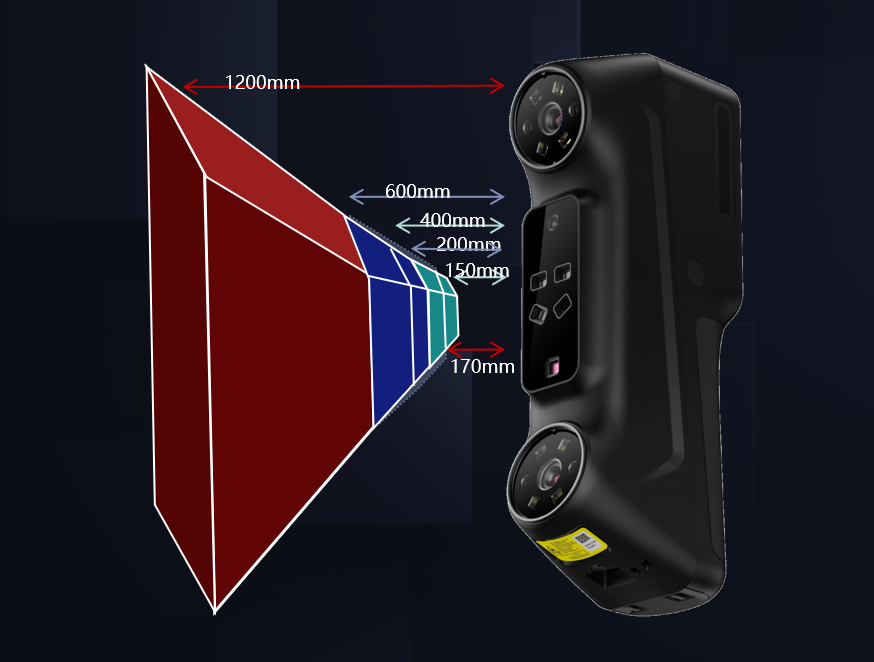
| High-Precision Scanning | 621 mm × 480 mm at 600 mm |
| Infrared Scanning | 1121 mm × 960 mm at 1200 mm |
¶ Working Distance of the Blue Line Laser and Infrared Modes
| Scanning Mode | Working Distance |
|---|---|
| Blue Line Laser – Parallel Line | 160–400 mm |
| Blue Line Laser – Cross Line | 200–600 mm |
| Blue Line Laser – Single Line | 200–600 mm |
| Infrared Mode | 170–1200 mm |
¶ Optical Resolution
| Camera | Resolution |
|---|---|
| Monochrome Camera | 1920 × 1200 |
| RGB Camera | 1280 × 960 |
¶ Metrological Accuracy
Maximum Accuracy: 0.02 mm
¶ Volumetric Accuracy
0.02 mm + 0.06 mm/m
¶ Data Processing and File Export
¶ Why Does Mesh Wrapping Take a Long Time?
Mesh wrapping processes the scanning data, repairs the model, and generates a watertight mesh. The following conditions may increase processing time:
- A large amount of scanning data, long scanning times, or high pointcloud density.
- Complex model structures containing many details, holes, or occluded areas.
- Large amounts of noise points, overlapping surfaces, or misalignment that require additional processing for repair.
- Insufficient CPU, GPU, or memory performance.
- Multiple programs running simultaneously and consuming system resources.
- High mesh resolution or resolution settings.
It is recommended to delete unnecessary data and noise points before mesh wrapping, appropriately reduce the mesh resolution, and close other programs that consume significant system resources. Do not repeatedly click the software or force-close it during processing.
¶ What Are the Differences Between STL, OBJ, and PLY?
The three formats store different types of data and are suitable for different applications.
- For standard single-color 3D printing, STL is usually suitable.
- To preserve color textures, OBJ is recommended. Save the corresponding texture images and material files together.
- To continue processing the original scanning data in pointcloud software, PLY can be used. Before exporting, confirm that the downstream software supports the corresponding format.
¶ Help Us Improve
If you have any suggestions for our wiki pages, please let us know through the ELEGOO Official Feedback Channel.