¶ Symptoms
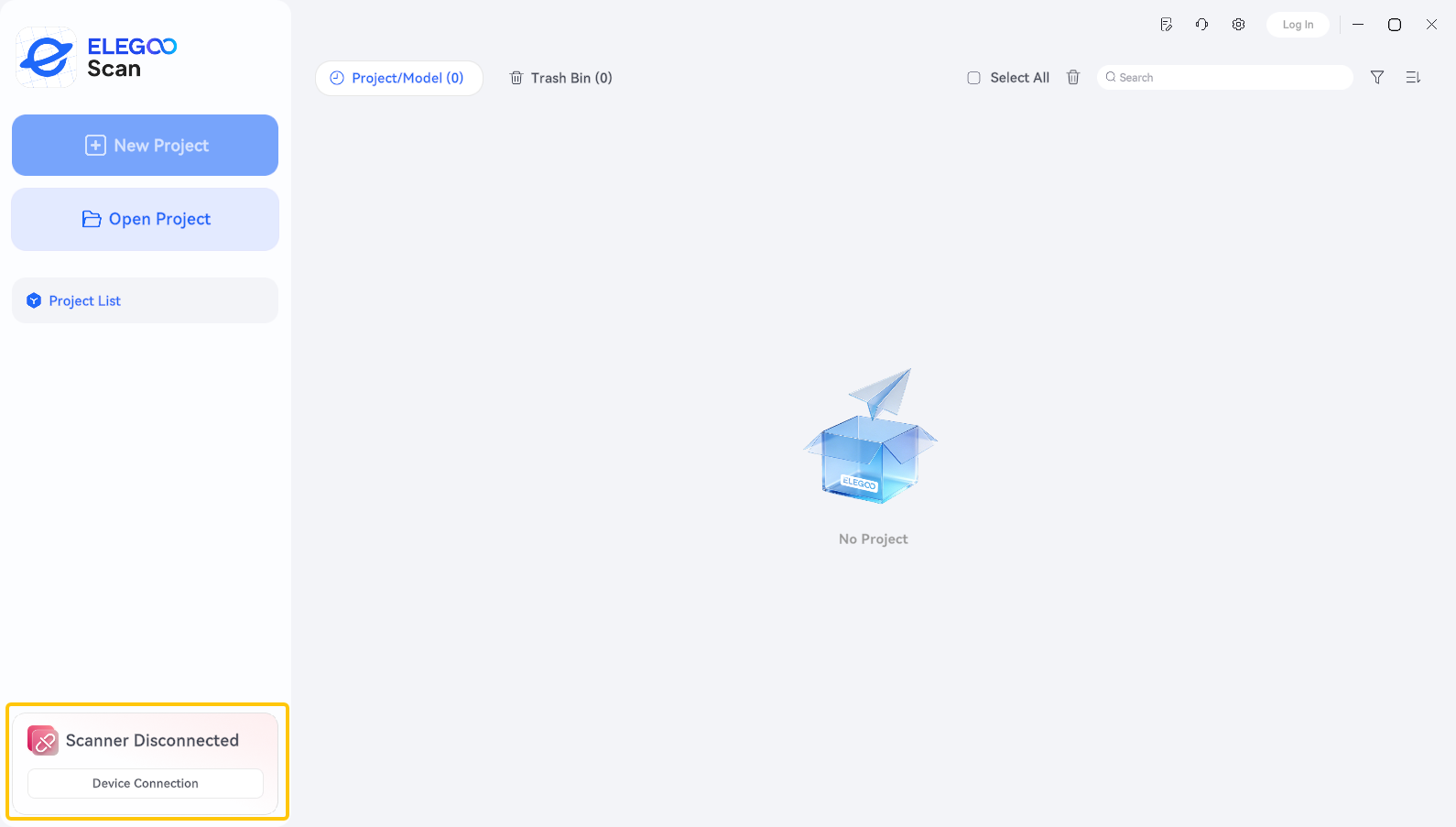
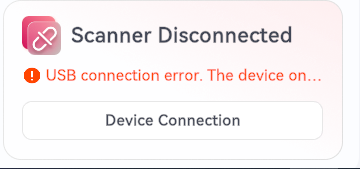
- Elegoo Scan displays a red "Scanner Disconnected" message in the lower-left corner.
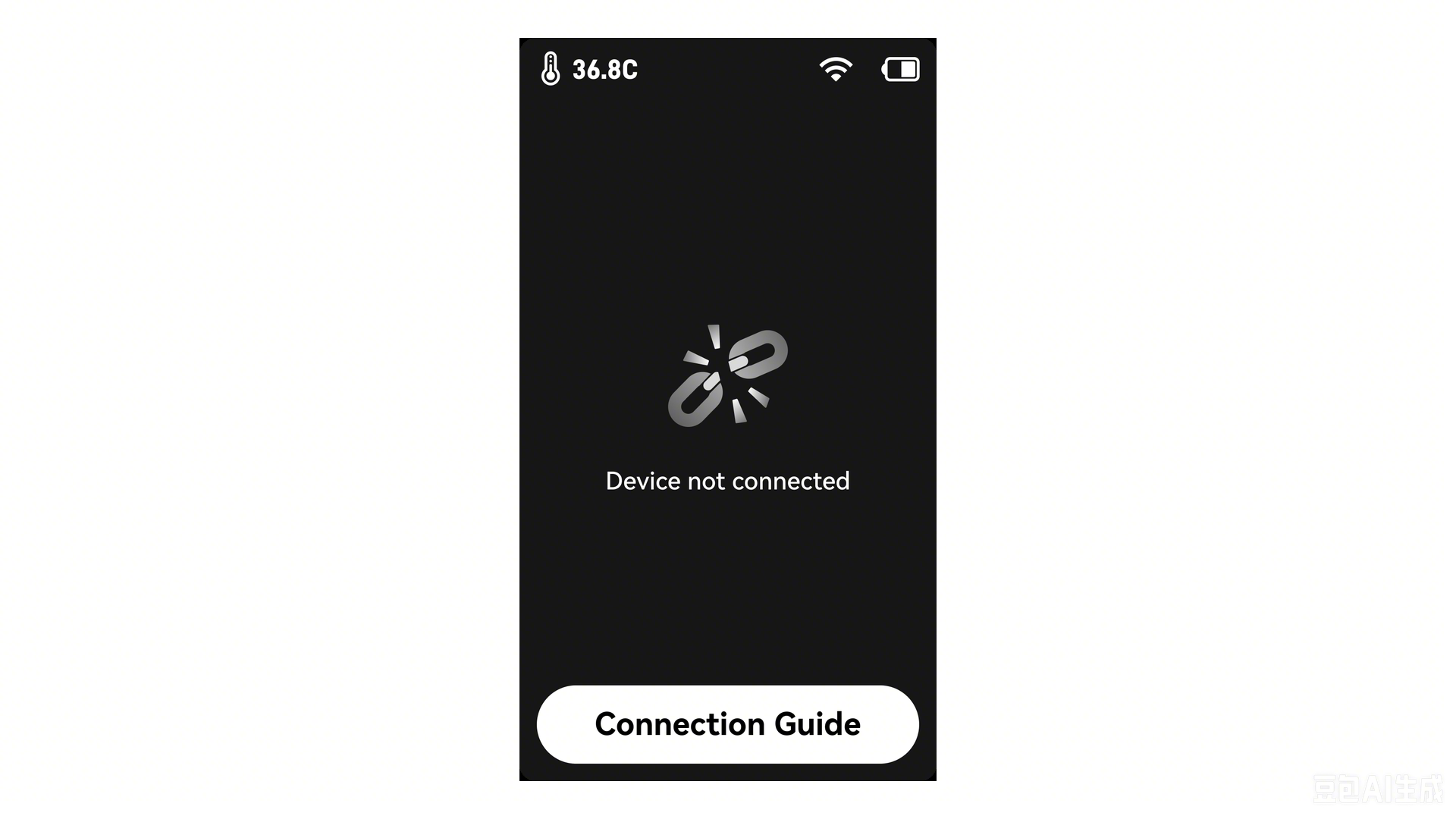
- The scanner screen displays "Device not connected."
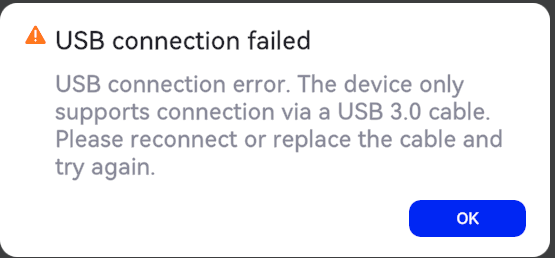
- Elegoo Scan displays an error message: "USB connection failed" or "Scanner Disconnected."
¶ Possible Causes
- The scanner is not set to USB mode.
- The scanner is connected to a USB 2.0 port instead of a USB 3.0 port.
- The required camera or firewall permissions are not enabled.
- The USB 3.0 data & charge cable is faulty.
¶ Troubleshooting Steps
¶ 1. Check the Connection Mode
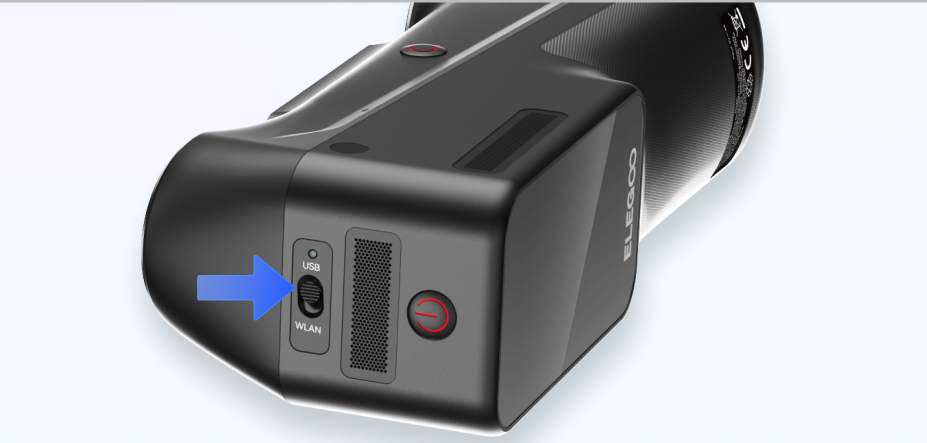
Make sure the connection mode switch on the scanner is set to USB, not another mode.
¶ 2. Check the Cable Connection
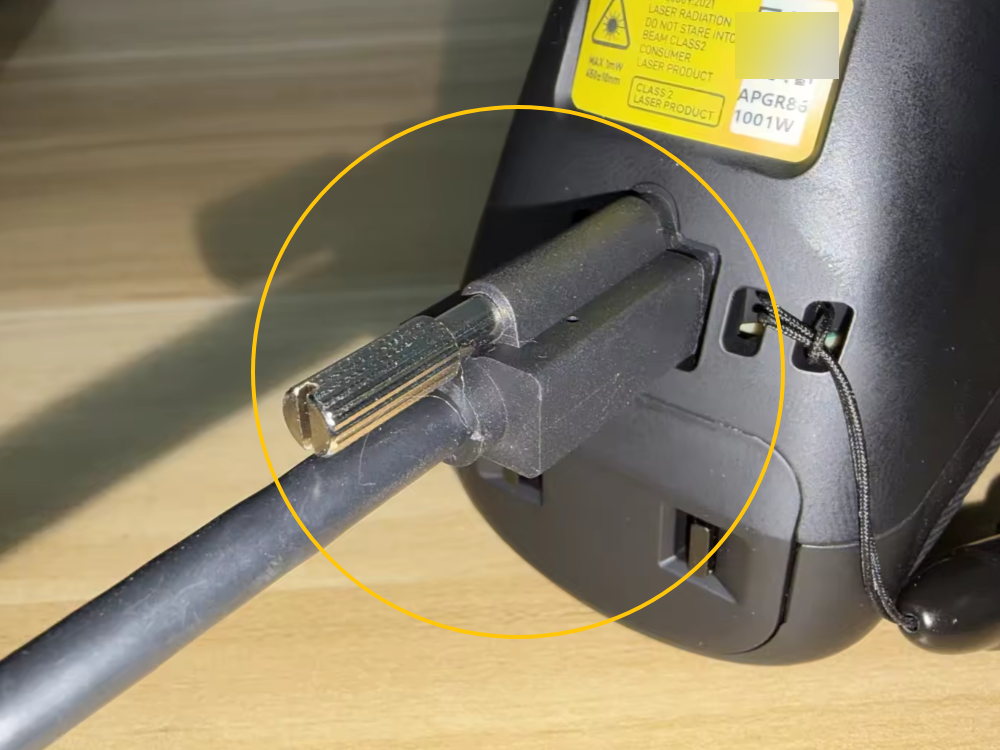
Make sure the USB 3.0 data & charge cable is securely connected. The end with the locking screws must be connected to the scanner, and the screws must be tightened.
After tightening the screws, gently tug on the connector to check that it does not come loose.
¶ 3. Check the USB Port Type and Location
¶ 3.1 Desktop Computers
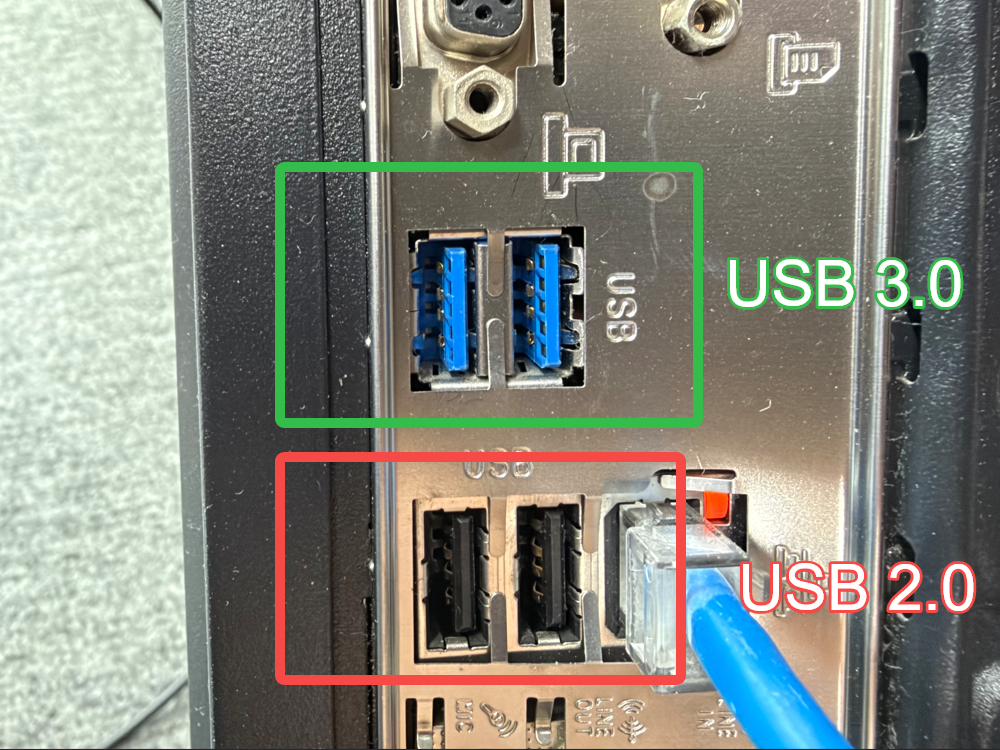
Connect the USB 3.0 data & charge cable to a USB 3.0 port on the rear I/O panel of the computer. This generally provides more stable power and data transmission. Avoid using front-panel USB ports.
Tip: USB 3.0 ports on desktop computers are often blue, which can help you identify them.
¶ 3.2 Laptops
Use a USB port that provides sufficient power. Do not connect the scanner through an unpowered USB hub or docking station.
¶ 3.3 If You Are Using an Adapter
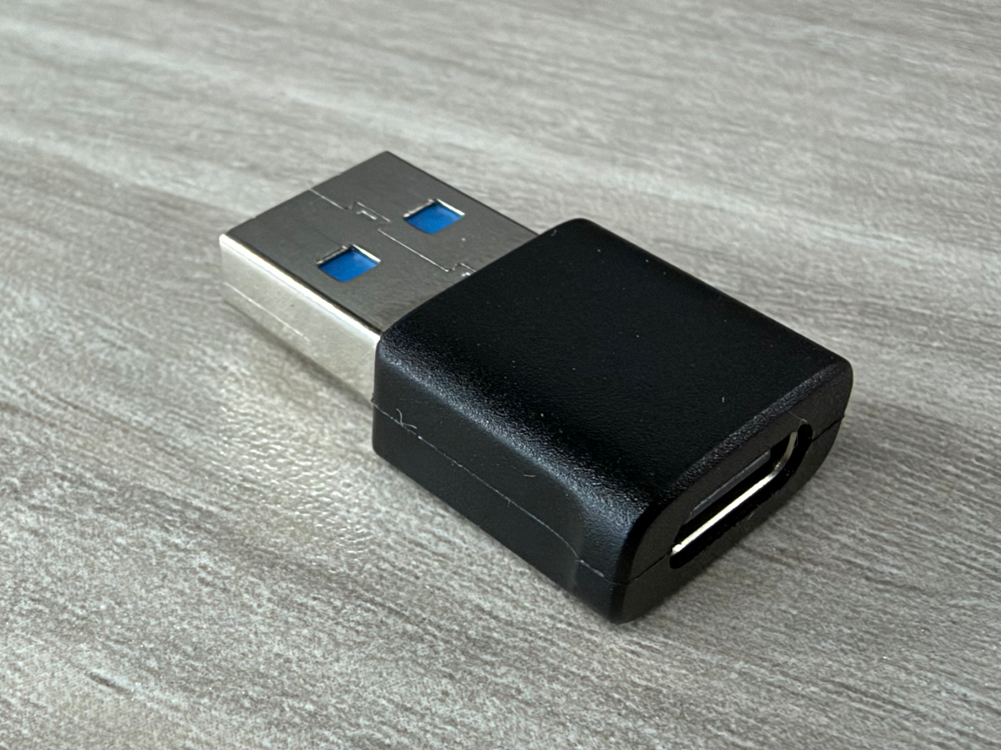
Make sure the adapter supports USB 3.0 or later and meets the connection requirements. You can search for "USB-A 3.0 Male to USB-C Female Adapter" on online shopping platforms.
¶ 4. Restart the Software and Reconnect the Cable
If the connection still fails after completing the checks above, try the following:
- Restart Elegoo Scan.
- Disconnect and reconnect the USB 3.0 data & charge cable.
If the issue persists, continue with the following troubleshooting steps.
¶ 5. Check Whether the Computer Detects the Scanner Cameras
¶ 5.1 On a Windows computer, go to Settings → Bluetooth & devices → Cameras and check the Connected cameras list.
The following three cameras should normally appear:
- Integrated Camera
- M1 Ultra Depth Camera
- M1 Ultra RGB Camera
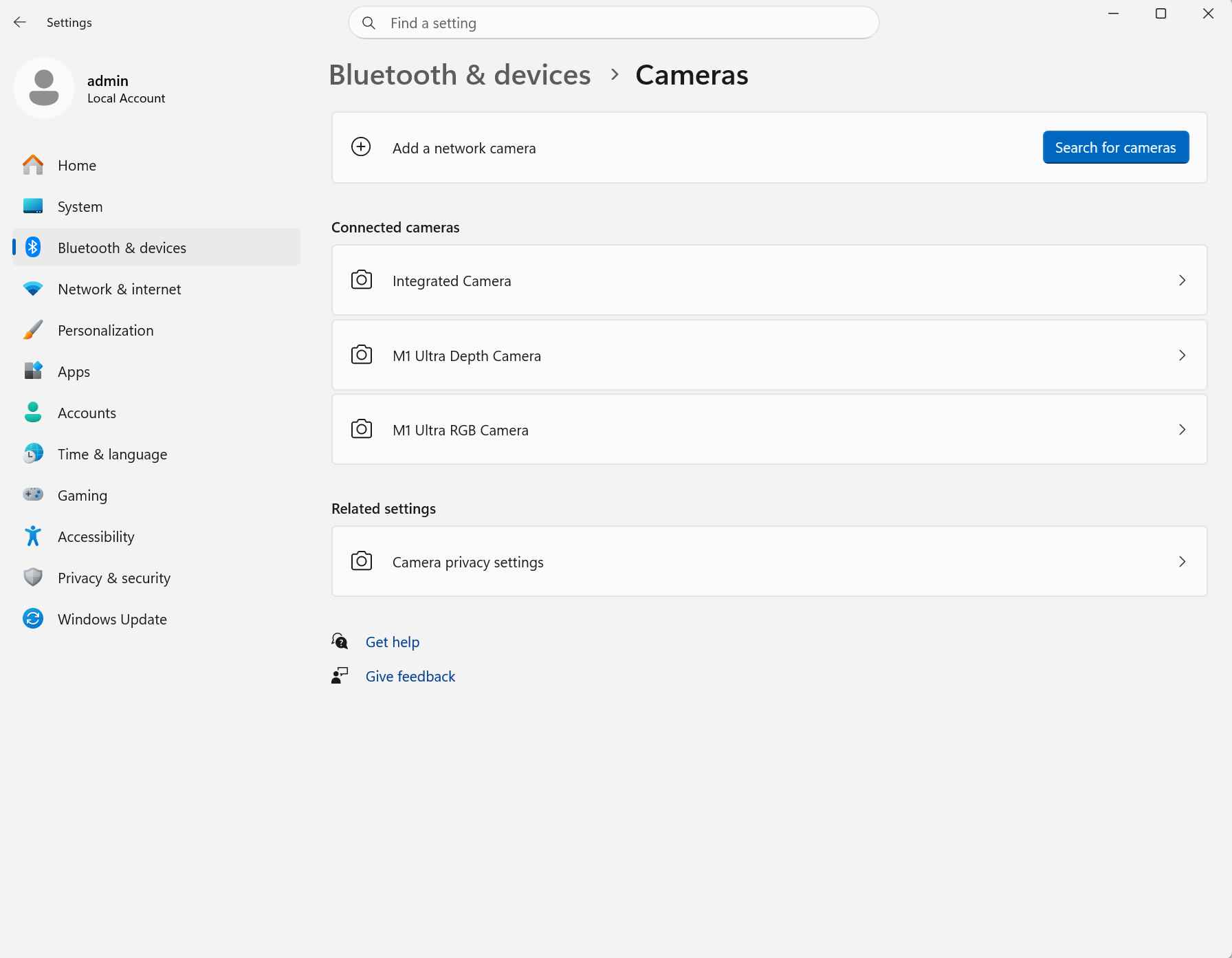
¶ 5.2 If all three cameras appear correctly, proceed to Step 6.
If either M1 Ultra camera is missing or a device displays a yellow warning icon, return to Steps 1–4 and recheck the cable connections and power supply.
¶ 6. Check Camera Privacy Settings and Firewall Permissions
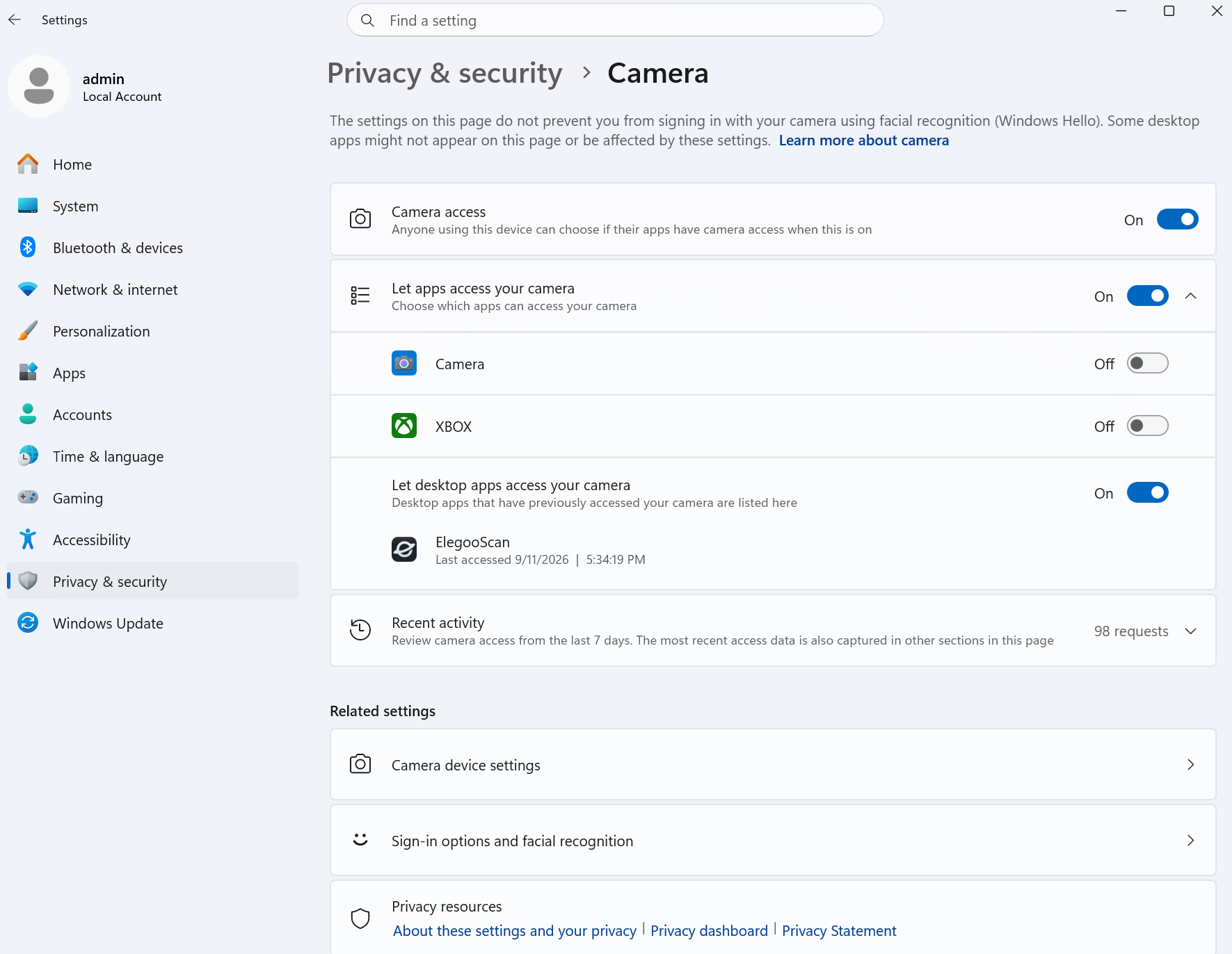
Go to Windows Settings → Privacy & security → Camera and make sure the following options are turned on:
- Camera access
- Let apps access your camera
- Let desktop apps access your camera
Also, check that Elegoo Scan appears in the desktop app access list, if the list is available.
[Insert Image 4: Windows Camera privacy settings showing all three options enabled and Elegoo Scan in the desktop app list.]
Next, open Windows Firewall settings and allow ELEGOO Scan to communicate through the firewall. Allow ELEGOO Scan to communicate through the firewall on Private and Public networks, as appropriate.
¶ If the Issue Persists
If the scanner still cannot connect after you have completed all the troubleshooting steps above, contact ELEGOO Technical Support and provide the following information:
- A video showing connection failure. Make sure the video clearly shows how the USB 3.0 data & charge cable is connected to the computer and scanner.
- The Elegoo Scan software version.
- The M1 Ultra firmware version.
¶ Important Notes
- Follow the troubleshooting steps in order. After each step, reconnect the cable, launch Elegoo Scan, and test the connection before proceeding.
- Do not use USB 2.0 ports, unpowered USB hubs, or excessively long third-party USB cables, as these may cause insufficient power delivery or data transmission errors.
- If the M1 Ultra cameras repeatedly appear and disappear from the Windows camera list, check the cable and USB port power supply first.
¶ Help us improve
If you have any ideas about the wiki pages, please let us know via ELEGOO official feedback channel.