¶ 1. How to Adjust the Scanning Distance
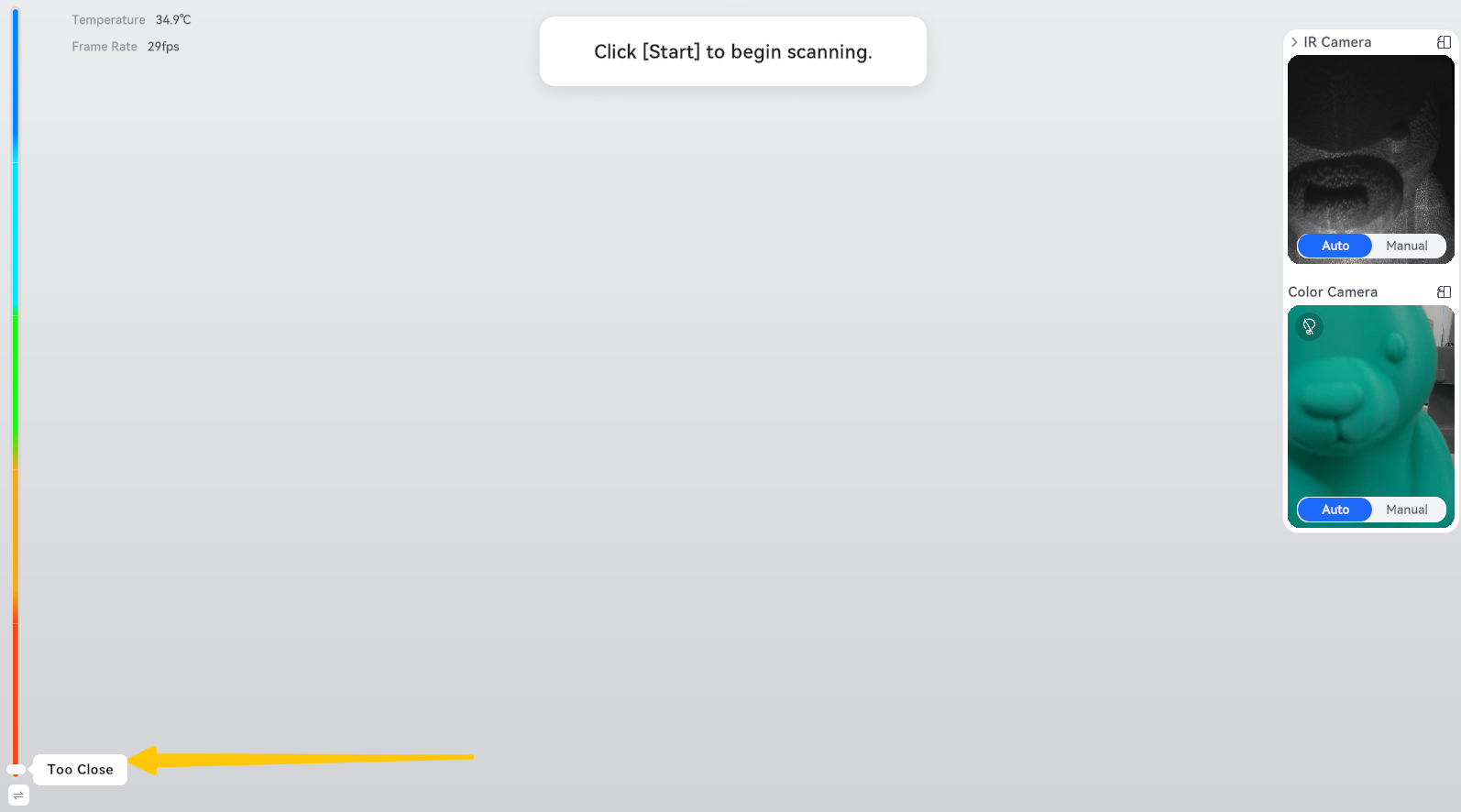
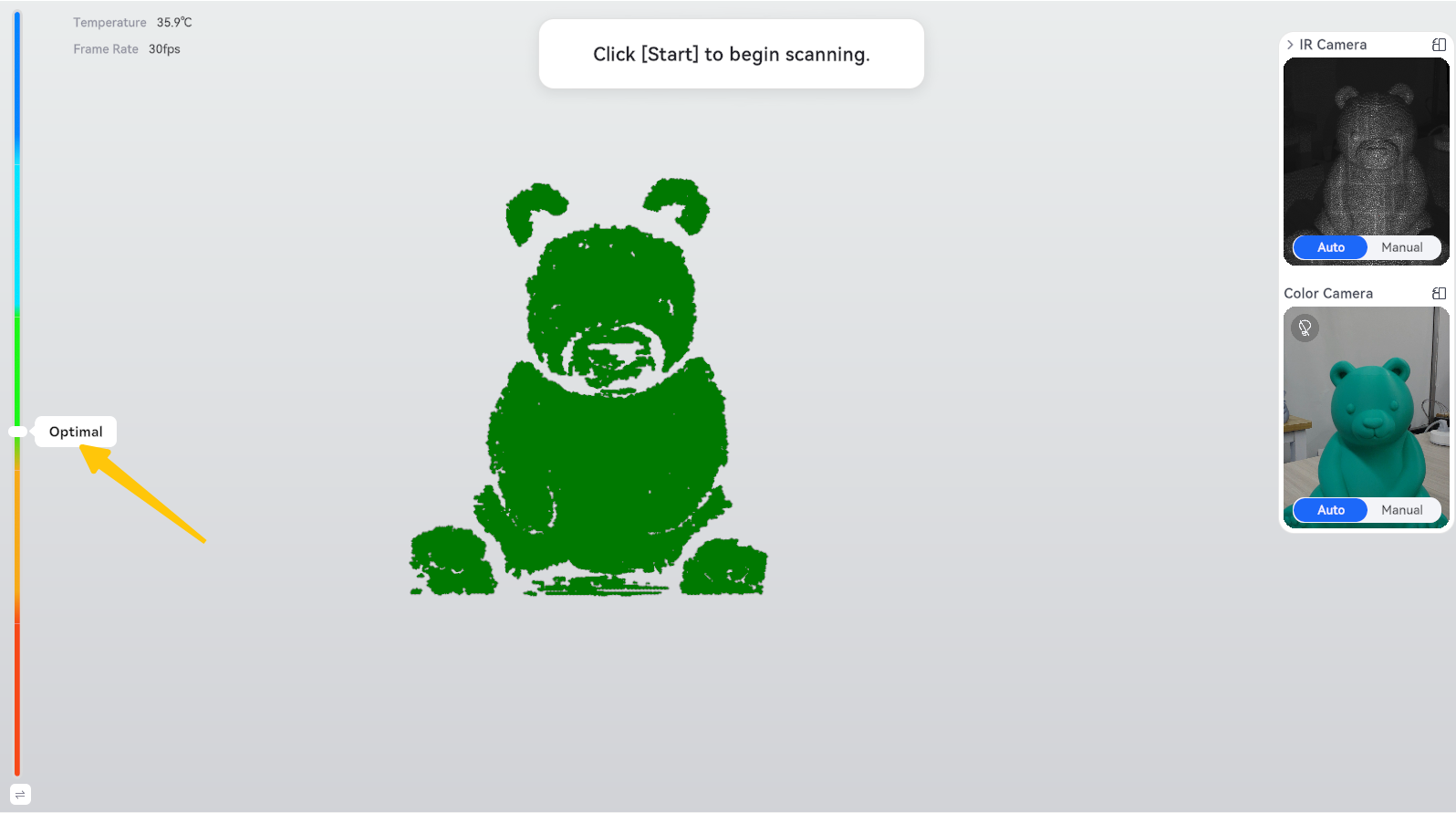
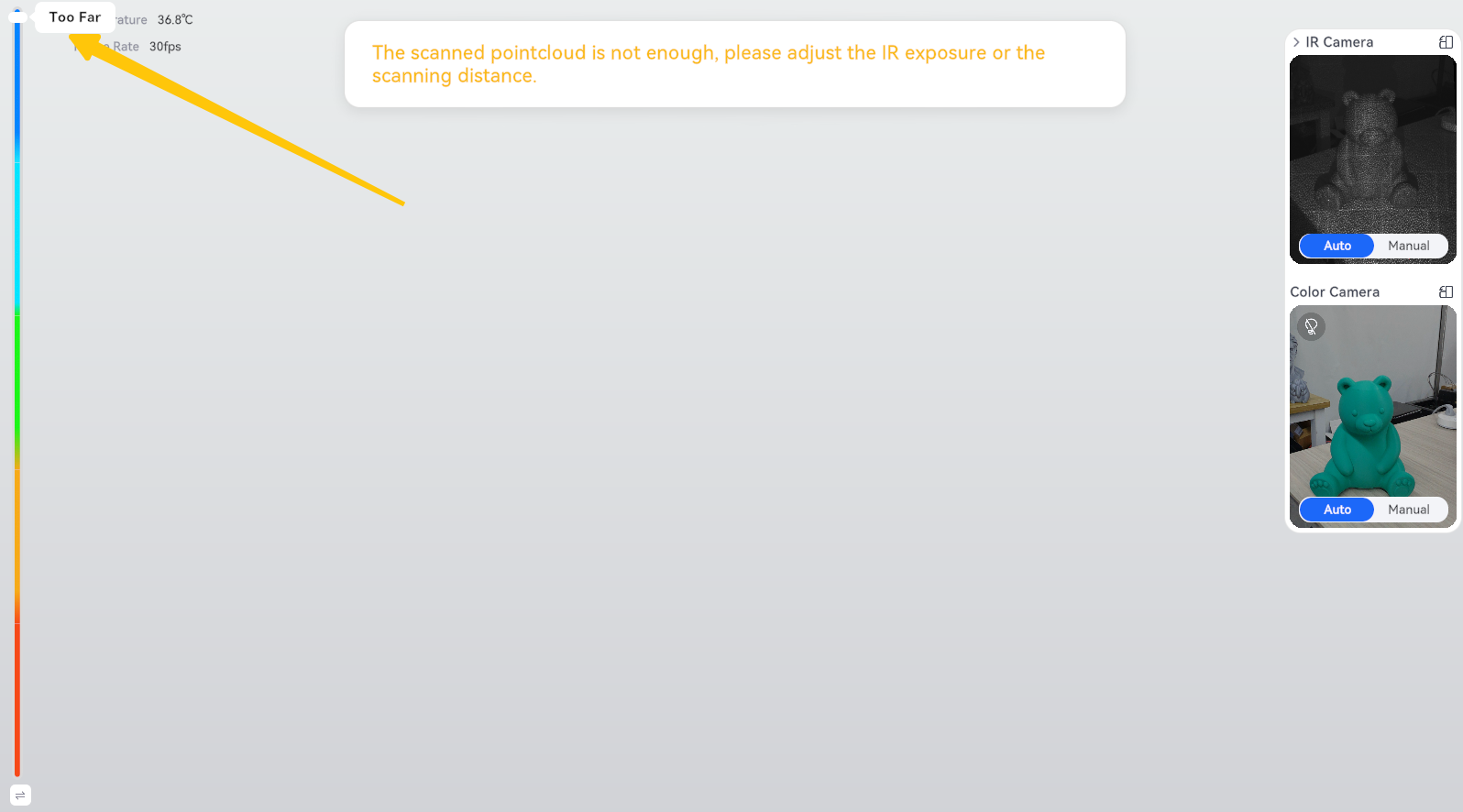
The scanning distance is the distance between the scanner and the object’s surface. When scanning different areas, adjust the distance as needed based on the surface features, and follow the distance guidance displayed in the software.
| Distance Status | How to Adjust |
|---|---|
| Too close | Slowly move the scanner away from the object. |
| Appropriate | Maintain the current distance. |
| Too far | Slowly move the scanner closer to the object. |
¶ Too Close
¶ Appropriate Distance
¶ Too Far
Before You Start Scanning:
- Point the scanner at the object.
- Move the scanner slightly forward and backward while observing the distance guidance in the software.
- Start scanning once the distance is appropriate and the scanning data appears stable.
Note: The appropriate scanning distance may vary between scanning modes. Always follow the software guidance. Even at the correct distance, not all surface areas may be captured completely.
¶ 2. How to Move the Scanner Correctly
¶ 2.1 Hold the Scanner Steadily
- Hold the handle firmly and keep your arm naturally close to your body.
- When scanning the sides or back of an object, move your body as needed instead of making quick movements with your wrist alone.
- When using a cable, leave enough slack to prevent it from pulling on the scanner.
¶ 2.2 Move Slowly and Smoothly
- Start at a slow speed and observe whether the scanning data remains continuous.
- If tracking warnings appear or the preview jumps, slow down.
- Avoid sudden acceleration, rapid swinging, or making large changes to both distance and angle at the same time.
How to Check Your Scanning Movement: New scanning data should continuously and accurately align with the existing model.
¶ 2.3 Maintain Overlap Between Consecutive Scans
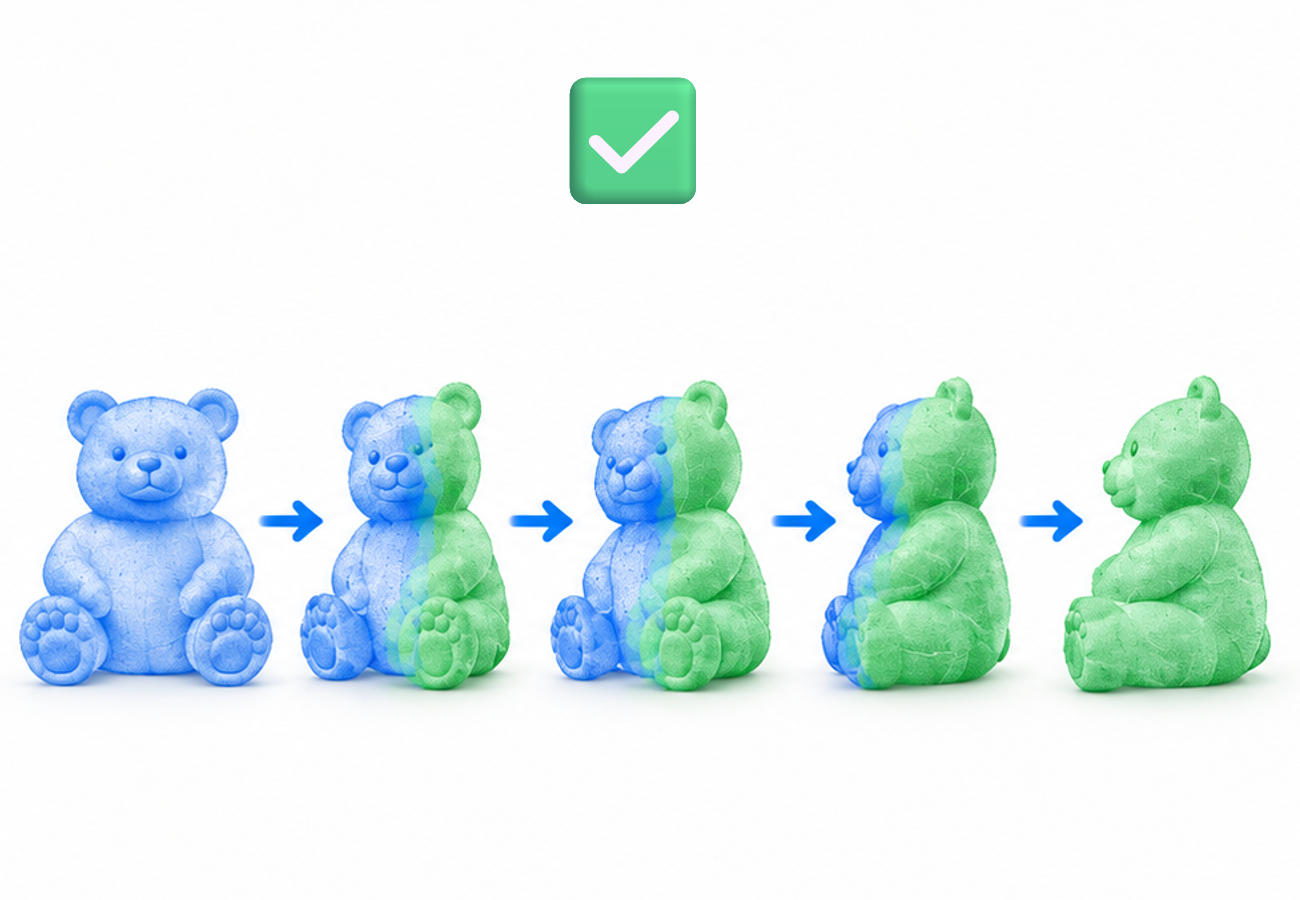
- When moving the scanner, make sure the new view overlaps with part of the previously scanned area.
For example, when moving from the front to the side of an object, keep both the edge of the front and part of the side visible in the preview before gradually turning toward the side. Do not jump directly from the front to the back.
- When using reflective marker mode, make sure enough common reflective markers remain visible from consecutive viewpoints.
¶ 2.4 Scan the Main Surfaces First, Then Scan Missing Areas
It is recommended to scan the main, easily recognizable surfaces first, then scan any missed areas, such as the top, bottom, and grooves.
When filling in missing areas, start from an area that has already been scanned successfully. Restore tracking before slowly moving toward the missing area. Do not jump directly to an area with no existing scanning data.
¶ 3. How to Scan Different Areas
¶ 3.1 Top and Side Surfaces
Scan the side first, then gradually raise the scanner and angle it toward the top. During movement, keep the top and part of the previously scanned side visible in the preview.
Note: Recheck the scanning distance whenever you raise or tilt the scanner.
¶ 3.2 Edges and Corners
Slow down when approaching a corner and move the scanner gradually along the object’s contours. Do not abruptly turn the scanner from one surface toward another.
When using reflective marker mode, make sure enough reflective markers remain visible before and after turning the corner.
¶ 3.3 Grooves and Holes
Scan around the opening first, then adjust the angle from different directions to capture the interior. If an area remains inaccessible, the hole may be too deep or its interior may be obstructed.
Do not move the scanner excessively close to the object or keep scanning from the same angle for too long just to capture the hole.
Note: Automatic hole filling cannot replace actual scanning data.
¶ 3.4 Large Flat Surfaces and Repetitive Structures
Large flat surfaces, smooth cylinders, and repetitive structures may make it difficult for the scanner to determine its position.
Adjust the scanning angle to bring edges, grooves, or other distinctive features into the field of view. If tracking continues to be lost, try using supported reflective marker mode.
¶ 3.5 Scanning with a Turntable
- Place the object securely on the turntable.
- Keep the scanner steady while the turntable rotates slowly.

- After scanning the sides, adjust the scanner angle to capture additional areas, such as the top.
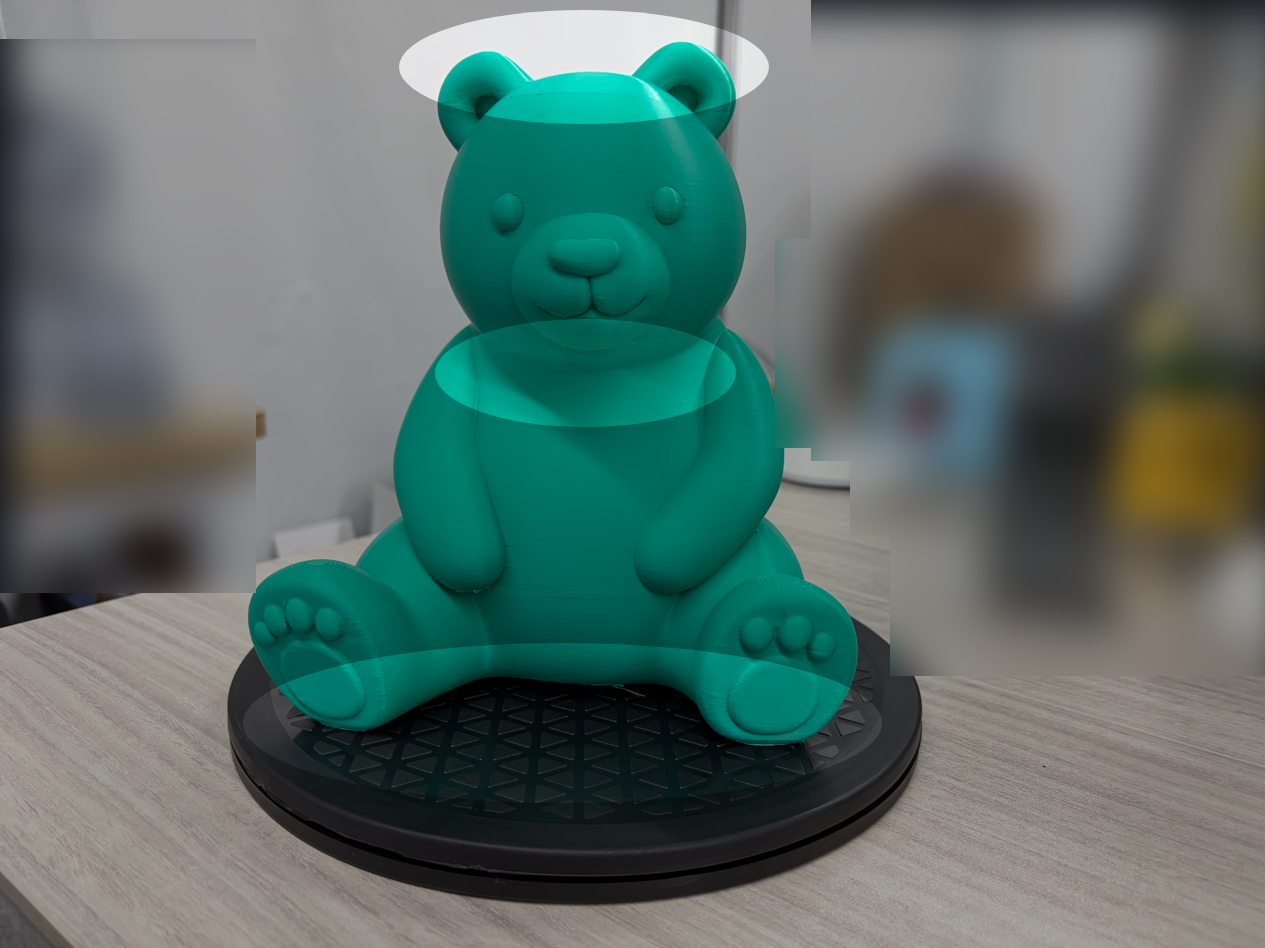
Note: When using reflective marker tracking, the markers used for positioning must maintain a fixed spatial relationship with the object. If the markers are attached to a stationary table, do not rotate the object independently.
If you need to scan the opposite side of an object, complete the current scan first. Then scan the other side and perform alignment.
¶ 4. What to Do If Tracking Is Lost
Tracking loss means the software temporarily cannot determine the scanner’s position. Do not continue scanning or shake the scanner rapidly.
Follow these steps:
- Stop moving the scanner and follow the software prompts to pause or enter the relocalization state.
- Slowly move back to an area that was previously scanned successfully.
- Adjust the scanning distance and angle, then wait for the software to reacquire tracking.
- Confirm that the new data aligns with the existing model before continuing.
If tracking cannot be restored, check the reflective markers, object features, scanning distance, and exposure settings. Also, make sure the object has not moved.
Note: Restoring tracking does not automatically correct previously misaligned or inaccurate data.
¶ 5. Frequently Asked Questions
Q1: Is Closer Always Better When Scanning Fine Details?
No. Scanning too close can also result in missing data. Maintain a distance within the range recommended by the software and check for exposure issues or obstructions.
Q2: Why Is Tracking Still Lost Even When I Move Slowly?
The object may lack distinctive features, or too few reflective markers may be visible. Try adjusting the scanning angle or adding reflective markers before scanning again.
Q3: Why Are There Still Gaps After Scanning the Object Once?
Some areas may have been scanned from unsuitable angles or may have been obstructed. Return to an area that has already been scanned successfully, then approach the missing area from a different angle to fill in the gaps.
Q4: Why Is No New Data Captured When the Scanner Is Not Moving?
The surface may be reflective, the exposure settings may be unsuitable, or the surface may be obstructed. Make small adjustments to the viewing angle while maintaining an appropriate scanning distance.
¶ Final Checklist Before Completing the Scan
After scanning, rotate the model in the preview and carefully check the following:
- Check for missing areas on the top, bottom, corners, and inside grooves.
- Check for ghosting or misalignment in the model.
- Check whether adjacent scanning areas are properly connected.
If any areas are missing, return to a previously scanned area to restore tracking before scanning the missing parts.
Remember these three key points: maintain the correct distance, move slowly, and keep scanning areas overlapping.
Maintaining the correct scanning distance, moving the scanner slowly, and maintaining overlap between consecutive scanning areas can help reduce tracking loss, ghosting, and missing data.
¶ Help us improve
If you have any ideas about the wiki pages, please let us know via ELEGOO official feedback channel .