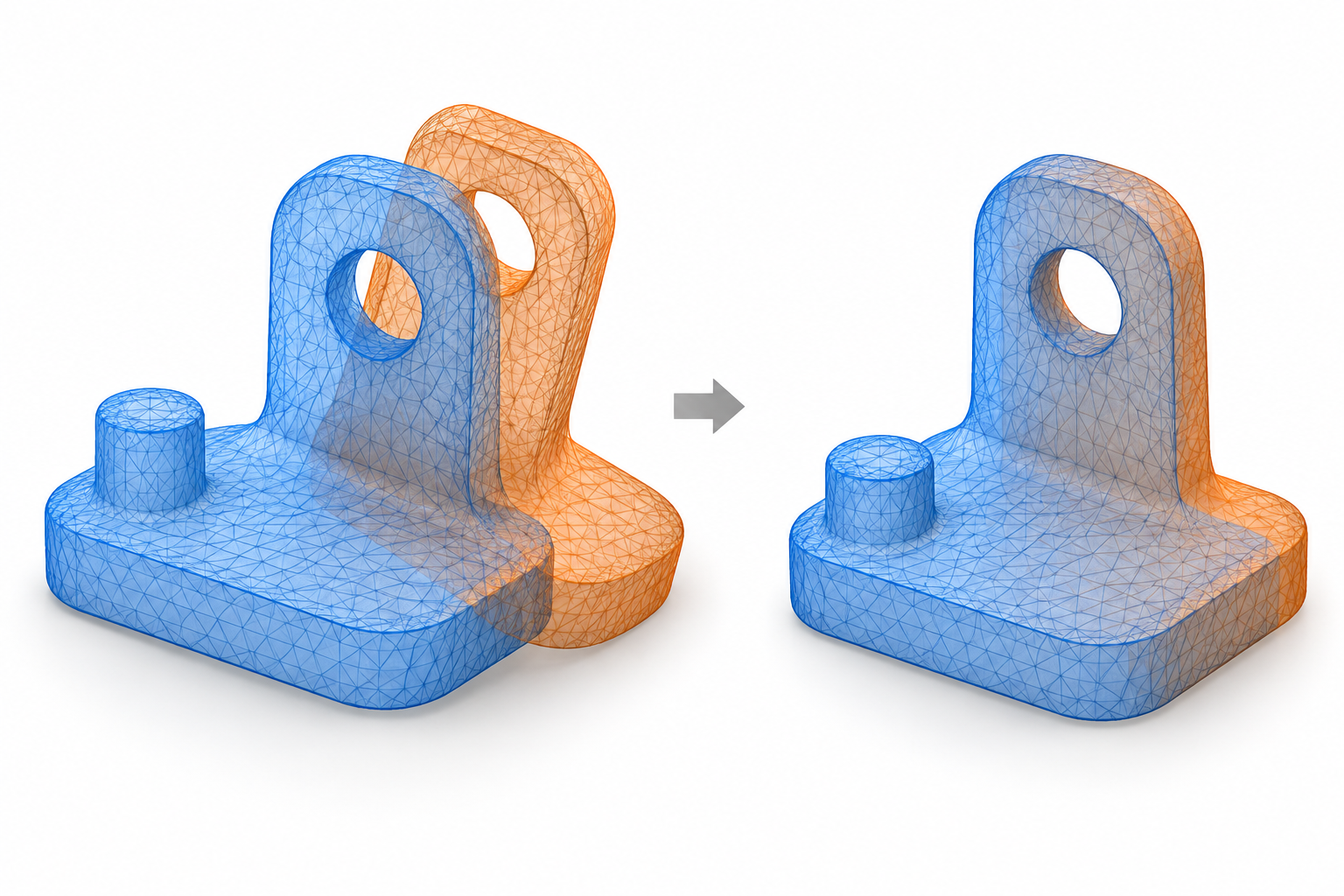
A single scan may not capture all surfaces of an object. For example, when an object is placed on a table, its bottom surface is usually inaccessible. In this case, scan the exposed surfaces first, then flip the object to scan the bottom separately. Finally, align and merge the data from multiple scans to create a complete model.
- Alignment aligns corresponding areas captured in different scans.
- Merging combines the aligned data into a single dataset for generating a complete model.
¶ Preparation Before Scanning
- Keep the object unchanged: Avoid deforming the object or loosening any parts when flipping it or adjusting its position.
- Preserve overlapping areas: Two scans must share some of the same surface areas so the software can determine their relative positions.
- Choose distinctive features: The overlapping areas should include easily recognizable features, such as protrusions, grooves, and holes. Avoid relying solely on flat surfaces or repetitive patterns.
¶ Procedure
¶ 1. Complete the First Scan
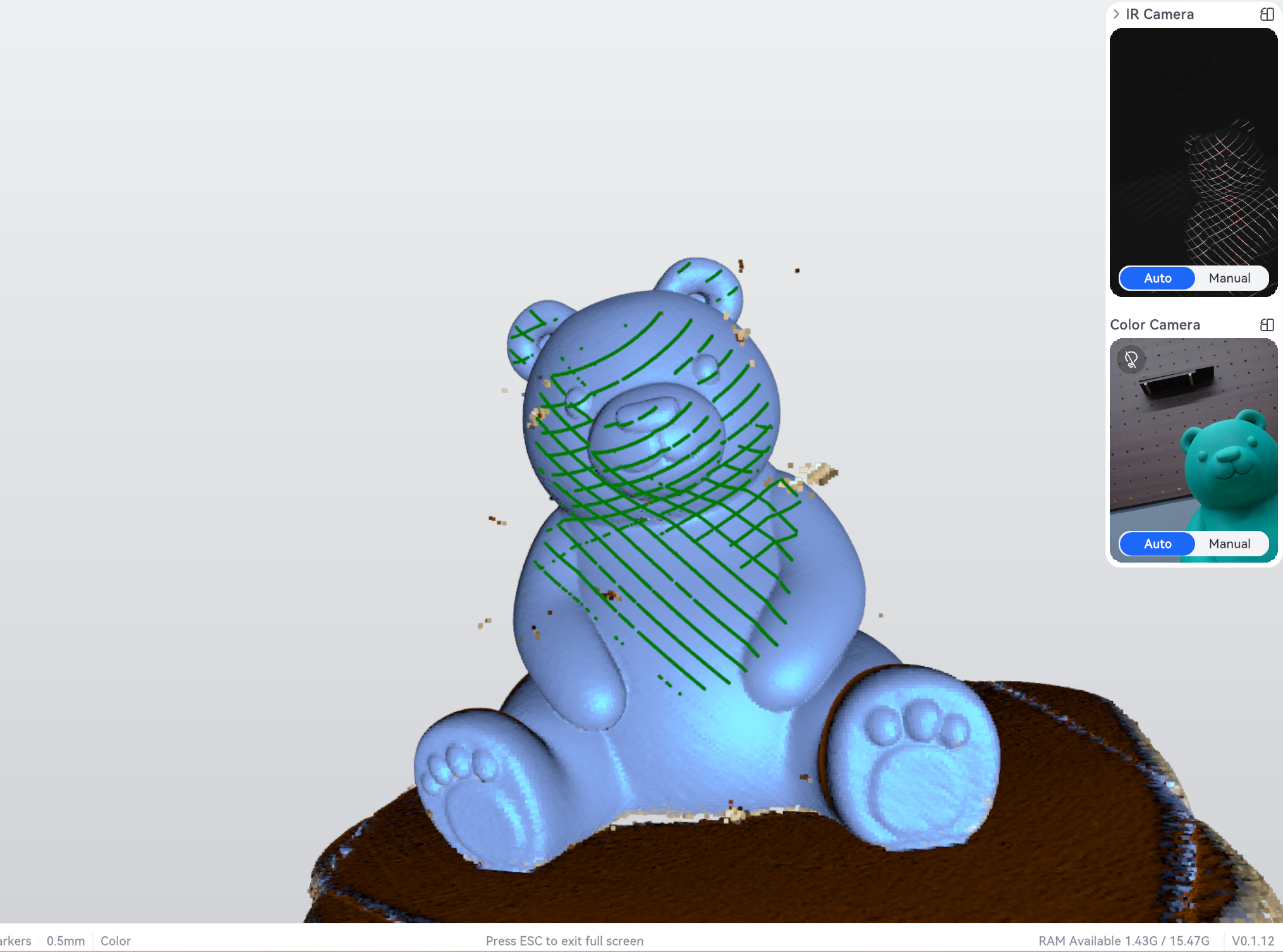
Place the object securely and scan the currently visible surfaces. In addition to the front, try to capture the side surfaces to preserve overlapping areas for the next scan.
When finished, click Finish to save the scan data.
¶ 2. Identify Unscanned Areas

Review pointcloud or mesh data to identify and note any missing areas.
¶ 3. Reposition the Object and Perform Additional Scans
3.1 Flip the object to expose the areas that were not captured in the previous scan.
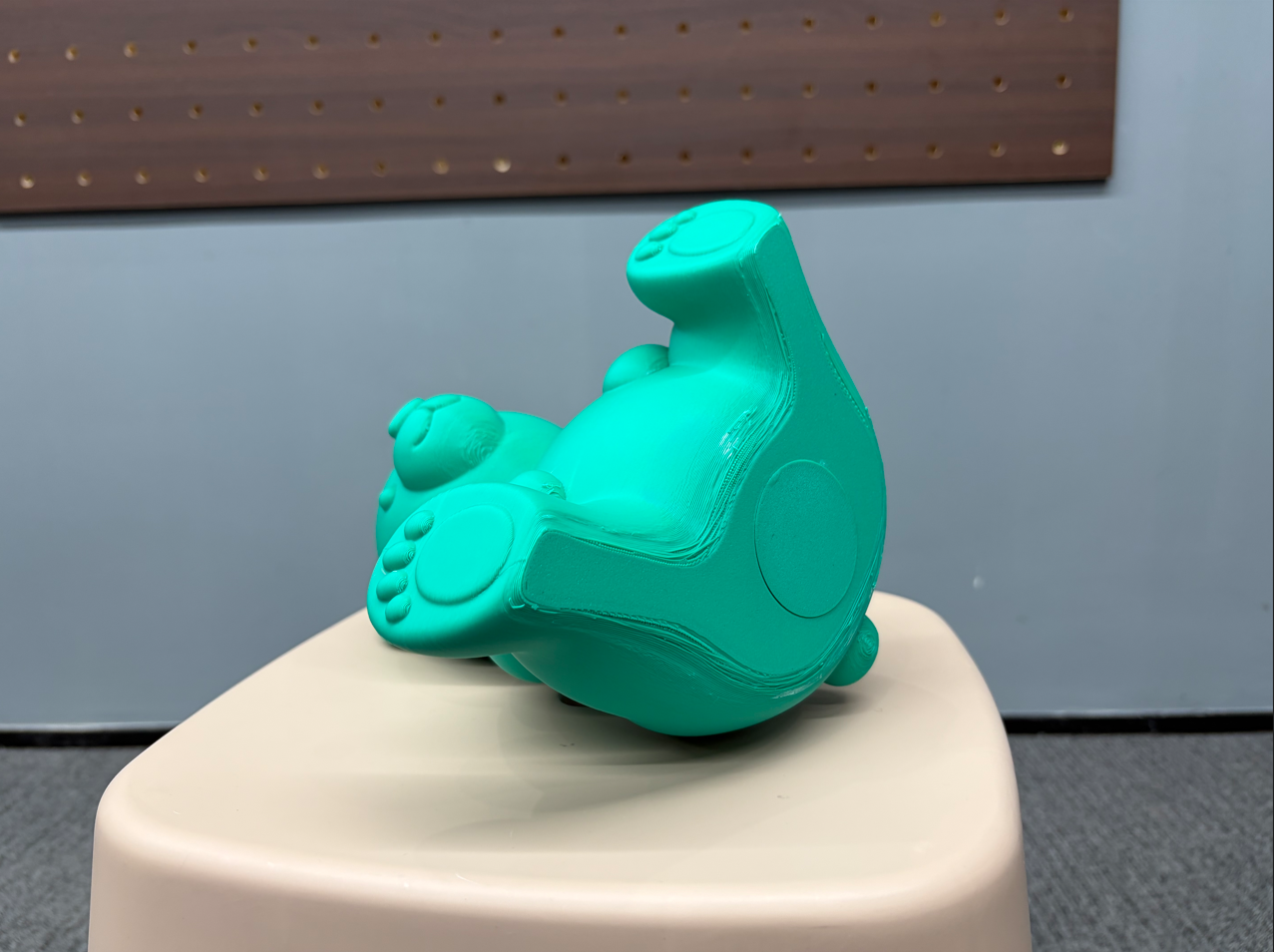
3.2 Create a new scan task and capture the newly exposed surfaces in the new task.
3.3 Scan the missing areas first.
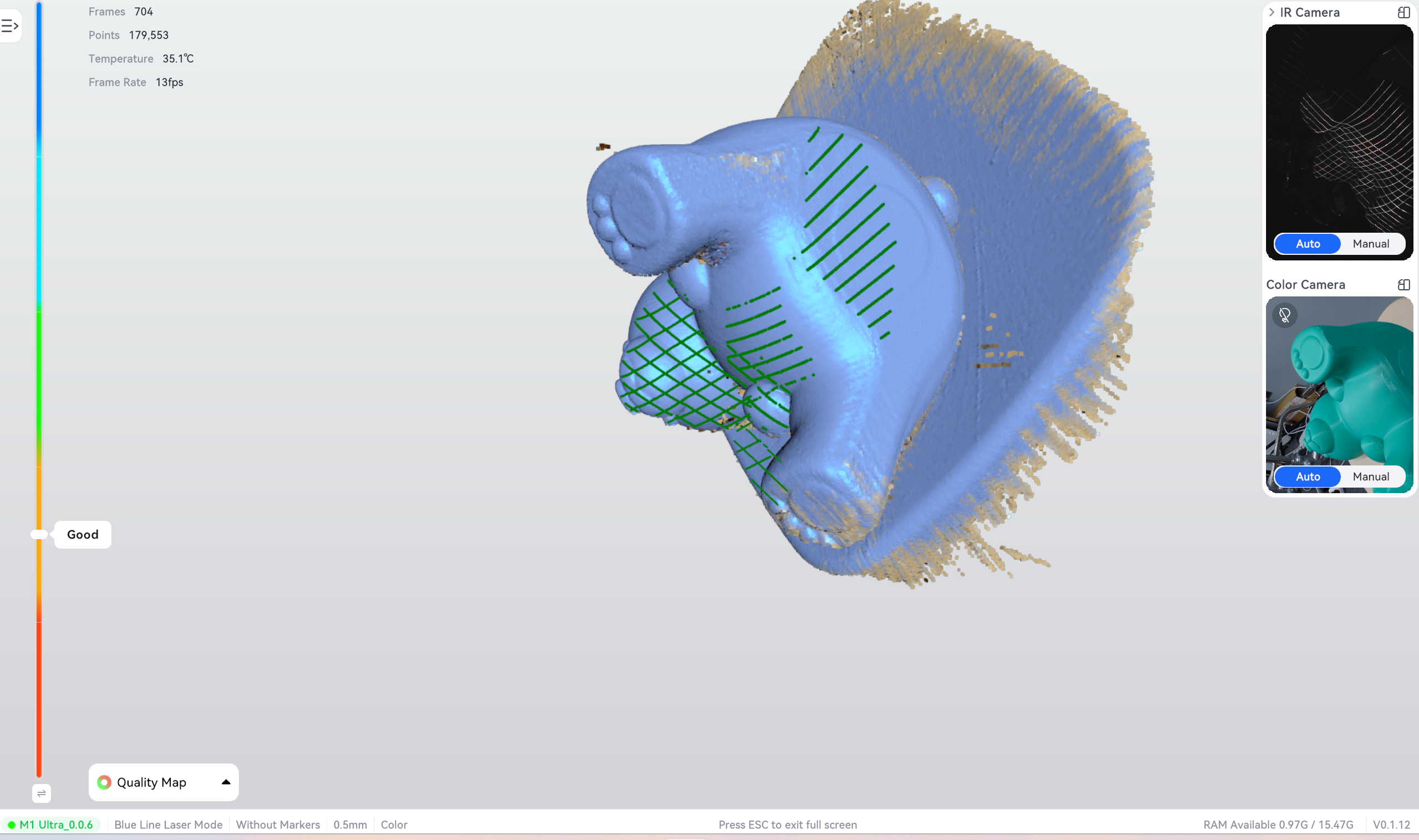
3.4 Scan some of the same surfaces captured in the first scan.
For example, when flipping the object to scan its bottom, also scan some of the surrounding front and side surfaces. Repeat this process until all required surfaces have been captured.
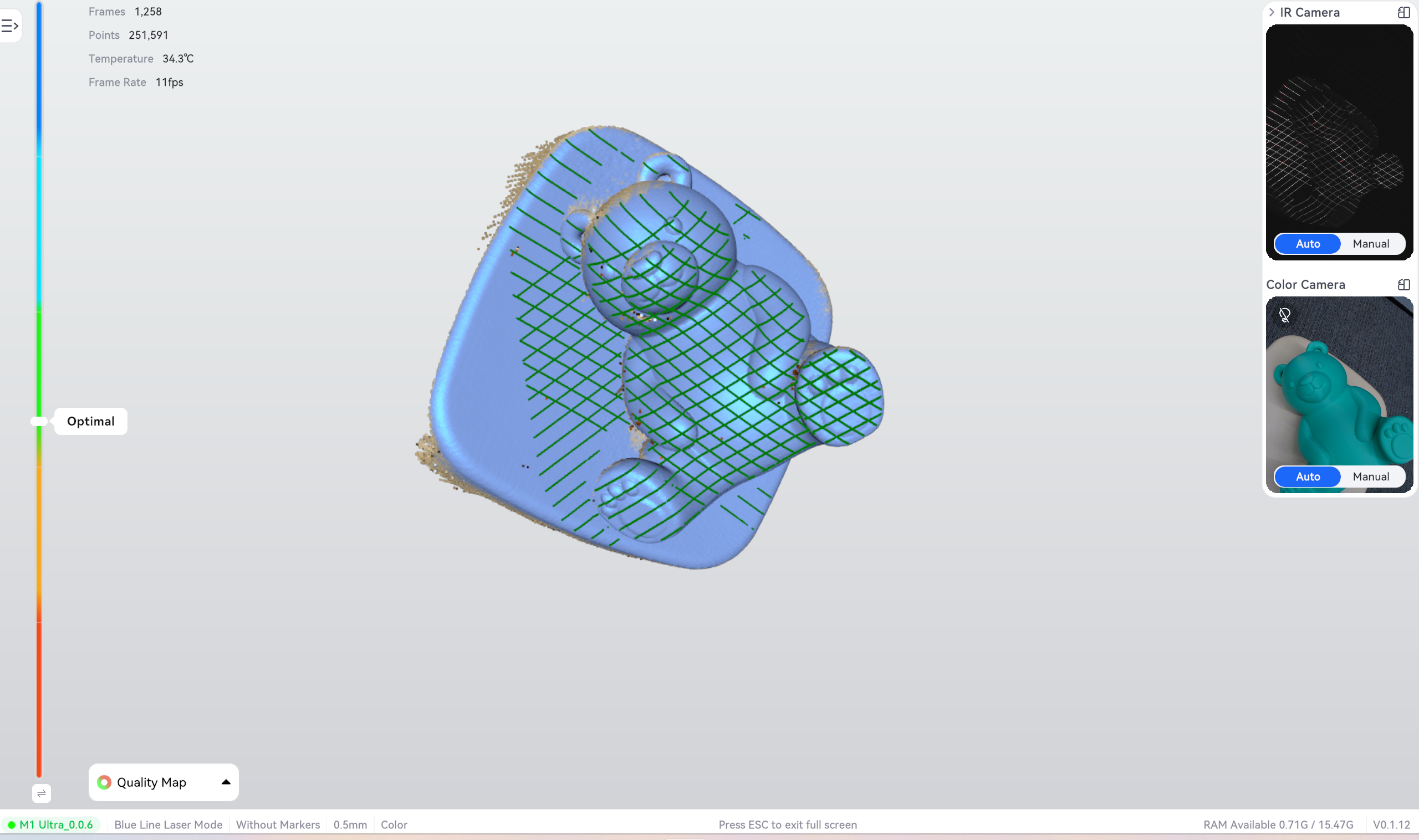
¶ 4. Remove Unnecessary Data

4.1 Before alignment, inspect each scan individually and remove irrelevant data, such as the table, support fixtures, and surrounding objects.
Note: Preserve the overlapping areas on the object itself. Removing too much data may make alignment difficult or impossible.

4.2 Once you have confirmed that the data is correct, Click "Mesh Wrapping".
¶ 5. Align the Scan Data
Select the scan datasets to be aligned and use the software's alignment function.
- Automatic alignment: The software automatically aligns the datasets based on their common features.
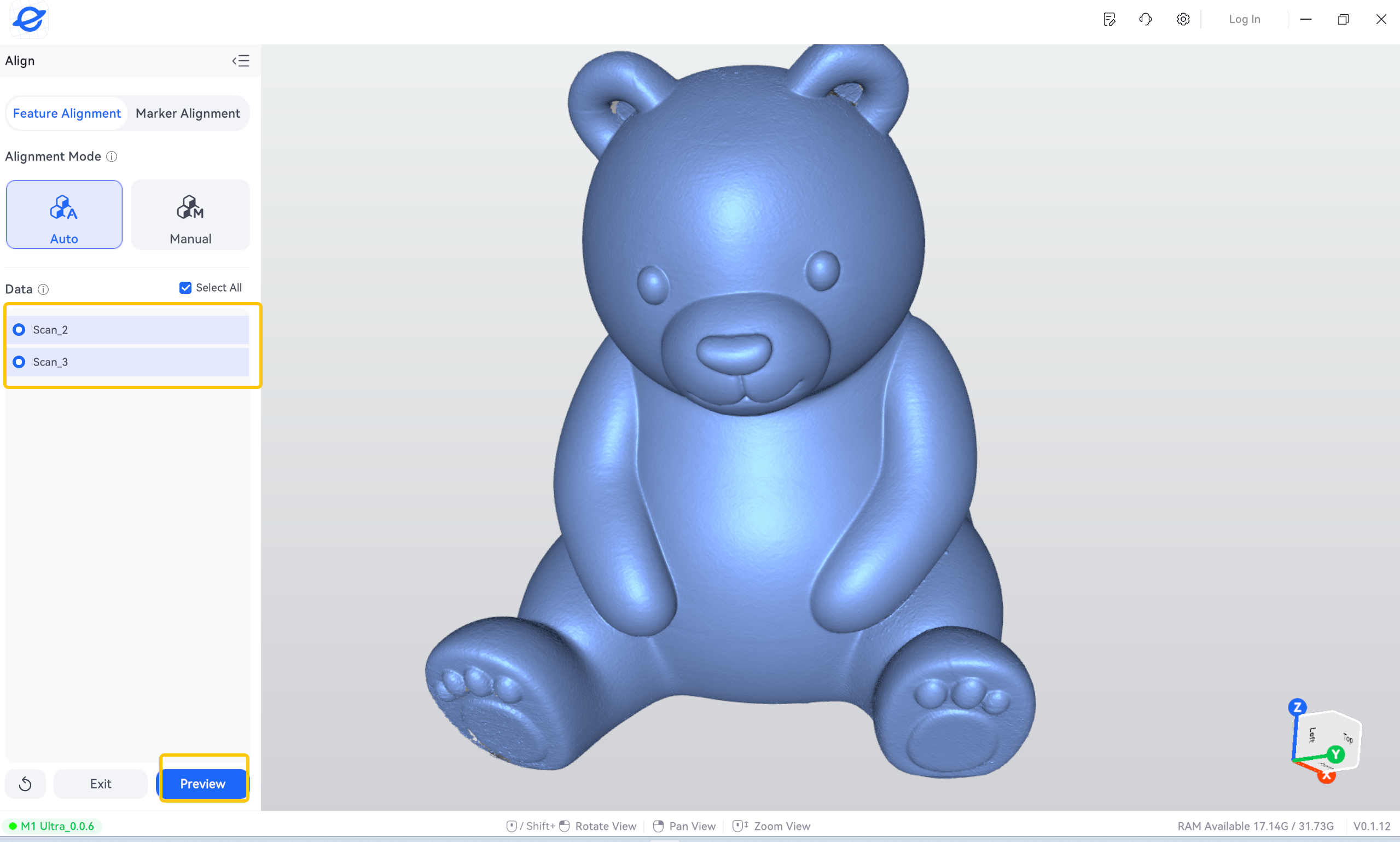
- Manual alignment: If automatic alignment fails or produces incorrect results, select corresponding points in both datasets and then perform alignment. Follow the software's instructions regarding the required number of points. Distribute the selected points across the overlapping area rather than clustering them in a small area or arranging them in a straight line.
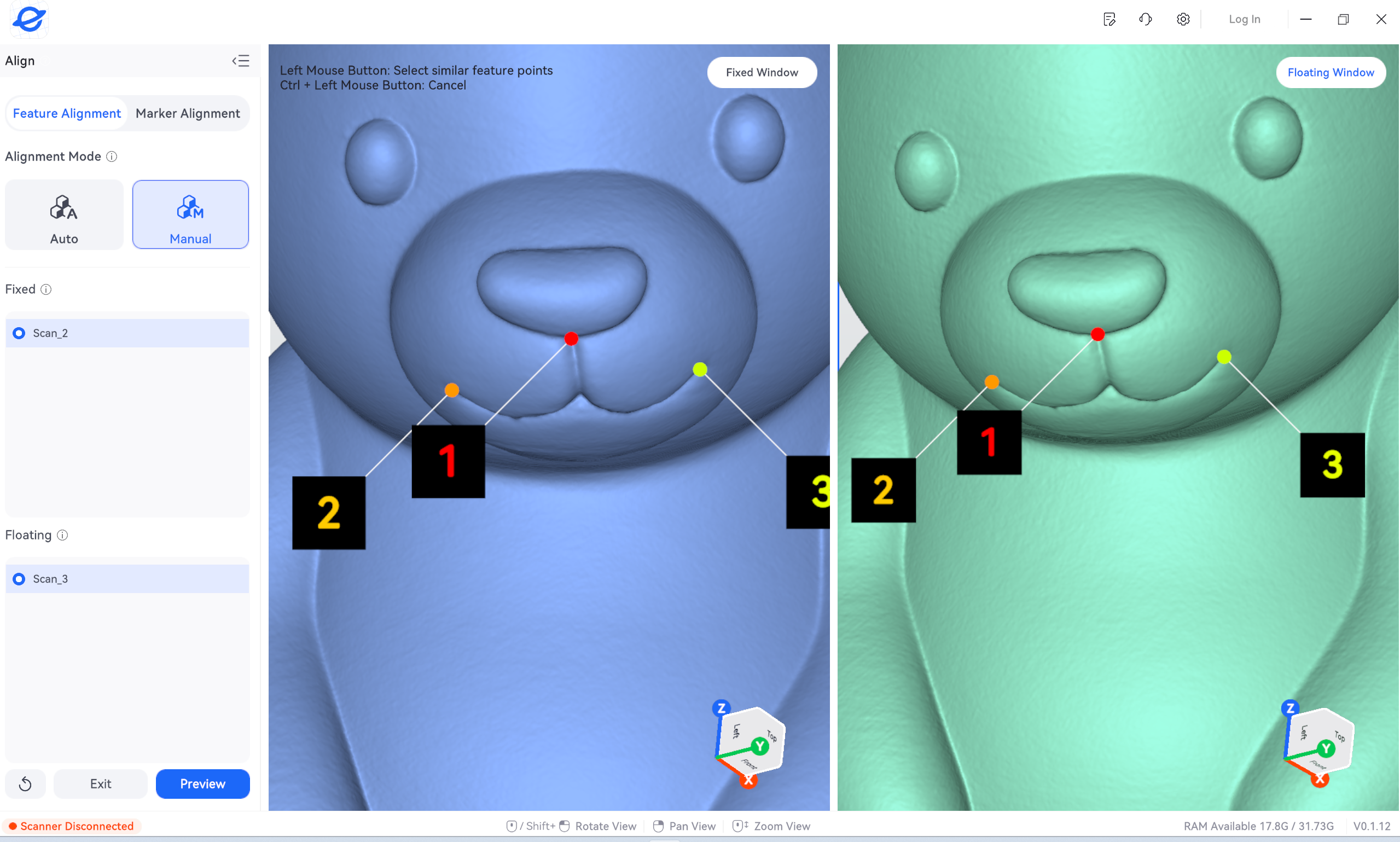
For example, select the center of the same hole, the tip of the same protrusion, and the same clearly defined corner in both datasets.
¶ 6. Check and Merge the Data
Rotate and zoom in on the model to inspect the transition areas between scans. Check the following:
- Whether corresponding surfaces overlap correctly and whether any double contours are visible.
- Whether the surfaces are continuous or show obvious steps or misalignment.
- Whether holes, edges, and other structural features match correctly.
Once alignment is confirmed, merge the data. If necessary, perform mesh optimization, mesh smoothing, hole filling, and other processing operations before exporting the model.
¶ Frequently Asked Questions
¶ Q1. Automatic Alignment Fails
Check whether the overlapping areas are sufficient and try manual alignment. If necessary, perform additional scans.
¶ Q2. Double Contours or Misalignment Appear After Alignment
Select the corresponding points again and check whether similar-looking holes or patterns were selected incorrectly.
¶ Q3. Gaps Remain After Merging
Scan the missing areas again, ensuring that the new scan includes some of the surfaces already captured in the existing data.
Tip: When using reflective markers for alignment, both scans must include the same reflective markers attached to the object that have not moved relative to it. After flipping the object, reflective markers on the table or support fixtures may have changed their positions relative to the object. These markers must not be used directly as common references for aligning the object scans.
¶ Help Us Improve
If you have any suggestions for our wiki pages, please let us know through the ELEGOO official feedback channel.